Introduction
This document provides instructions for resetting a tenant in Oloid Vault (Chrome/Chromium) to remove the existing tenant configuration and restore the application to its default state.Prerequisite
You must have valid Tenant Admin credentials to access Admin Mode in Oloid Vault.Steps to Reset Tenant
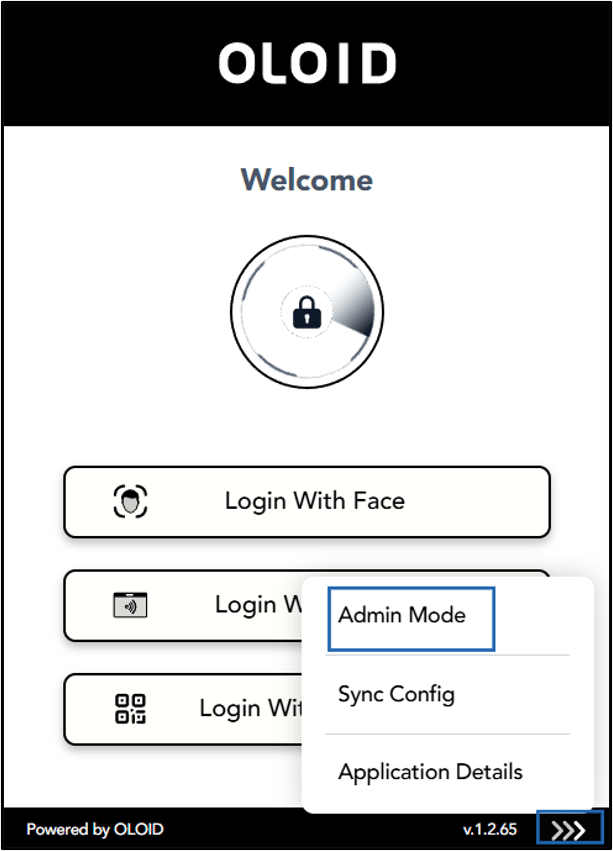
- Open Google Chrome browser and click Oloid Vault icon located on the toolbar.

- Go to More option (

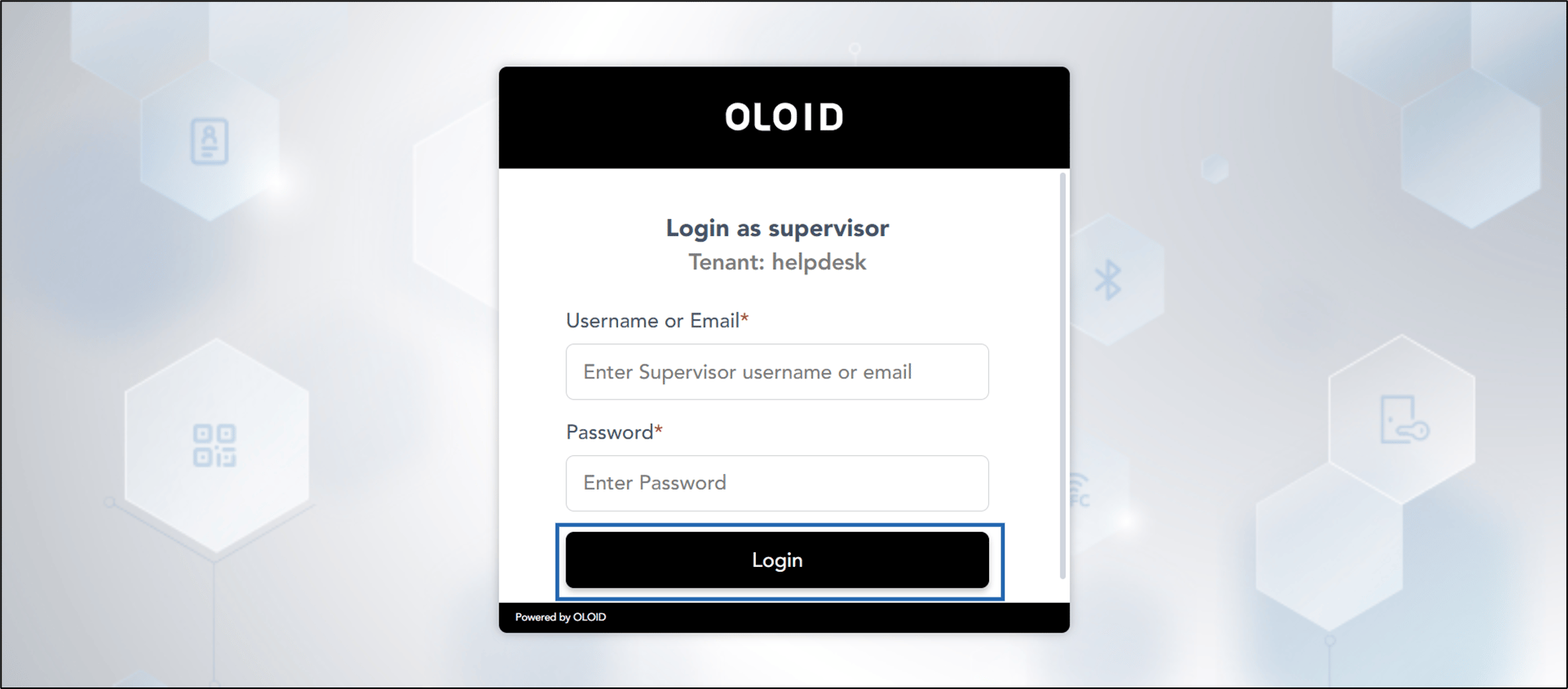
- Do the following:
- Enter your Username or Email ID.
- Enter Password.
- Click Login.
- Select More (

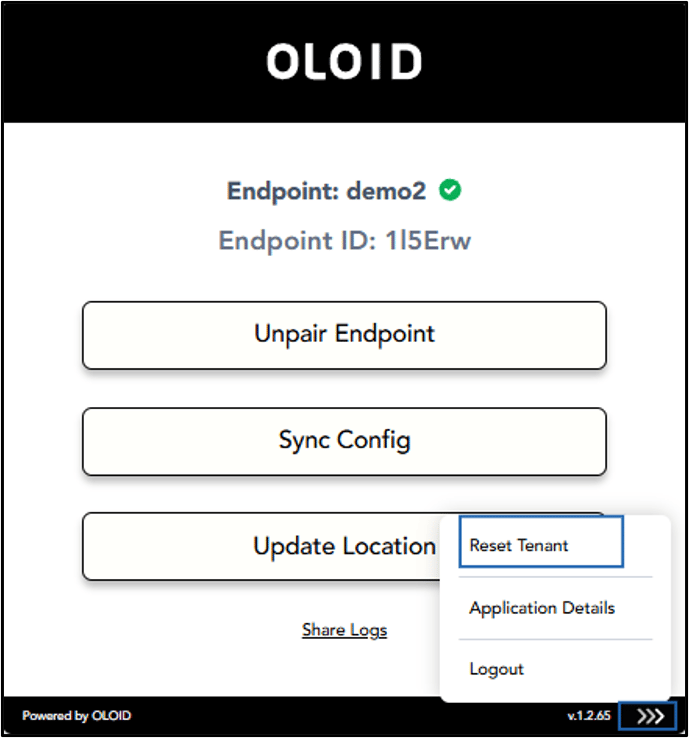
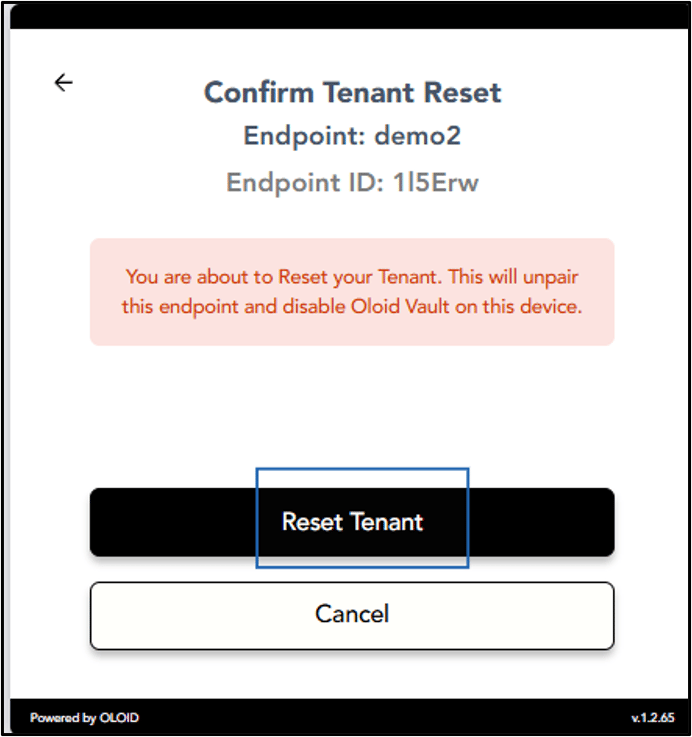
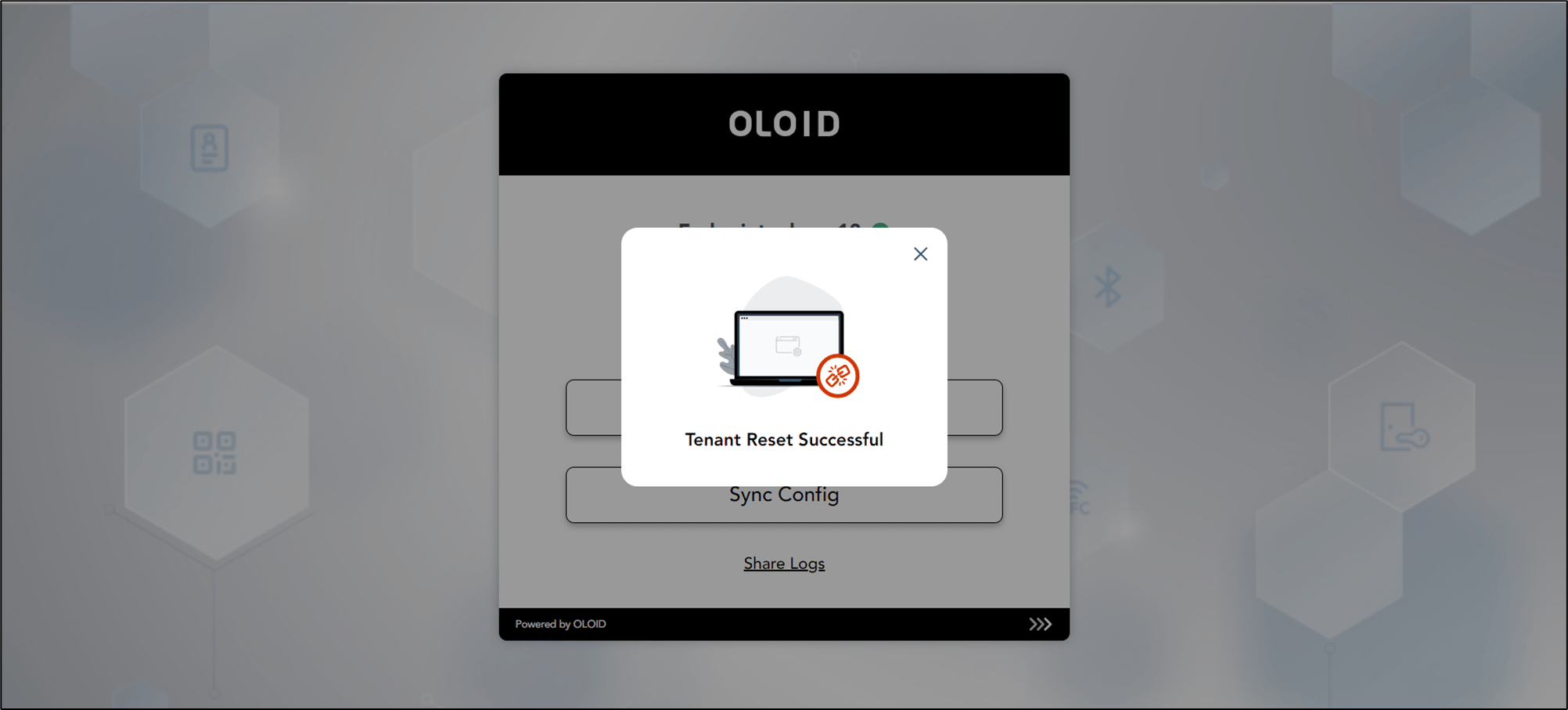
- Select Reset Tenant.