Introduction
This document provides instructions for manually pairing an endpoint in Oloid Vault (Chrome/Chromium) when automatic pairing fails or the endpoint needs to be manually configured by an Admin or Supervisor.Prerequisites
- You must have Admin or Supervisor credentials to perform endpoint pairing.
- The Chrome Vault extension must be installed and accessible from the browser toolbar.
- The application must be created and configured in the Tenant Admin Portal.
Steps to Manually Pair Endpoint
-
Open Google Chrome browser and click Oloid Vault icon located on the toolbar.

-
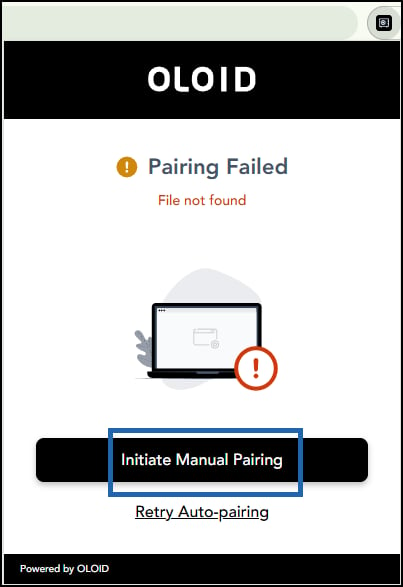
Click Initiate Manual Pairing.
-
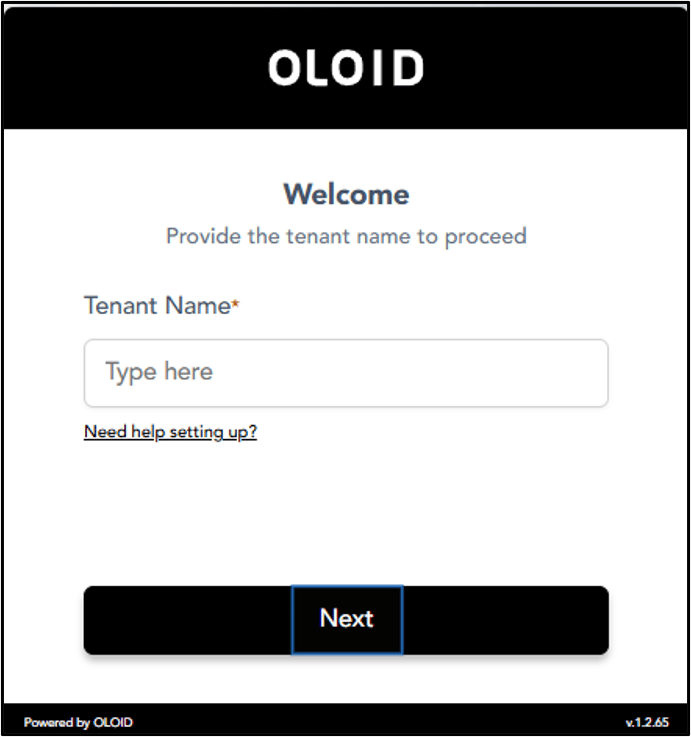
Enter Tenant Name and click Next.
Note: If you do not have Tenant name, contact Oloid support.
-
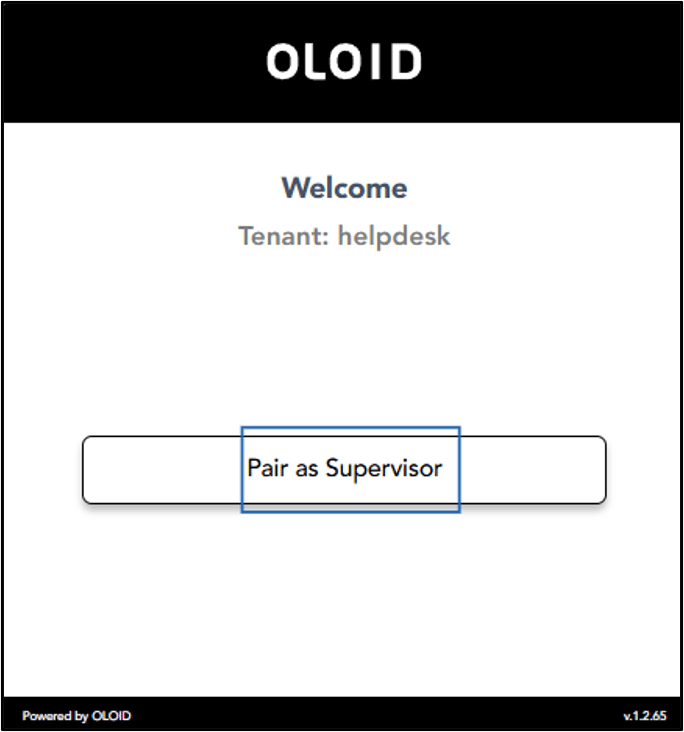
Click Pair as Supervisor.
-
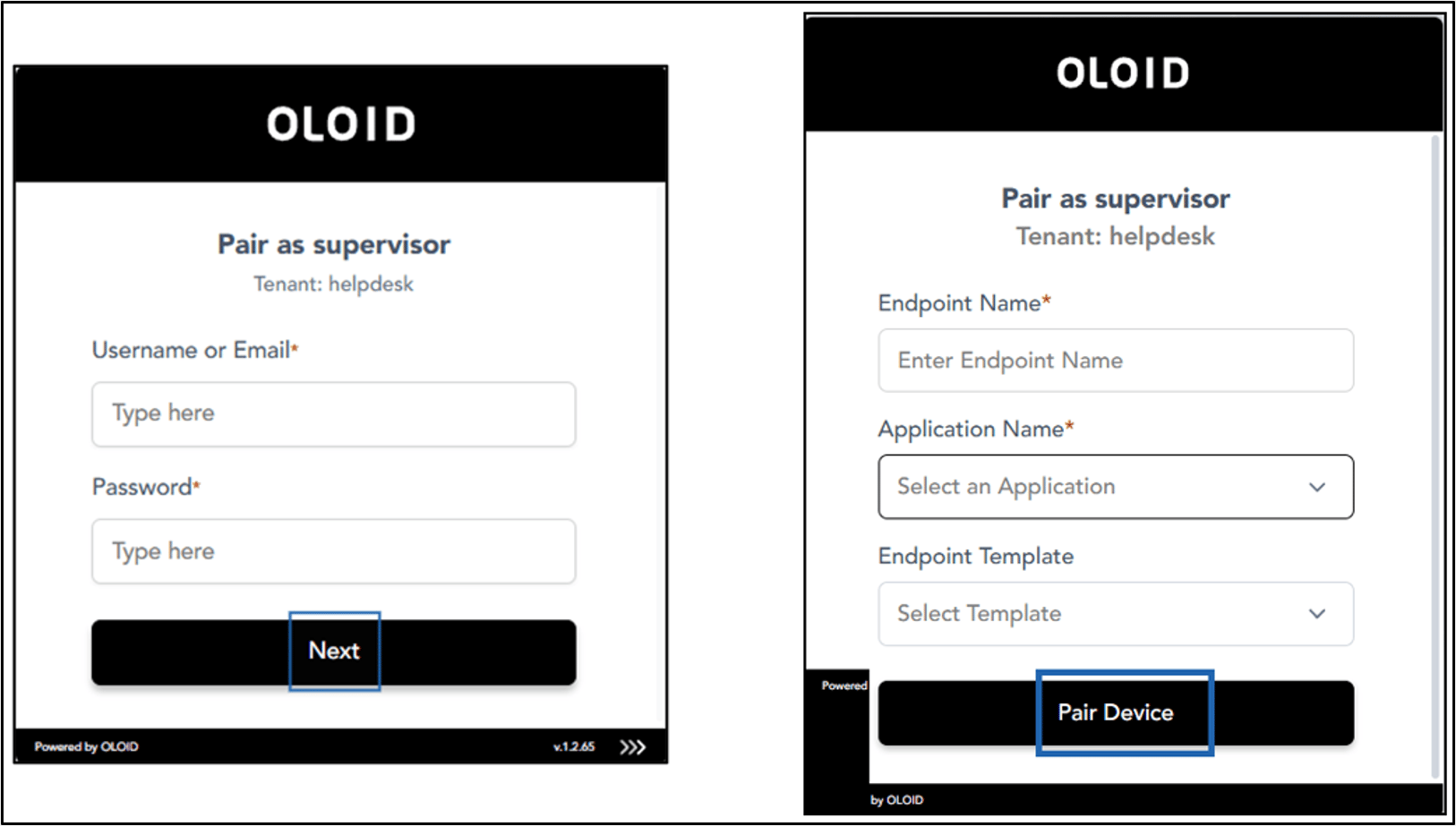
Do the following:
- Enter your Username or Email ID.
- Enter Password.
- Click Next.
- Enter Endpoint Name.
- Select Application Name.
- Select Endpoint Template (Optional).
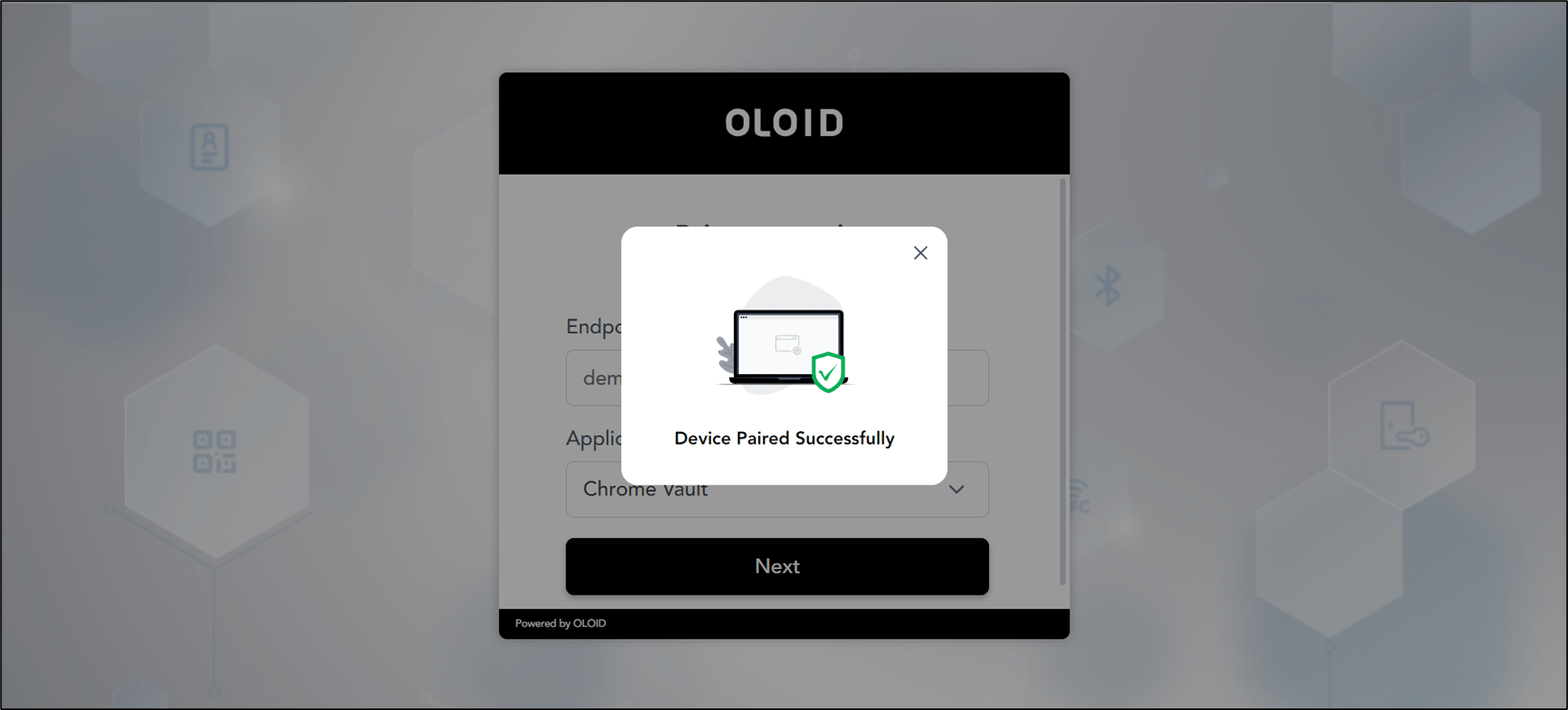
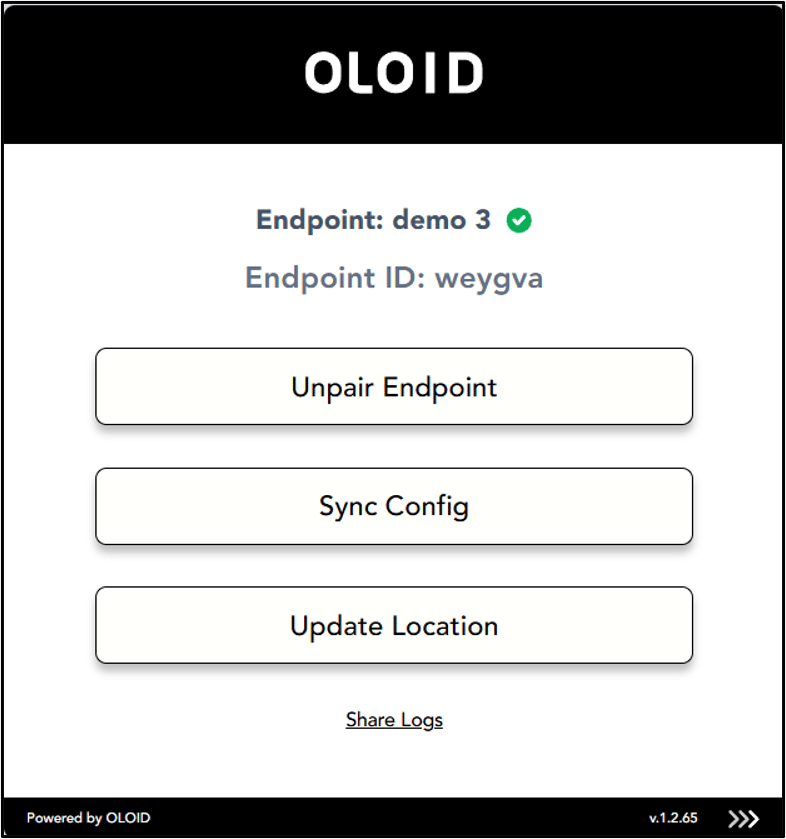
- Click Pair Device.