Introduction
The Endpoint Template in the Tenant Admin Portal allows Tenant Admin to configure and manage settings for endpoints used in the Oloid Vault (Chrome / Chromium) application.Prerequisites
You must create Endpoint Template. To create refer, How to create Endpoint Template for Chrome Vault application in the Tenant Admin Portal.Steps to configure Endpoint Templates
- Log in to the Tenant Admin Portal.
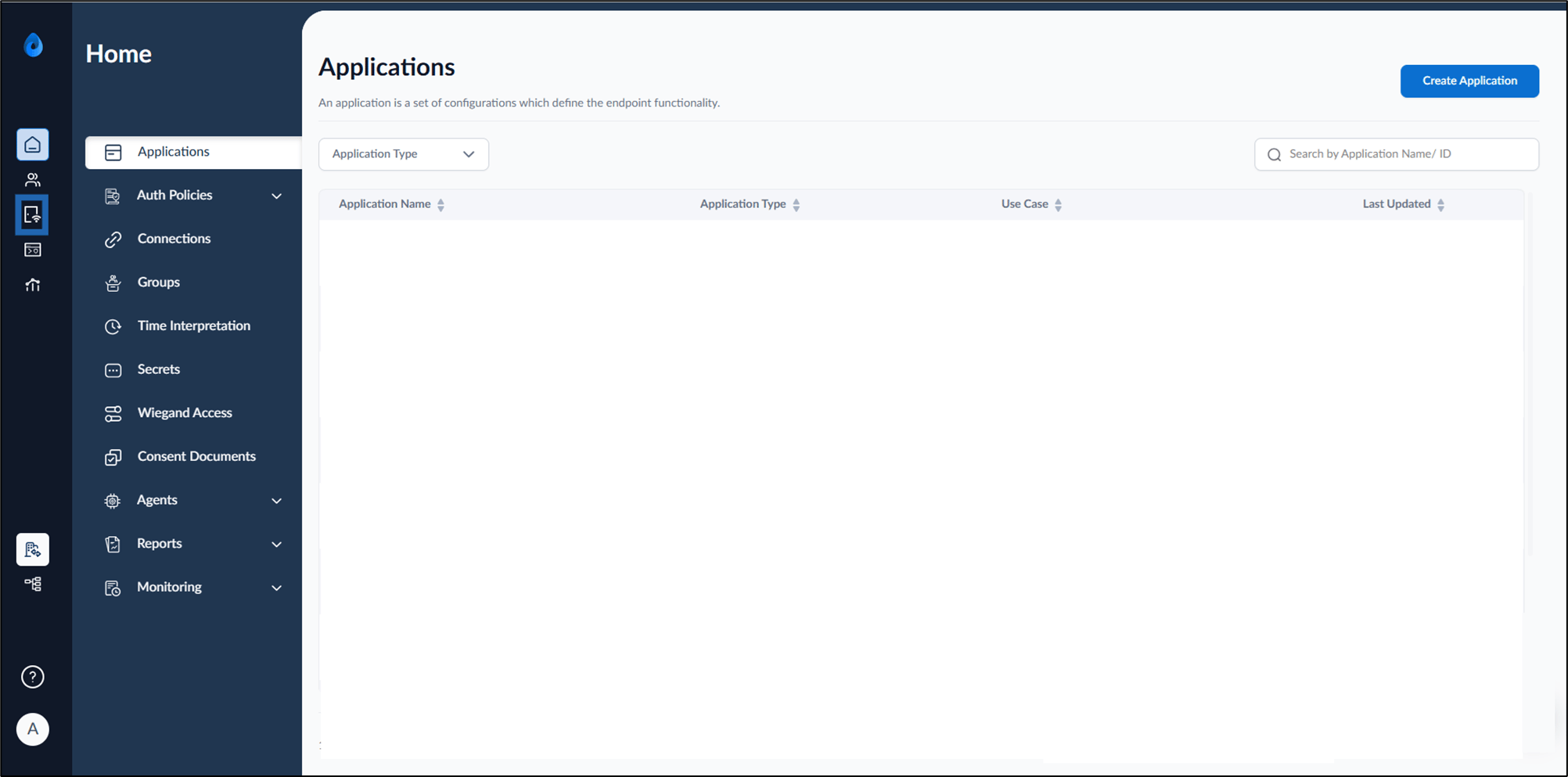
- On the homepage, select Endpoint from the left menu panel.
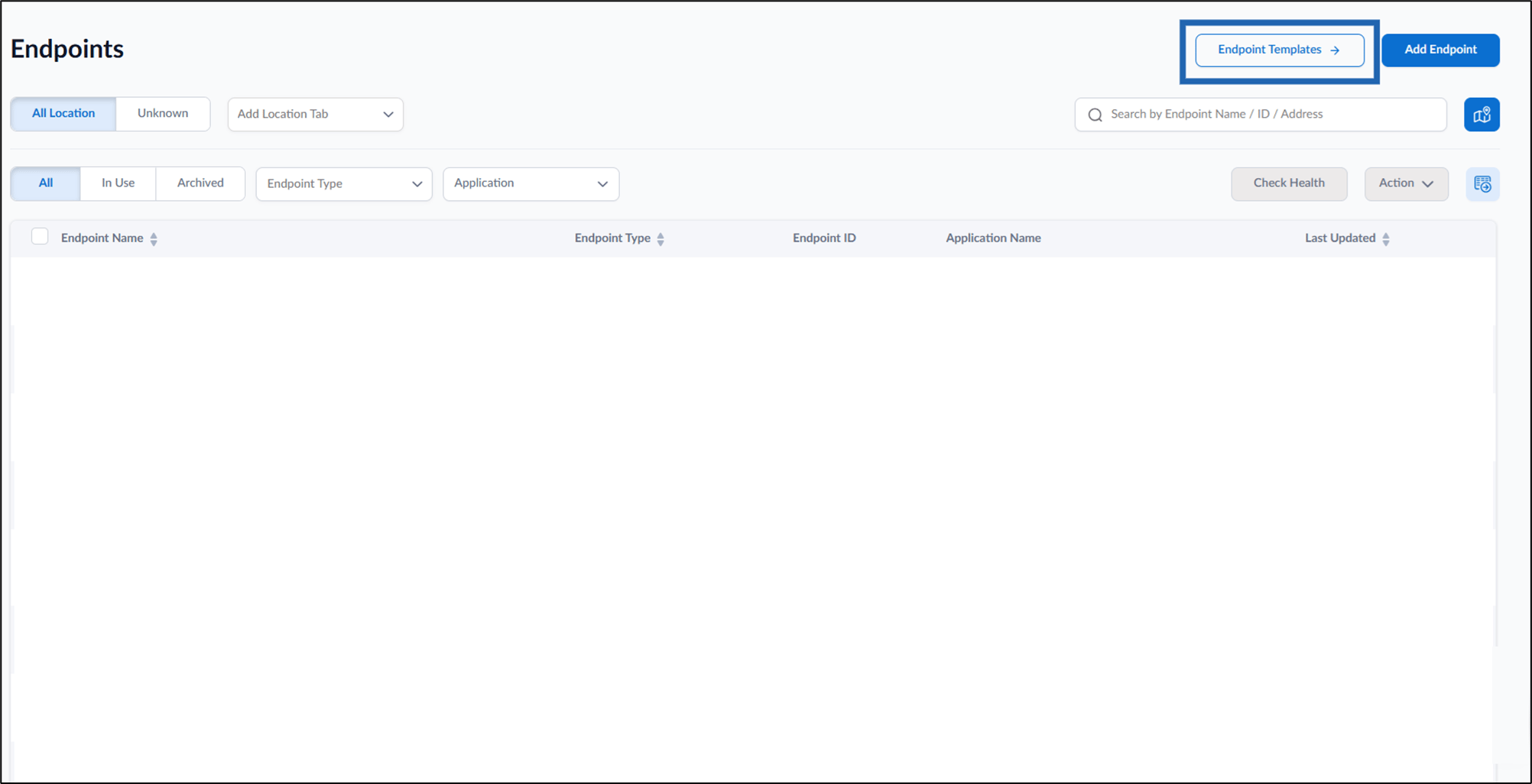
- Click Endpoint Template from the top right.
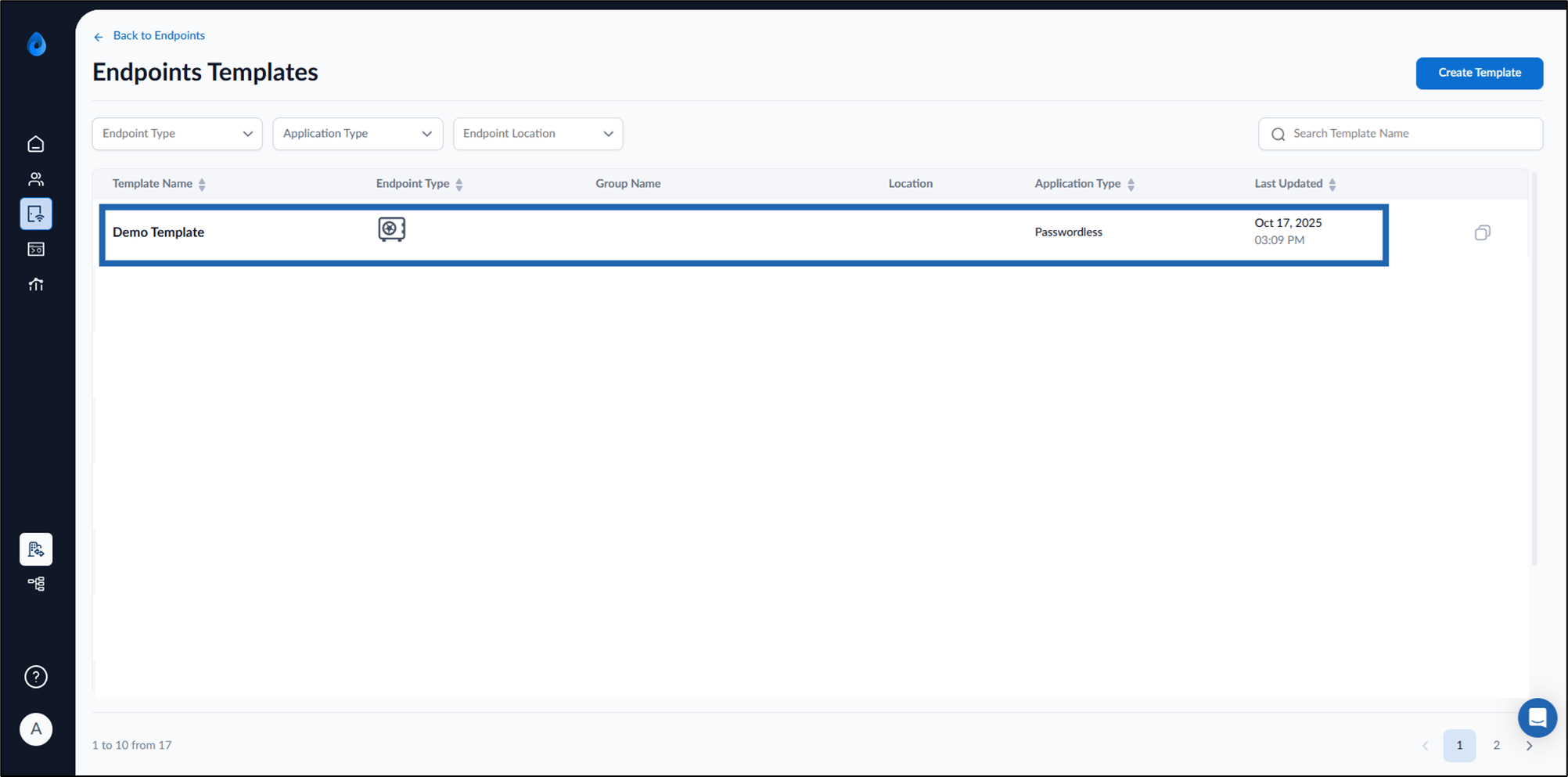
- Select the preferred Endpoint Template to edit.
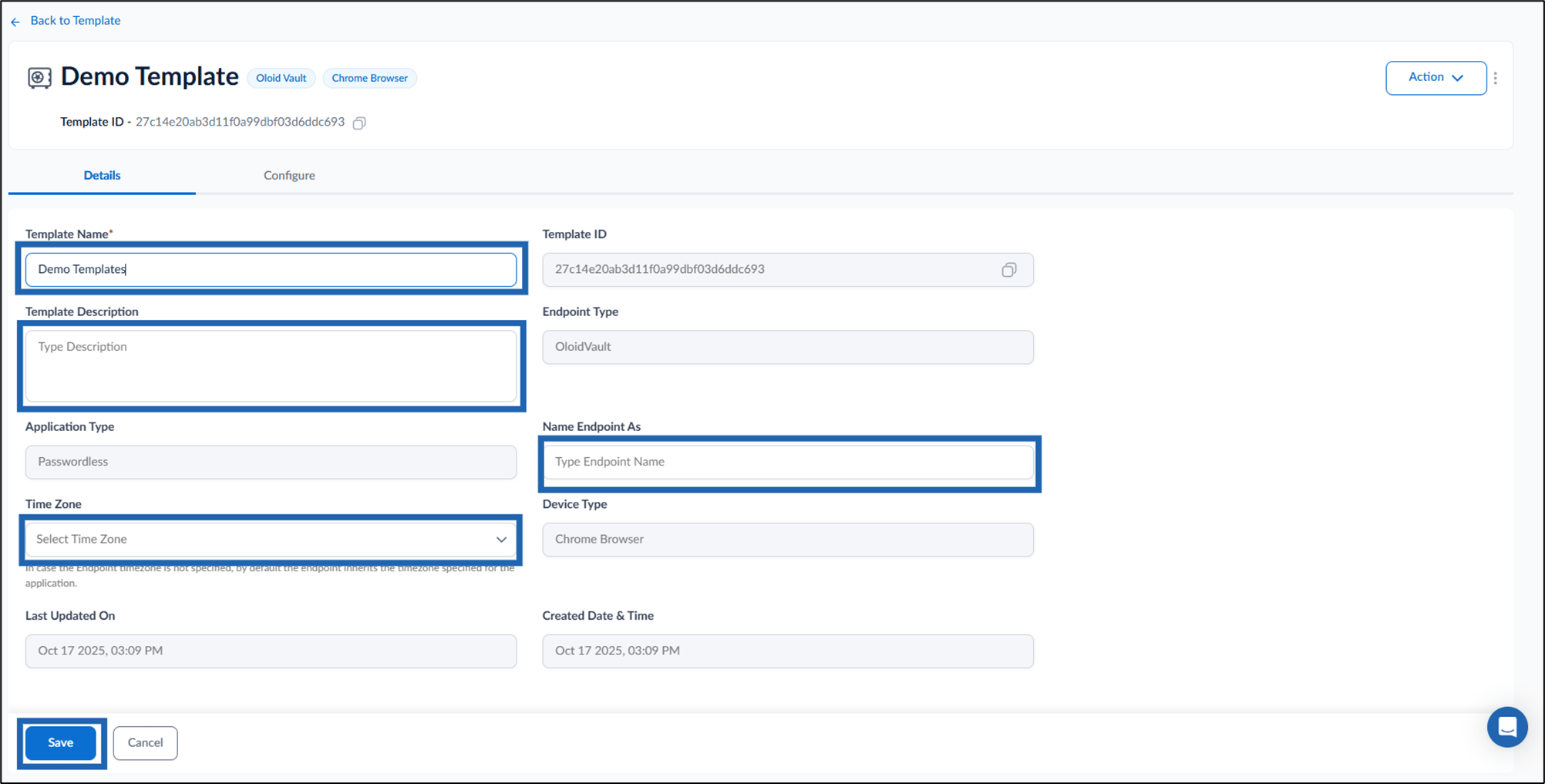
- Do the following:
- Edit Template Name.
- Add Template Description.
- Select the Time Zone from the dropdown list.
- Add Endpoint Name.
- Click Save.
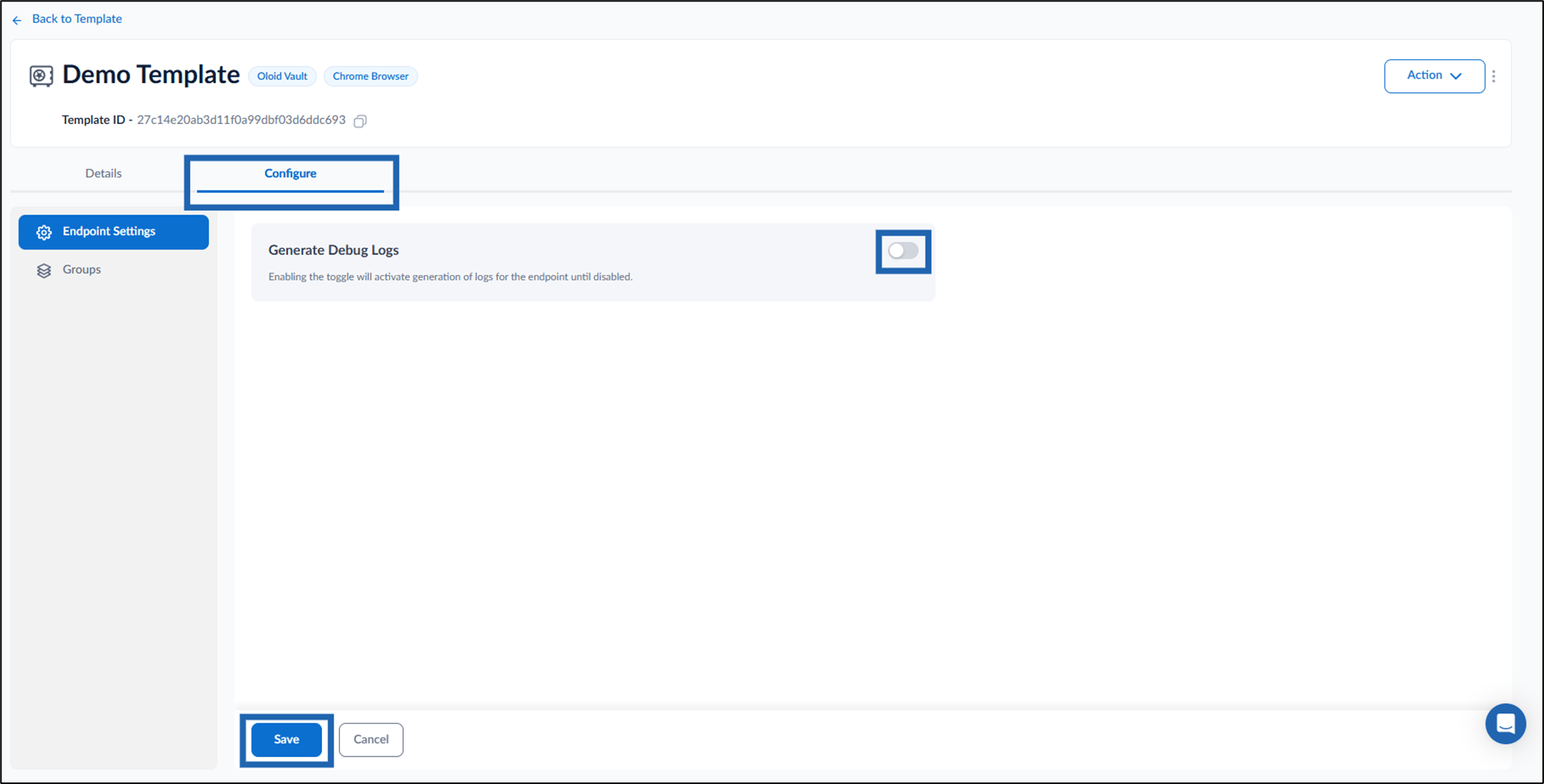
- Go to Configure tab and do the following:
- Turn on Generate Debug Logs toggle to activate generation of logs for the endpoint until disabled.
- Click Save.
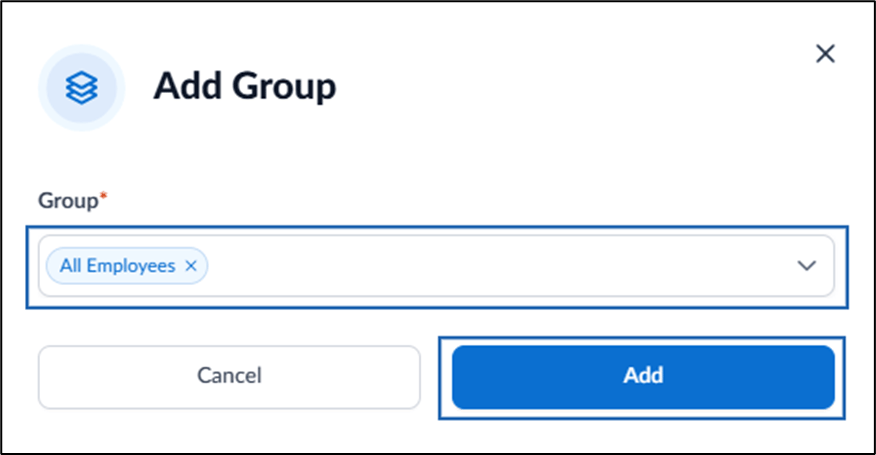
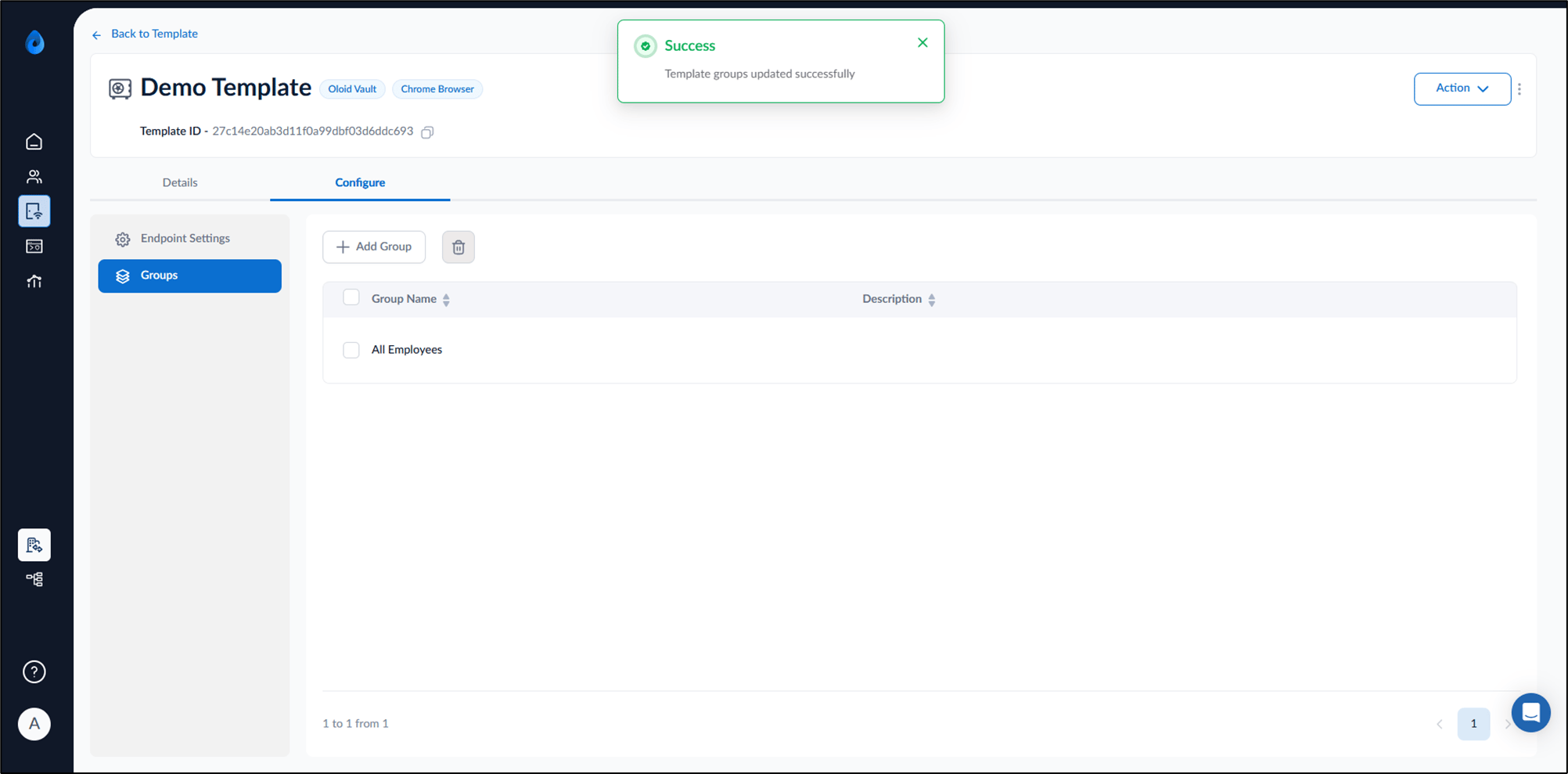
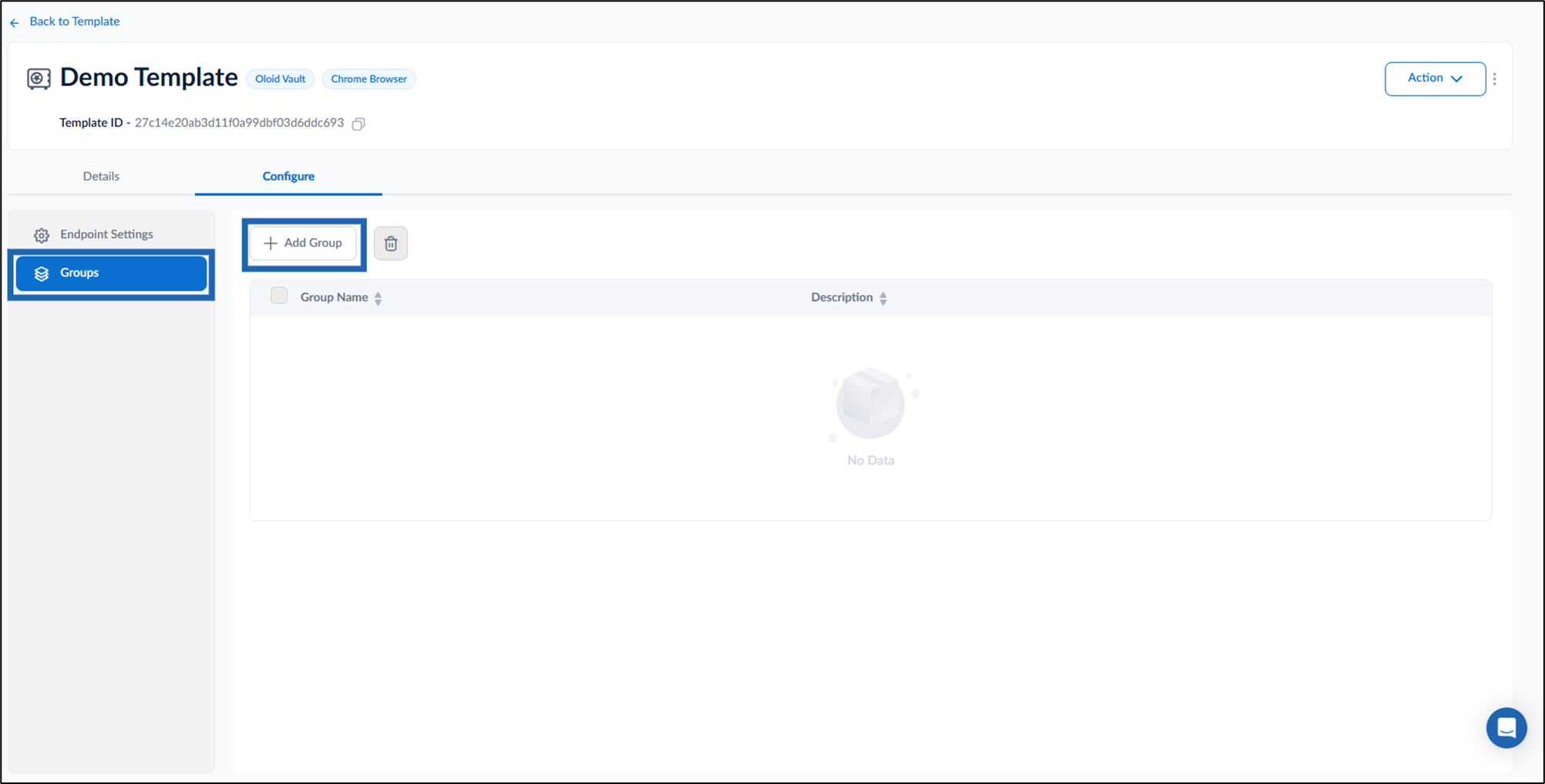
- Select Groups from the left menu panel > select Add Groups.
- Do the following on the pop-up box:
- Select Groups from the Groups dropdown list.
- Click Add.