Introduction
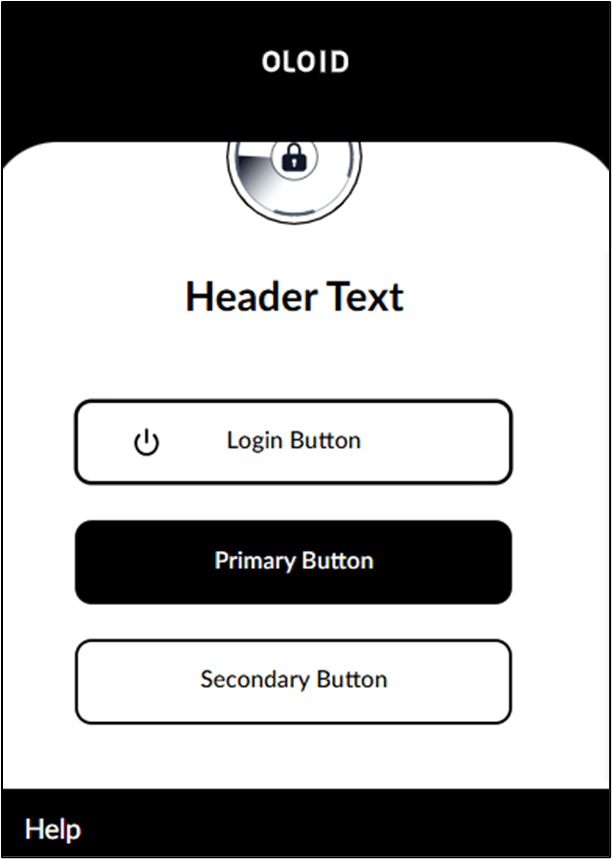
The Theme tab in the Tenant Admin Portal for Oloid Vault application allows you to customize the appearance of your Oloid Vault Application. You can upload your organization’s logo, change the login icon, and update the button text to align with your company’s standards.Prerequisite
You must create an Oloid Vault Application in the Tenant Admin Portal. For more details, refer How to Create and Configure Oloid Vault (Chrome / Chromium) Application in the Tenant Admin Portal.****Steps to Configure Theme Tab
- Log in to the Tenant Admin Portal.
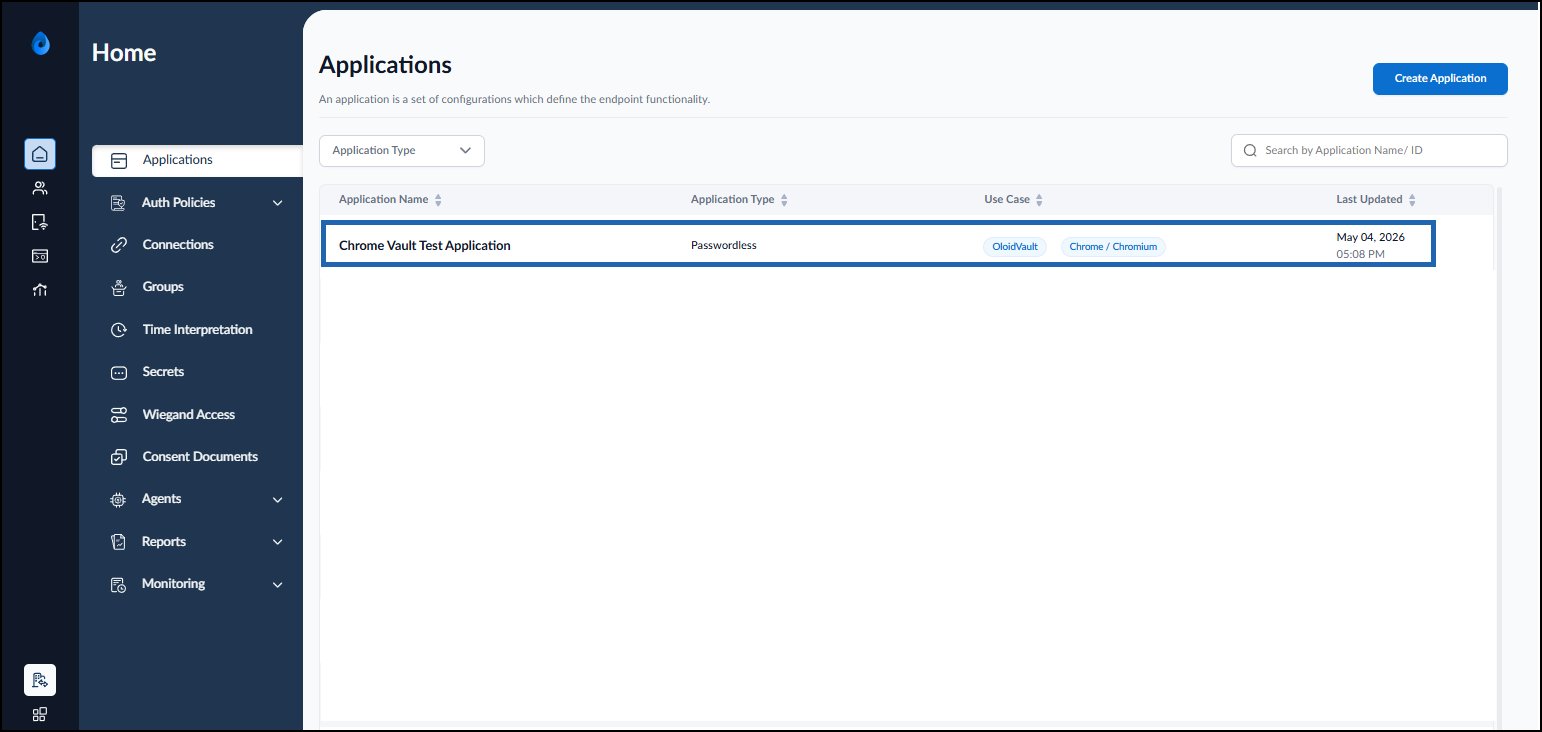
- On the Applications page, click on the preferred Oloid Vault application to edit.
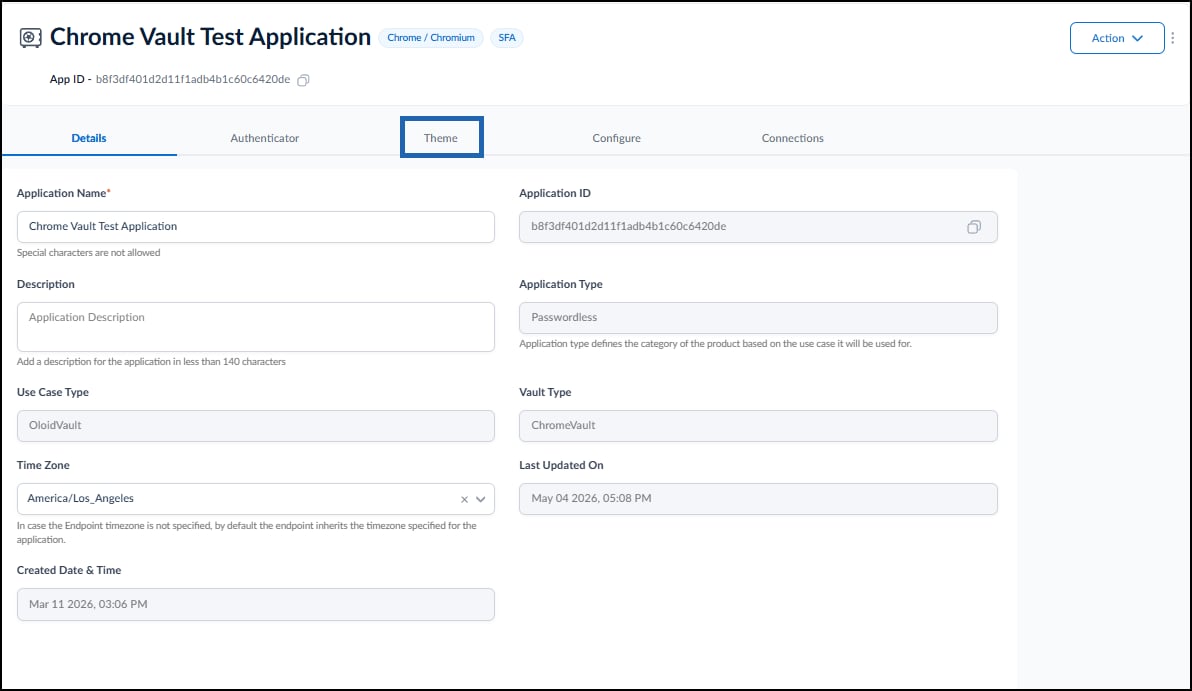
- Click Theme tab.
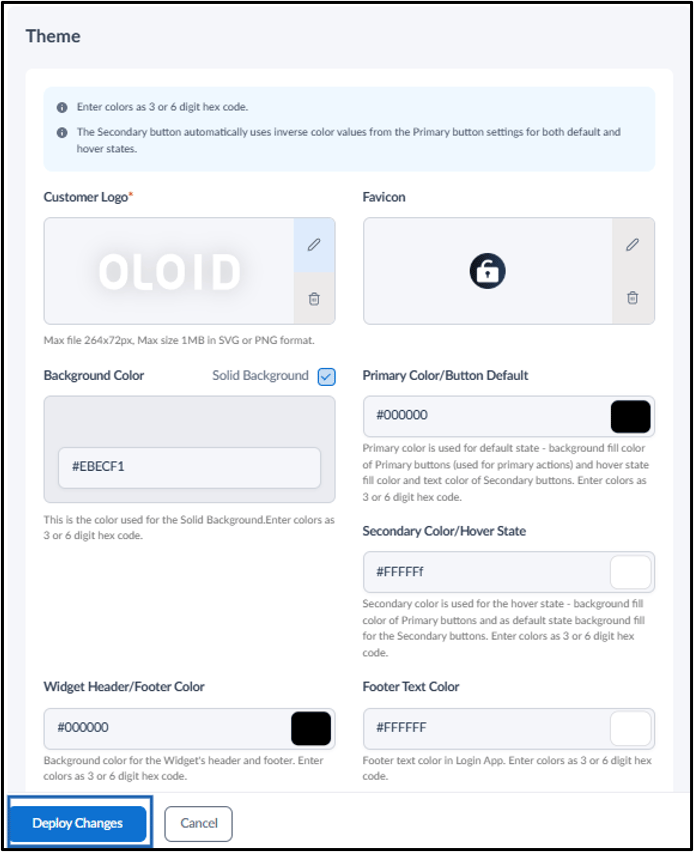
- Upload Customer Logo.
-
Upload Background Color. (optional)
Note: You can set solid color in your background. Select Solid Background and enter the color code.
- Enter color code for Primary Color. (optional)
- Enter color code for Secondary color. (optional)
- Enter color code for Widget Header/Footer Color. (optional)
- Enter color code Footer Text Color. (optional)
- Click Deploy Changes.
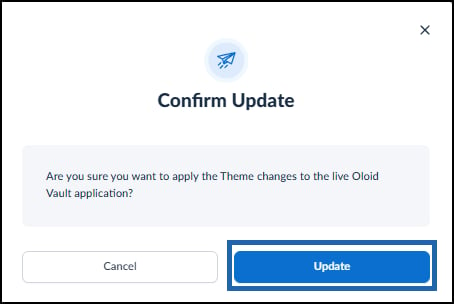
- Click Update.