Introduction
The Tenant Admin Portal allows admin to create endpoint templates for the Oloid Vault (Chrome / Chromium) application, enabling standardized configuration across devices.Prerequisites
You must have admin access to the Tenant Admin Portal.Steps to Create Endpoint Template
- Log in to the Tenant Admin Portal.
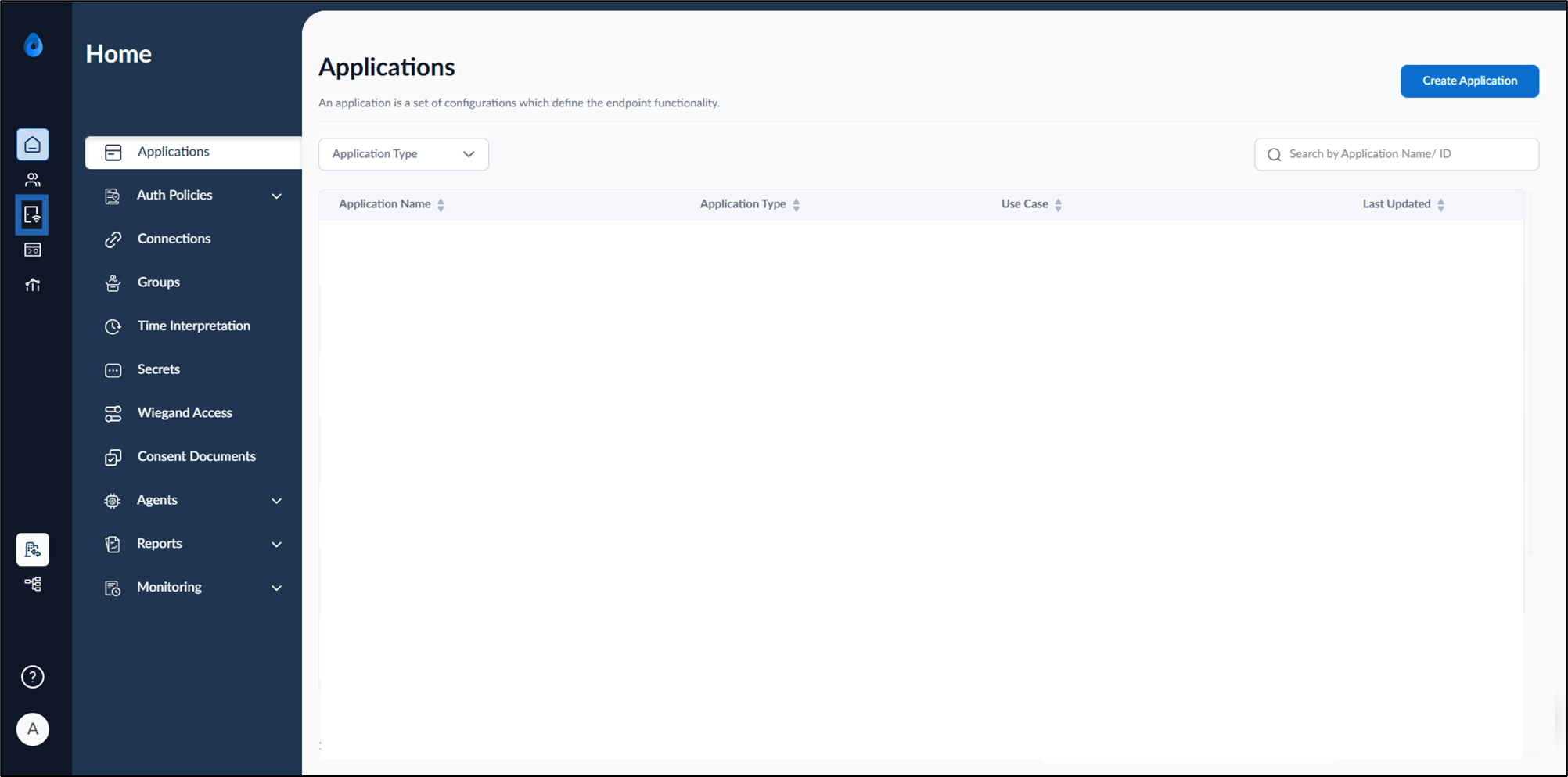
- On the homepage, select Endpoint from the left menu panel.
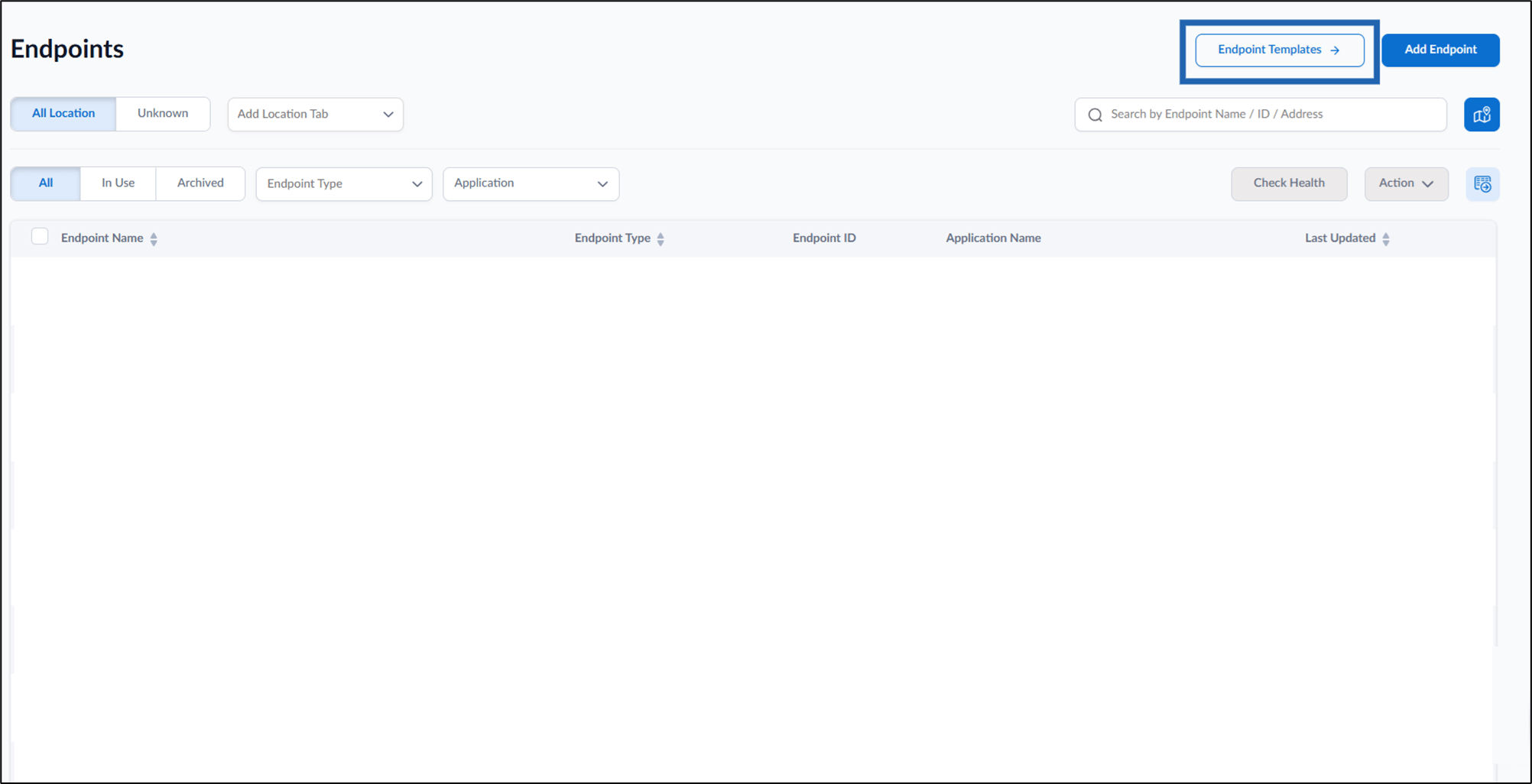
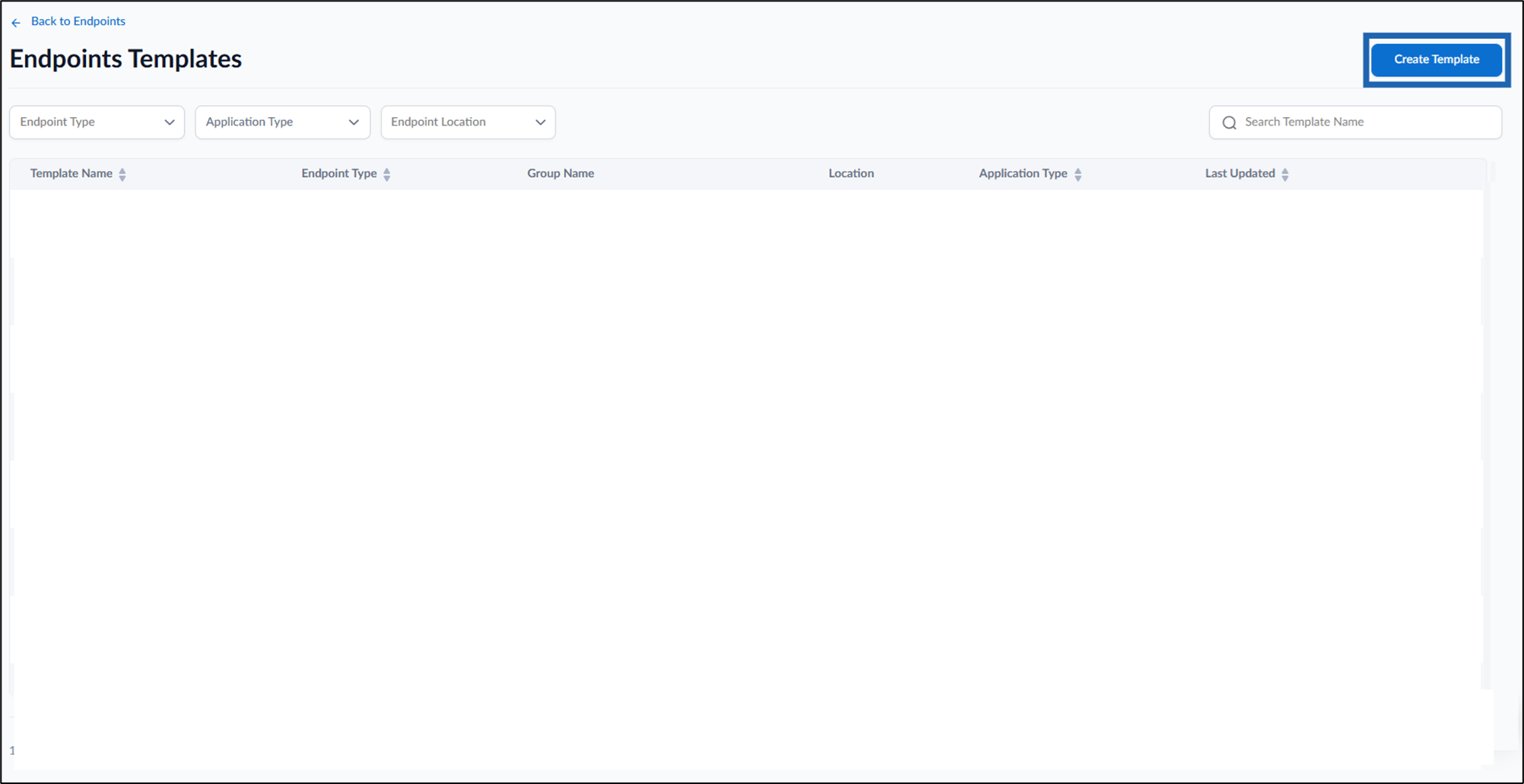
- Click Endpoint Templates on the top right.
- Click Create Template.
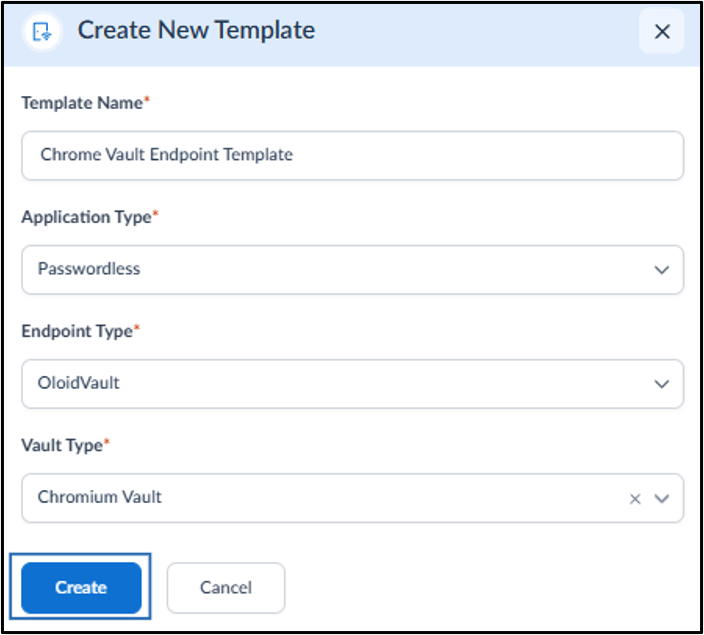
- Do the following.
- Enter the Template Name.
- Select Passwordless from the Application type drop-down list.
- Select OloidVault from the Endpoint Type drop-down list.
- Select Chromium Vault from the Vault Type drop-down list.
- Click Create.
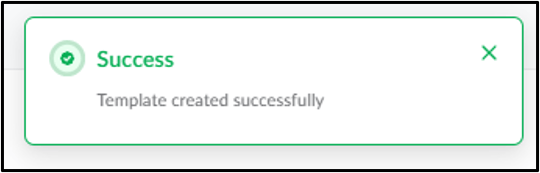
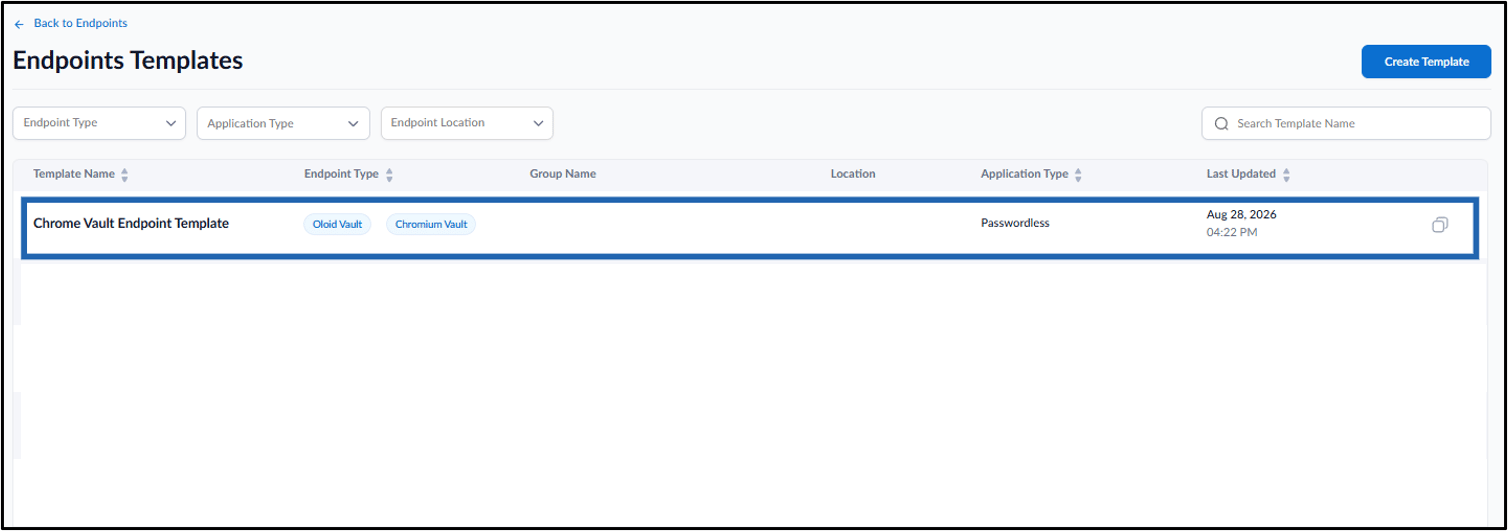
Steps to Configure an Oloid Vault (Chromium) Endpoint Template
- Click the preferred Endpoint template name to configure.
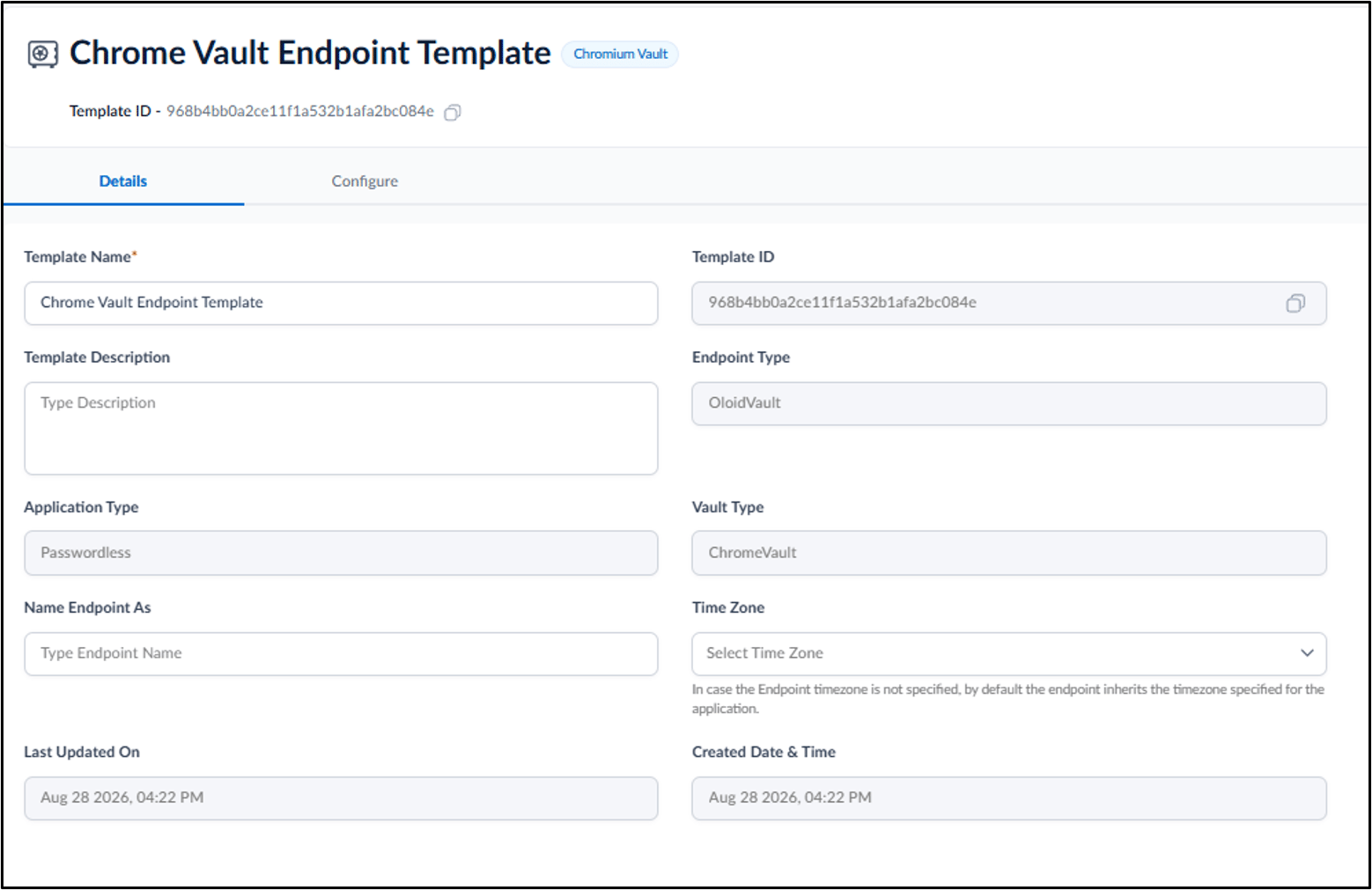
- Do the following:
Configure Details Tab
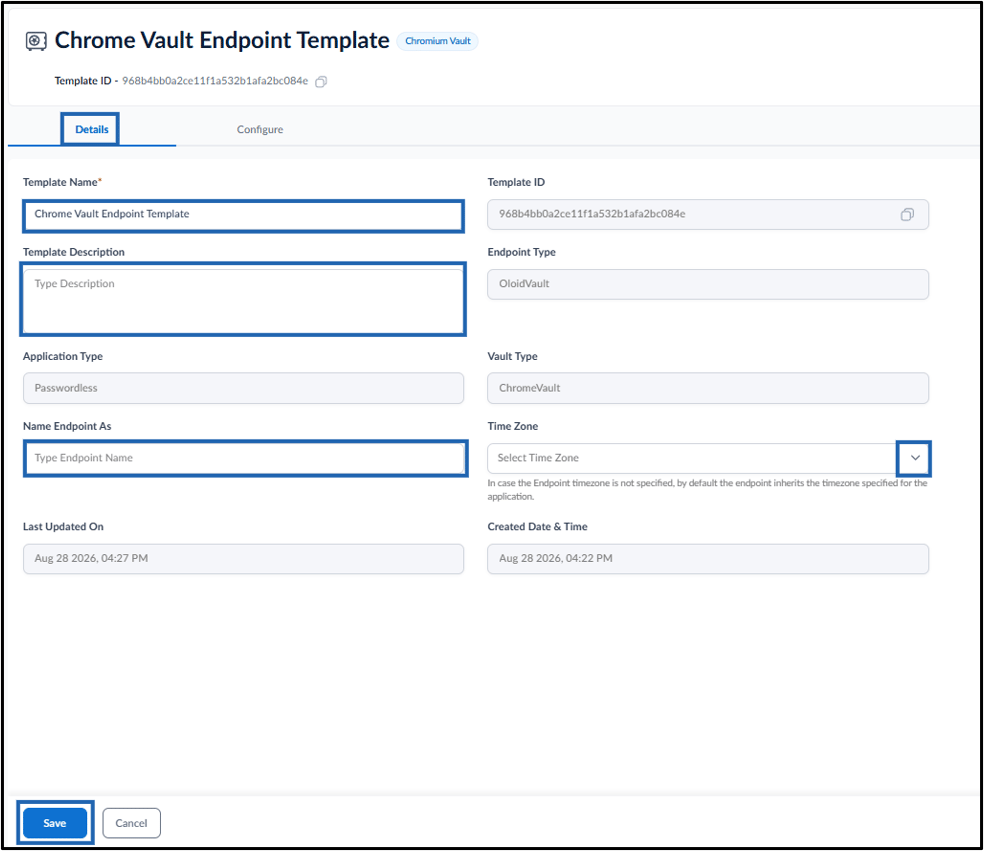
The Details tab allows you to view and update the basic information of the endpoint template, such as the template name, description, endpoint name, and time zone.- Edit Template Name if required.
- Enter Template Description. (Optional)
-
Enter Name Endpoint As. (Optional)
Note: Once the template is selected while pairing an endpoint on the device, the name provided in the Name Endpoint As field will be displayed for the endpoint.
- Select Time Zone from the dropdown. (Optional)
-
Click Save.
Edit Configure Tab
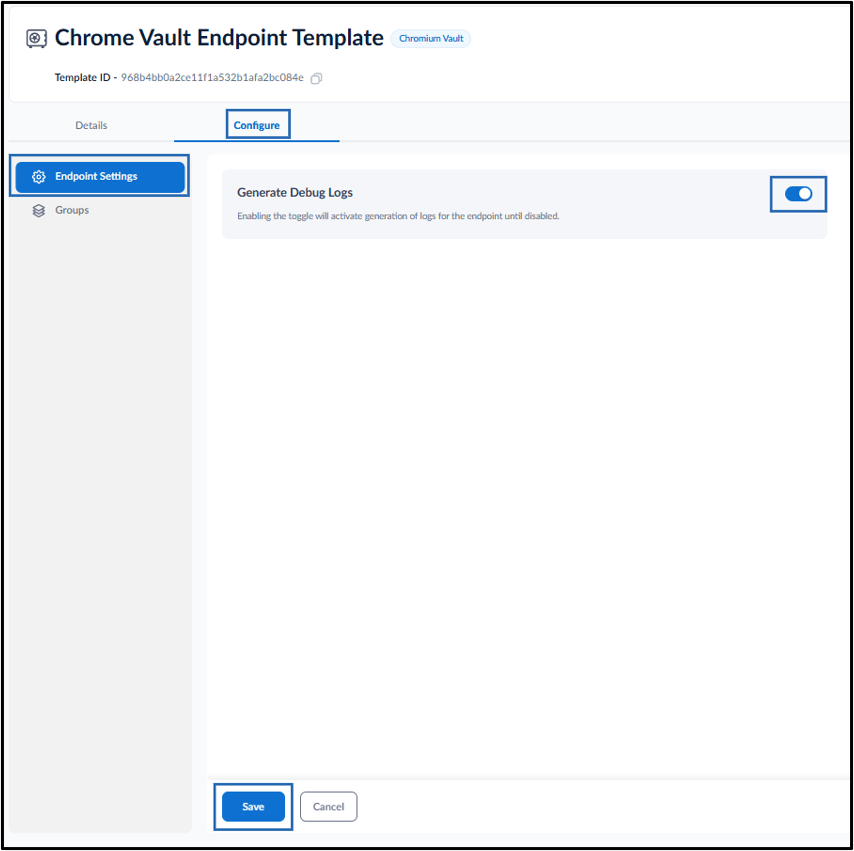
The Configure tab allows you to configure the endpoint settings and assign groups to the endpoint template. Do the following:Configure Endpoint Setting
- Enable the Generate Debug Logs toggle to activate log generation for endpoint until disabled.
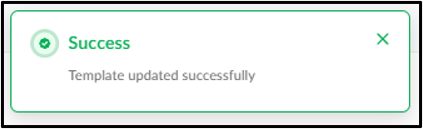
- Click Save.
Configure Groups
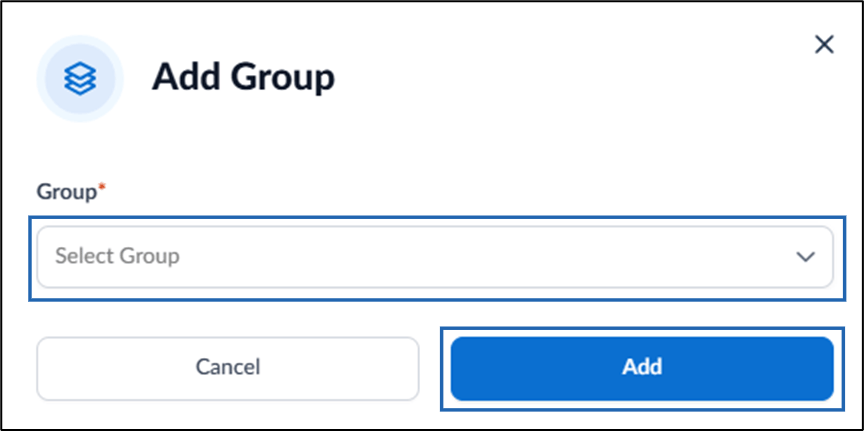
The Groups section allows you to add groups to the endpoint template. Users associated with the added groups can use the endpoints configured with this template.- Select Groups option from left menu panel > click Add Group.
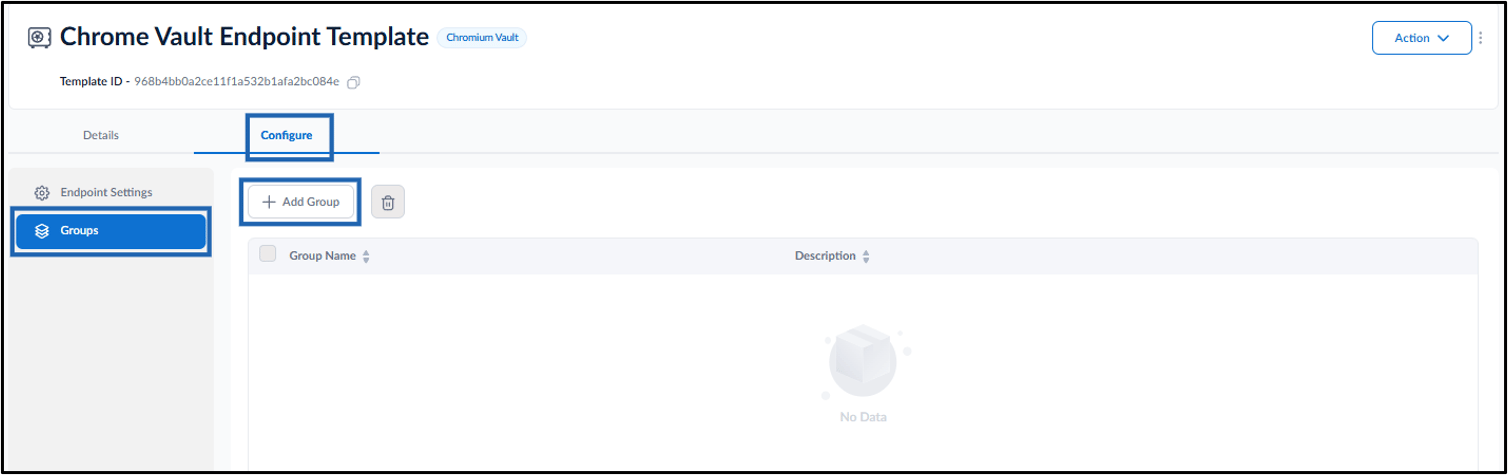
- Do the following:
- Select Group(s) from the dropdown list.
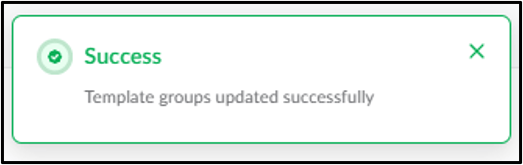
- Click Add.