Introduction
The Authenticator tab in the Oloid Vault (Chrome / Chromium) application allows admin to enable and manage authentication methods such as Face, Badge ID, and NFC/ID. Each method has different configurable parameters to enhance security and optimize authentication performance.Prerequisite
Chrome Vault application is created. To create refer How to Create and Configure Chrome Vault Application in the Tenant Admin Portal.Steps to Update Authenticator Tab
- Log in to the Tenant Admin Portal.
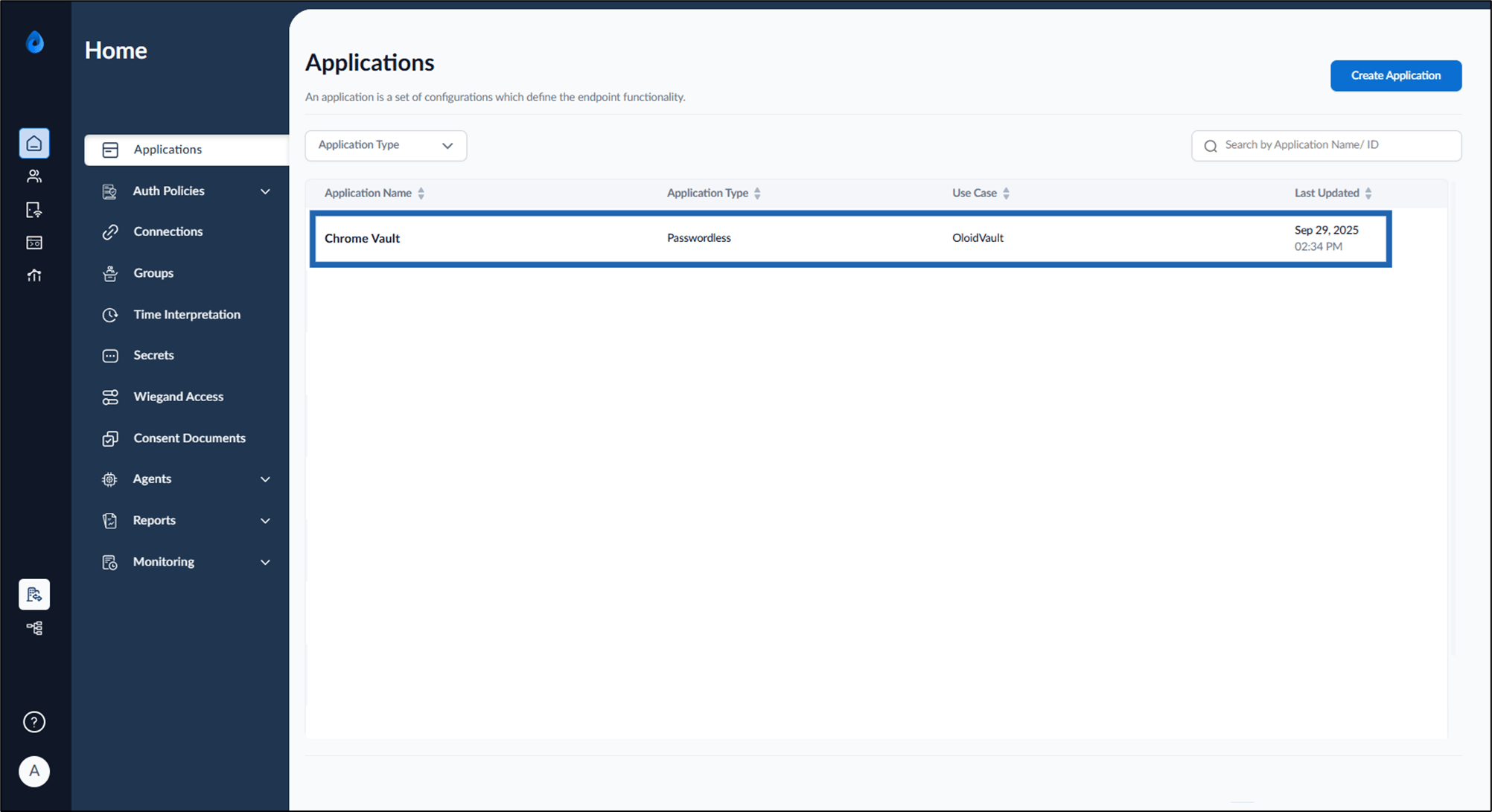
- On the Home page of the portal, click on the preferred Oloid Vault application.
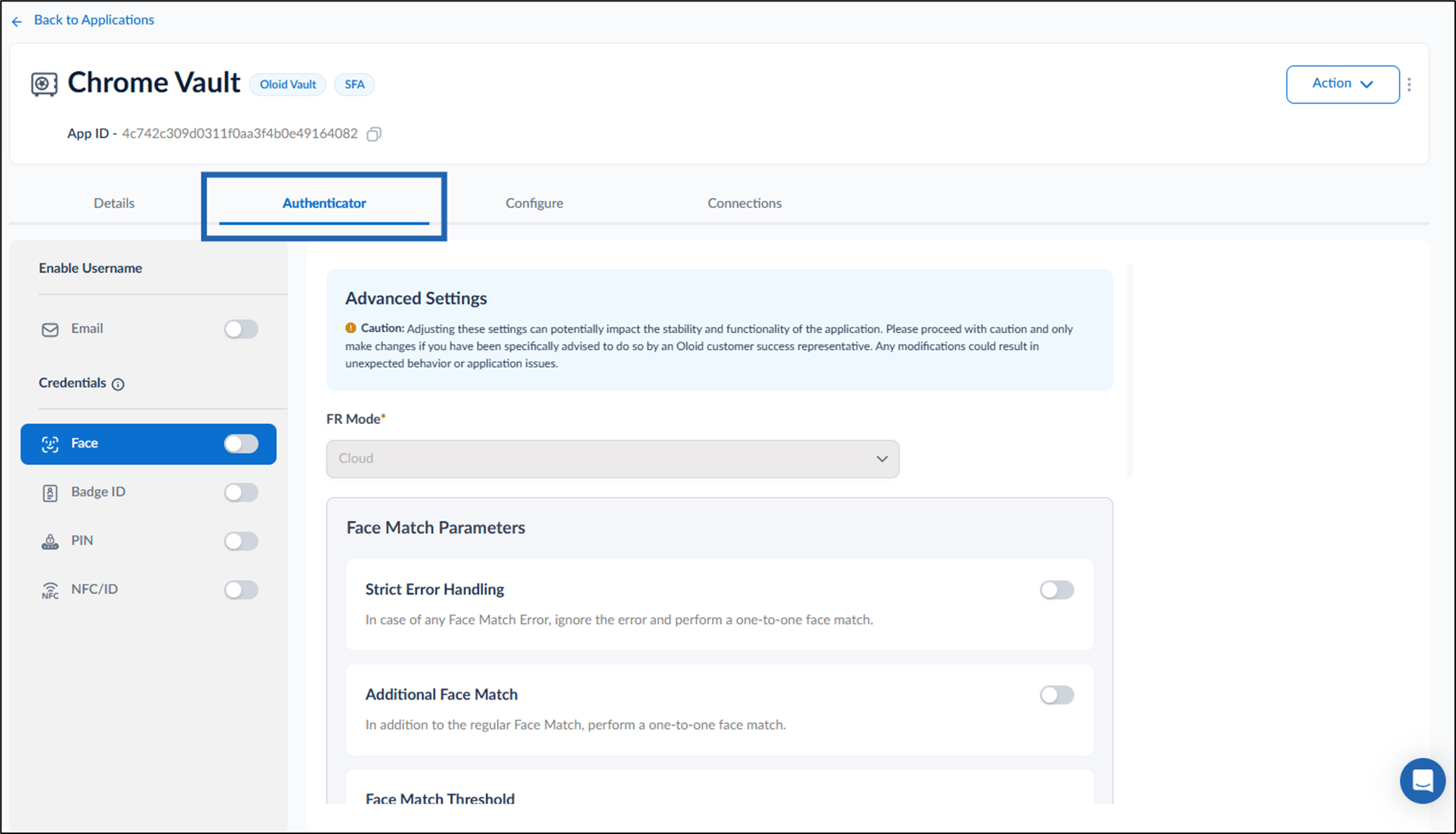
- Go to Authenticator tab and configure the following:
Face
- Select Face option from the left menu panel > turn on Face toggle.
-
Adjust the following setting for Face Match Parameters.
Note: You must consult your Oloid representative before making any changes to the Face Match Parameters to ensure optimal authentication performance.
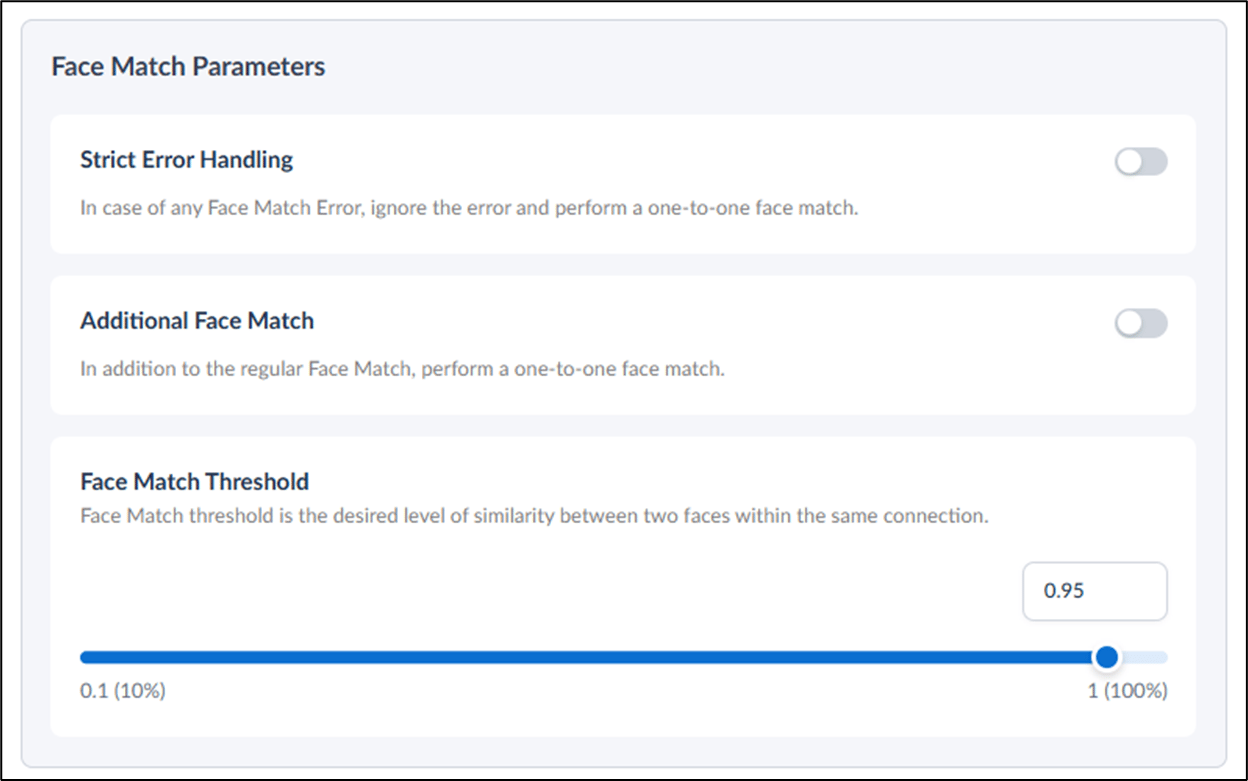
- Turn on Strict Error Handing toggle to skip the error and perform a direct one-to-one face match.

- Turn on Additional Face Match toggle to perform a one-to-one face match alongside the standard face matching process.

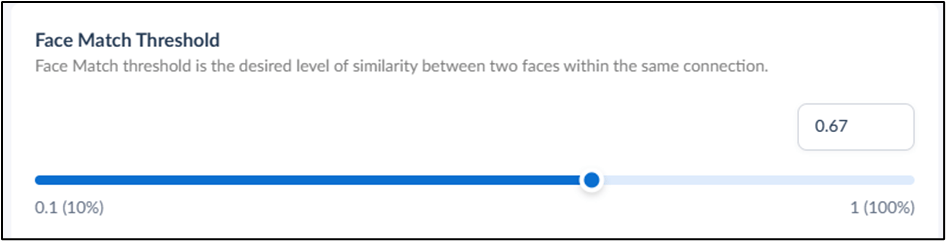
- Adjust the Face Match Threshold slider or enter a value directly into the input box to set the face match threshold value.
- Turn on Strict Error Handing toggle to skip the error and perform a direct one-to-one face match.
-
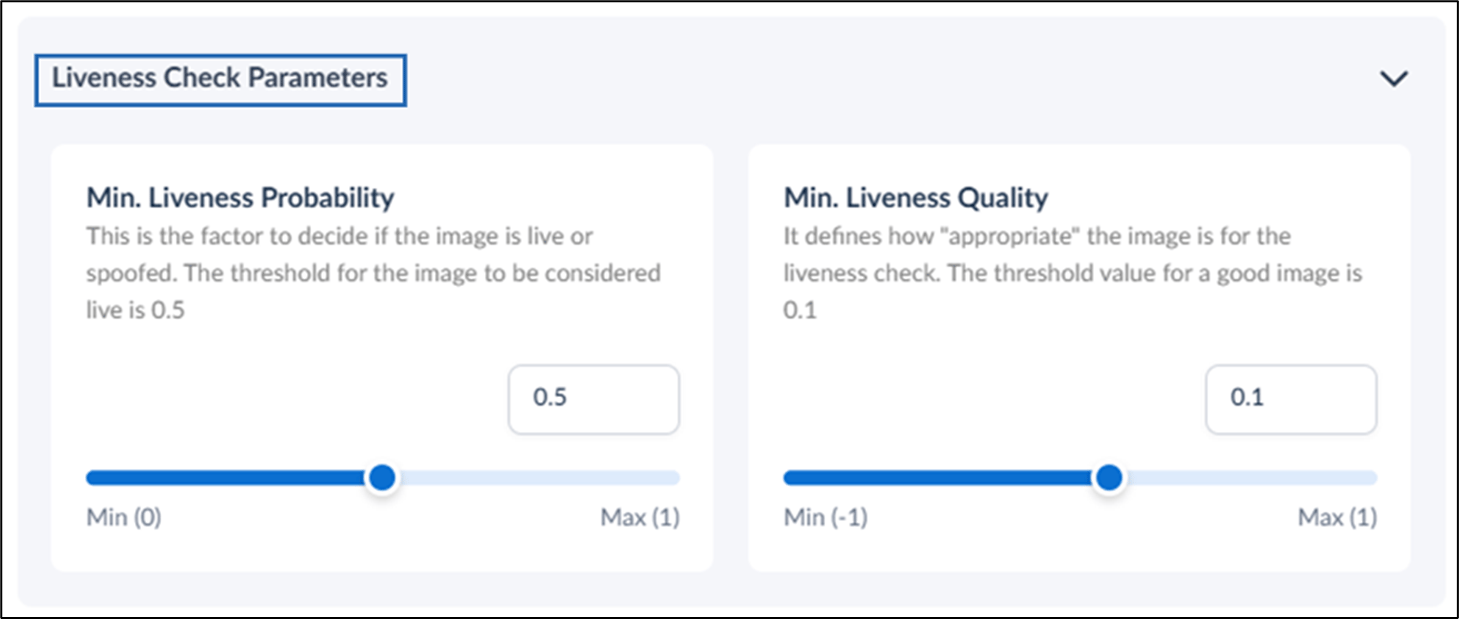
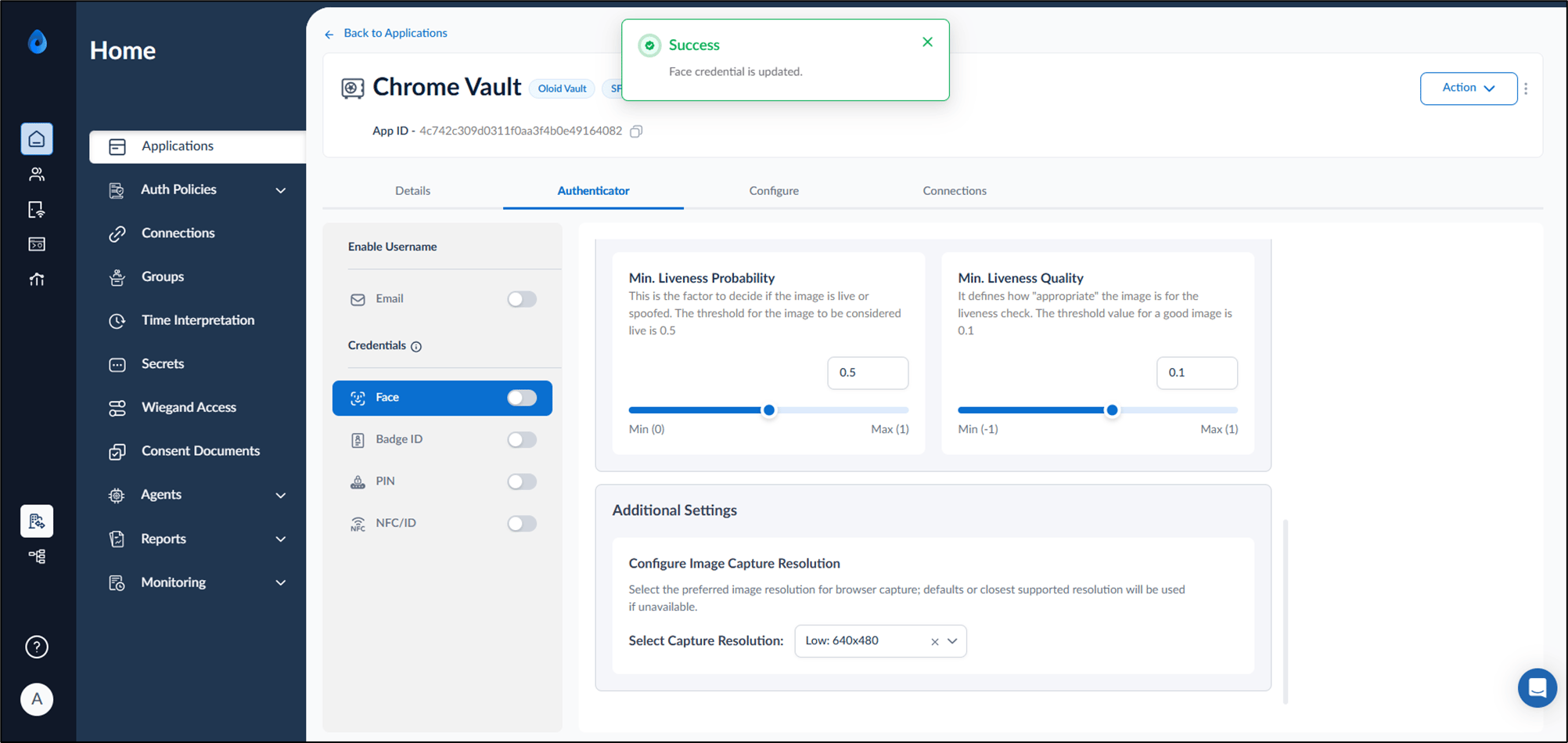
Adjust the following setting for Liveness check parameters.
Note: You must consult your Oloid representative before making any changes to the Liveness check parameters value to ensure optimal authentication performance.
- Min Liveness Probability: Specifies the threshold used to determine whether an image is live or spoofed.
- Default value: 0.5
- Images with a liveness probability of 0.5 or higher are classified as live.
- Min Liveness Quality: Specifies the minimum quality required for an image to be suitable for a liveness check.
- Default: 0.1
- Images with a quality score of 0.1 or higher are considered suitable for liveness verification.
- Min Liveness Probability: Specifies the threshold used to determine whether an image is live or spoofed.
- Click Save.
Note: The parameters are pre-configured. This is done by Oloid admin.
Additional Settings
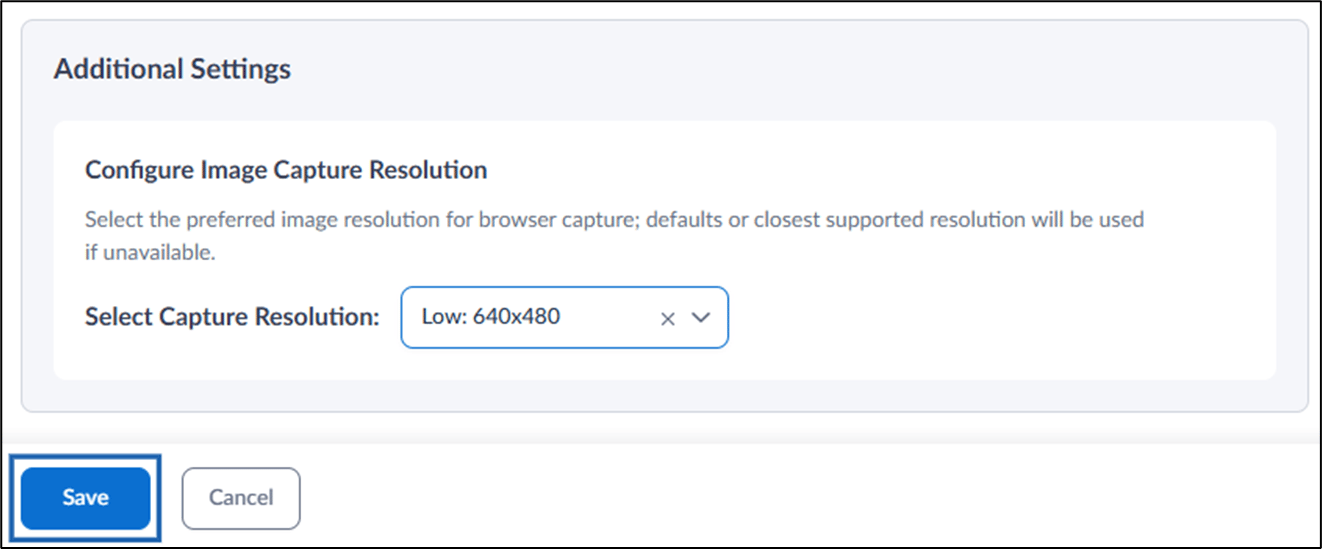
- Configure Image Capture Resolution: Select the preferred resolution from the Select Resolution dropdown list for image capture during facial authentication.
-
Click Save.
Note: If the selected resolution is not available, the browser will default to the closest supported resolution.
Badge ID
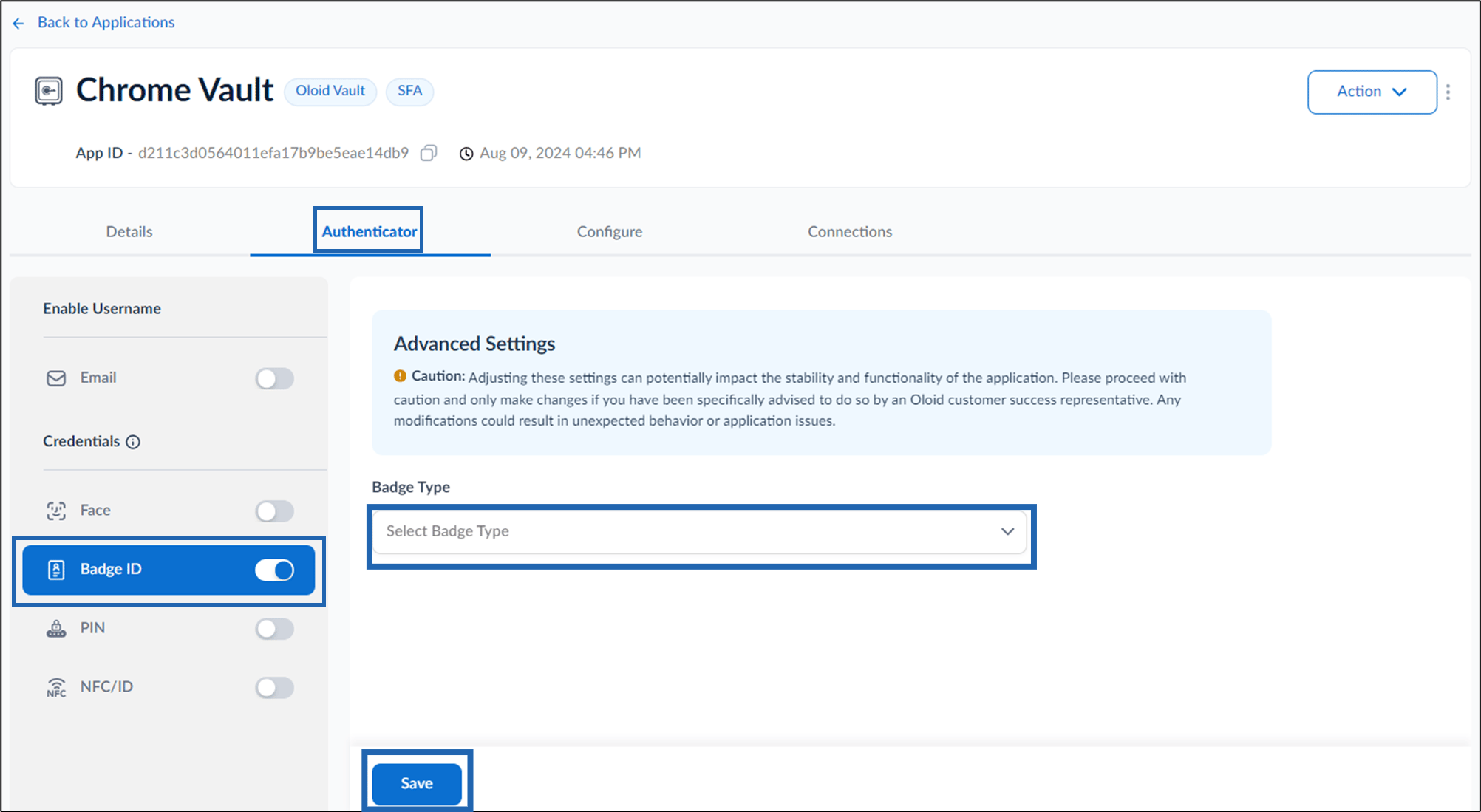
- Select Badge ID option from the left menu panel > turn on Badge ID toggle.
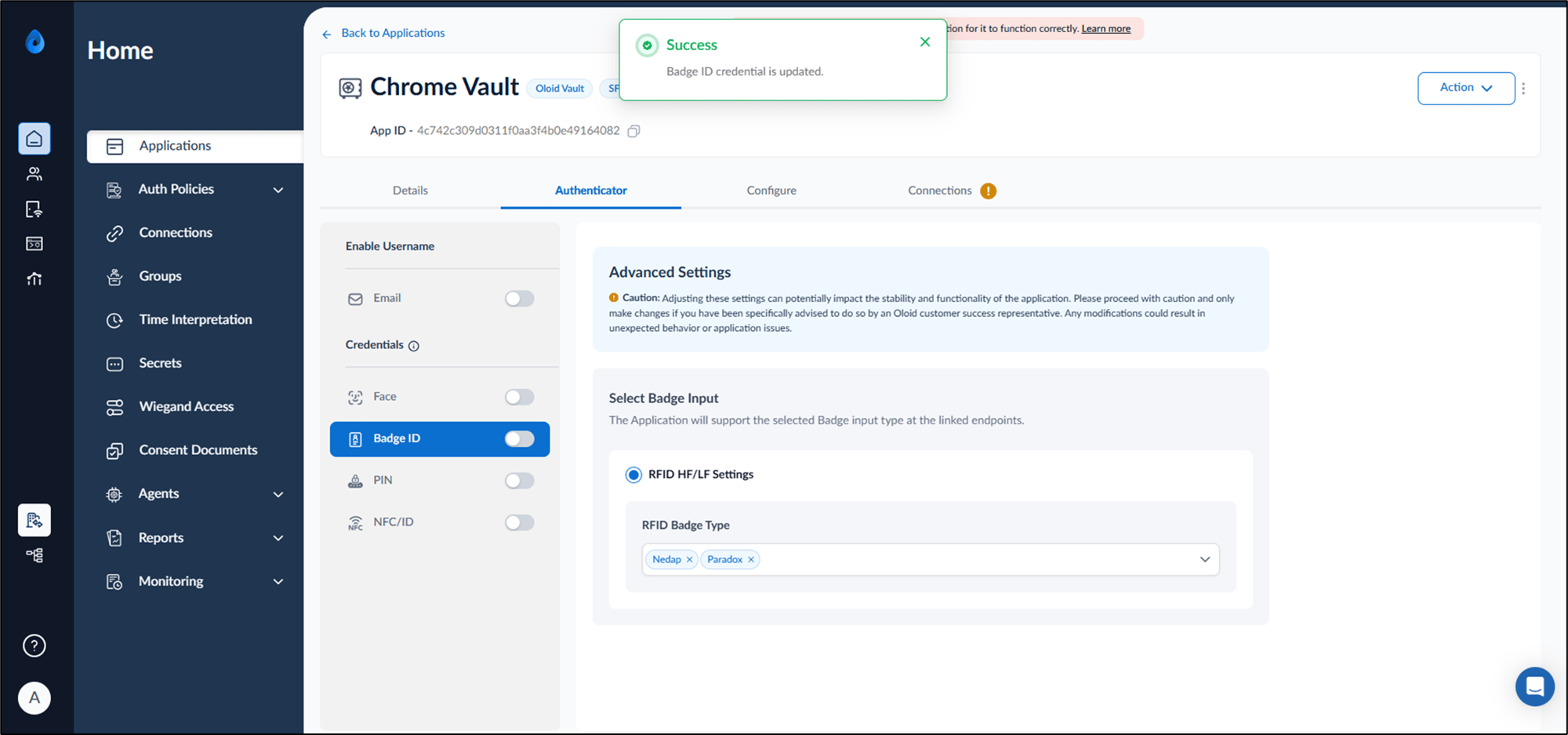
- Select Badge input type from Badge type drop down list.
-
Click Save.
Note: The Application will support the selected Badge input type at the linked endpoints.
NFC/ID
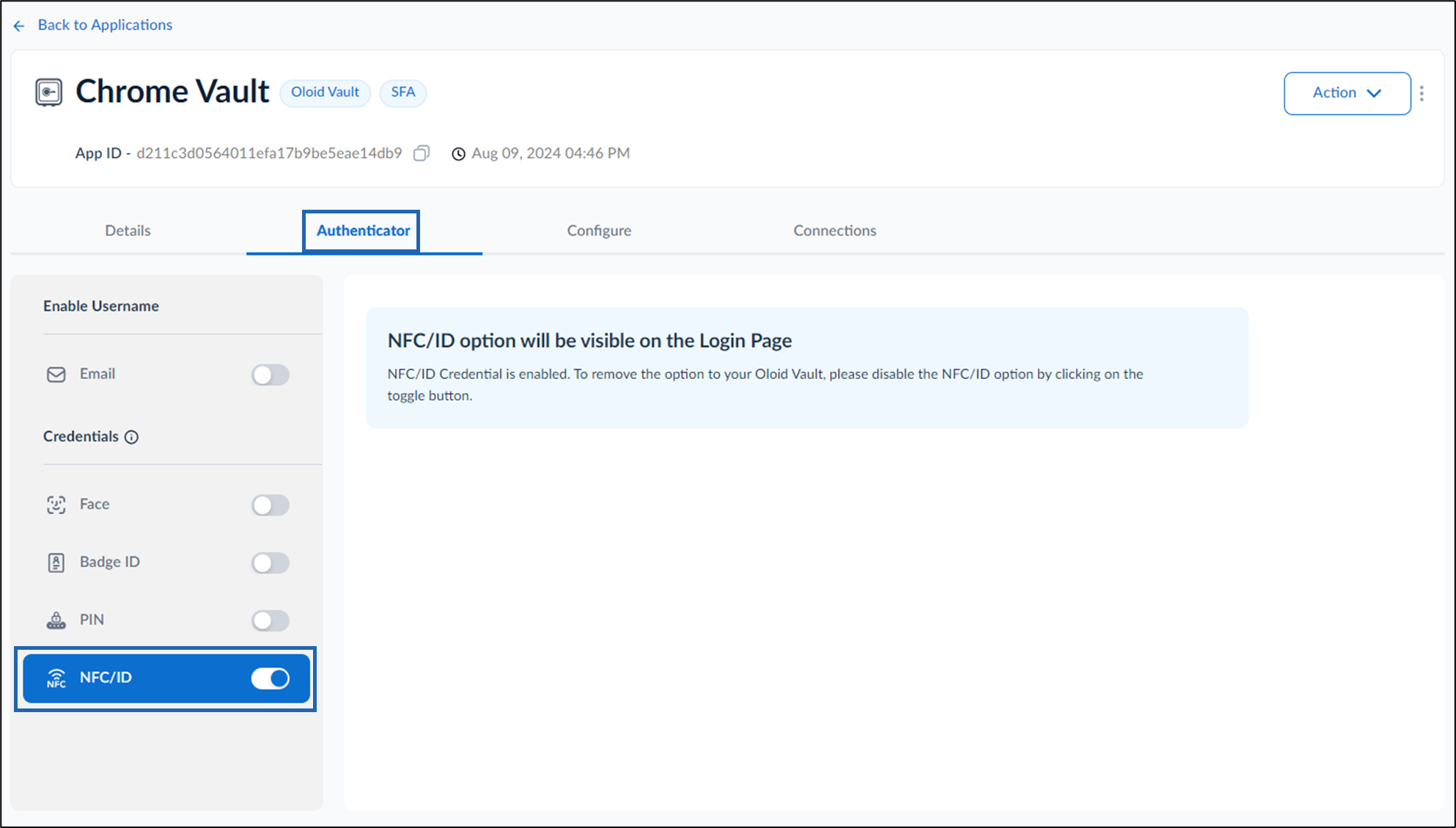
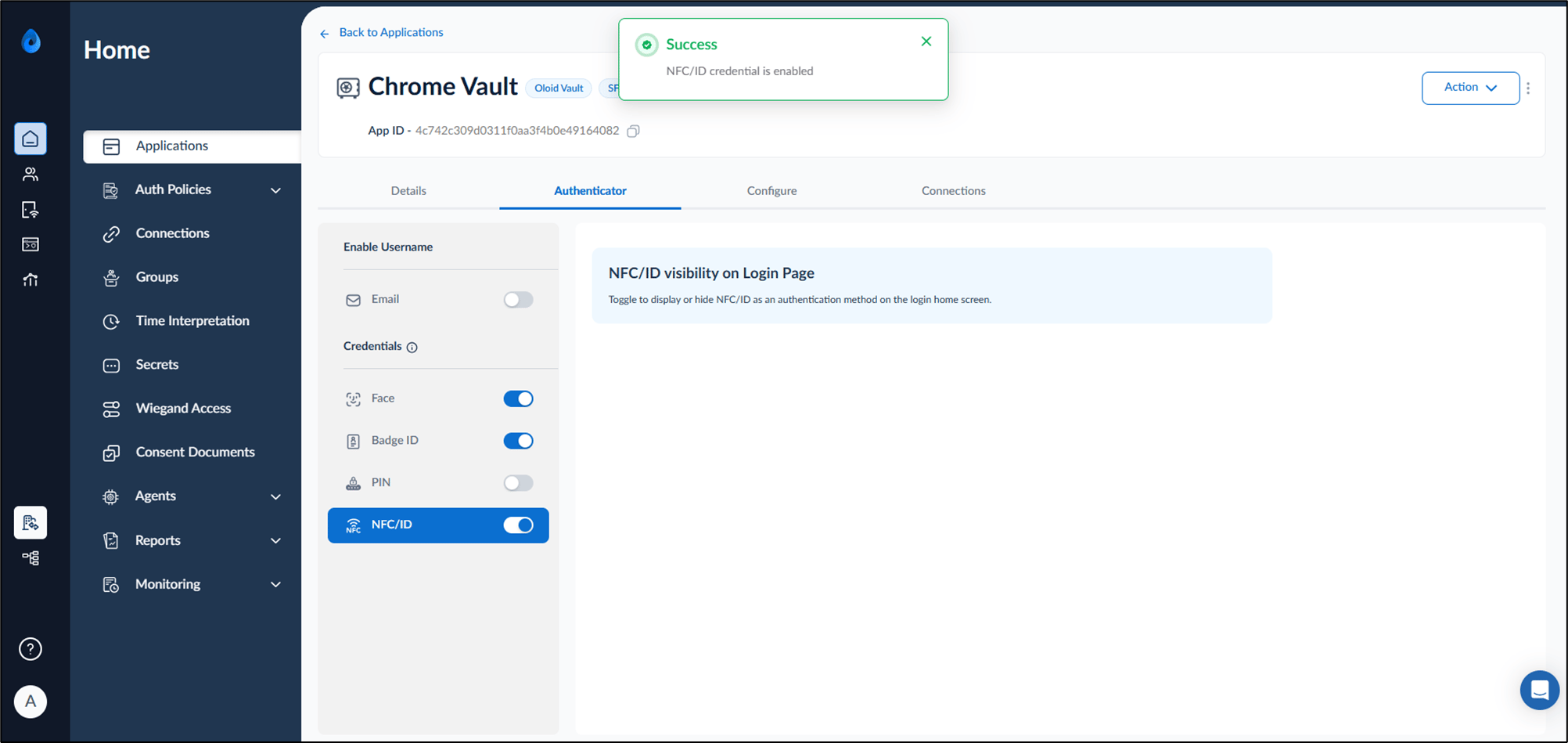
- Select NFC/ID option from the left menu panel.
- Turn on NFC/ID toggle.