Introduction
This document explains how to deploy Oloid Vault for Chrome/Chromium using Microsoft Intune (MDM). It covers importing the required ADMX administrative template, creating a configuration profile, configuring the Oloid Vault extension settings, applying the managed configuration (Autopair key), and assigning the profile to target devices.Prerequisites
- You must have admin access to the Microsoft Intune Admin Center.
-
You must have ADMX and ADML template files.
Note: Contact Oloid Support to get ADMX and ADML files.
- You must download/copy the AutoPairConfig.txt file from the Tenant Admin Portal. For more information, refer Oloid Vault (Chrome / Chromium)- How to Generate and Download Auto-Pair Config File in the Tenant Admin Portal.
Steps to Deploy Oloid Vault (Chrome/Chromium) via Microsoft Intune
Import ADMX Template
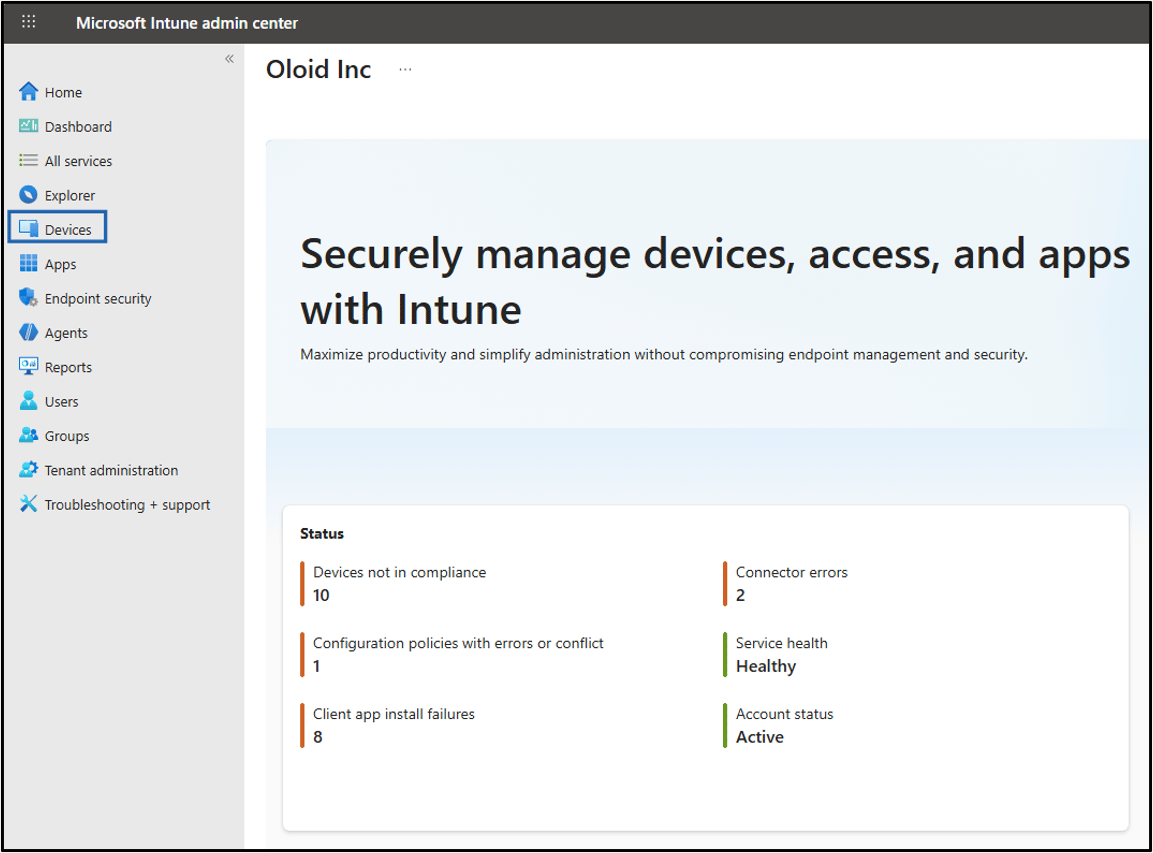
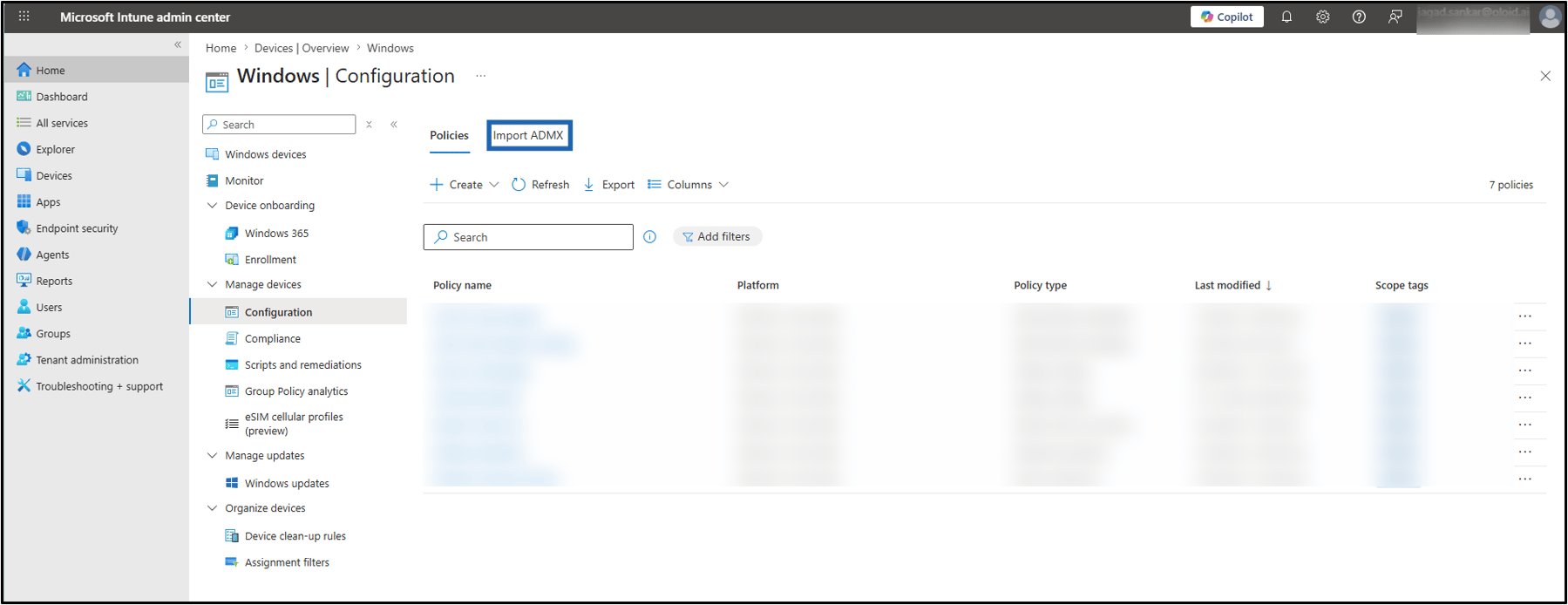
- Log in to Microsoft Intune Admin Account. The Microsoft Intune home page is displayed.
- Select Devices.
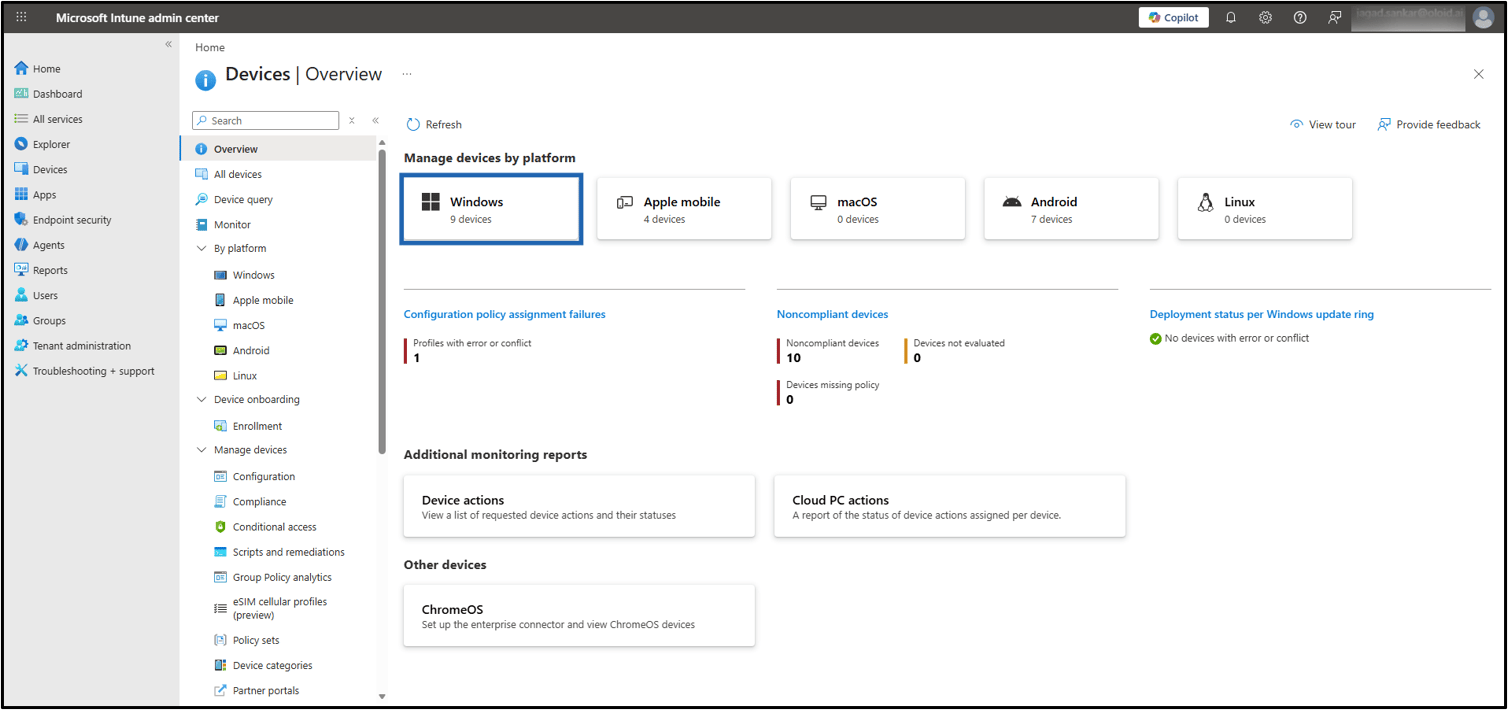
- Click Windows.
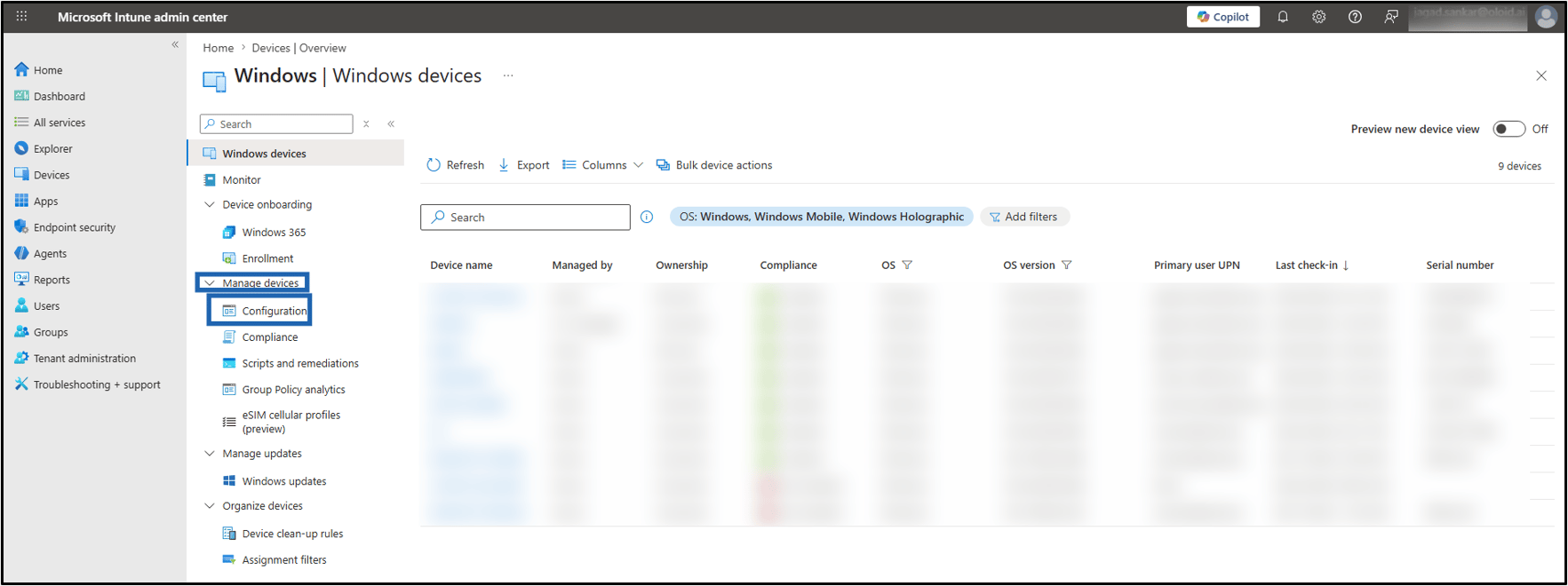
- Go to Manage devices >click Configuration.
- Click Import ADMX.
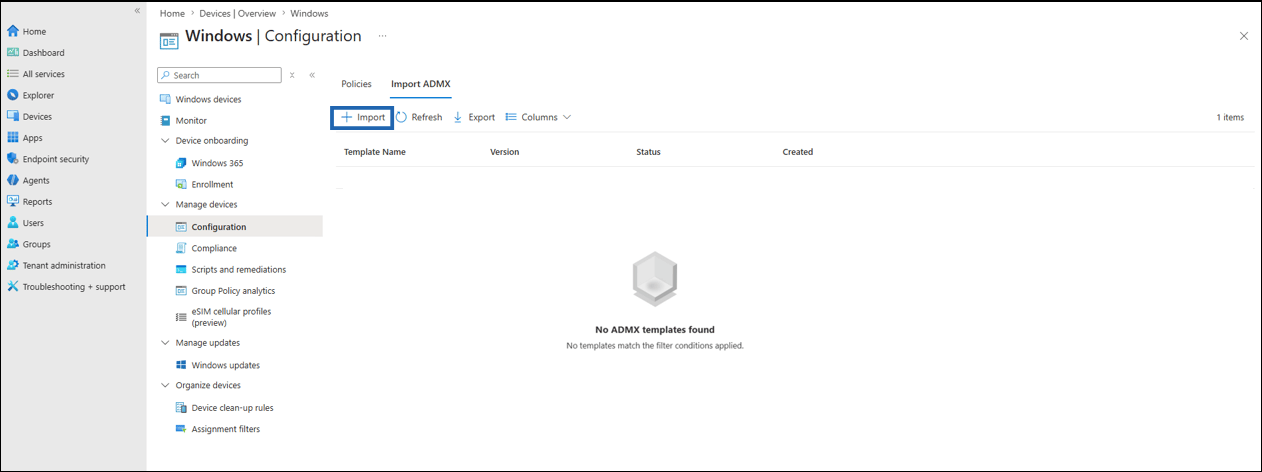
- Click +Import.
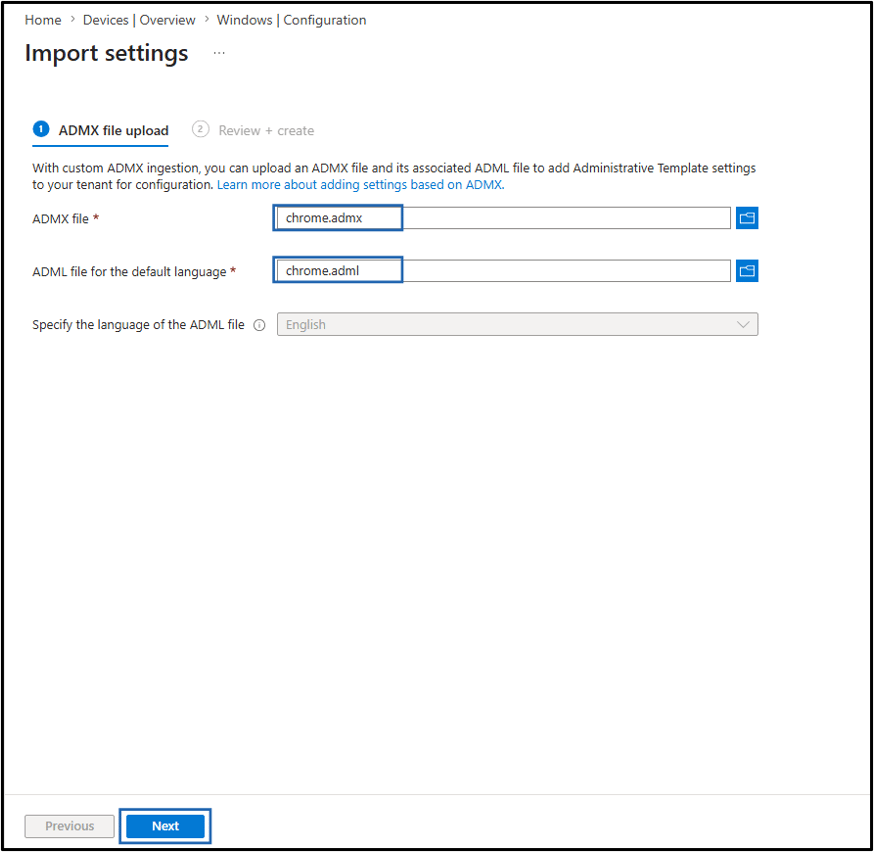
- On ADMX file upload tab, do the following:
- Select ADMX file.
-
Select ADML file for the default language.
Note: Contact Oloid Support to get the ADML and ADML files.
-
Click Next.
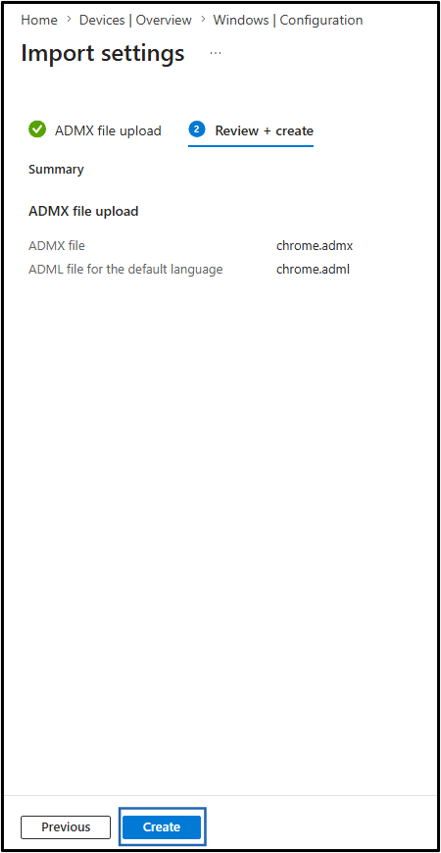
- On Review + create tab, click Create.
Create Configuration Profile
- Navigate to Devices > Windows > Manage devices > Configuration. The Configuration page is displayed.
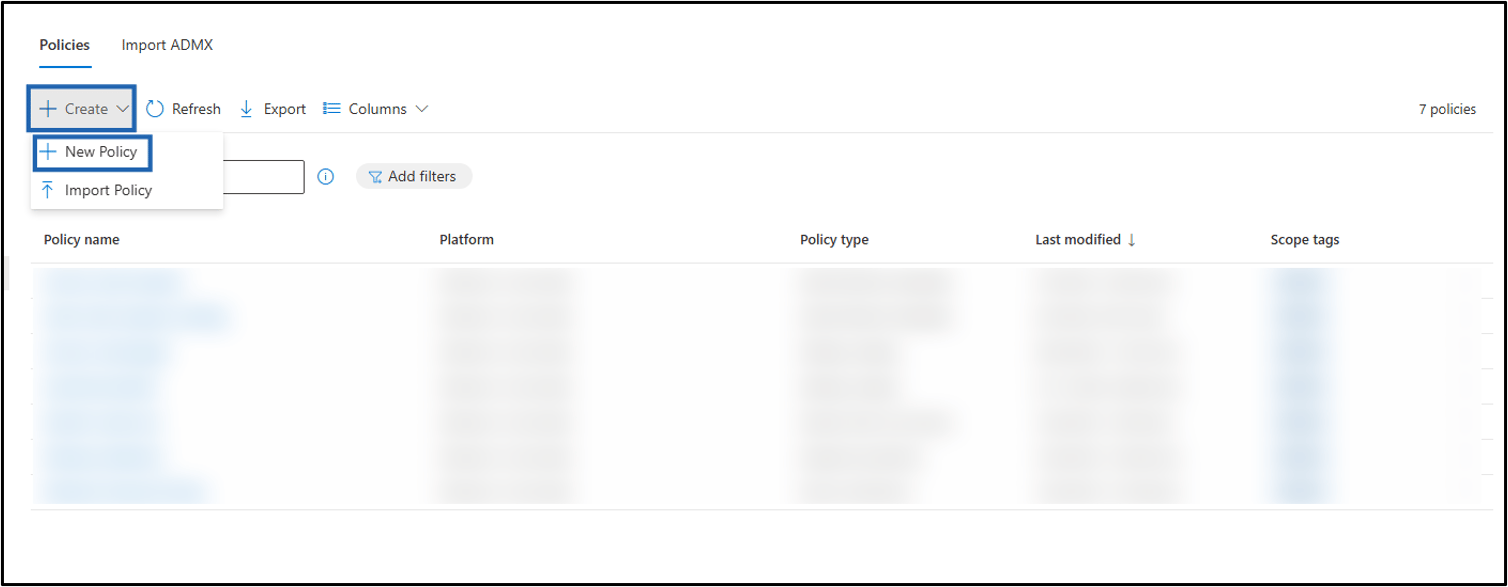
- Click Create > New Policy.
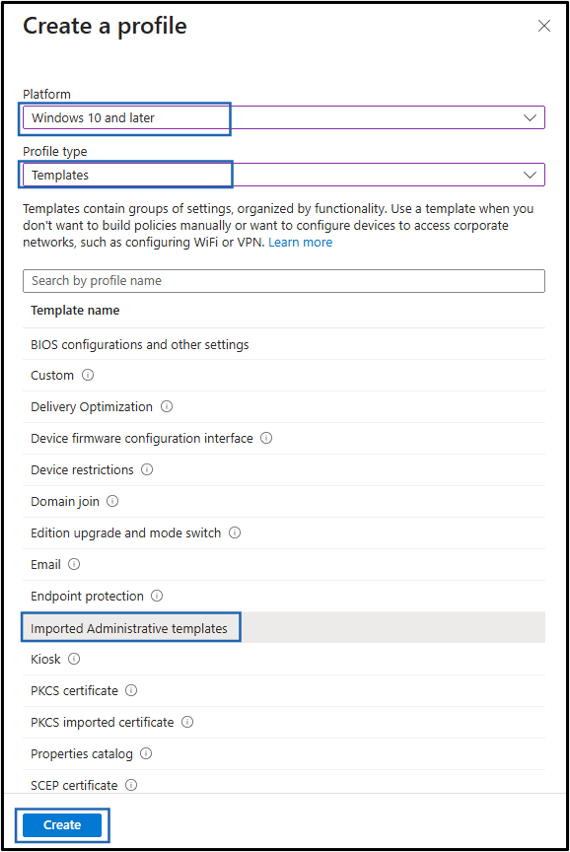
- Do the following:
- Select Windows 10 and later as Platform.
- Select Templates as Profile type.
- Select Imported Administrative templates as Template.
- Click Create.
- On Basics tab, do the following:
- Enter Name.
- Enter Description (Optional).
- Click Next.

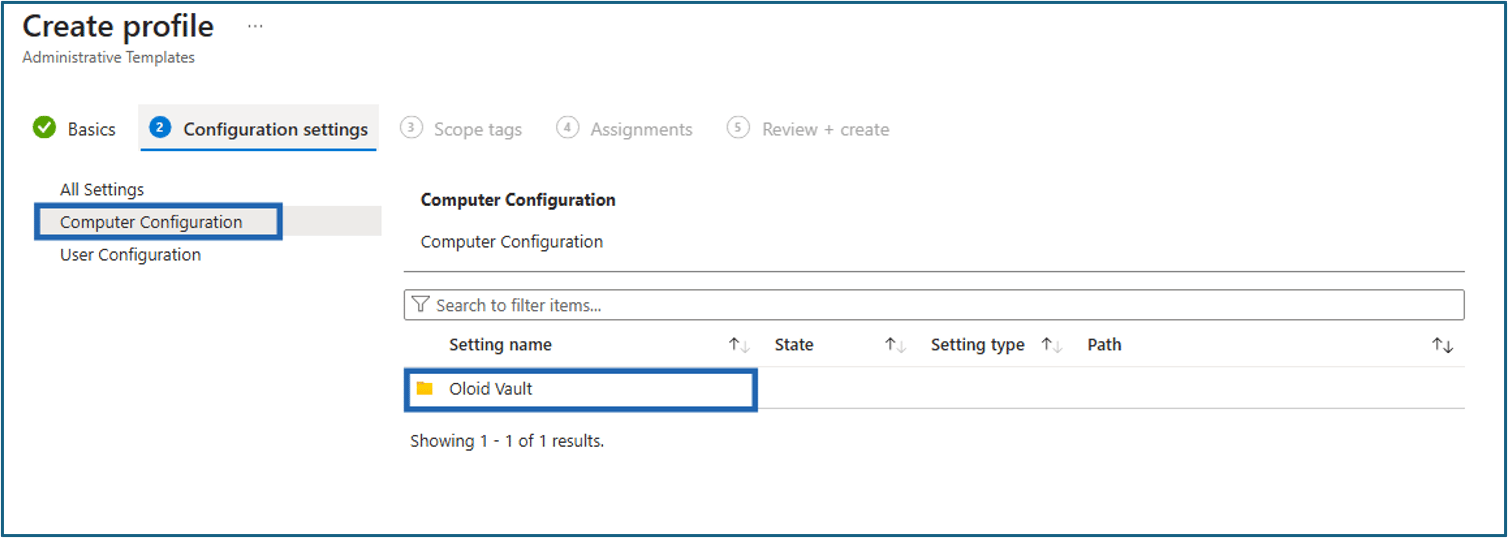
- On Configuration settings tab, do the following:
-
Select Computer Configuration > Oloid Vault.
-
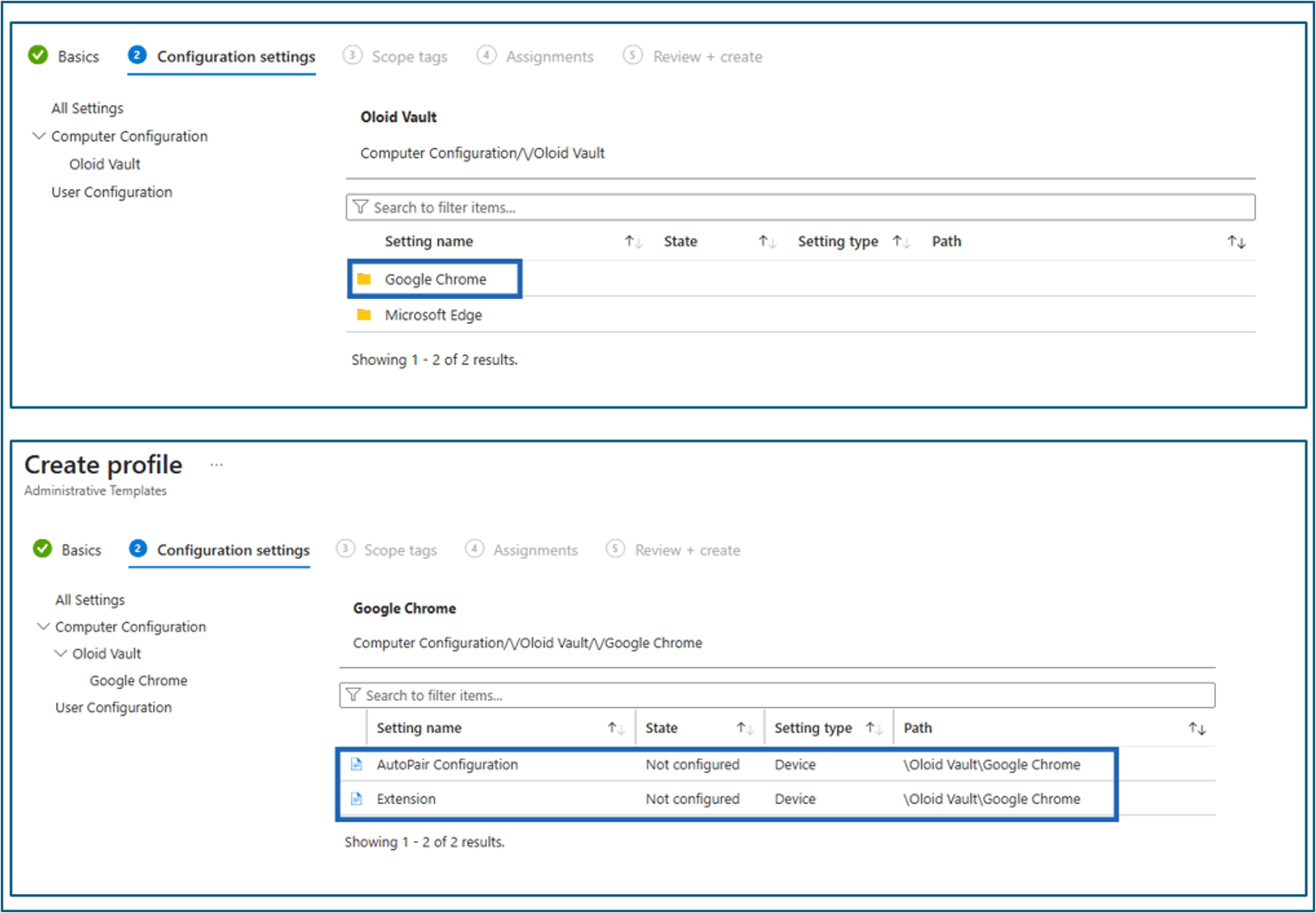
Select Google Chrome > Settings.
Note: To deploy Oloid Vault for Microsoft Edge, select Microsoft Edge.
-
Configure both the settings as follows:
-
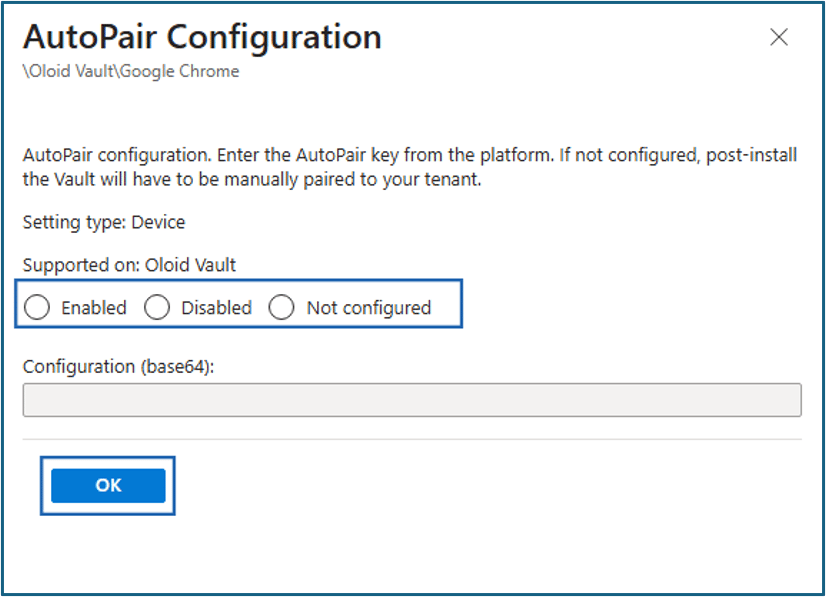
Click AutoPair Configuration.
The AutoPair Configuration pop-up box is displayed.Note: This setting is used to automatically pair Oloid Vault with the Oloid tenant during deployment.
- Select one of the following:
-
Enabled
Note: If enabled is selected, in the Configuration (base64) field, enter the Base64-encoded AutoPair configuration key. To generate and download the Auto-Pair configuration key, refer to Oloid Vault (Chrome / Chromium)- How to Generate and Download Auto-Pair Config File in the Tenant Admin Portal.
- Disabled
-
Not configured
Note: If you select Disabled or Not Configured, you must manually pair the Oloid Vault application after installation.
-
Click OK.
-
Enabled
- Select one of the following:
-
Click Extension.
The Extension pop-up box is displayed.Note: This setting is used to automatically install and pin the Oloid Vault extension in Google Chrome/Chromium during deployment.
- Select one of the following:
- Enabled
- Disabled
- Not configured
- Click OK.

- Select one of the following:
-
Click AutoPair Configuration.
-
Click Next.

-
Select Computer Configuration > Oloid Vault.
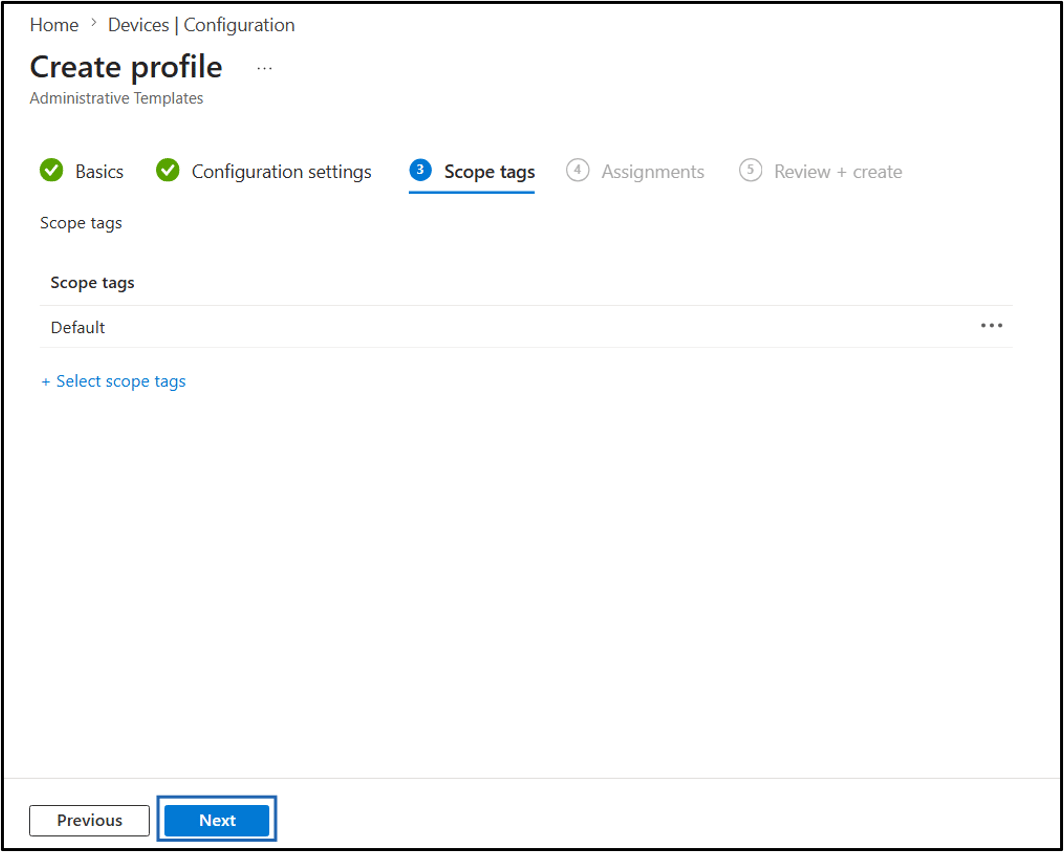
- On Scope tags, click Next.
- On Assignments tab, do the following.
-
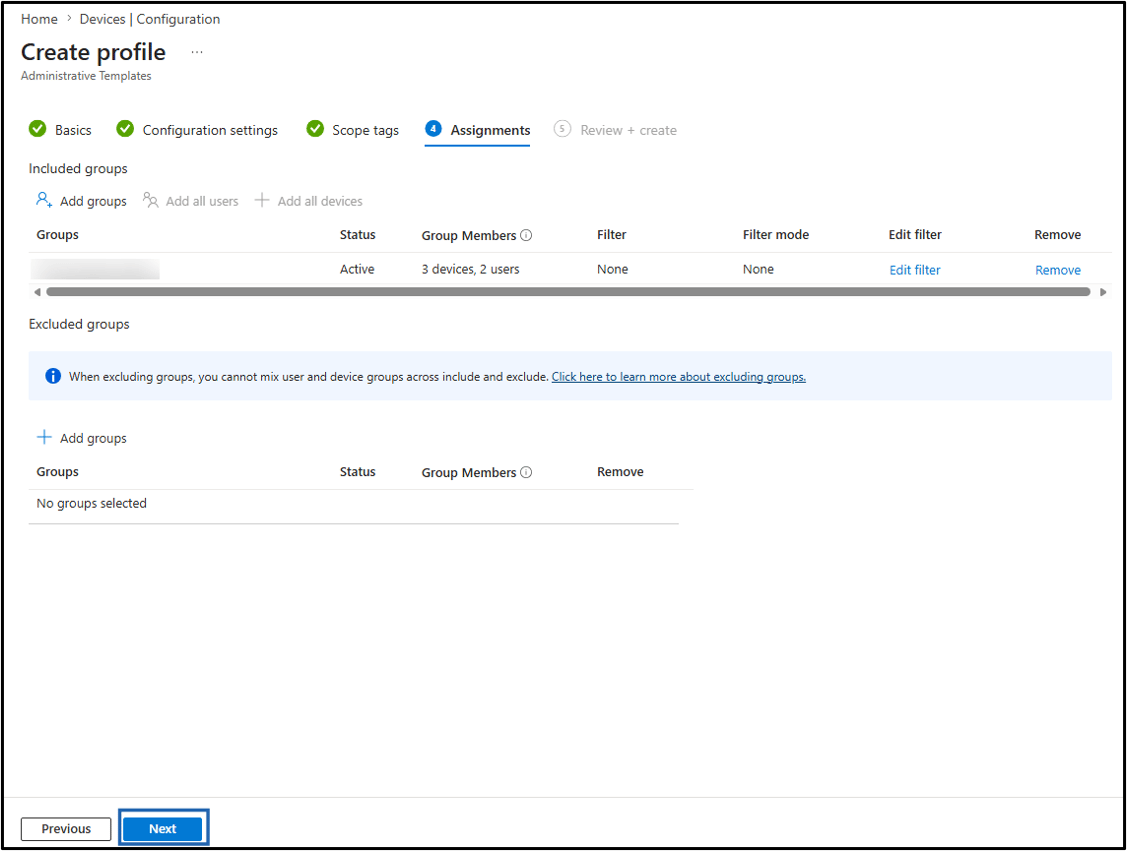
Click Add groups to assign this profile to your target device groups.
Note: Click + Add all devices to apply to all enrolled devices.

-
Do the following.
-
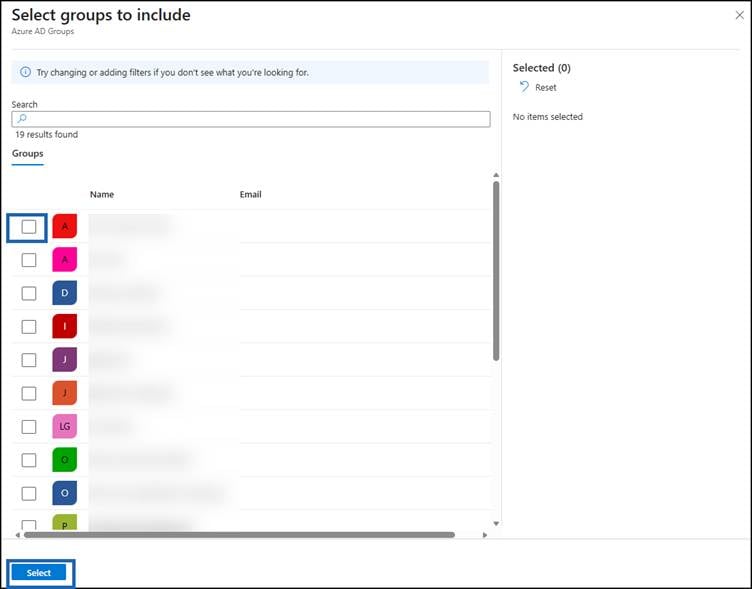
Select the group(s) from the list.
Note: You can select multiple groups.
-
Click Select.
-
Select the group(s) from the list.
-
Click Next.
-
Click Add groups to assign this profile to your target device groups.
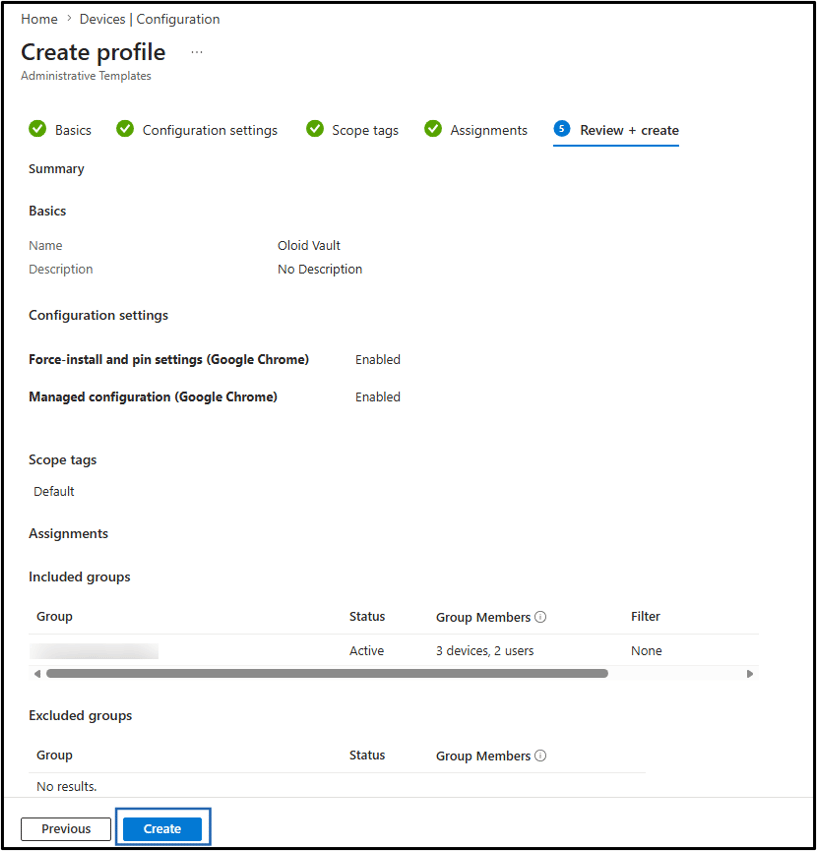
- On the Review + create tab, review the summary and confirm the following:
- Force-install and pin settings (Google Chrome) is Enabled.
- Managed configuration (Google Chrome) is Enabled.
- Correct group is assigned.
- Click Create.