Introduction
This document explains how to enable the Location Alerts feature and configure Geo-Fencing Radius for the Oloid Vault (Chrome / Chromium) application.Prerequisites
- You must have Admin access to the Tenant Admin Portal.
- You must create and configure Oloid Vault (Chrome / Chromium) application in the Tenant Admin Portal. For more, refer to Oloid Vault (Chrome / Chromium) - How to Create and Configure Oloid Vault Application in the Tenant Admin Portal
Steps to Enable Location Alerts
- Log in to the Tenant Admin Portal.
-
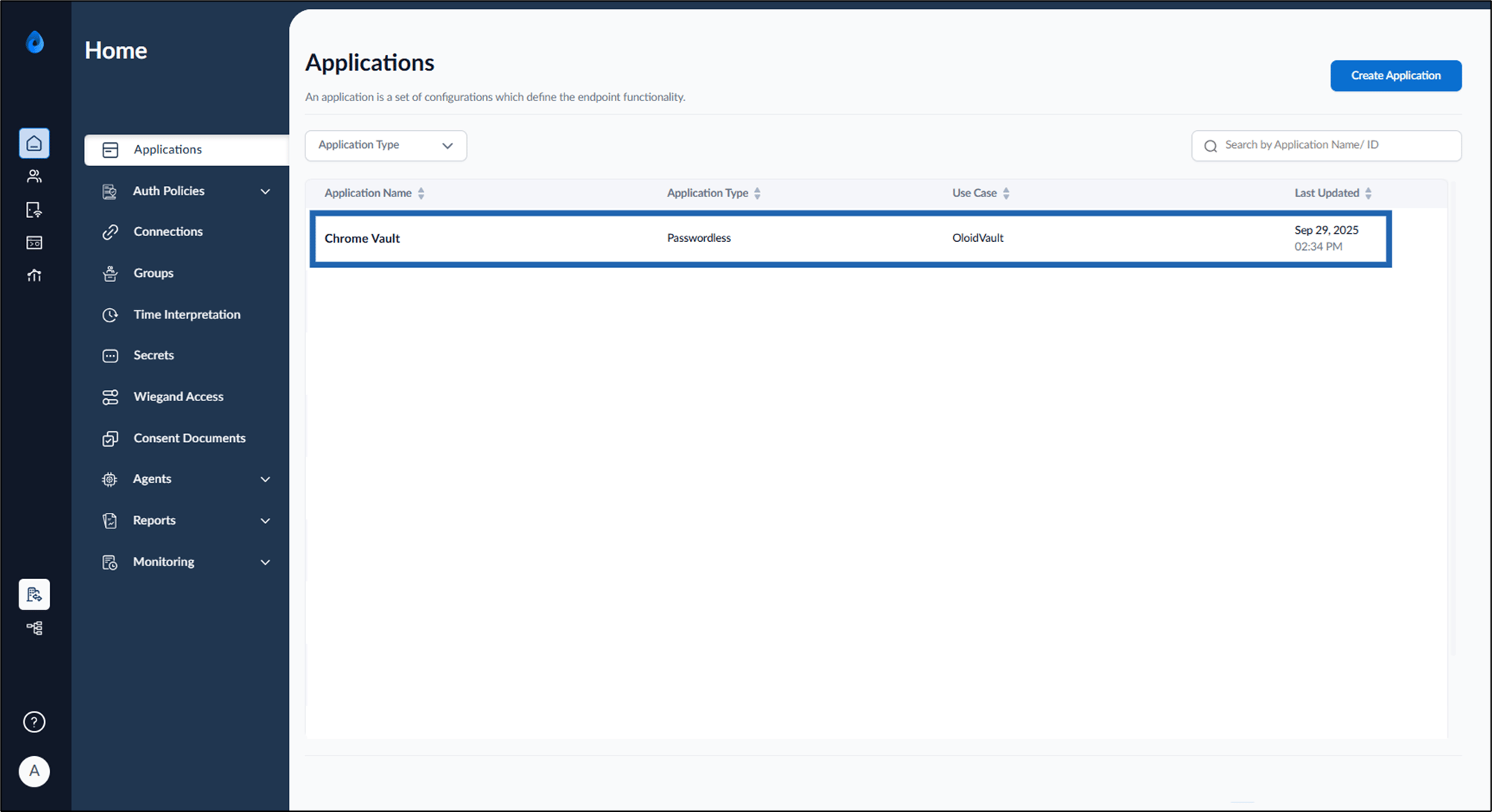
On the Applications page, click on the Chrome Vault application.
-
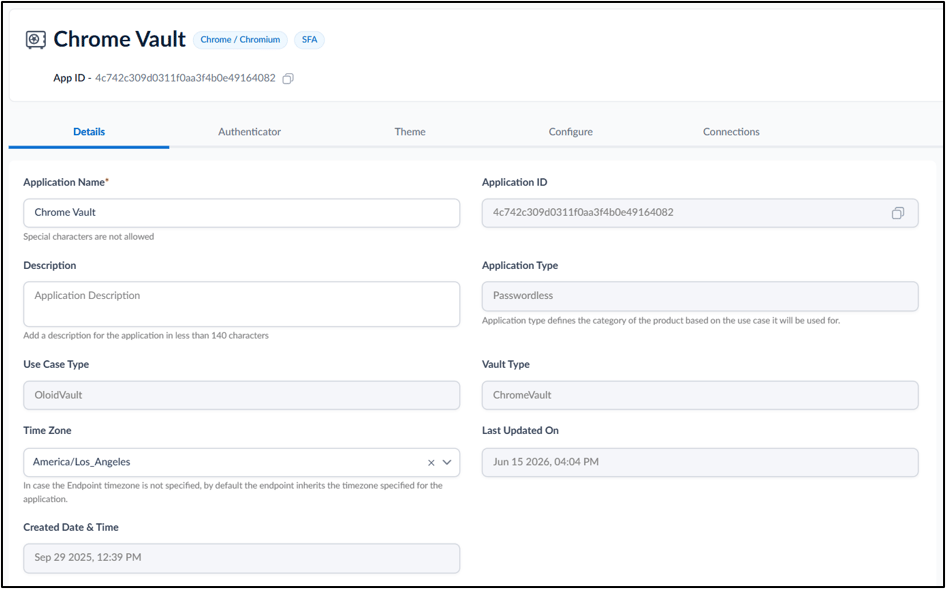
Go to Configure tab > Settings.
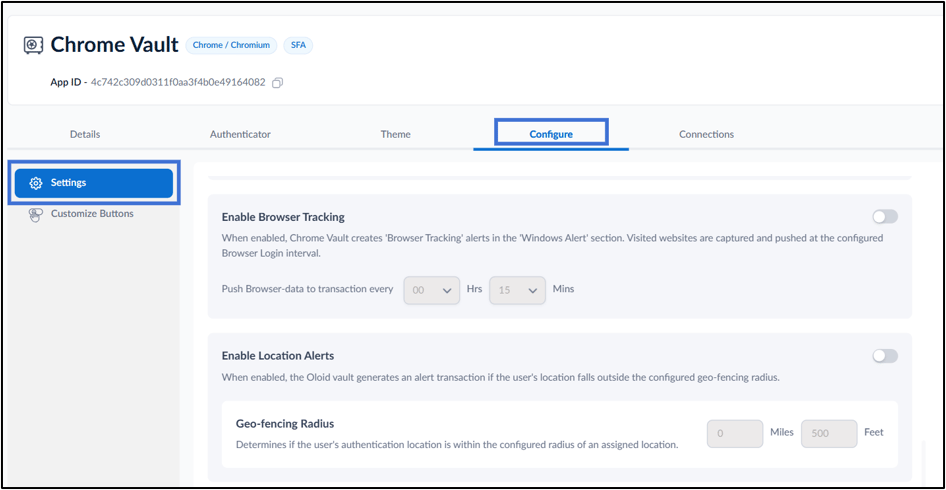
-
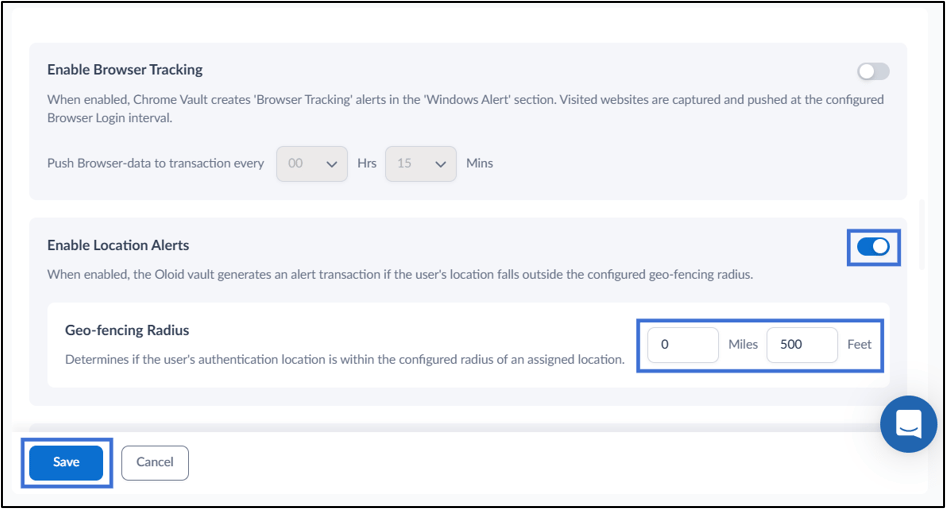
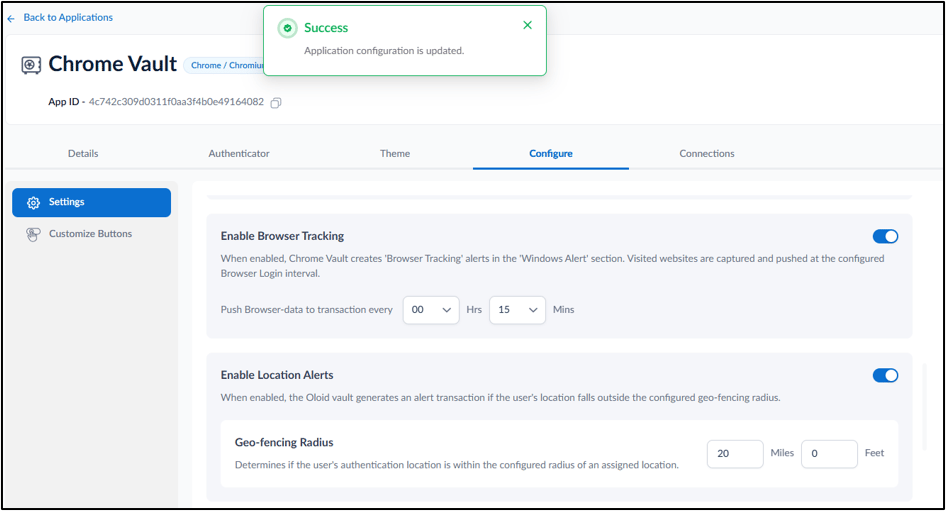
Enable Location Alerts toggle to generate an alert transaction when a user’s authentication occurs outside the configured geo-fencing radius.
Note: When enabled, users must grant device location access before authentication.
-
In the Geo-fencing Radius section, configure the allowed authentication distance:
- Miles – Enter the allowed radius in miles.
-
Feet – Enter the allowed radius in feet.
Note: To receive a Windows Alert each time a location violation occurs, enable Browser Tracking and configure the Push Browser-data to transaction every interval. For more, refer to How to Enable and Configure Browser Tracking.