Introduction
This document provides instructions to install Oloid Vault as a browser extension. The installation steps in this document apply to Microsoft Edge browser. After installation, Oloid Vault enables users to securely manage credentials directly within Microsoft Edge web applications.Prerequisites
-
The Oloid Vault installer package (ZIP file) is available.
Note: Contact Oloid Support to obtain the Oloid Vault installer package
-
The installer package includes:
- Oloid_Vault.crx file
-
Registry file(s).
Note: Restart Microsoft Edge browser to apply the registry changes
Steps to Install Oloid Vault Application
-
Download the Oloid Vault installer ZIP file on your system.
Note: Ensure theinstaller file must contain Oloid_Vault.crx and Registry files.
-
Right-click the zip file and select Extract All.
Note: The extracted files are saved in the same folder as the original ZIP file.
-
Install Registry file.
Note: First-time users must install the required registry file before using the Oloid Vault application.
- Open Microsoft browser.
-
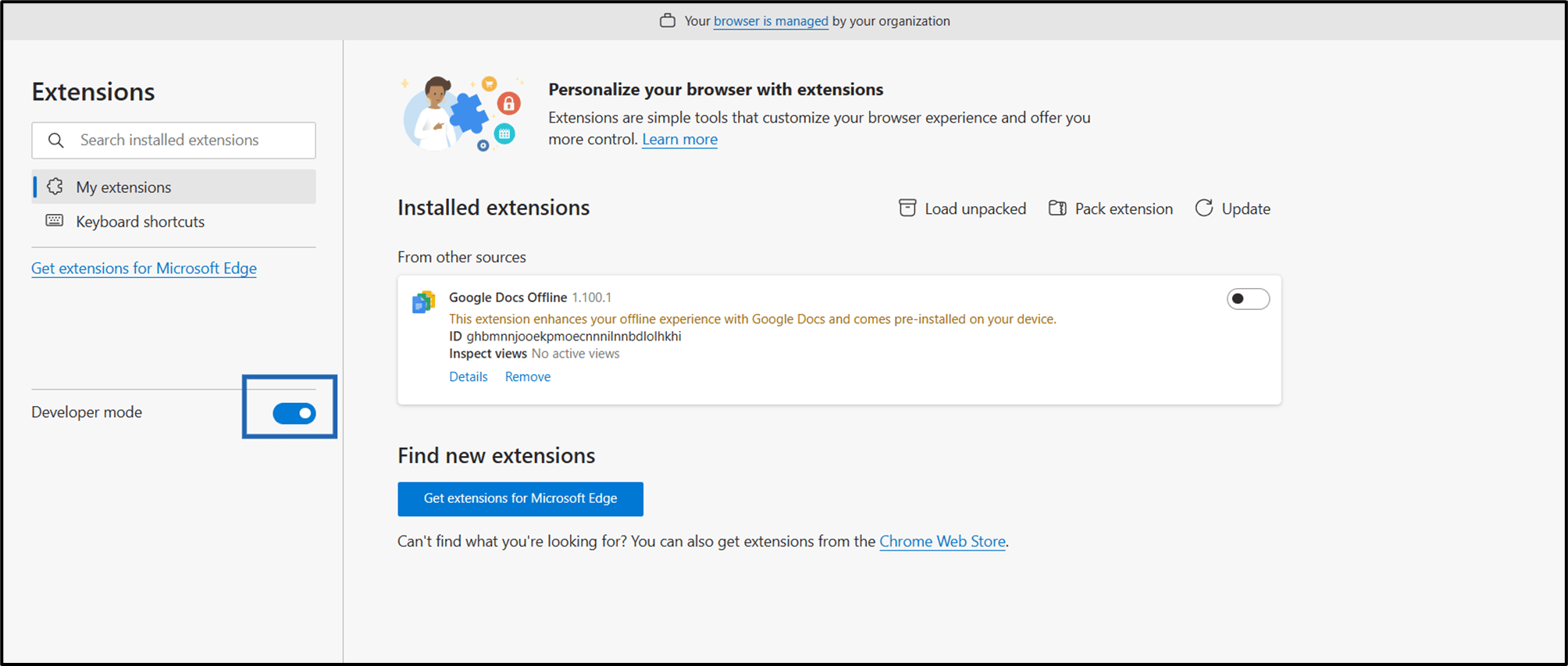
Go to Extensions > Manage Extensions.

-
Enable Developer Mode toggle.
-
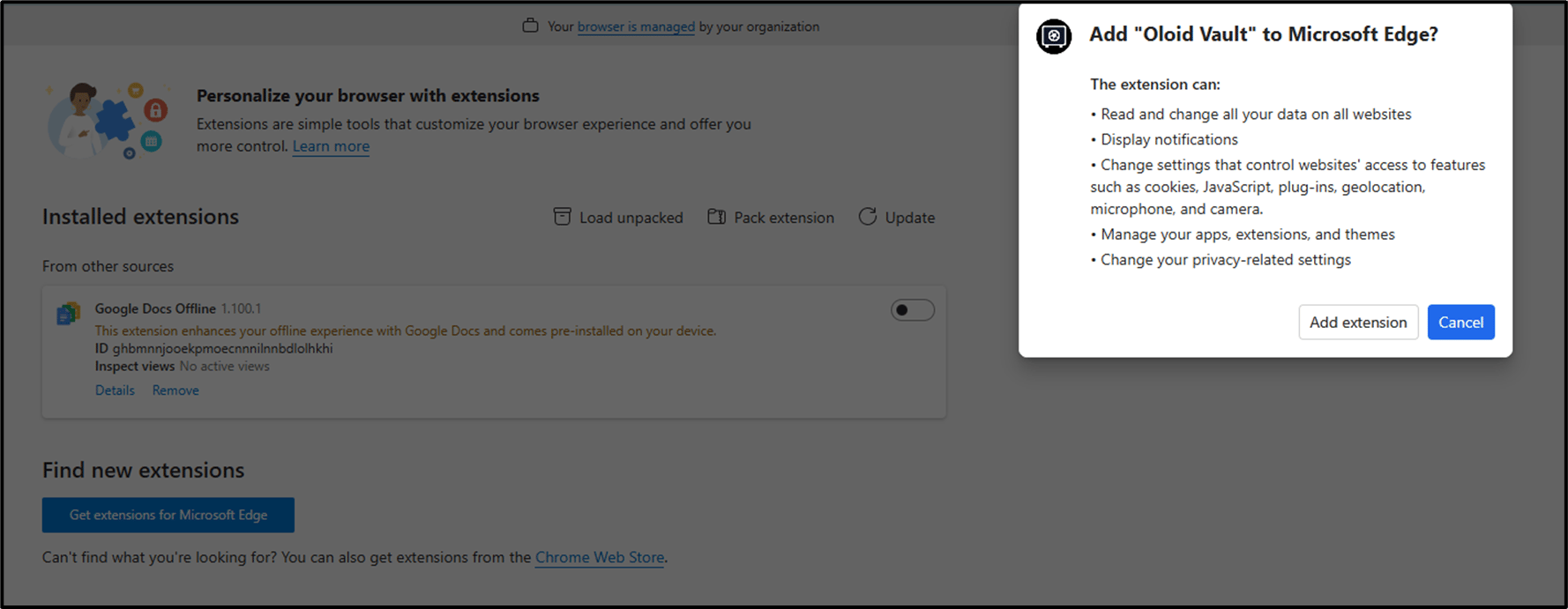
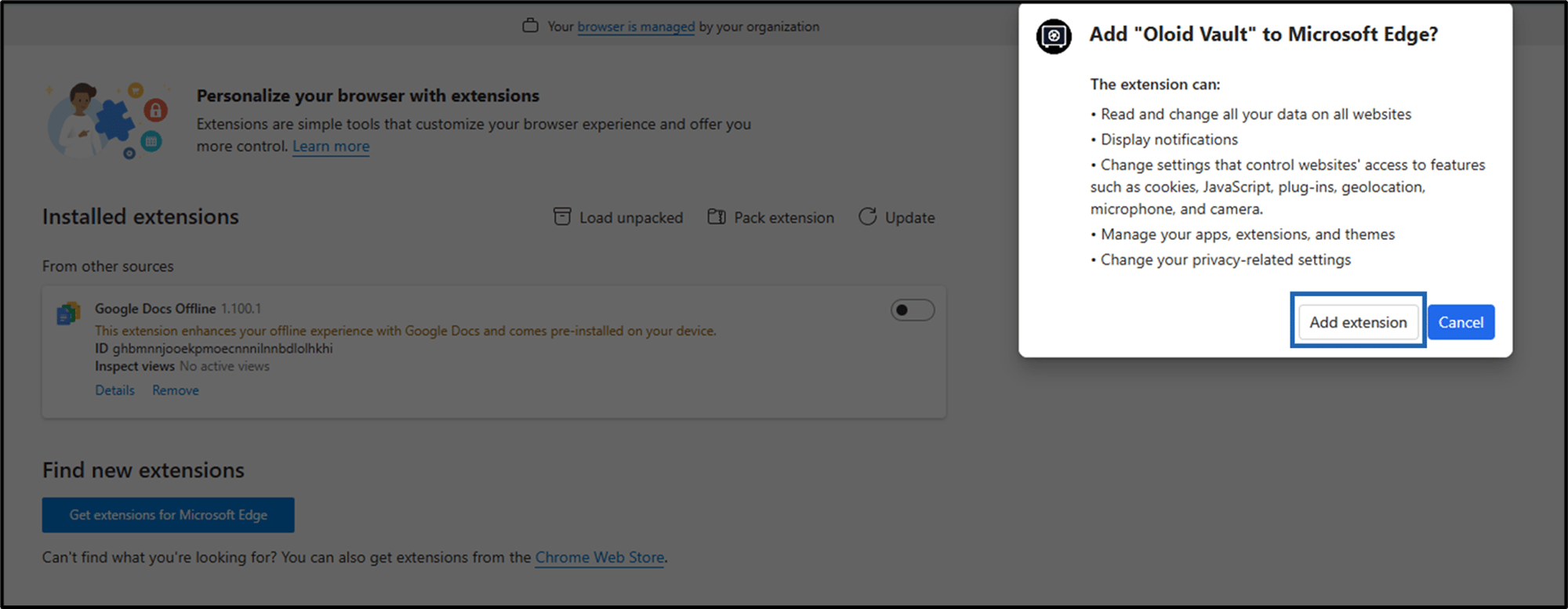
Drag and drop the Oloid_Vault.crx file onto the Edge Extensions page.
The Add “Oloid Vault” to Microsoft Edge? pop-up box is displayed.Note: Ensure that Developer mode is enabled before dragging and dropping the Oloid_Vault.crx file.
-
Select Add extension.
-
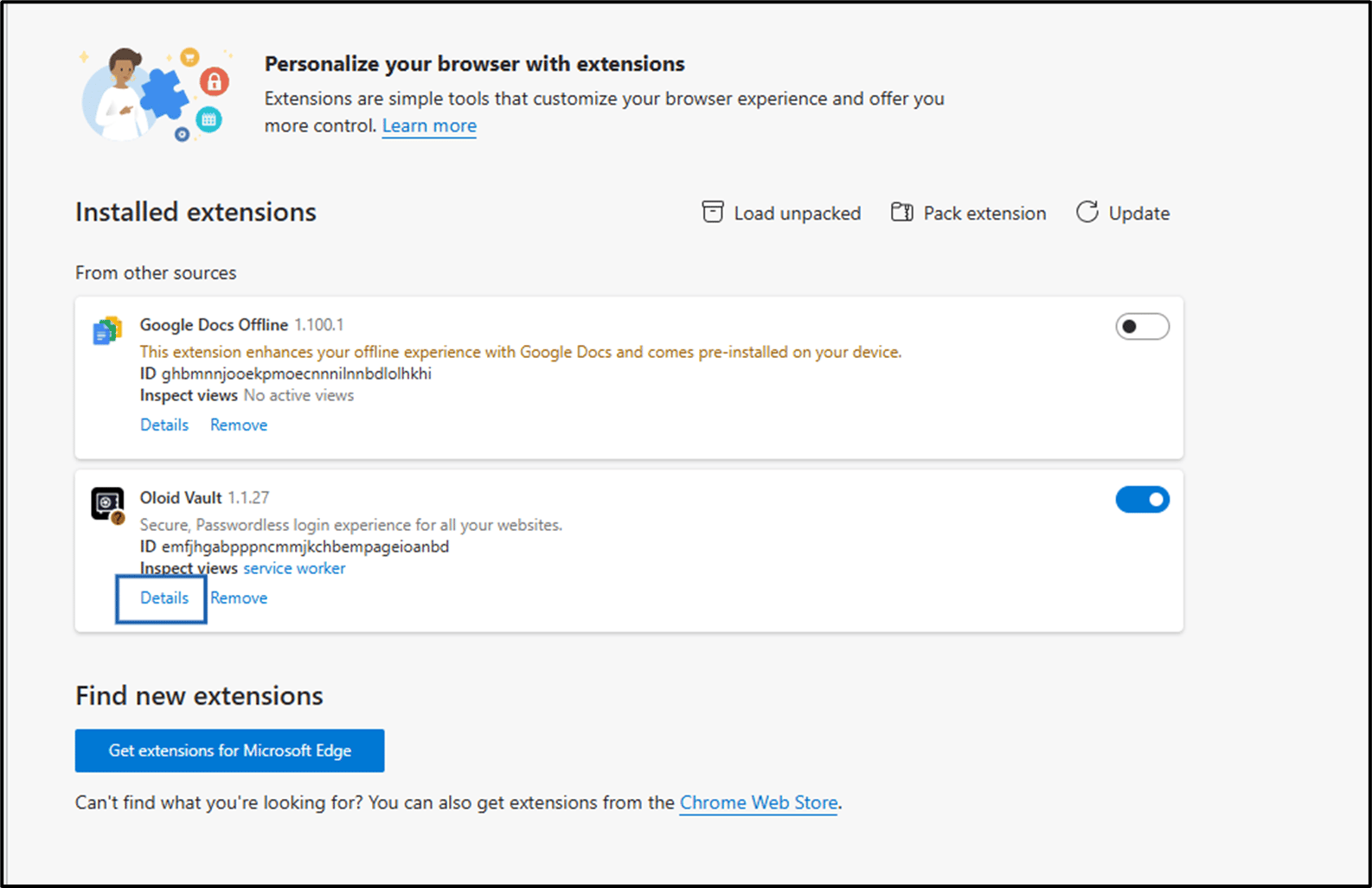
Click Details.
-
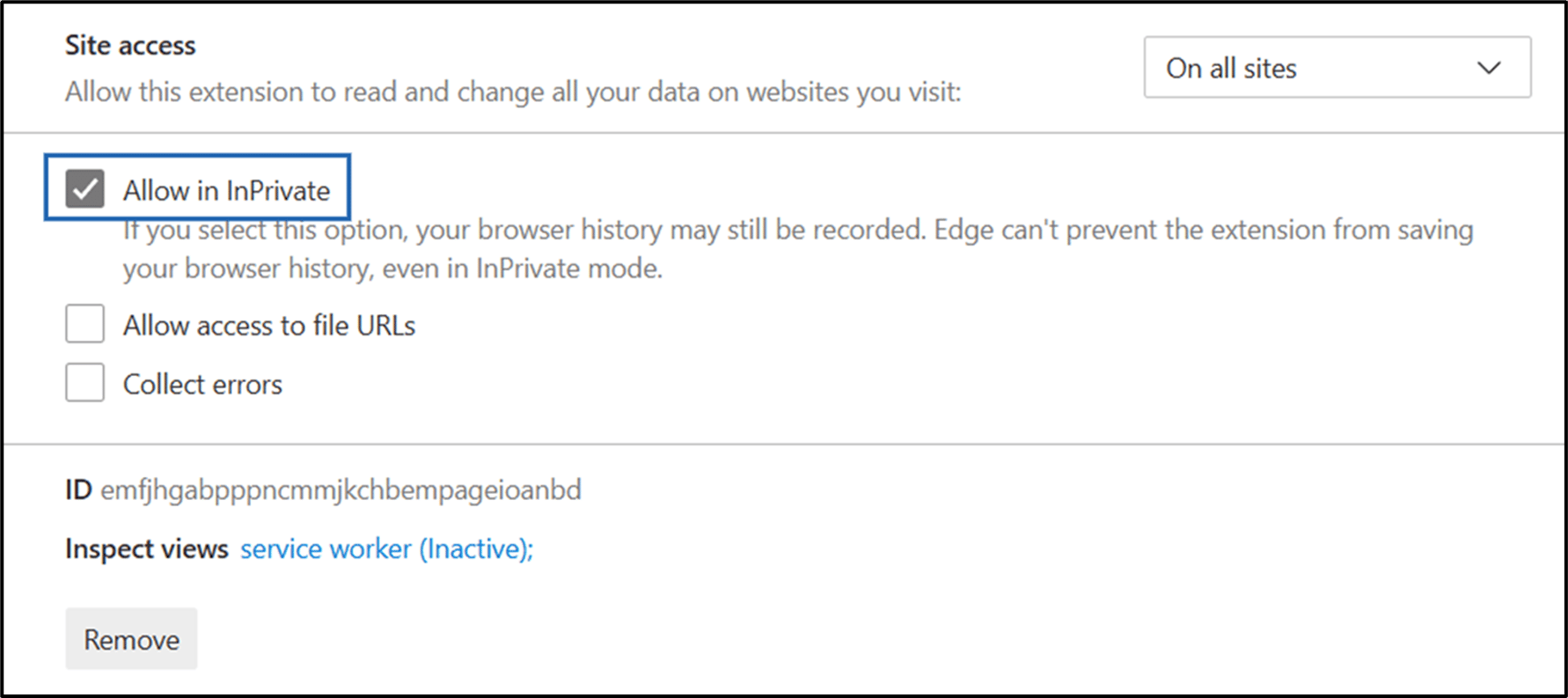
Select Allow in InPrivate.
-
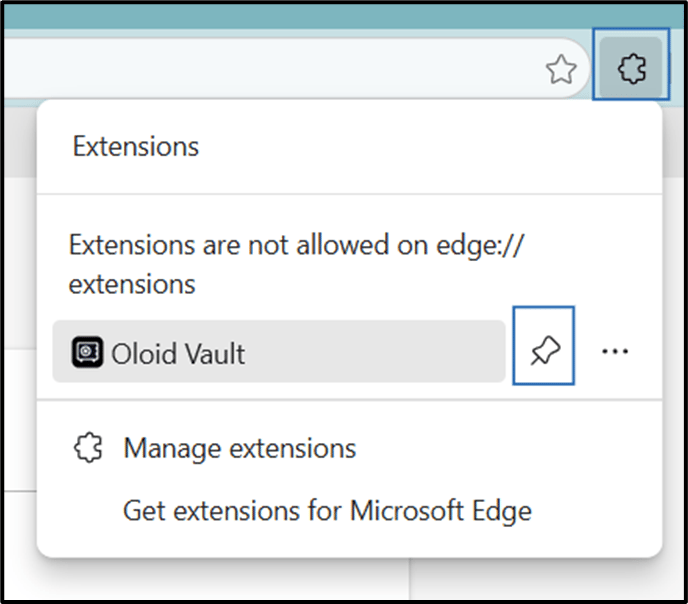
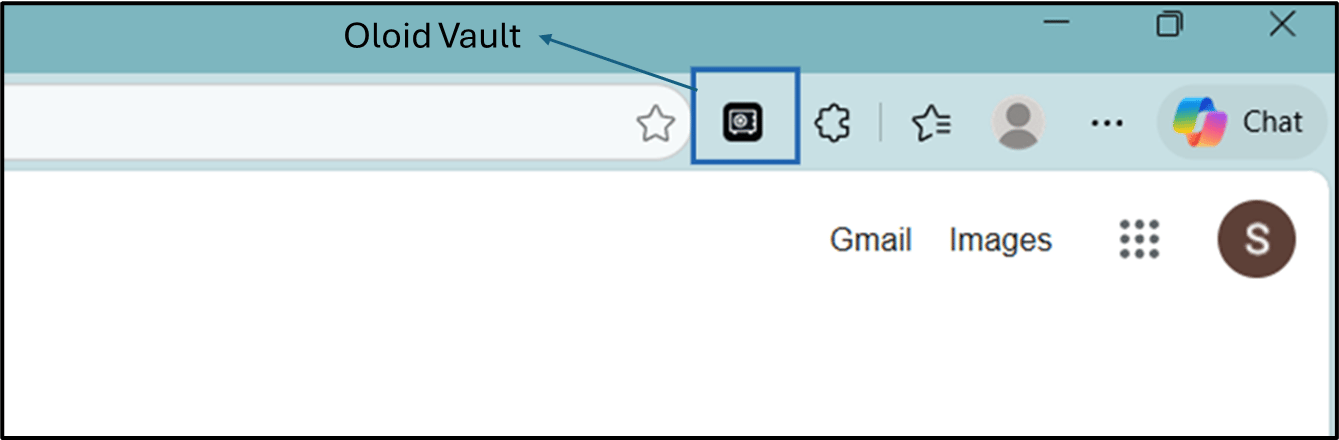
Click Extension > Pin to Tool bar (Optional).