Steps to add face of a single user:
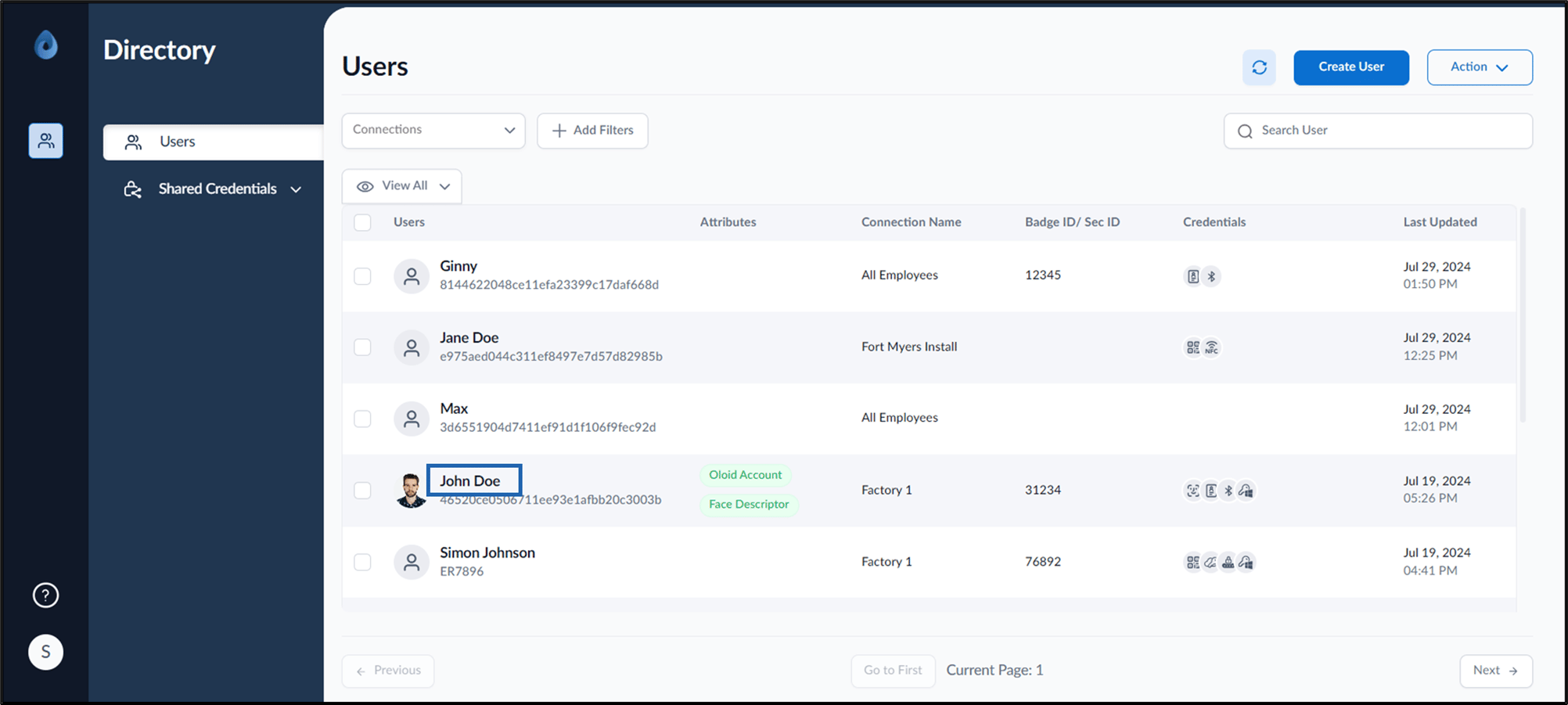
  1. Log in to the Supervisor Portal. The Users page is displayed.
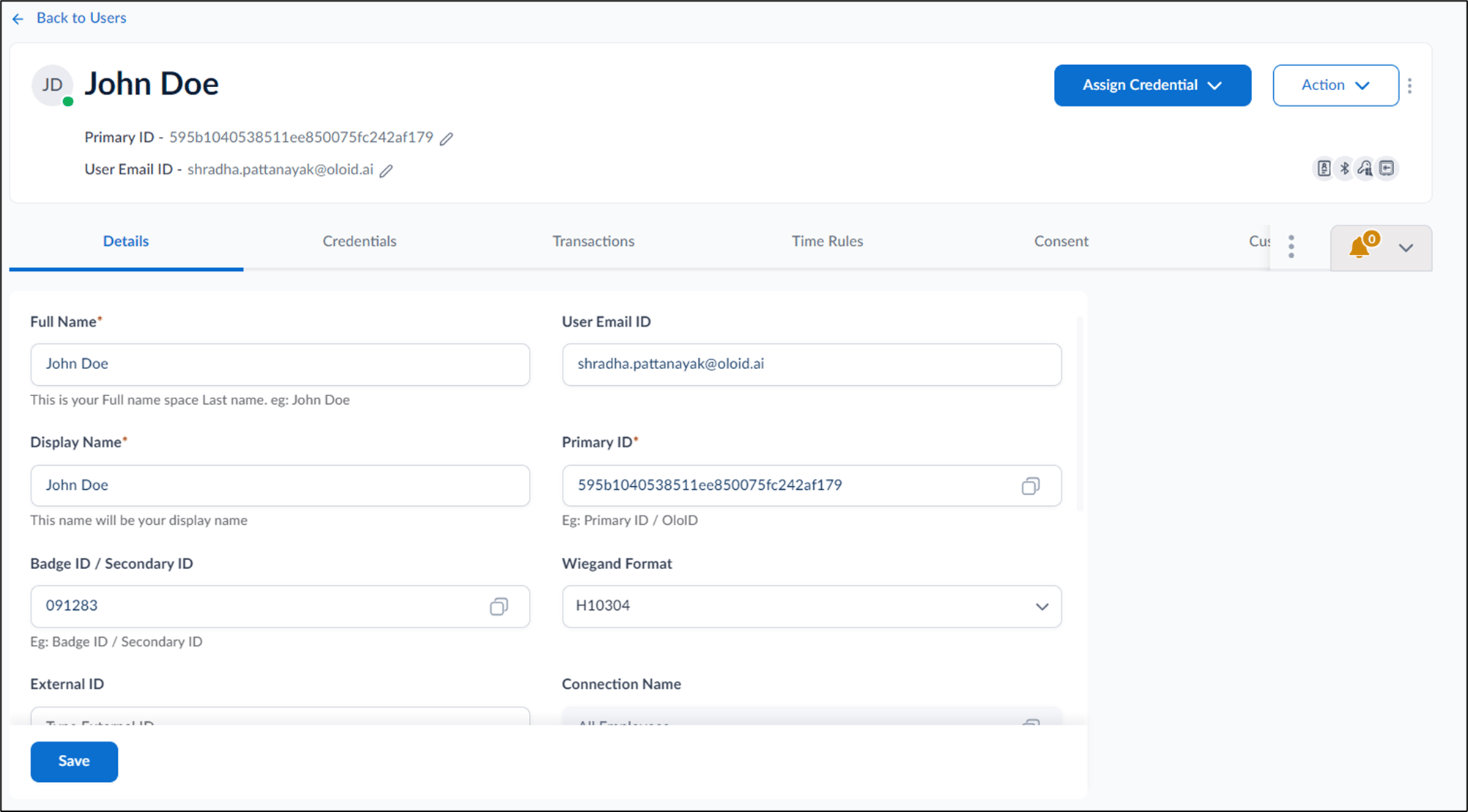
  2. Click username to edit. How to onboard face of a single user - screenshot 1 Theuser details page is displayed. How to onboard face of a single user - screenshot 2
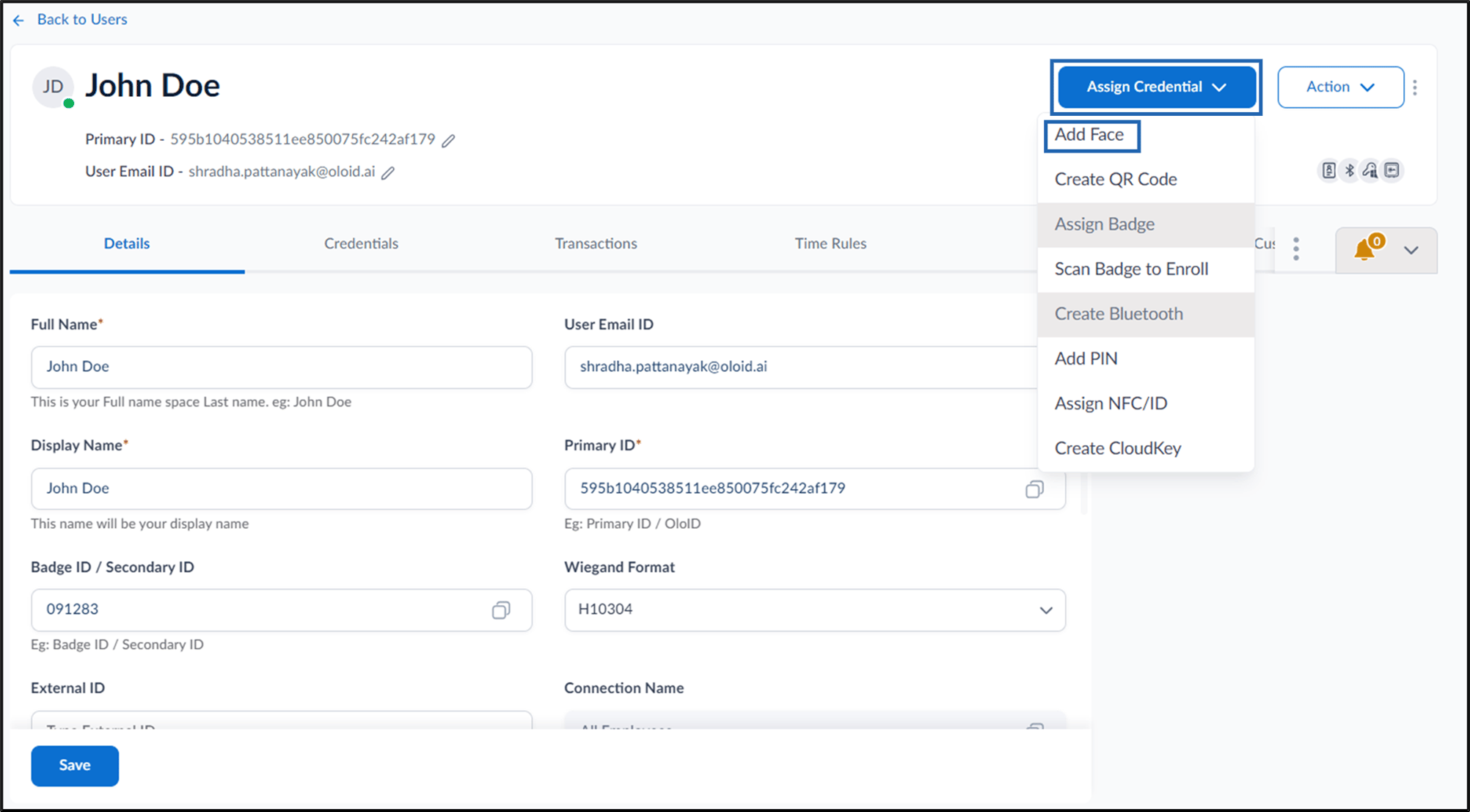
  3. Do one of the following:
    1. Go to Credentials > Face > + Add Face. Image
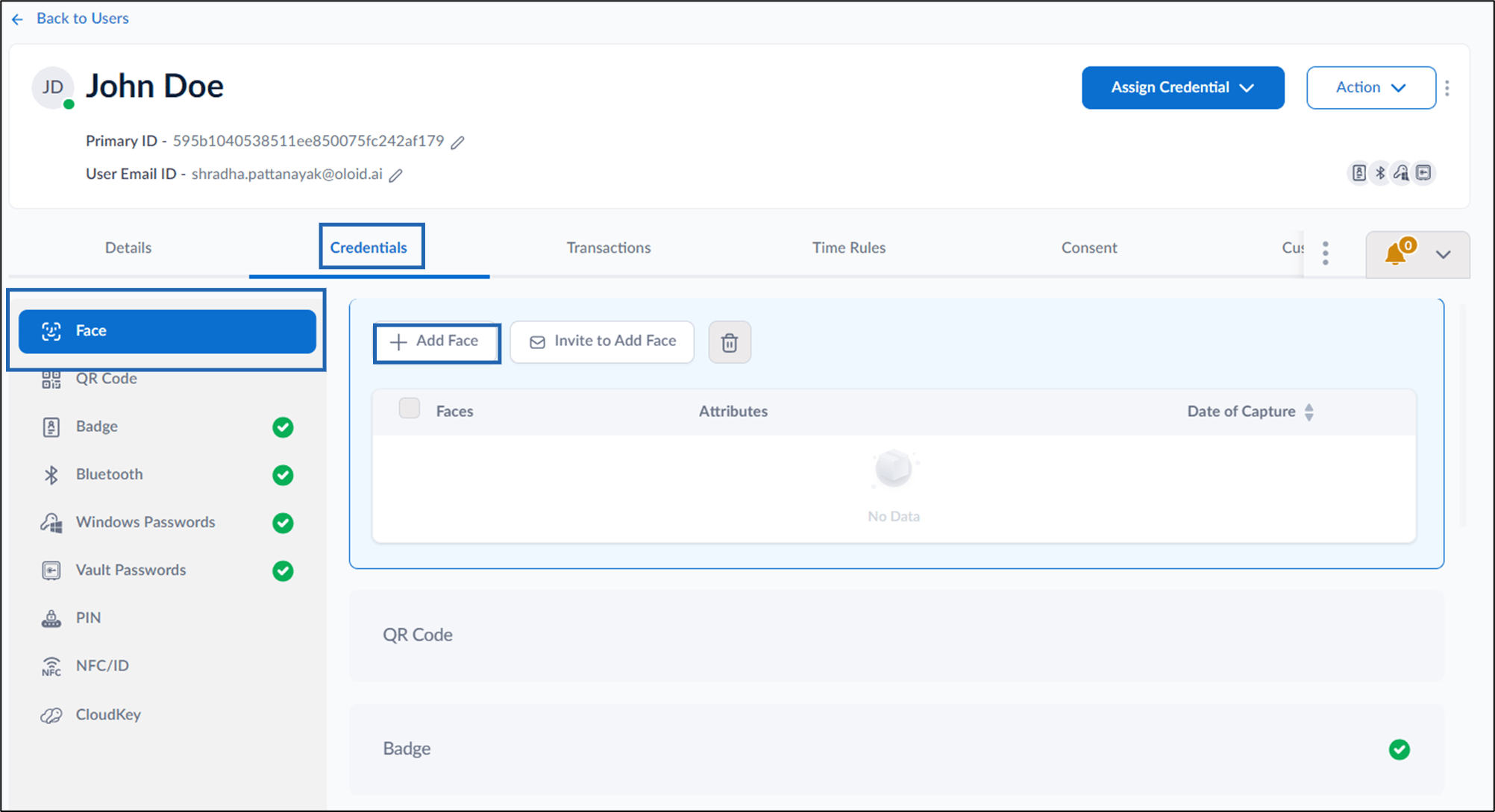
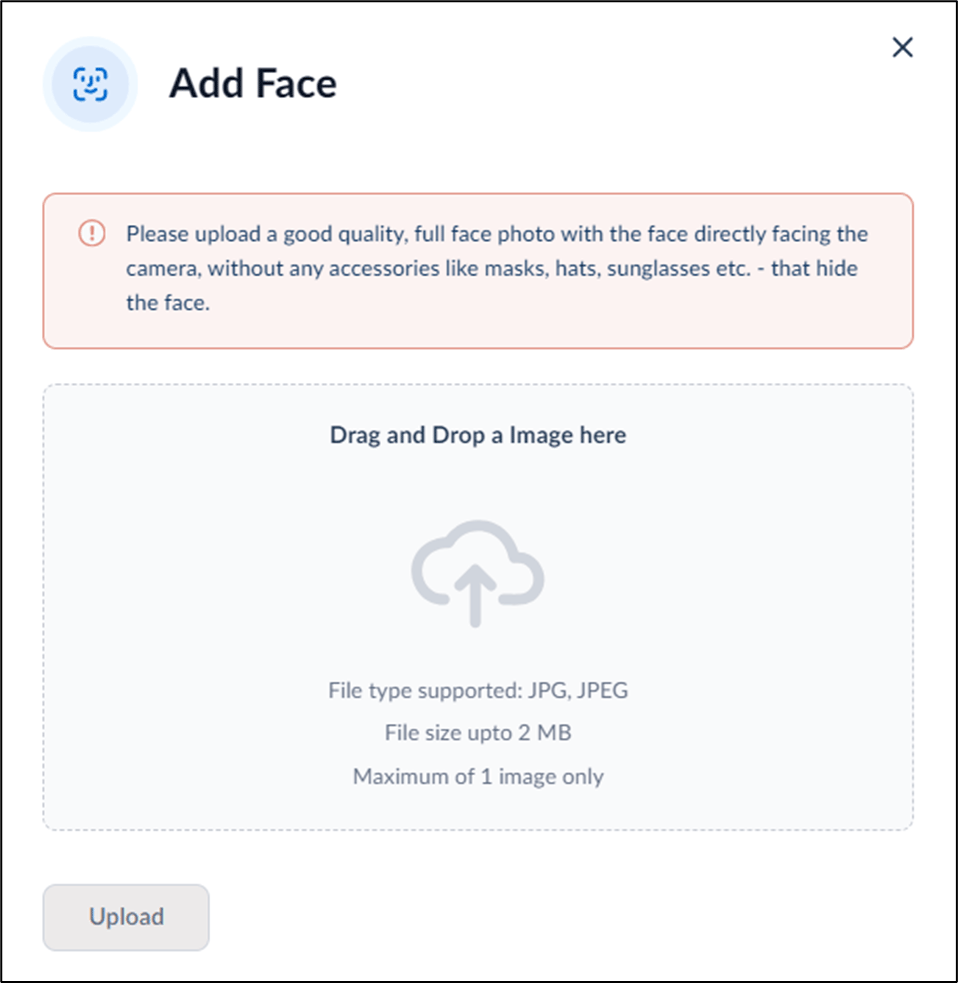
    2. Go to Assign Credential > Add Face. Image The pop-up box to upload image is displayed. How to onboard face of a single user - screenshot 3
  4. Click or Drag and Drop the image to be uploaded.
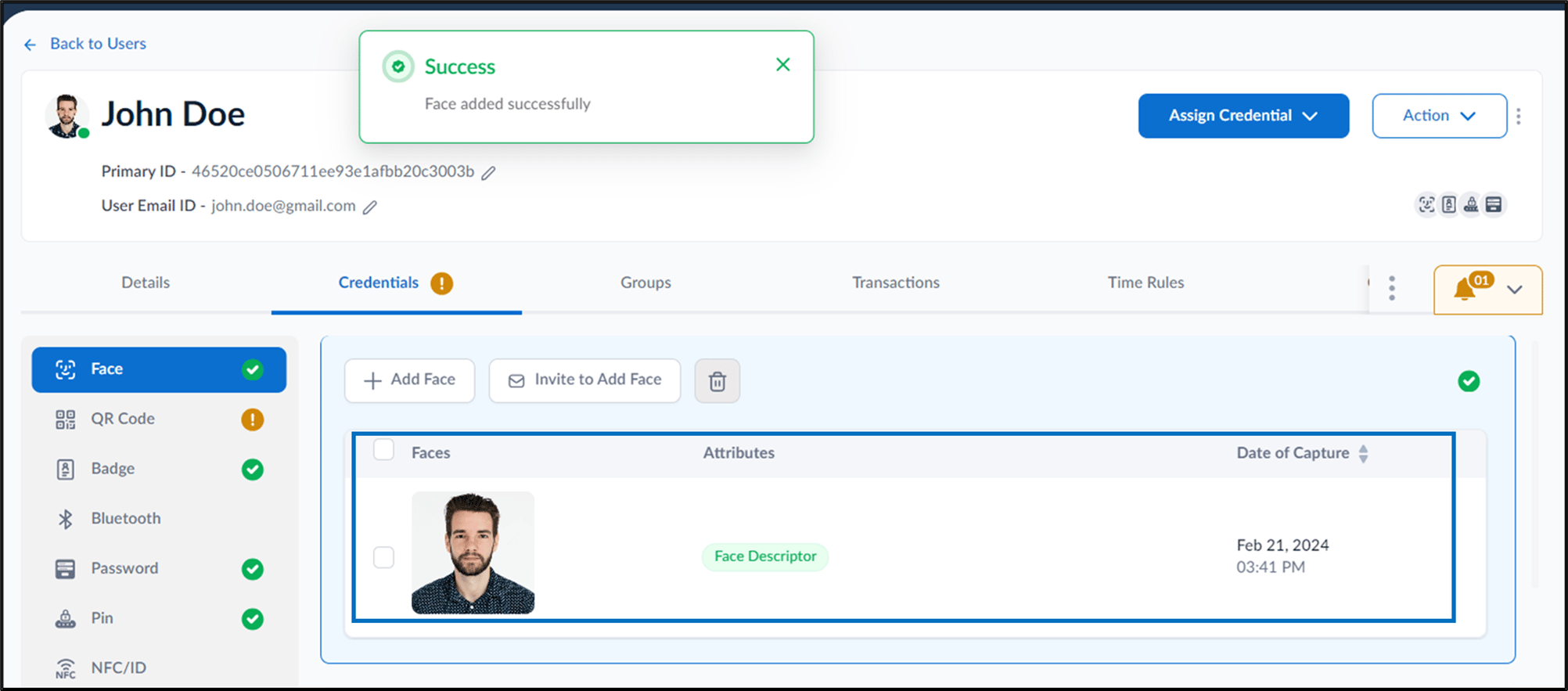
Click Upload. The image is uploaded and listed on the Face tab. How to onboard face of a single user - screenshot 4
Note: You can add a maximum of five faces per user.

Video Tutorial

  1. Watch the video How to onboard face of a single user in the Supervisor Portal- Video Tutorial