

Create Password for local windows machine
To create Password:- Log in to the Supervisor Portal. The Users page is displayed.
- Click username to edit.
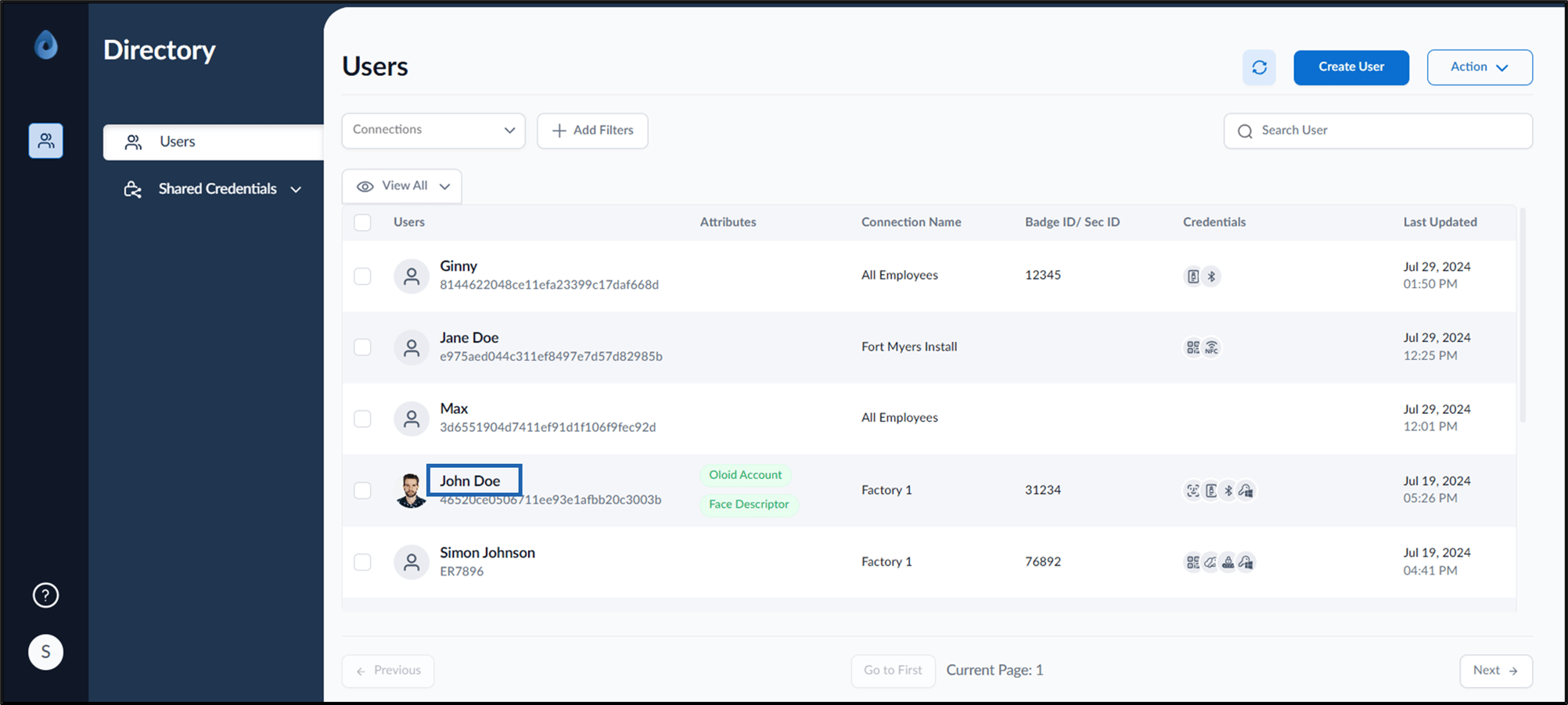

- Go to Credentials > Windows Password tab > + Create Password.

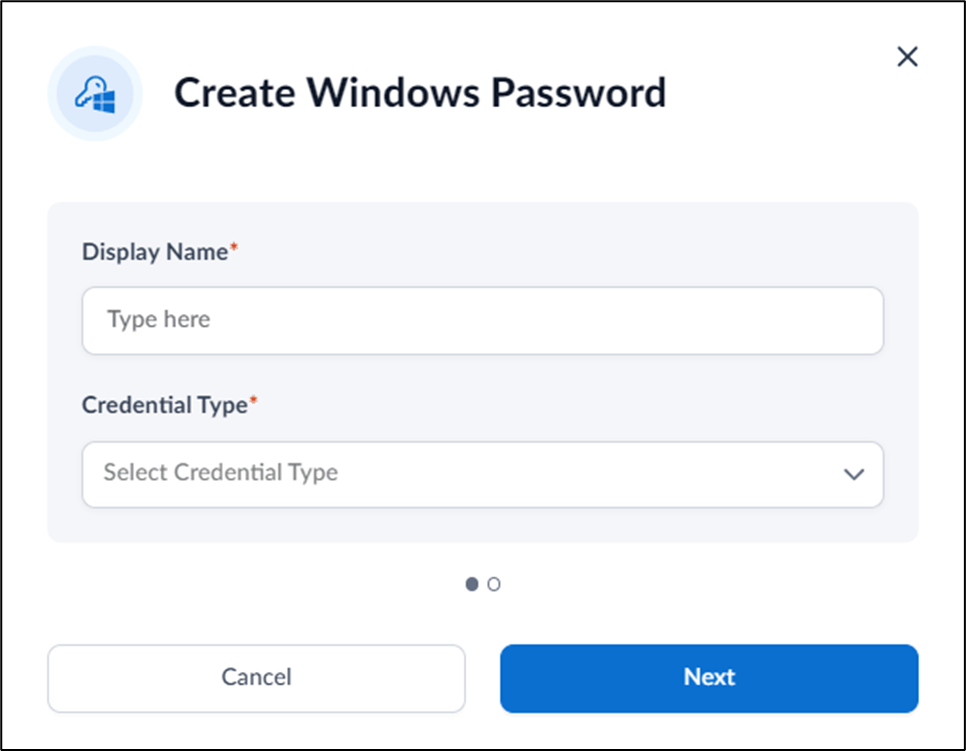
- Do the following:
- Enter Display Name that displays on the Windows Login page.
- Select Windows Local User type from Credential Type dropdown list.
-
Click Next.

-
Enter Machine Name.
Note: Enter your Windows device name.
-
Enter Username of your Windows Login.
Note: Windows account name.
- Enter Password of your Windows Login.
- Click Save.

Create Password for domain
- Log in to the Supervisor Portal. The Users page is displayed.
- Click username to edit.
- Go to Credentials > Passwords tab > Create Password.
- Do the following:
- Enter Display Name that displays on the Windows Login page.
- Select Windows Domain User type from Credential Type dropdown list.
-
Click Next.
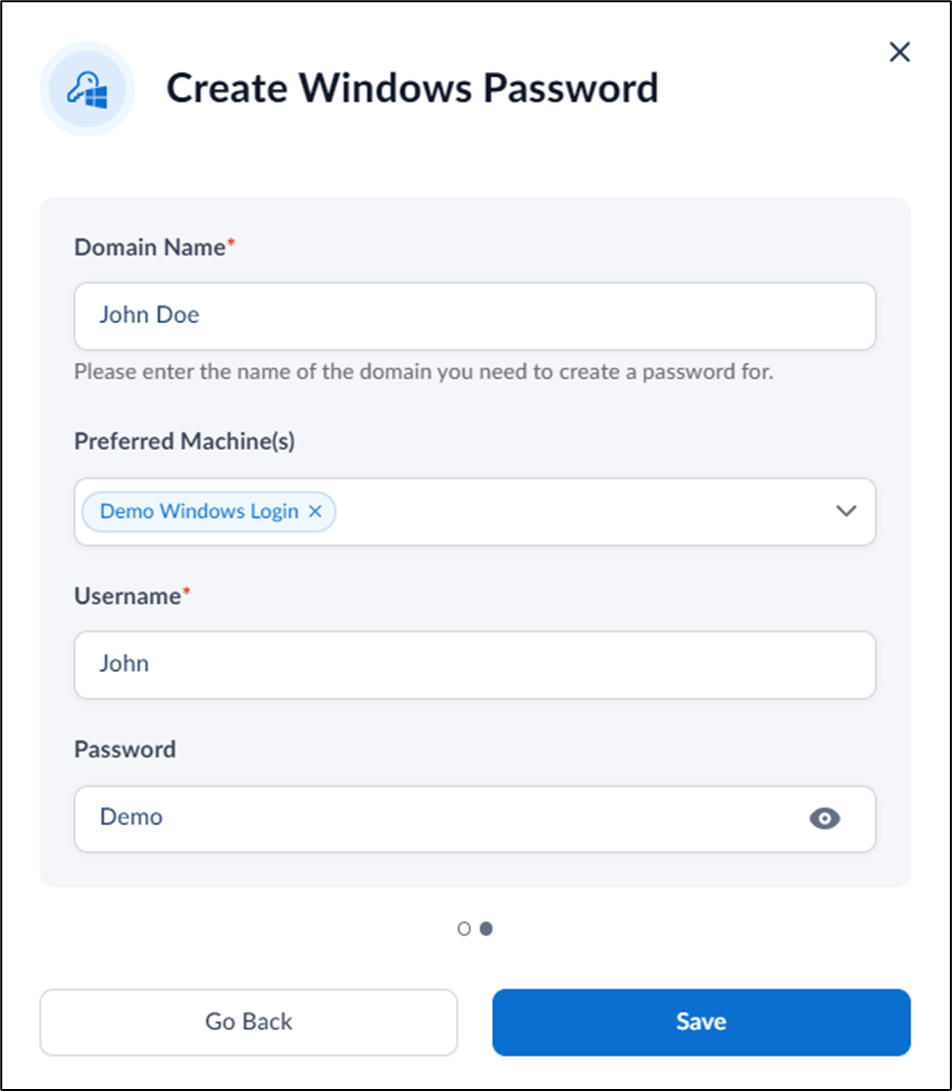
- Enter Domain Name.
- Select Preferred Machine from the Preferred Machine(s) list.
-
Enter Username of your Windows Login.
Note: Windows account name.
- Enter Password of your Windows Login.
-
Click Save.
