

- Log in to the Supervisor Portal .
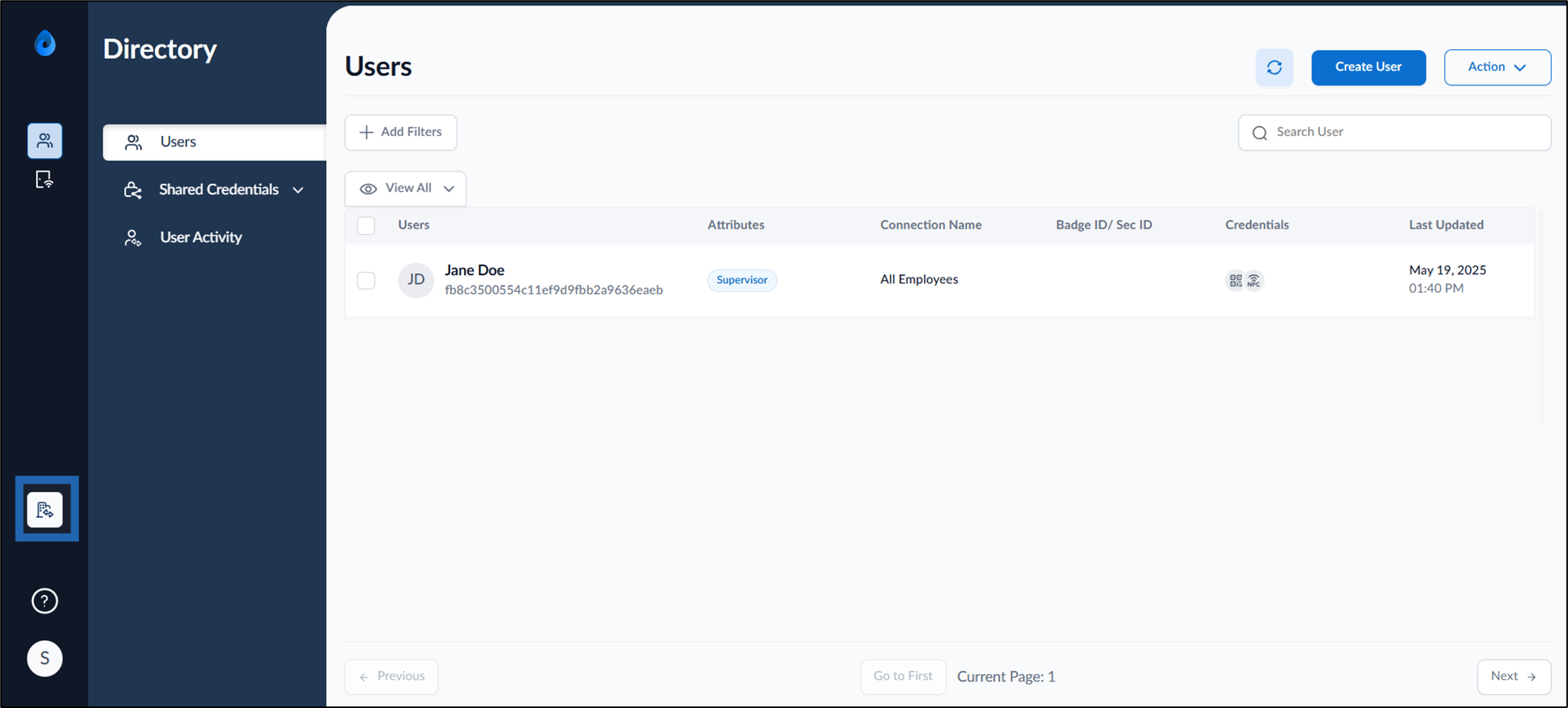
- On the home page of the portal, click Transactions on the left menu panel.
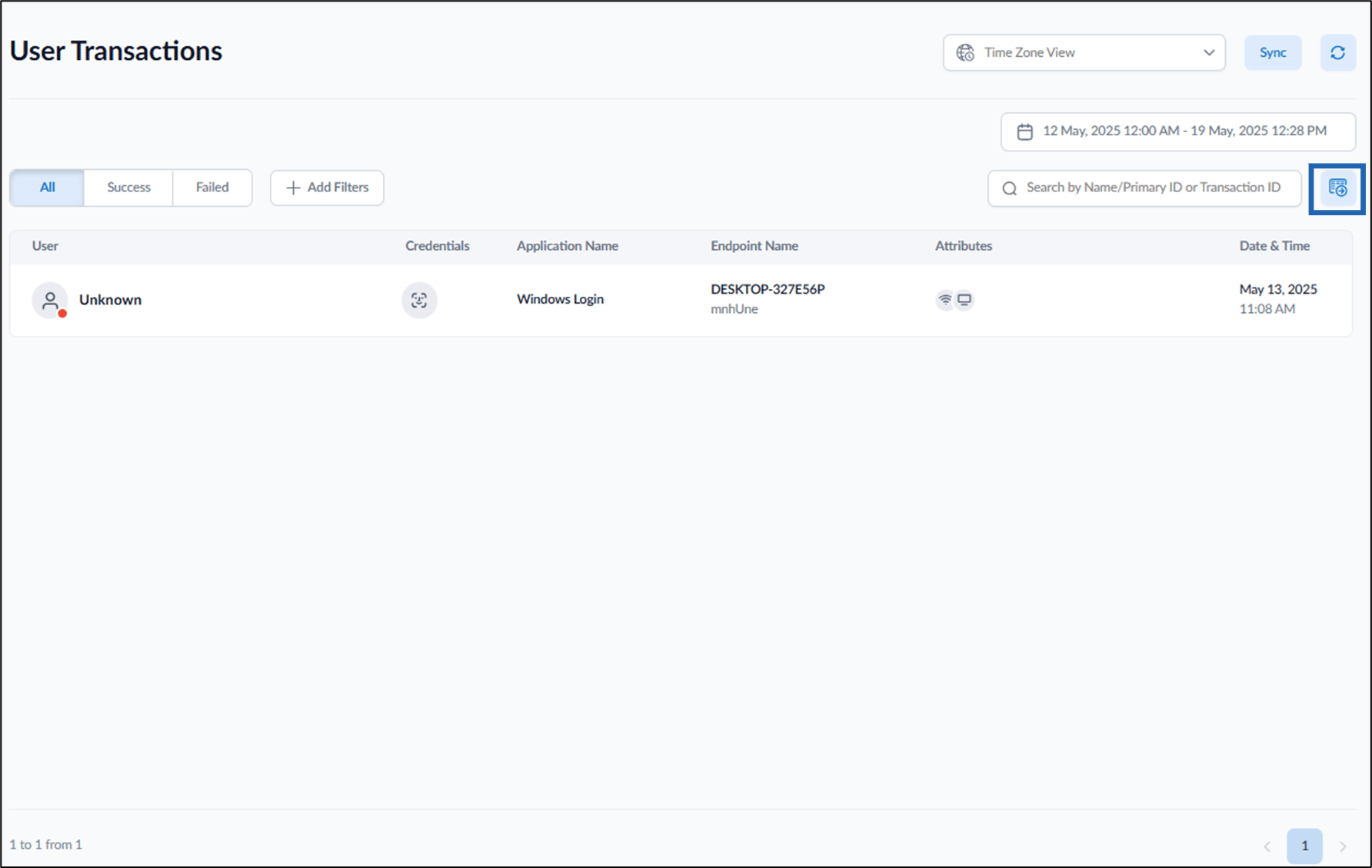
- Click Export to excel icon.
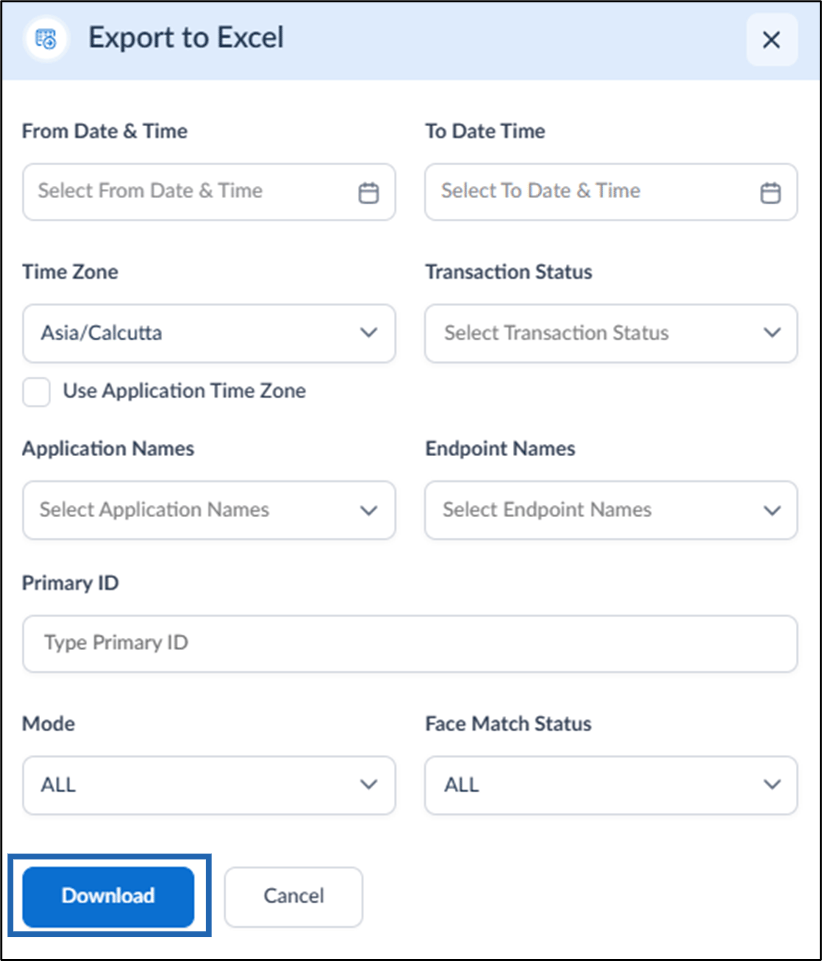
- (Optional) Customize the report by configuring the following options:
- From Date & Time: Select the start date and time.
- To Date & Time: Select the end date and time.
- Time Zone: Select a time zone.
Note: This option only works if a time zone is set in the application. If different time zones are selected for the application and export, the application’s time zone takes priority when this option is enabled.
- Transaction Status: Select one or more statuses.
- Application Names: Select the relevant application(s).
- Endpoint Names: Select the desired endpoint(s).
- User’s Primary ID: Enter the User’s Primary ID.
- Mode: Select the transaction mode.
- Face Match Status: Filter by face match status.
- Click Download to export the report. The user transaction report is downloaded to your device in Excel format.