

- You should be a user in the Tenant Admin Portal with Supervisor role.
- Launch your browser.
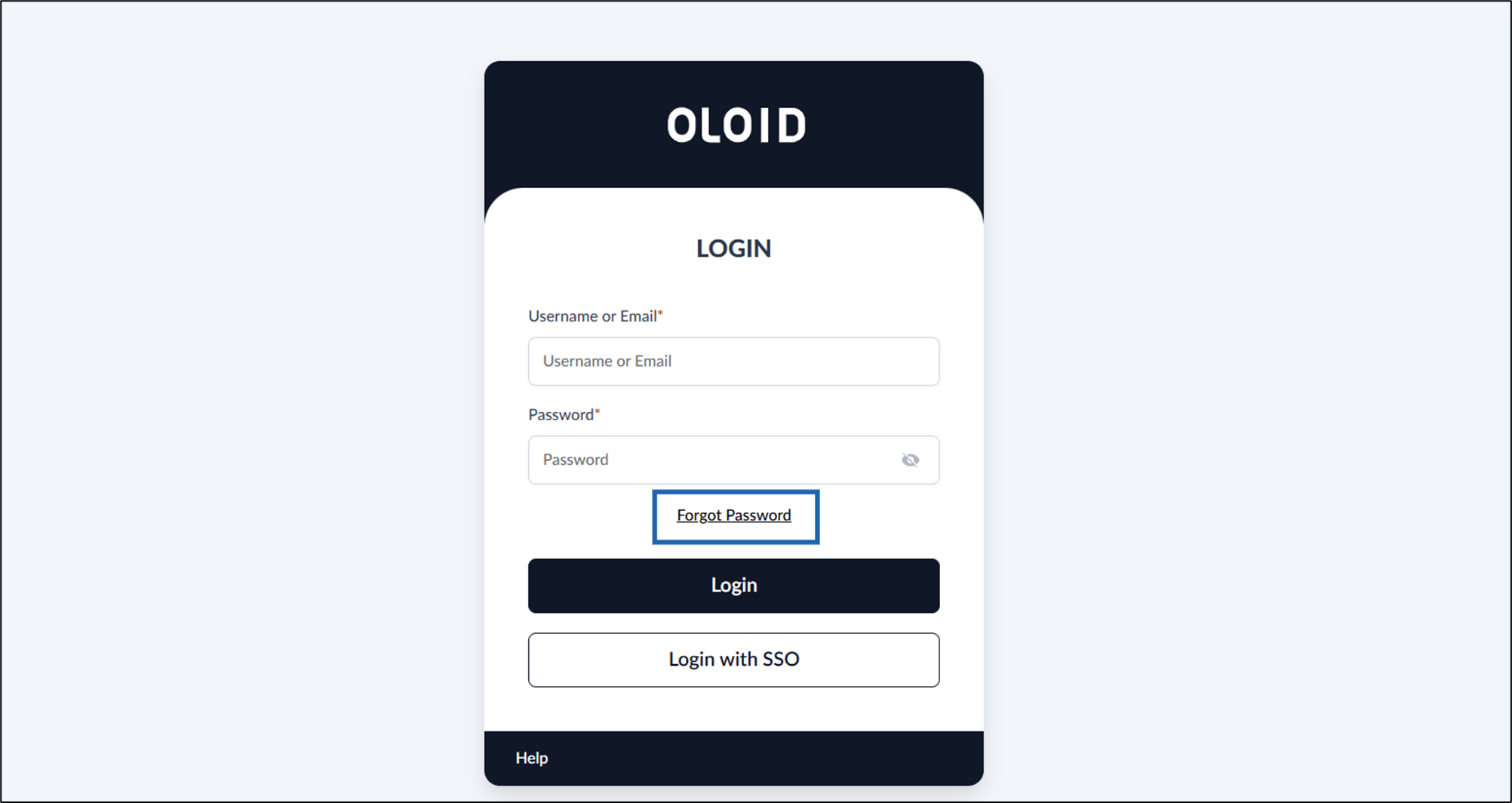
- Enter the URL provided for you in the browser’s address bar > press Enter on your keyboard. The Oloid LOGIN page is displayed.
- Click Forgot Password.
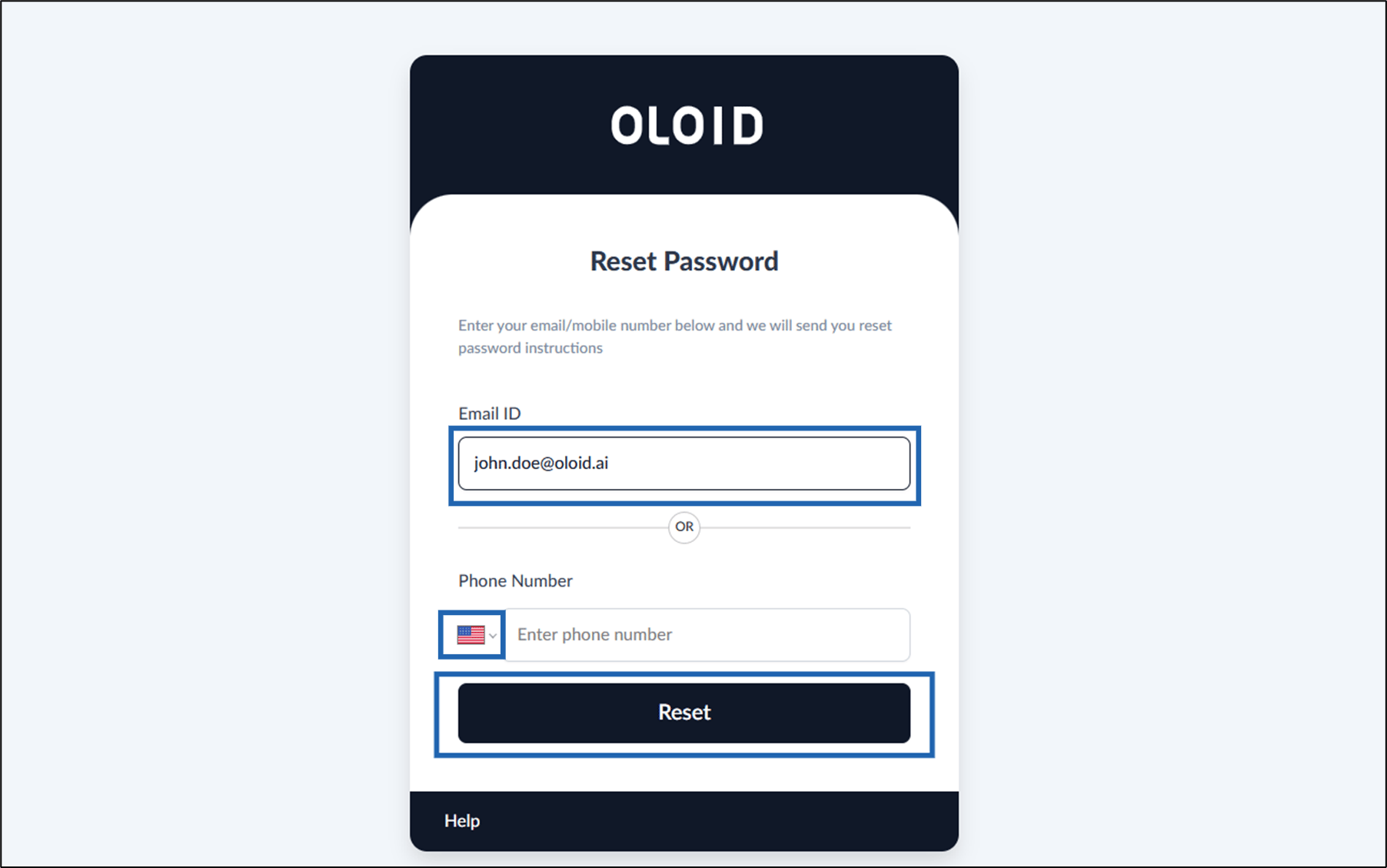
- Do any one of the following:
- Enter your registered Email ID. OR
- Select Country from drop down menu > Enter your registered phone number.
- Click Reset.
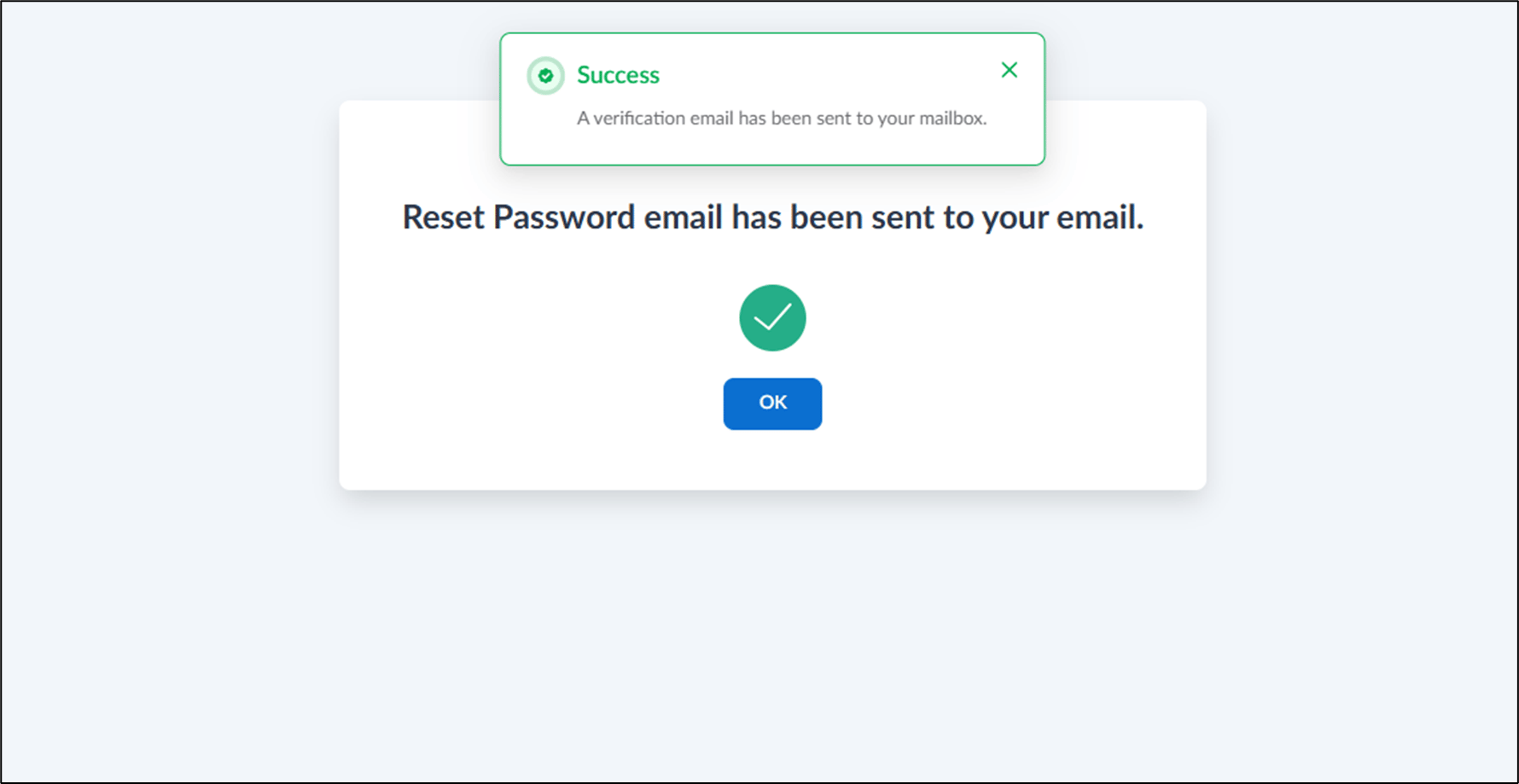
- Go to your email inbox > open the Oloid Password Reset email.
- Click Reset Password link.
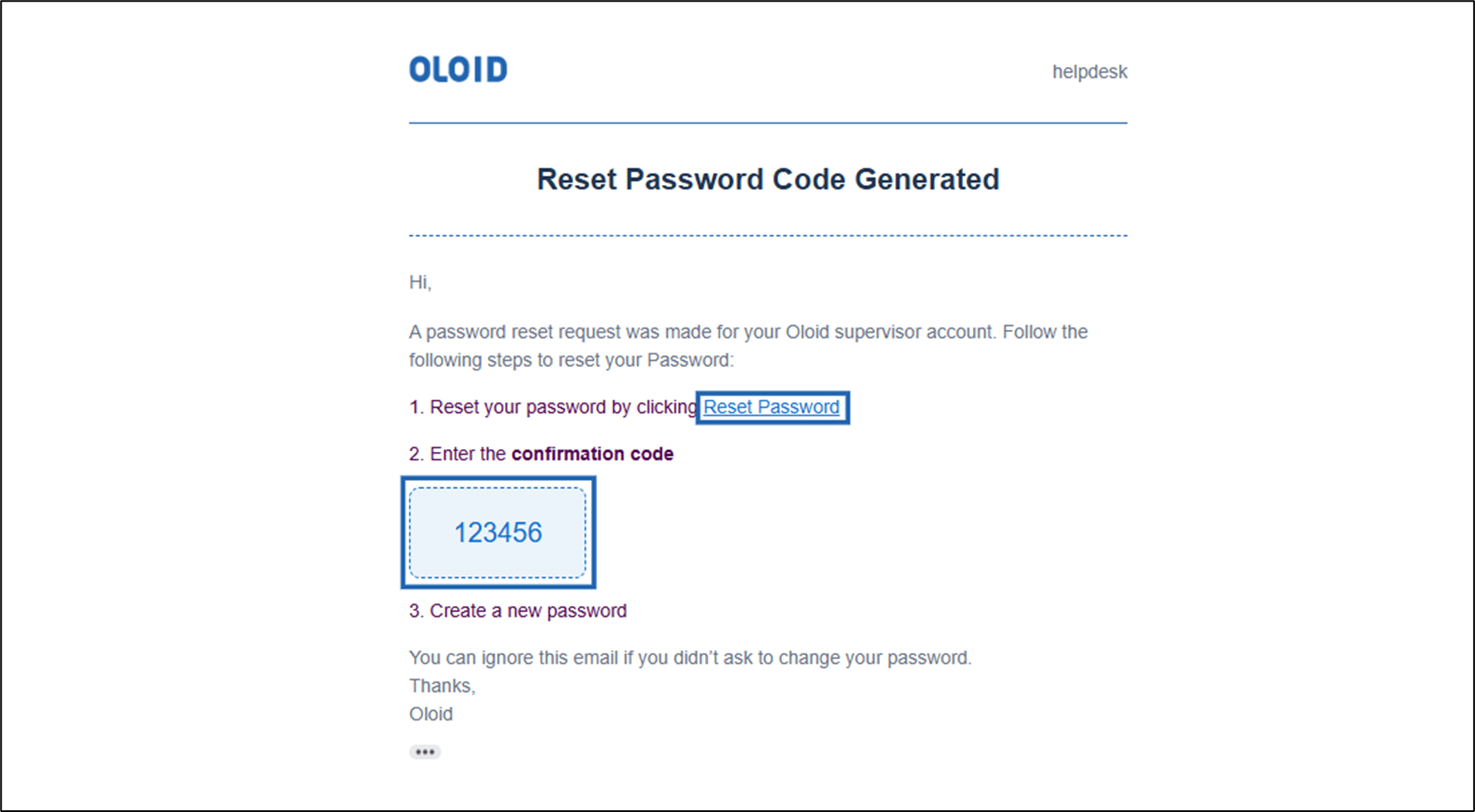
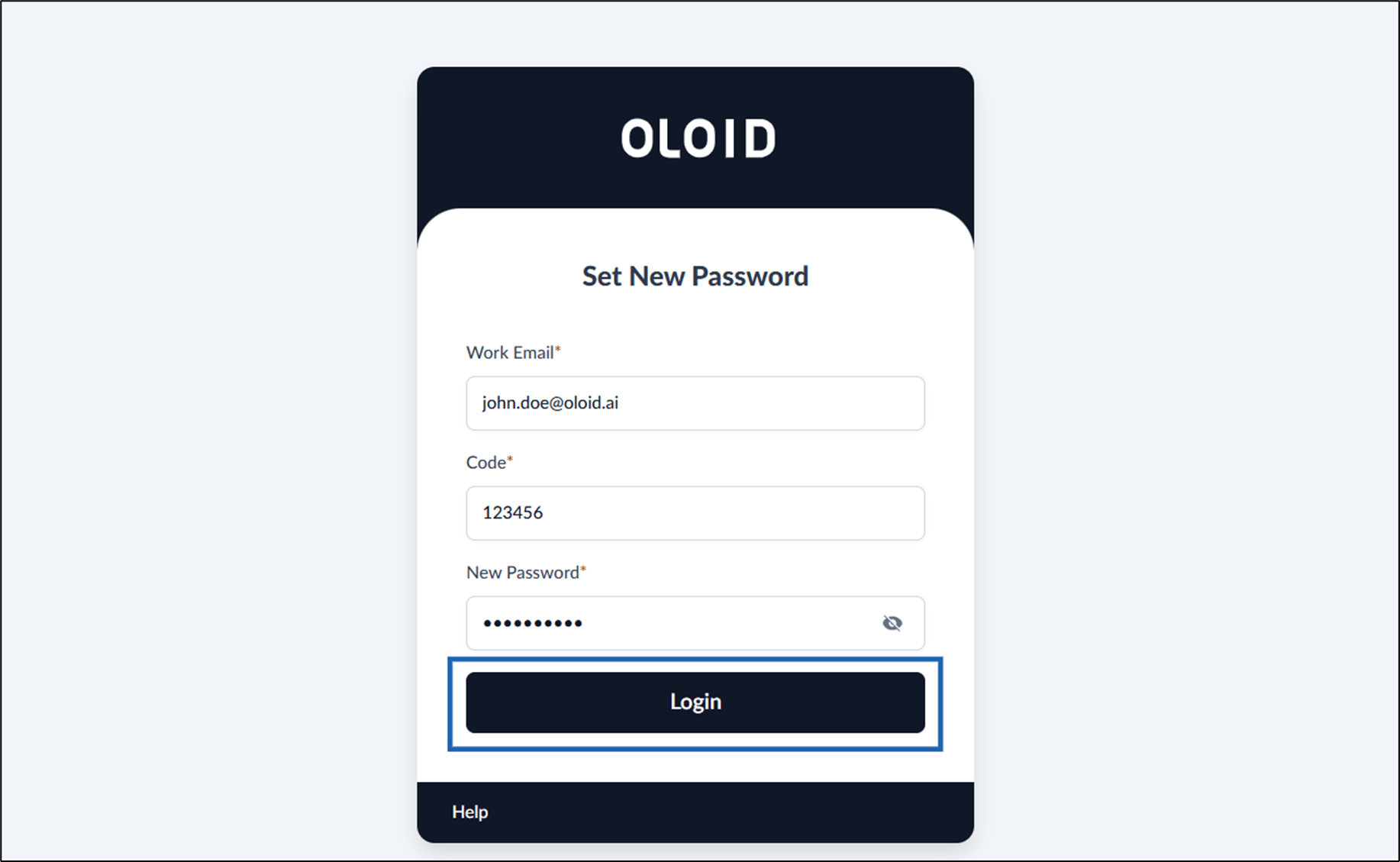
- Enter your Email ID.
- Enter Confirmation Code received on the same email.
- Enter New Password.
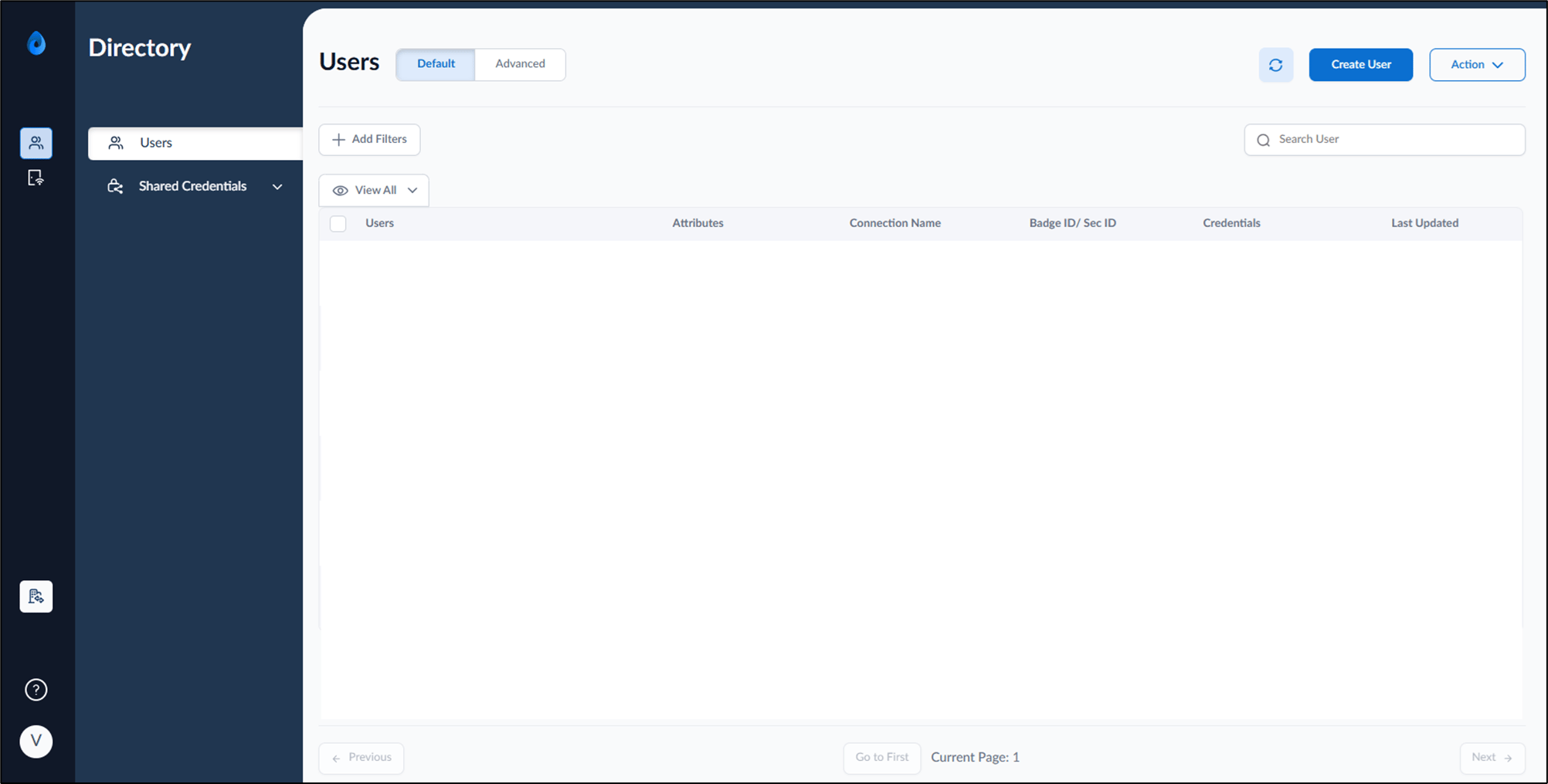
- Click Login.
Note: If you are unable to reset your password using the above steps, you may also contact your Support team to request a reset password link. Once received, click the link and follow the on-screen instructions to complete the reset process.