

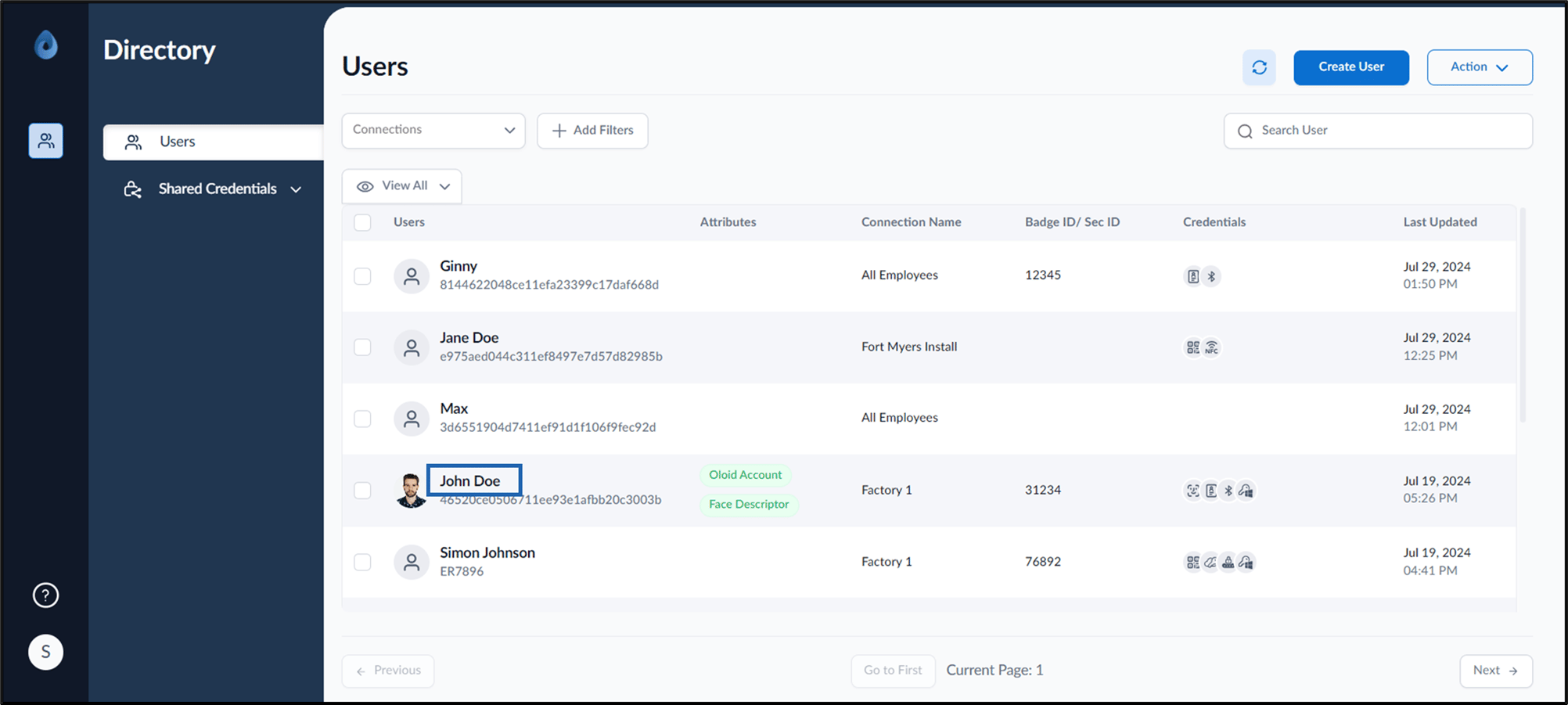
- Log in to the Supervisor Portal. The Users page is displayed.
- Click username to edit.
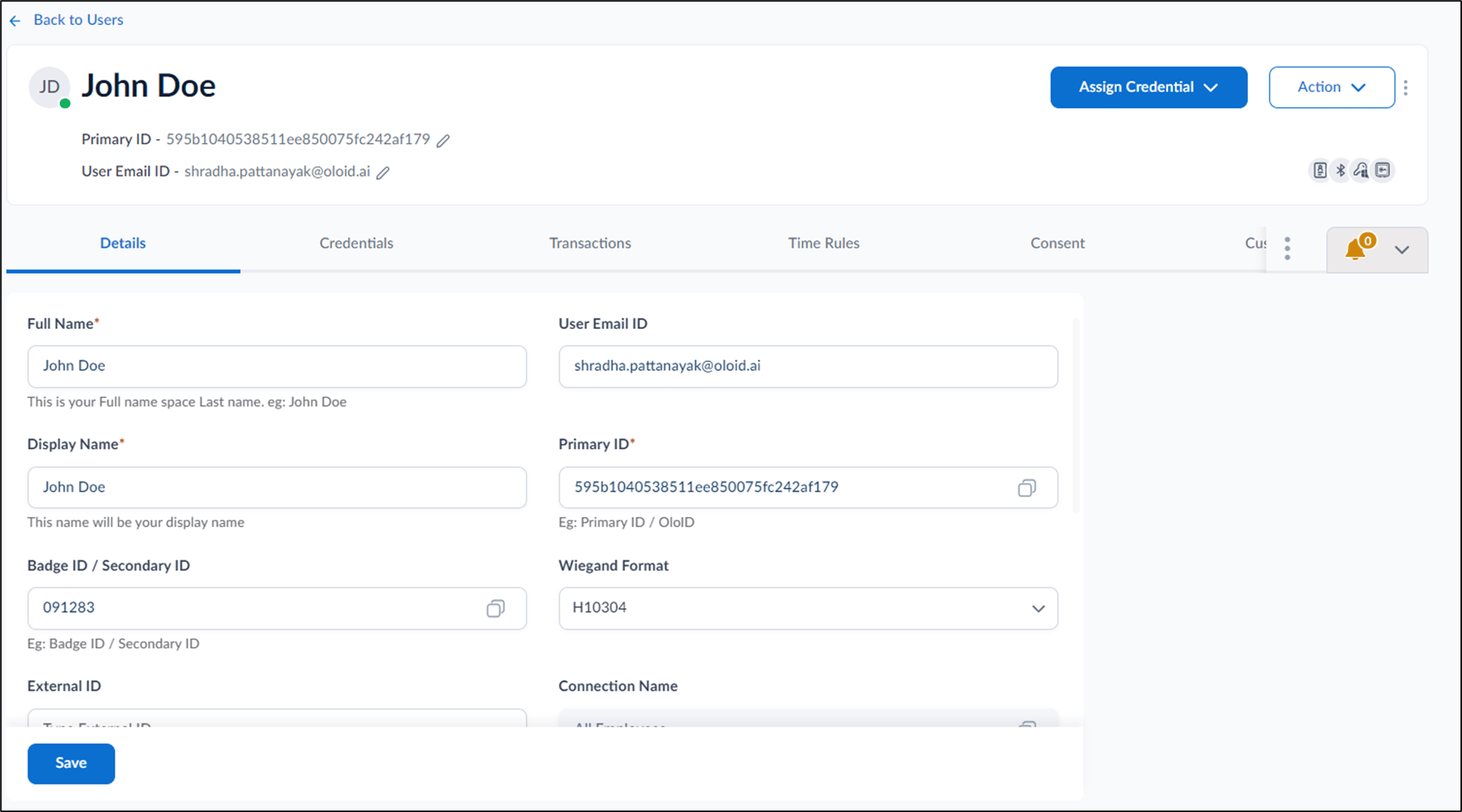
- Do one of the following:
- Go to Credentials tab > QR Code > select + Create QR Code.
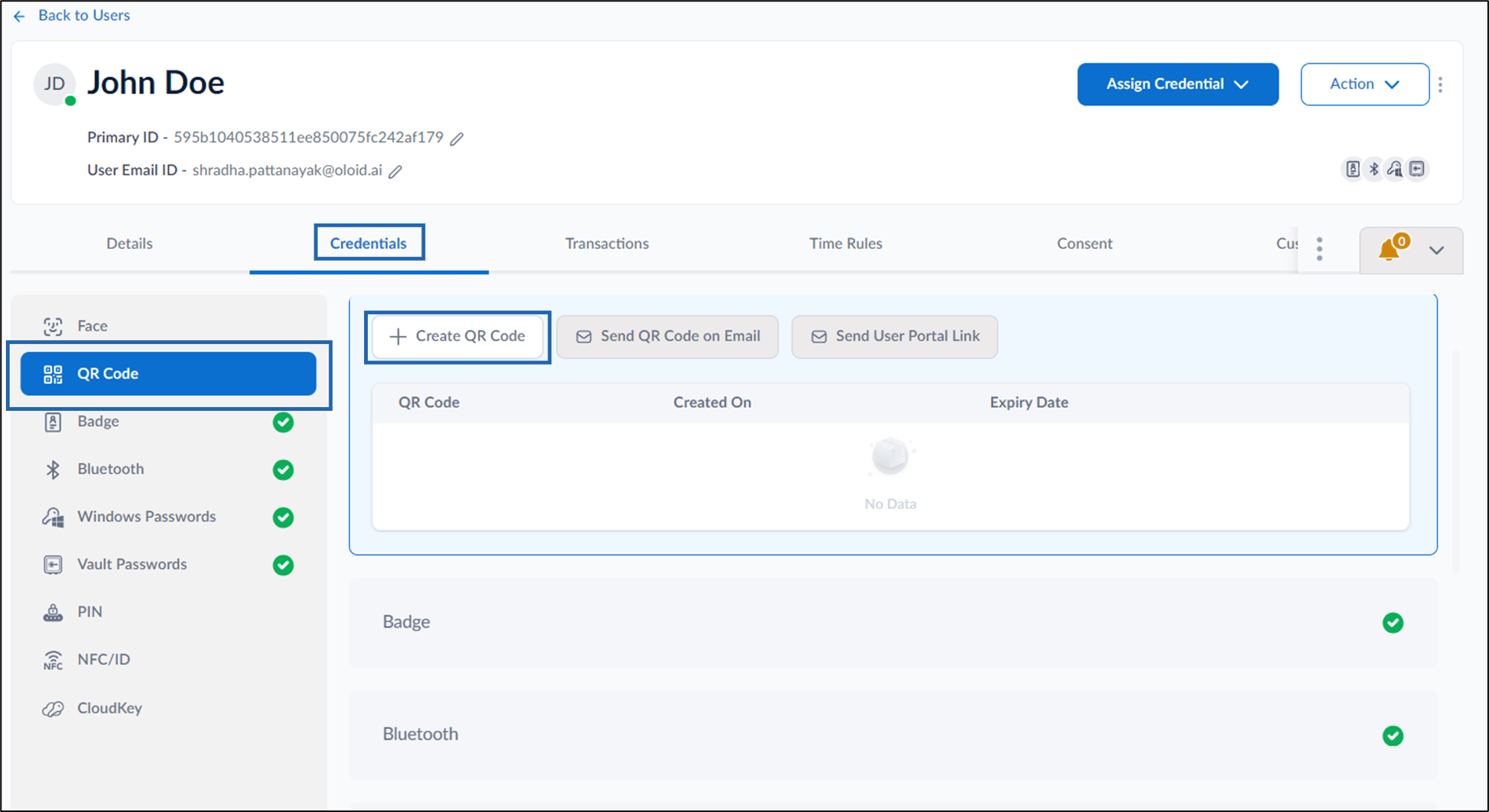
- Go to Assign Credential > Create QR Code.
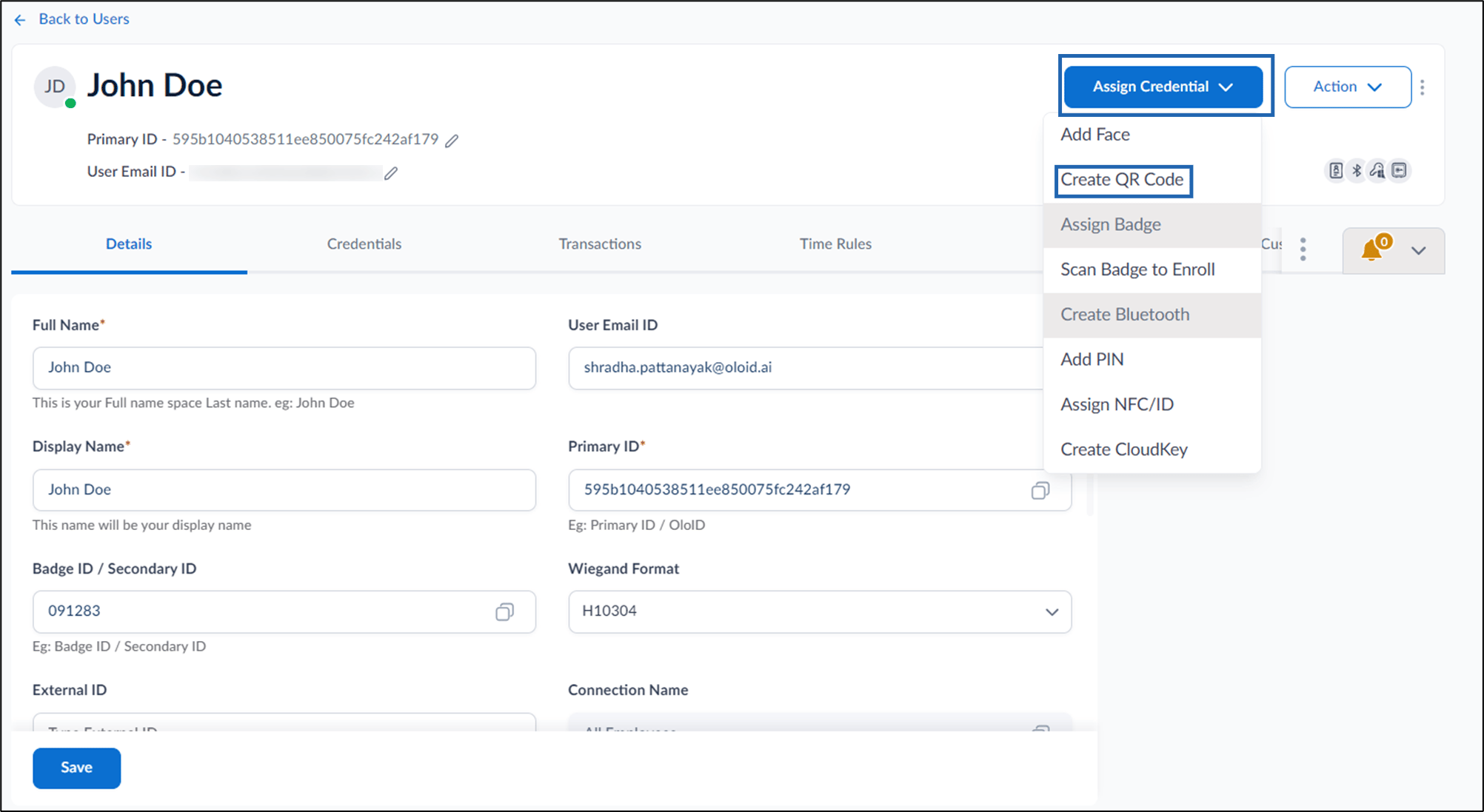

- Go to Credentials tab > QR Code > select + Create QR Code.
- On the pop-up box, do the following:
- Select QR Code Validity from the calendar.
- Enter recipient’s email ID to share the QR code.
- Click Assign.
The QR code is created and listed in the QR Code tab. The QR code is sent to the recipient’s (user’s) email id.
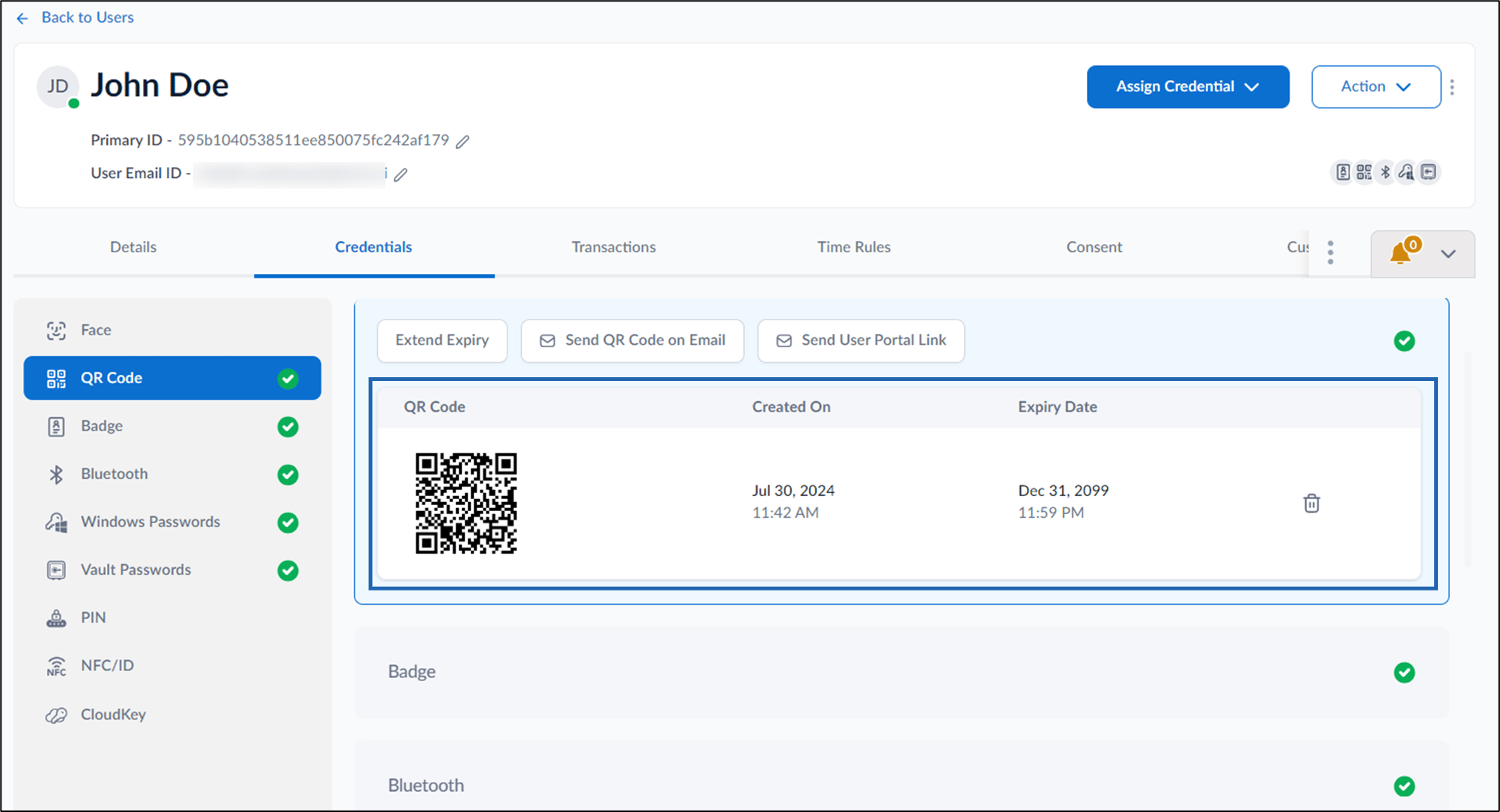
Supervisor Portal - How to create QR code as credential for User
This document provides step-by-step instructions to create QR code in the Supervisor Portal.
Steps to create QR code:
⌘I