Introduction
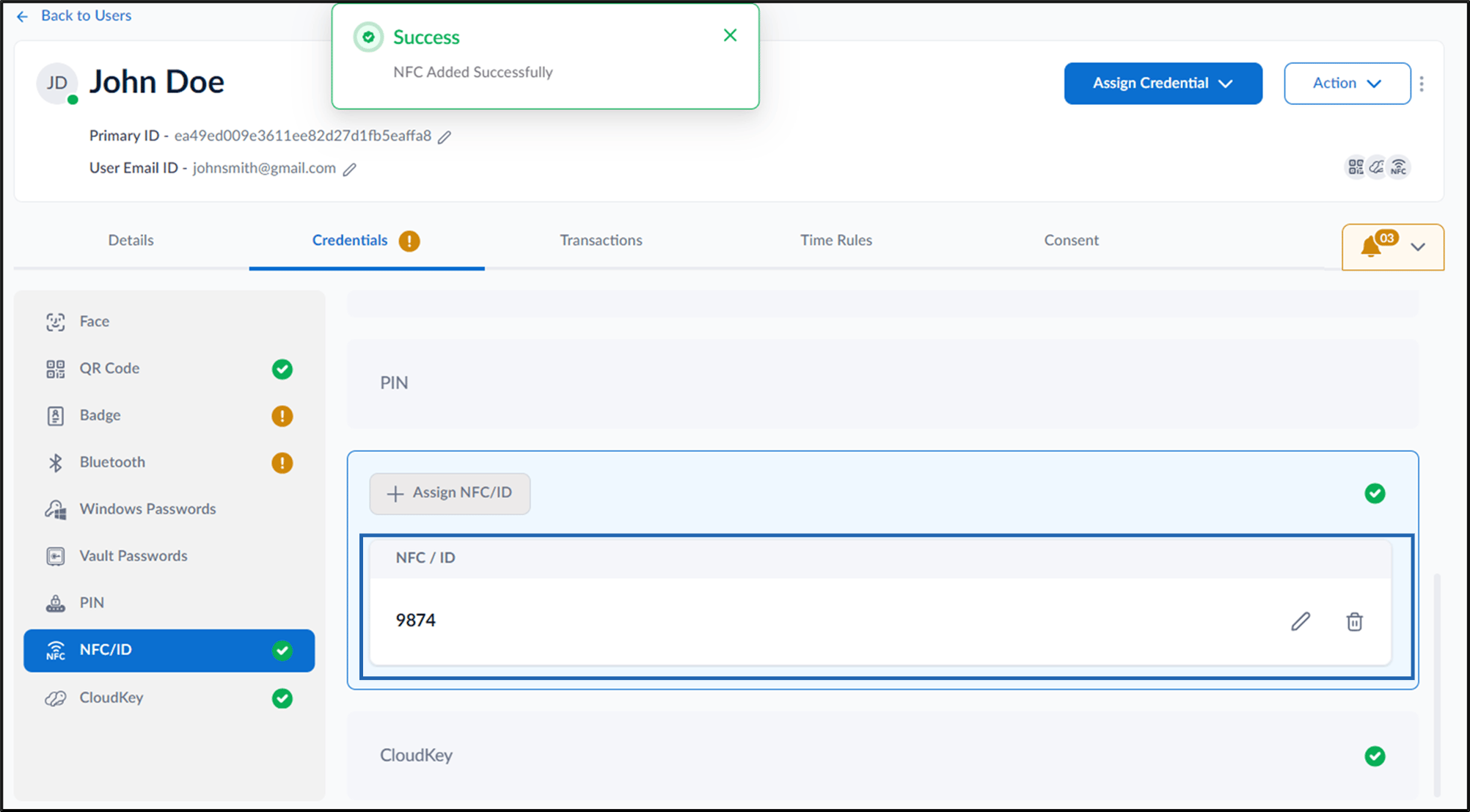
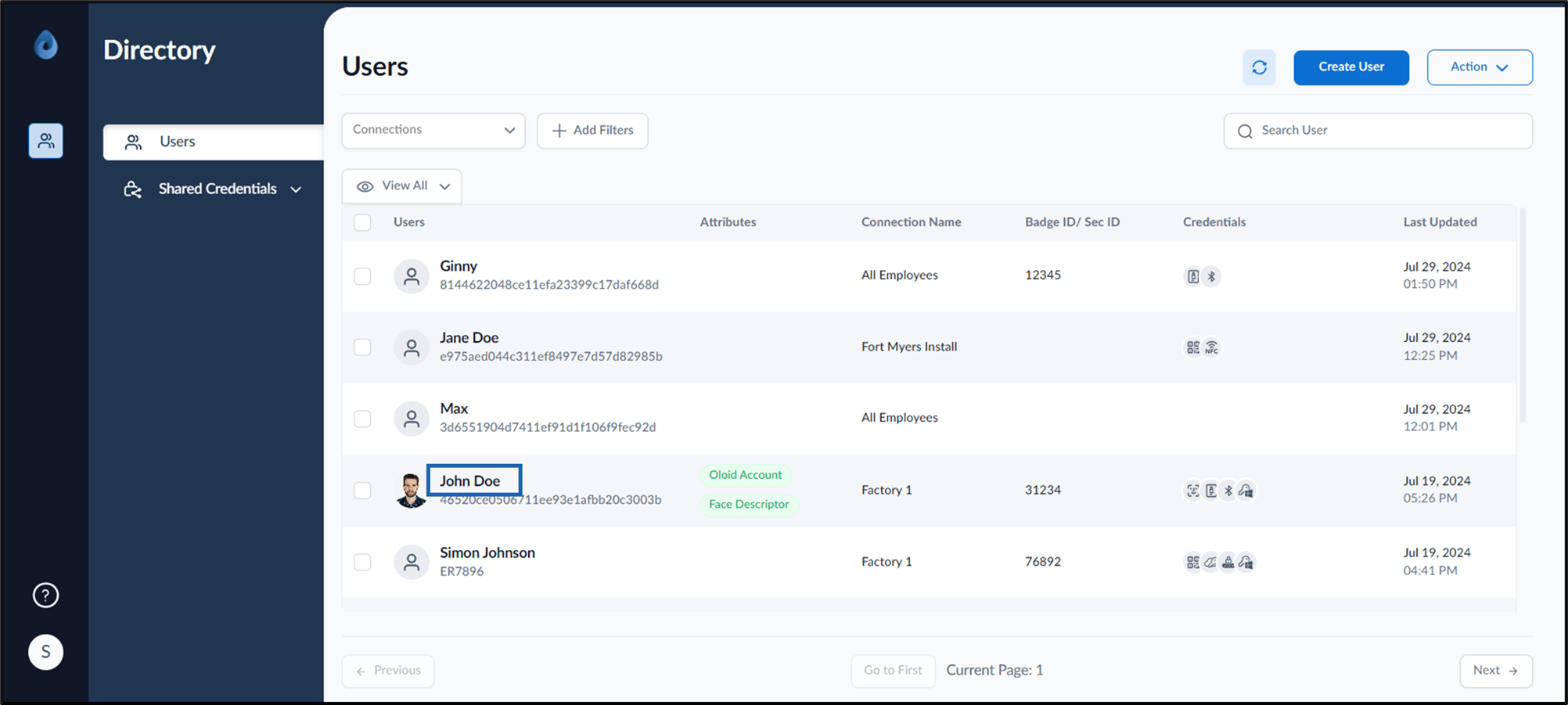
NFC/ID is assigned for the DeviceLock app to function. Steps to assign NFC/ID:- Log in to the Supervisor Portal. The Users page is displayed.
- Click username to edit.
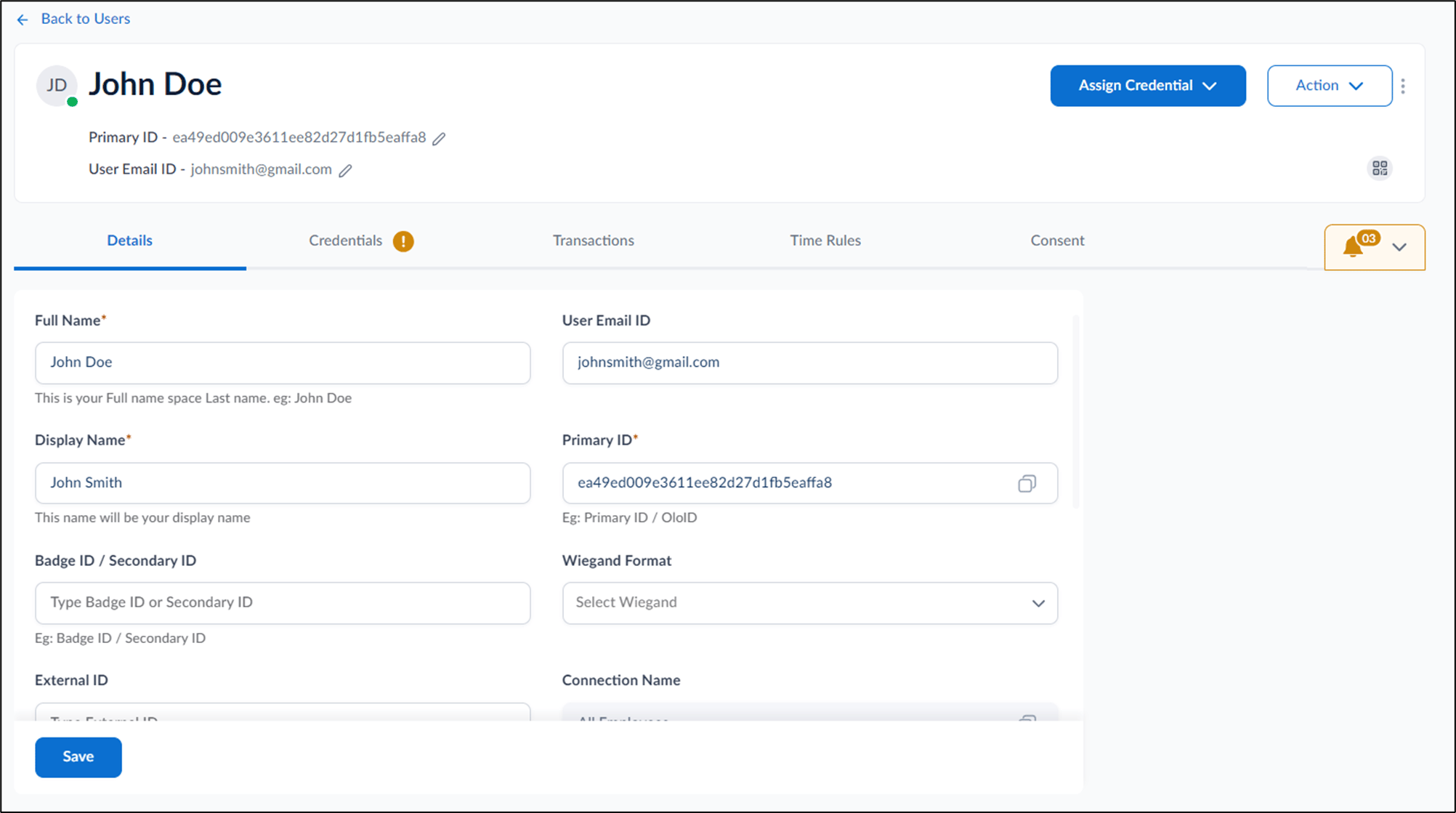
- Do one of the following:
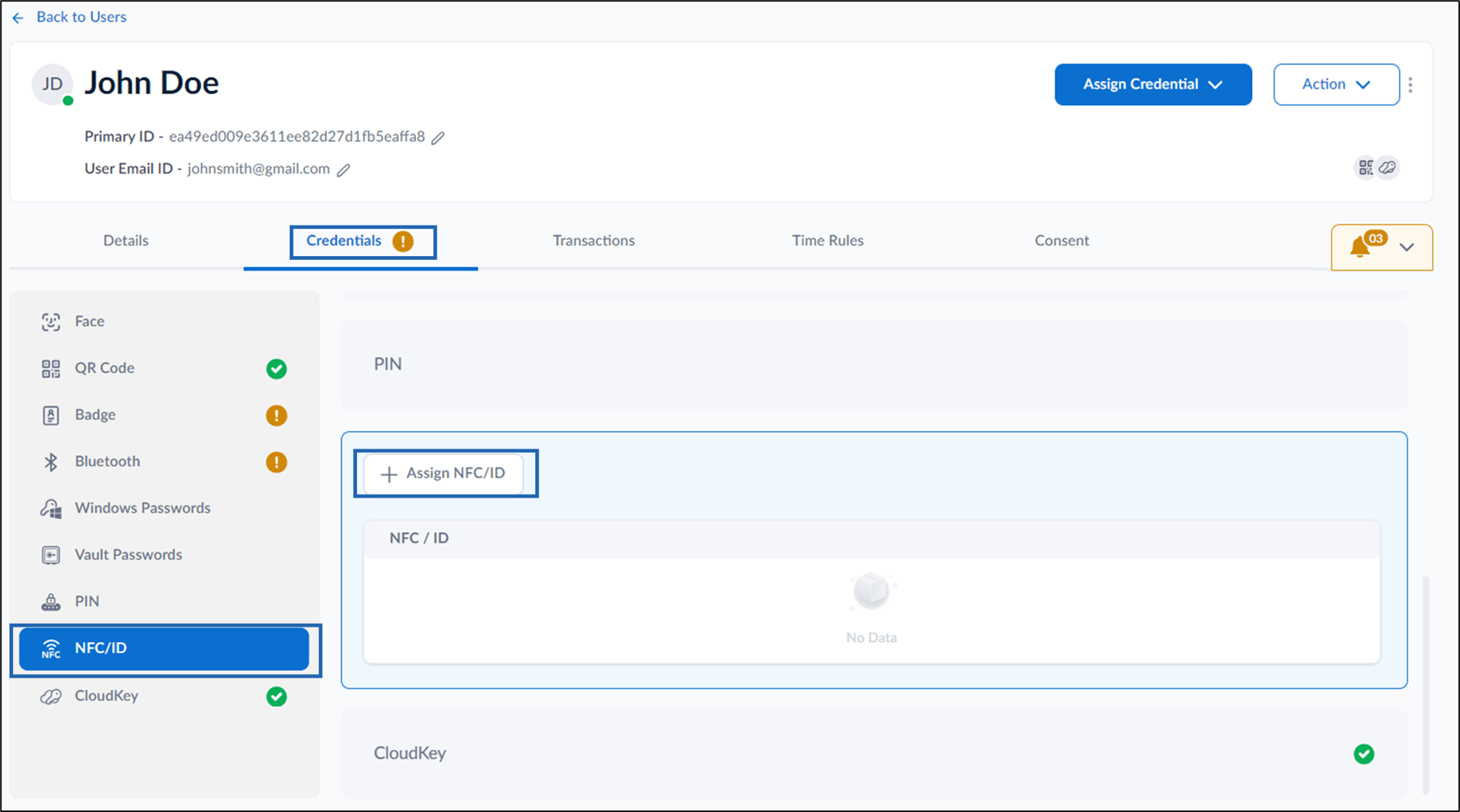
- Go to Credentials > NFC/ID tab> + Assign NFC/ID.
- Go to Assign Credential > Assign NFC/ID.
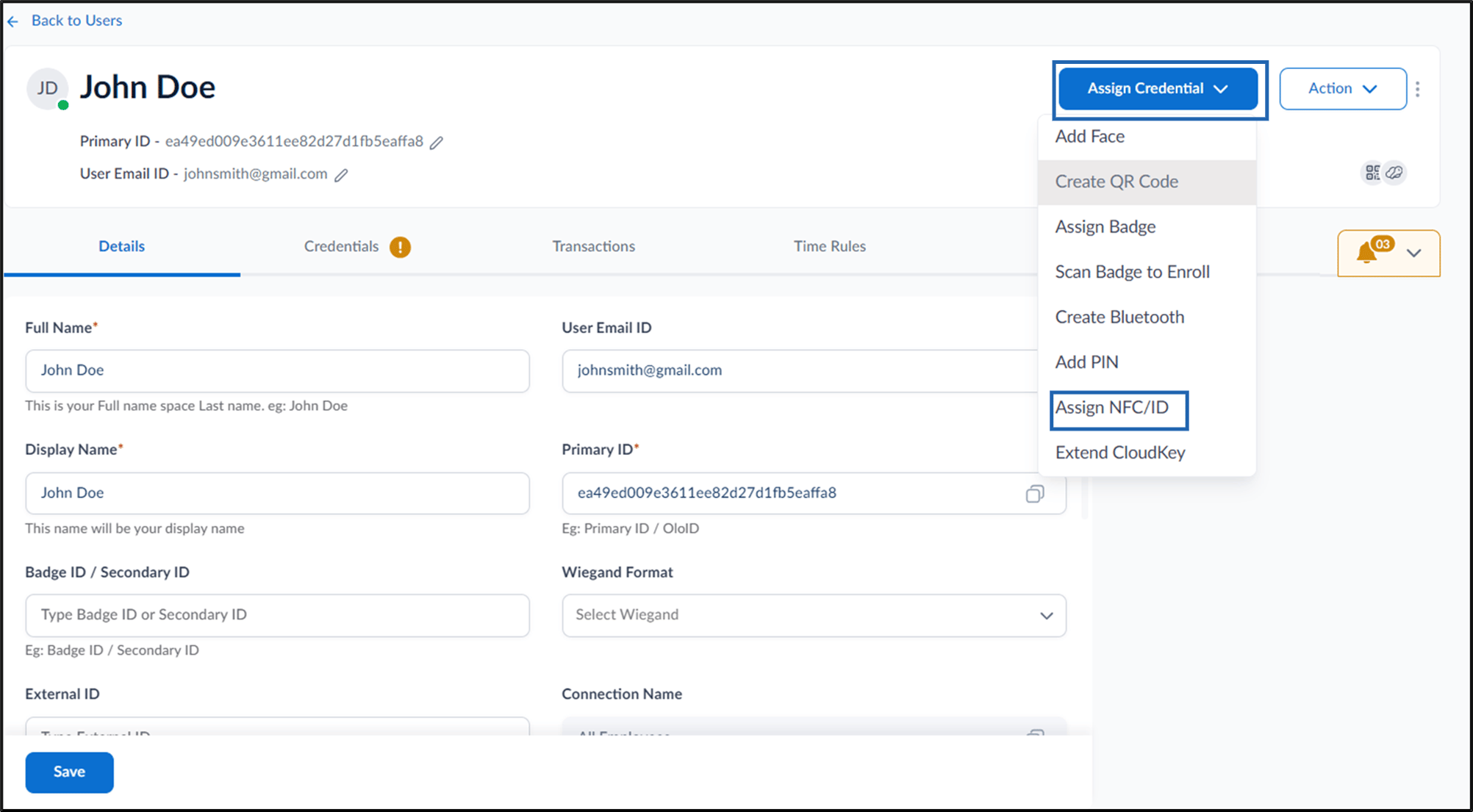
- Go to Credentials > NFC/ID tab> + Assign NFC/ID.
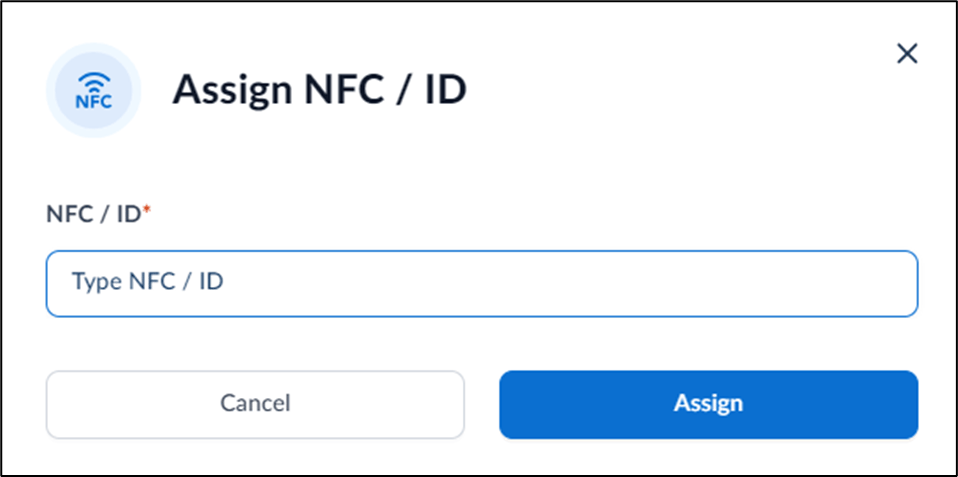
- On the pop-up box, do the following:
-
Enter your unique NFC/ID security number.
Note: You can tap the NFC/ID tag on the Reader to scan it.
-
Enter your unique NFC/ID security number.