

- An SDK part must be provided on the Security Center license.
- The Web SDK option on the Security Center license must be enabled.
- Config Tool client application.
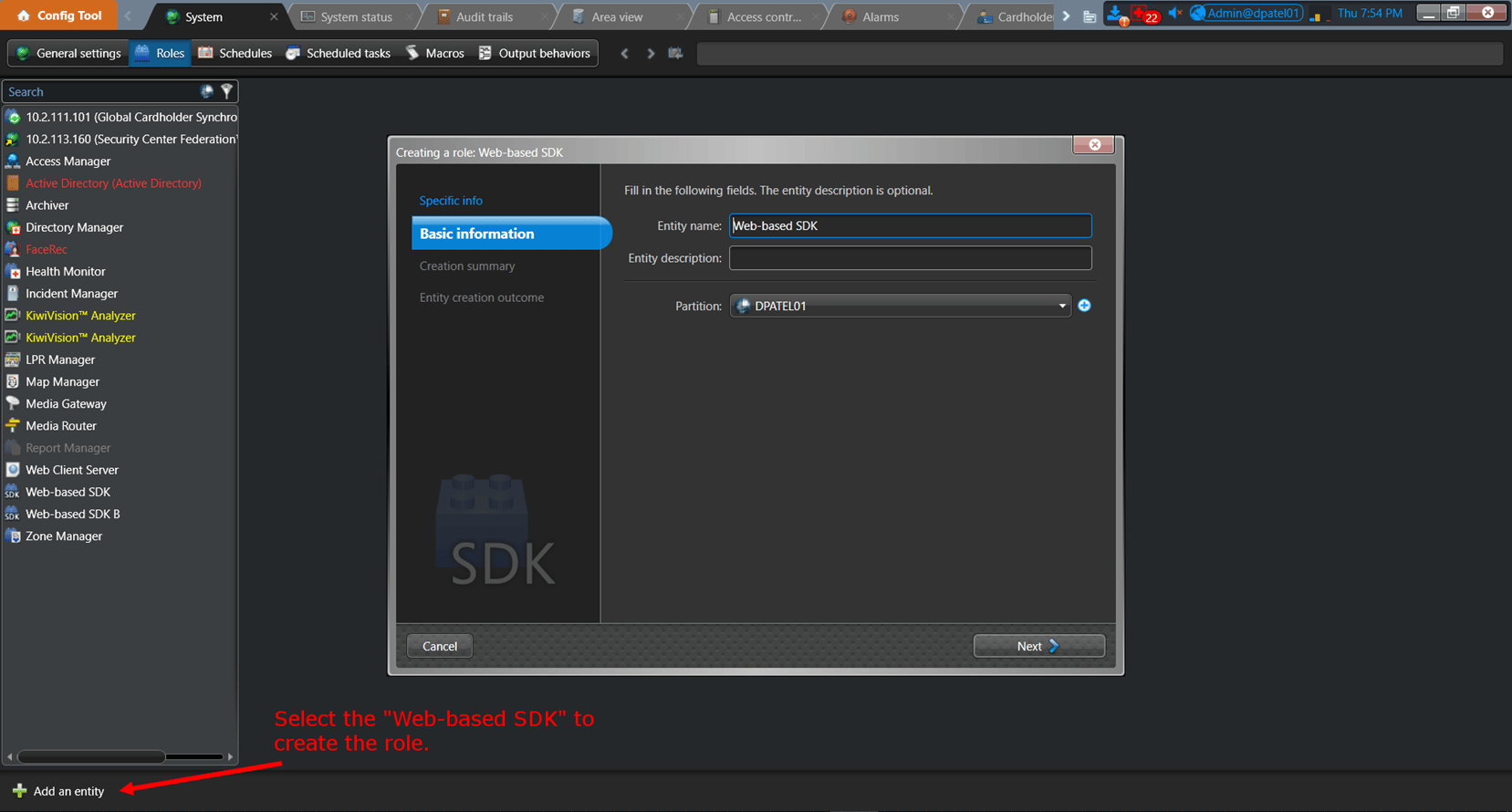
- To do this, open Config Tool > System > Roles > Add an entity. Select Web-based SDK and create the role.
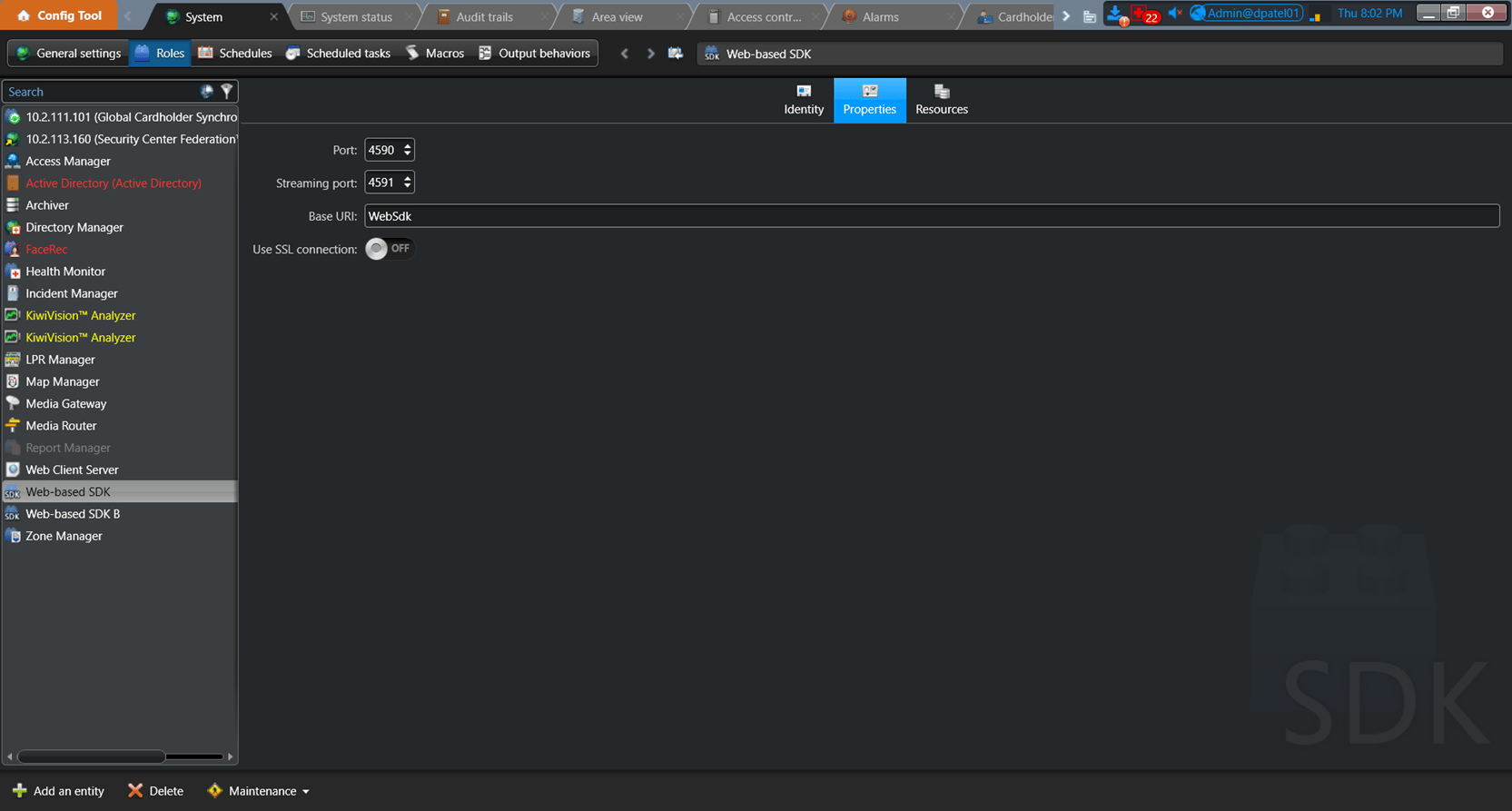
- Once the role has been created, go to the Properties tab of the role and make sure the port and streaming port are available. You can also change the base URI and enable SSL encryption (It is recommended that you use secure communication).
- The login, composed of your Security Center username and a semicolon, and ending with the application ID tag from the Security Center SDK certificate.
- The password of the specified Security Center user. Example:
- Login: jsmith;KxsD11z743Hf5Gq9mv3+5ekxzemlCiUXkTFY5ba1NOGcLCmGst t2n0zYE9NsNimv
- Password: ilOveSc!