

Introduction
This Document explains how to log in to the Oloid User Portal using Duo SSO. Before you begin, make sure Duo SSO is enabled for your account. To enable it, contact Oloid Support.Prerequisites
- You should be a user in the Tenant Admin Portal.
- Duo SSO is enabled for your account. For more details, refer to How to configure Oloid User Portal in Tenant Admin Portal.
- You have the login URL provided to access the User Portal.
Steps to Log in using Duo SSO Login
- Launch your browser.
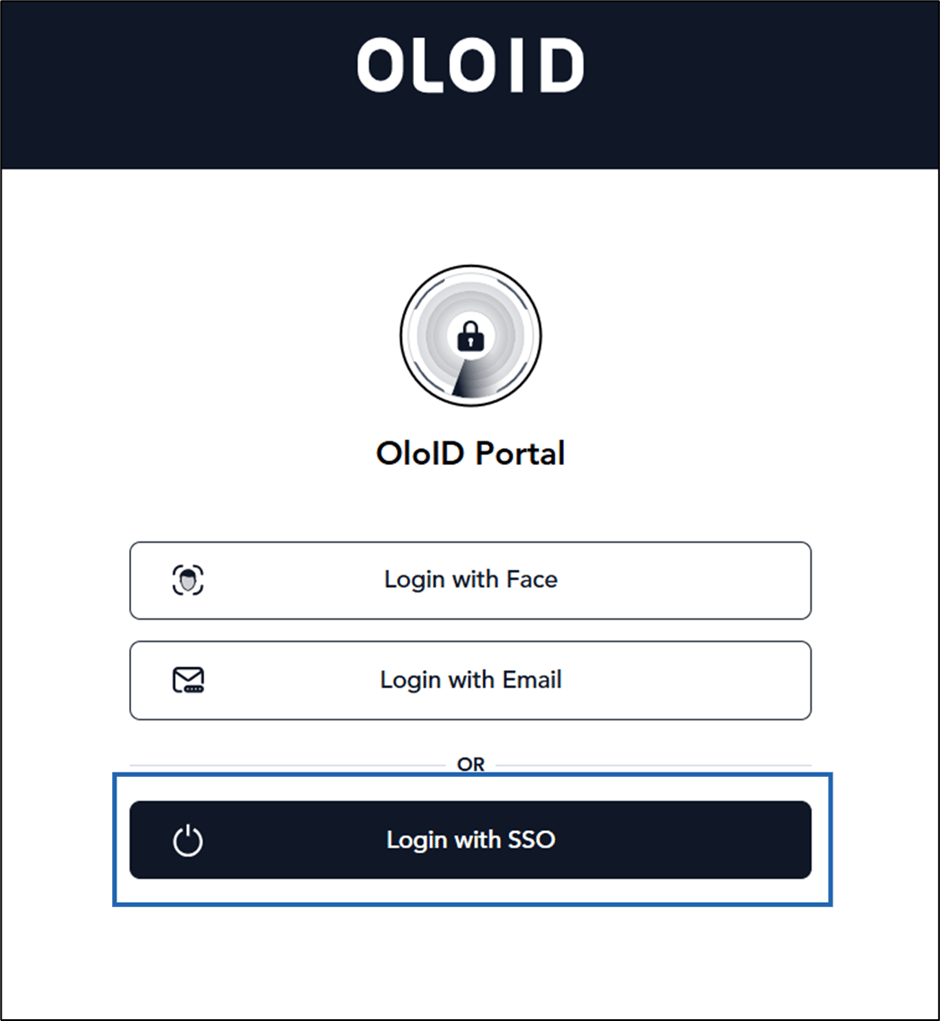
- Enter the provided URL in the browser’s address bar and press Enter. The Oloid User Portal page is displayed.
- Click Login with SSO.
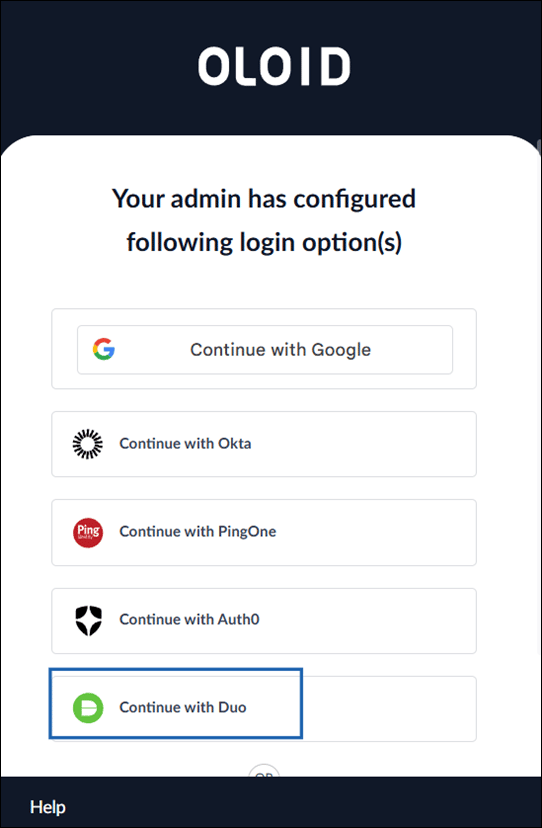
- Click Continue with Duo.
- Follow below steps to complete the sign-in process.
-
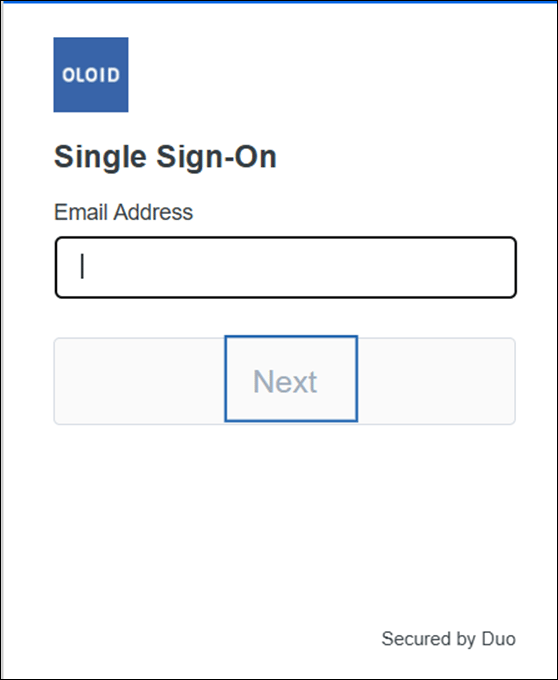
Enter your Email address > click Next.
-
Enter your Password > click Log in.
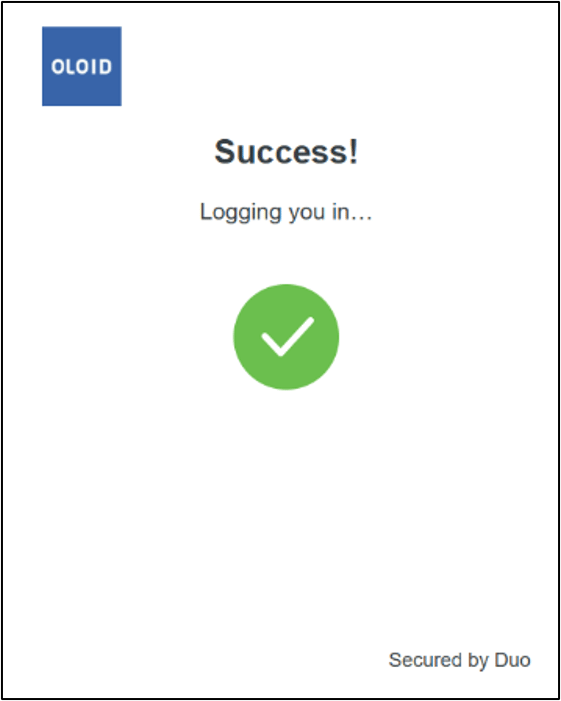
 For Example: If you choose Duo Mobile passcode, a code will appear in the app. For Text Message or Duo Push, you will receive a message or push notification.Note: On authenticator screen, select your preferred authentication method. The available authentication method may vary depending on how you configured Duo when setting up your device in the Duo Consent.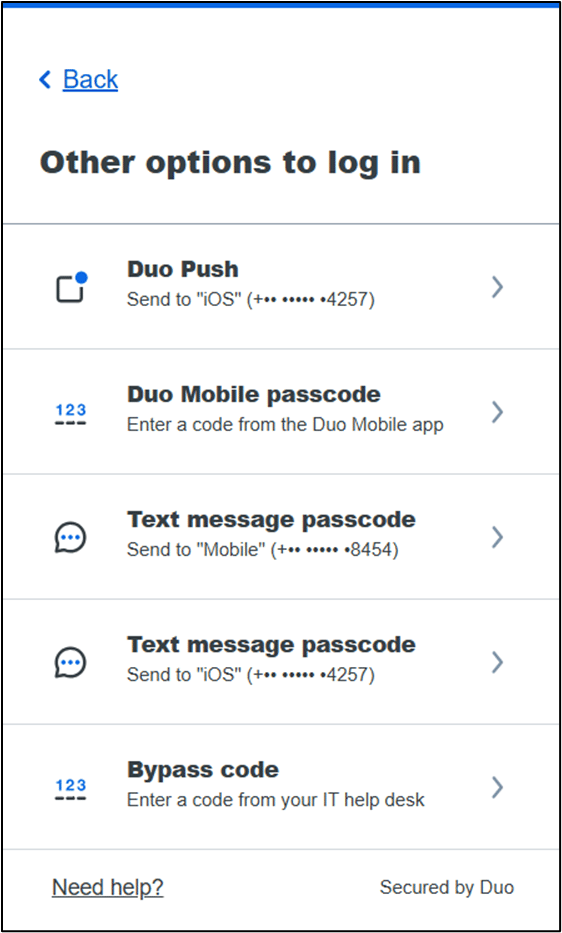
-
Enter your Email address > click Next.