Introduction
This document provides step-by-step instructions to configure Workday for Single Sign-On (SSO) integration with Oloid. It covers security configuration, creation of an Authentication Selector, setup of an Identity Provider, and SAML configuration required to enable secure user authentication through Oloid.Prerequisites
- You must have access to the Workday Admin Access.
- Ensure that the Webkey application is created and configured in the Tenant Admin Portal. For more information, refer. How to create and configure WebKey Application in Tenant Admin Portal.
- Ensure that the IDP profile is created and configured in the Tenant Admin Portal. For more information, refer How to Create IDP Profile for Security Assertion Markup Language (SAML) in the Tenant Admin Portal.
Steps to Configure Workday
- Configure Workday Security
- Create and Configure Authentication Selector
- Create Identity Provider in Workday
- Configure Certificate
- Configure SAML Settings
- Generate Workday Certificate & Signature (Optional but Recommended)
Configure Workday Security
- Log in to the Workday. The Welcome screen is displayed.
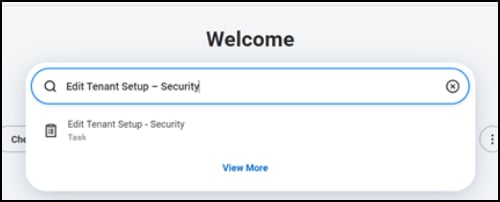
- Navigate/Search Edit Tenant Setup – Security in the search bar.
Create and Configure Authentication Selector
Note: Workday requires an Authentication Selector to route users to the appropriate Identity Provider (e.g., Oloid). If one does not already exist, it must be created.
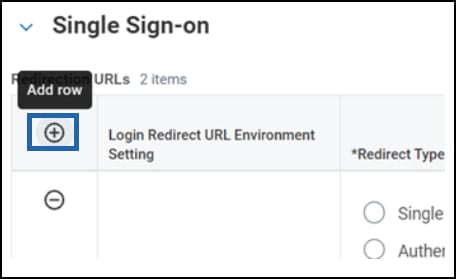
- Go to Single Sign-on section.
- Click the ➕ (Add Row) button.
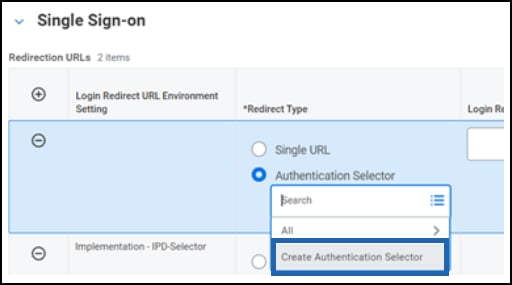
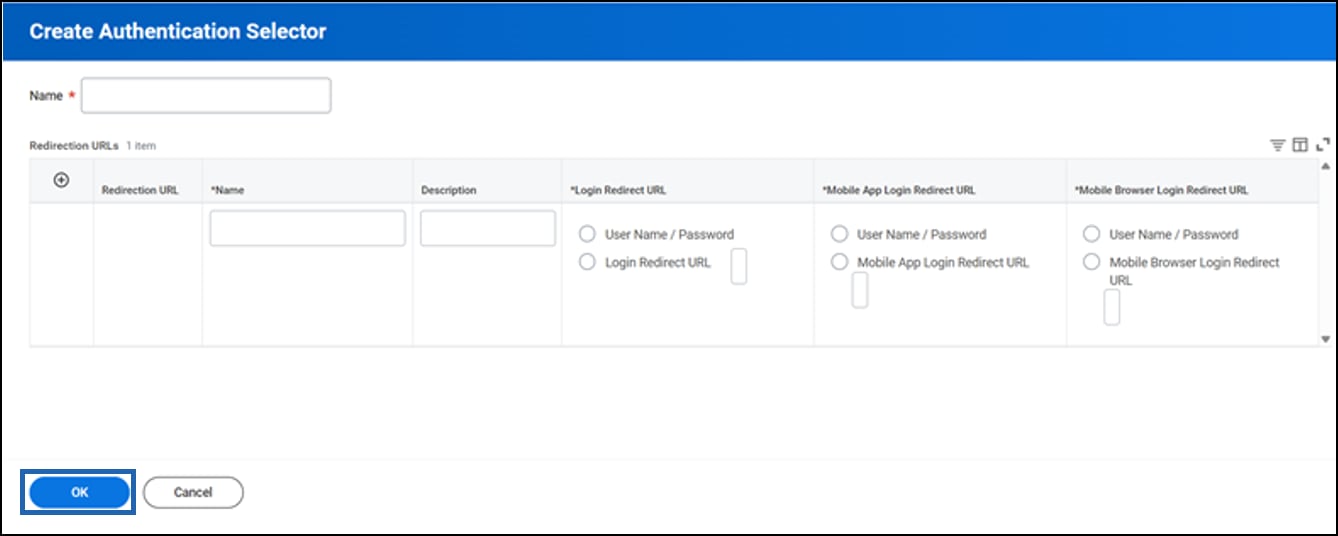
- In the new row, under Redirect Type, select Authentication Selector > Create Authentication Selector.
- Do the following.
- Enter Name.
- Enter Description (Optional).
- Select and Enter Login Redirect URL.
- Select and Enter Mobile App Login Redirect URL.
-
Select and Enter Mobile Browser Login Redirect URL.
Note: Refer below table for the URLs.
Note: Enter your workday environment and your tenant name in the URL.
- Click OK.
- Go back to Single Sign-on section and do the following.

Create Identity Provider in Workday
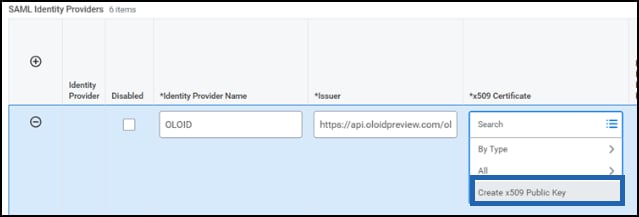
- Enter Identity Provider Name.
-
Enter Issuer.
 Note: To navigate the issuer URL, on your Tenant Admin Portal, go to Auth Policy > Identity Provider > Select the preferred IDP > Oloid Metadata, copy Entity ID.
Configure Certificate in Workday
- Select Create x509 Public Key.
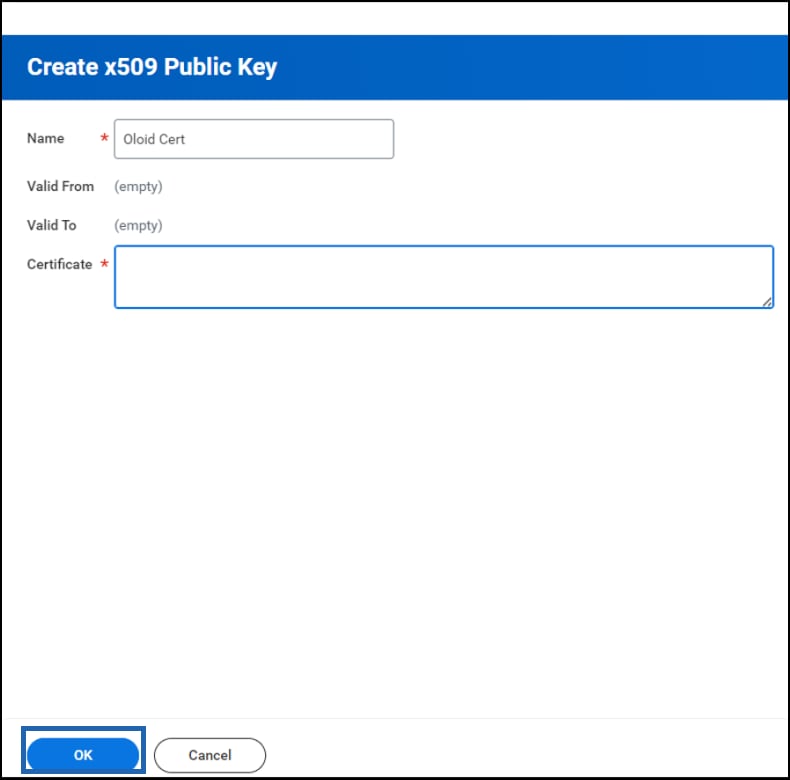
- Do the following.
-
Upload the signing certificate.
Note: To download the Certificate, on your Tenant Admin Portal, go to Auth Policy > Identity Provider > Select the preferred IDP > Oloid Metadata, click Download Certificate.
-
Click Ok.

-
Upload the signing certificate.
Configure SAML Settings in Workday
- Go the SAML Identity Provider page, scroll right to configure the SAML settings in Workday.
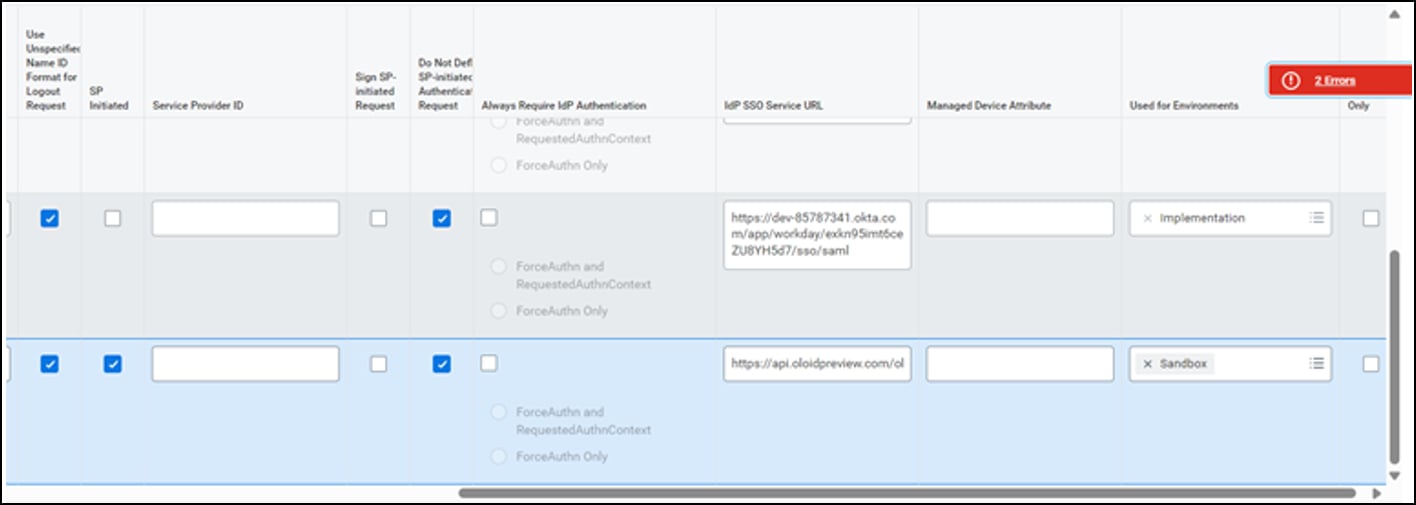
- Enable Use Unspecified Name ID Format for Logout Request.
- Enable SP Initiated.
- Enable Do Not Deflate SP-initiated Authentication Request.
-
Enter IdP SSO Service URL.
Note: To navigate the IdP SSO Service URL, on your Tenant Admin Portal, go to Auth Policy > Identity Provider > Select the preferred IDP > Oloid Metadata, copy Sign-on URL.
-
Enter Used for Environments.
Note: You can select Implementation, Sandbox and Production (as required).
-
Click Ok.