Introduction
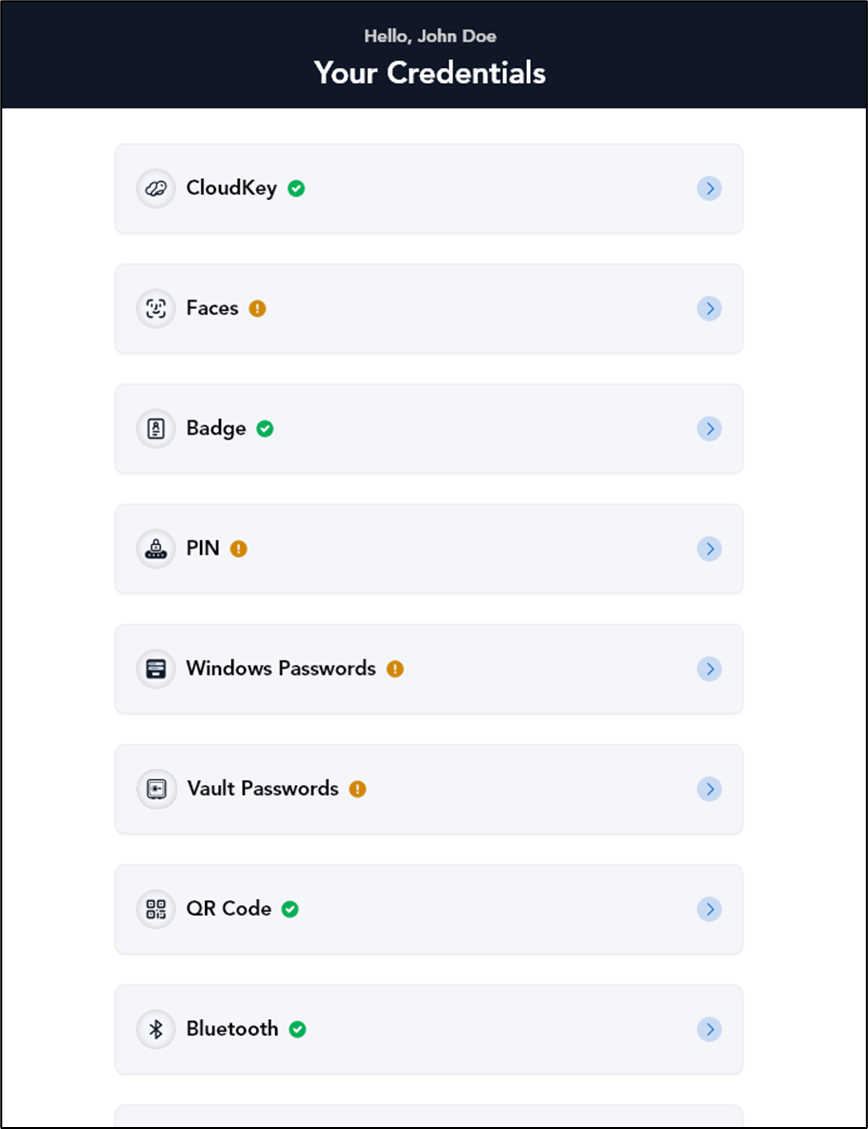
This document provides step-by-step instructions for logging in to the Oloid User Portal using Microsoft Single Sign-On (SSO). Microsoft SSO allows users to securely access the Oloid User Portal.Note: To enable Microsoft SSO Login for Oloid User Portal, contact Oloid Support.
Prerequisites
- You should be a user in the Tenant Admin Portal.
- The Microsoft credential (user email ID) must be added to the user details page.
- You must enable SSO options in Tenant Admin Portal. For more details, refer to How to configure Oloid User Portal in Tenant Admin Portal
Steps to log into Oloid User Portal using Microsoft SSO Login
- Launch your browser.
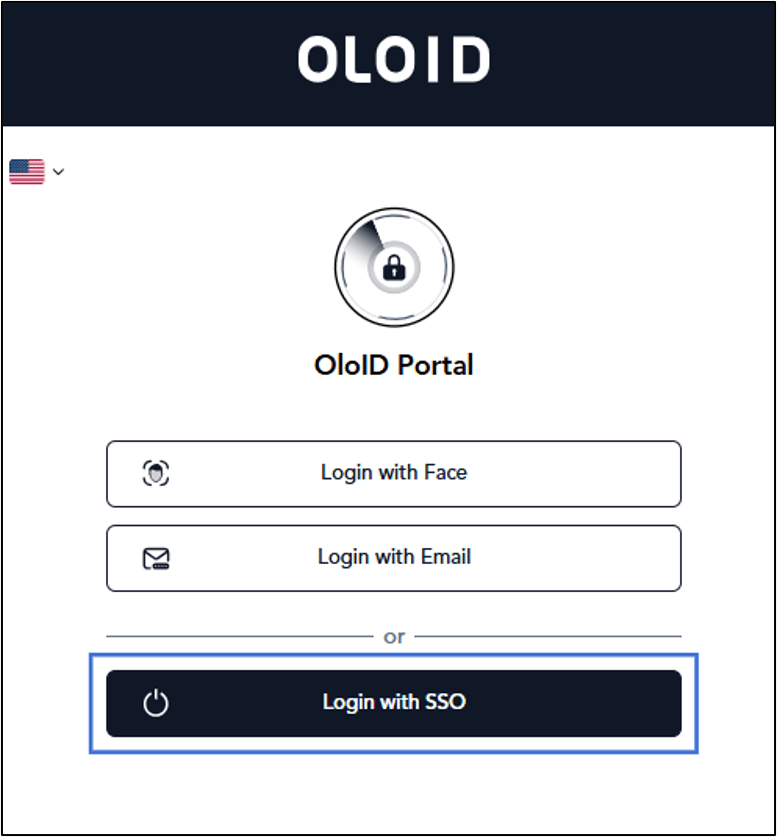
- Enter the URL provided for you in the browser’s address bar > press Enter on your keyboard. The Oloid User Portal page is displayed.
- Click Login with SSO.
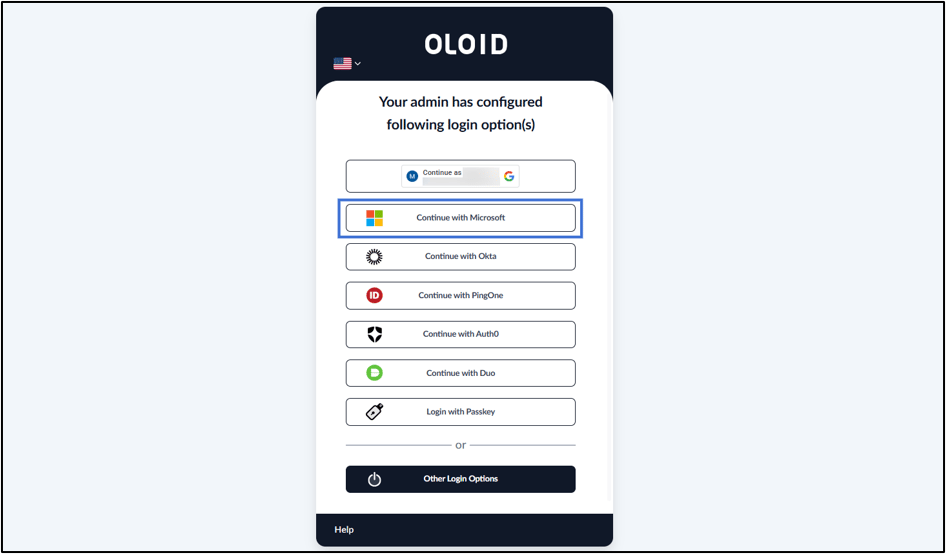
- Click Continue with Microsoft to log into Oloid User Portal with Microsoft SSO.
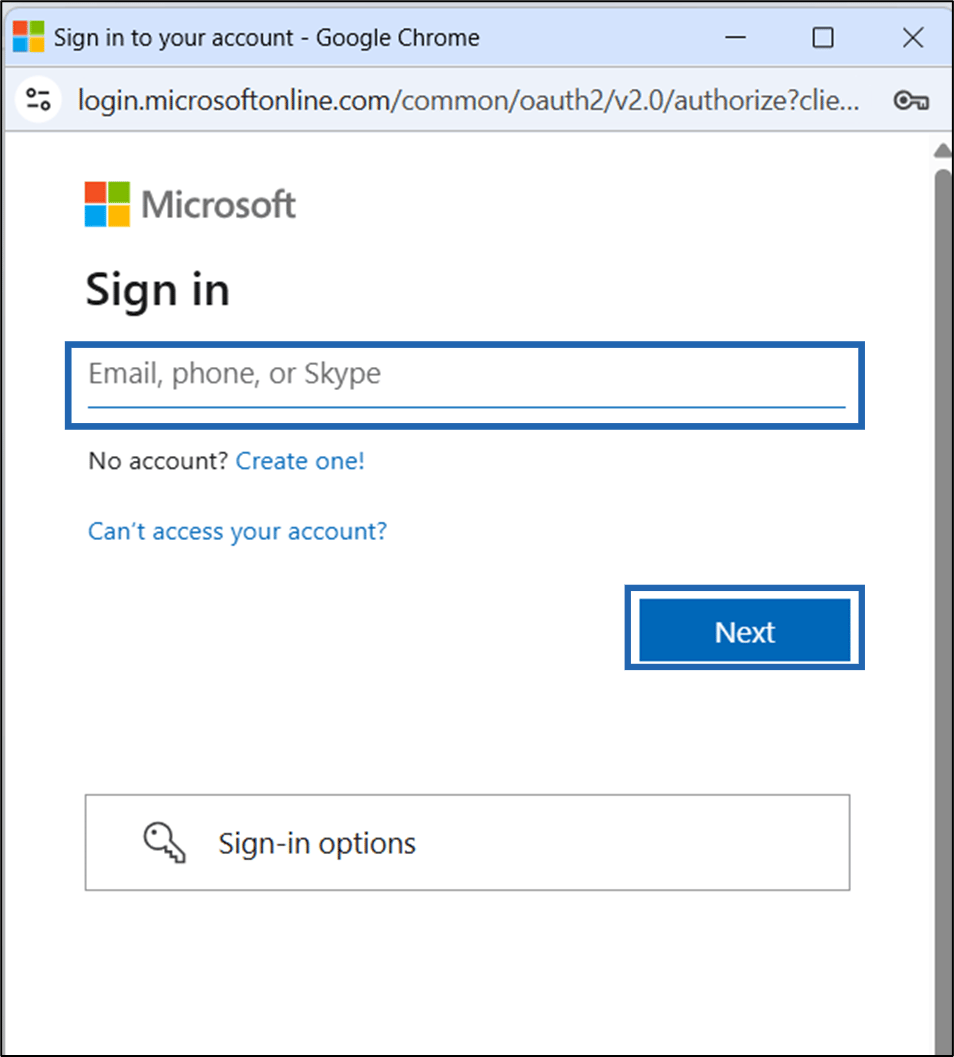
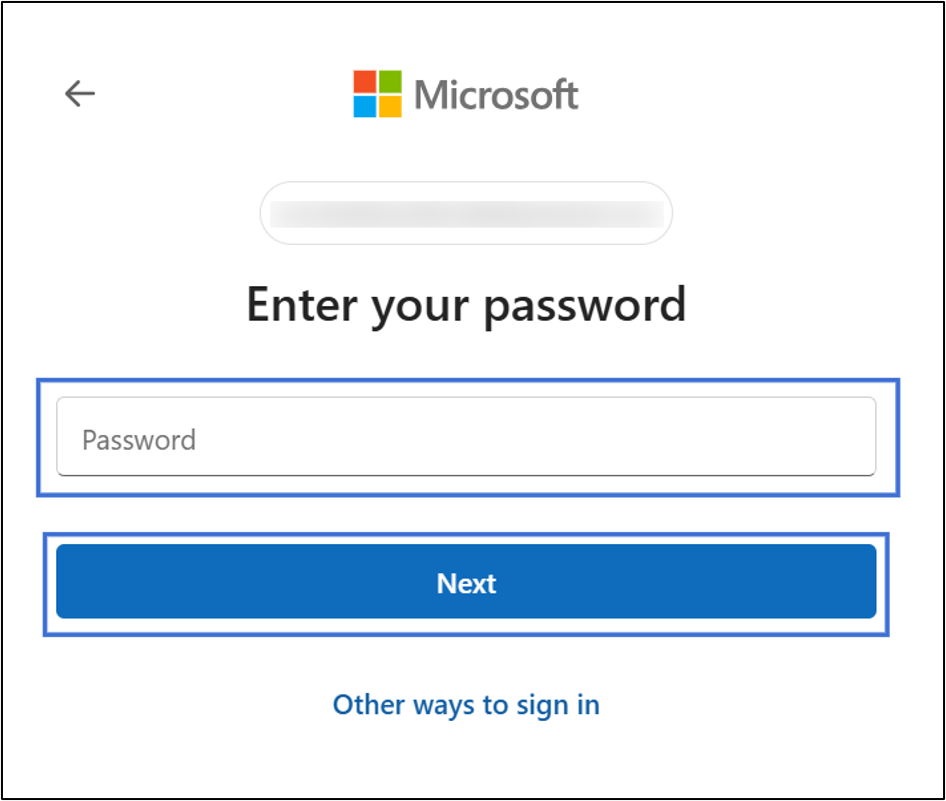
- Enter your Microsoft ID > click Next.