

- Sign in to the Auth0 dashboard using your Auth0 account credentials.
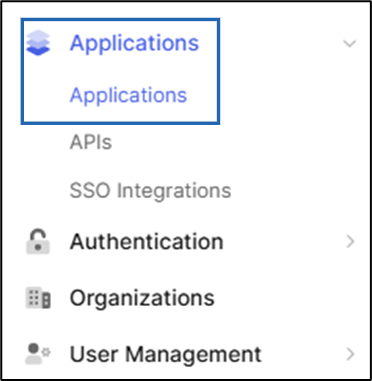
- In the left menu panel, select Applications > Applications.
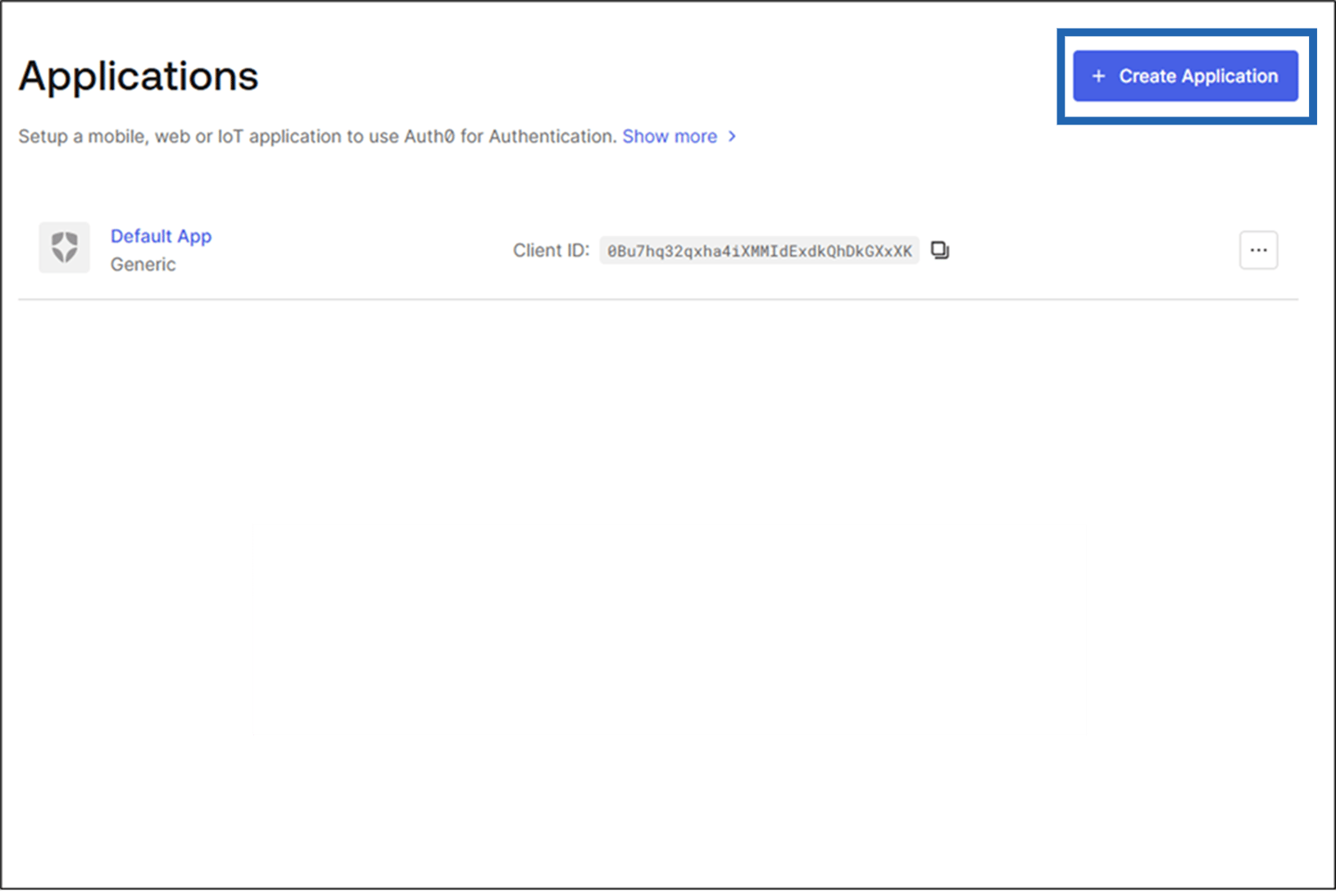
- Select + Create Application.
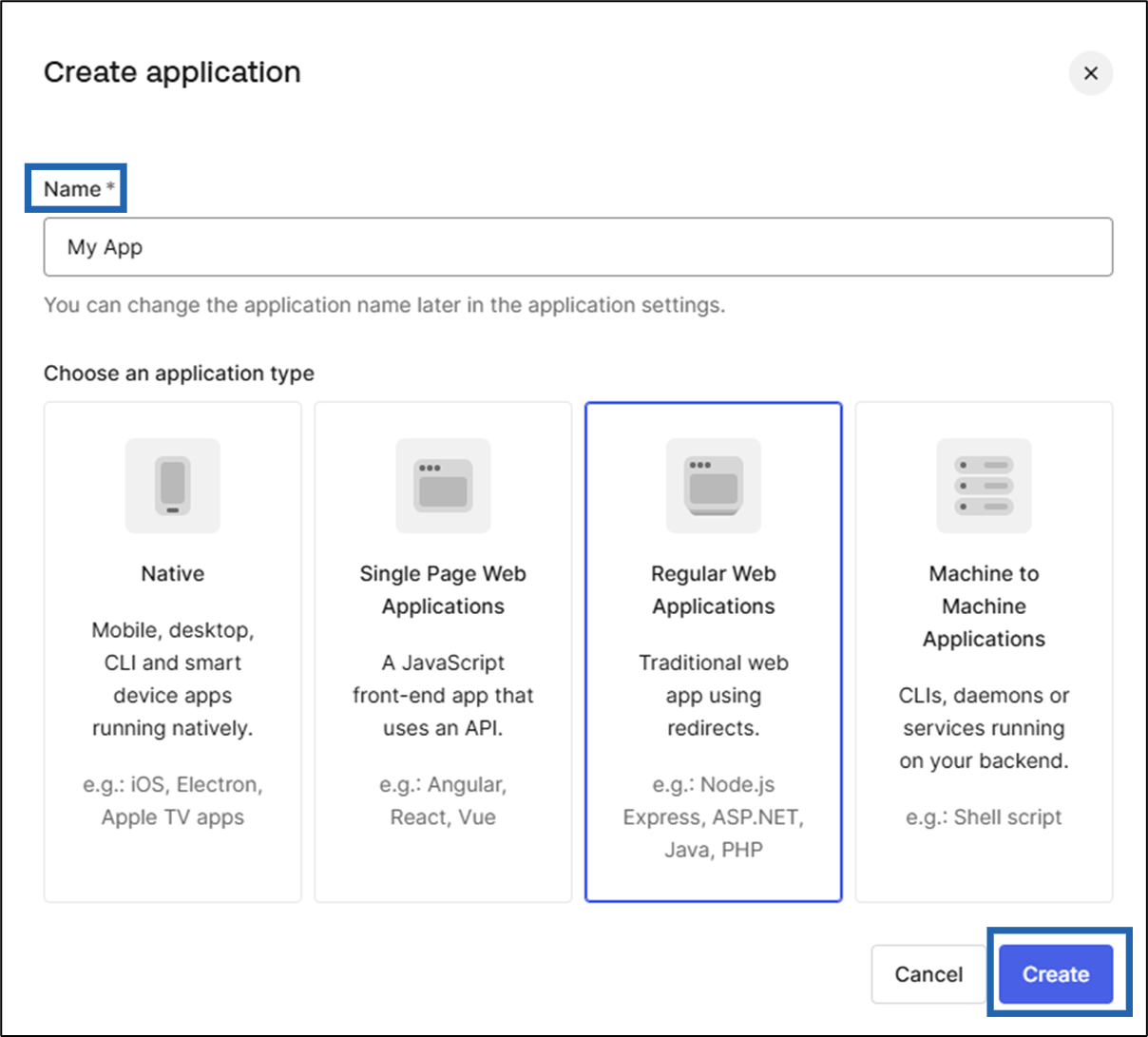
- In the dialog box, do the following:
- Edit the Name field, if needed.
- Select Regular Web Applications, and then select Create.
- Select the Settings tab, and then do the following:
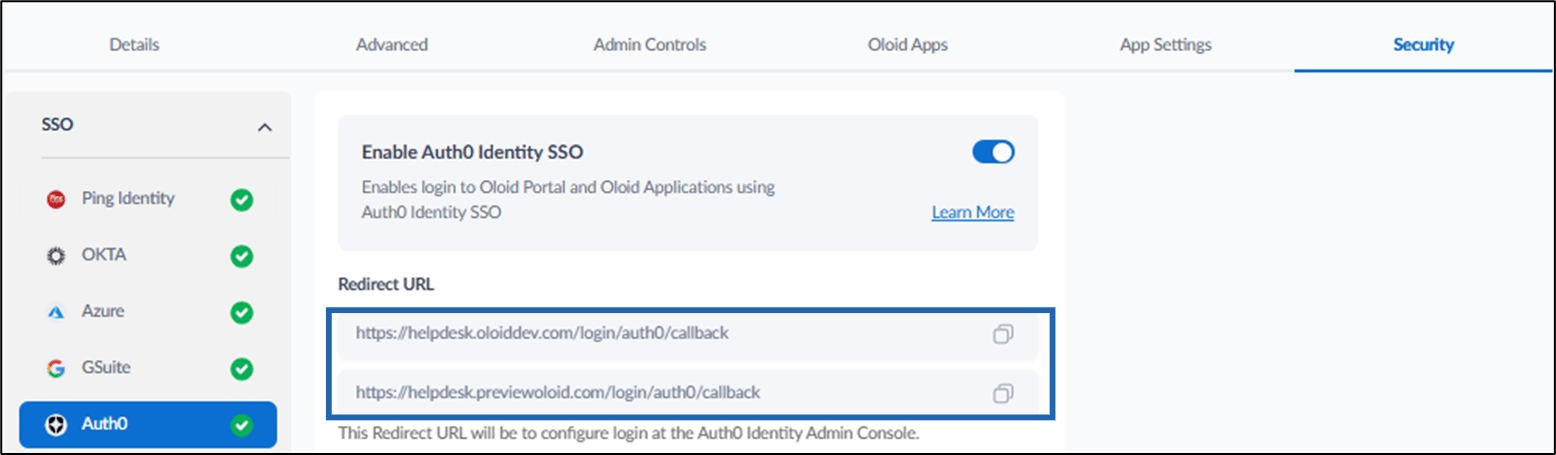
- In the Application URIs section, enter the following Redirect URLs from Oloid Tenant Admin Portal in the Allowed Callback URLs field.

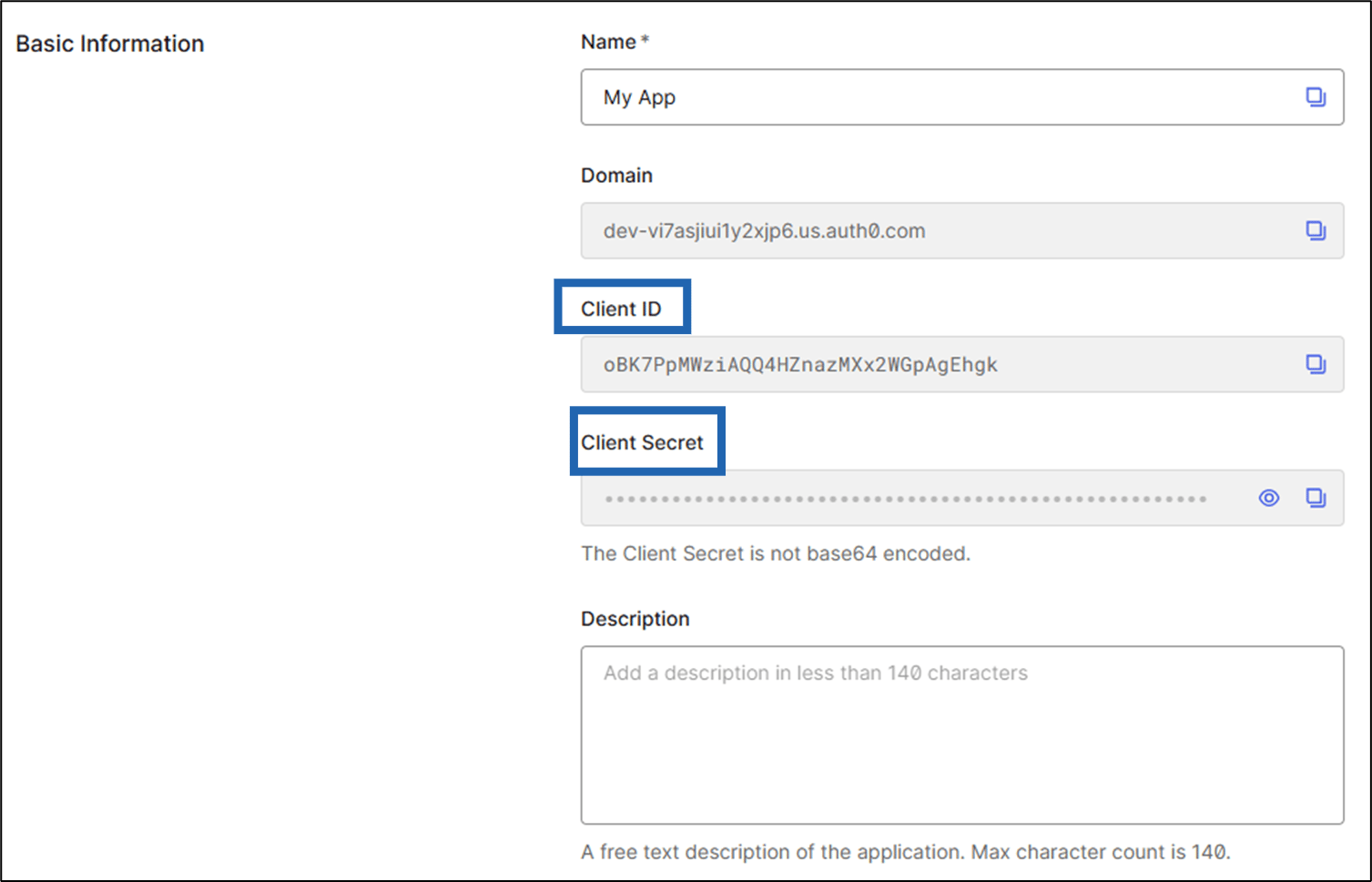
- In the Basic Information section, share the Client ID and Client Secret with Oloid Support.
- In the Application URIs section, enter the following Redirect URLs from Oloid Tenant Admin Portal in the Allowed Callback URLs field.
- Auth0 endpoint parameters can be obtained from the following location -
https://<your-auth0-domain>/.well-known/openid-configurationExample: https://dev-1hnsh6lb8jg6s16v.us.auth0.com/.well-known/openid-configuration
Auth0 Settings for Oloid SSO
Steps to configure Auth0 SSO log in the Auth0 for Oloid Portal:
Steps to configure Auth0 SSO log in the Auth0 for Oloid Portal:
⌘I