Introduction
This document explains how to log in to the Tenant Admin Portal using Duo SSO. It includes step-by-step instructions for completing the login process with Duo authentication. Before you begin, make sure Duo SSO is enabled for your account. To enable it, submit a request to Oloid Support. Activation may take up to 48 hours.Prerequisites
Before logging into the Tenant Admin Portal using Duo SSO, ensure the following:- You are a registered user in the Tenant Admin Portal with the Admin role.
- Duo SSO is enabled for your account. If not, submit a request to Oloid Support for activation, which may take up to 48 hours.
- You have the login URL provided to access the Tenant Admin Portal.
Steps to log into Tenant Admin Portal using Duo SSO
- Launch your browser.
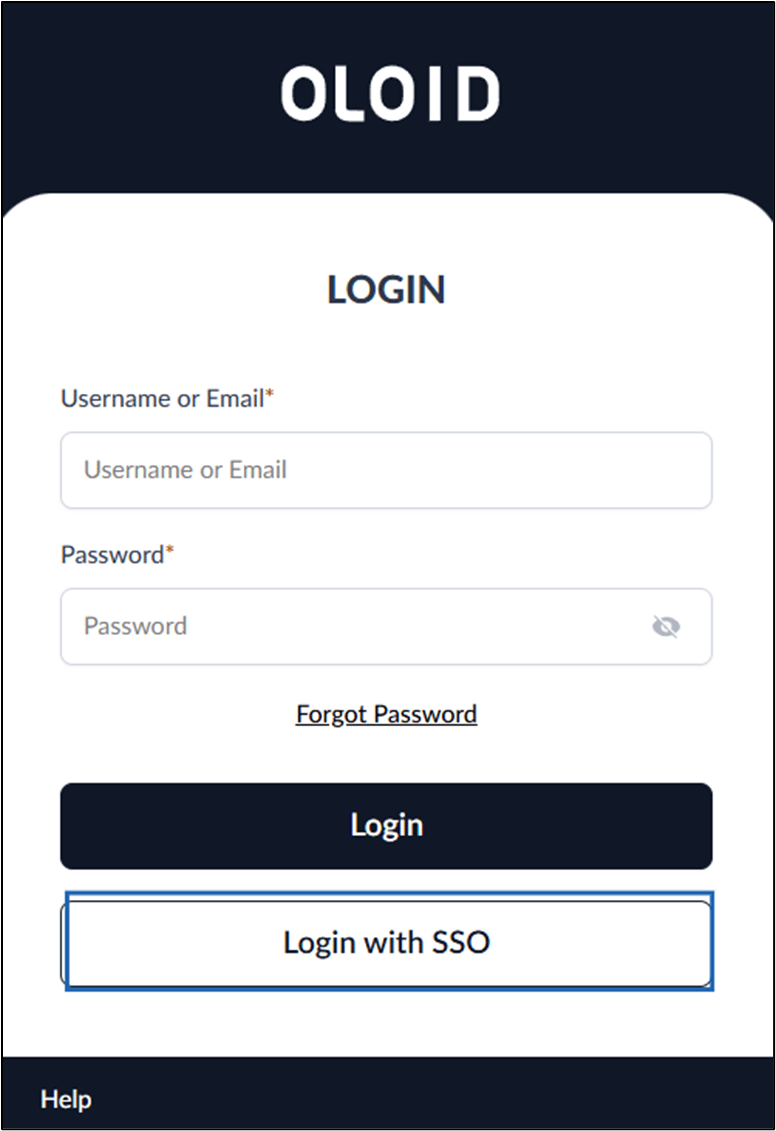
- Enter the provided URL in the browser’s address bar and press Enter. The Oloid Login page is displayed.
-
Click Login with SSO.
-
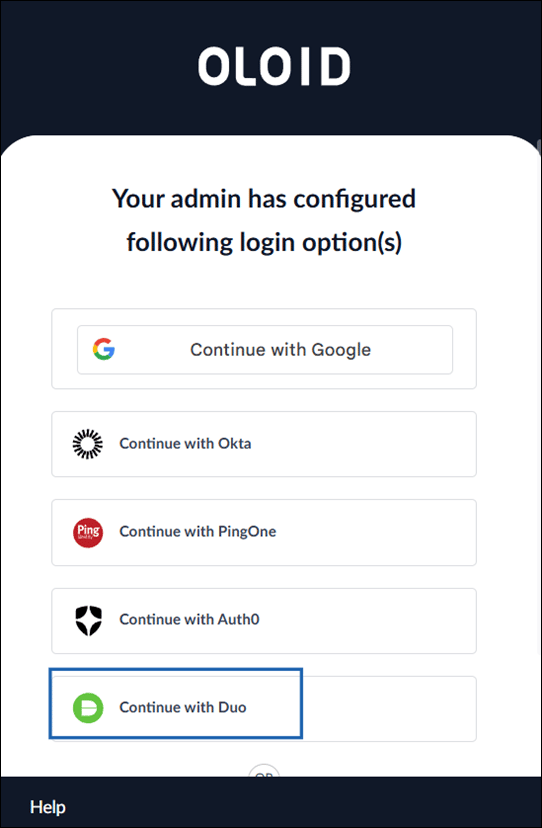
Click Continue with Duo to log in to Oloid Platform with Duo SSO.
-
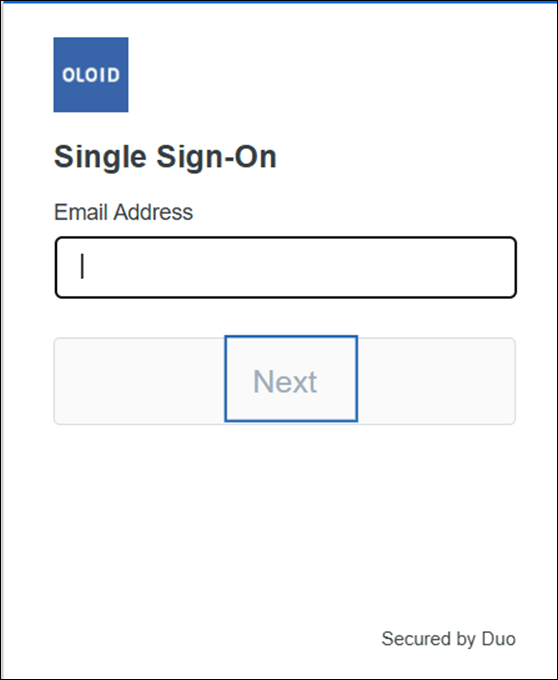
Follow below steps to complete the sign-in process.
a. Enter your Email address, then click Next.
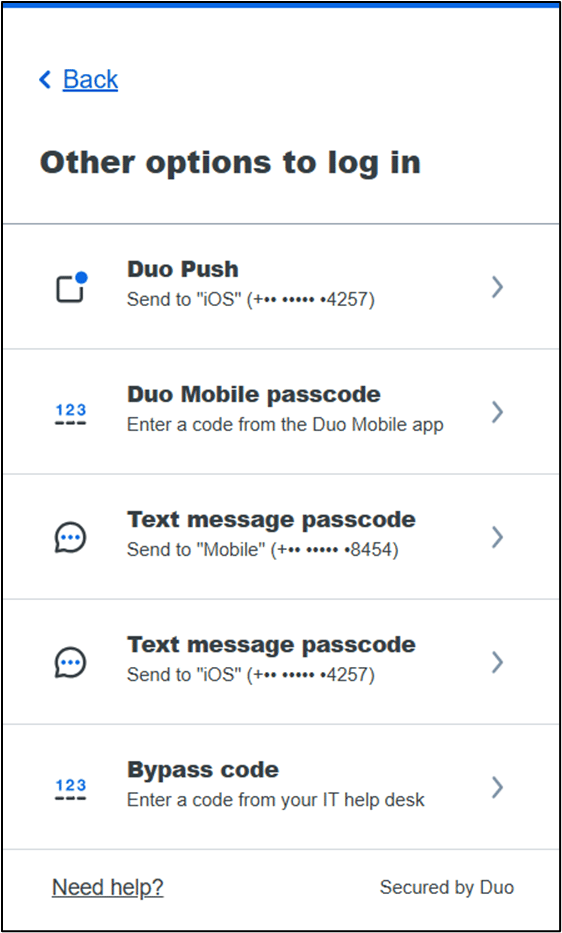
 c. On authenticator screen, select your preferred authentication method.Note: To update your email address, click edit. This will take you to the login screen where you can update the email address.For Example: If you choose Duo Mobile passcode, a code will appear in the app. For Text Message or Duo Push, you will receive a message or push notification.Note: The available authentication method may vary depending on how you configured Duo when setting up your device in the Duo Consent app.