

Introduction
Okta Single Sign-On (SSO) allows users to sign in to Oloid using their existing Okta credentials. To enable this integration, admin must generate specific parameters in the Okta Admin Console and enter them in the Oloid Portal.Prerequisites
- You must have access to the Tenant Admin Portal.
- To configure the integration between Okta and Oloid, generate the required parameters in the Okta Admin Console. For detailed steps, see Okta Settings for Oloid SSO.
Steps to Configure Okta SSO
- Log in to the Tenant Admin Portal.
- On the homepage of the portal, click user profile icon on the bottom left corner of the menu panel.
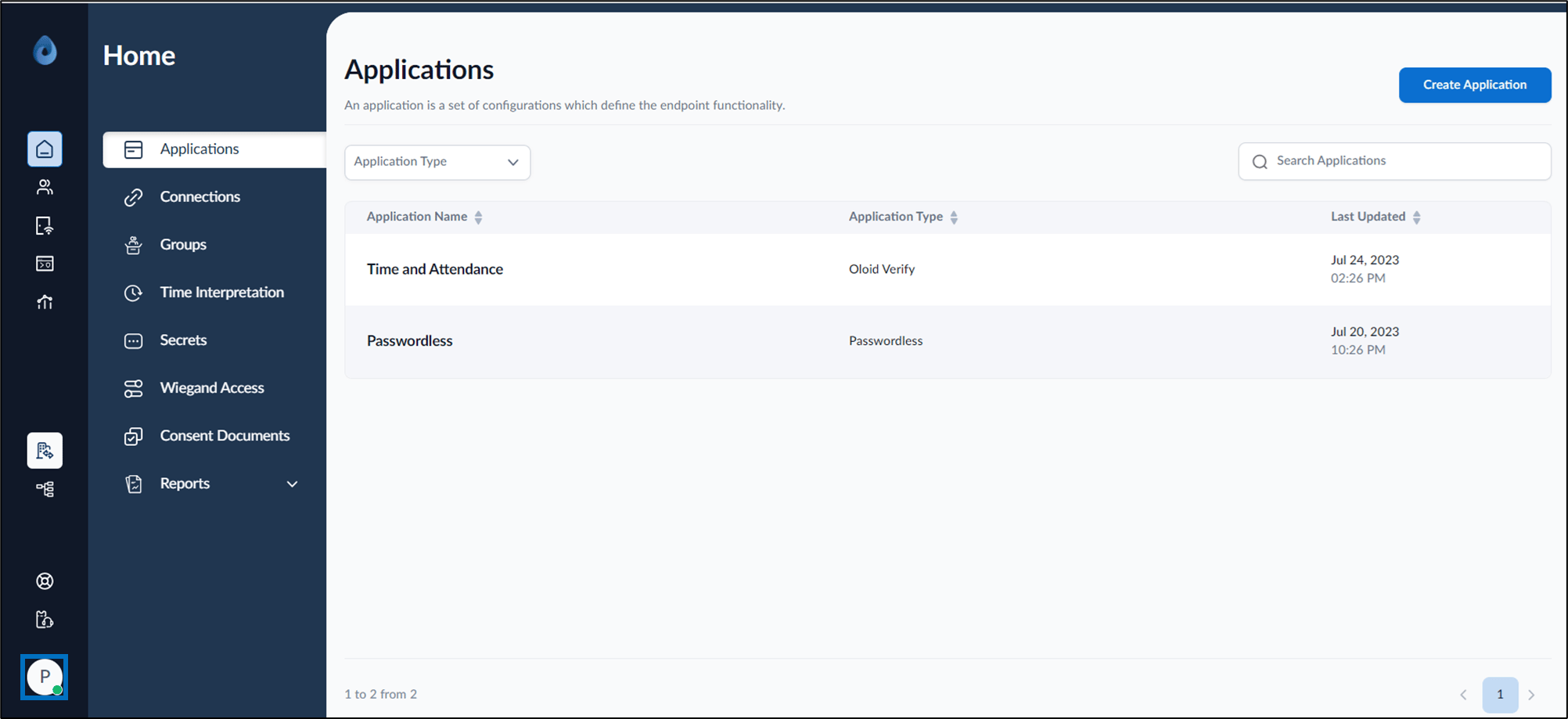
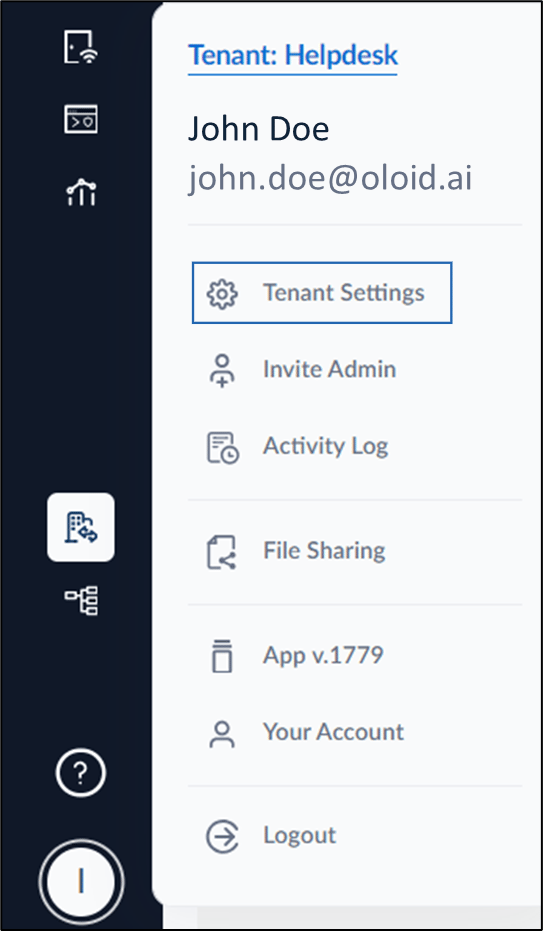
- Click Tenant Settings.
- Go to Security > Okta.
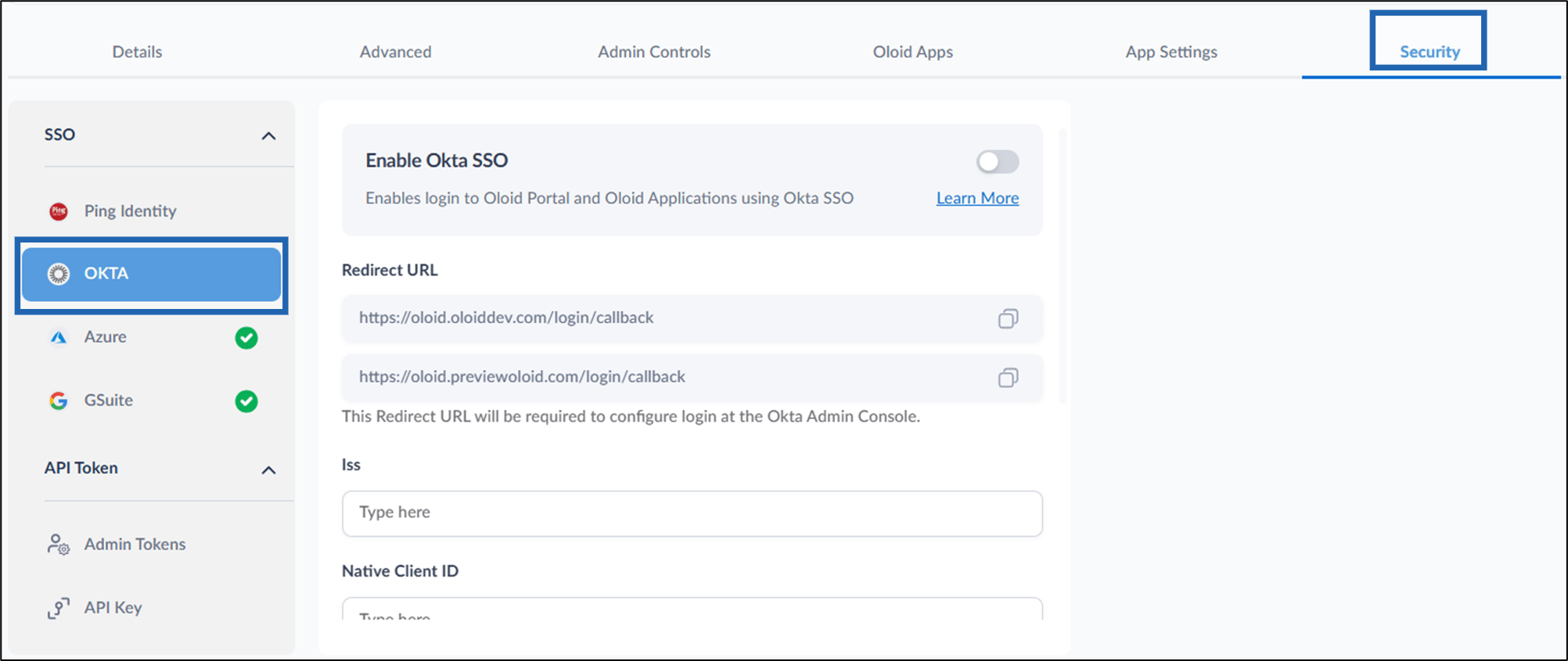
- Turn on Enable Okta SSO toggle.

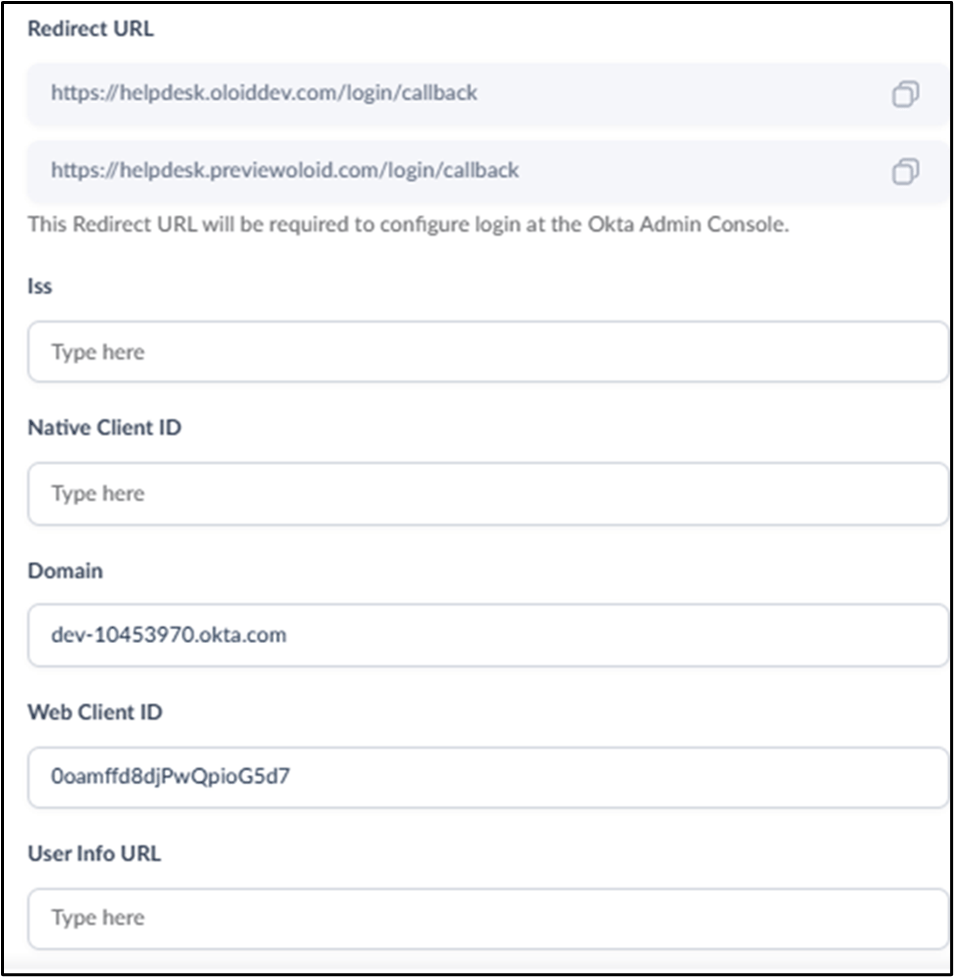
- Do the following:
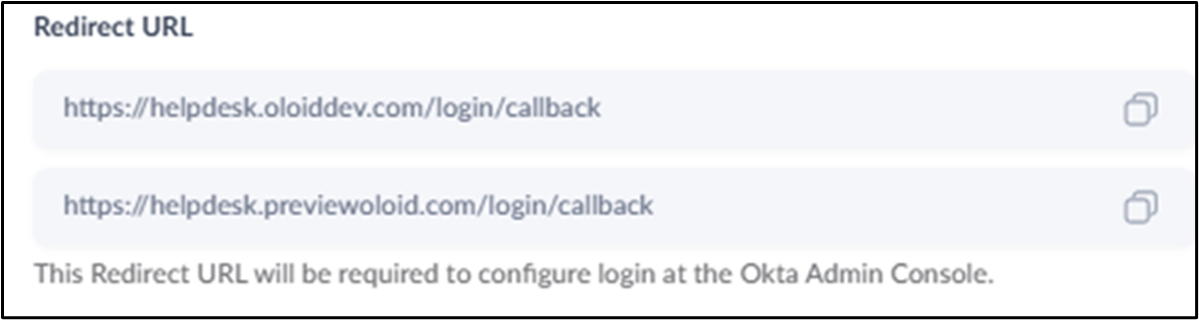
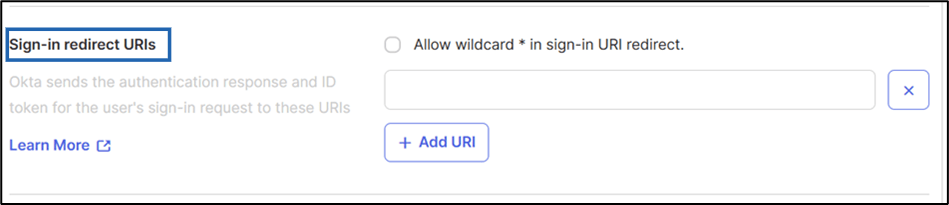
- Redirect URL: Copy the redirect URL.
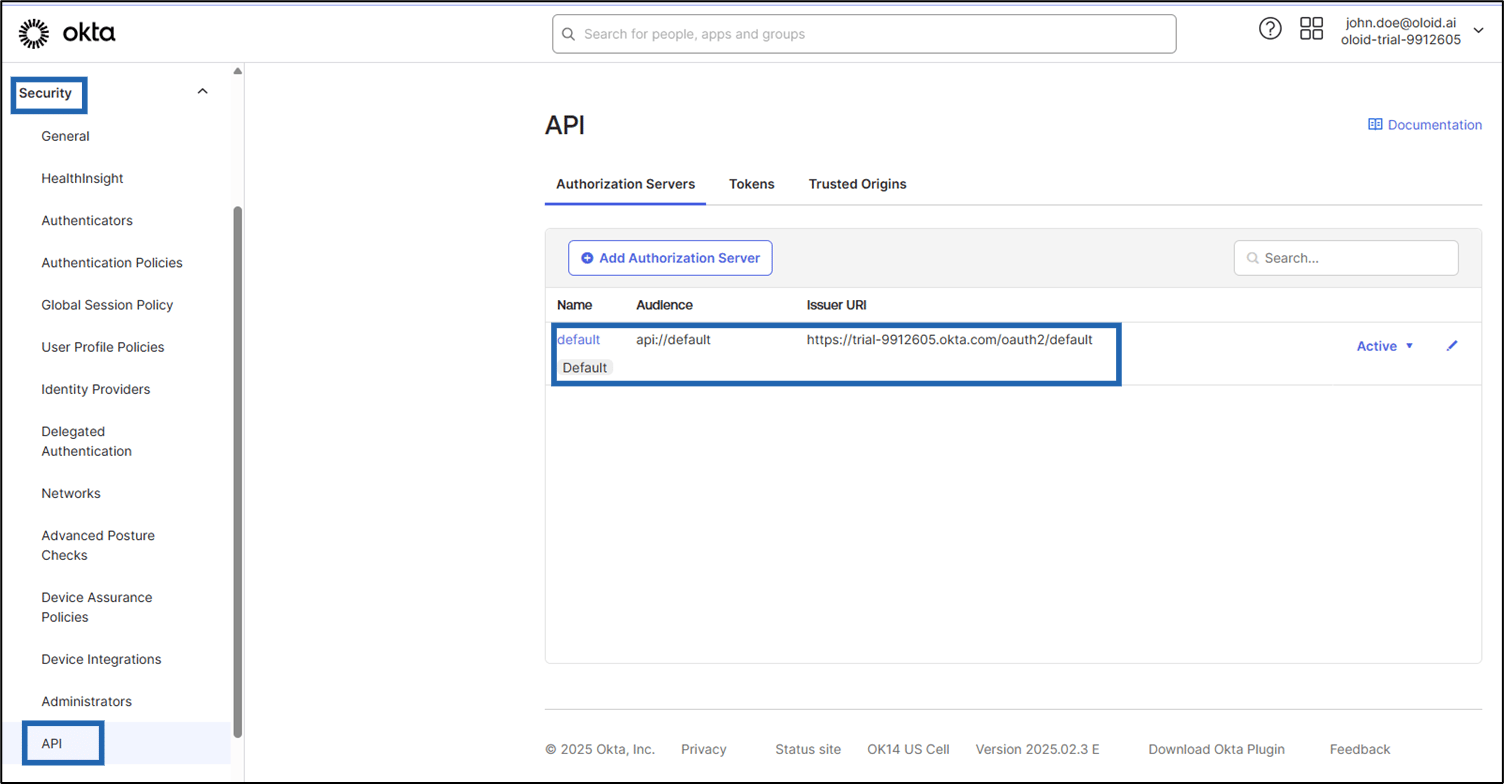
- Iss:Enter the default Issuer URL in the Iss field.

- Native Client ID (Not Applicable).
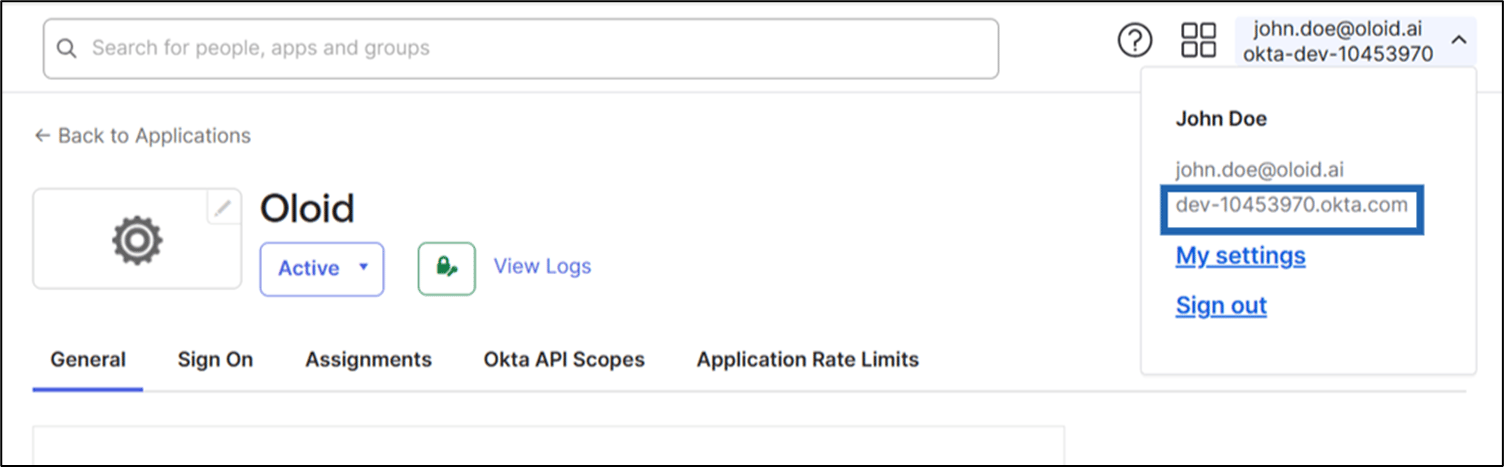
- Domain: Enter the Domain ID in the domain field.

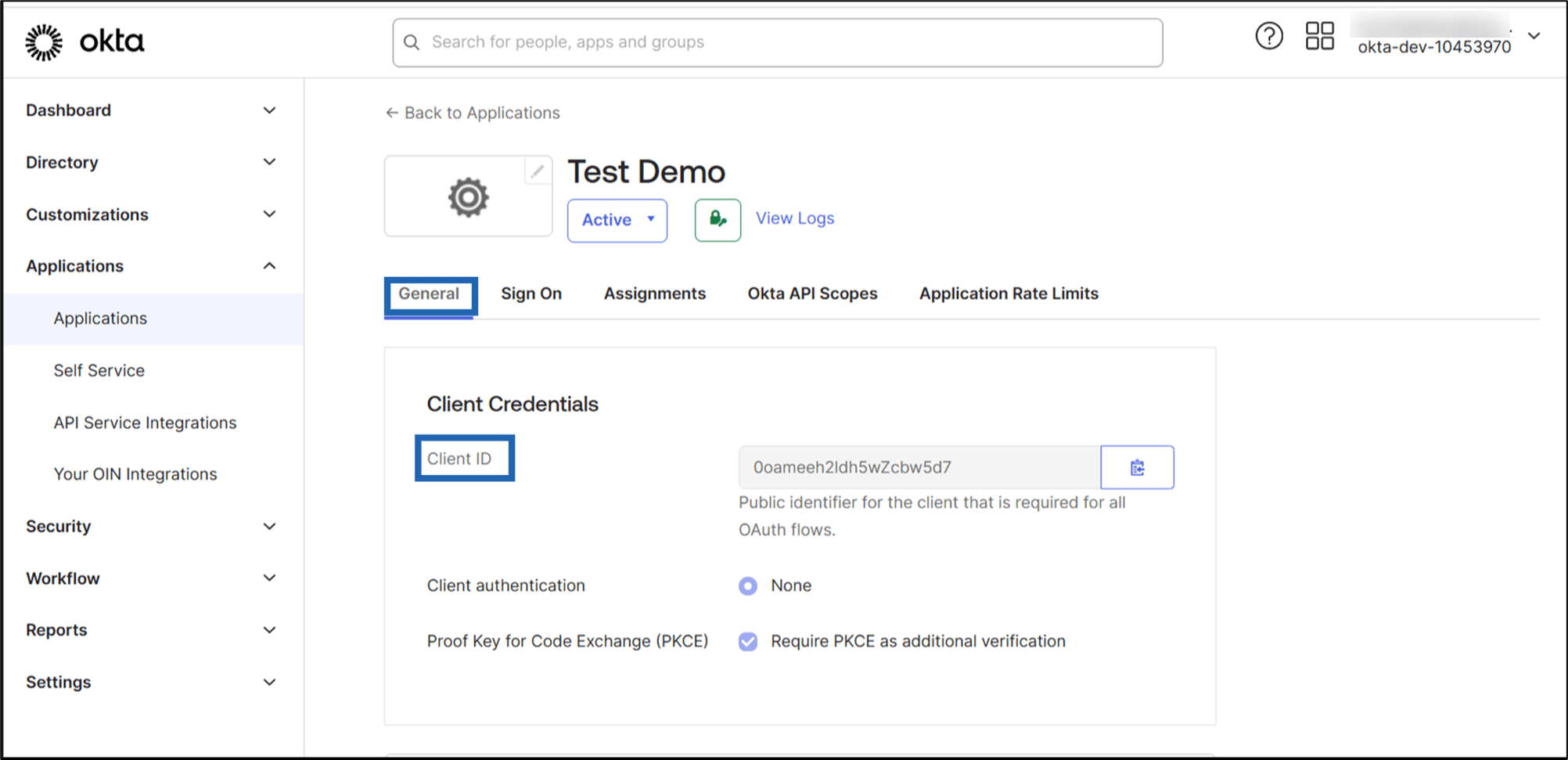
- Web Client ID: Enter the client ID in the Web Client ID field.

- User Info URL (Not Applicable).
- Click Save.
The Okta SSO is configured successfully.
- Redirect URL: Copy the redirect URL.