

- Workday Time Clock Enablement – Ensures accurate employee, position, schedule, and employment status data for compliant and reliable time punches.
- Automated Employee Onboarding & Offboarding – Provisions and de-provisions users automatically in downstream systems such as Brivo, Microsoft Entra ID, ProWatch, and other connected platforms.
- Reduced Human Errors – Eliminates manual data entry and minimizes data inconsistencies.
- Faster Onboarding – Enables employees to receive system and facility access as soon as they are onboarded in Workday.
- Secure Offboarding – Ensures timely removal of access when an employee leaves the organization.
- Data Consistency Across Systems – Maintains a single, accurate source of truth across all integrated platforms.
- Operational Efficiency – Reduces administrative overhead and manual coordination efforts.
- Improved Compliance & Audit Readiness – Helps meet internal policies and regulatory requirements through accurate and timely data updates.
Step 1: Create an Integration System User
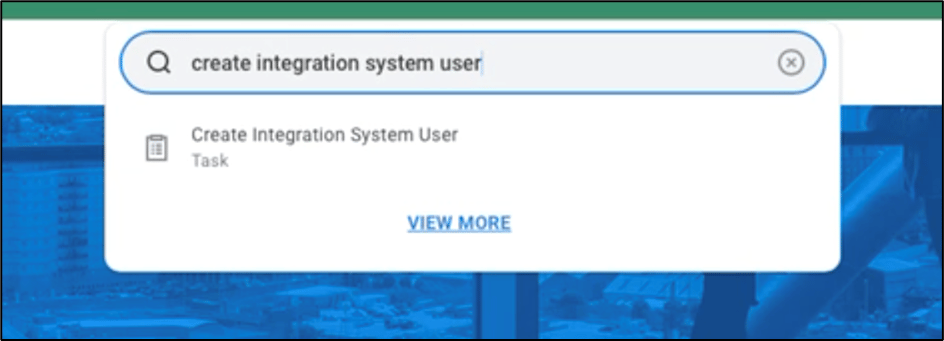
- In Workday, use the search bar to navigate to the Create Integration System User task, and click on the option presented. (see screenshot ‘Step 1.1’ below)
- Createanew Username (in this example we’ll use ‘workday_user_provisioning’and Password. Ensure you have a copy of this information as you will need it later.
- Ensure the following fields are set as stated below:
- ‘Require new password at Next Sign in’ is unchecked
- ‘Session Timeout Minutes’ is set to ‘0’.
- ‘Do Not Allow UI Sessions’ is checked
- Click OK to create the integration system user.

Step 2: Create an Integration Security Group
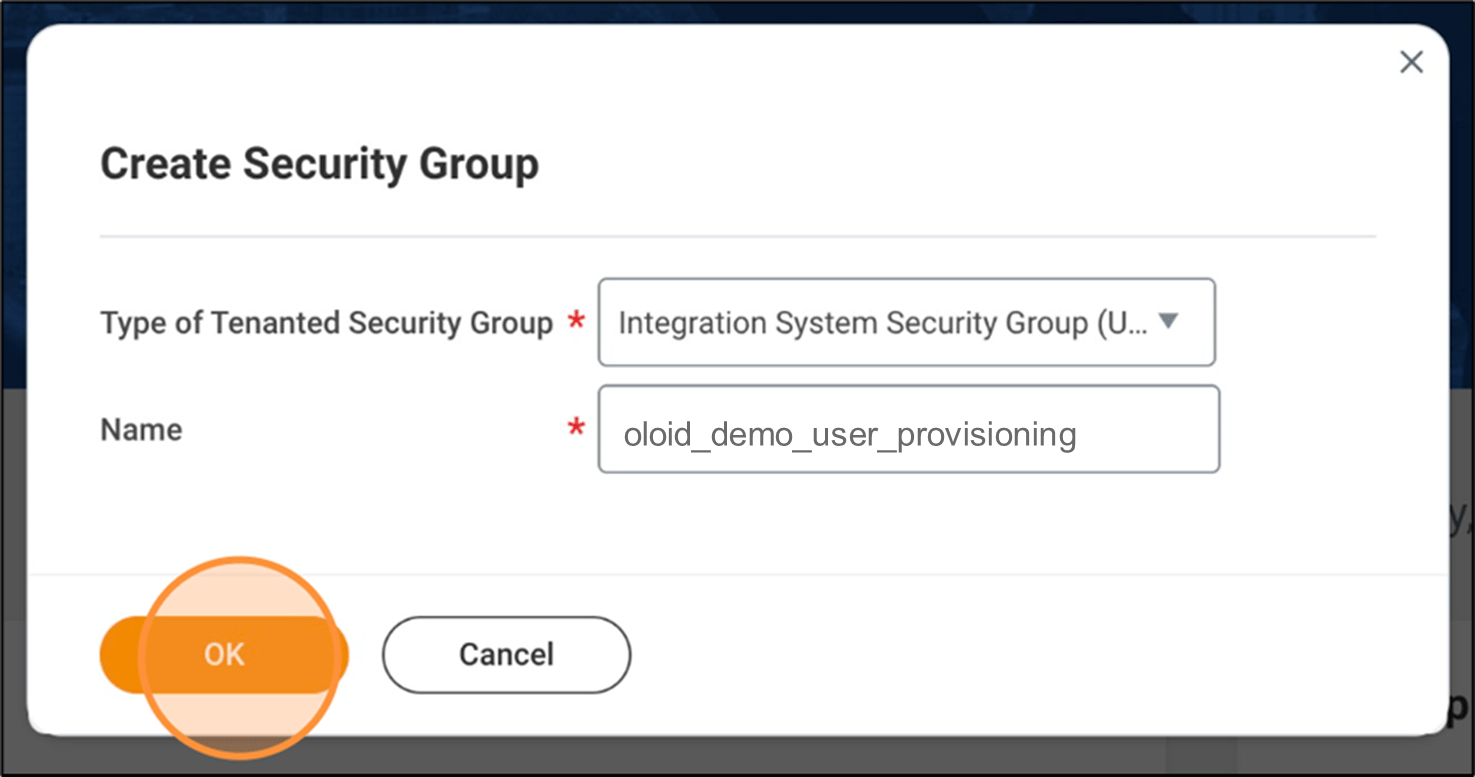
- Use the search bar to navigate to the Create Security Group task.
- For the Type of Tenanted Security Group drop down select Integration System Security Group (Unconstrained)
- Create a name for this security group, for example,
'xyz demo_user_provisioning'👉 Make a note of this as you will need it in the next step and click OK. - In the Integration System User field select the name you created in step 1 (‘workday_user_provisioning’)
- Click OK
- Click Done

Step 3: Setup Integration System Users for Inbound and Outbound and Integration User Group(s) for Securable items in Workday
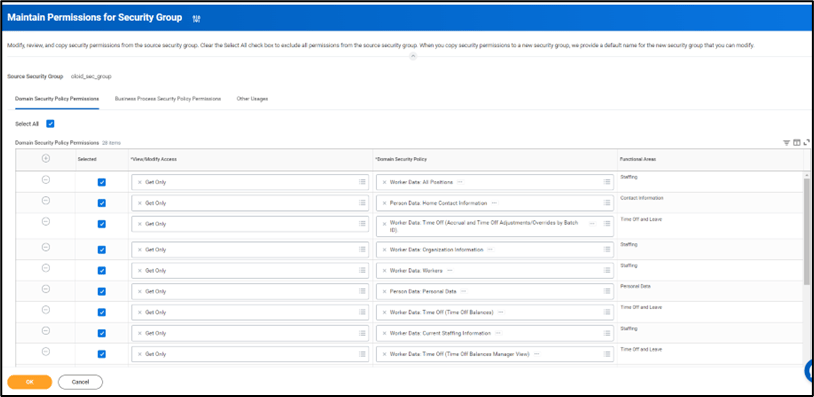
- Add the domains that you want to sync with OLOID to the security group. All domains are listed in a Configurable Security Matrix. You need to add all domains directly –
- Search for Maintain Permission for Security Group and select it. Make sure to add following Domain Security Policies.
Step 4: Activate the Security Policies
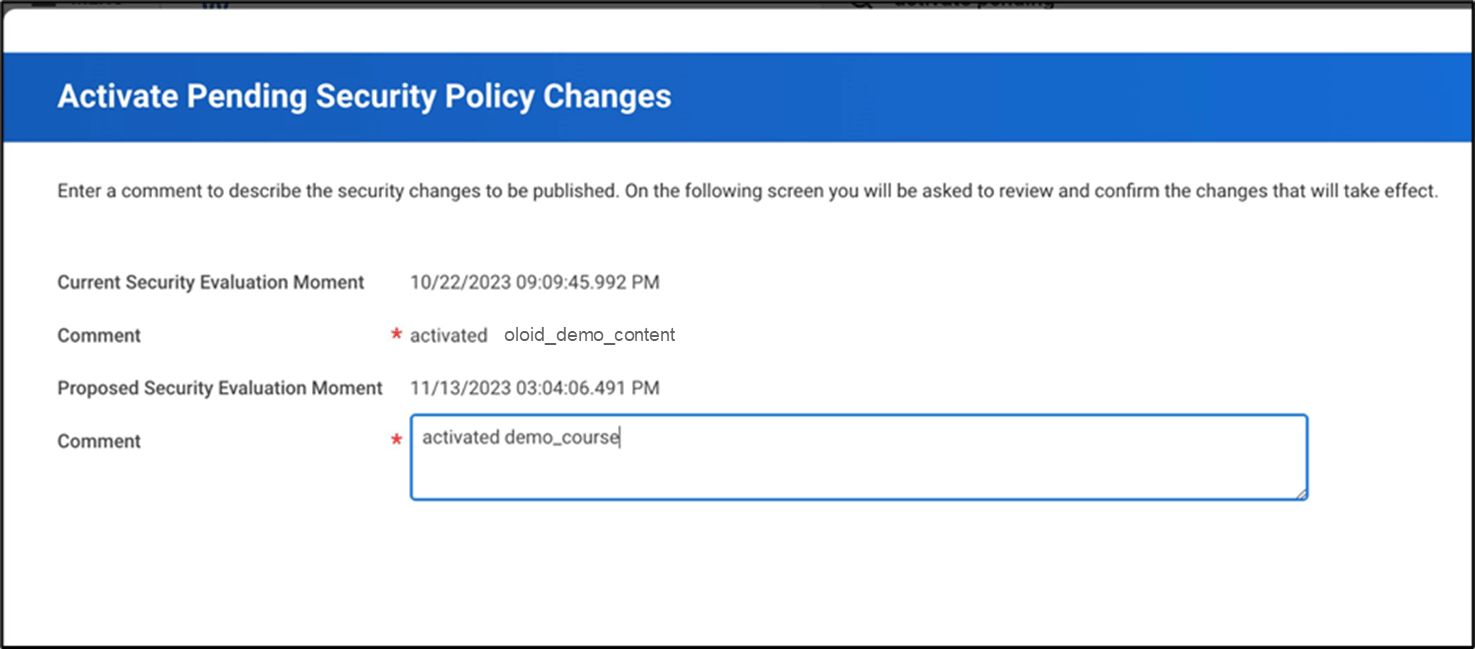
- Use the search bar to navigate to the Activate Pending Security Policy Changes task.
- Enter a comment, for example, ‘activated demo_course’.
- Click OK, then review the permissions.
- Check the Confirm check box and click OK.
- The next page will confirm activation.
Step 5: Register the API Client for Integrations
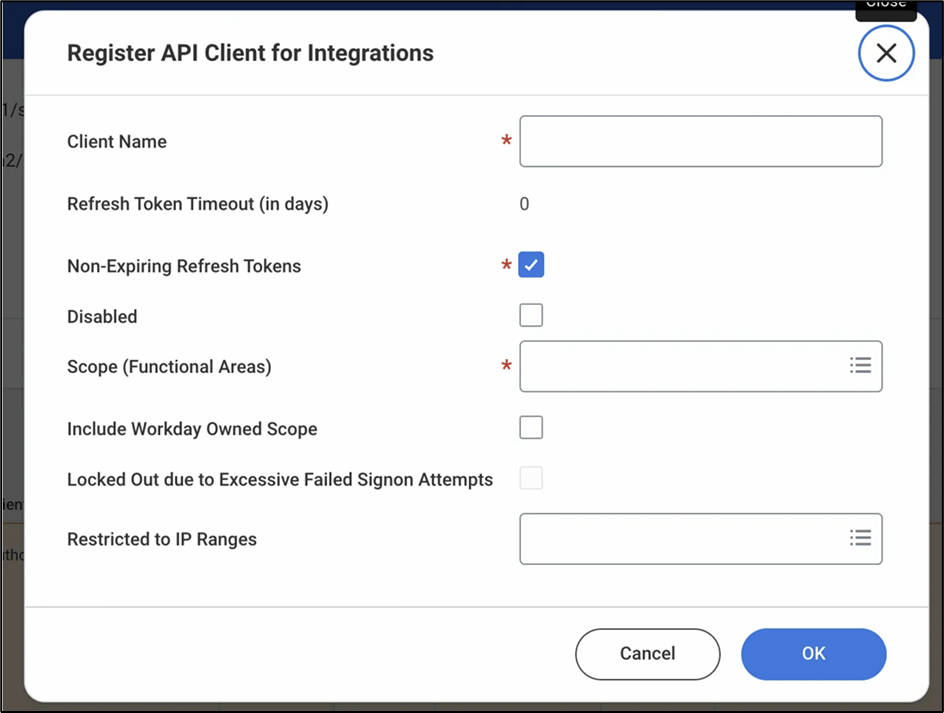
- Use the search bar to navigate to the Register API Client for Integrations task.
- In the form that appears, fill in:
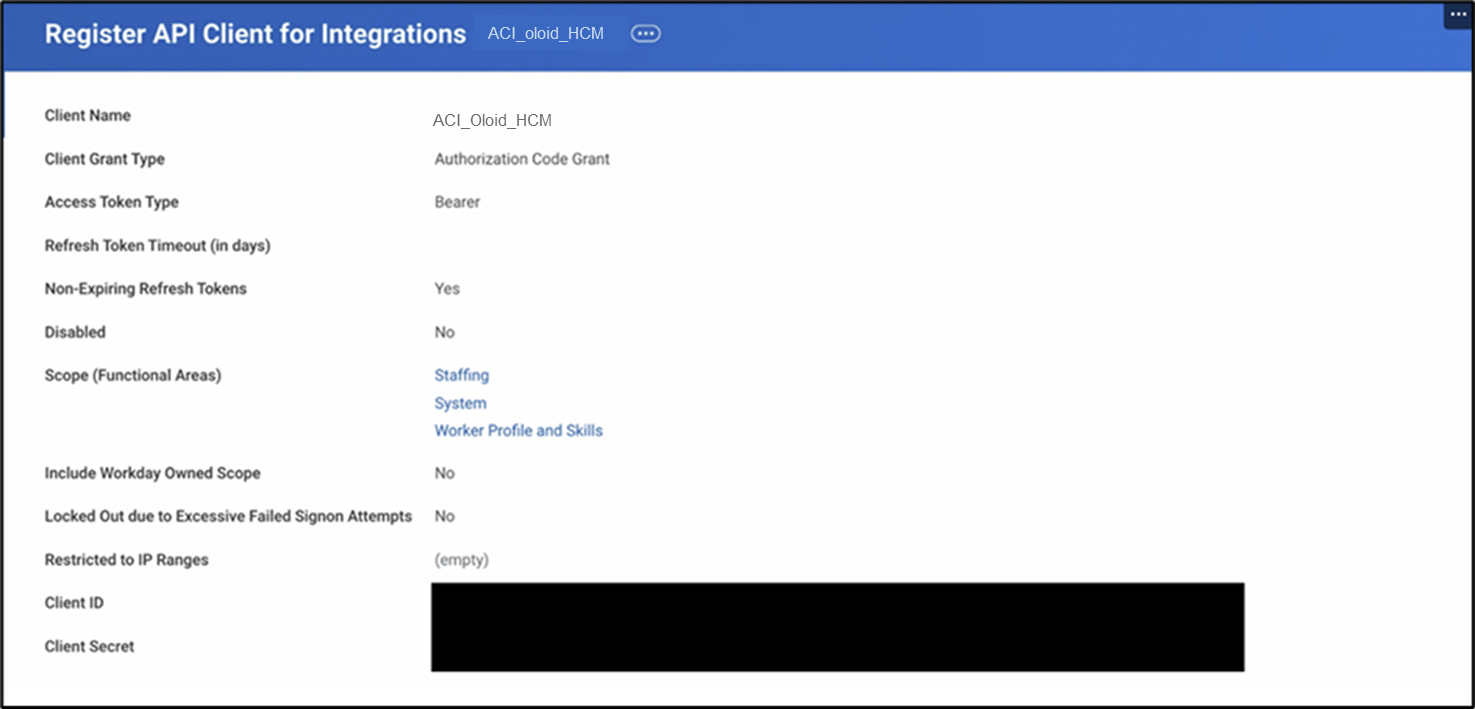
- Client Name: e.g.,
ACI_Oloid_HCM - Non-Expiring Refresh Tokens: Checked
- Disabled: Unchecked
- Scope (Functional Areas): Add at least Worker Profile and Skills, Staffing, System
- Make sure to add following Scope (functional Areas)
For Worker Data
- Staffing
- Contact Information
- Adaptive Planning for Financial Plans (For WQL export)
- Adaptive Planning for the Workforce (For WQL export)
- System (For WQL export)
- Make sure to add following Scope (functional Areas)
For Worker Data
- Client Name: e.g.,
- Time Tracking
- Include Workday Owned Scope: Unchecked
- Restricted to IP Ranges: None (see screenshot ‘Step 5.2’ below)
- Click OK.
- On the next page, you’ll be able to see your Client ID and Client Secret.
Step 6: Generate a Refresh Token
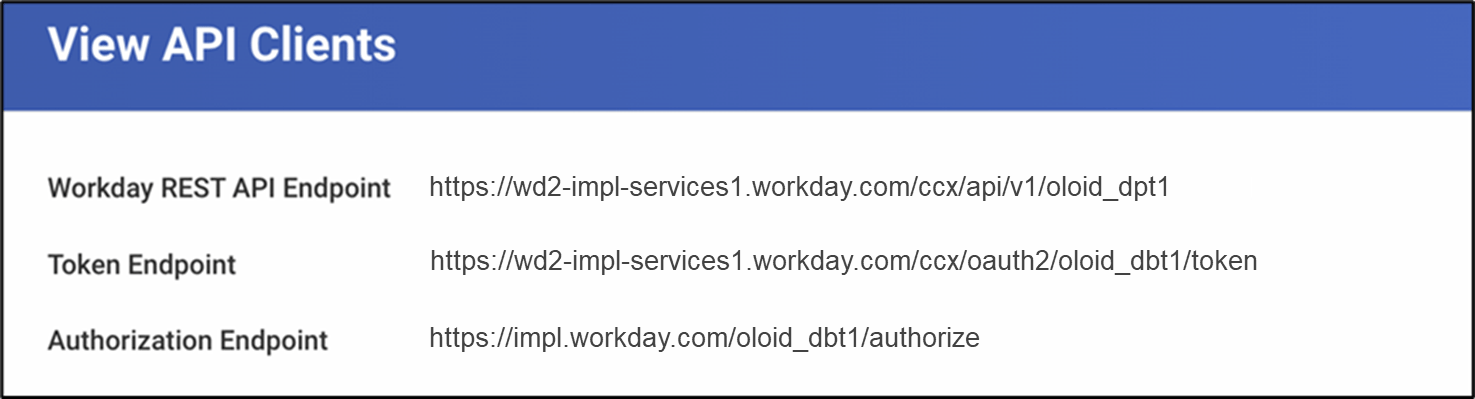
- Use the search bar to navigate to the View API Clients report.
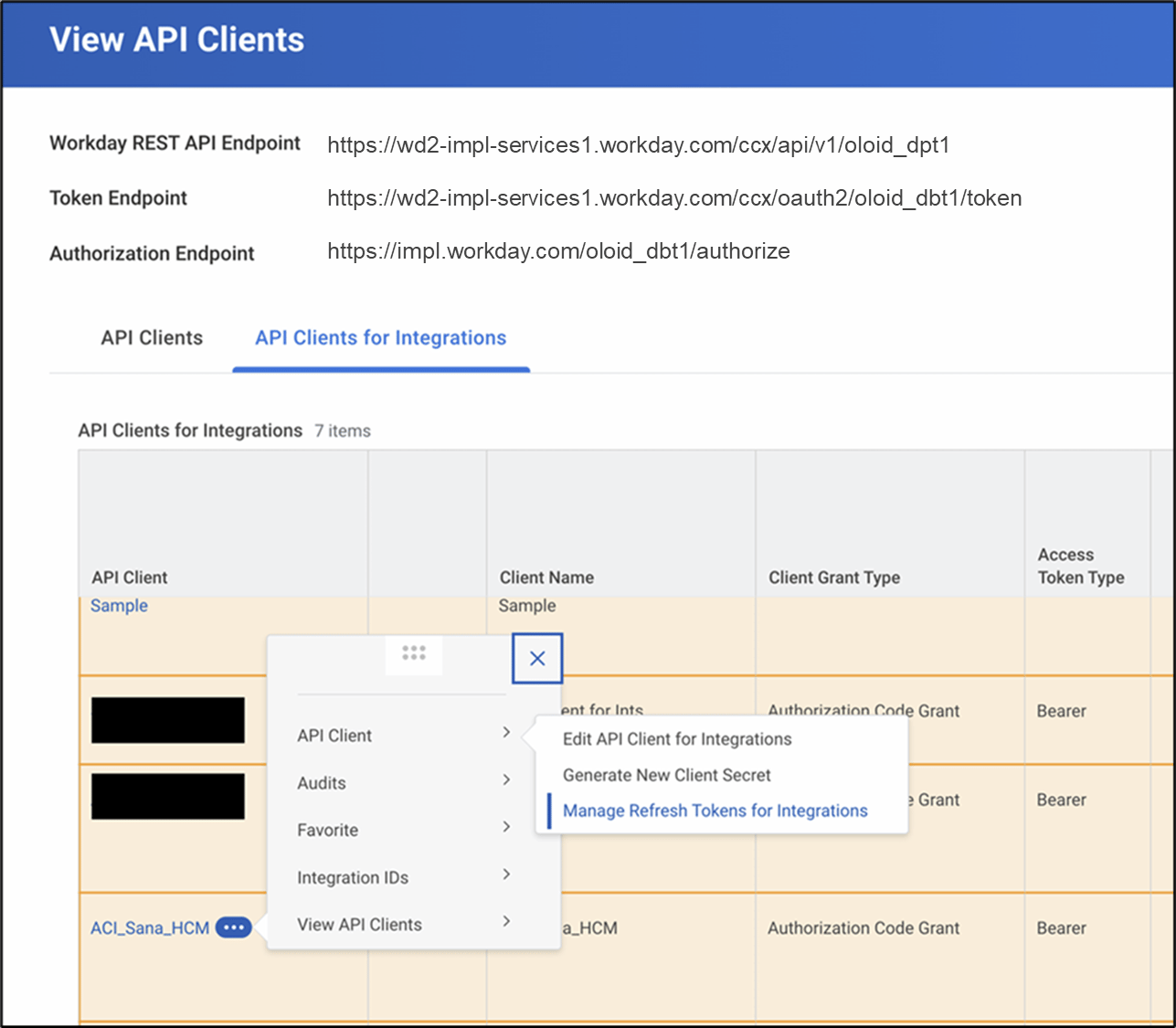
- Take note of the Workday REST API Endpoint, Token Endpoint, and Authorization Endpoint as you will need to share these with your Oloid Cloud Platform Integrations consultant. (see screenshot ‘Step 6.2’ below)
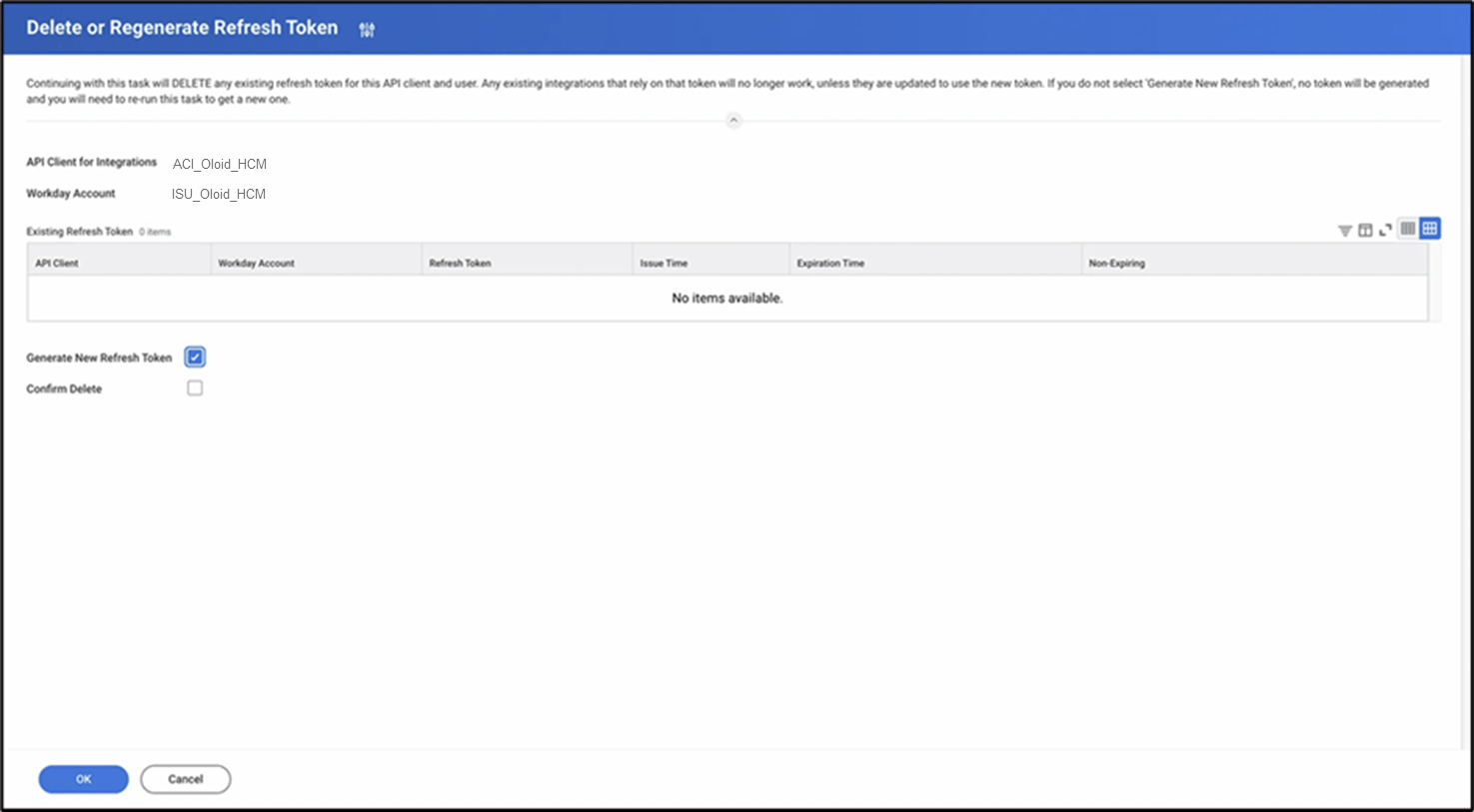
- Select the API Clients for Integrations tab and locate the API Client created in the previous step. Press the 3 dots and select API Client > Manage refresh tokens for Integrations.
- In the pop-up that appears, select the ISU created in an earlier step.
- Tick Generate New API Token and press OK. A new refresh token will appear in the list.
Step 7: Create a Custom Report and Obtain the WQL Query
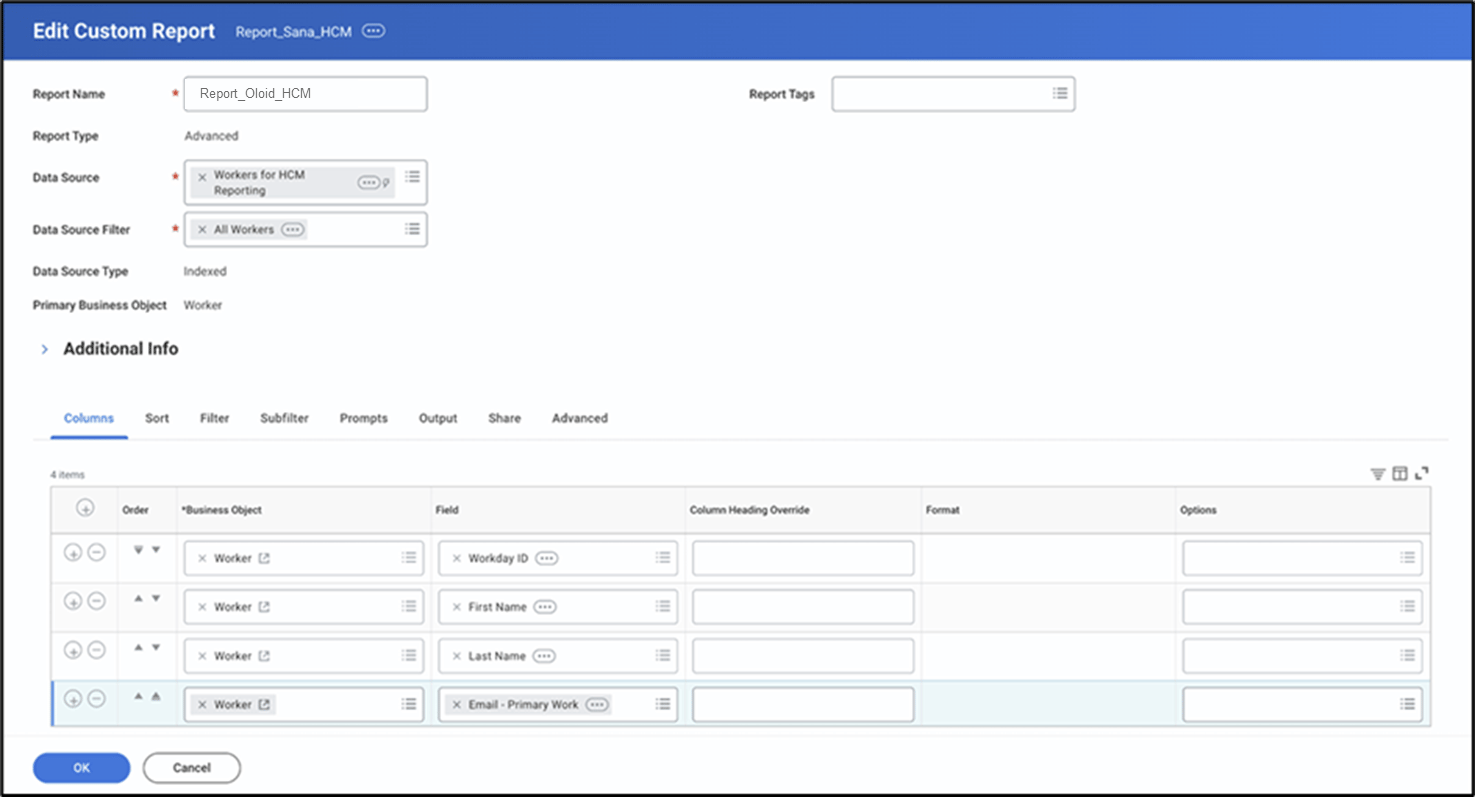
- Use the search bar to navigate to the Create Custom Report tab. In the dialog, name the report, select Report Type: Advanced, and Data Source: Workers for HCM Reporting. (see screenshot ‘Step 7.1’ below)
- Create a report that comprises all the data that you would like to use in Oloid Cloud Platform. At a minimum, add Workday ID, First Name, Last Name, and Email Address. You may also add other metadata like title, department, location, etc.
- Save the report.


Step 8: Share with Oloid Cloud Platform
After completing the above steps, you should have the following information:- Client ID and Client Secret (from Step 5)
- Refresh Token (from Step 6)
- Workday REST API Endpoint, Token Endpoint, Authorization Endpoint (from Step 6)
- WQL Query String (from Step 7)