

- Log in to the Oloid Portal.
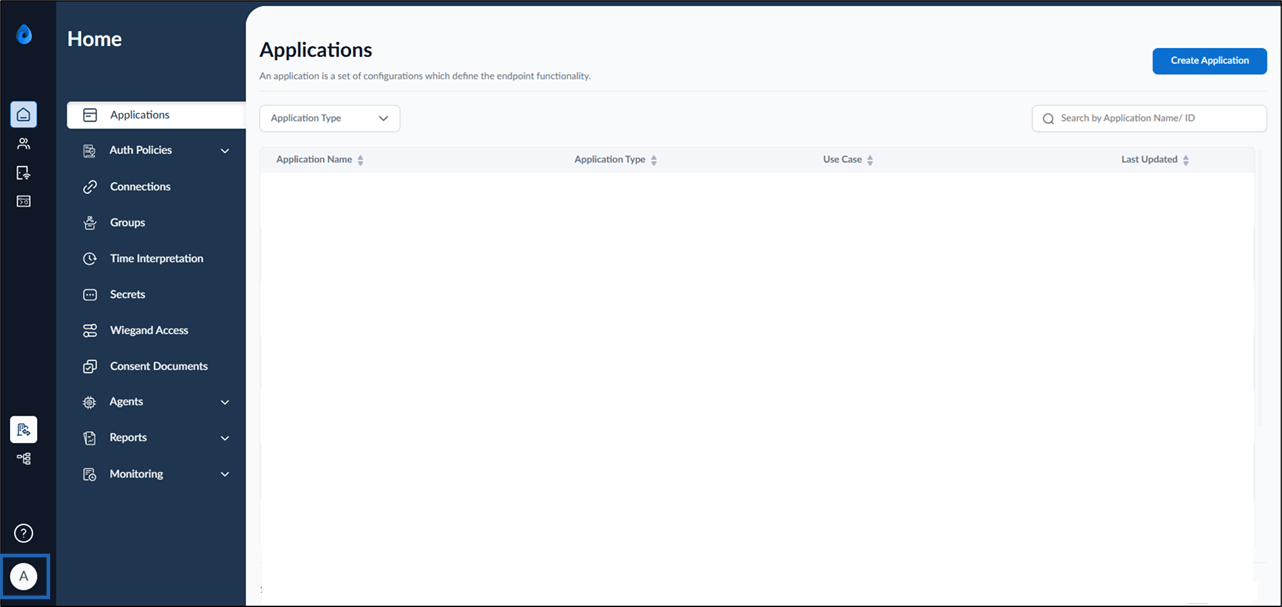
- On the homepage of the portal, click user profile icon on the bottom left corner of the menu panel.
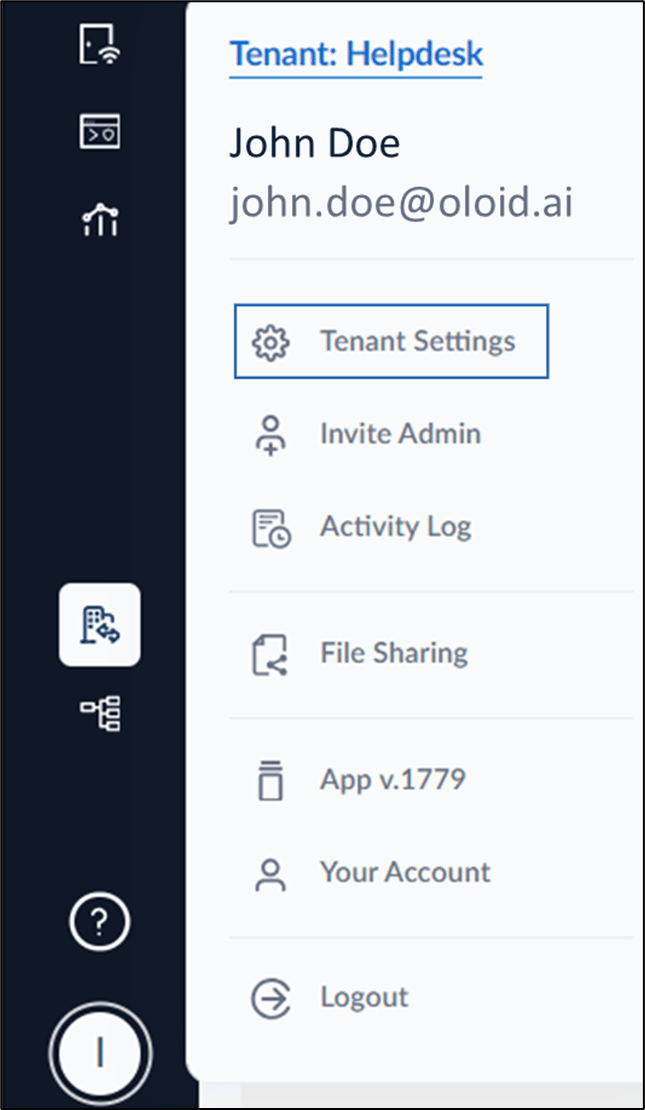
- Click Tenant Settings.
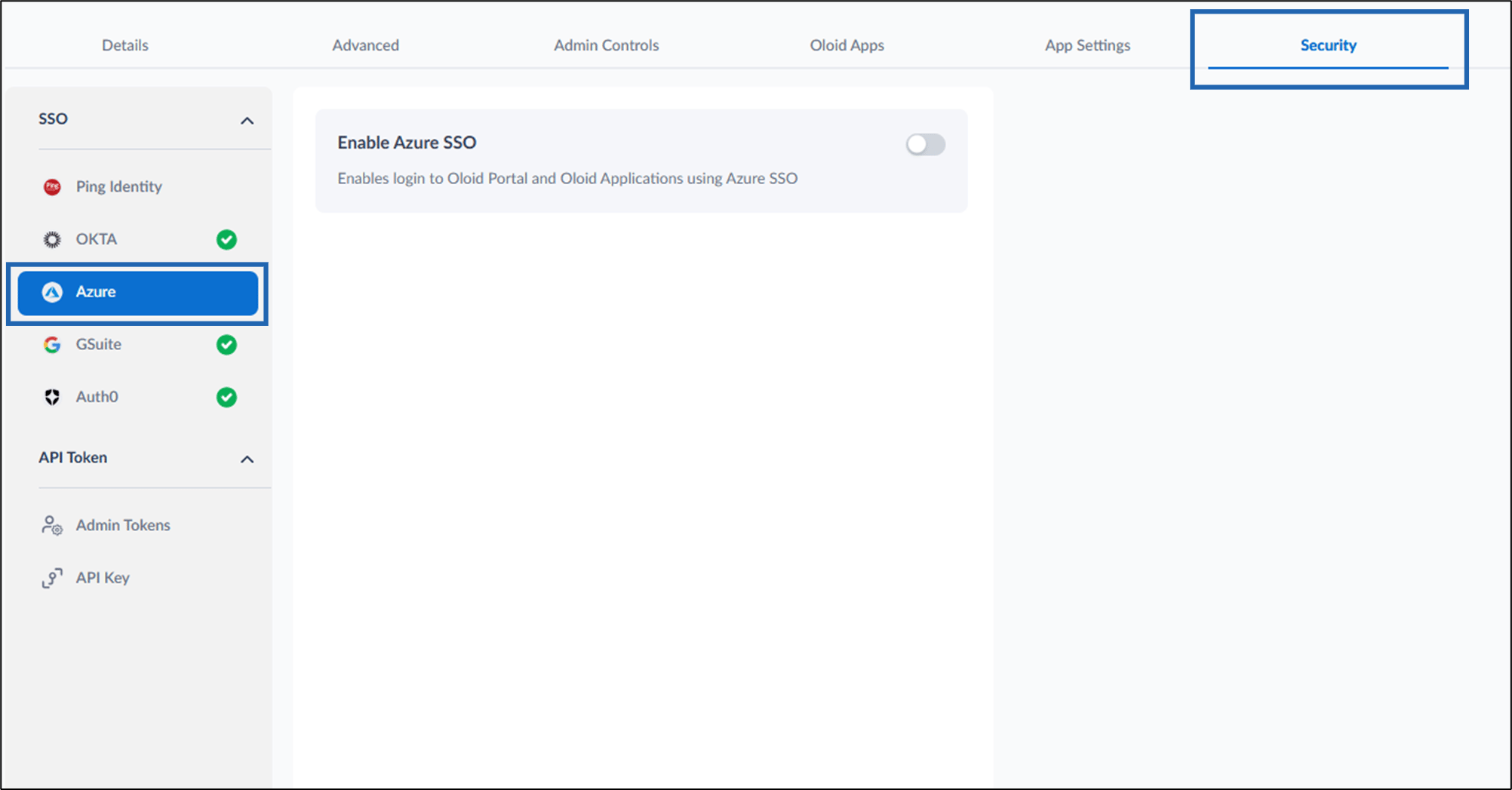
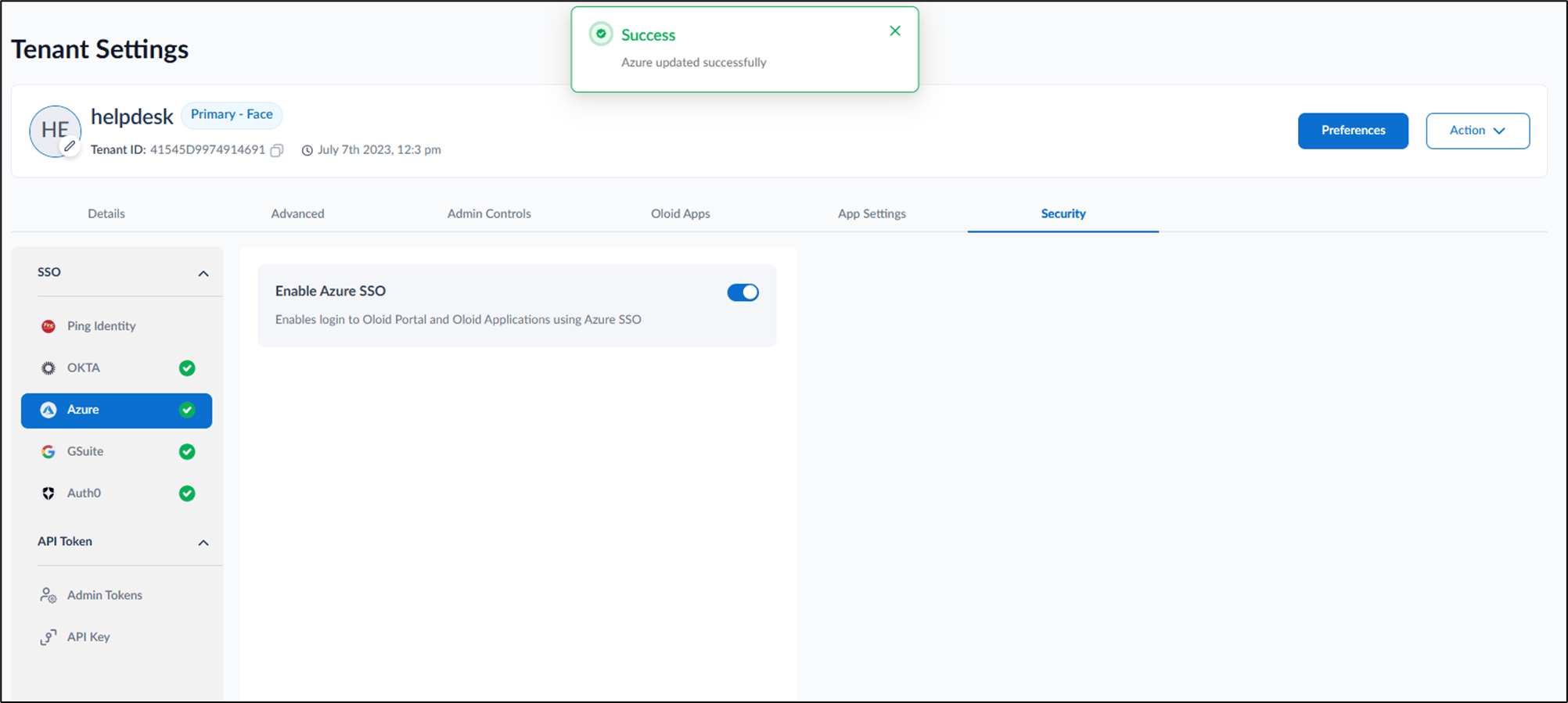
- Go to Security tab > click Azure.
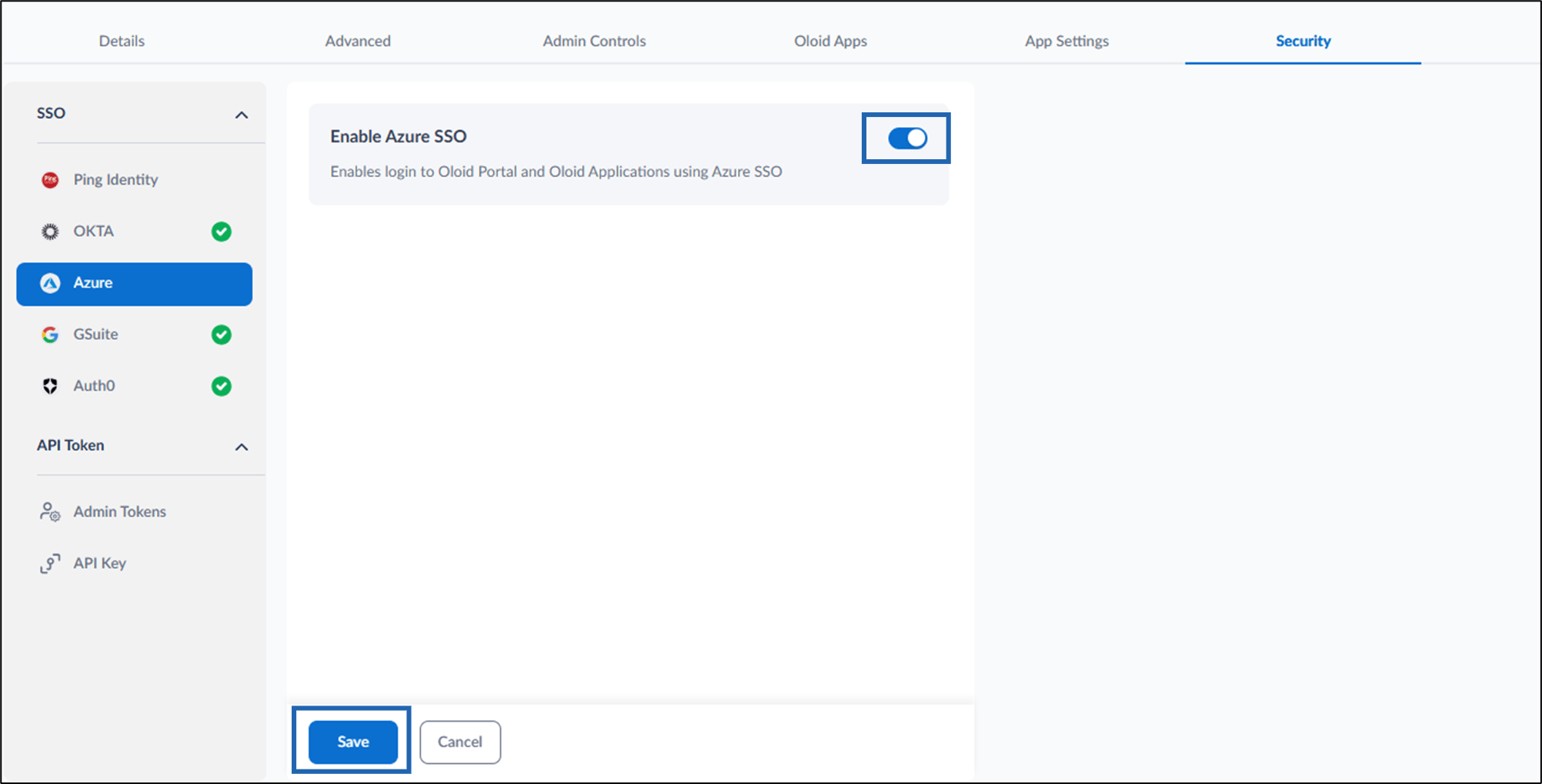
- Turn on Enable Azure SSO toggle > click Save.
How to configure Azure SSO in Oloid Portal
This document provides step-by-step instructions to configure Azure SSO in Oloid Portal.
To configure Azure SSO:
⌘I