

Introduction
This document provides instructions to configure SCIM (System for Cross-domain Identity Management) provisioning between Microsoft Entra ID and Oloid. The configuration enables automatic user and group provisioning, updates, and deprovisioning using the SCIM 2.0 protocol with Bearer Token or OAuth 2.0 Client Credentials authentication.Prerequisites
- You must have Admin access to the Microsoft Entra ID Admin Center.
- The SCIM integration must be enabled for your Oloid tenant.
- You must have a pilot user or group available in Microsoft Entra ID for validating the provisioning configuration.
Steps to Setup the SCIM
- Create the Enterprise Application
- Configure Provisioning
- Monitor and Verify
Create the Enterprise Application
- Log in to Microsoft Entra ID Admin Center. The Microsoft Entra ID homepage is displayed.
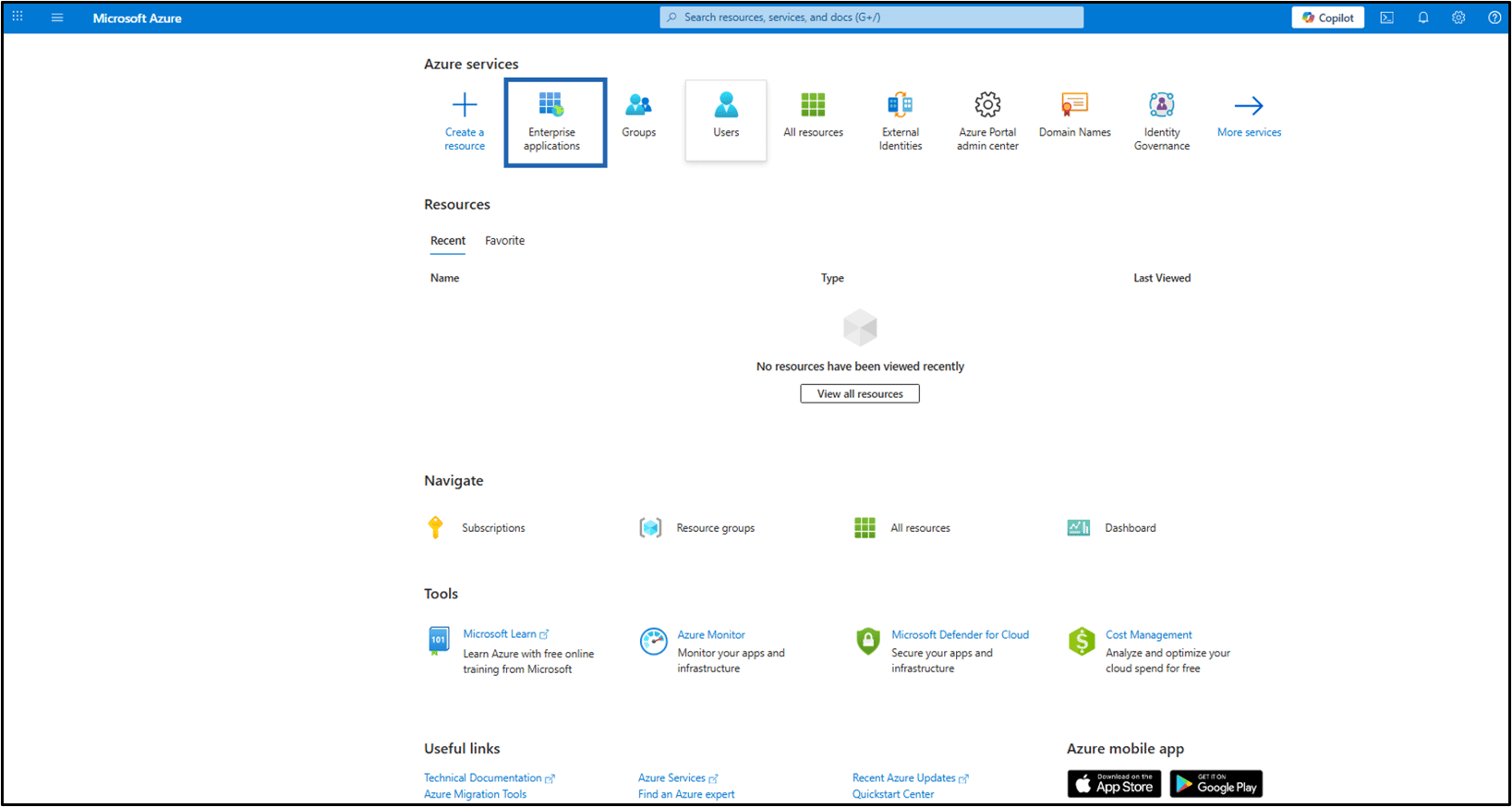
- Click Enterprise applications.
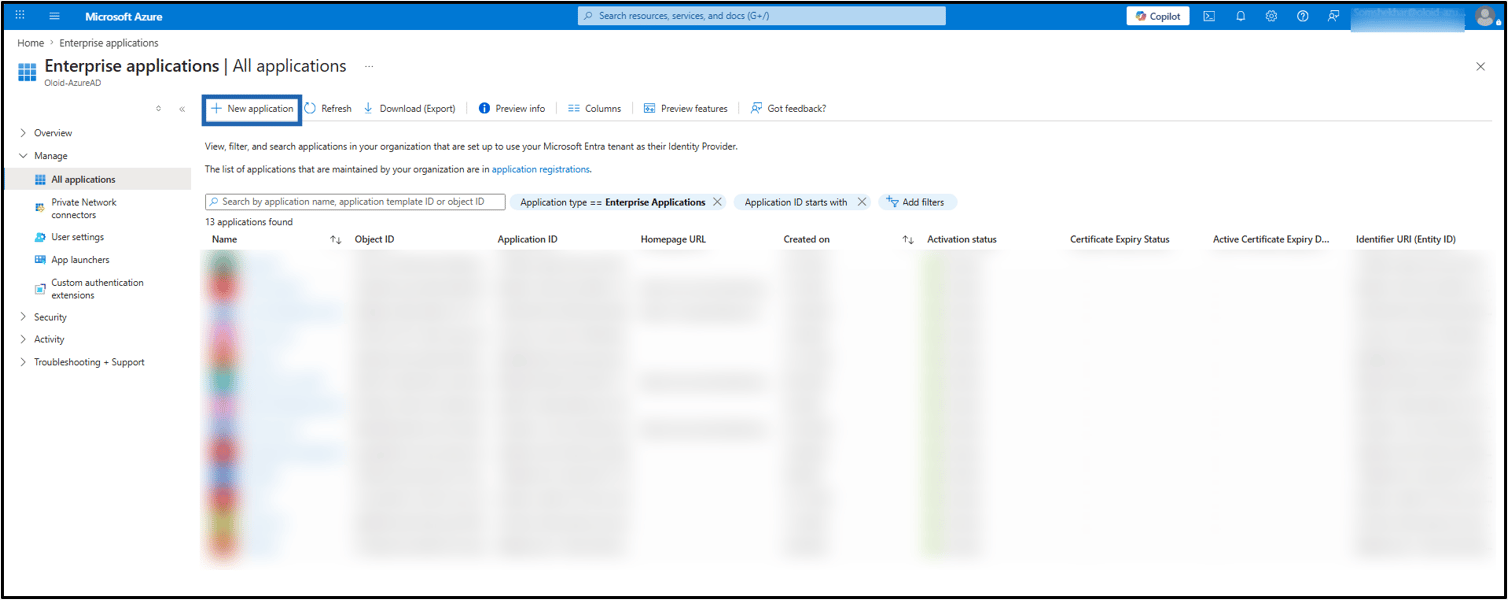
- Click New application.
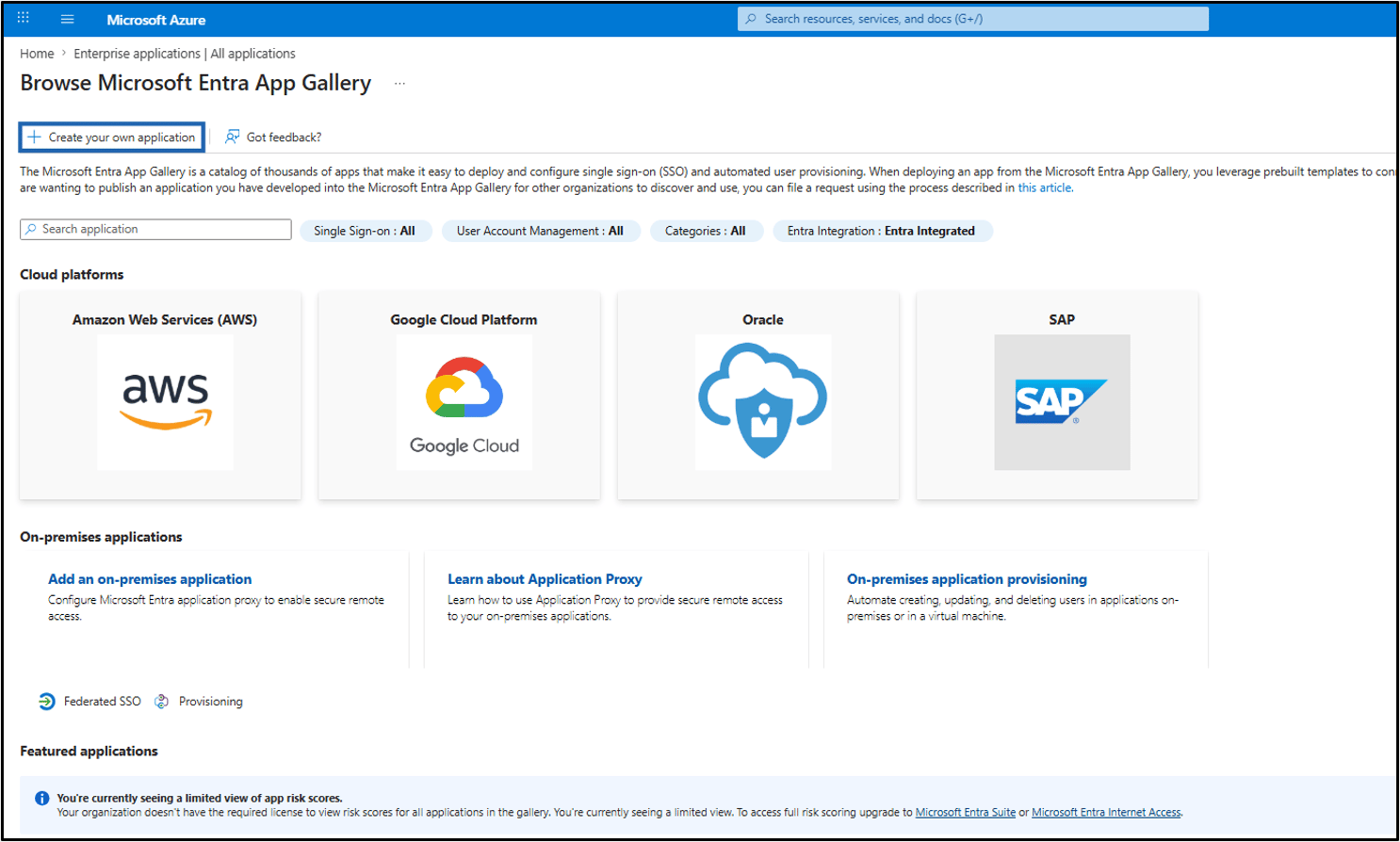
- Click Create your own application.
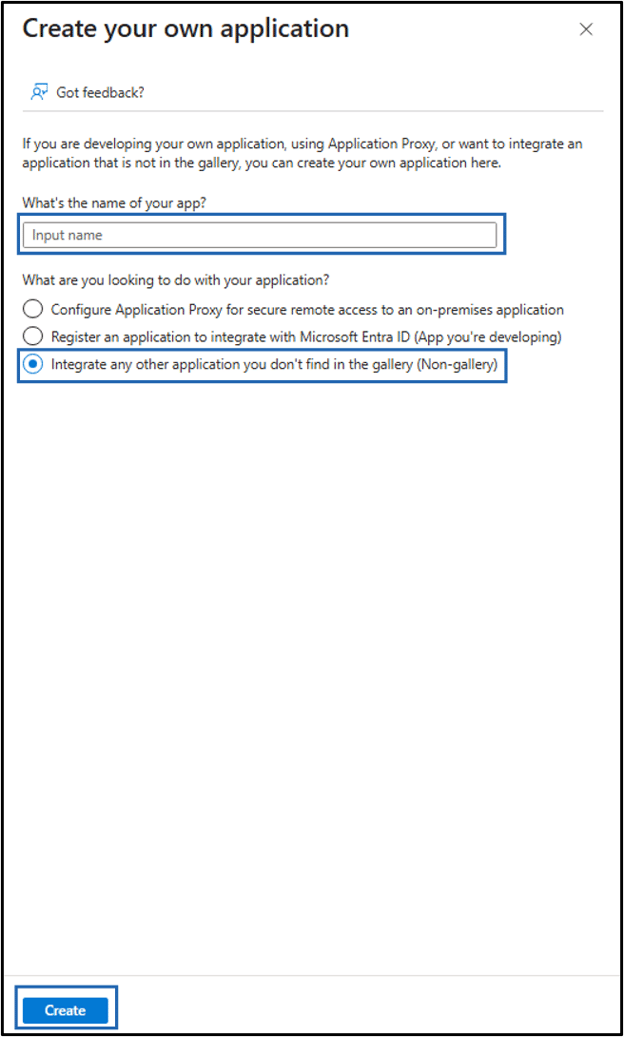
- Do the following:
- Enter the app name.
- Select Integrate any other application you don’t find in the gallery (Non-gallery).
- Click Create.
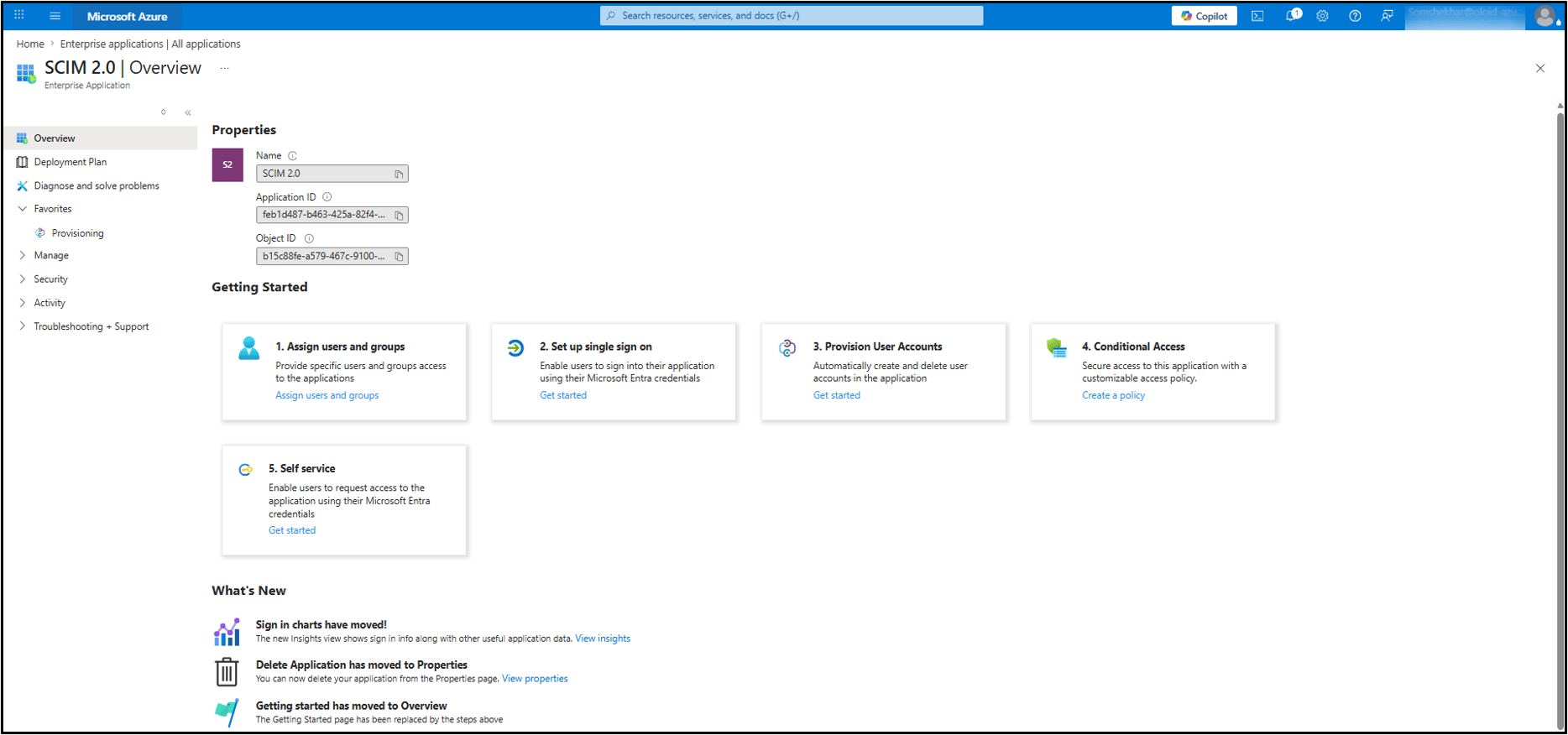
Configure the Provisioning
-
Go back to the Enterprise screen and click Provisioning.
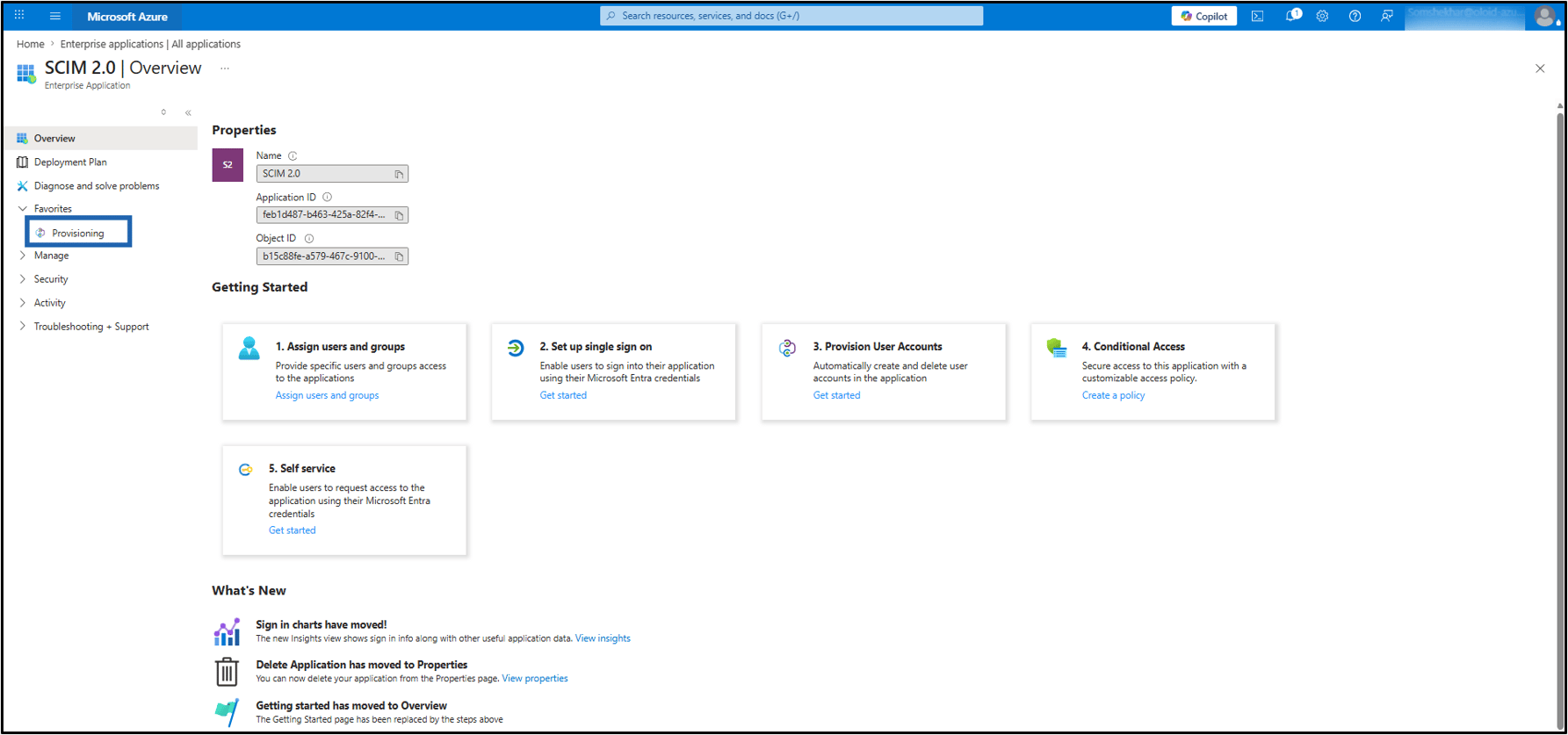
-
Go to Manage > click Provisioning.
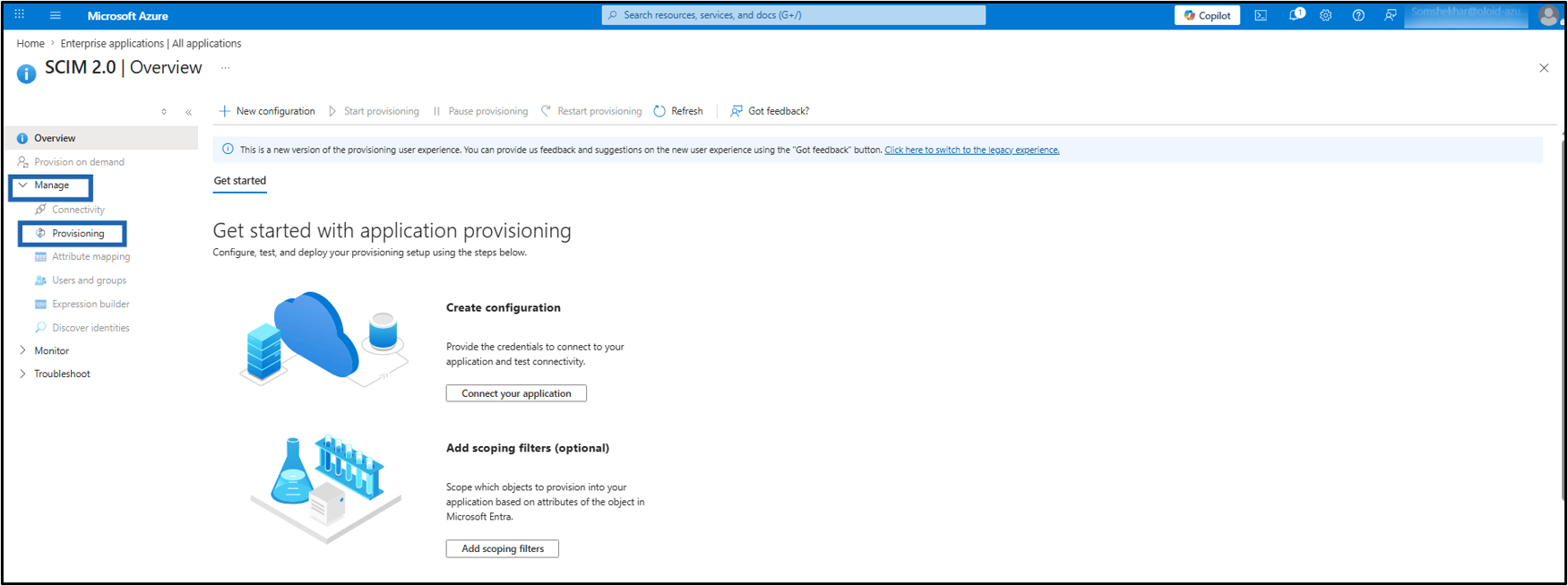
-
On Provisioning screen, do the following:
-
Select Provisional mode as Automatic from the drop-down.
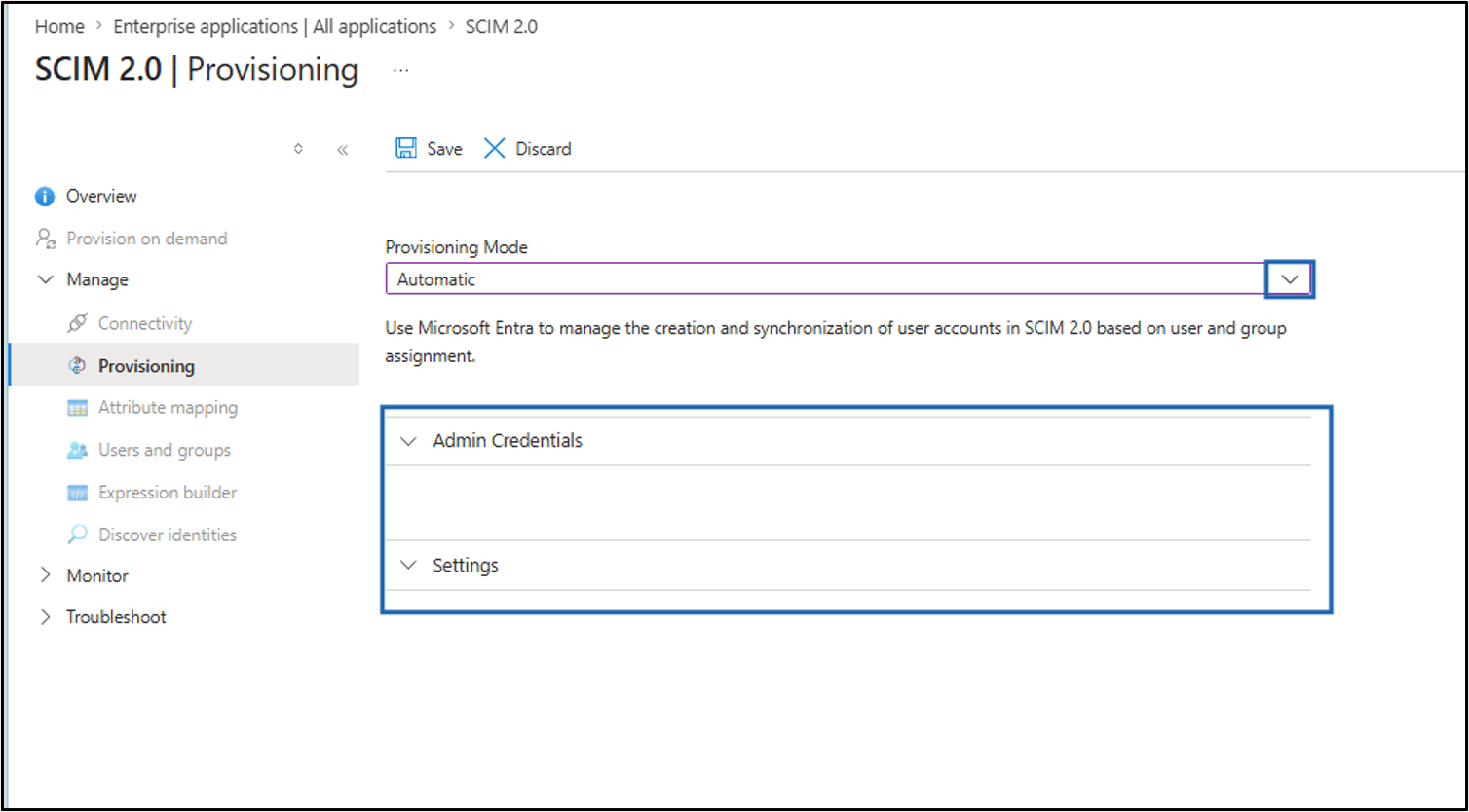
- On Admin Credentials section, click here to switch to the new admin credentials experience. The Connectivity screen is displayed.
-
Do one of the following:
-
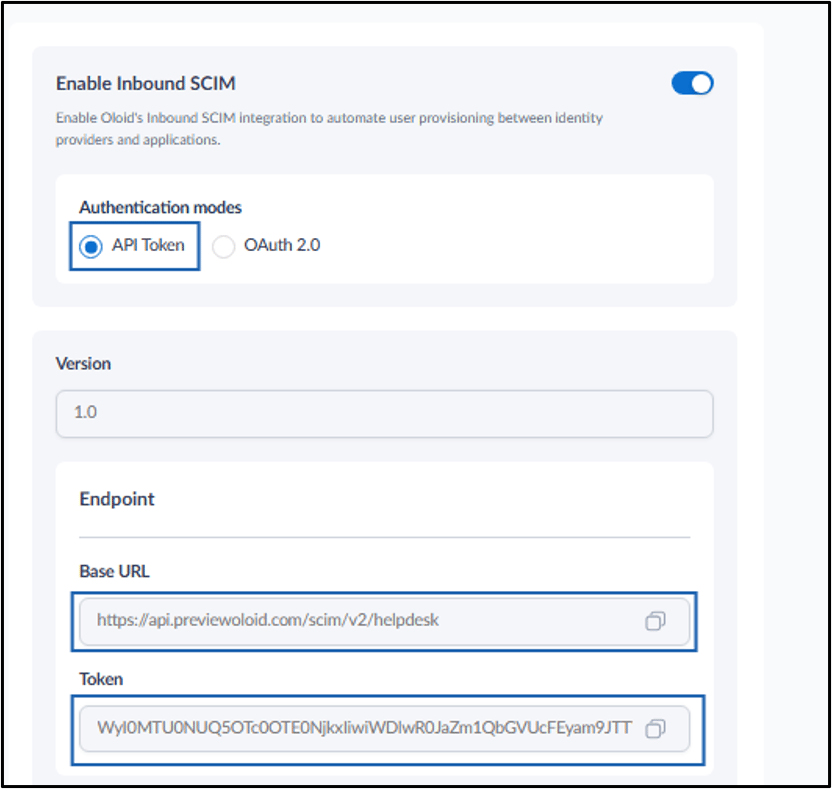
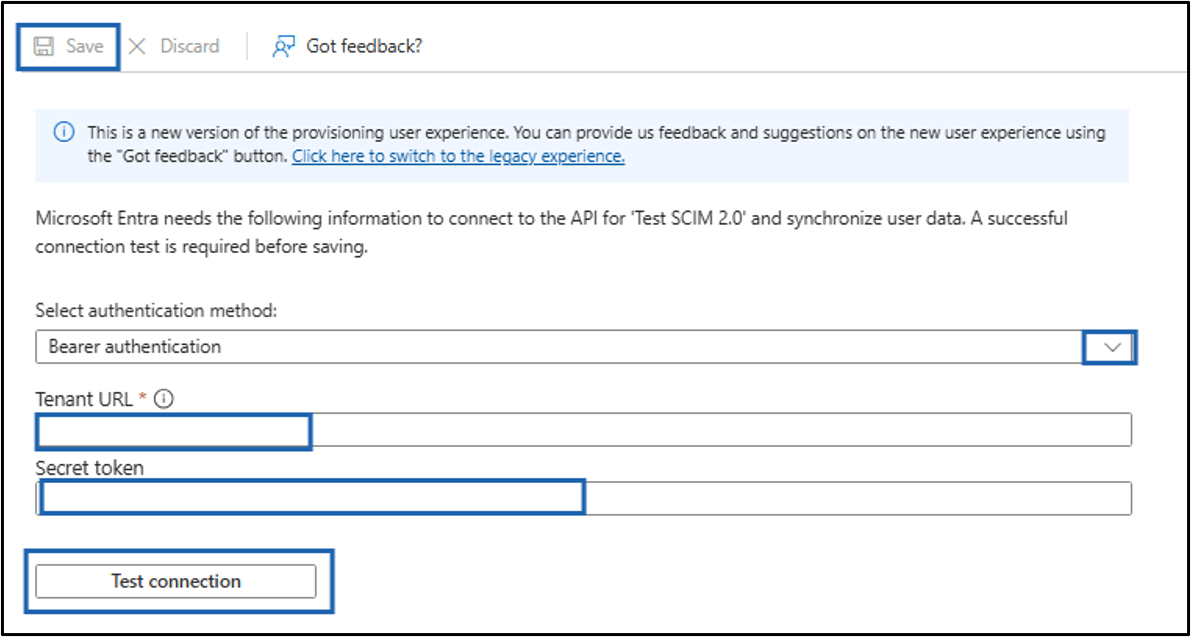
Select Bearer authentication as an Authentication Method.
Note: The values required for the following fields are available in the Tenant Admin Portal. To view them, go to Agents > SCIM > API Token.
-
Enter Tenant URL.
Note: Copy the Base URL and paste it into the Tenant URL field.
-
Enter Secret Token.
Note: Copy the Token and paste it into the Secret Token field.
-
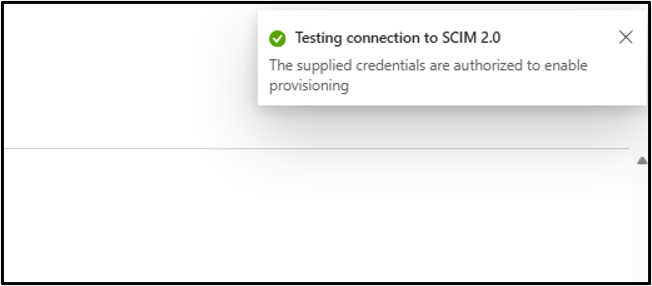
Click Test Connection.
The Success message is displayed.
-
Click Save.
-
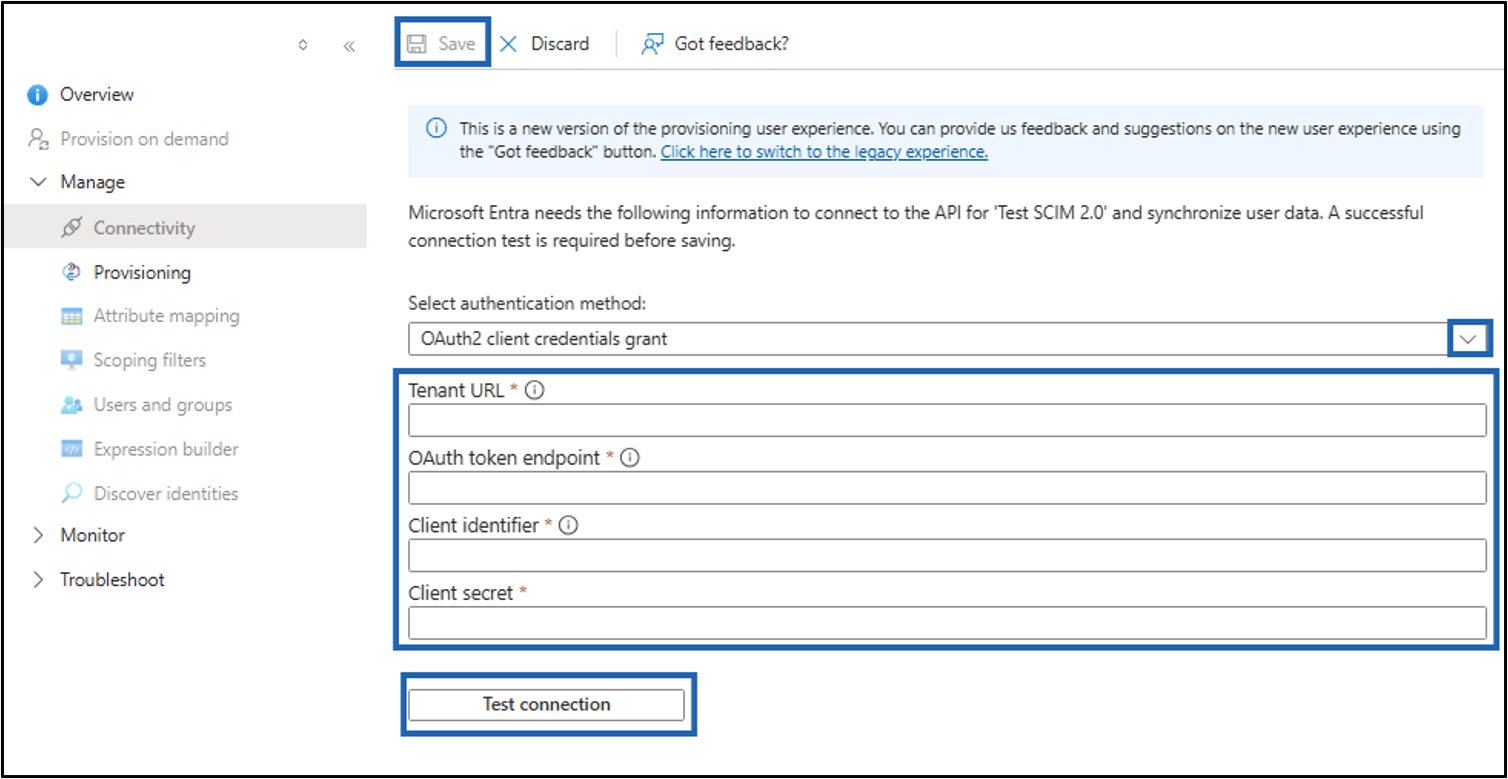
Select OAuth2 Client Credentials Grant as an Authentication Method.
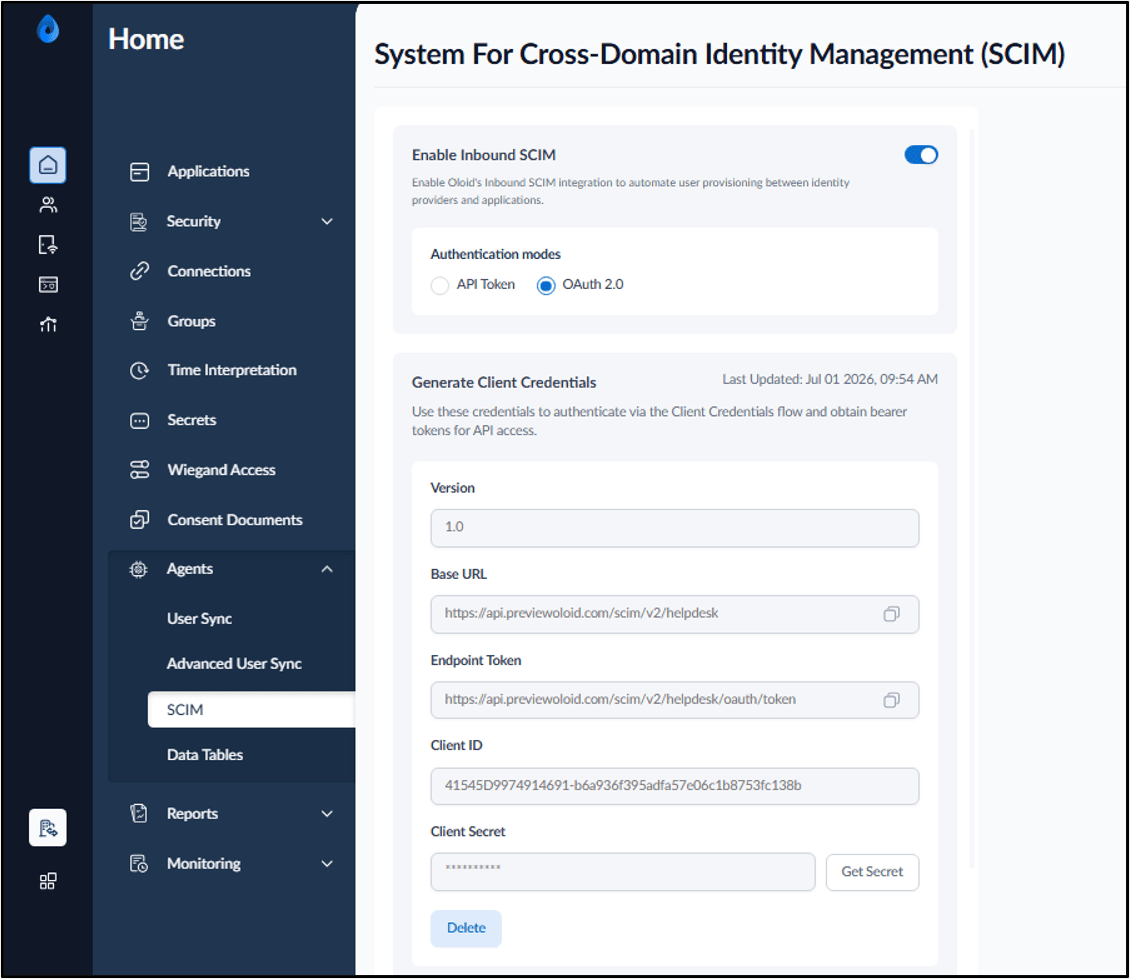
Note: The values required for the following fields are available in the Tenant Admin Portal. To view them, go to Agents > SCIM > OAuth 2.0.
-
Enter Tenant URL.
Note: Copy the Base URL and paste it into the Tenant URL field.
-
Enter Token Endpoint.
Note: Copy the Endpoint Token and paste it into the Token Endpoint field.
-
Enter Client Identifier.
Note: Copy the Client ID and paste it into the Client Identifier field.
-
Enter Client Secret.
Note: If the Client Secret is not displayed, click Get Secret. Copy the generated Client Secret and paste it into the Client Secret field.
-
Click Test Connection.
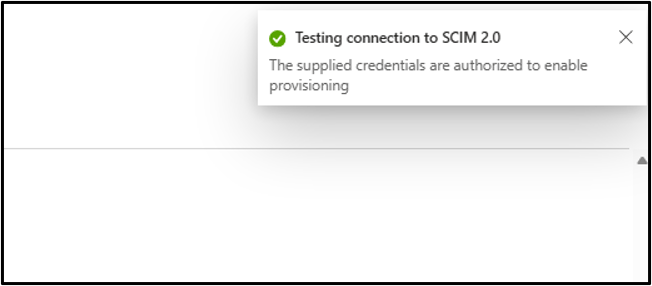
The Success message is displayed.
-
Click Save.
-
Select Bearer authentication as an Authentication Method.
-
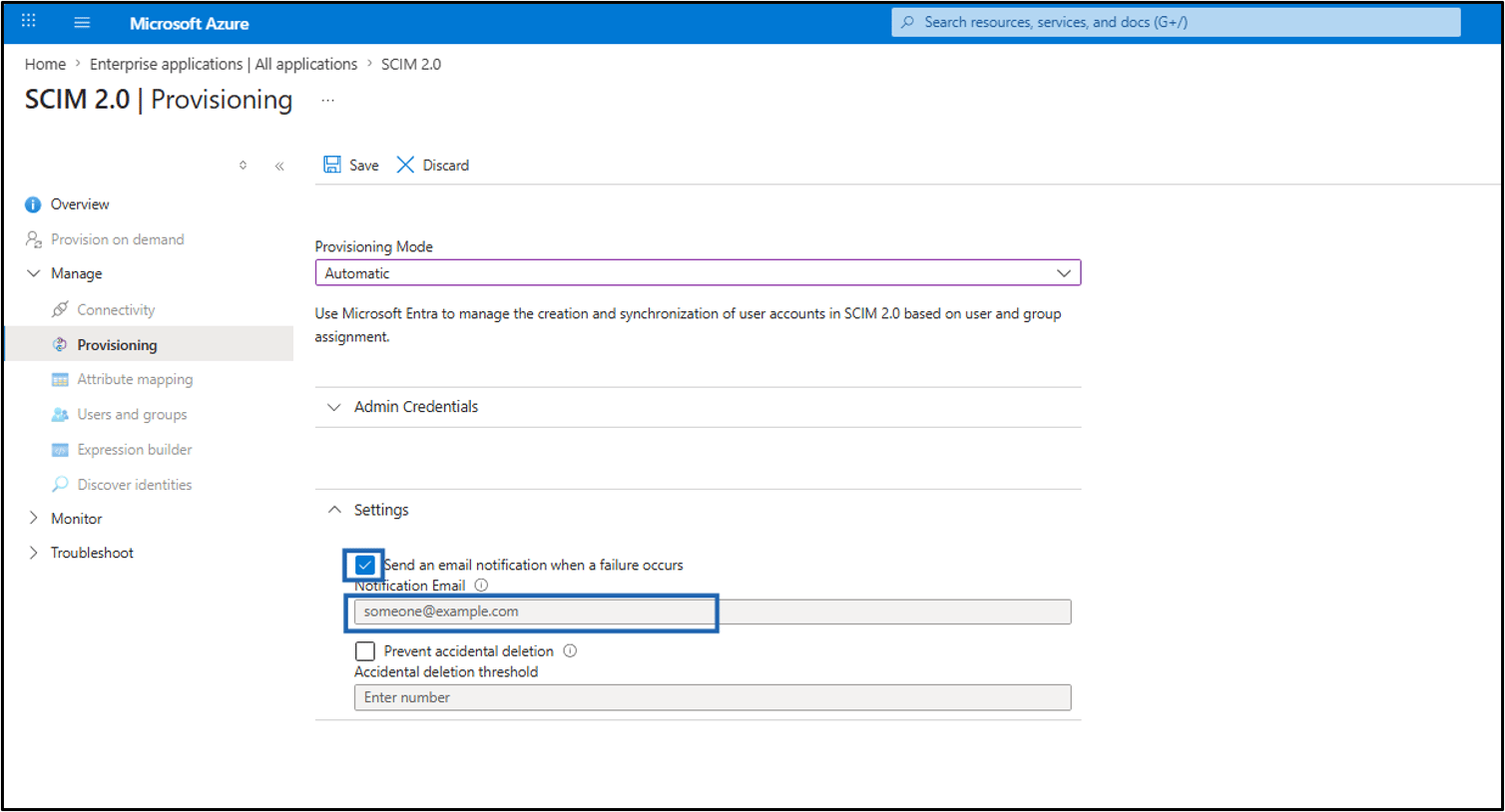
Go to Settings section and do the following:
- Select Send Email notification when failure occurs.
- Enter Email ID.
-
Click Save.
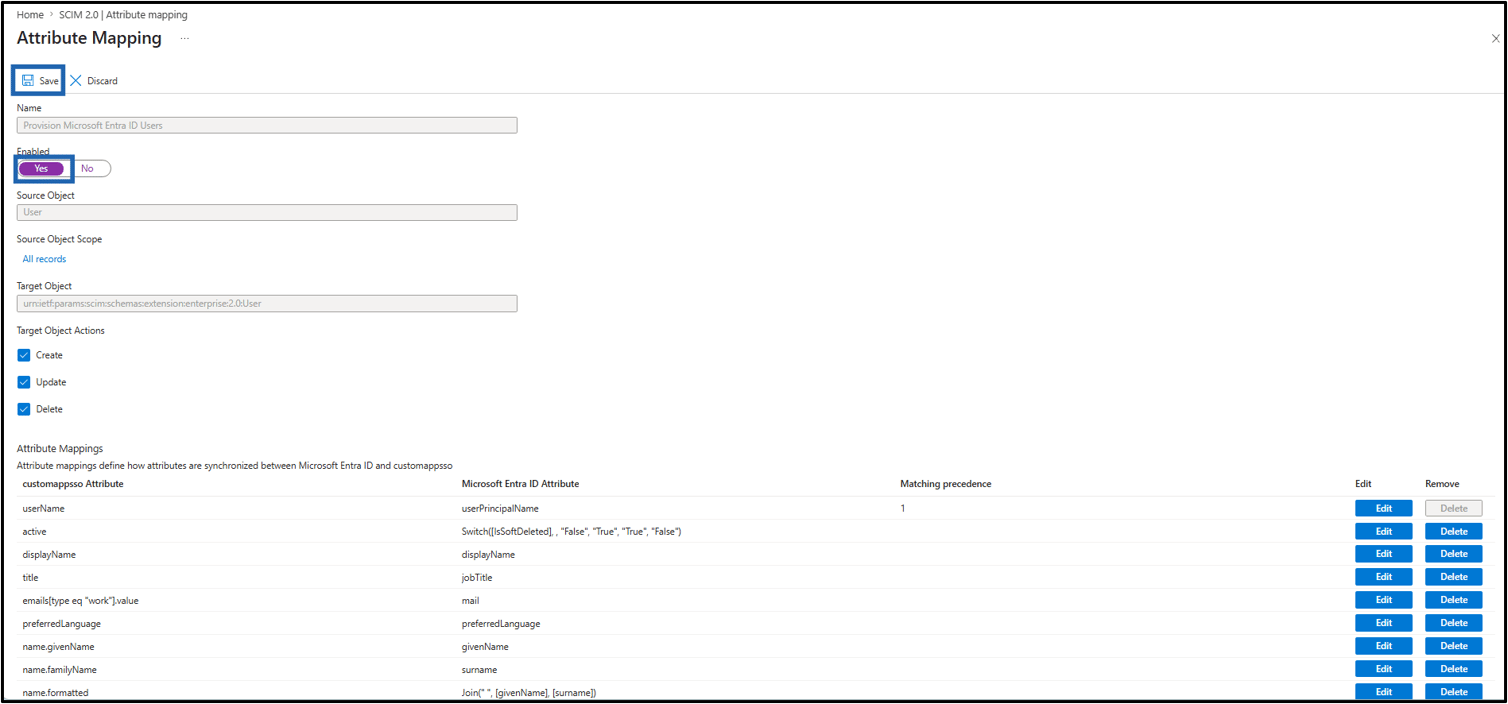
 Note: Remove any default attribute mappings that are not supported by the Oloid schema (for example,
preferredLanguageandaddresses[*]). This helps reduce unnecessary HTTP 400 (Bad Request) errors in the synchronization logs. -
Do the following:
-
Select Provision Microsoft Entra ID Groups.
The Attribute Mapping screen for Provision Microsoft Entra ID Groups is displayed.
Note: Refer Group Attribute Table to map the attribute for Entra ID Groups.
-
On Attribute Mappings tab, do the following:
- Ensure Yes is select as Enabled.
- Click Save.

- Click Yes.

-
Select Provision Microsoft Entra ID Users.
The Attribute Mapping screen for Provision Microsoft Entra ID Users is displayed.
Note: Refer User Attribute Table to map the attribute for Entra ID users.
-
On Attribute Mappings tab, do the following:
- Ensure Yes is select as Enabled.
- Click Save.
- Click Yes.
-
Select Provision Microsoft Entra ID Groups.
The Attribute Mapping screen for Provision Microsoft Entra ID Groups is displayed.
-
Select Provisional mode as Automatic from the drop-down.
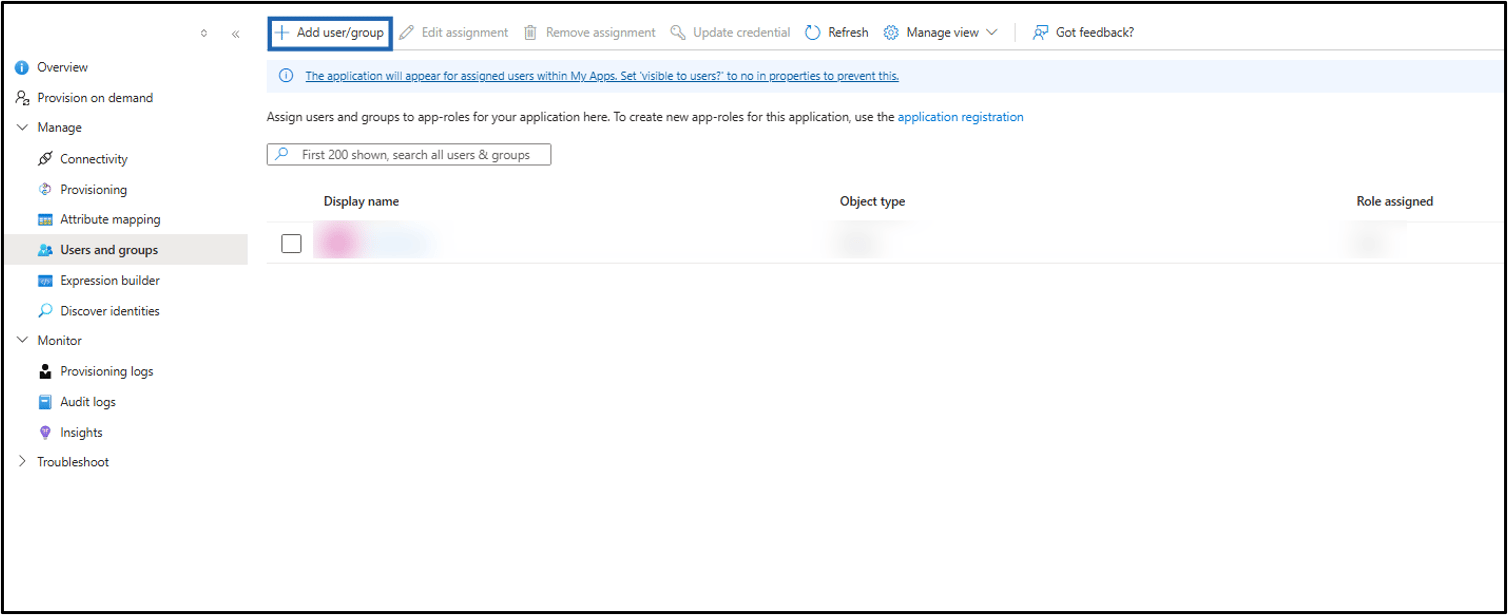
- Click on the Users and groups tab. The Users and Groups screen is displayed.
-
Click Add user/group.
-
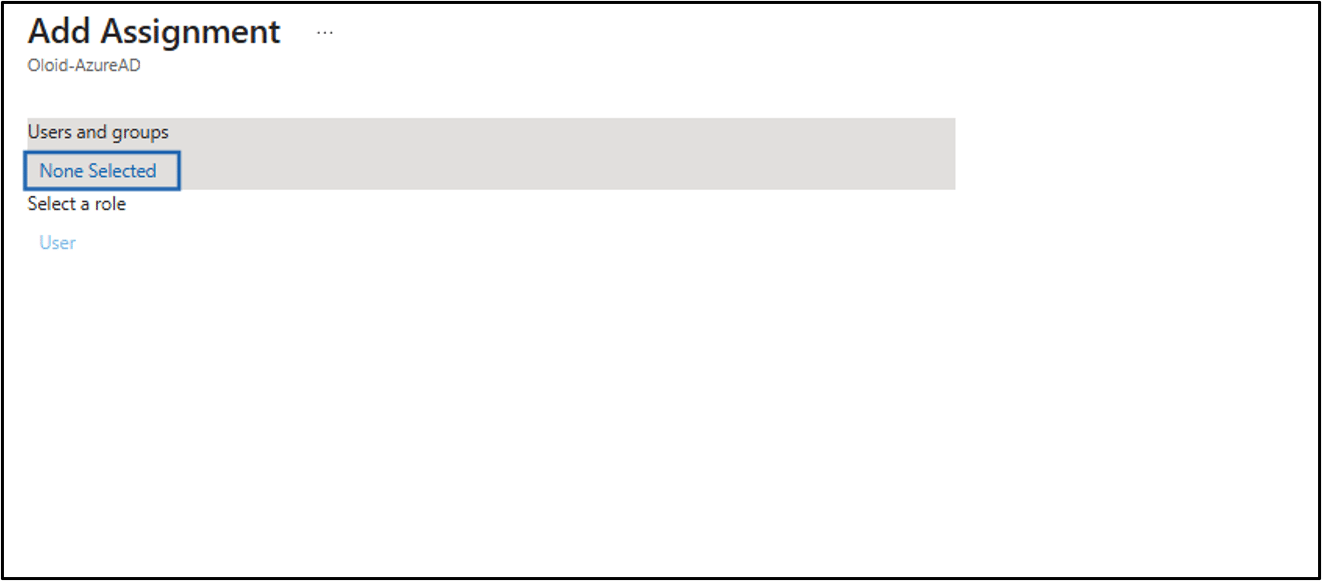
Click None Selected.
-
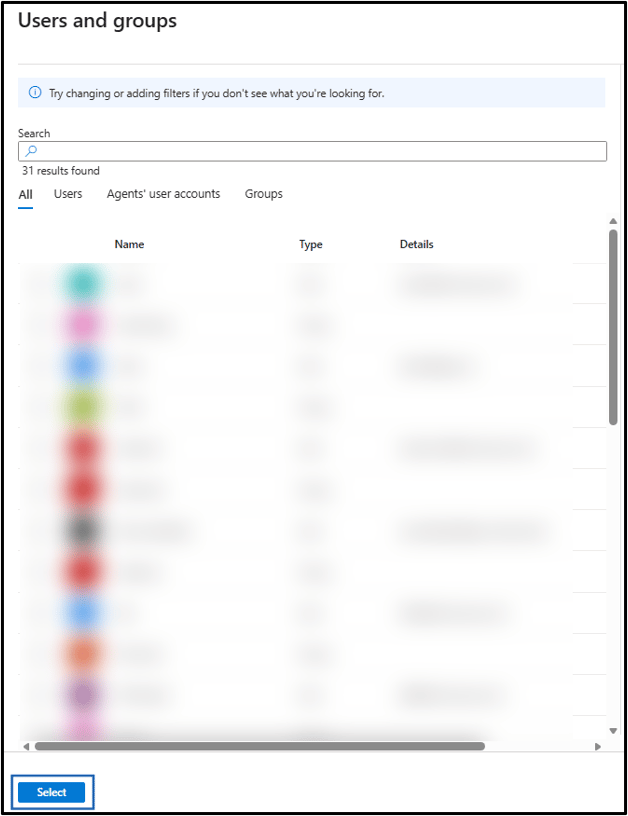
Select the applicable user/group > click Select.
Note: Assign a pilot user group (recommended) or individual users.
-
Go back to Provisioning tab > under settings tab, configure the following:
-
Select the scope with the help of drop-down.
Note:
- Sync only assigned users and groups (recommended): Synchronizes only the users and groups assigned to the enterprise application. Use this option for initial setup and validation.
- Sync all users and groups: Synchronizes all users and groups in Microsoft Entra ID. Use this option only after the initial setup has been validated.
- Ensure Provisioning Status set to ON.
- Click Save.
Note: Entra schedules the initial cycle within a few minutes; full enumeration can take up to 40 minutes on a fresh tenant. After the initial cycle, Entra runs incremental cycles every ~40 minutes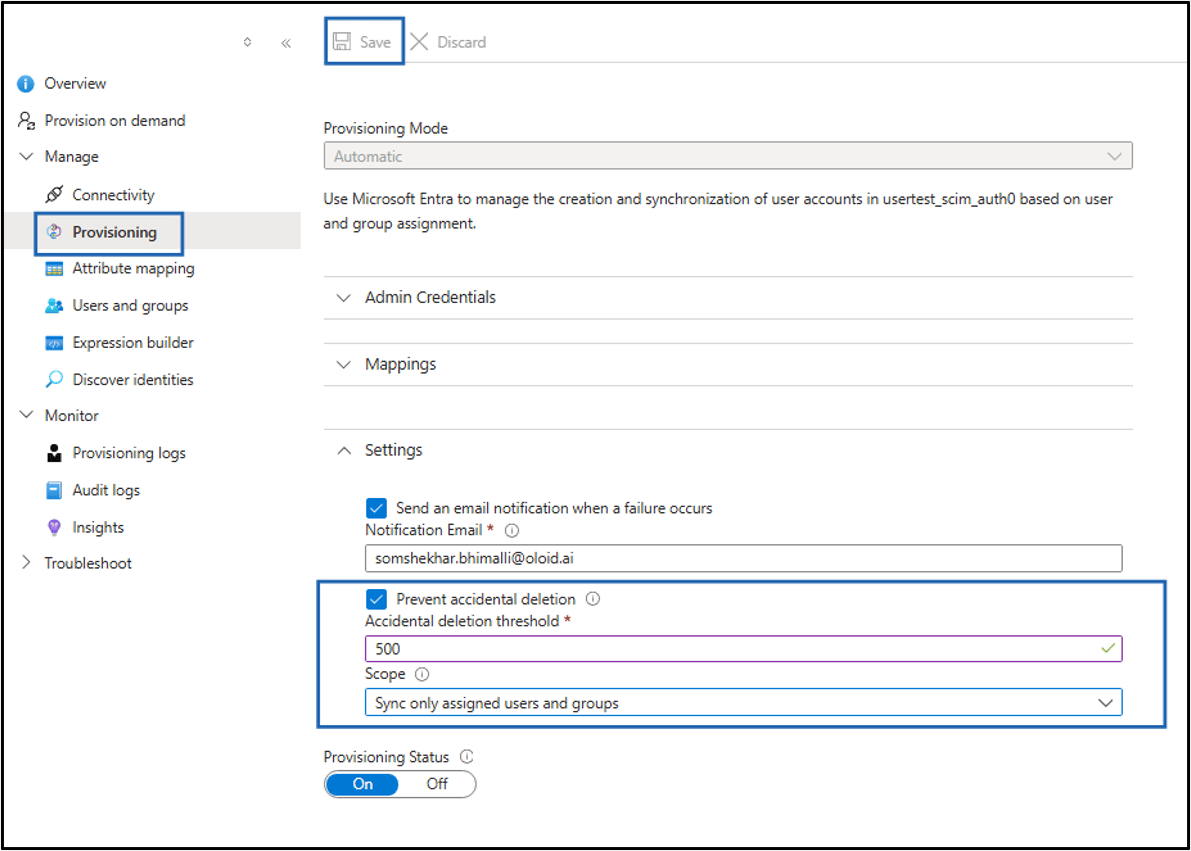
-
Select the scope with the help of drop-down.
Monitor and Verify
-
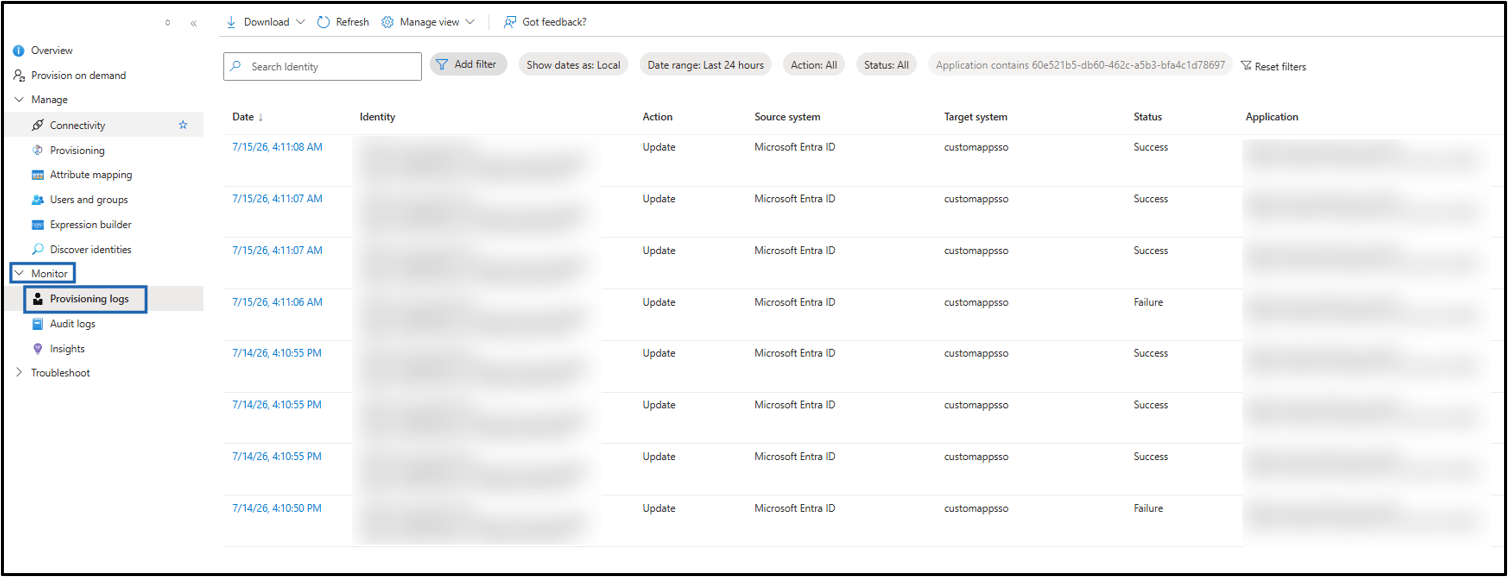
Go to Monitor > Provisioning Logs.
The Provisioning Logs page is displayed.
Filter by Status to inspect failures. Each entry shows the SCIM operation, the Entra source object, and the upstream HTTP response from Oloid.
-
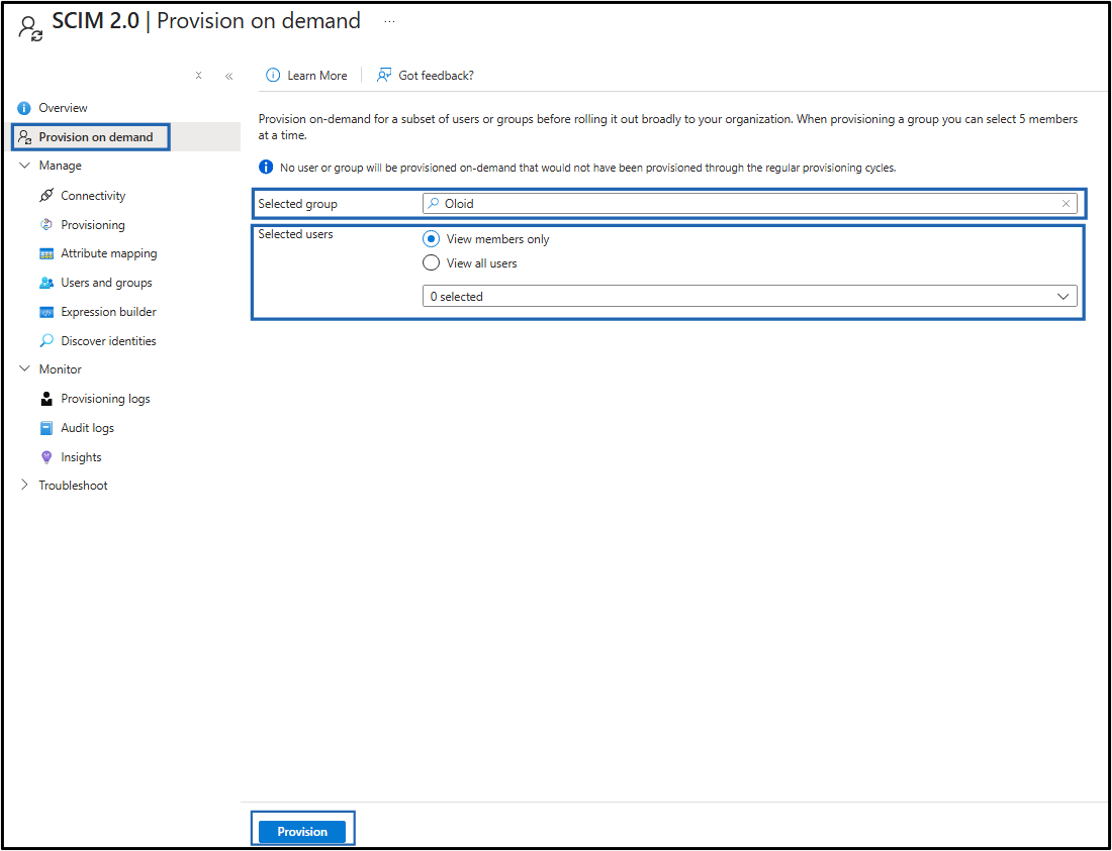
Click Provision on Demand and do the following:
Note: Provision on Demand dry run a single user or group without waiting for the cycle. This is the fastest feedback loop while validating mappings.
- Select Group in Selected group.
- Select one of the following in Selected users.
- View members only.
- View all users.
- Click Provision
-
Click Monitor > Audit Logs.
The Audit Log page is displayed.
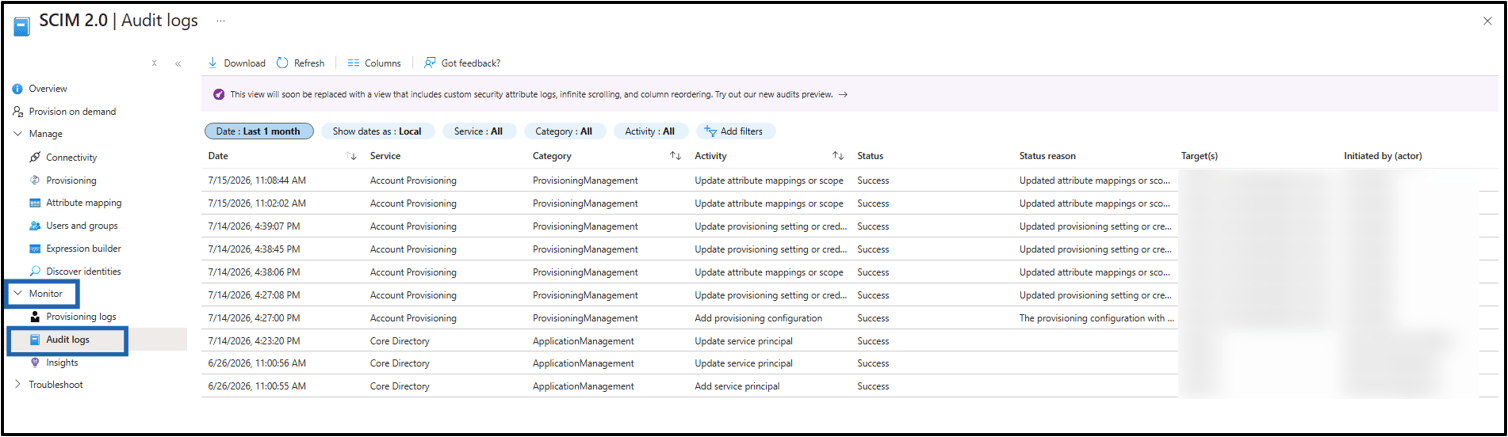
- Filter Service Account Provisioning to see who started, paused, or modified the provisioning configuration.
Attribute Table
User Attribute Table
Entra attribute SCIM Attribute (Target)Note: userPrincipalName
Group Attribute Table
Entra attribute SCIM attribute (target)Note: displayName
Additional Information
- Rotate the Secret Token periodically (recommended at least every 12 months, sooner on personnel change).
- Create a new API key for SCIM from the Oloid admin portal.