Introduction
This document explains how to enable Microsoft Entra ID Single Sign-On (SSO) in the Tenant Admin Portal. Oloid supports SSO using OIDC, enabling secure and seamless user authentication. Once configured, users can sign in to the Oloid Platform through Entra ID. Oloid currently supports only OIDC for SSO authentication.Prerequisite
You must have access to the Tenant Admin Portal.Steps to Enable Entra ID SSO
- Log in to the Tenant Admin Portal.
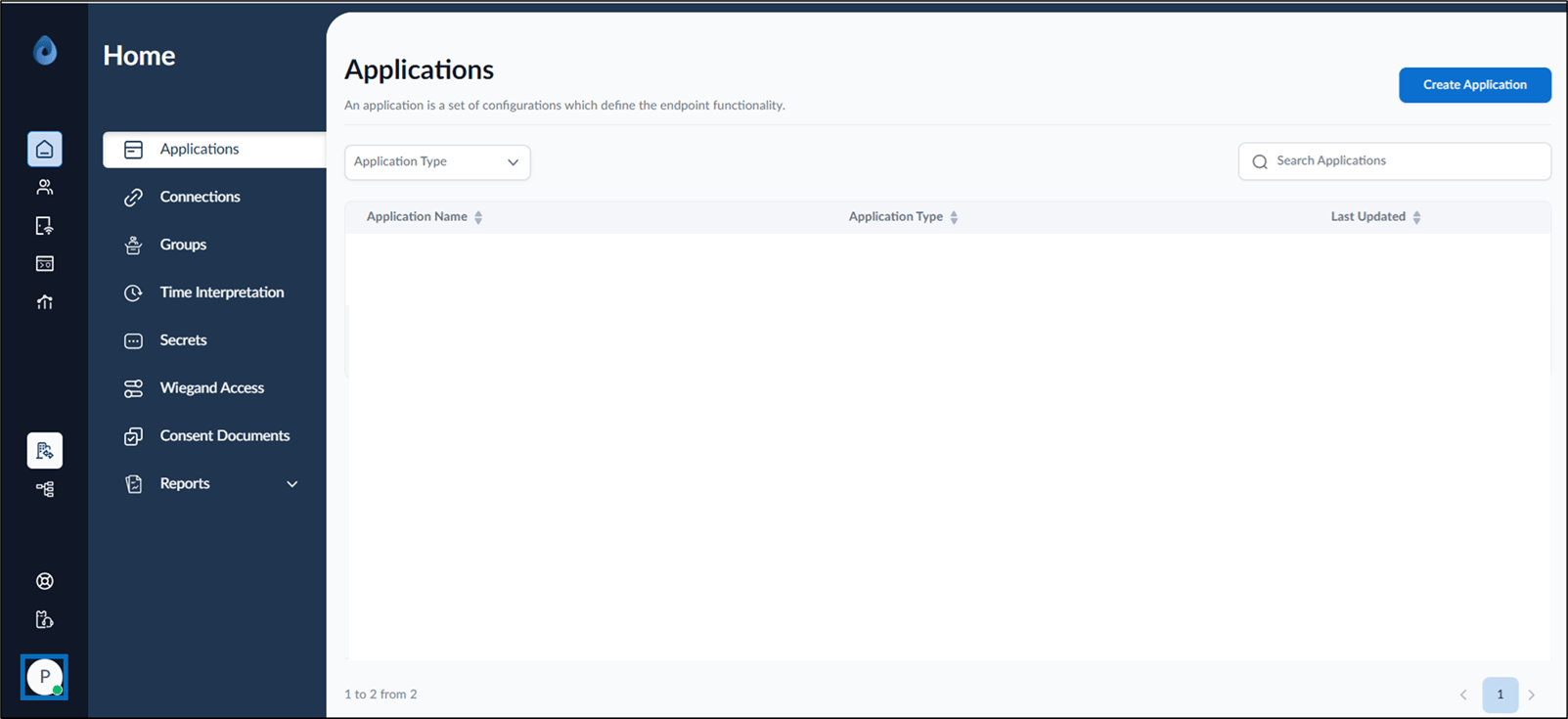
- On the homepage of the portal, click user profile icon on the bottom left corner of the menu panel.
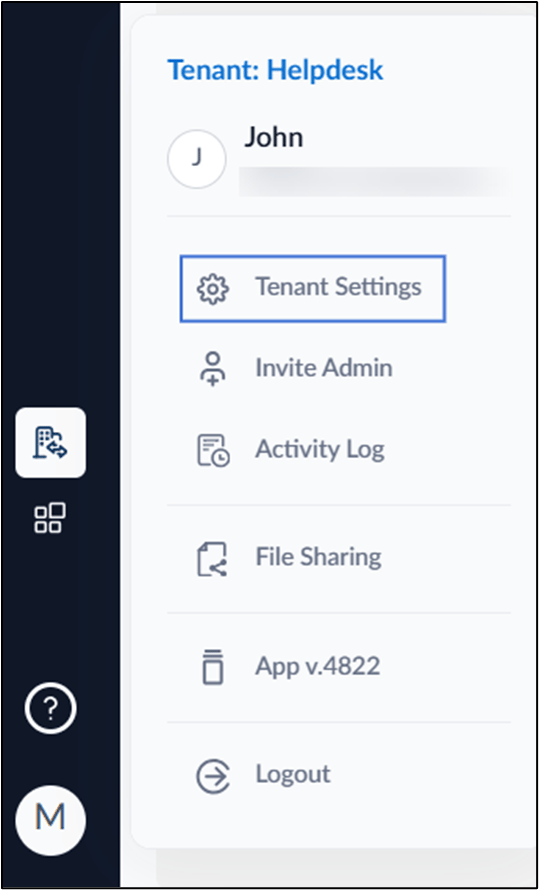
- Click Tenant Settings.
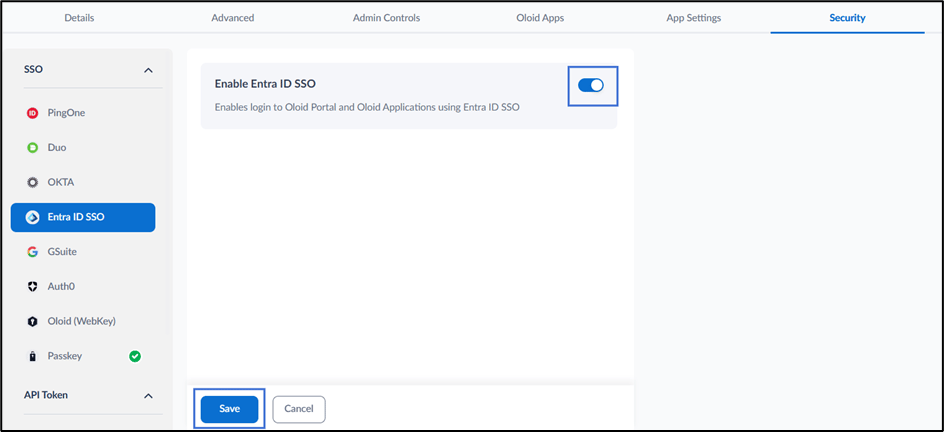
- Go to Security tab > click Entra ID SSO.
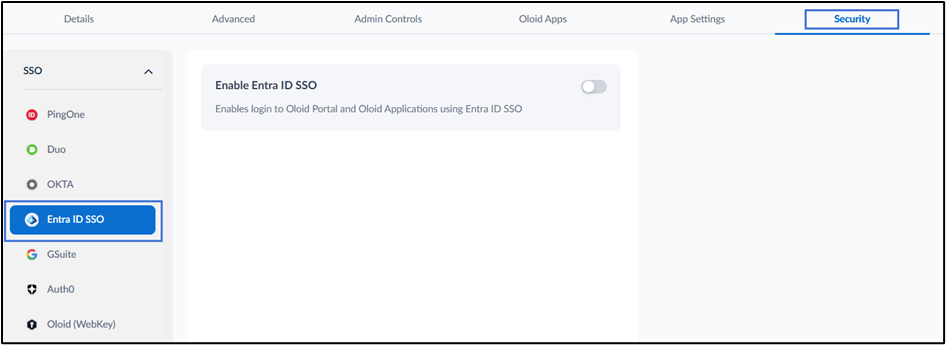
- Turn on Enable Entra ID SSO toggle.
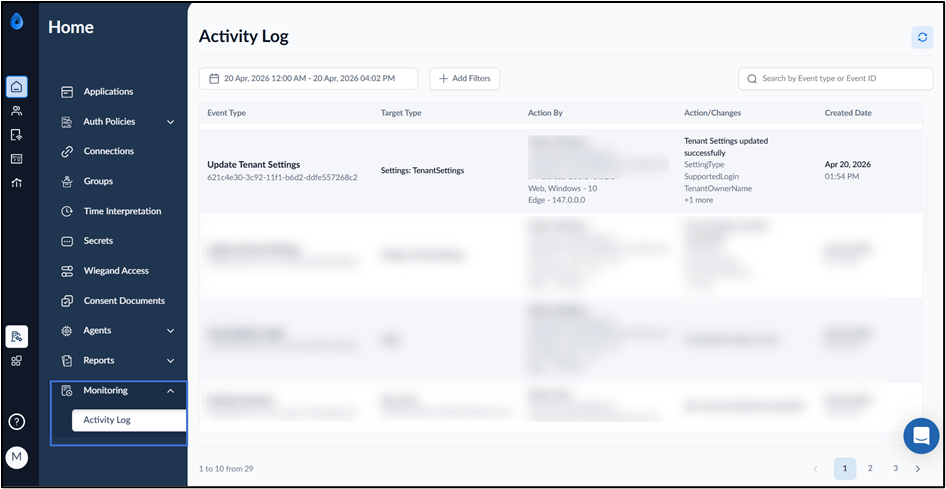
Note: You can view the Activity Log in the Tenant Admin Portal. For More, refer to How to view Activity Log in Tenant Admin Portal