Introduction
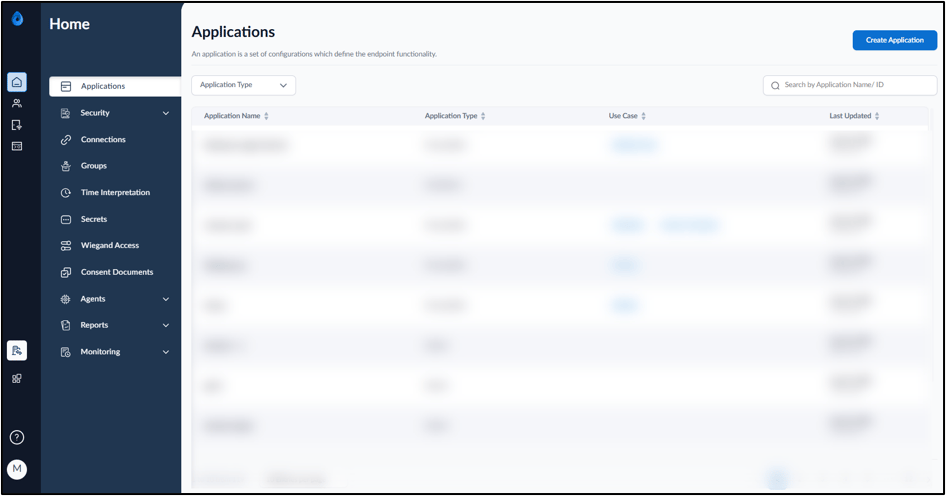
This document provides step-by-step instructions to log in to the Tenant Admin Portal using the Microsoft SSO login option. Microsoft Single Sign-On (SSO) allows users to securely access the Tenant Admin Portal using their Microsoft credentials without requiring a separate Oloid password.Prerequisites
- You should be a user in the Tenant Admin Portal with Admin/Supervisor role.
- The Microsoft credential (user email ID) must be added to the user details page.
Steps to Log in using Microsoft SSO
- Launch your browser.
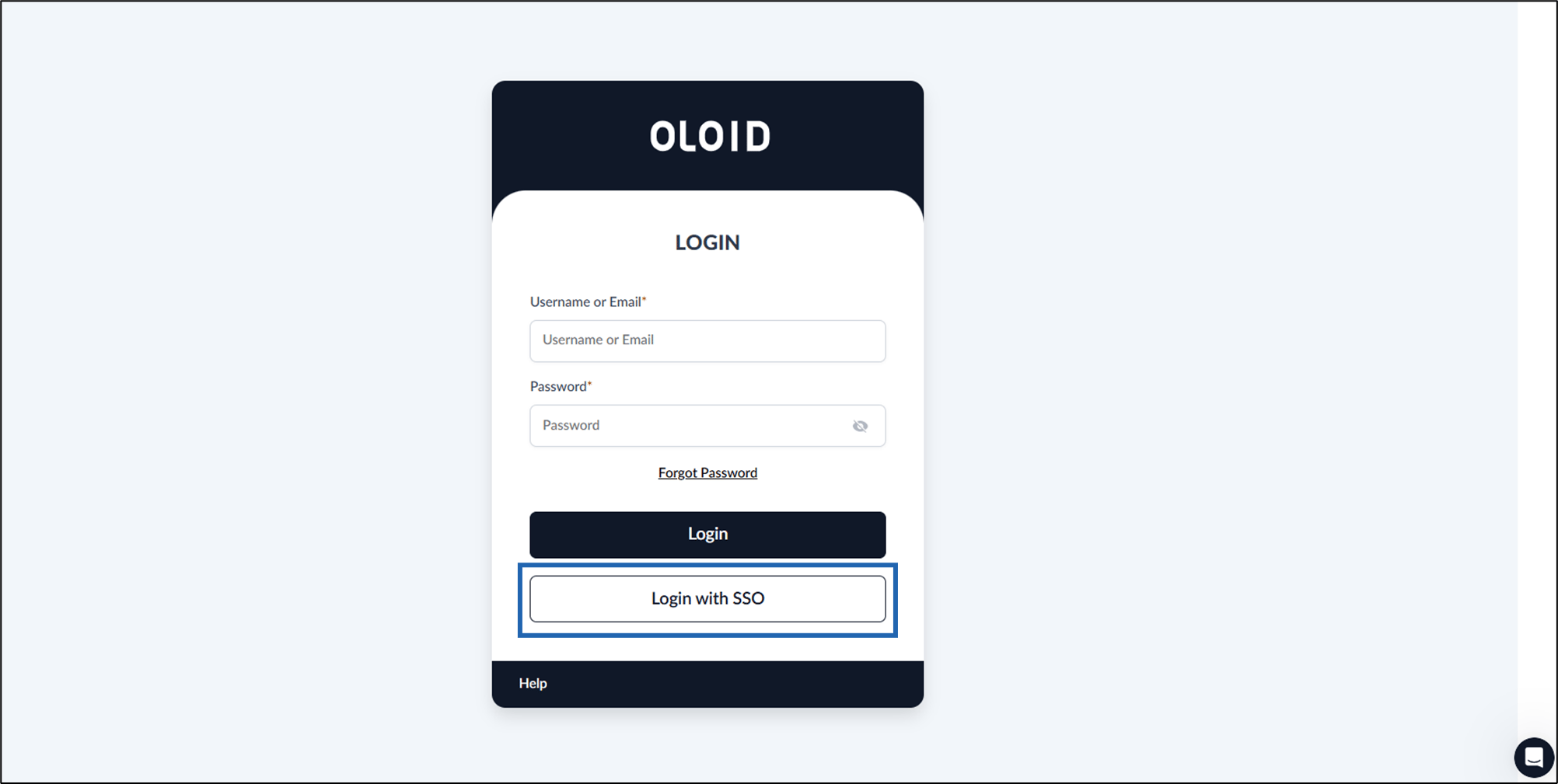
- Enter the URL provided for you in the browser’s address bar > press Enter on your keyboard. The Oloid LOGIN page is displayed.
-
Click Login with SSO.
-
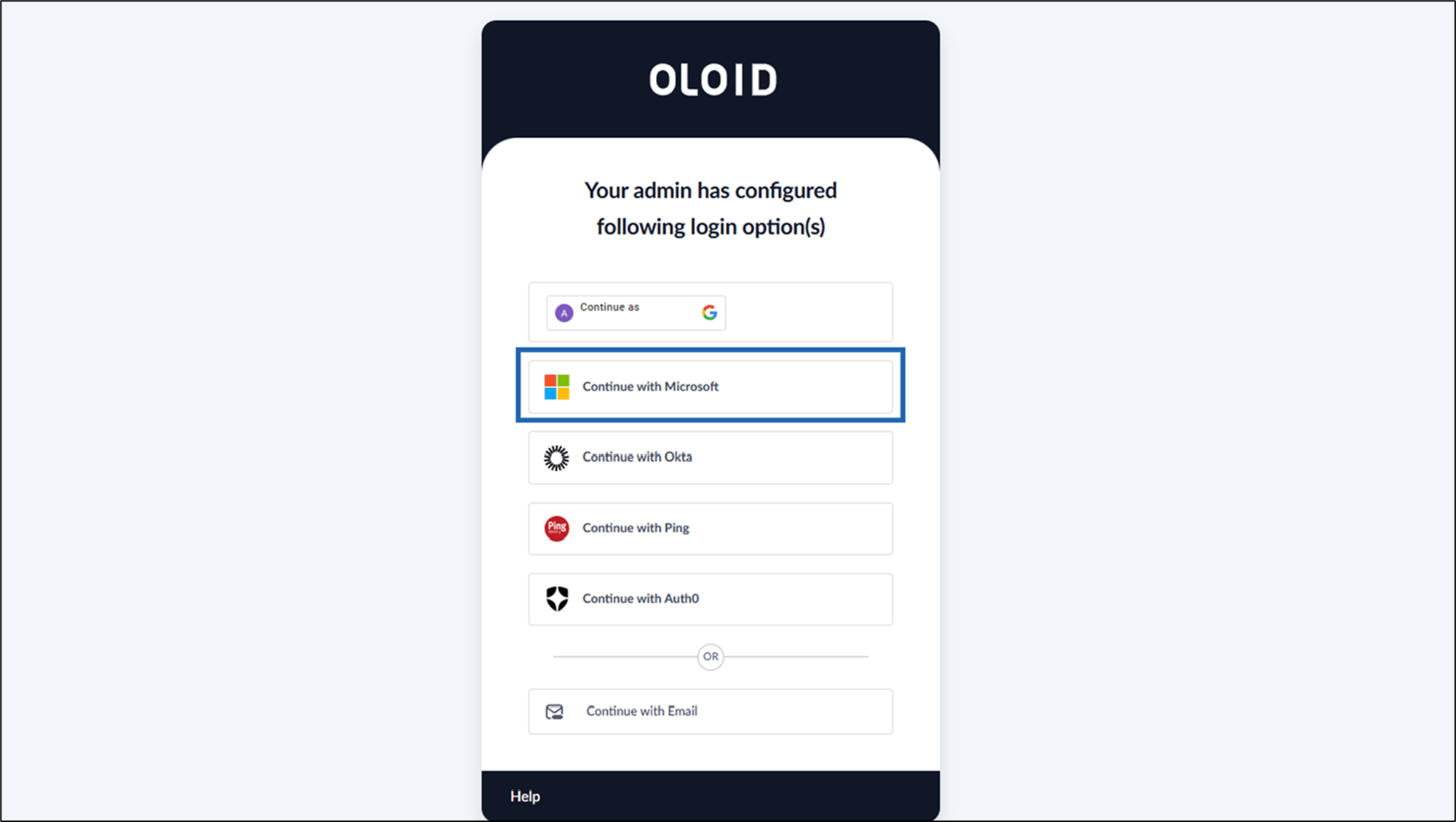
Click Continue with Microsoft to log in to Oloid Platform with Microsoft SSO.
-
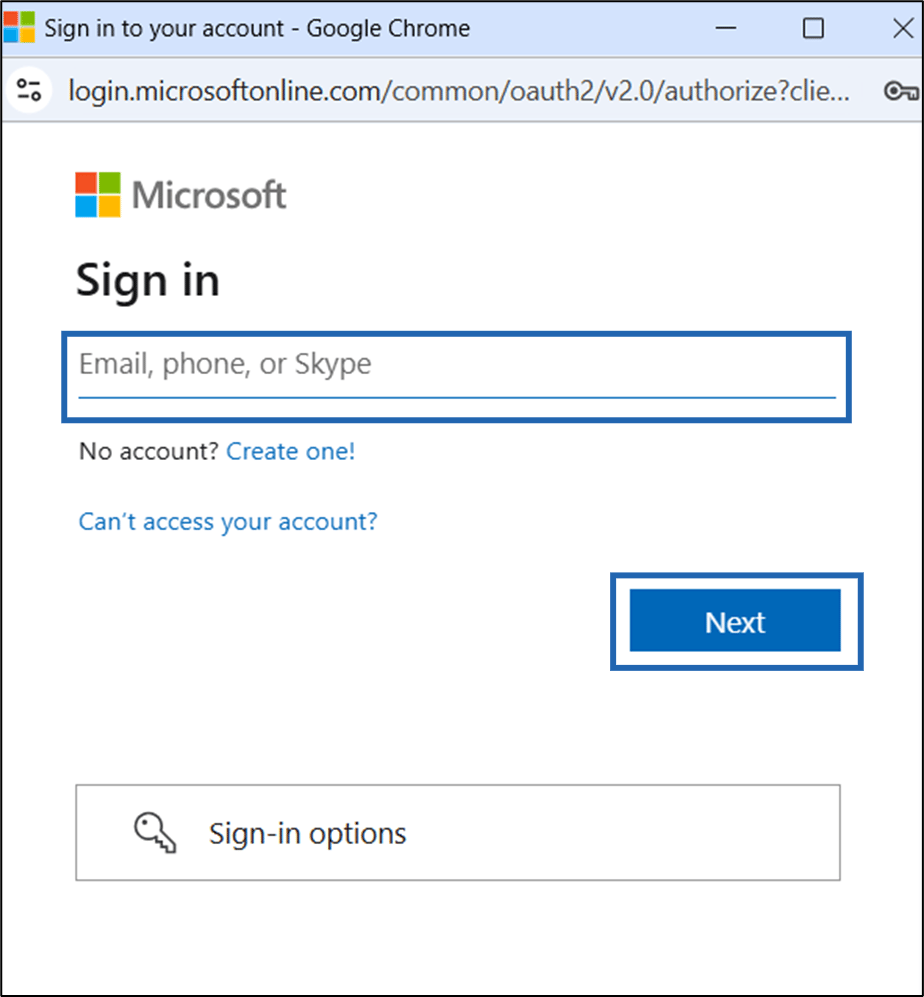
Enter your Microsoft Email ID > click Next.
Note: If you have your UPN (User Principal Name), enter your UPN to log in.
-
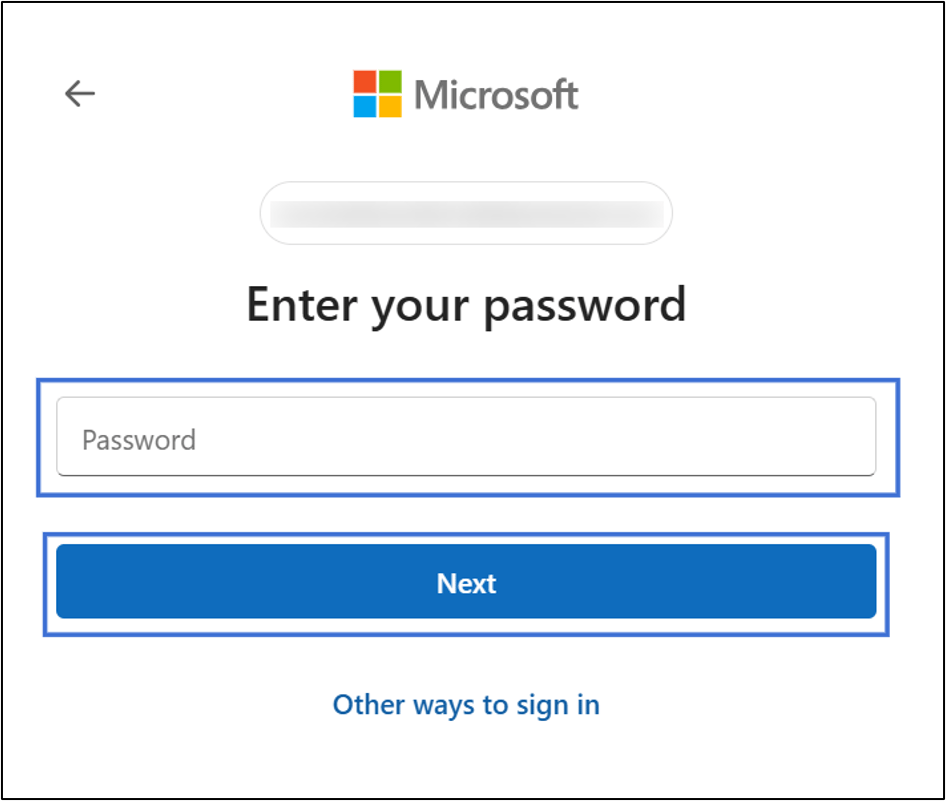
Enter Password in the Password field > Click Next.