

- Log in to the Oloid Portal.
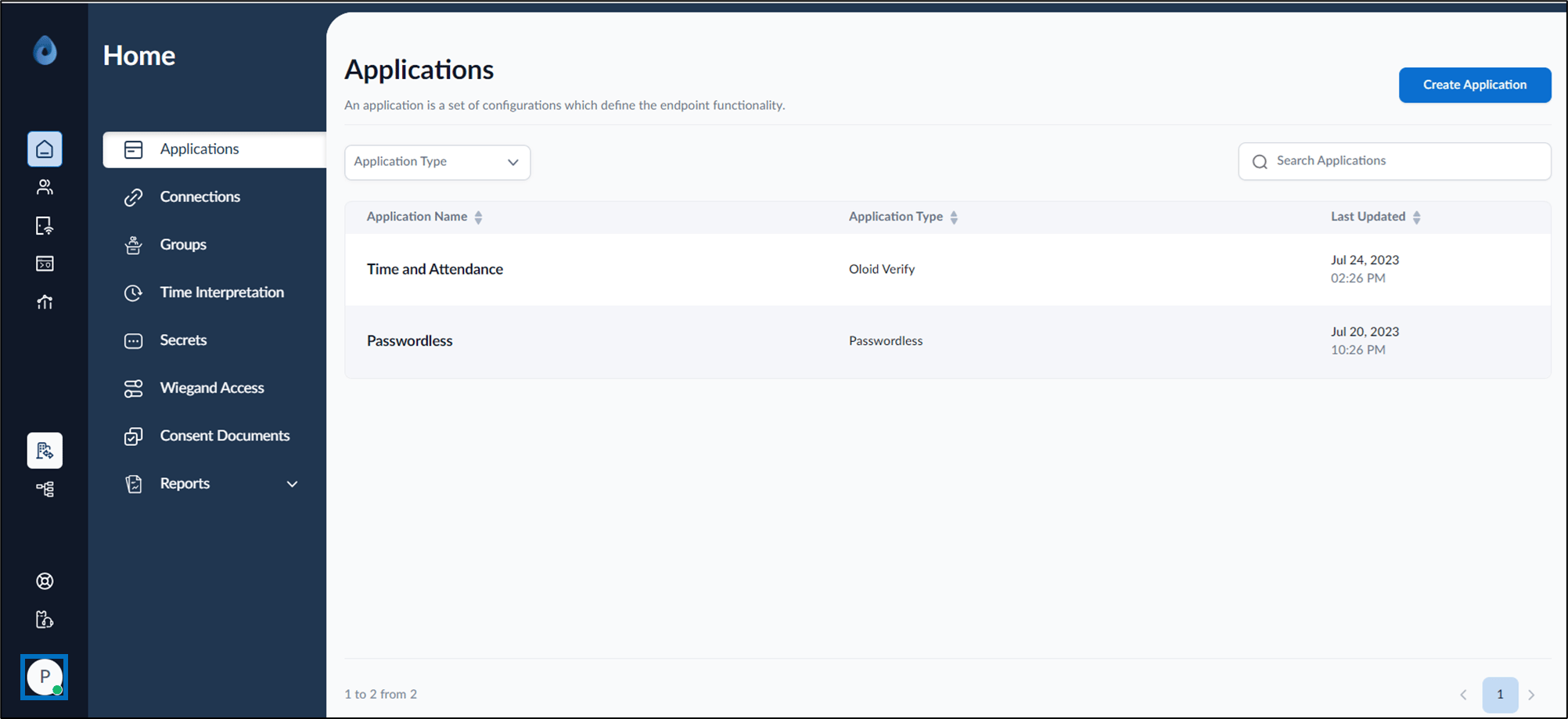
- On the homepage of the portal, click user profile icon on the bottom left corner of the menu panel.
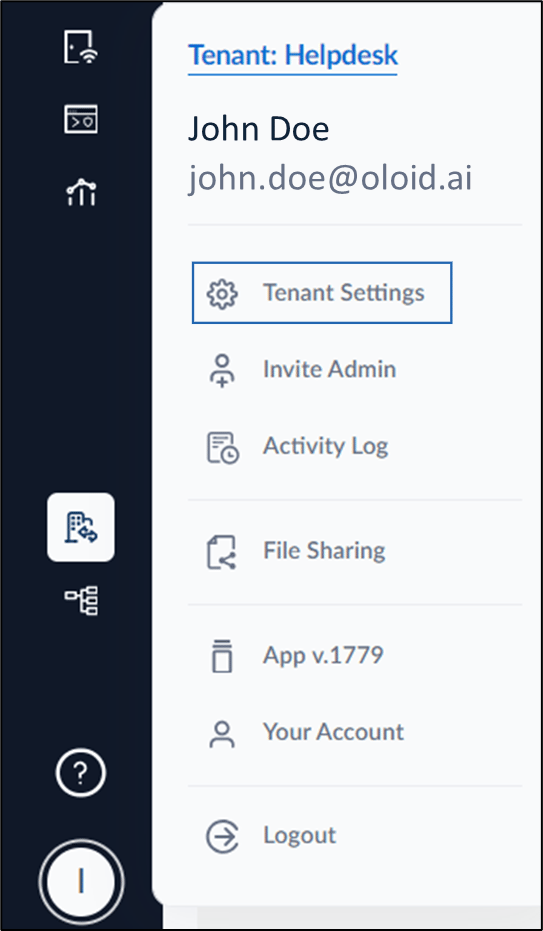
- Click Tenant Settings.
- Go to Security > Auth0.
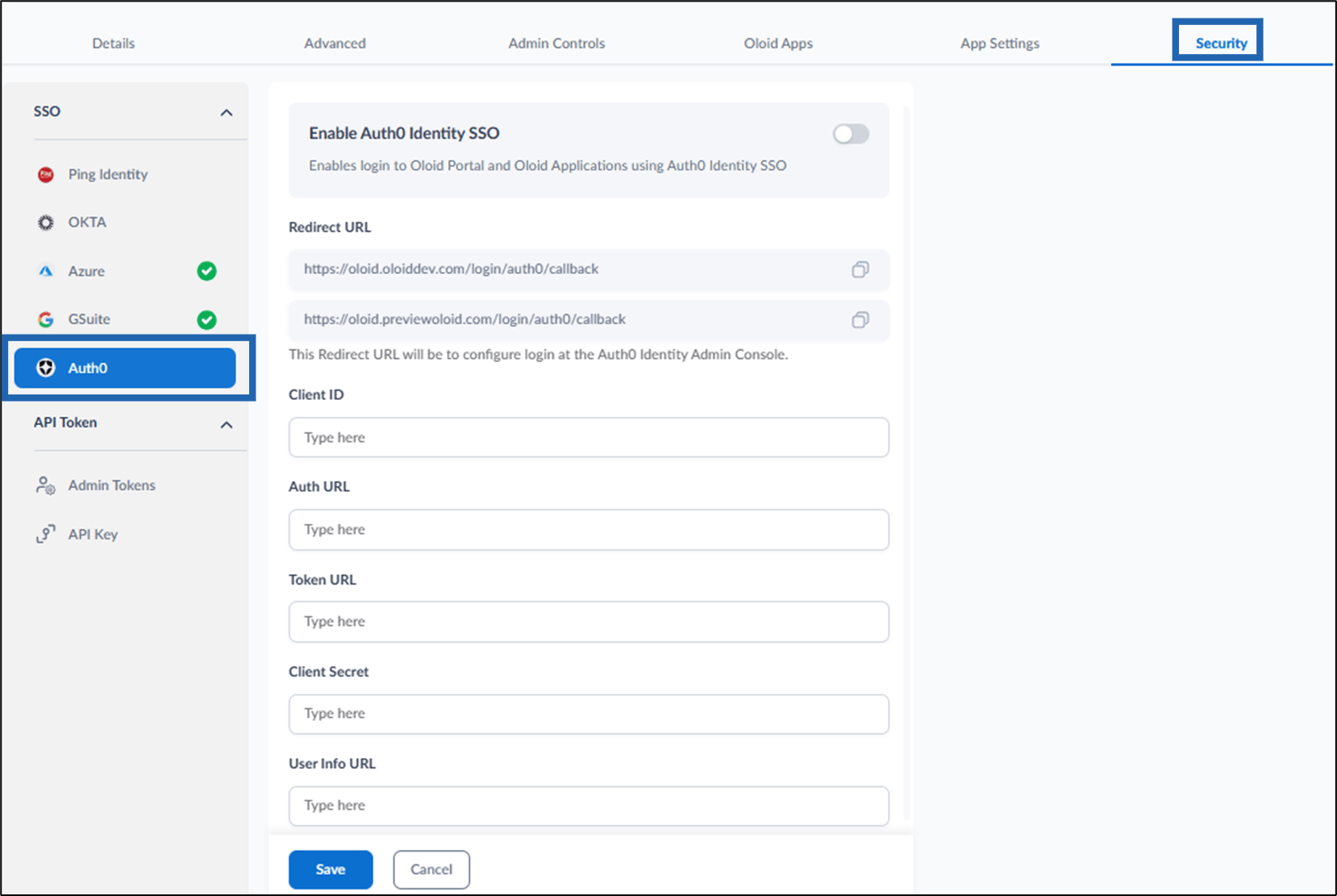
- Turn on Enable Auth0 Identity SSO button.

- Do the following:
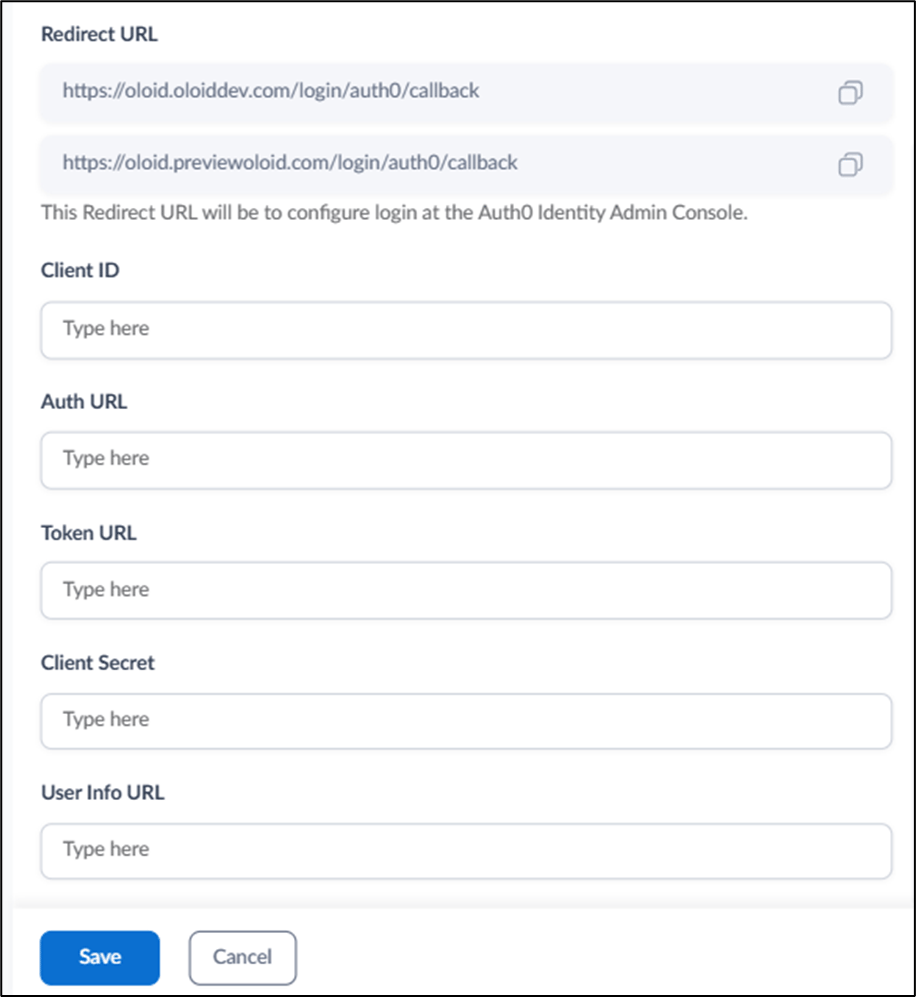
- Copy Redirect URL. Use both the provided Redirect URLs when configuring login in the Auth0 dashboard.
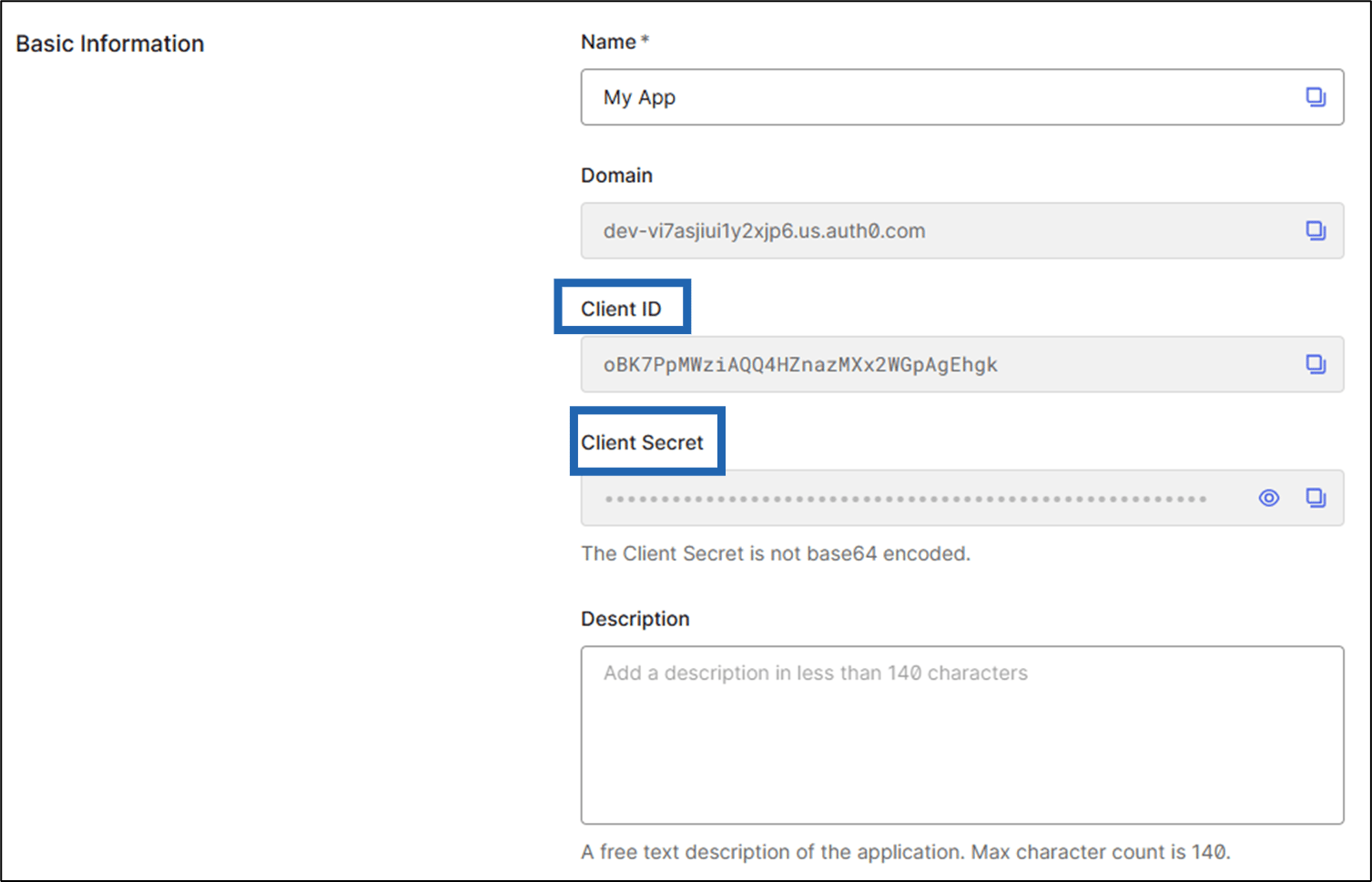
- Enter Client ID. You can find the Client ID from your Auth0 dashboard under Created Application > Settings > Basic Information. See, Sample Screen for Client ID.
- Enter Auth URL.
You can find the Auth URL as
authorization_endpointvalue in the OpenID configuration URL. See, Sample Screen for Auth URL - Enter Token URL.
You can find the Token URL as
token_endpointvalue in the OpenID configuration URL. See, Sample Screen for Token URL - Enter Client Secret. You can find the Client Secret from your Auth0 dashboard under Created Application > Settings > Basic Information. See, Sample Screen for Client Secret.
- Enter User Info URL
You can find the User Info URL as
userinfo_endpointvalue in the OpenID configuration URL. See, Sample Screen for User Info URL - Click Save. The Auth0 Identity SSO is configured.
To obtain Auth0 endpoint parameters
- Log in to your Auth0 dashboard.
- In the top-left menu bar, select your Auth0 tenant name.
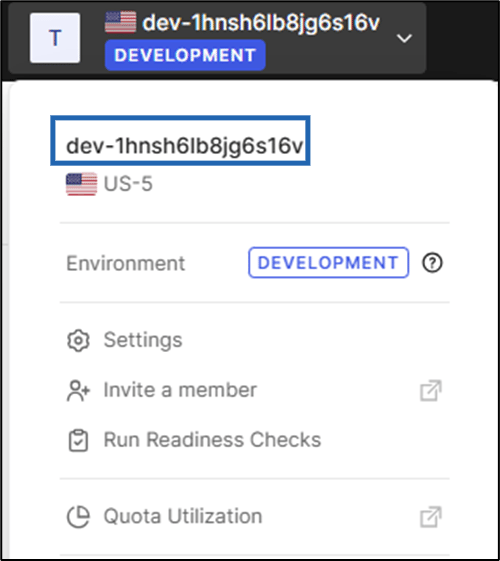
- Replace
<your-auth0-domain>in the following URL with your actual Auth0 domain:https://<your-auth0-domain>/.well-known/openid-configurationExample: https://dev-1hnsh6lb8jg6s16v.us.auth0.com/.well-known/openid-configuration - Open the URL in a browser to view the OpenID configuration.
- Copy the following endpoint values and paste them into the corresponding fields in the Oloid Portal:
authorization_endpointtoken_endpointuserinfo_endpoint
Sample Screens
Sample Screen for Client ID and Client Secret
Sample screen for Endpoint Parameters
