Introduction
The SCIM integration in Oloid helps to automate user provisioning and management between identity providers (IDPs) and connected applications. It ensures that user accounts, roles, and attributes stay synchronized automatically across platforms.Prerequisite
You have access to the Tenant Admin Portal.Steps to Enable and Map the Inbound SCIM
- Log in to the Oloid Tenant Admin Portal.
- On theTenant Admin Portal, click the Agent dropdown > SCIM.
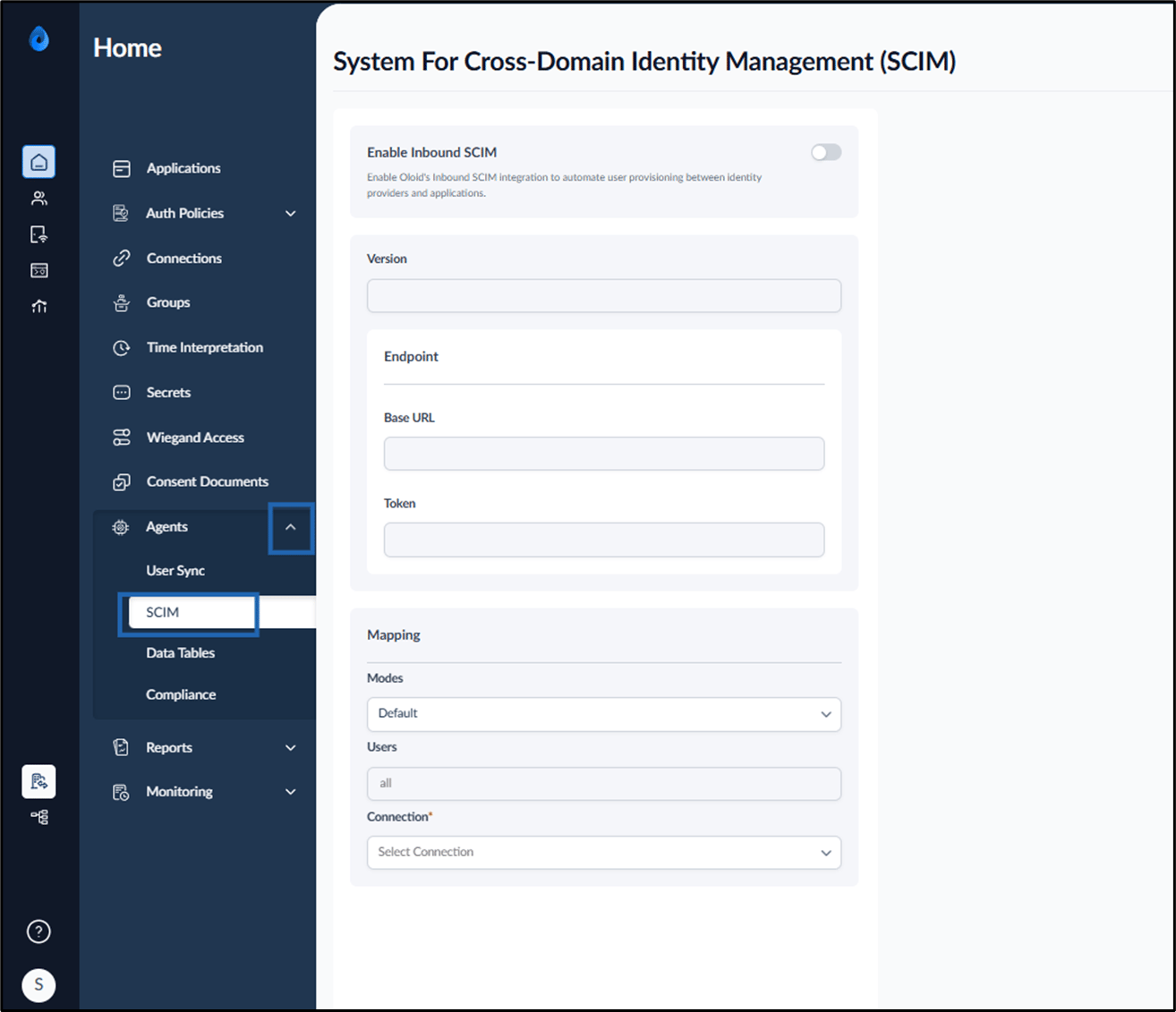
- Turn on the Enable Inbound SCIM toggle.
- Select one of the following Authentication modes:
- Configure API Token
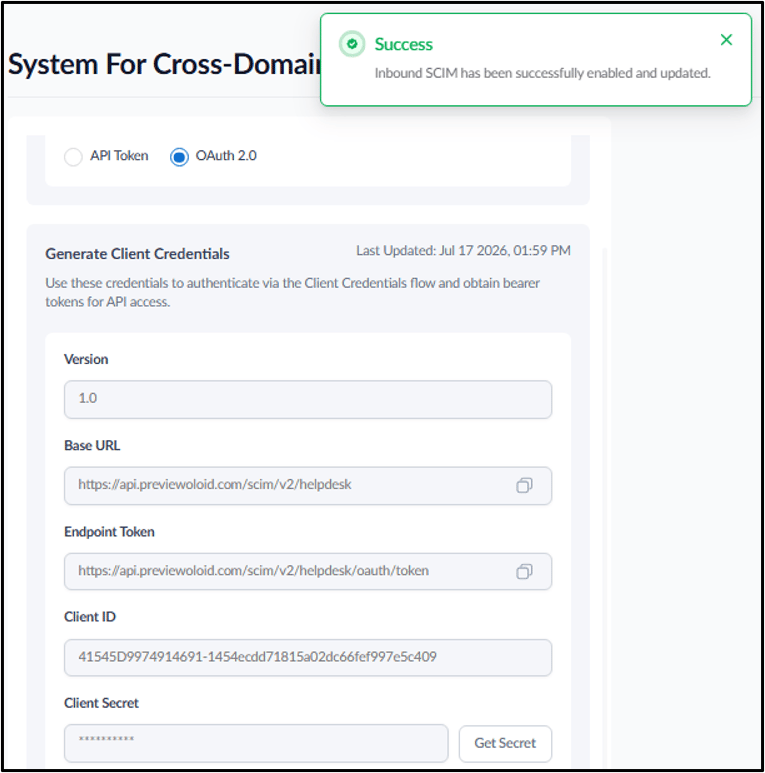
- Configure OAuth 2.0 The System for Cross-Domain Identify Management (SCIM) is successfully configured.
Configure API Token
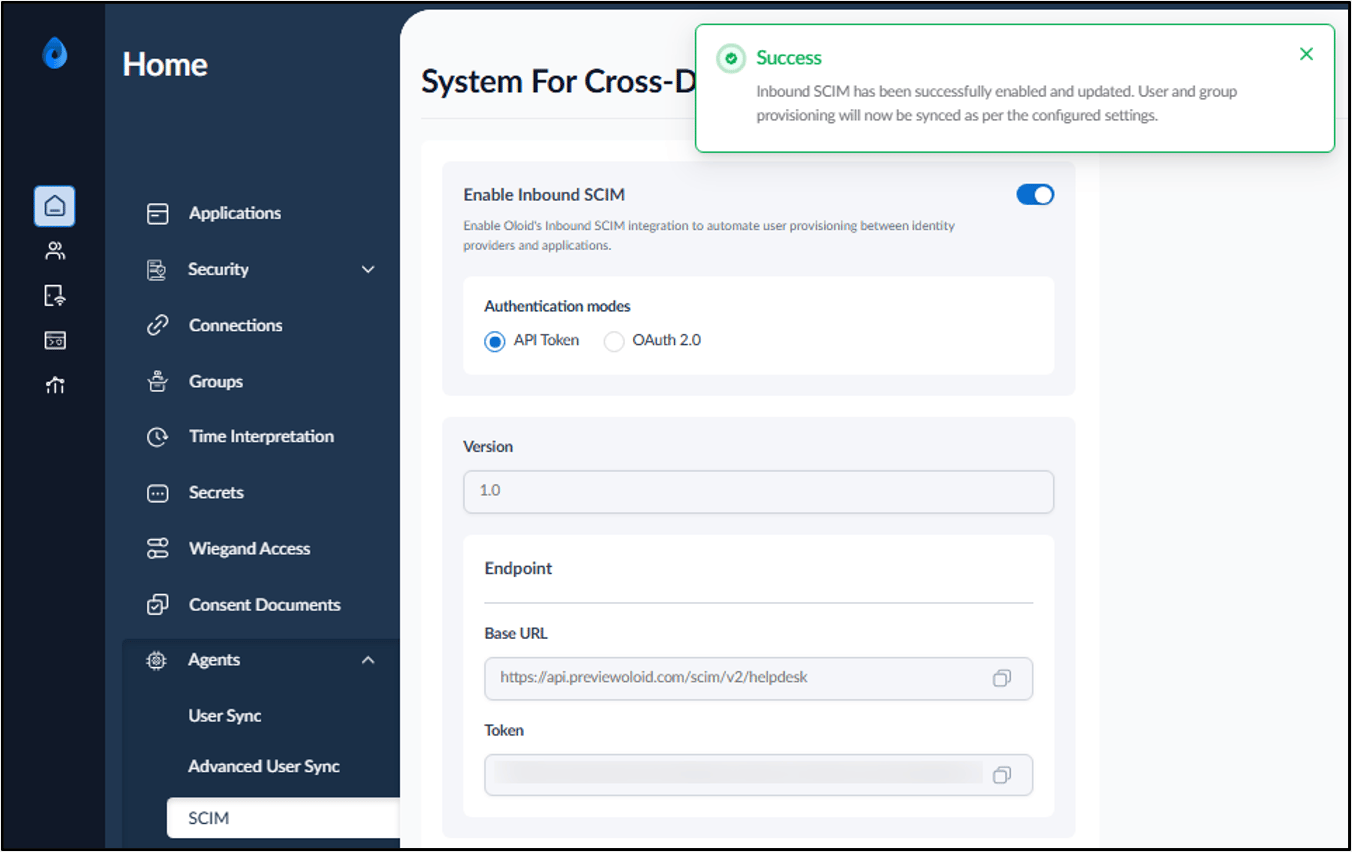
An API Token is a unique secret key used to verify the identity of an application. The application includes the token with each SCIM request to securely access Oloid.- Select API Token.
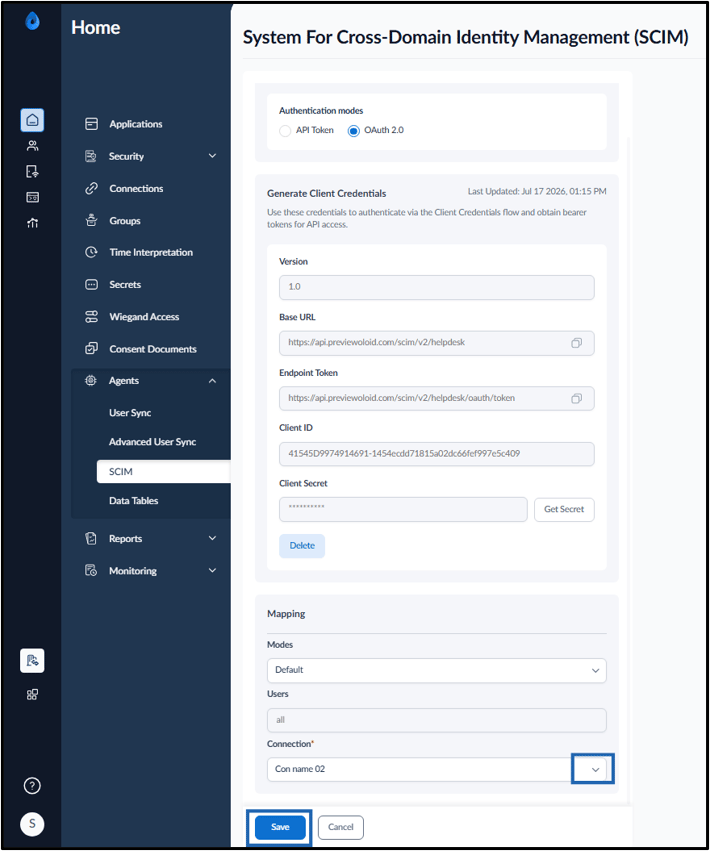
- In Mapping section, select the applicable Connection from the Connection drop-down.
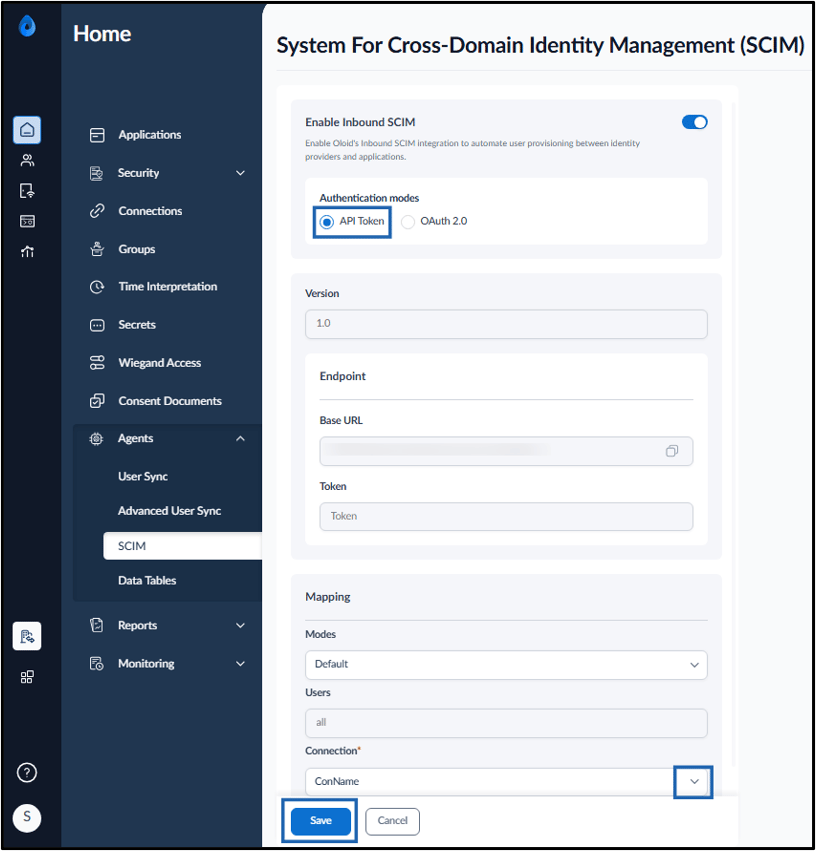
- Click Save.
The Endpoint details are generated successfully. These details are required to configure SCIM integration.
- Base URL: It is the endpoint URL used for SCIM integration.
-
Token: It is the authentication token used to authorize SCIM requests.
Note: Use the Base URL and Token keys when configuring the OKTA SCIM or Microsoft Entra ID SCIM. For more information, refer Oloid Configuration Guide for Okta SCIM Client and Microsoft Entra ID - How to Configure Cross-Domain Identity Management (SCIM) Provisioning for Oloid.
Configure OAuth 2.0
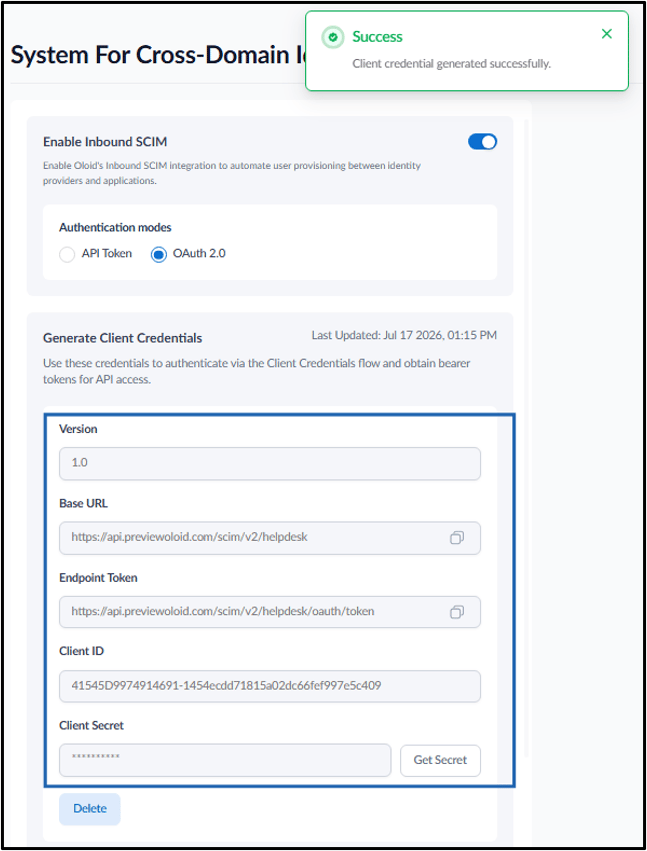
OAuth 2.0 is a secure authentication standard that uses temporary access tokens to authenticate applications. The application obtains an access token using the client credentials and uses it to authorize SCIM requests.- Select OAuth 2.0.
-
Click Generate.
 Note:
Note:- Use the Enter Base URL, Endpoint Token, Client ID and Client Secret when configuring the OKTA SCIM.
- Use the Base URL, Endpoint Token, Client ID and Client Secret when configuring the Microsoft Entra ID SCIM. For more information, refer Microsoft Entra ID - How to Configure Cross-Domain Identity Management (SCIM) Provisioning for Oloid.
- In Mapping section, select the applicable Connection from the Connection drop-down.