

Introduction
This guide provides step-by-step instructions to configure Managed App Configurations for the Oloid DeviceLock application within SOTI MobiControl.Steps to Configure Managed App Configurations
Follow the steps along with the screenshots provided.Step 1: Navigate to Device Groups
Go to the Device Groups section in SOTI MobiControl and select the relevant group (e.g., Oloid-On-Microsoft).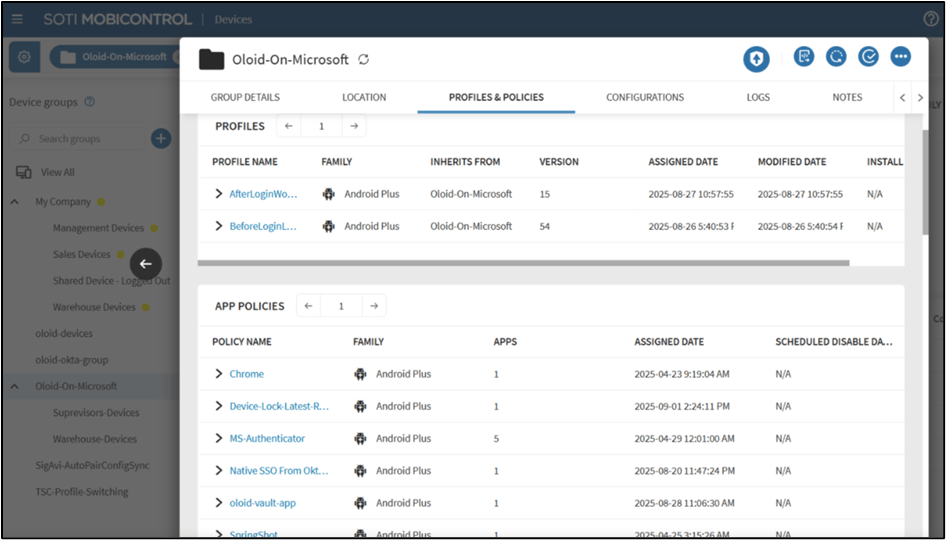
Step 2: Open Profiles & Policies
Under the selected group, click on Profiles & Policies to view all assigned app policies.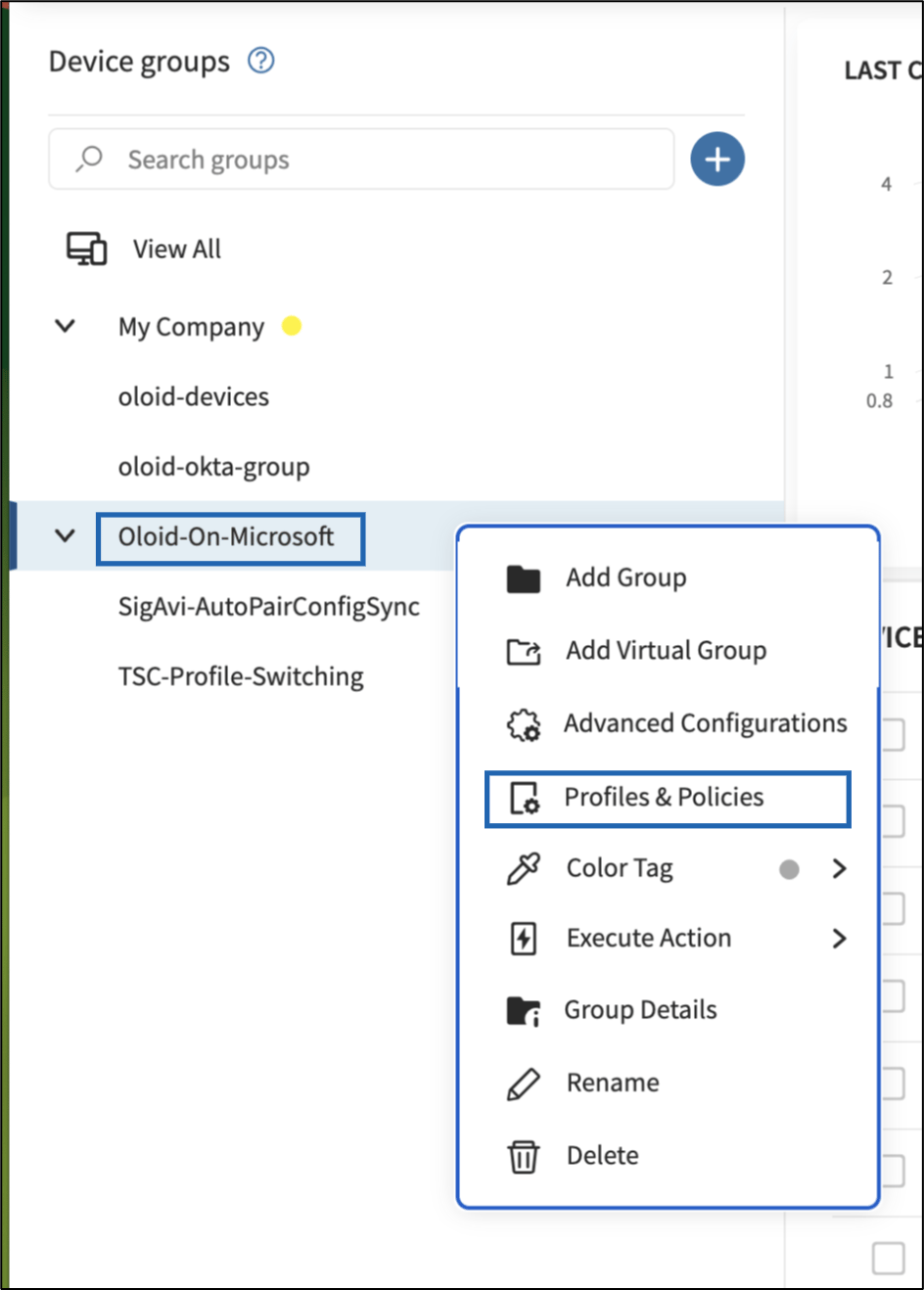
Step 3: Select the App Policy
Click on the desired app policy (e.g., Device-Lock-Latest-Release) to open its details.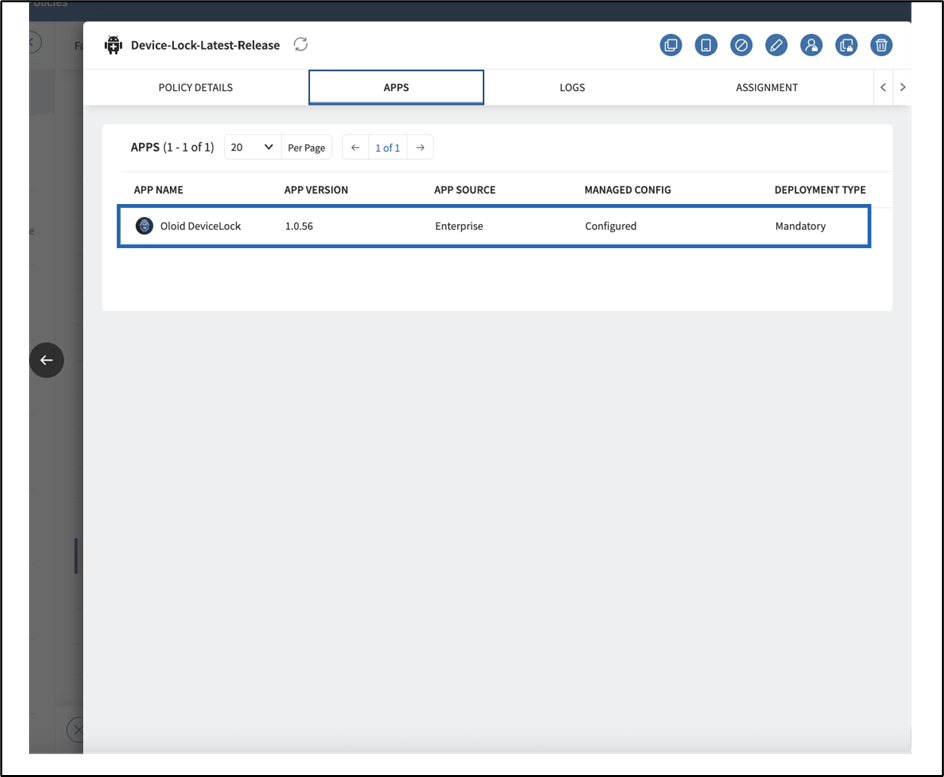
Step 4: Edit App Policy
Inside the policy, go to the Apps tab. Select the Oloid DeviceLock app and choose Configure.
Step 5: App Details
Review the application details such as package name and version.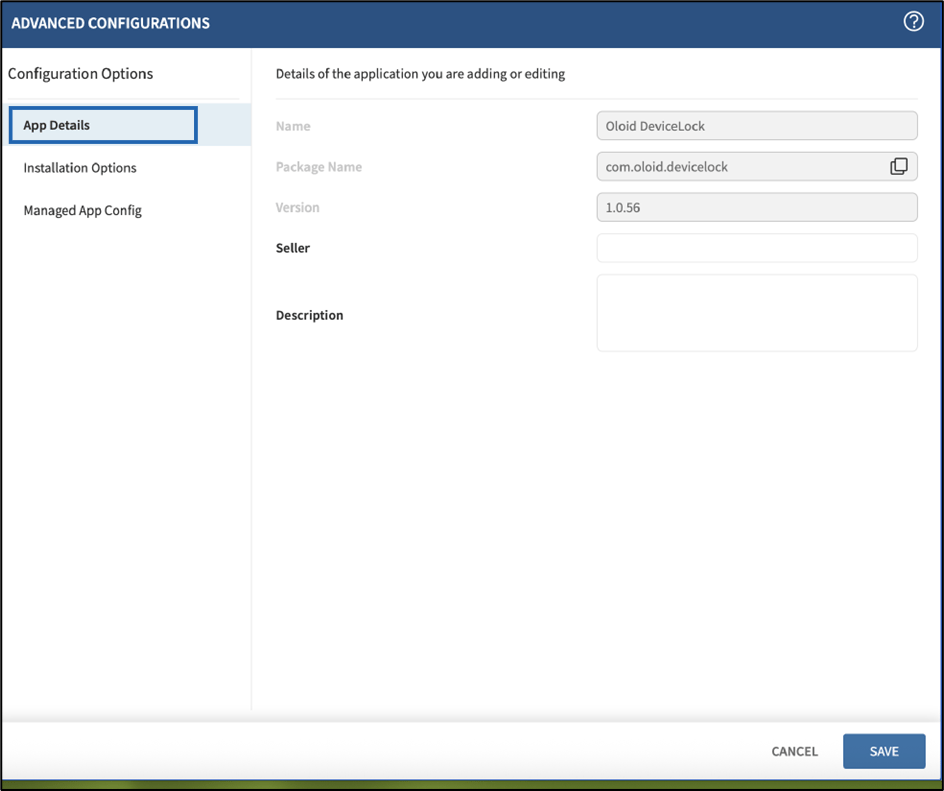
Step 6: Managed App Config
Go to Managed App Config and fill in the configuration details required for auto pairing:- Tenant Name
- Tenant ID
- Environment
- Application ID
- Template ID
- Device Name (auto-filled using
%DEVICENAME%) - Serial Number (auto-filled using
%IMEI%) - Device IP Address (auto-filled using
%IP%)
