

Introduction
This document explains how to perform the initial configuration of the Oloid DeviceLock app after installation. The setup includes granting required permissions to enable core functionality and ensure secure operation of the application.Note: Screenshots in this document were captured on a Samsung Galaxy Tab A11 device.
Prerequisite
You must install the Oloid DeviceLock app. To install refer How to install Oloid DeviceLock App.Steps to configure Oloid Device Lock Application
- Tap Open to launch the app.

- Tap Agree.

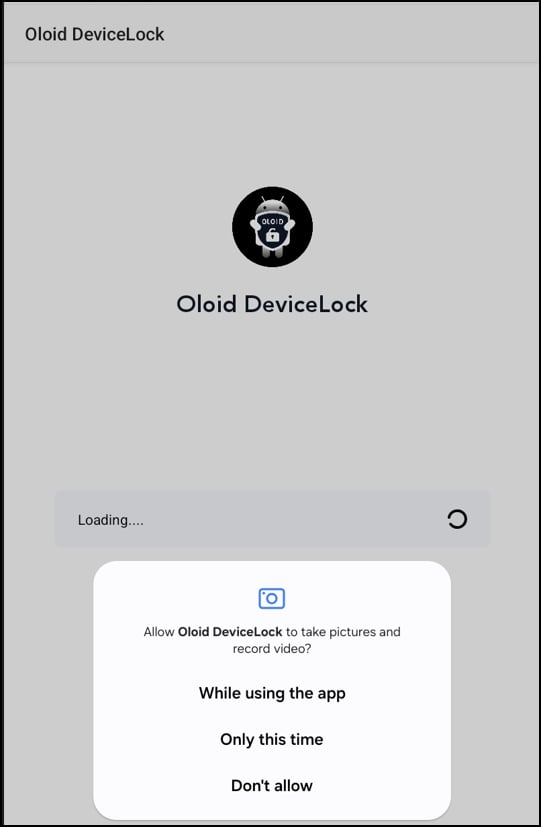
- On the pop-up box, tap one of the following:
- While using the app – The app can use the permission only when it is active.
- Only this time – The app can use the permission once, temporarily.
- Don’t allow – The app will not be allowed to use the permission.
- Tap Allow.

- Turn on Oloid DeviceLock toggle to allow the app to appear above other apps > tap Back.

- Select one of the following.
- While using the app – The app can use the permission only when it is active.
- Only this time – The app can use the permission once.
- Don’t allow – The app will not be allowed to use the permission.

