Introduction
The Oloid DeviceLock app supports Auto-Pair using Config File option, which allows the admin to quickly pair devices without manual entry or setup. By uploading the pre-generated AutoPairConfig.json file, the app automatically applies the required configuration and pairs the device with the designated endpoint. This method simplifies deployment, reduces errors, and ensures a seamless pairing experience.Prerequisites
- You must generate Auto-Pair config file. To generate refer How to generate Auto-Pair config file for Oloid DeviceLock App in the Tenant Admin Portal.
- The Auto-Pair config file must be saved in the local directory of the Android device to be paired.
Steps to pair DeviceLock
-
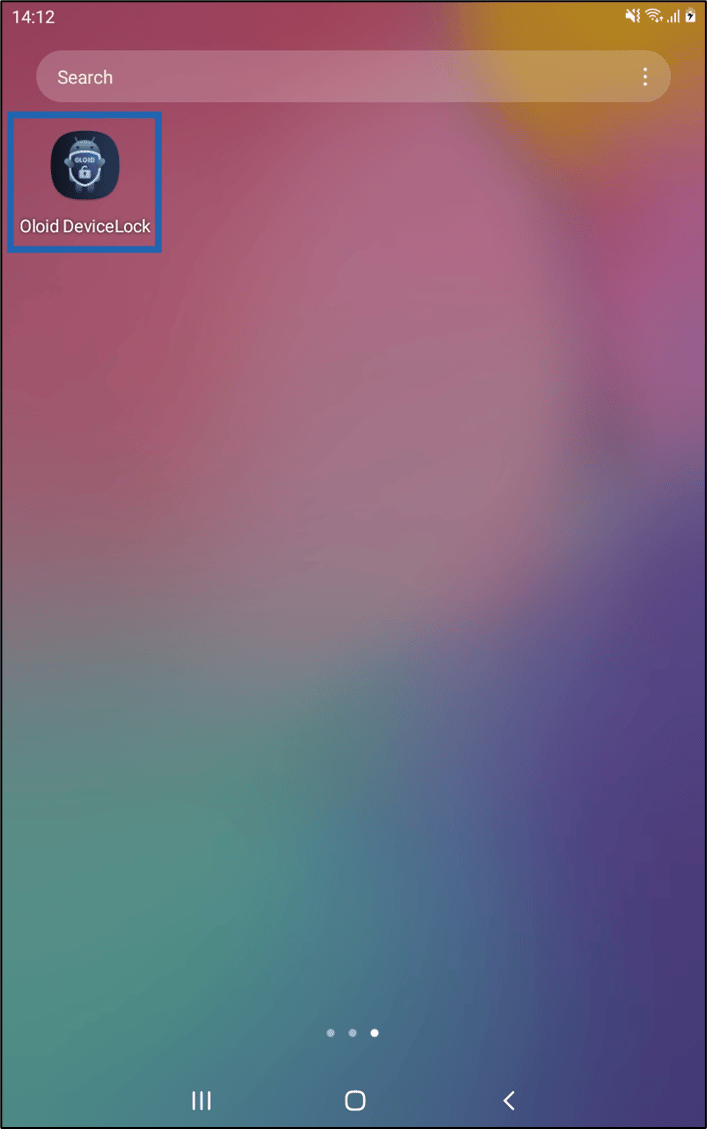
Launch DeviceLock app.
-
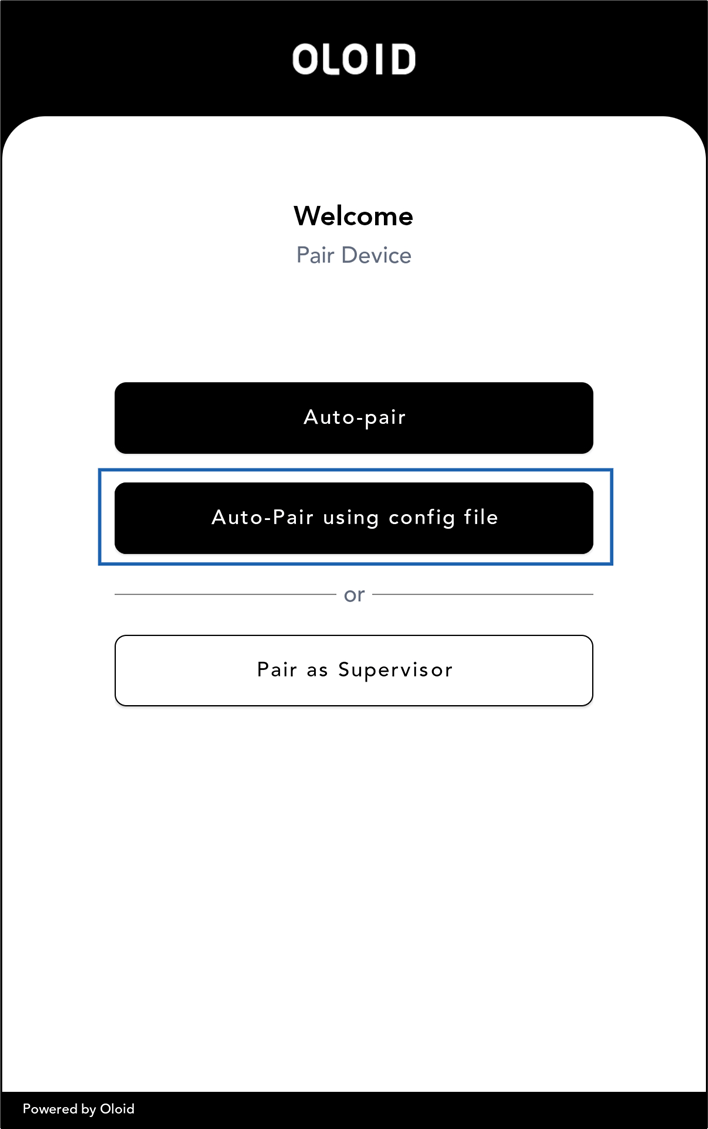
Tap Auto-Pair using config file.
-
Tap Click here to upload file.
Note: Only .json file format is supported for the Auto-Pair configuration.

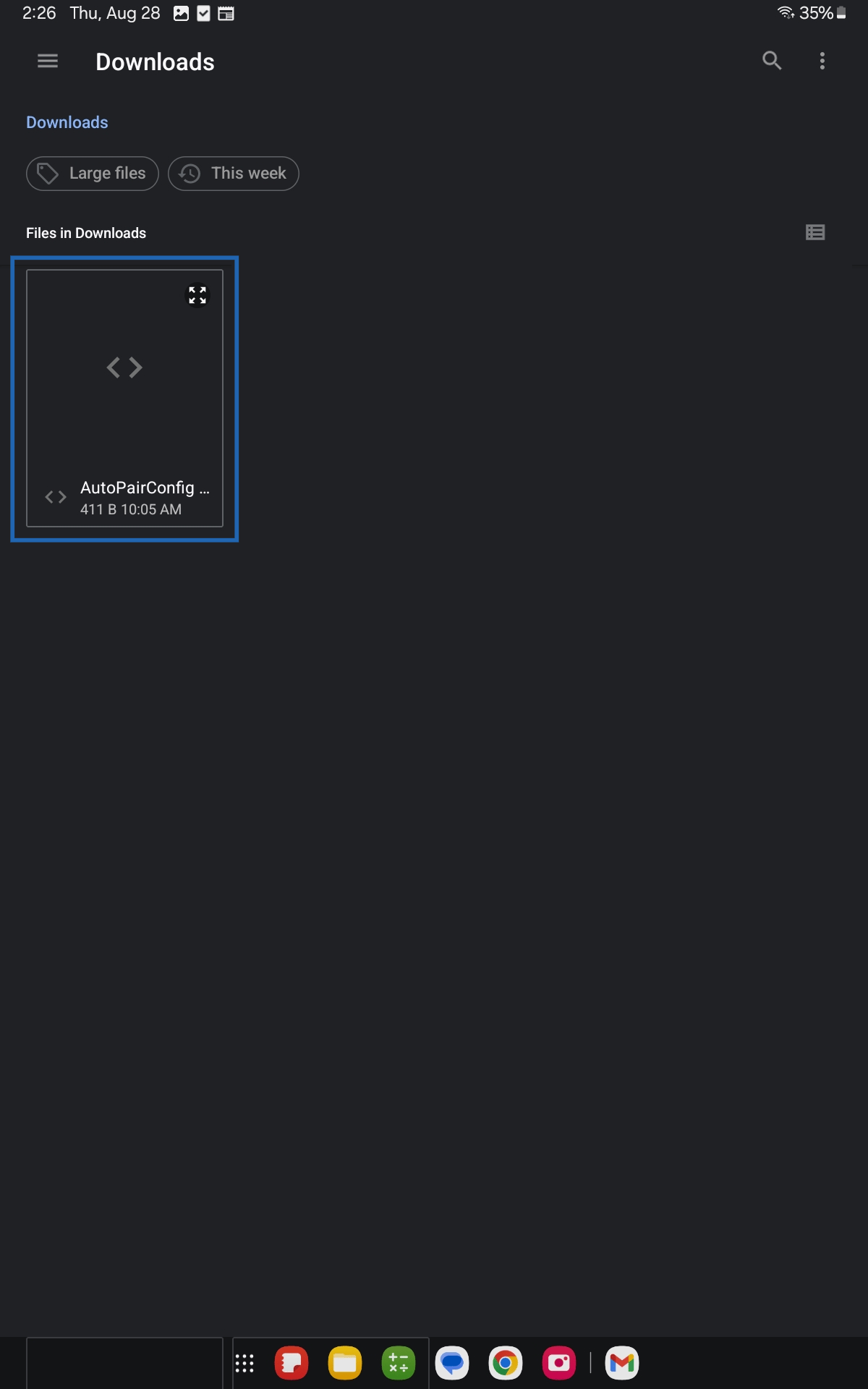
- Browse the location of the downloaded file.
-
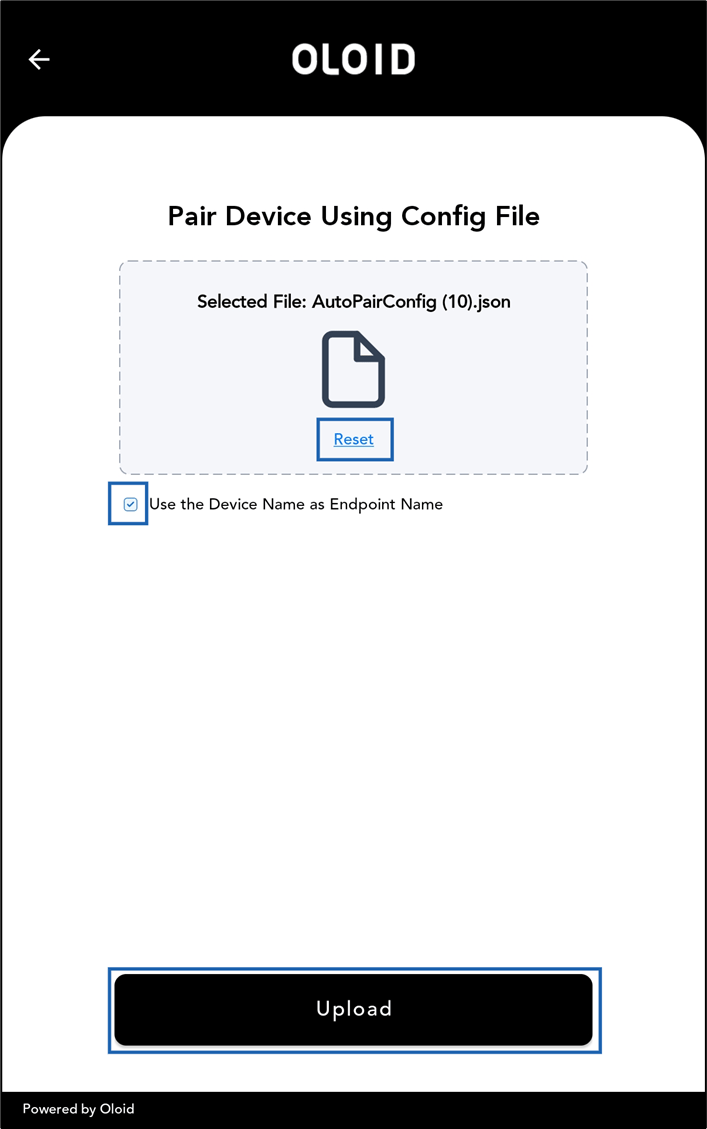
Tap AutoPairConfig.json.
-
Select Use the Device Name as Endpoint Name to show the device name as endpoints name. (optional).
Note: You can tap Reset to upload the file again.
-
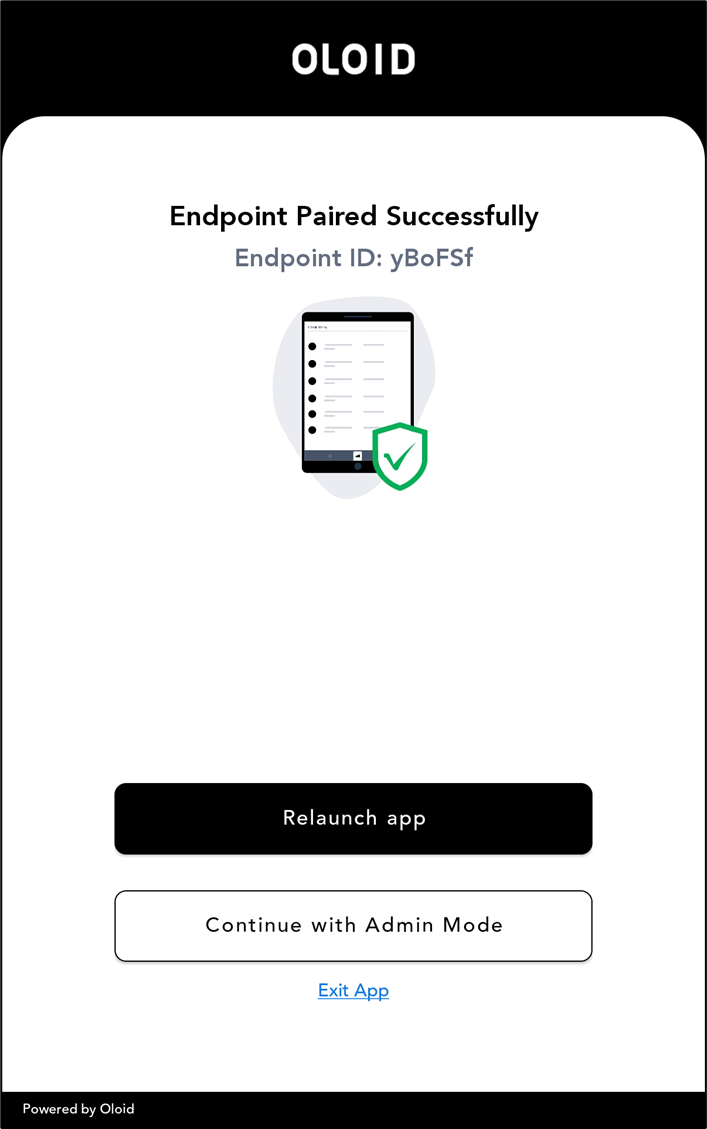
Tap Upload to successfully upload the file and pair the endpoint.