

Introduction
This document provides instructions to configure a QR code scanner in the Zebra DataWedge application for use with the Oloid DeviceLock application.Note: This configuration is supported only on Zebra Android devices that use the Zebra DataWedge application. It is not applicable to non-Zebra devices.
Prerequisites
- A Zebra Android device with the Zebra DataWedge application installed.
- The Oloid DeviceLock application is installed on the Zebra device.
- The DataWedge service is enabled and running.
Steps to Configure QR Code Scanner for Data Wedge Application
- Launch the DataWedge application. The DataWedge application page is displayed.
-
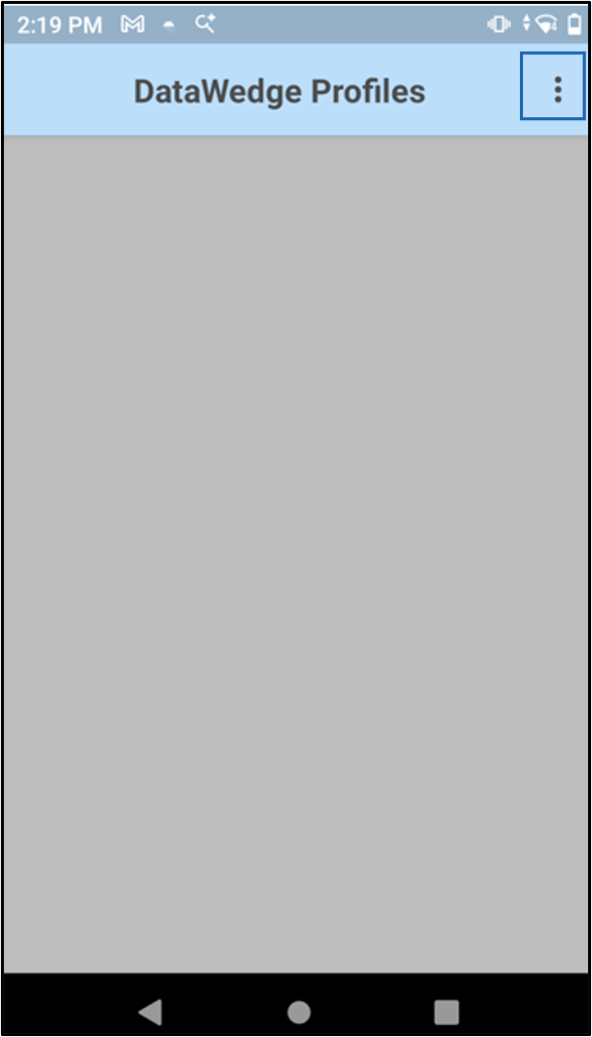
Tap the Menu (three dots) icon.
-
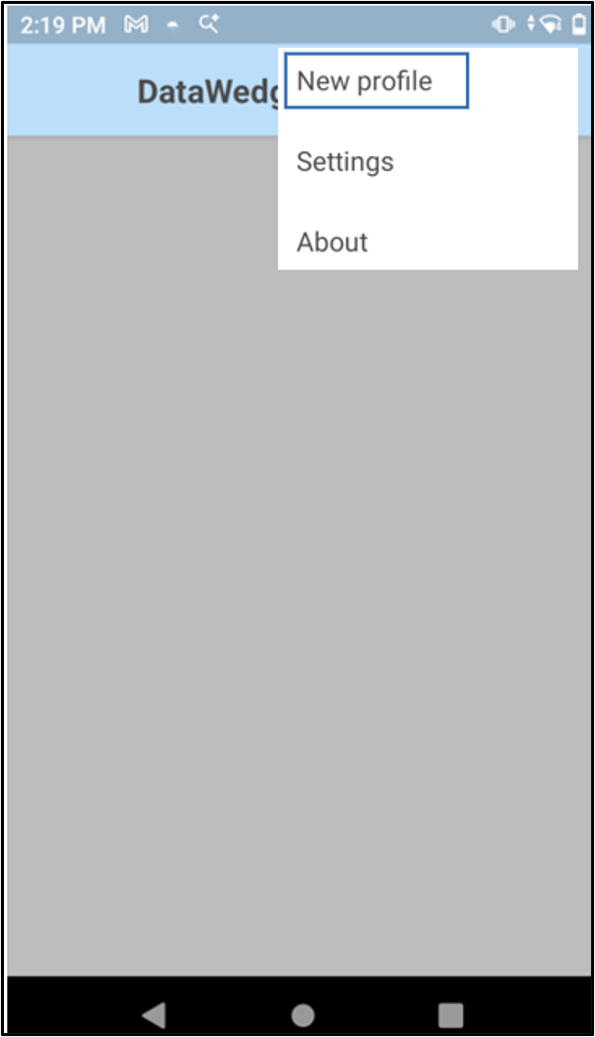
Select New Profile.
-
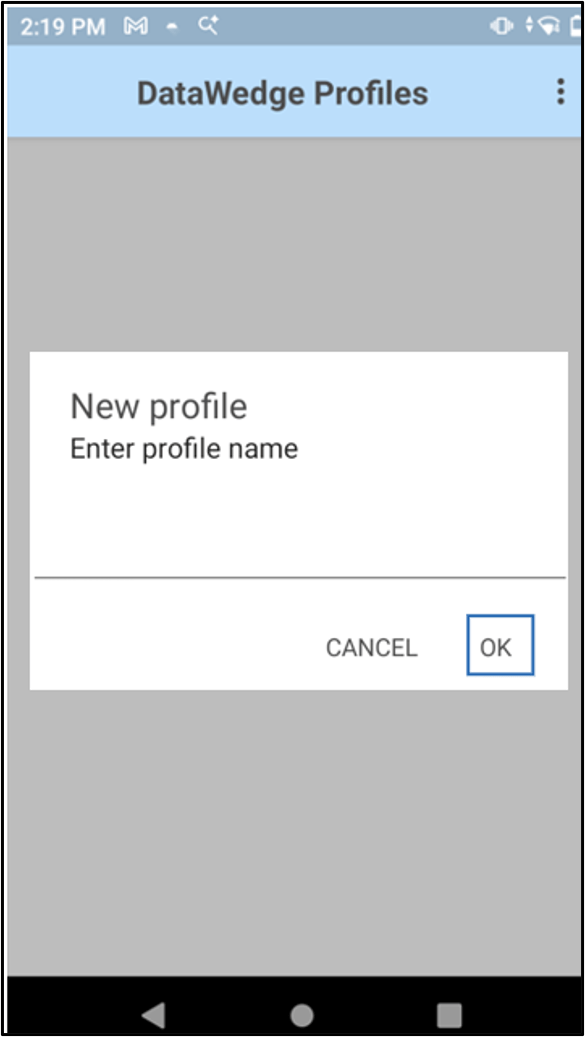
Enter the Profile Name > tap OK.
-
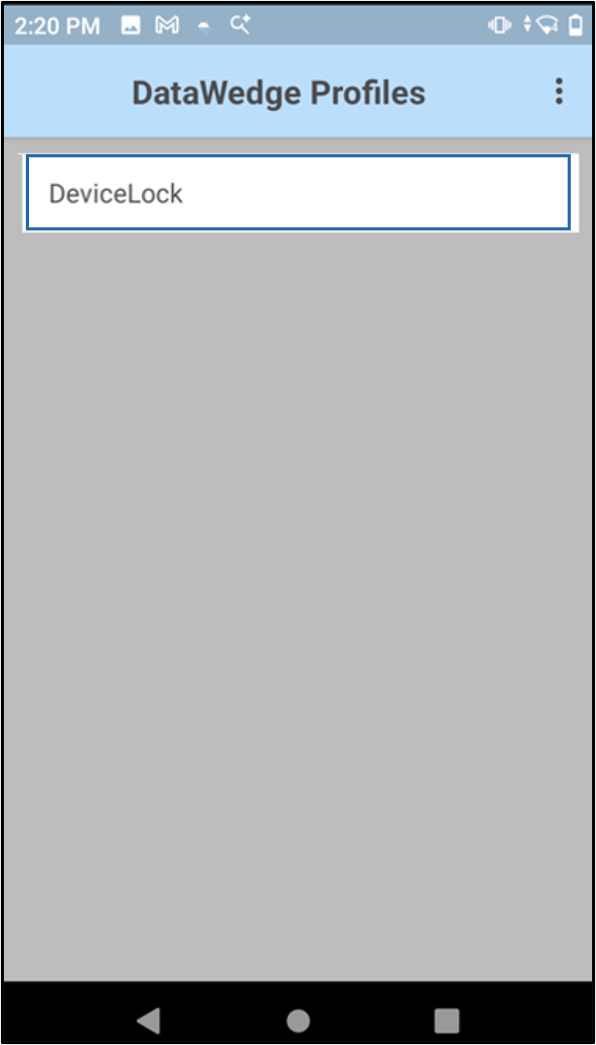
Tap the Profile Name.
-
Tap Associated apps.

-
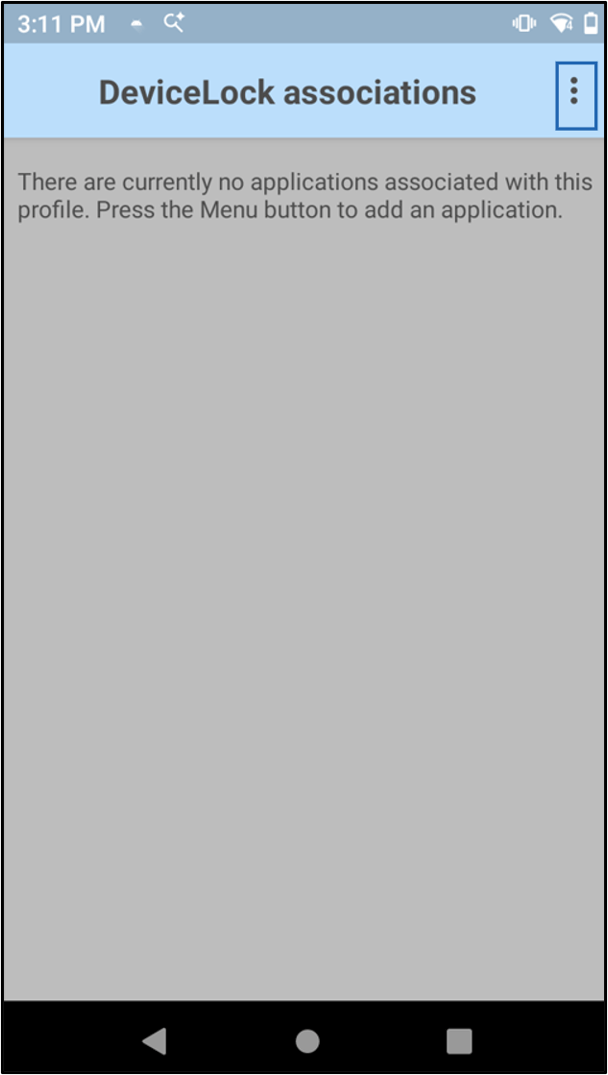
Tap the Menu (Three dots) icon at the top right corner of the screen.
-
Select New app/activity.

-
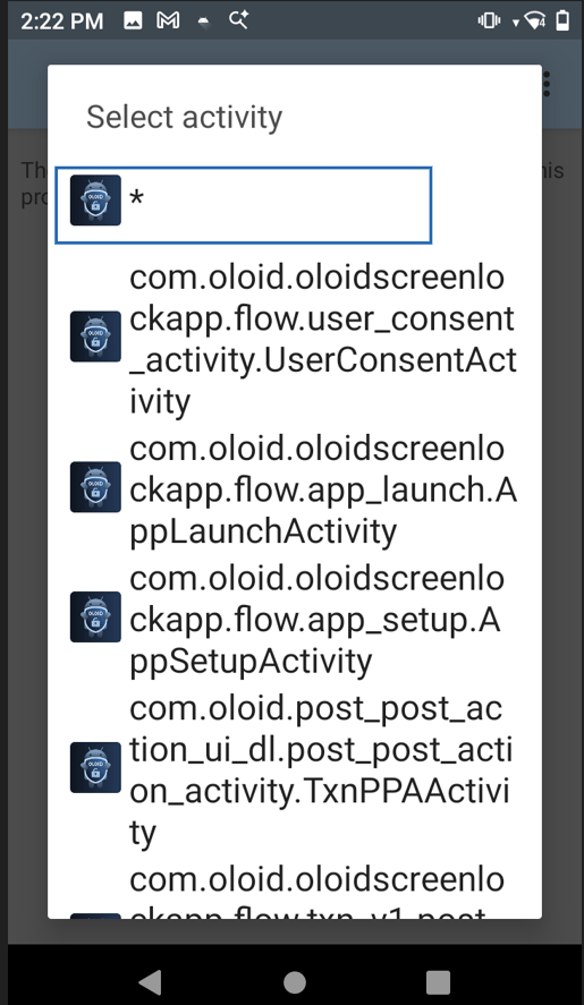
Select the app.
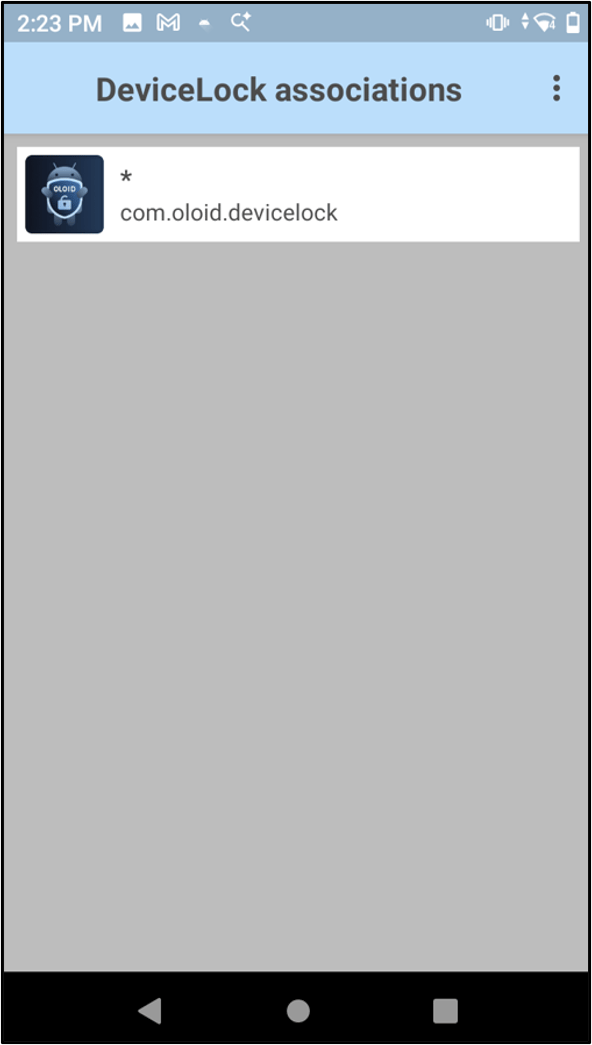
Note: Select com.oloid.devicelock.

-
Select the asterisk (*) to associate it with all activities.
-
Go back to the Profile page.
The Profile page is displayed and do the following:
- Ensure the Enabled checkbox is checked for Barcode input.
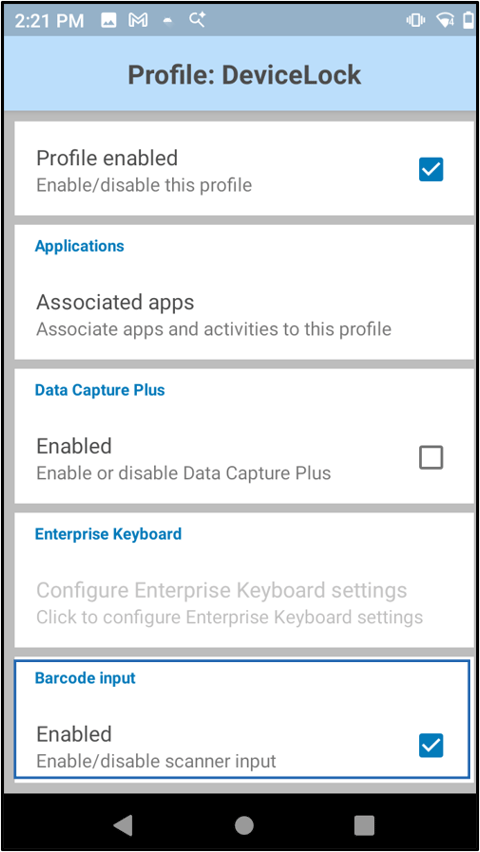
- Ensure the Enabled checkbox is UNCHECKED for Keystroke output to prevent scanner data from being injected as text.
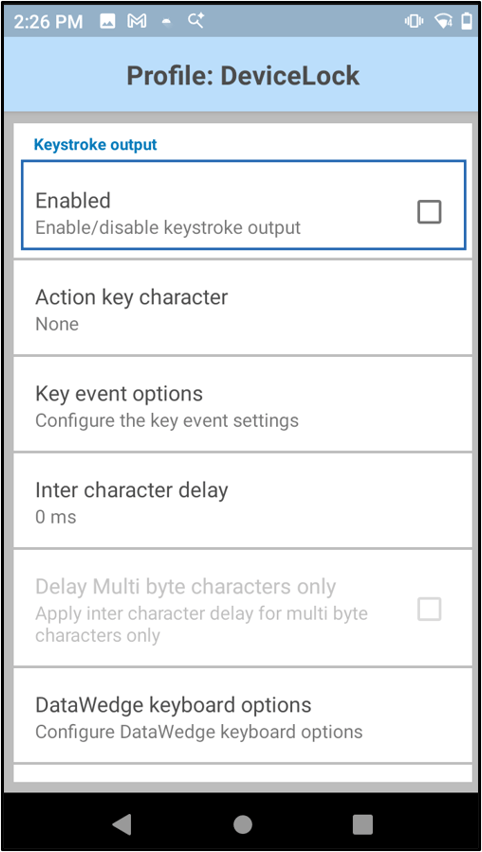
- Go to Intent Output section and do the following.
-
Select the Enabled checkbox.
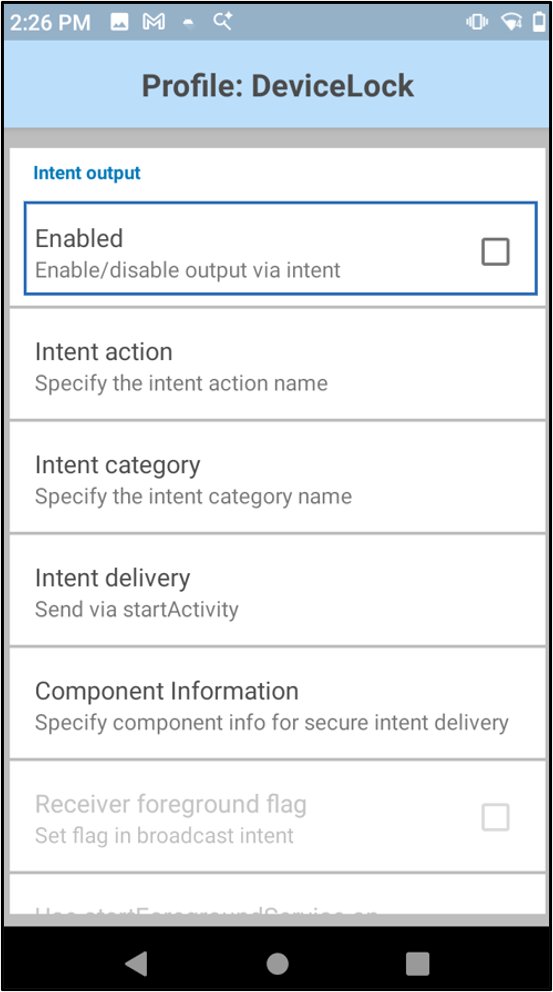
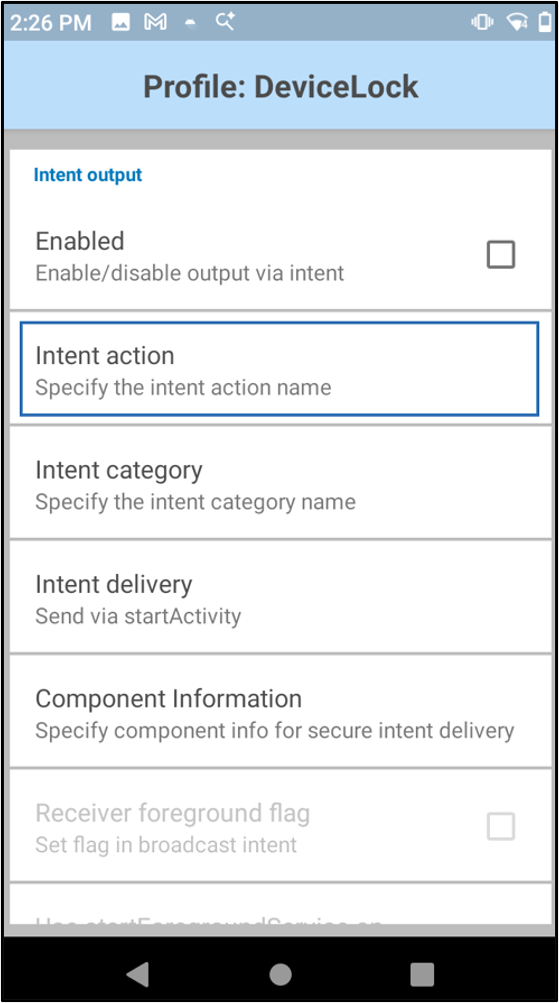
-
Tap Intent action.
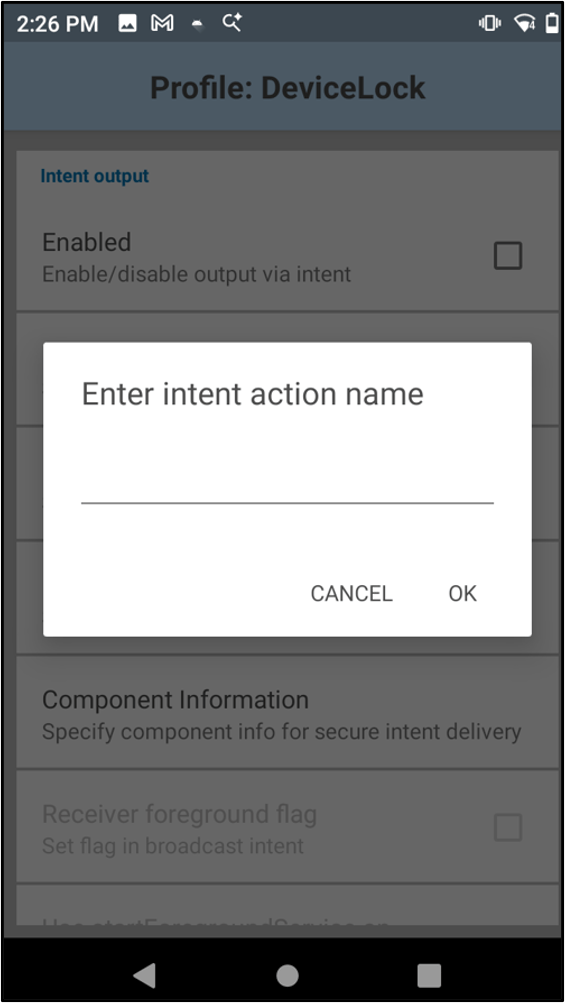
-
Enter the intent action name > tap OK.
Note: Ensure the Intent Action name must be com.devicelock.QR_CODE_SCAN_ACTION.
-
Tap Intent Delivery.
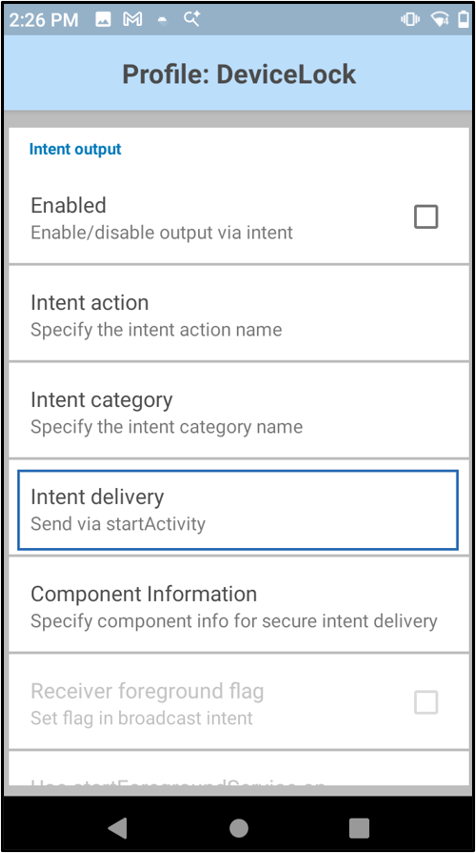
-
Tap Broadcast intent.

-
Select the Enabled checkbox.
- Ensure the Enabled checkbox is checked for Barcode input.