Introduction
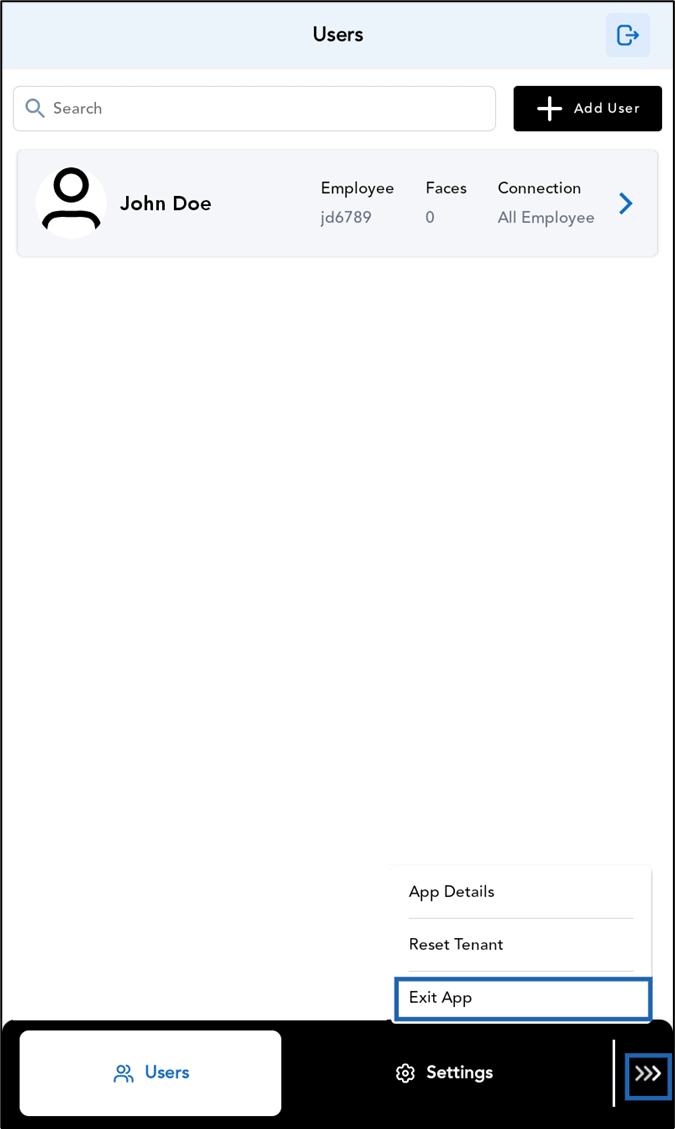
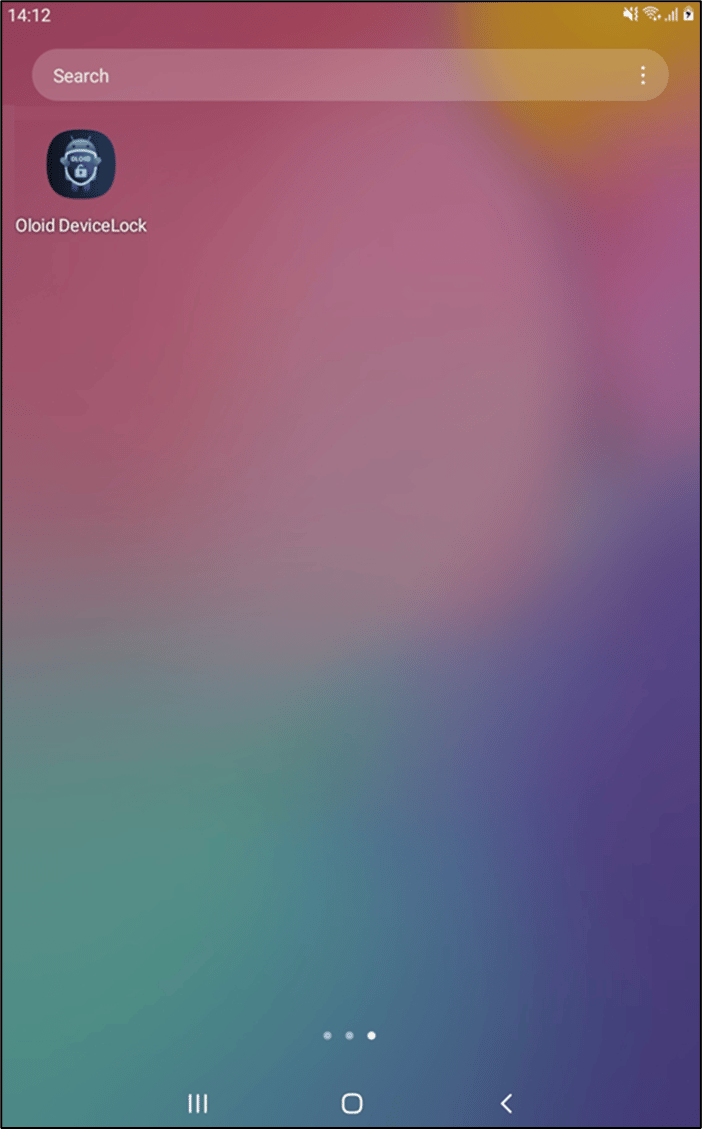
The exitfeature in the Oloid DeviceLock App allows admin to safely close the application while in Admin Mode. When the app is exited, the admin is automatically logged out and returned to the device home screen.Prerequisite
You must have Tenant Admin access to the Oloid Tenant Admin Portal.Steps to Exit the DeviceLock Application
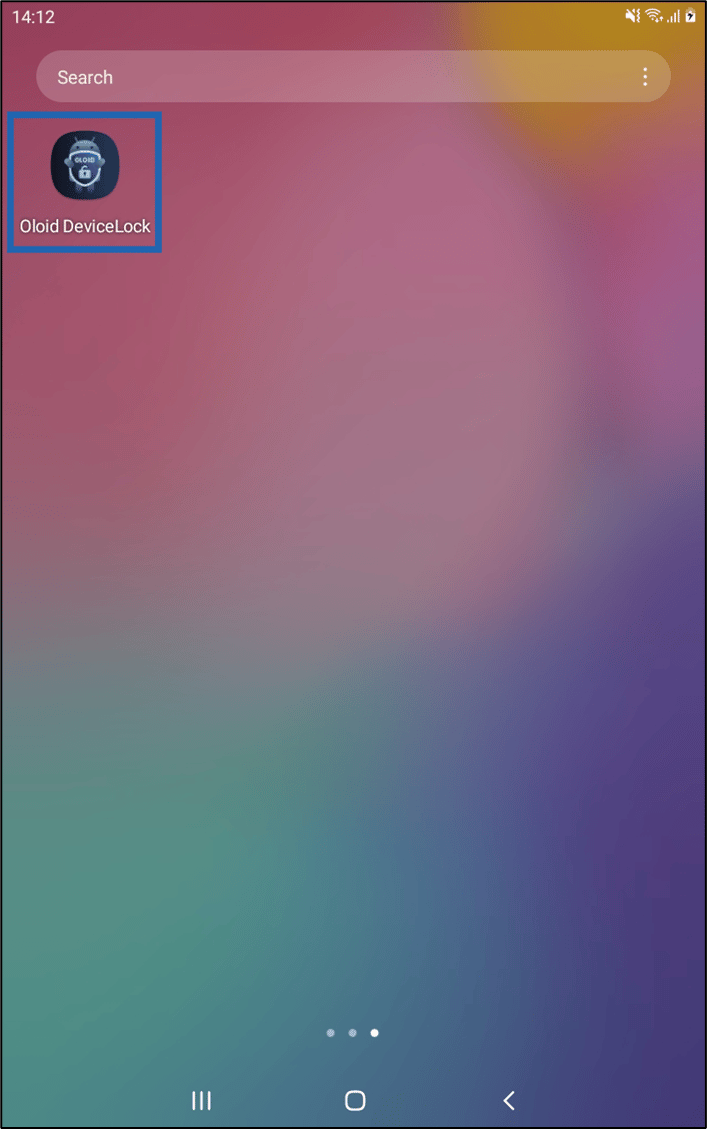
- Launch Oloid DeviceLock App on your device.
- Log in to Admin mode in DeviceLock App. For more details refer How to log in to admin mode in DeviceLock App.
 ) on bottom-right side of the screen> Tap Exit App.
Note: By Tapping Exit App, you will be logged out and redirected to the home screen of the device.