Introduction

The QR Code feature in the Oloid DeviceLock App allows admin to assign QR codes to users for secure, passwordless authentication on Android devices.

Prerequisite

You must have Admin Access in the Device Lock Application.

Steps to Assign QR Code

  1. Login to the Admin mode in DeviceLock App. To login referHow to log in to admin mode in DeviceLock App.
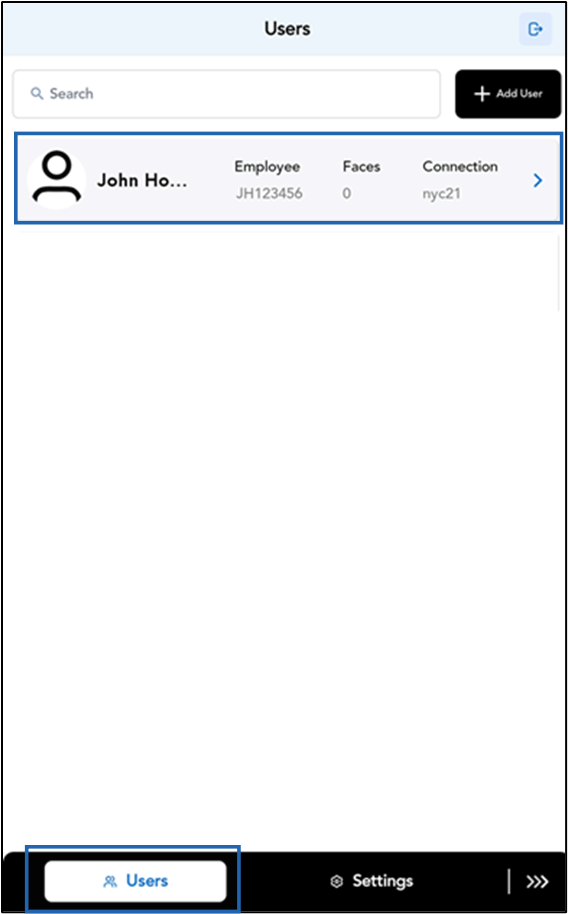
  2. Go to Users tab > select the preferred user. How to Assign QR Code for Users in the... - screenshot 1 The user details screen is displayed.
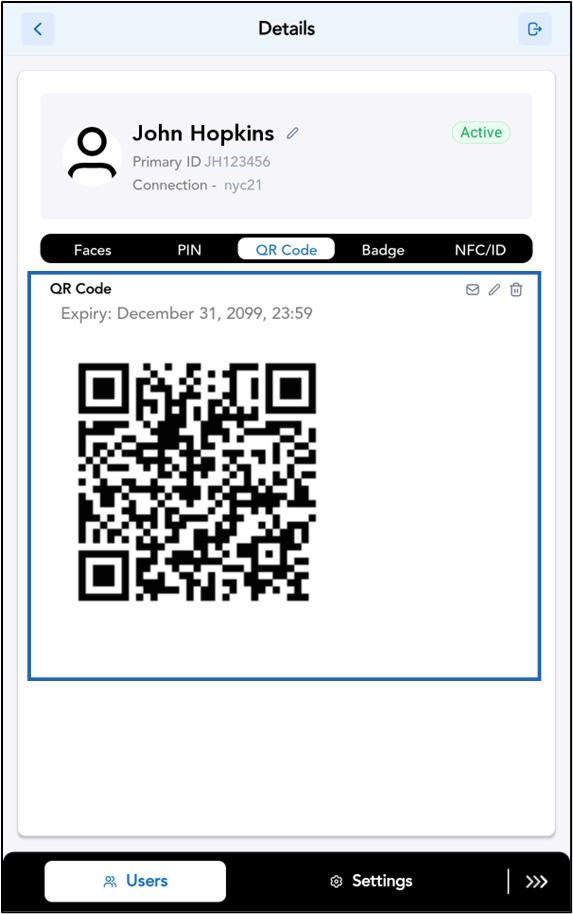
  3. Tap QR Code. How to Assign QR Code for Users in the... - screenshot 2 The QR Code screen is displayed.
  4. Tap Add. How to Assign QR Code for Users in the... - screenshot 3 The Create QR Code pop-up box is displayed.
  5. Do the following:
    1. Select QR Code Validity.
    2. Enter the Email ID (Optional).
    3. Tap Create.
How to Assign QR Code for Users in the... - screenshot 4 The QR Code is added successfully. How to Assign QR Code for Users in the... - screenshot 5 The created QR code is displayed in the QR Code tab. How to Assign QR Code for Users in the... - screenshot 6