Introduction
The Badge Assignment feature in the Oloid DeviceLock app allows admin to assign badge credentials to users for authentication on Android devices. Users can tap their assigned badge on a connected card reader to unlock the device or access Workforce or HRMS applications securely.Prerequisite
- You must have Admin Access in the Device Lock Application.
- Ensure the Android device is connected to an external card reader.
- You must have a badge available to assign to a user.
Steps to Assign Badge
- Log in to the admin mode in DeviceLock App. To login referHow to log in to admin mode in DeviceLock App.
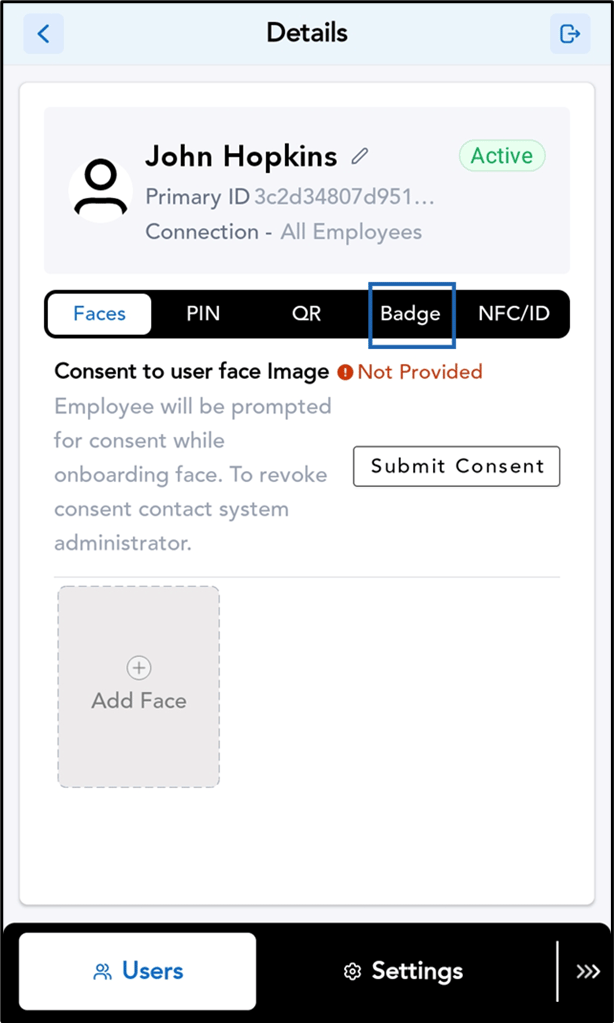
- Go to Users tab > select the preferred user.

- Tap Badge.
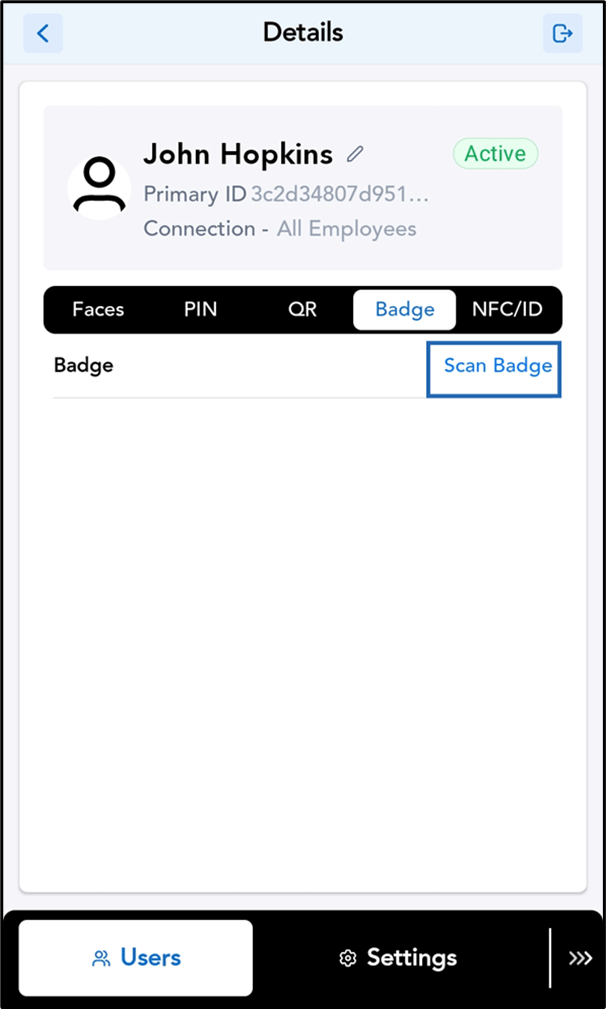
- Tap Scan Badge.
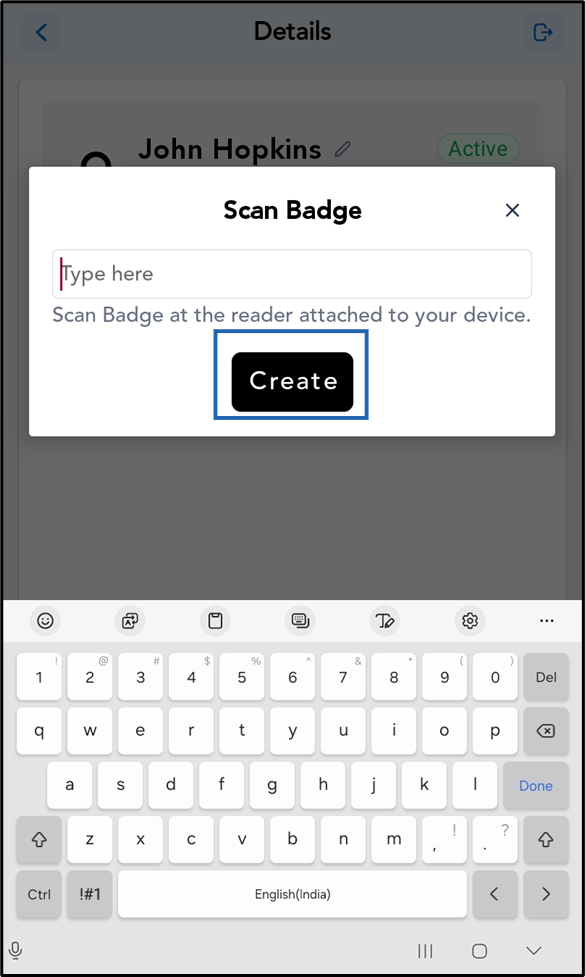
- Do one of the following:
- Manually enter the Badge number. OR
- Tap the Badge on the card reader to scan it.
- Tap create.