Introduction

The Oloid DeviceLock App allows Admin and Supervisors to securely reset their password using the Forgot Password option. This feature helps restore access to the app by sending a confirmation code to the registered email address.

Steps to reset Admin Password

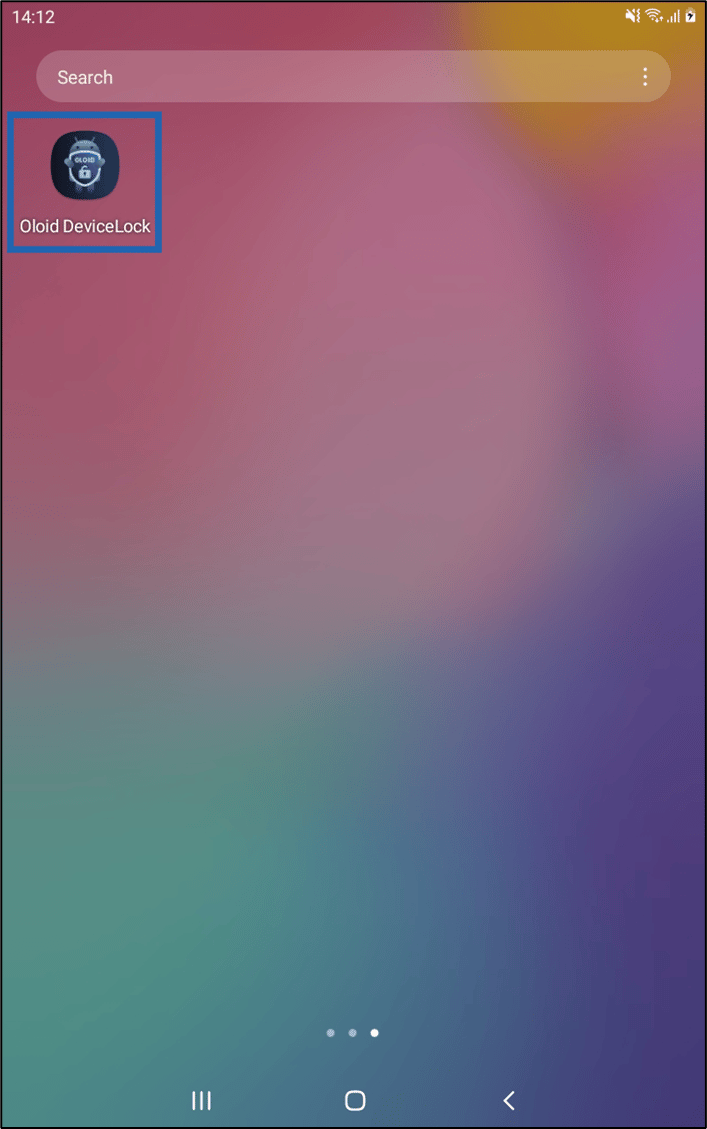
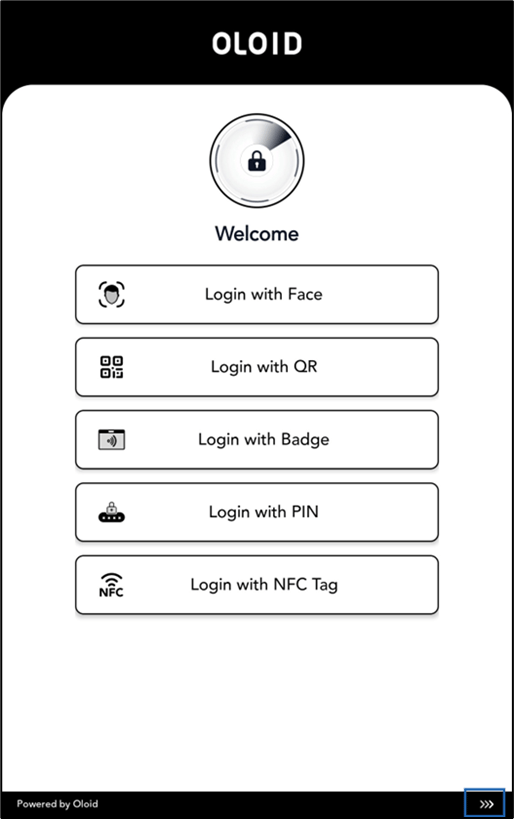
  1. Launch DeviceLock app. How to Reset the Admin Password - screenshot 1 The Welcome screen is displayed.
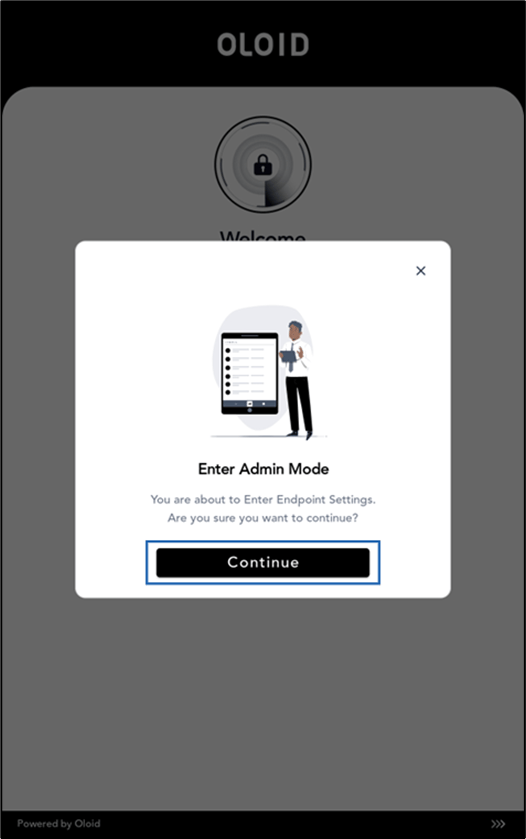
  2. Click More option icon (How to Reset the Admin Password - screenshot 2) on bottom-right side of the screen. How to Reset the Admin Password - screenshot 3 The Enter Admin Mode pop-up box is displayed.
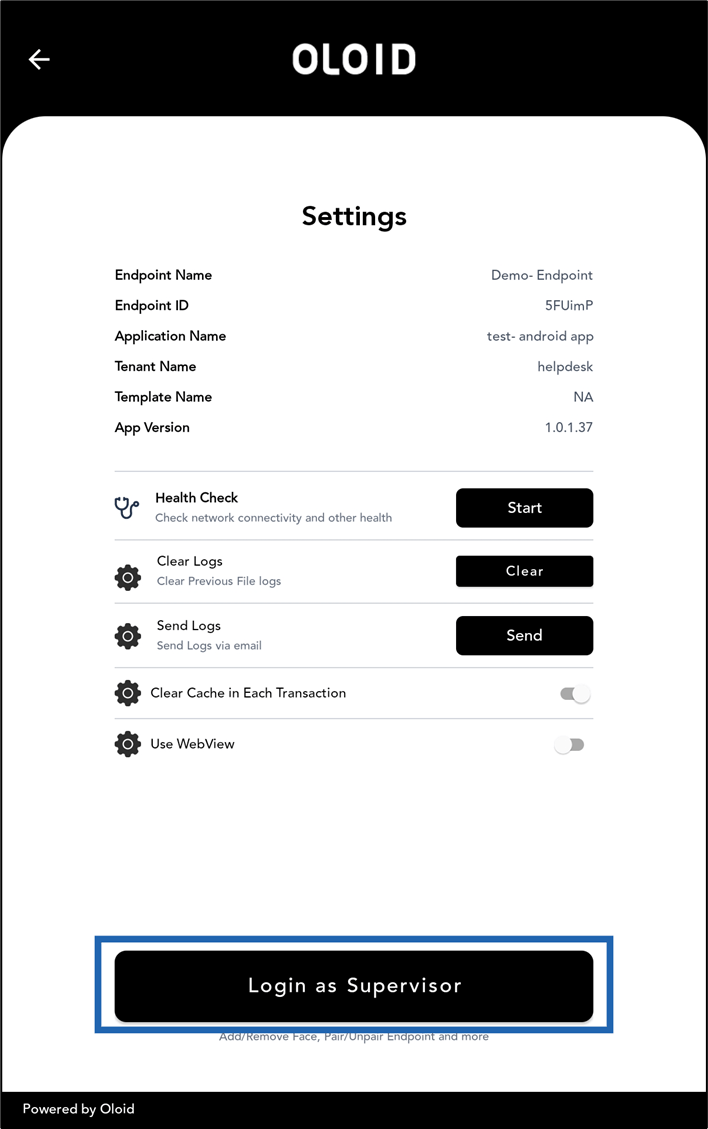
  3. On the Enter Admin Mode pop-up box, tap Continue. How to Reset the Admin Password - screenshot 4 The setting page is displayed.
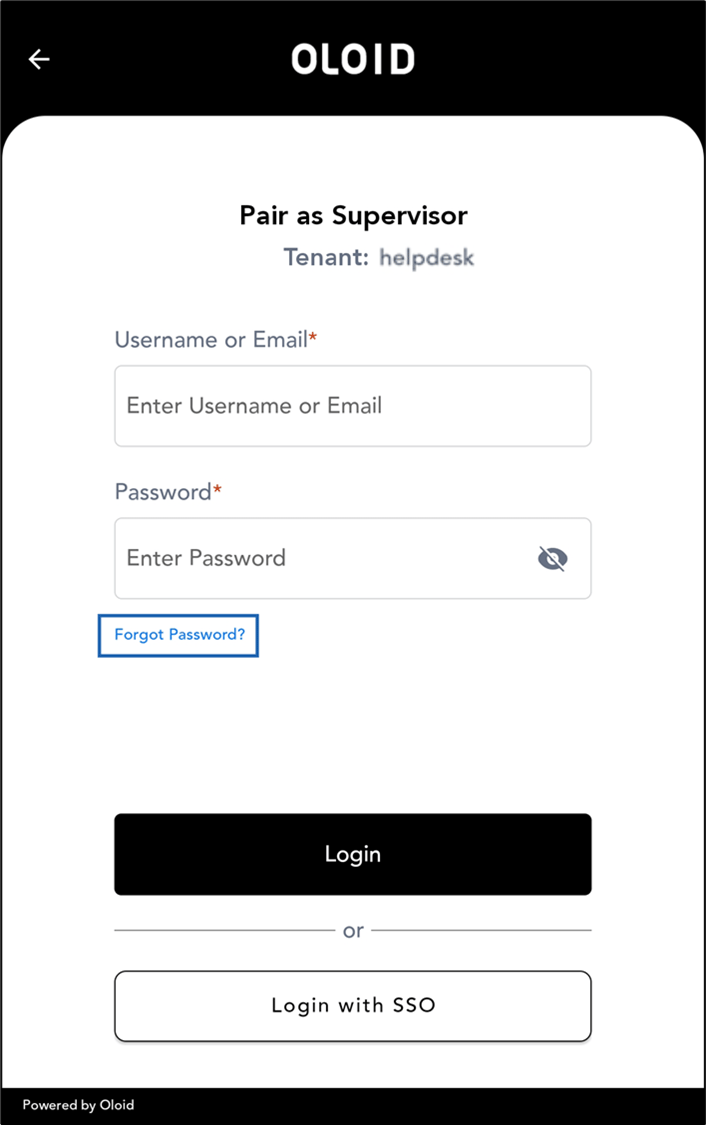
  4. Tap Login as Supervisor. How to Reset the Admin Password - screenshot 5 Pair as Supervisor screen is displayed.
  5. Tap Forgot Password. How to Reset the Admin Password - screenshot 6 Reset Password screen is displayed.
  6. Enter Email ID > tap Reset. How to Reset the Admin Password - screenshot 7 Reset Password instructions are sent to the registered email ID successfully. How to Reset the Admin Password - screenshot 8
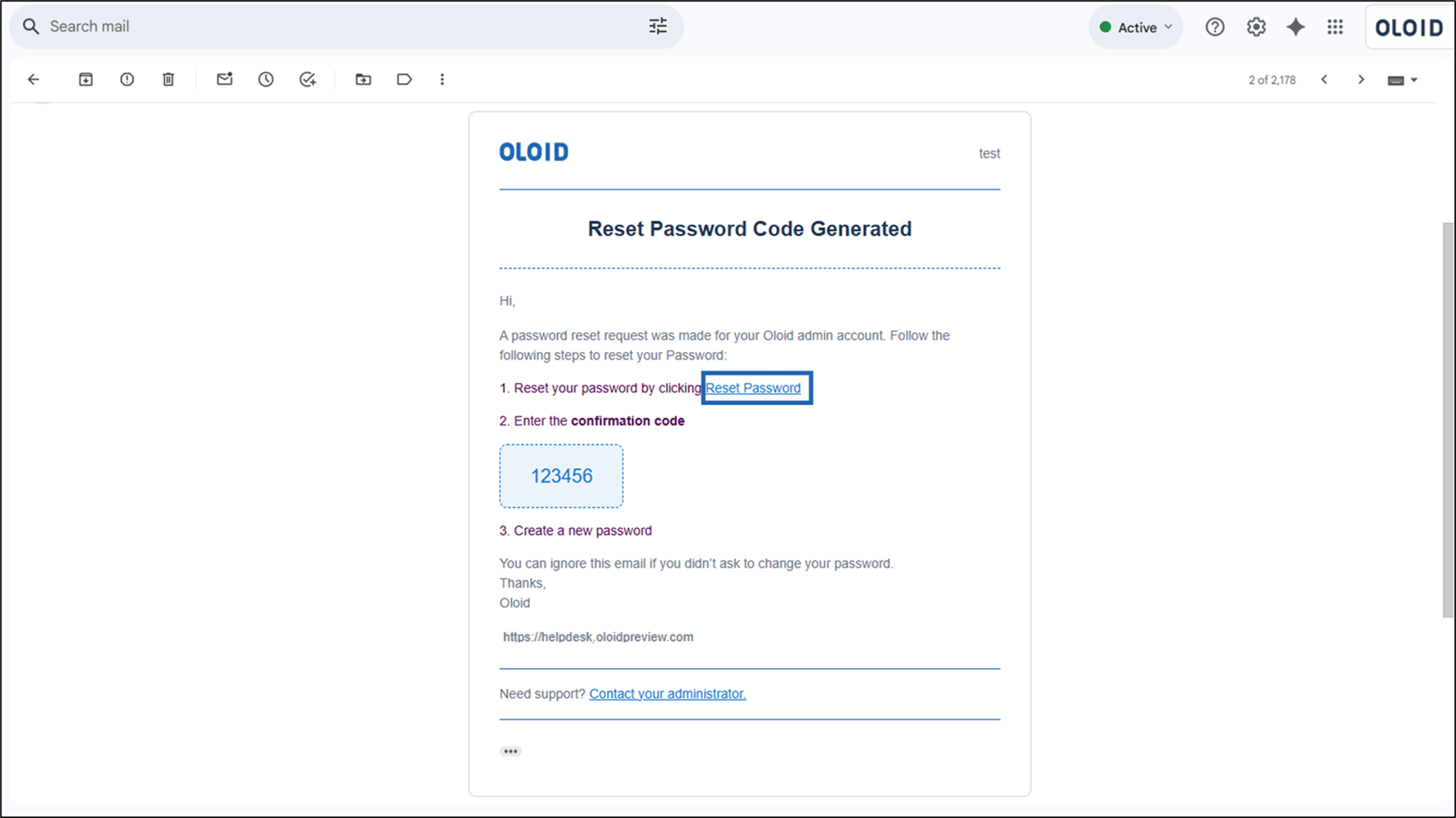
  7. Open your email account and go to the inbox.
  8. Copy the confirmation code > click on the Reset Password link. How to Reset the Admin Password - screenshot 9 The Set New Password page is displayed.
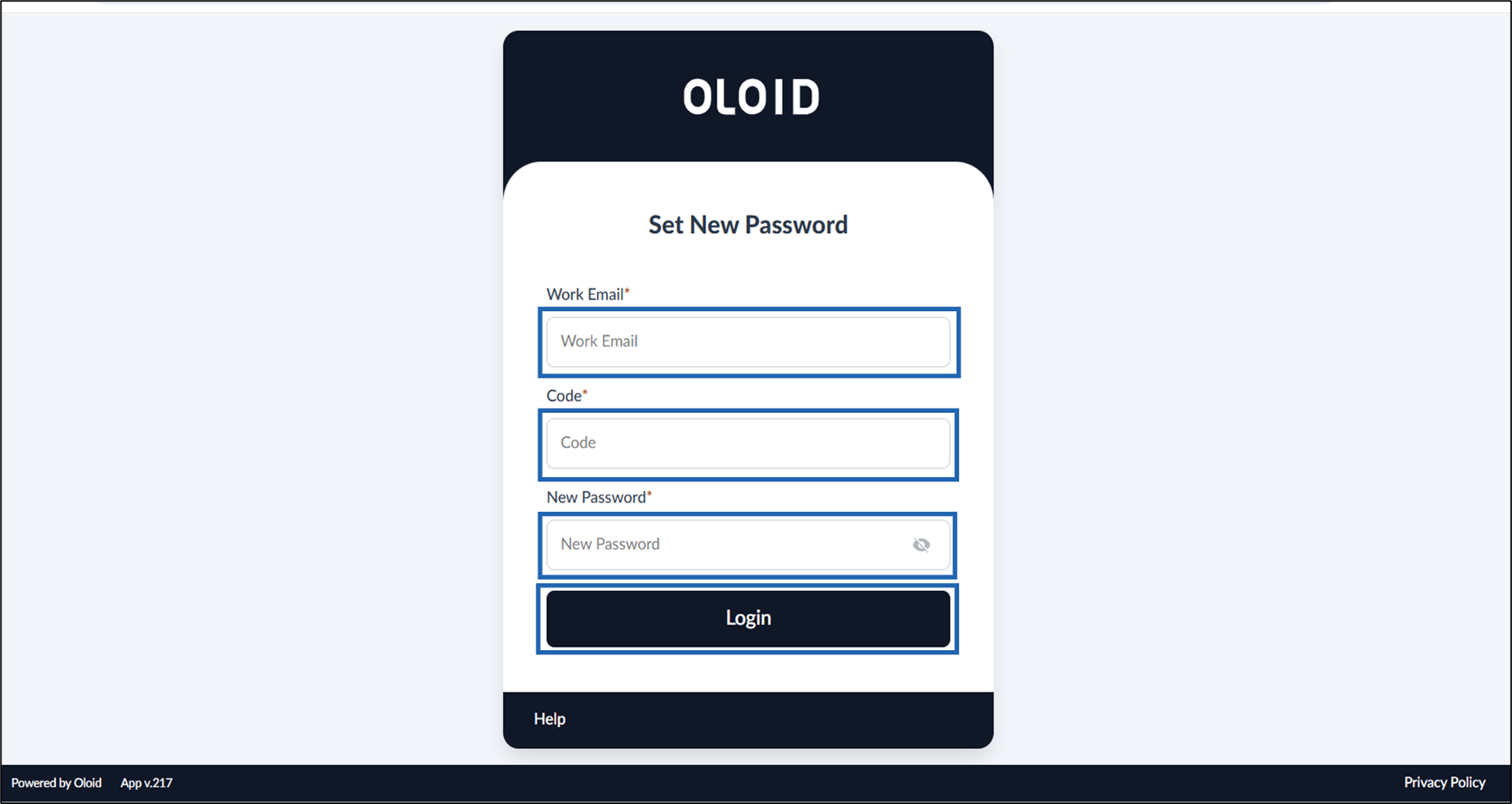
  9. Enter Work Email ID.
  10. Enter Confirmation Code in the Code field.
  11. Enter New Password.
  12. Click Login. How to Reset the Admin Password - screenshot 10 The Password for Oloid DeviceLock is reset successfully. How to Reset the Admin Password - screenshot 11