

Introduction
The Tenant Admin Portal allows admins to manage user access for the DeviceLock application. If a user no longer needs access or must be temporarily restricted, admins can deactivate their account. Deactivation instantly revokes the user’s access to the DeviceLock app while securely retaining their account information for future reactivation.Prerequisites
- You must have a Tenant Admin account.
- The user must be registered in the Tenant Admin Portal.
Steps to Deactivate User
- Log in to the Tenant Admin Portal.
- On the home page of the portal, click Directory on the left menu panel.
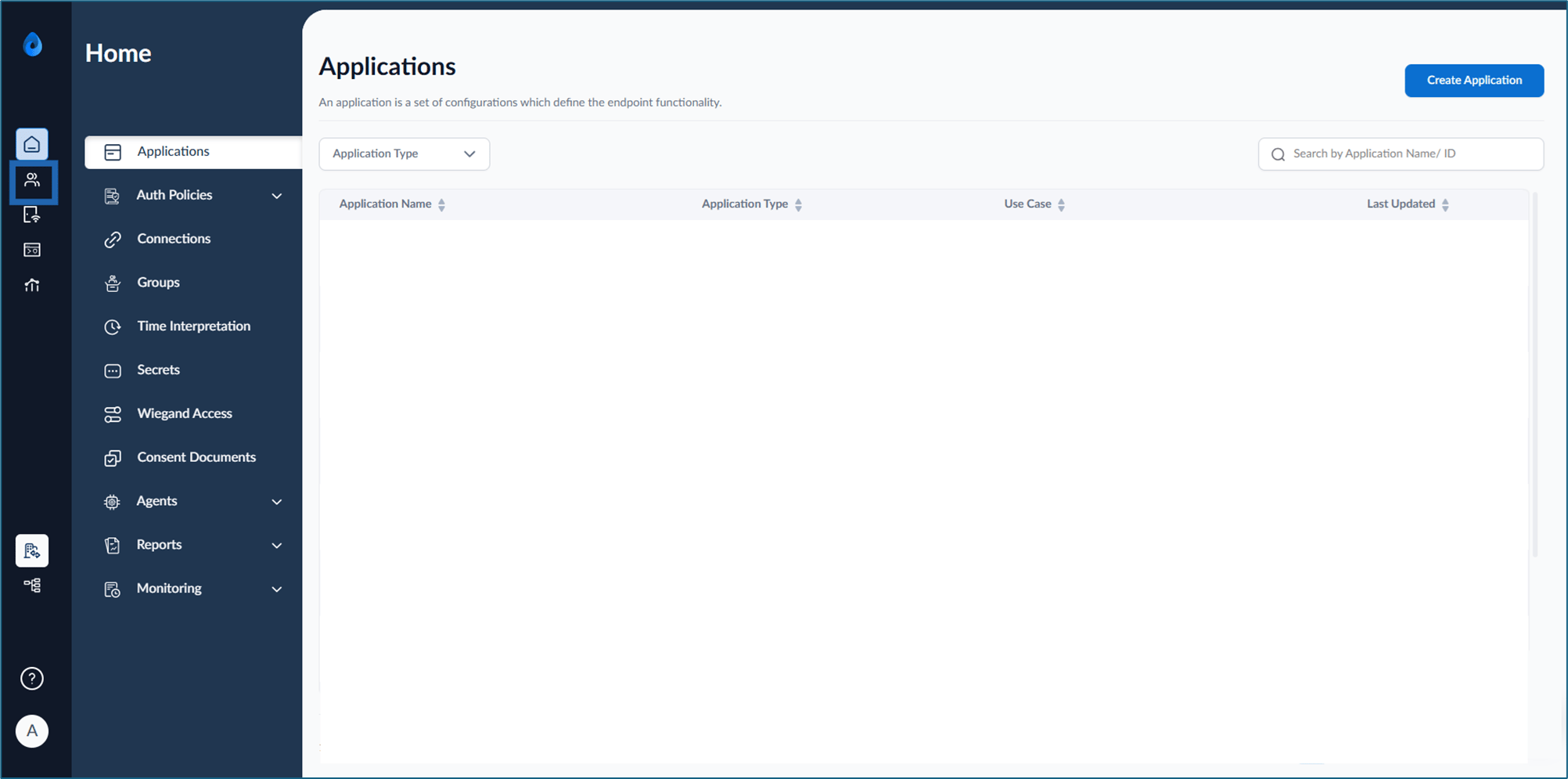
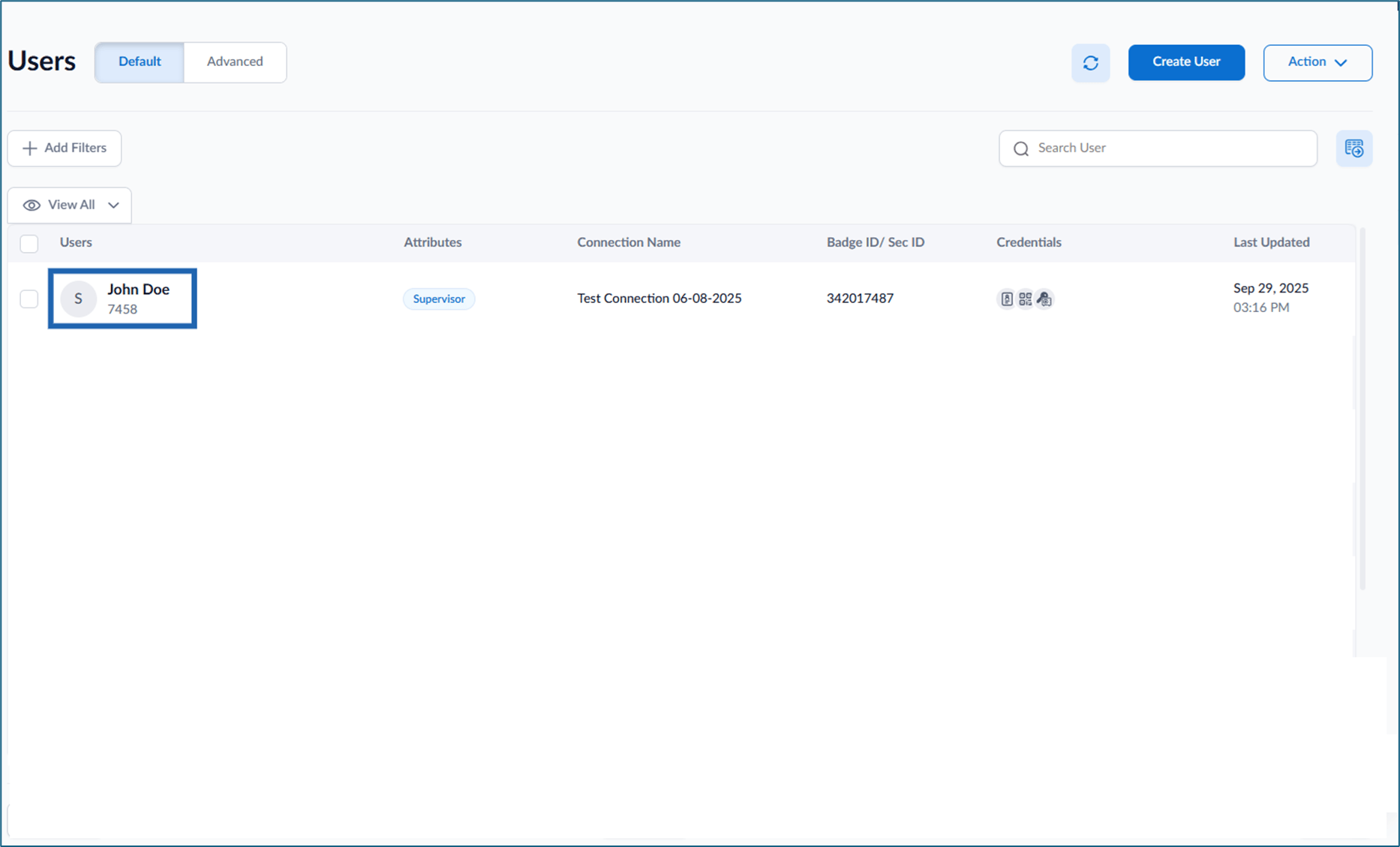
- Click Username to edit.
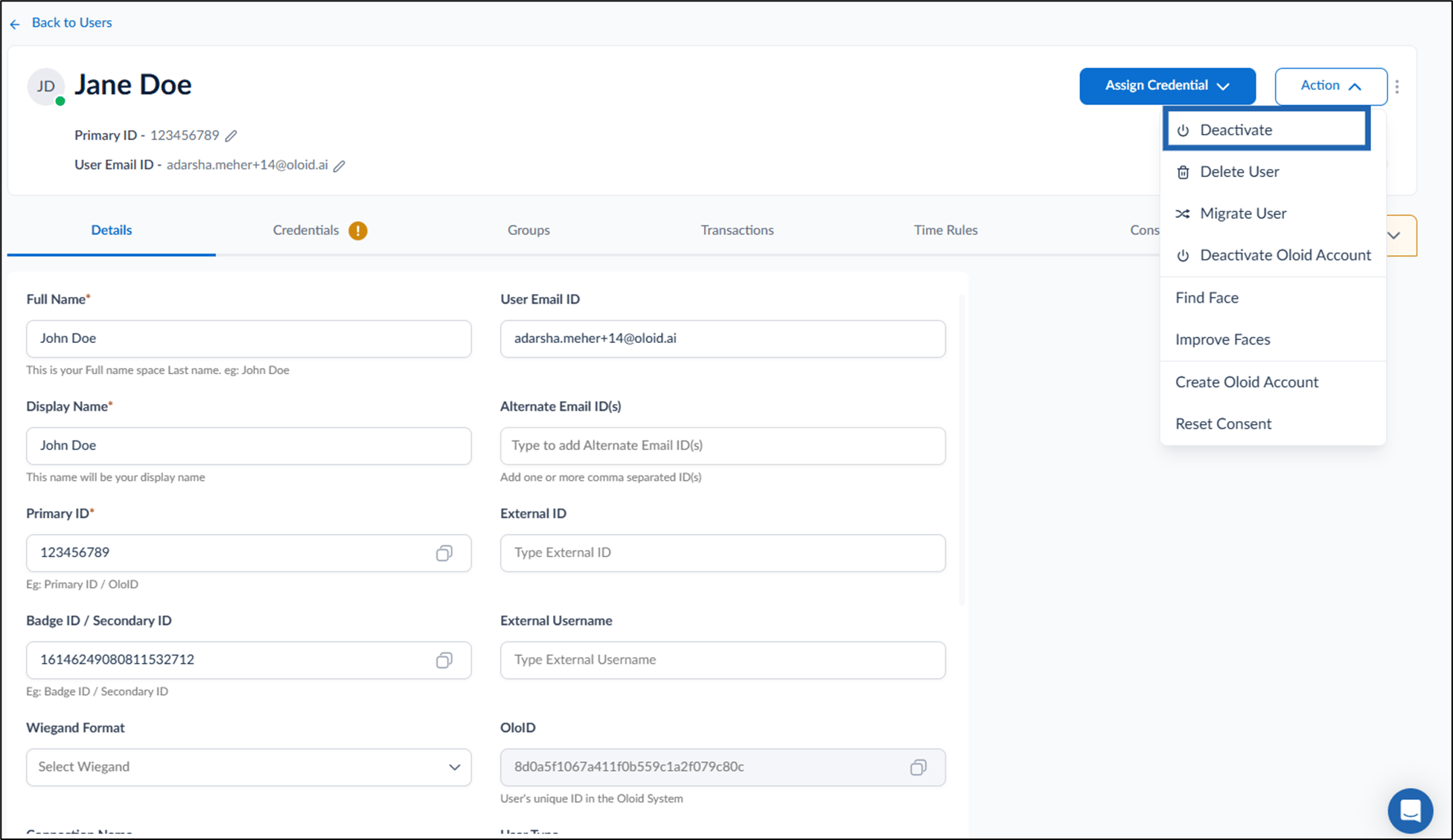
- On the top-right, go to Action > Deactivate.
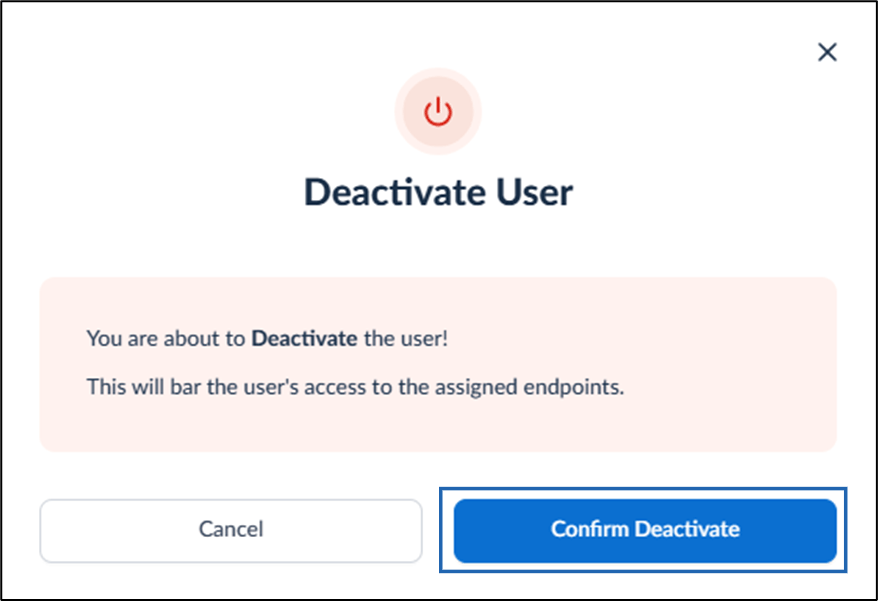
- Click Confirm Deactivate.
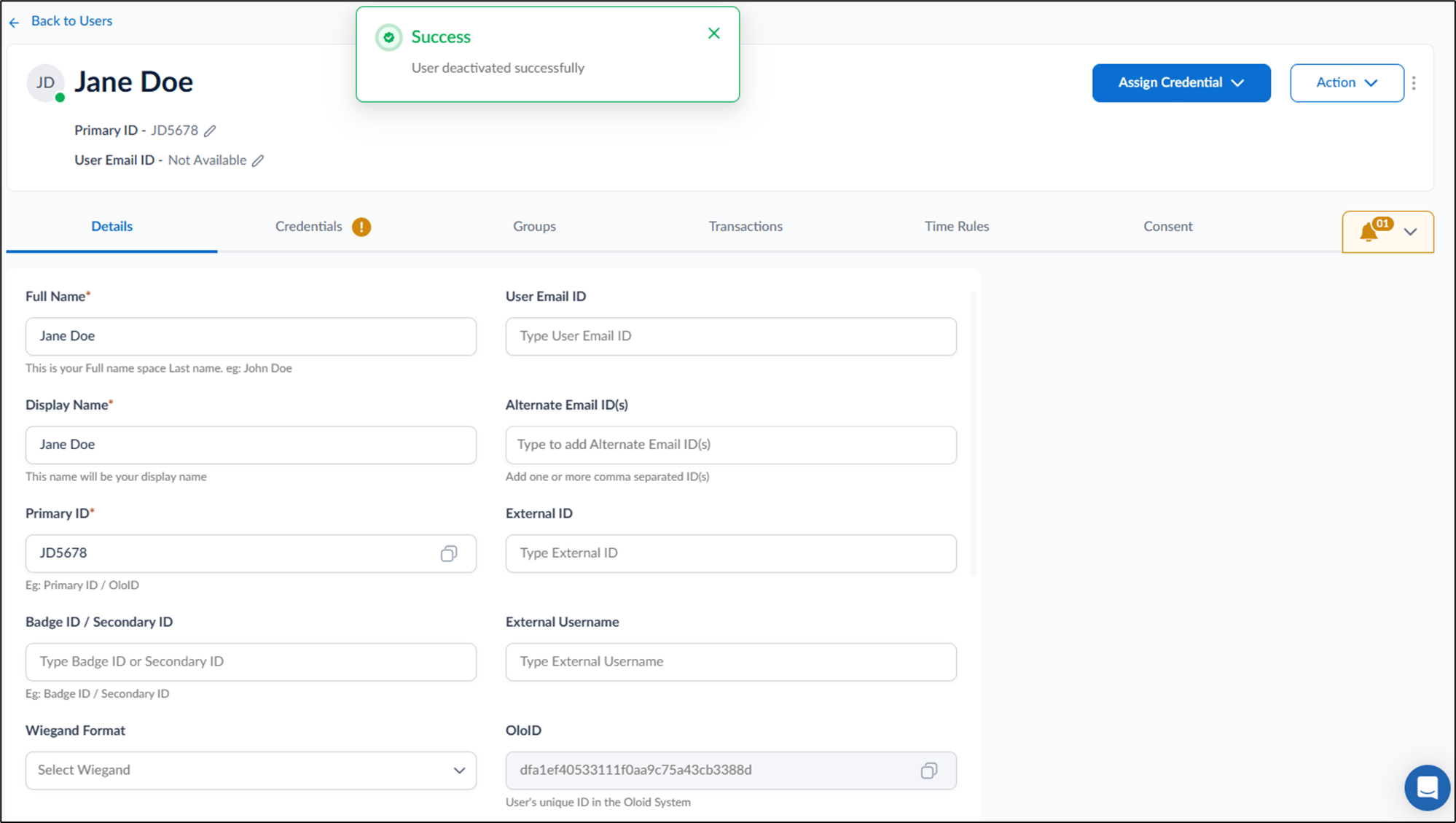
- Users list (home screen)
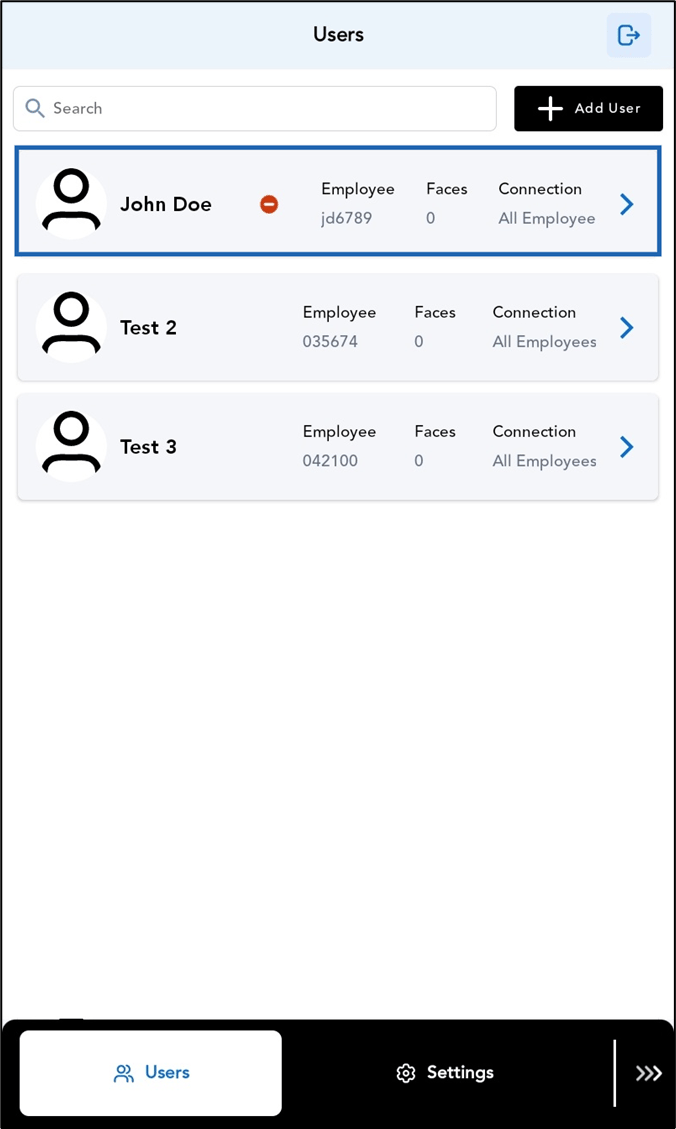
- Inactive User pop-up box
