Introduction
The Tenant Admin Portal allows the admin to update an Auto-Pair configuration file that simplifies the process of pairing endpoints with the Oloid DeviceLock application. By updating this file, admins can securely define token validity, pairing rules, and endpoint limits, ensuring a seamless and controlled setup experience for end users.Prerequisite
You have Admin access to the Tenant Admin Portal.Steps to Update Auto-Pair config file
- Log in to the Tenant Admin Portal.
- On the homepage of the portal, click user profile icon on the bottom left corner of the menu panel.

- Click Tenant Settings.

- Go to Security tab > API Token dropdown > API Key.

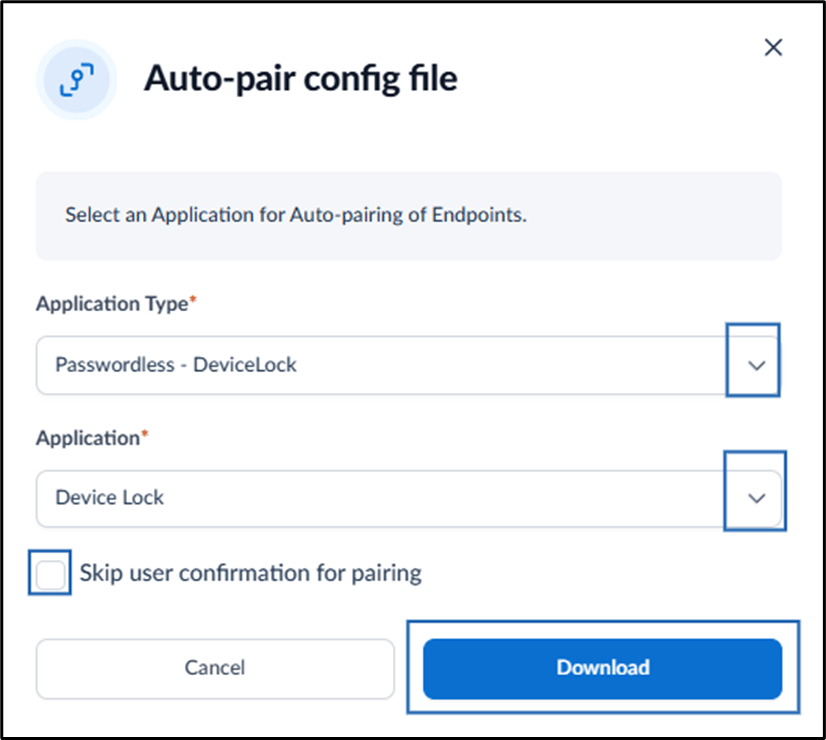
- In the Generate Temporary Access Token section, click Edit.
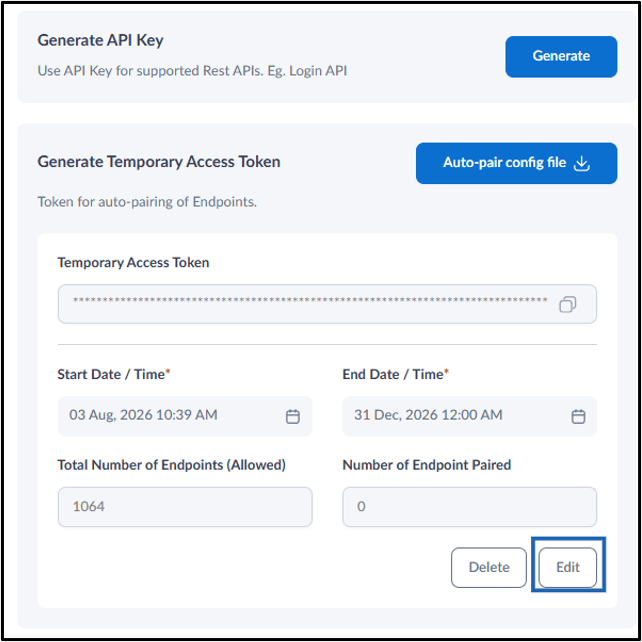
- Do the following:
-
Select the Start Date/Time field.
- To set the start date and time, click the date picker or select Now.
-
Select the End Date/Time field.
-
Click the date picker, choose when the token will expire, and then click OK.
Note:Token Expiry Alert appears when the Auto-pair configuration file is set to expire within the next 10 days.
-
Click the date picker, choose when the token will expire, and then click OK.
-
Specify Total Number of Endpoints (Allowed) that can be created with the generated config file.
Note:
- Once the Number of Endpoints Paired reaches this limit, the configuration file cannot be used to pair additional endpoints. Increase the allowed limit to continue pairing new endpoints.
- If total number of Endpoints (Allowed) below 20, then an Attention Alert pop-up will display.
- Click Save.
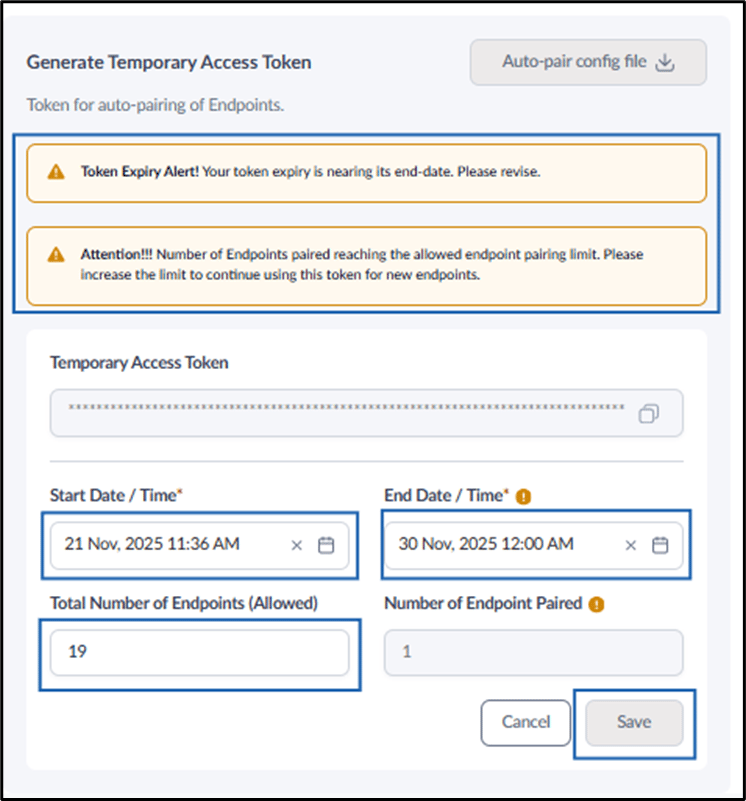

- Click Auto-pair config file download option.
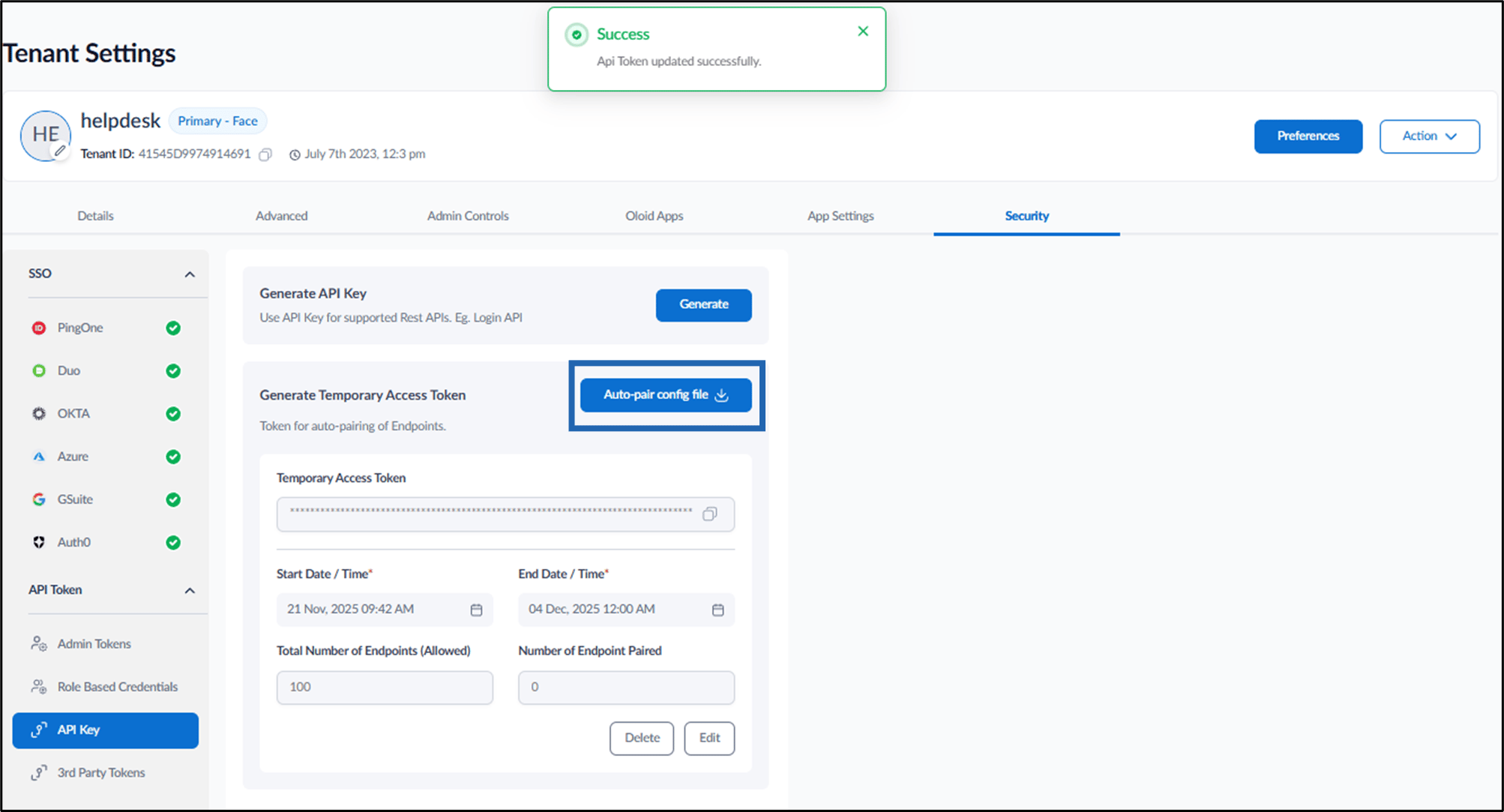
- Do the following:
- Select Application as Passwordless - DeviceLock from Application Type drop-down list.
- From the Select Application drop-down list, select the application that you want the endpoints to pair with.
- Select Skip user confirmation for pairing option to auto-pair endpoints without requiring user confirmation (optional but recommended).
- If selected: When the configuration file is uploaded to the endpoint, the system will pair automatically without prompting the user for confirmation.
- If not selected: The system will display a confirmation pop-up to the user before completing the pairing process.
- Click Download.
-
Select the Start Date/Time field.