Introduction
This document provides step by step instructions for configuring passwordless access on Android devices using Oloid DeviceLock and WebKey (Oloid Browser). The setup enables users to authenticate via Face or NFC through the DeviceLock app and automatically launch the WebKey page in Oloid Browser to seamlessly access the Okta dashboard without entering credentials.Prerequisites
- You must have Admin access to the Tenant Admin Portal.
- You must create and configure the DeviceLock application and enable Face and NFC under the authenticator tab.
- You must create and configure WebKey application.
Step 1: Configure Device Lock and Webkey Applications
- Setup Device Lock Application in platform
- Setup Webkey Application in the platform
Setup Device Lock Application in Tenant Admin Portal
- Log in to the Tenant Admin Portal.
-
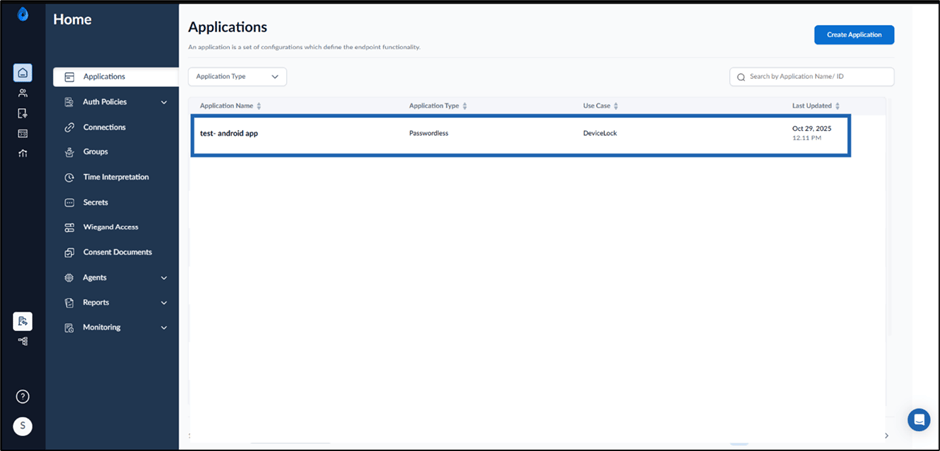
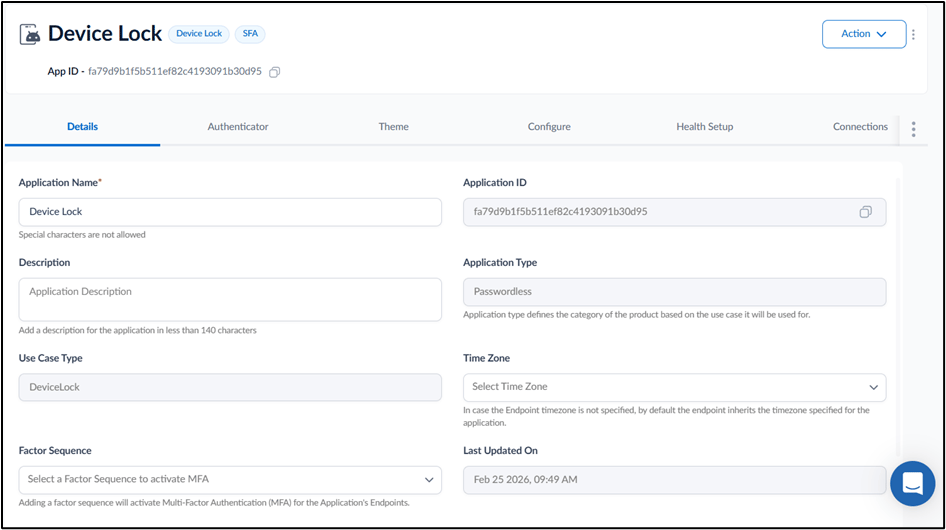
On the homepage of the portal, click on the Device Lock application to edit.
Note: Refer to create and configure the DeviceLock application.
-
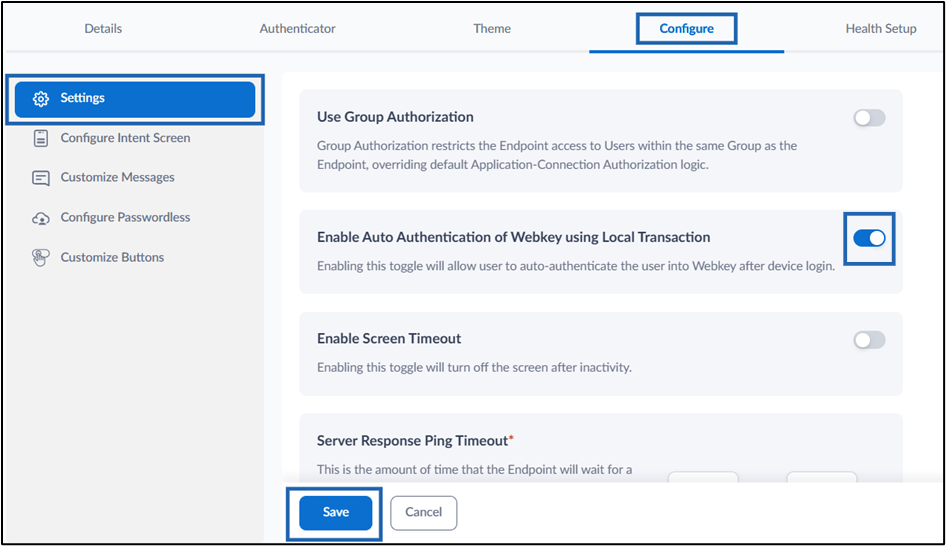
Go to Configure tab > Click Settings.

- Enable Auto Authentication of Webkey using Local Transaction toggle**.**
-
Click Save.
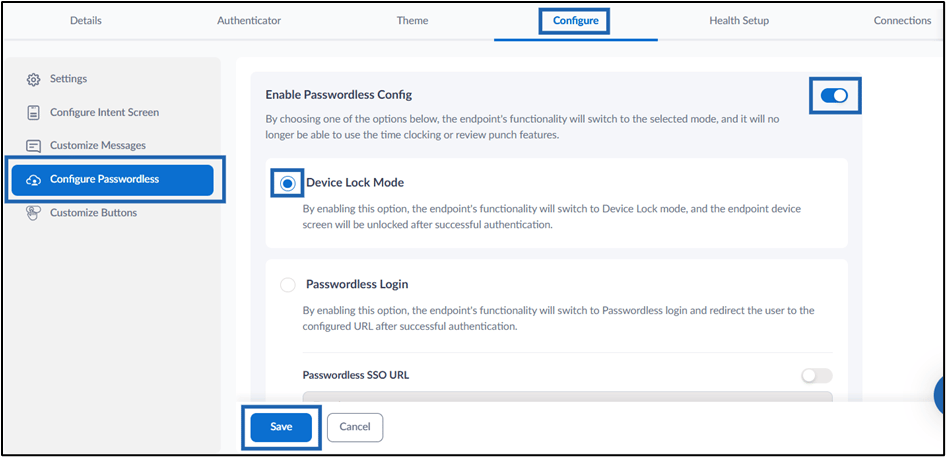
- Go to Configure Passwordless. The Configure Passwordless screen is displayed.
-
Do the following:
- Enable Passwordless Config toggle.
- Select Device Lock Mode.
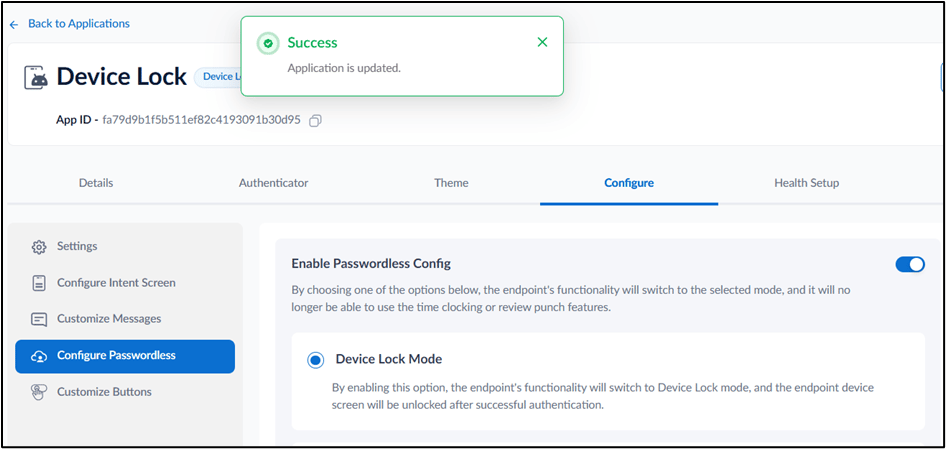
- Click Save.
Setup Webkey Application in the Tenant Admin Portal
- Log in to the Tenant Admin Portal.
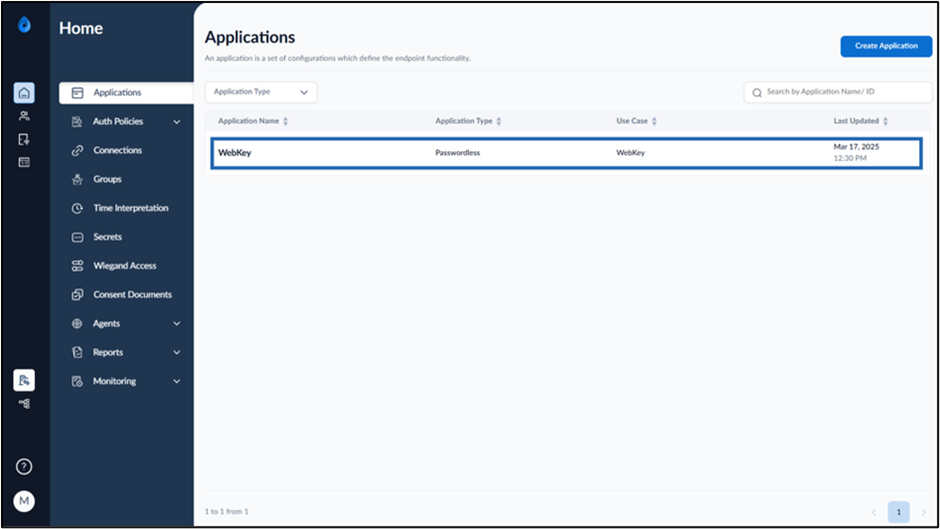
- On the Applications page, click on the Webkey application to edit. For more, refer to create and configure WebKey application.
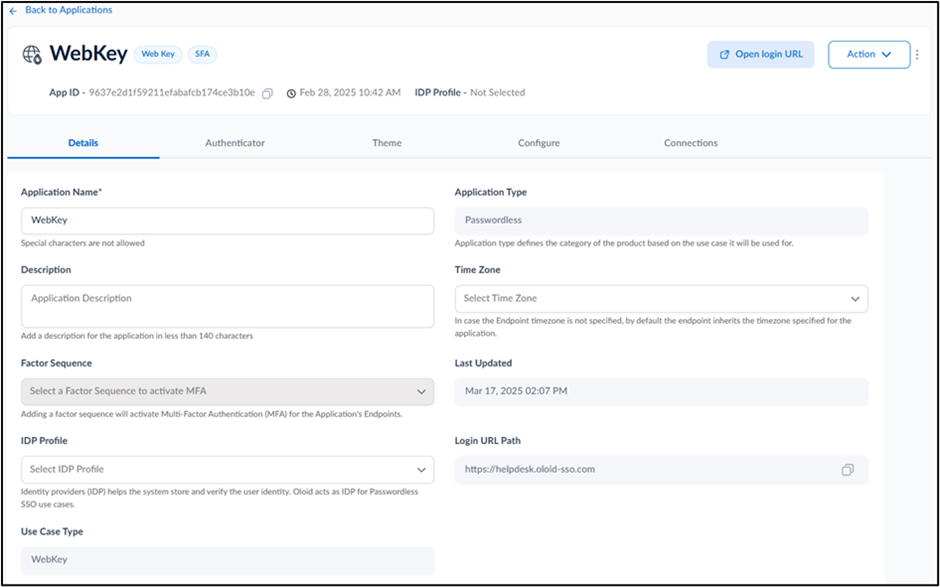
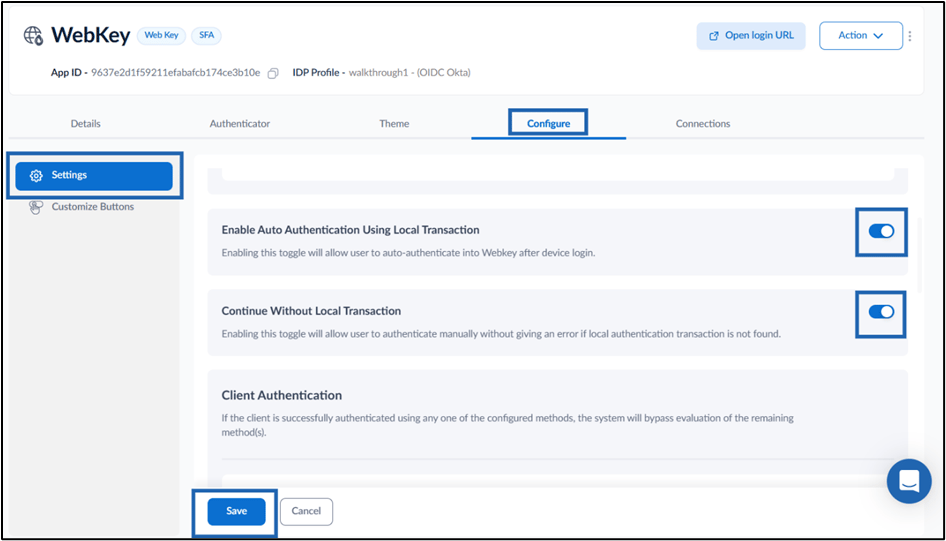
- Go to Configure > Click Settings.
The settings page is displayed.
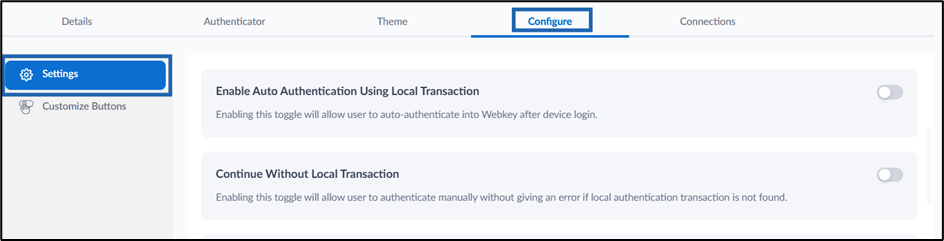
- Do the following:
- Enable Auto-Authentication using Local transactions toggle button will allow user to auto-authenticate into Webkey after device login.
- Enable Continue Without Local Transaction toggle button will allow user to authenticate manually without giving an error if local authentication transaction is not found.
- Click Save.

Step 2: Install, Pair and Setup the Oloid Browser and Device Lock Application on Android Device
Installation
-
Install Oloid Browser on your android device.
Note: Contact Oloid support to get the APK files.
- Download and install the DeviceLock app from the Google Play Store. For More, refer to How to Download DeviceLock App
- Provide all the required permissions to DeviceLock app. (Go to Settings and allow Restricted Permissions for the DeviceLock app to provide all required permissions.)
Steps to Pair Device Lock Endpoint
Once the Device Lock application is successfully installed you need to pair your endpoint. You can pair DeviceLock endpoint using any of the following options:- How to pair Oloid DeviceLock App using “Pair as Supervisor” option.
- How to Pair Oloid DeviceLock App using “Auto-Pair” option.
- How to Pair Oloid DeviceLock App using the “Auto-Pair using Config File” option.
-
(Optional) You can select the Device Lock Endpoint template while pairing the endpoint. For more, refer to How to Create and Configure DeviceLock Endpoint Template in Tenant Admin Portal
Note: After the endpoint is successfully paired, you must enable the Passwordless Session Token toggle and the Include user token in response toggle for the endpoint in the Tenant Admin Portal. For more, refer to How to Configure Endpoint in the Tenant Admin Portal
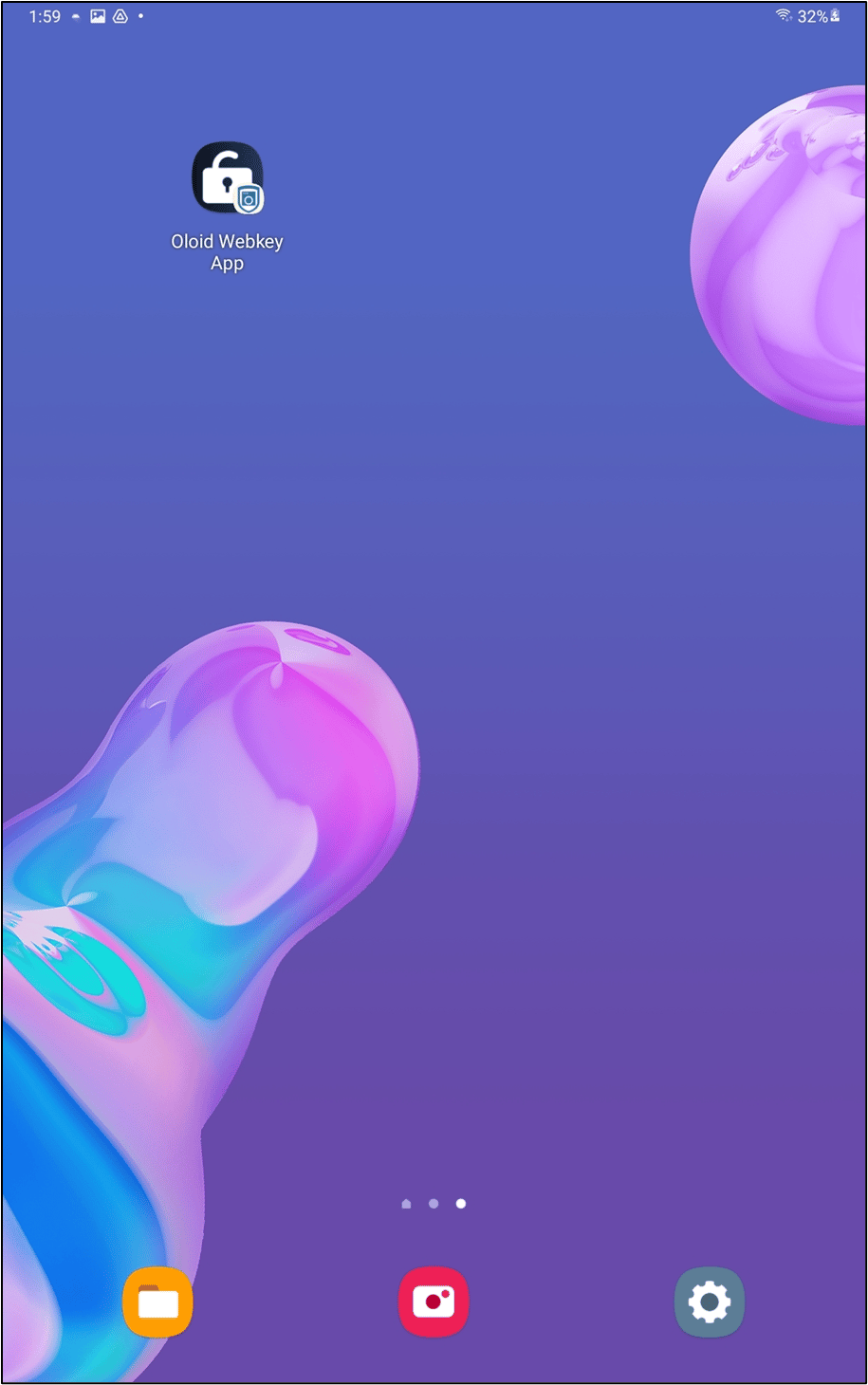
Add WebKey Shortcut to Oloid Browser
- Open Oloid Browser on the Android device.
- Open a new tab and navigate to the configured WebKey URL.
- Tap the browser menu (kebab icon).

- Select Add app to Home screen.
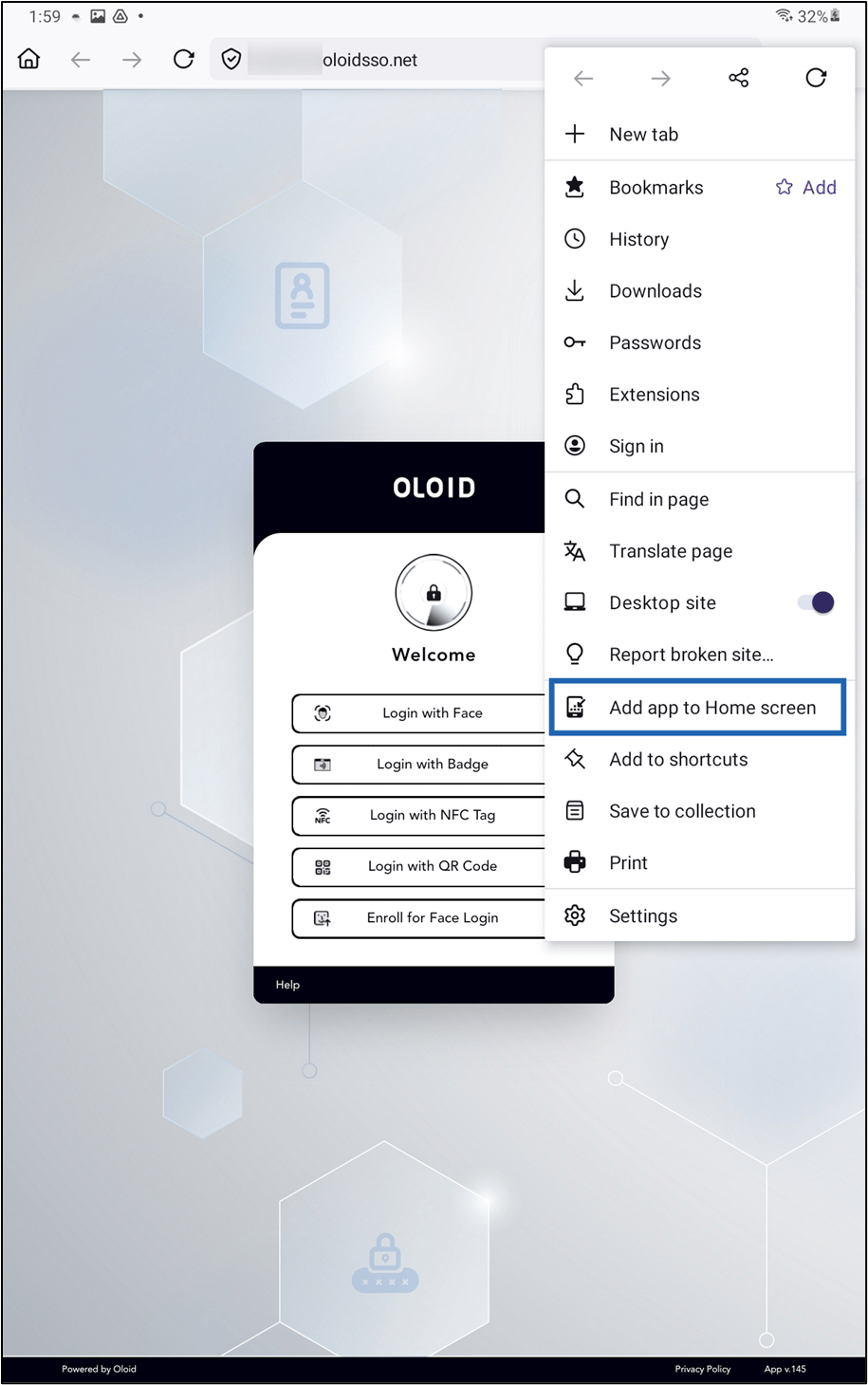
- Tap Add.
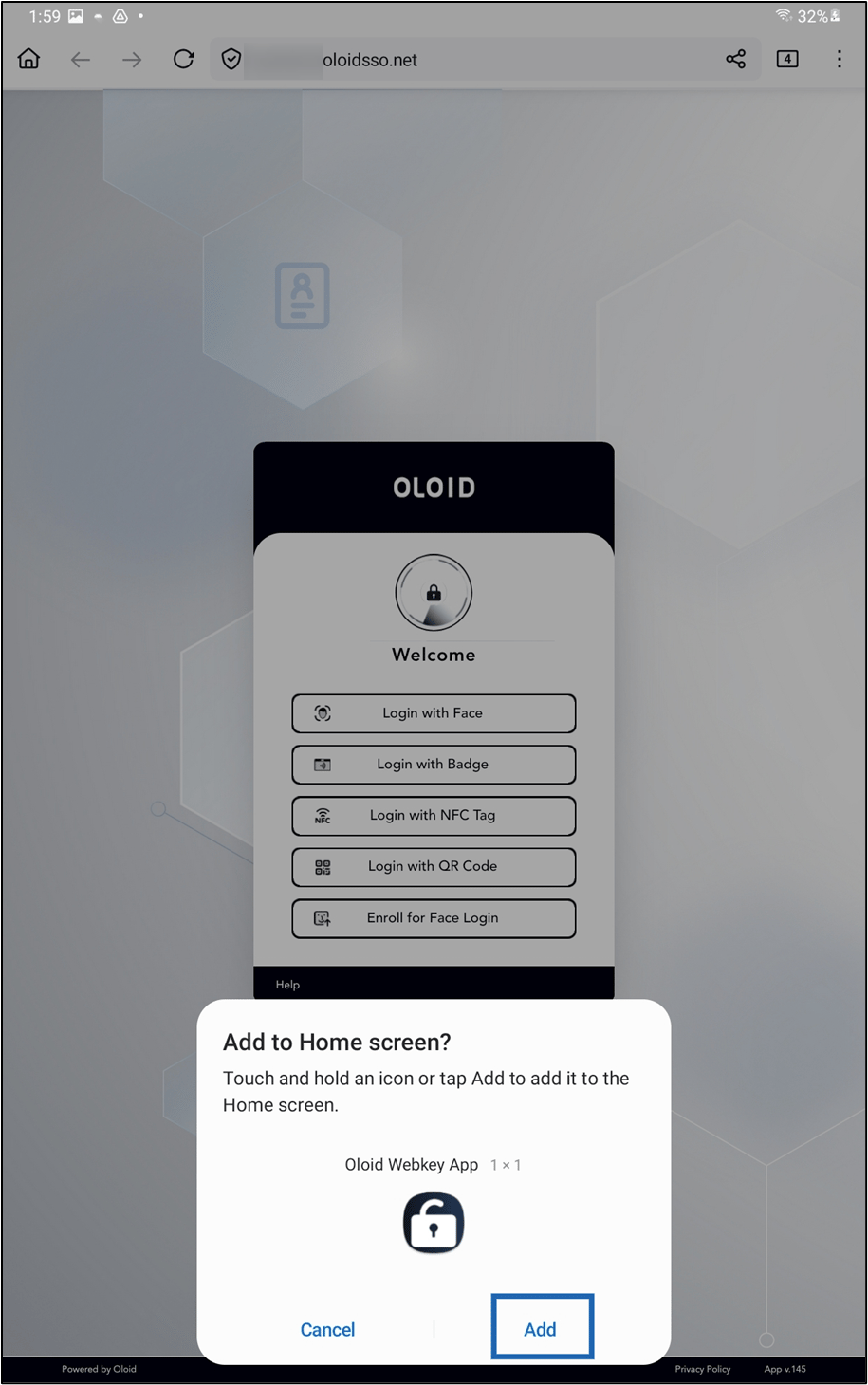
Step 3: Use Case
Authenticate using Face
- Press the Power button or tap the screen on your device. The Welcome screen is displayed.
-
Tap Login with Face.

-
Position your face in front of the camera and tap the Capture button to complete the authentication process.
Note: If you do not tap the Capture button, the app automatically captures your face after a few seconds.

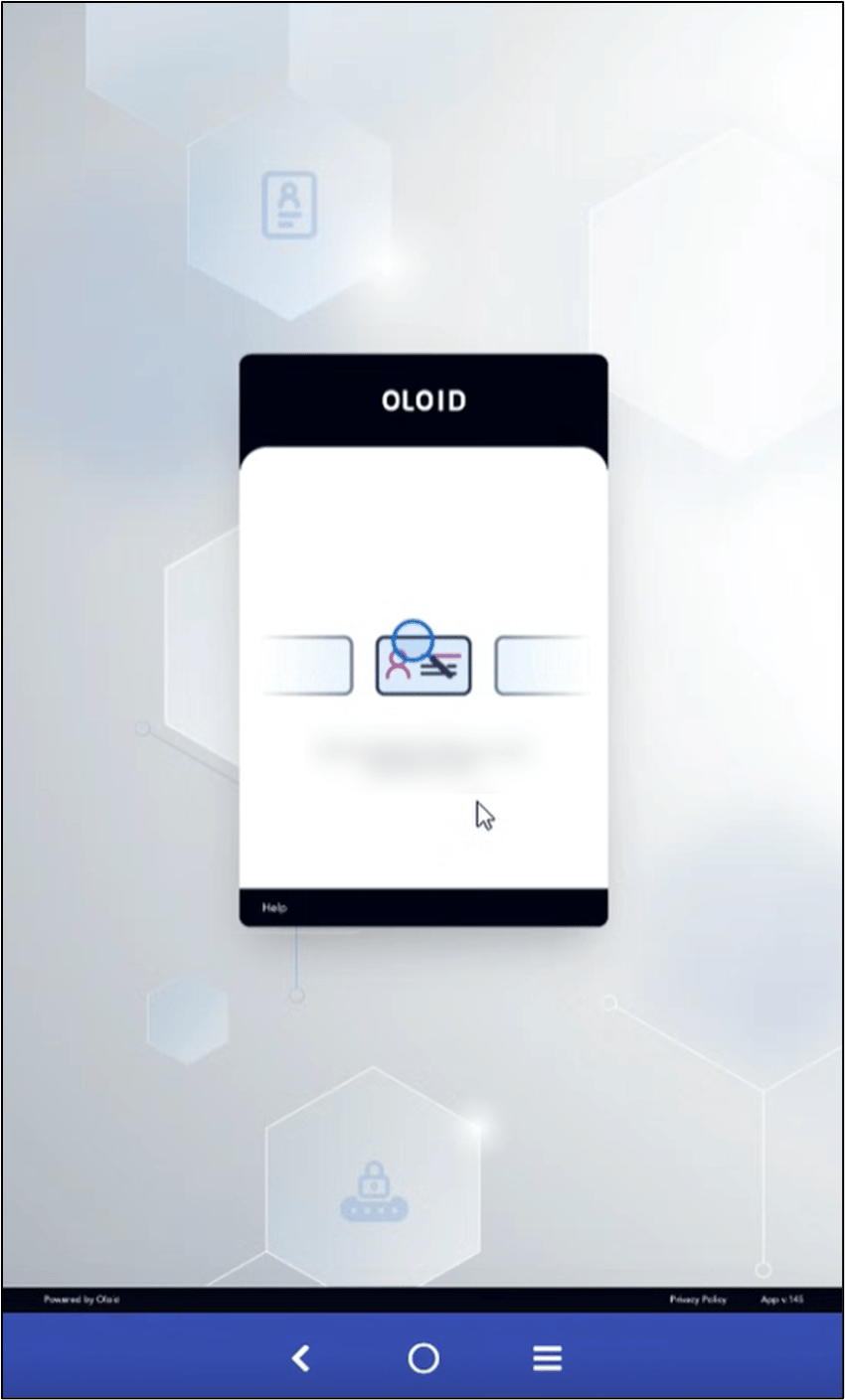
- Tap Oloid Webkey App.


Authenticate using NFC
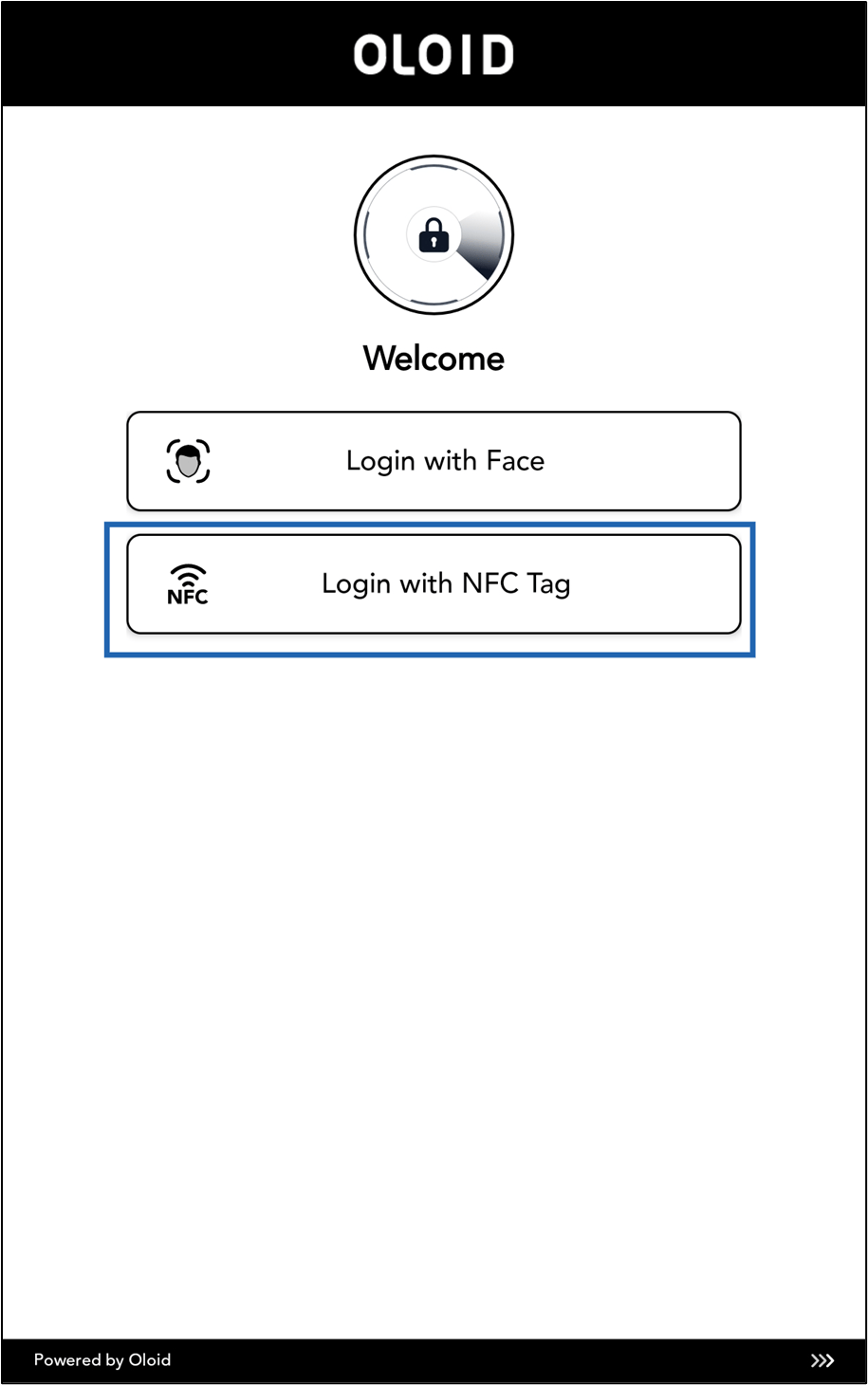
- Press the Power button or tap the screen on your device. The Welcome screen is displayed.
-
Tap Login with NFC Tag.
Note: Ensure that the Android device must be connected to an external NFC reader/card reader.
-
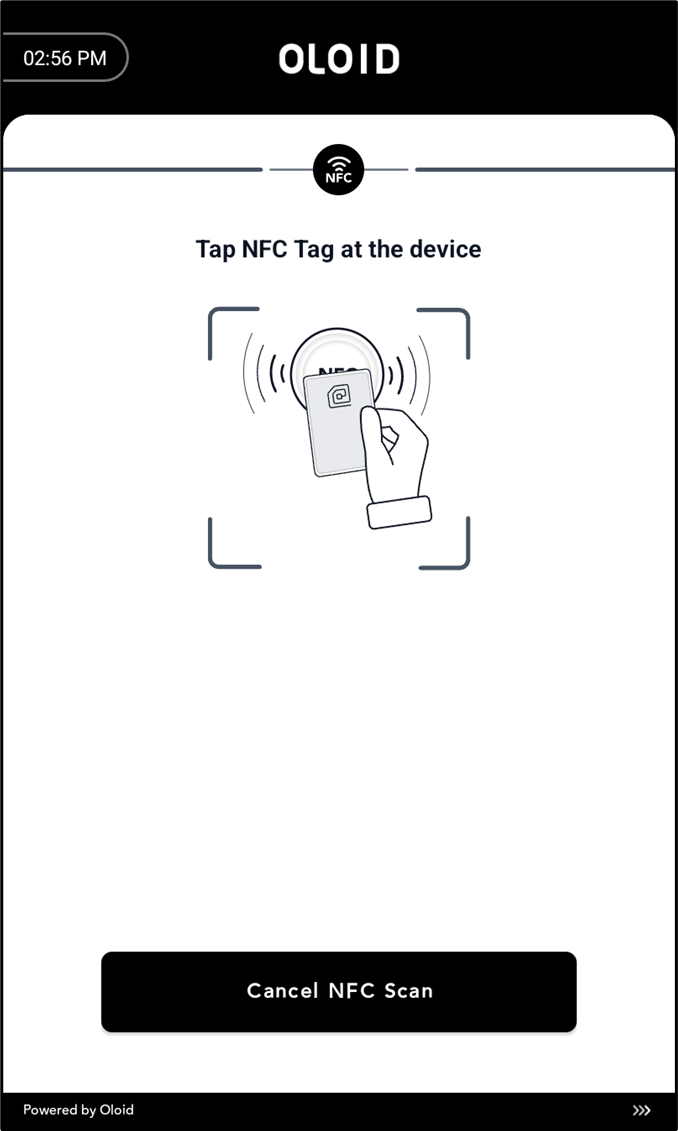
Scan the NFC Tag.
- Tap Oloid Webkey App to launch the browser.