Introduction
The DeviceLock Endpoint Template in the Tenant Admin Portal allows admin to create and manage standardized configurations for DeviceLock endpoints, including access controls, logging preferences, integrations, and health alerts.Prerequisite
You must have a Tenant Admin Account.Steps to Create Endpoint Template
- Log in to the Tenant Admin Portal.
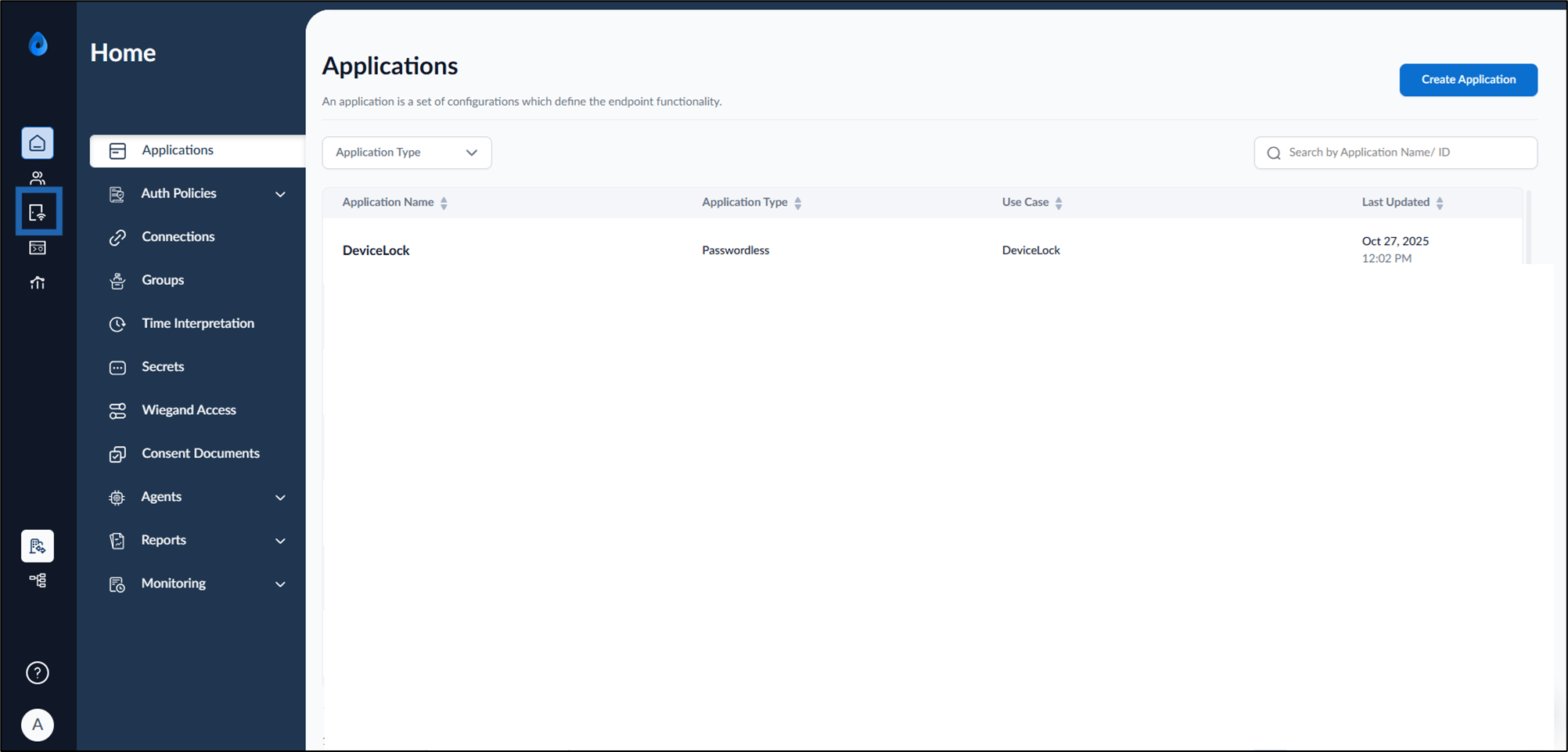
- On the homepage, select Endpoint from the left menu panel.
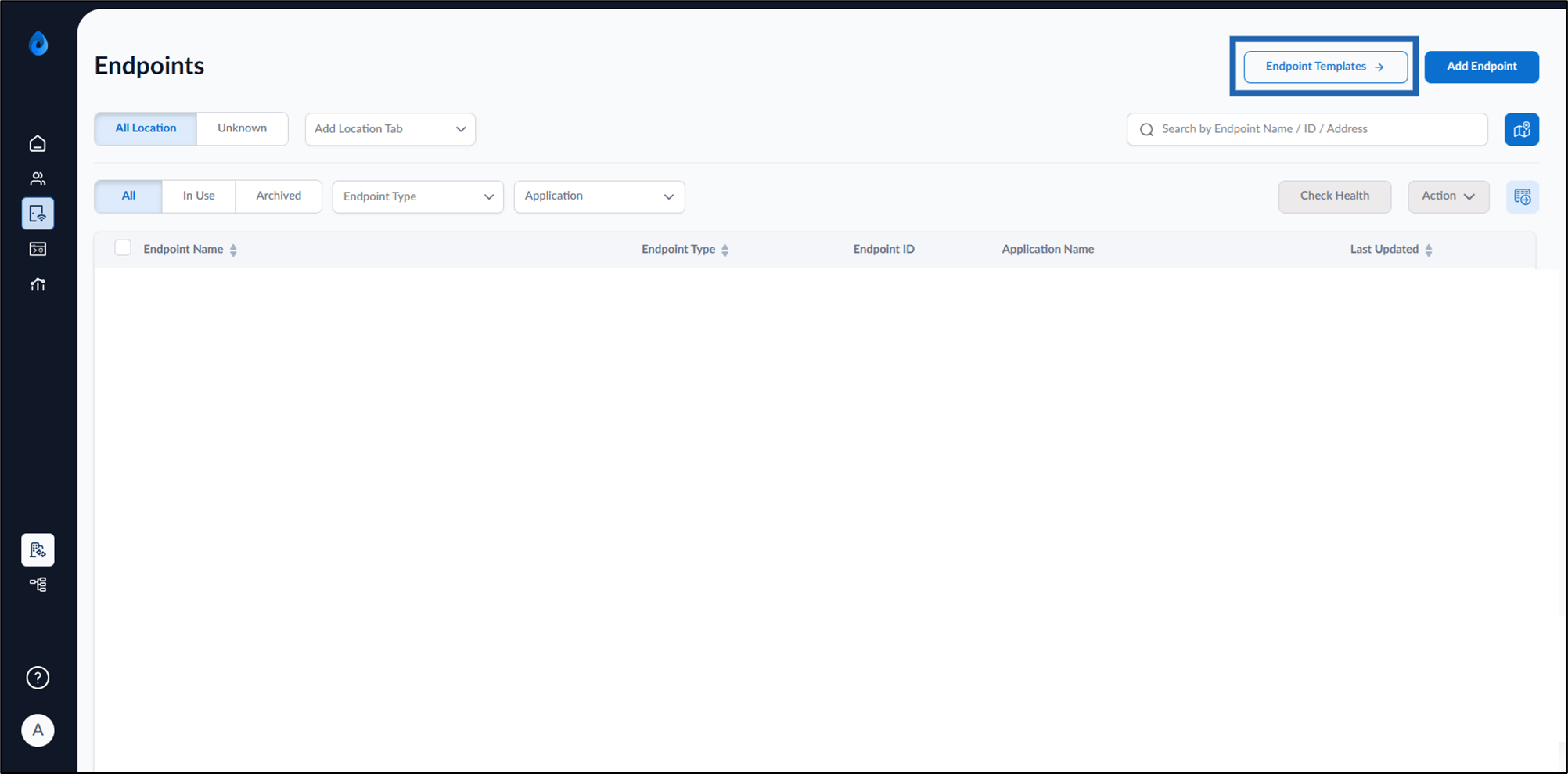
- Click Endpoint Templates from the top right.
- Click Create Template from the top right.

- Do the following:
- Enter Template Name.
- Select Passwordless in Application type from the dropdown list.
- Select DeviceLock for Endpoint Type from the dropdown list.
- Click Create.


Steps to Configure Endpoint Template
- Select DeviceLock endpoint name to configure.
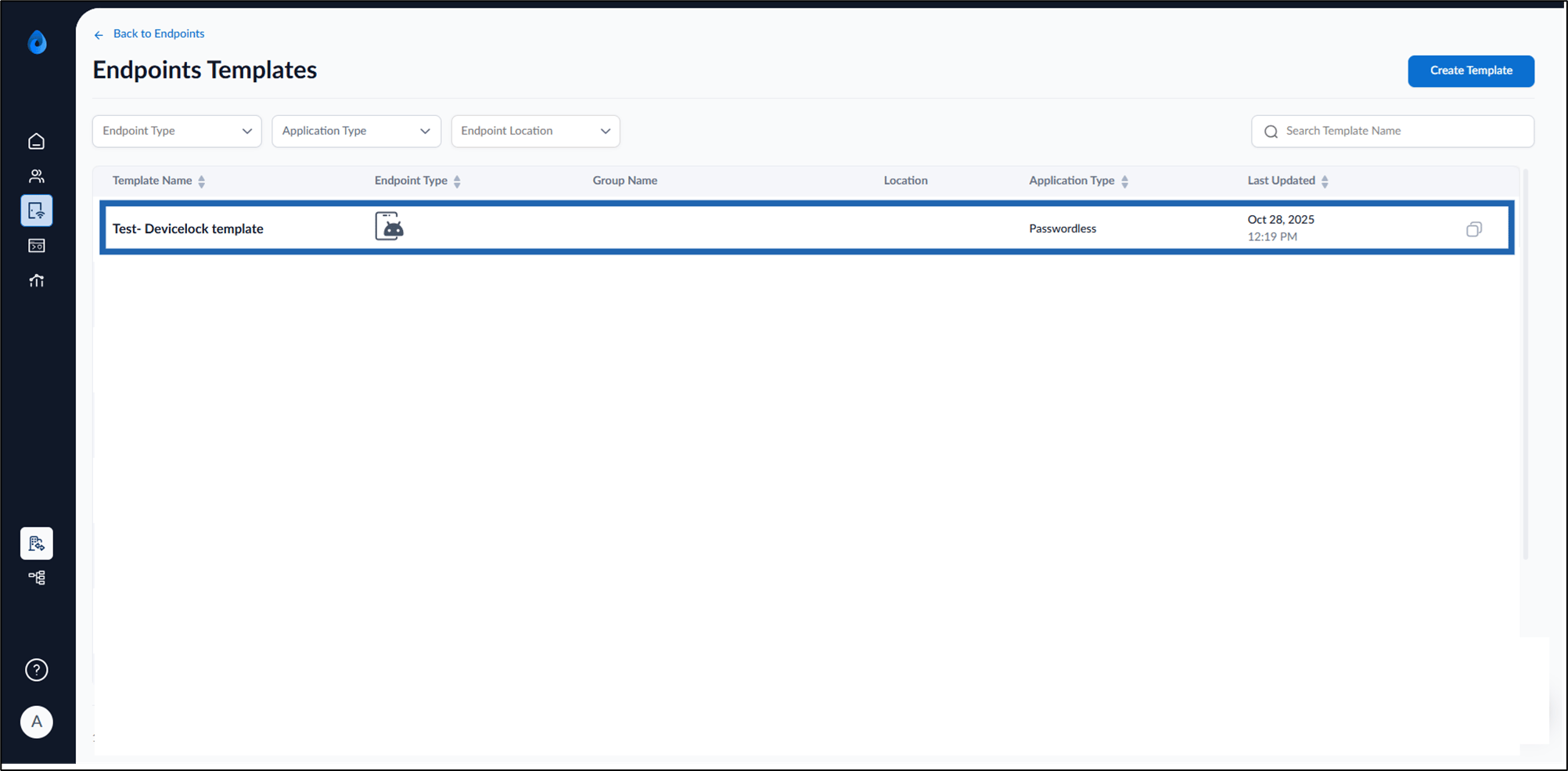

- Configure the following tabs:
Configure Details Tab
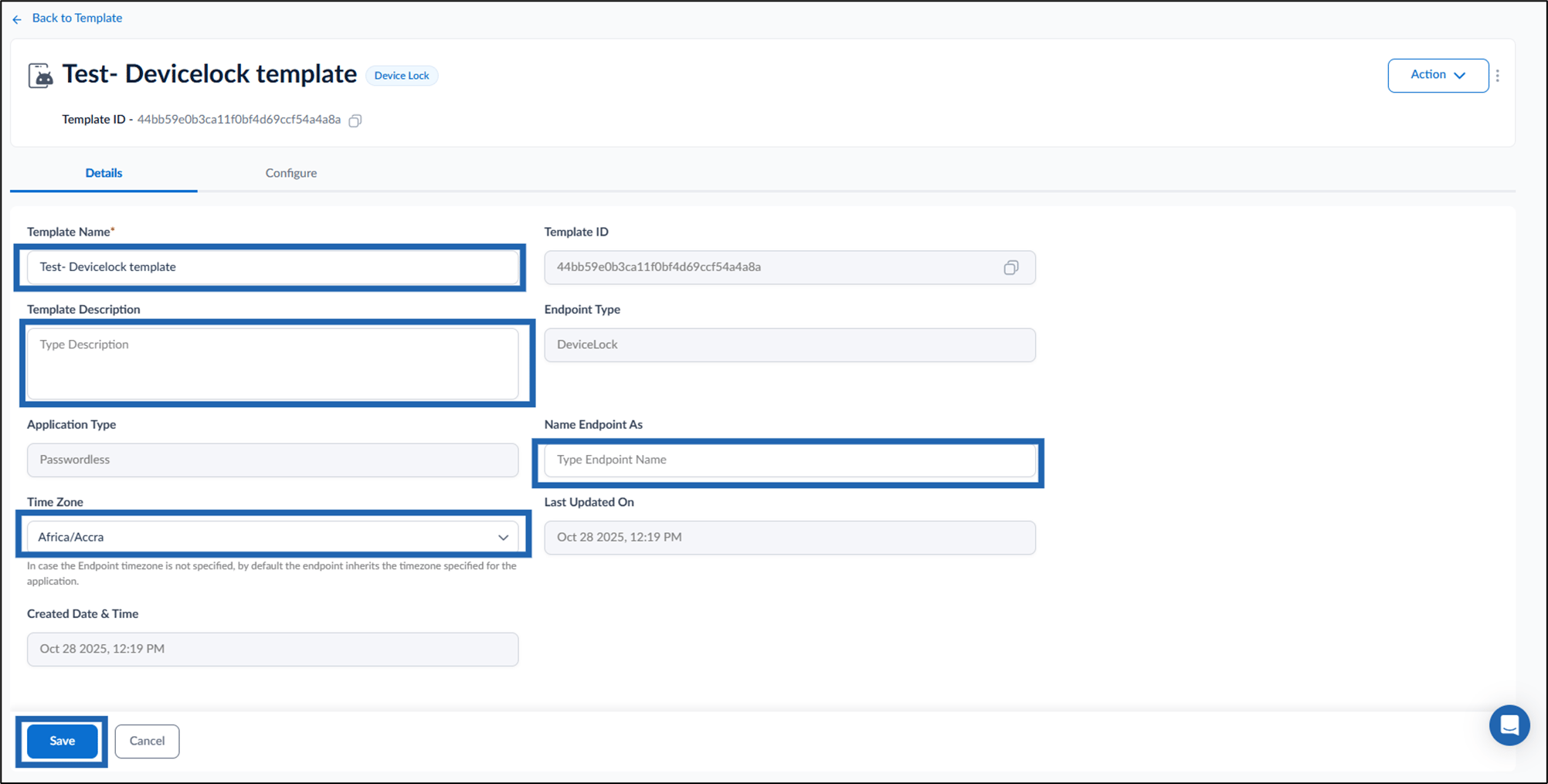
- Edit Template Name (If required).
- Enter Template Description. (Optional)
- Enter name in Name Endpoint As text field. (Optional)
- Select Time Zone from the dropdown list. (Optional)
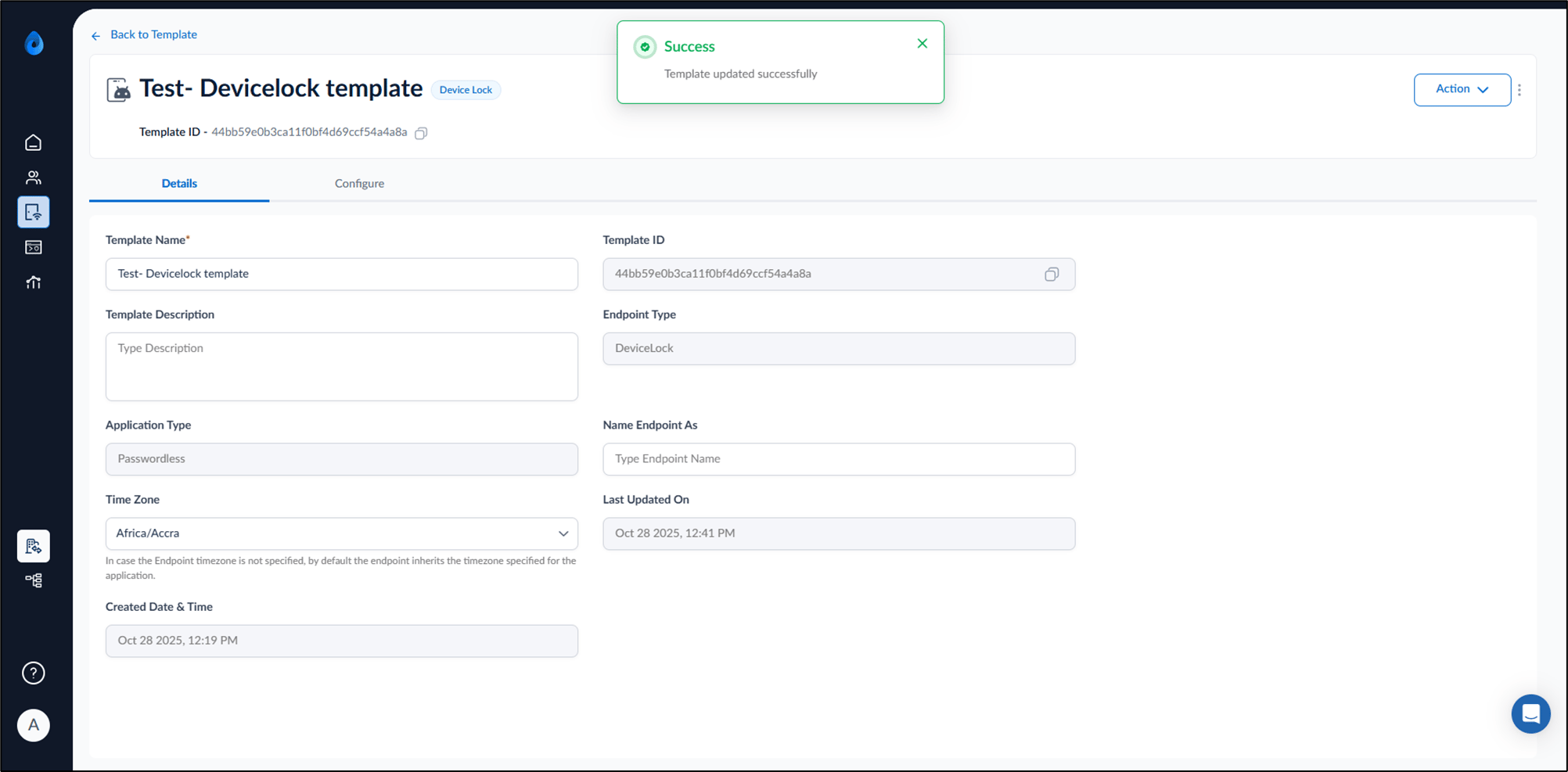
- Click Save.
Setup Configure Tab
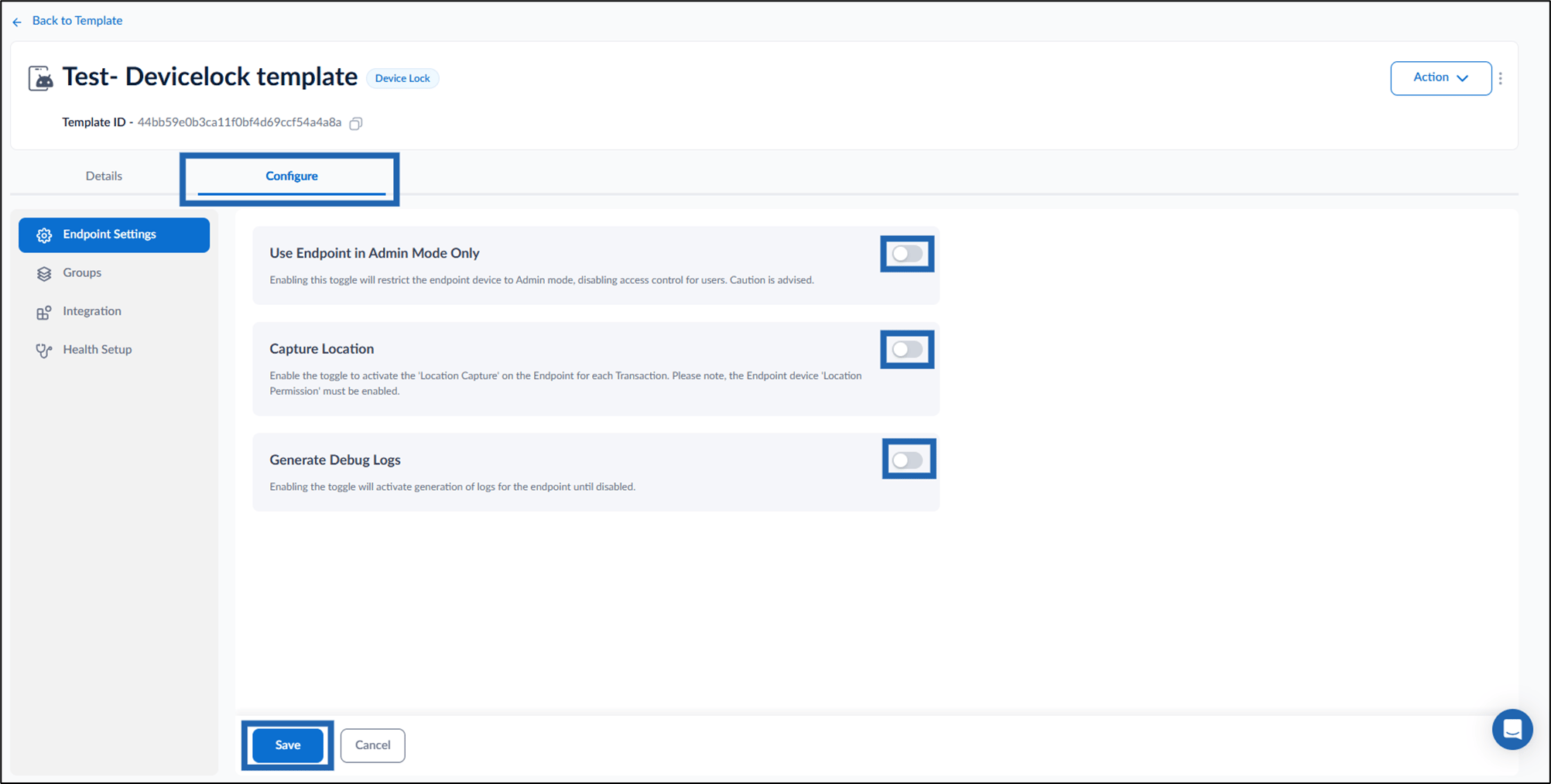
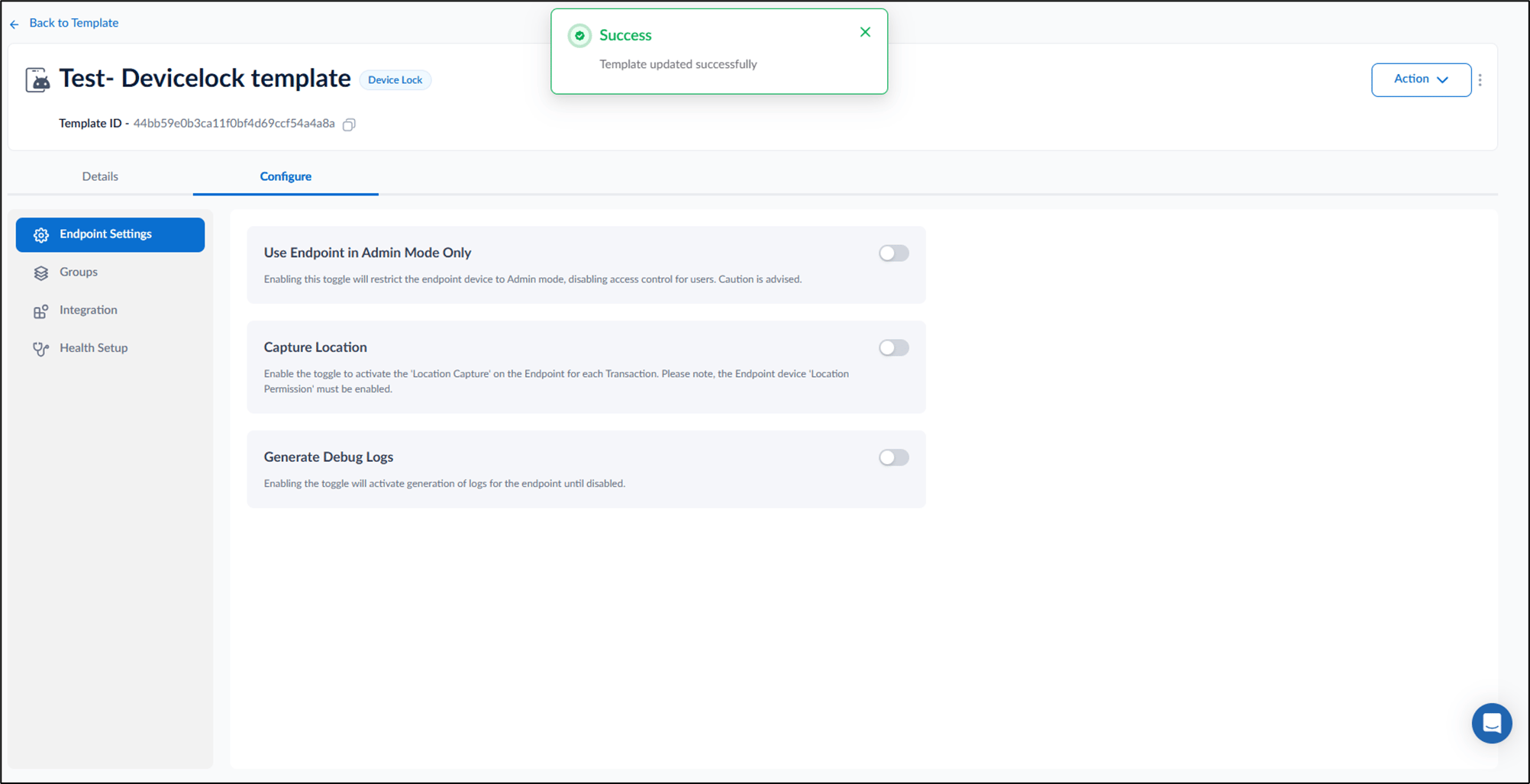
Go to configure tab and do the following: Endpoint Setting Groups Integration Health SetupEndpoint Setting
- Turn on Use Endpoint in Admin Mode Only toggleto disable user’s access control.
-
Turn on Capture Location toggle to activate the location capture on the endpoint for every transaction.
Note: Enable the location permission of the device to make Capture Location feature functional.
- Turn on Generate Debug Logs toggle to activate log generation for endpoint until disabled.
Groups
- Select Groups option from left menu panel > click Add Group.
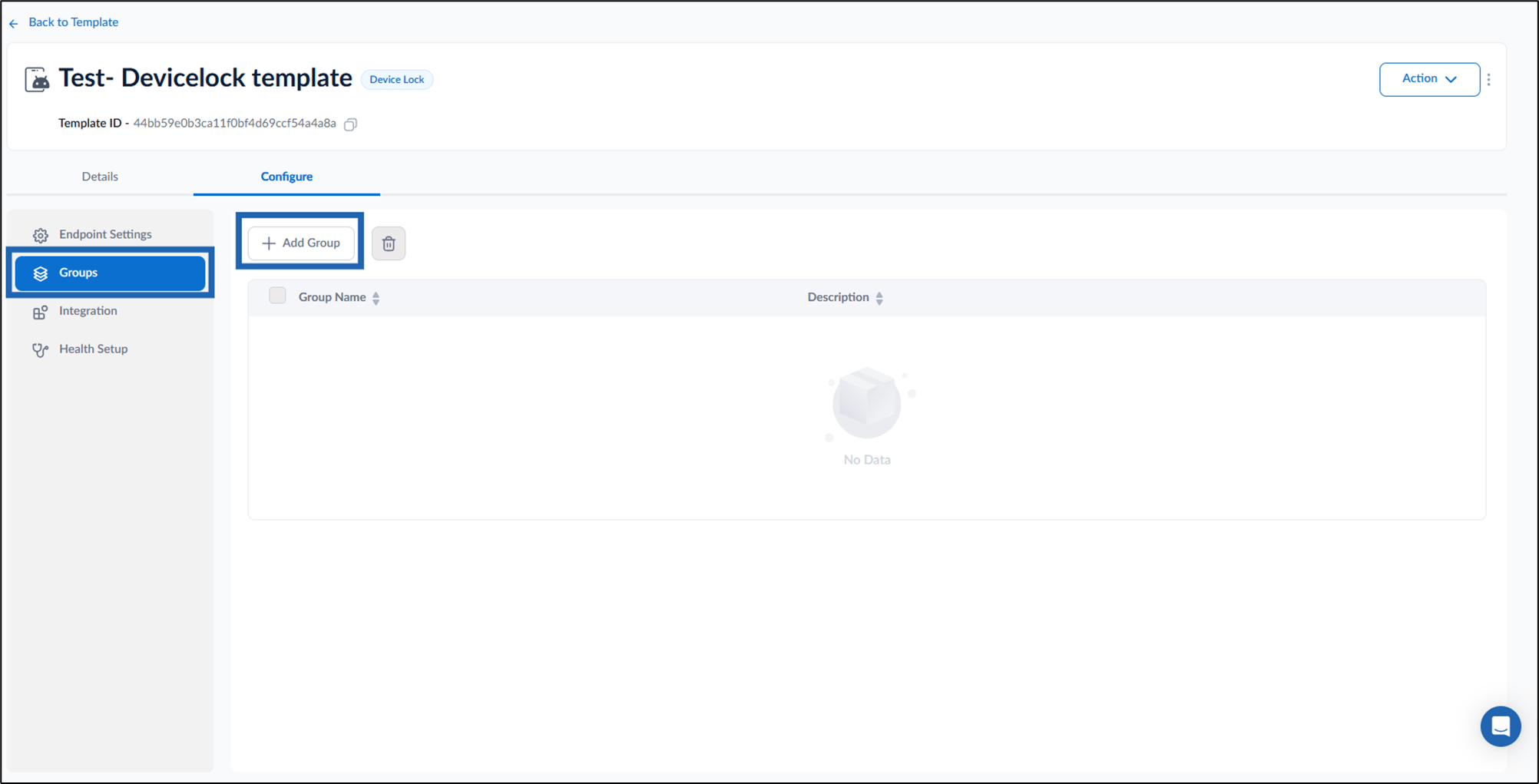
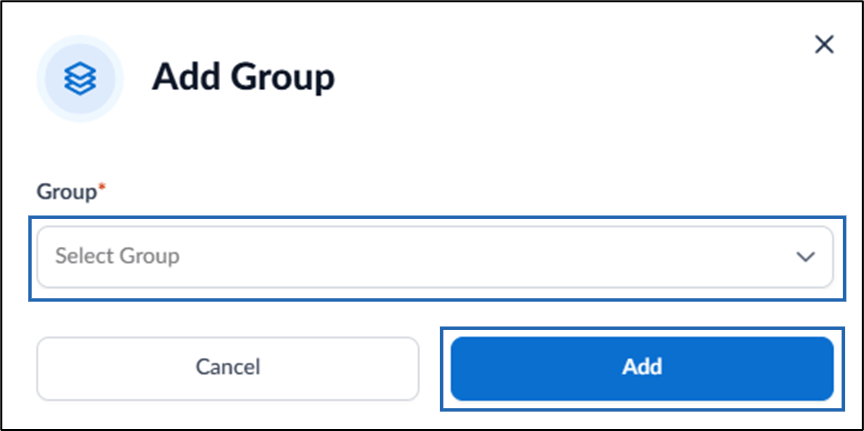
- The Add Group pop-up box is displayed.
- Select Group(s) from the dropdown list.
- Click Add.

Integration
You can enable those Integrations which are requiredto perform local actions or on-premises processing.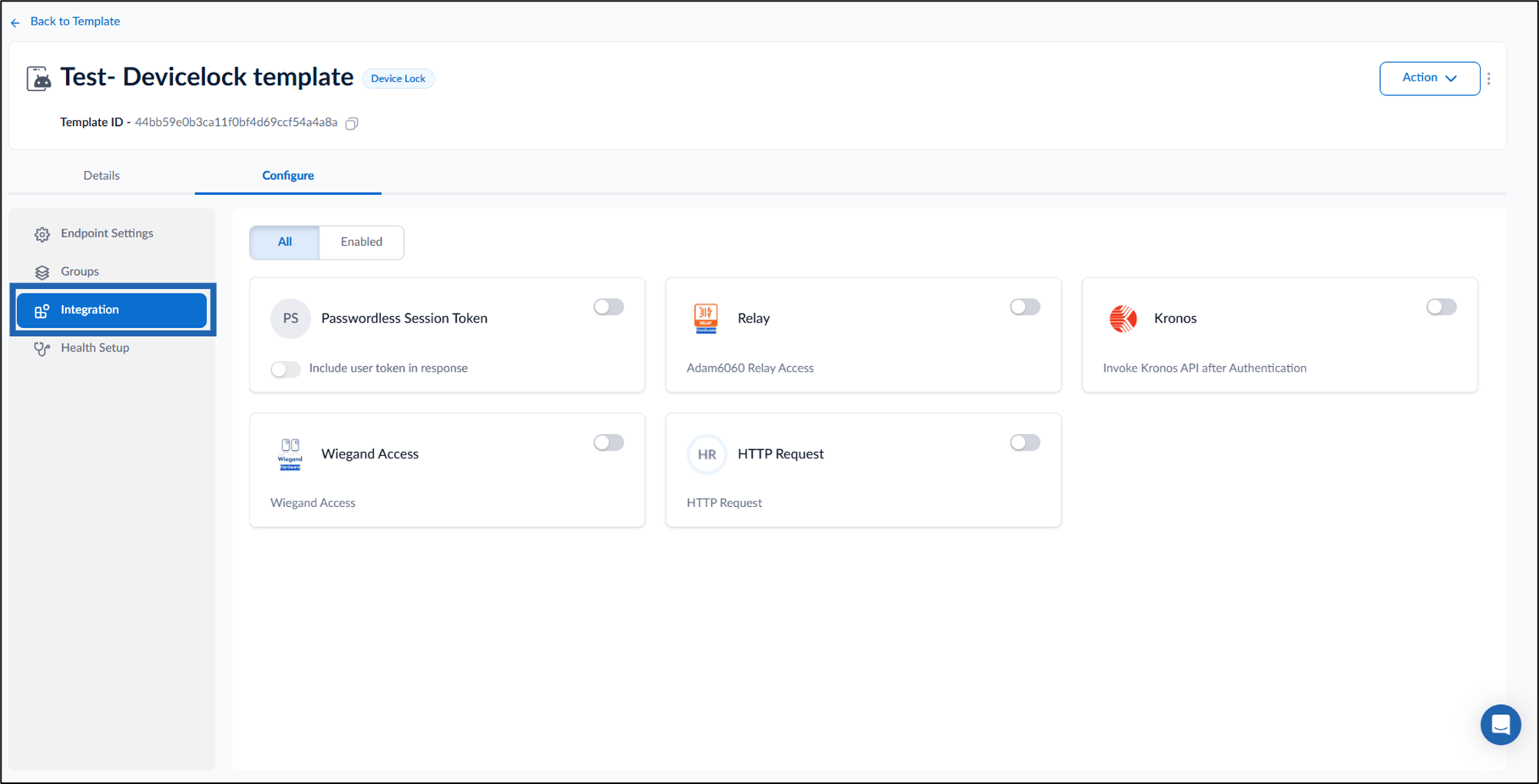
Health Setup
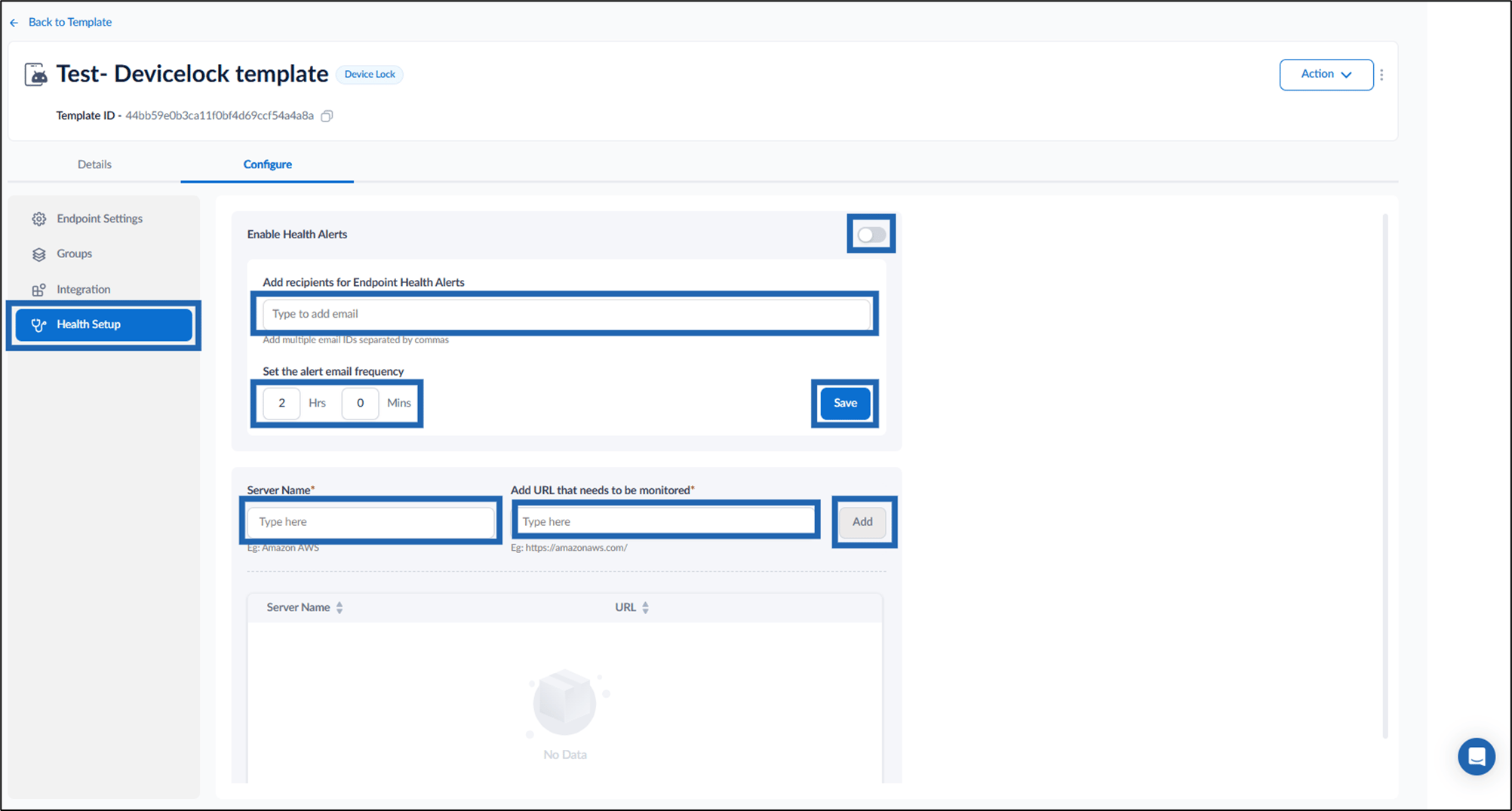
- Turn on Enable Health Alerts toggle to get endpoint health notification. (Optional)
- Enter Email ID to whom you want to share the health alerts in Add recipients for Endpoint health Alerts fields. (Optional)
- Set alert email frequency in hours and minutes.
- Click Save.
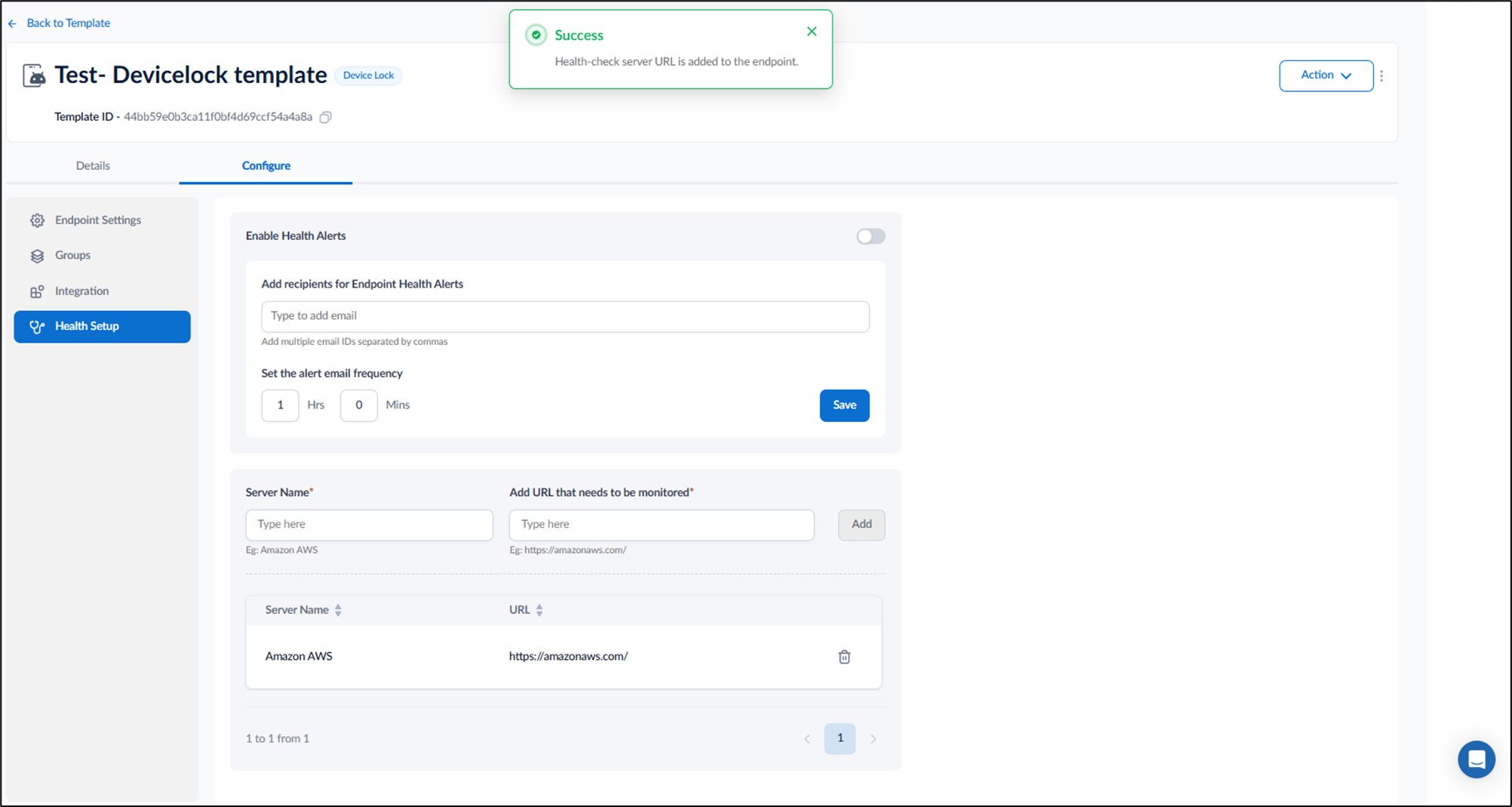
- Enter Server Name.
- Enter URL in Add URL that needs to be monitored.