Introduction

The Pair as Supervisor option in the Oloid DeviceLock App allows Supervisors to set up and manage endpoints securely within their assigned tenant. By pairing as a supervisor, you can configure the device, assign applications, and optionally apply templates to ensure proper usage and compliance. This process ensures that endpoints are linked to the correct tenant environment and are ready for secure operation.

Prerequisite

You must have a Supervisor/Tenant Admin account.

Steps to pair as Supervisor

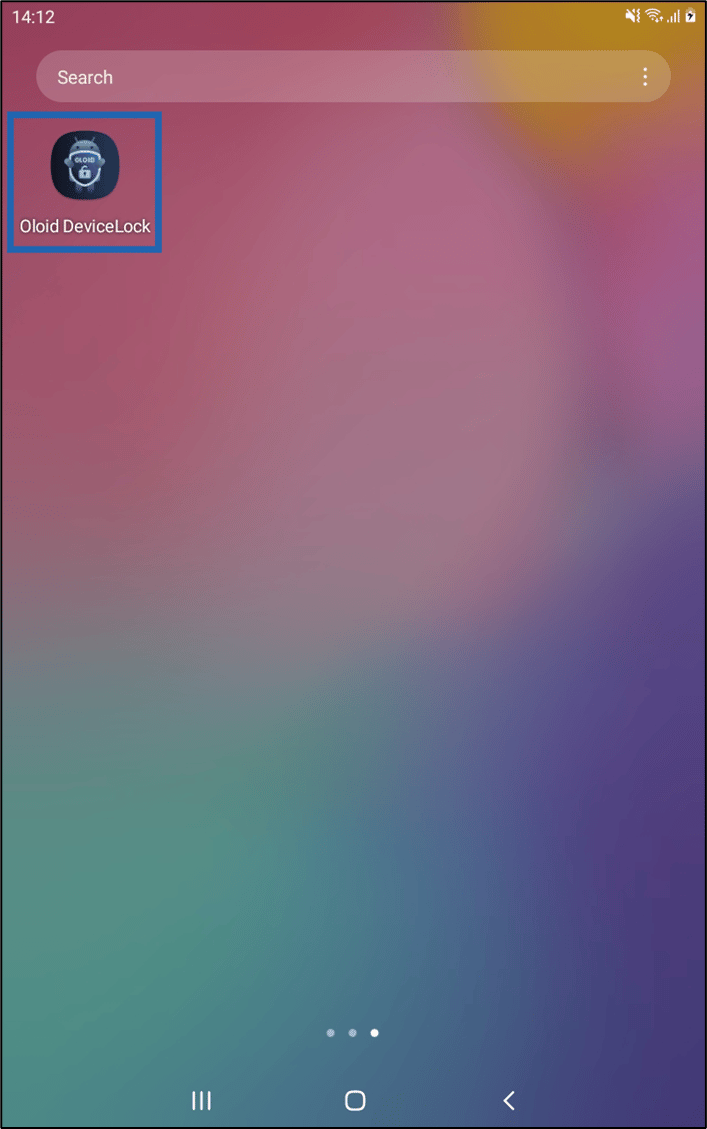
  1. Launch Devicelock App. How to pair Oloid DeviceLock App using... - screenshot 1 The Welcome screen is displayed.
  2. Tap Pair as Supervisor. How to pair Oloid DeviceLock App using... - screenshot 2
  3. Enter Tenant Name.
  4. Tap Next. How to pair Oloid DeviceLock App using... - screenshot 3 The Pair as Supervisor screen is displayed.
  5. Do the following:
    1. Enter Username or Email.
    2. Enter Password.
    3. Tap Login. How to pair Oloid DeviceLock App using... - screenshot 4 The Settings screen is displayed.
  6. Do the following:
    1. Enter Endpoint name. How to pair Oloid DeviceLock App using... - screenshot 5
    2. Tap Select Application. How to pair Oloid DeviceLock App using... - screenshot 6 The Select Application pop-up box is displayed.
    3. Tap the preferred application.
    4. Tap Add. How to pair Oloid DeviceLock App using... - screenshot 7
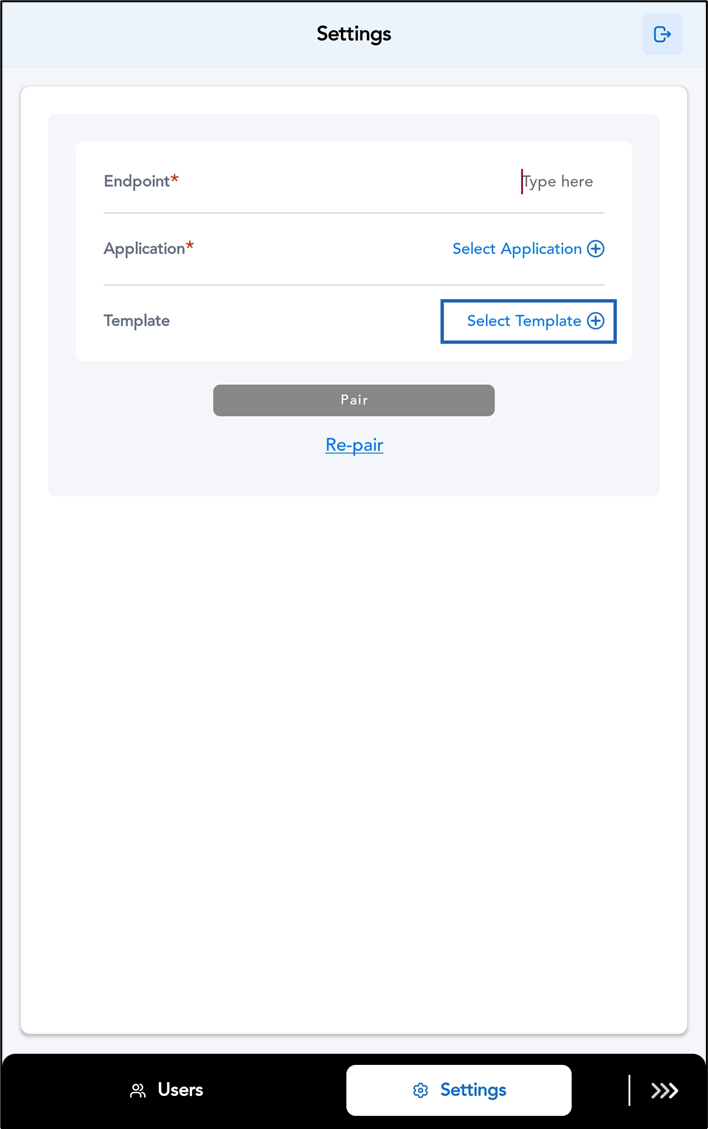
    5. Tap Select Template. (optional) How to pair Oloid DeviceLock App using... - screenshot 8 The Select Template pop-up box is displayed.
    6. Tap the preferred template.
    7. Tap Add. How to pair Oloid DeviceLock App using... - screenshot 9
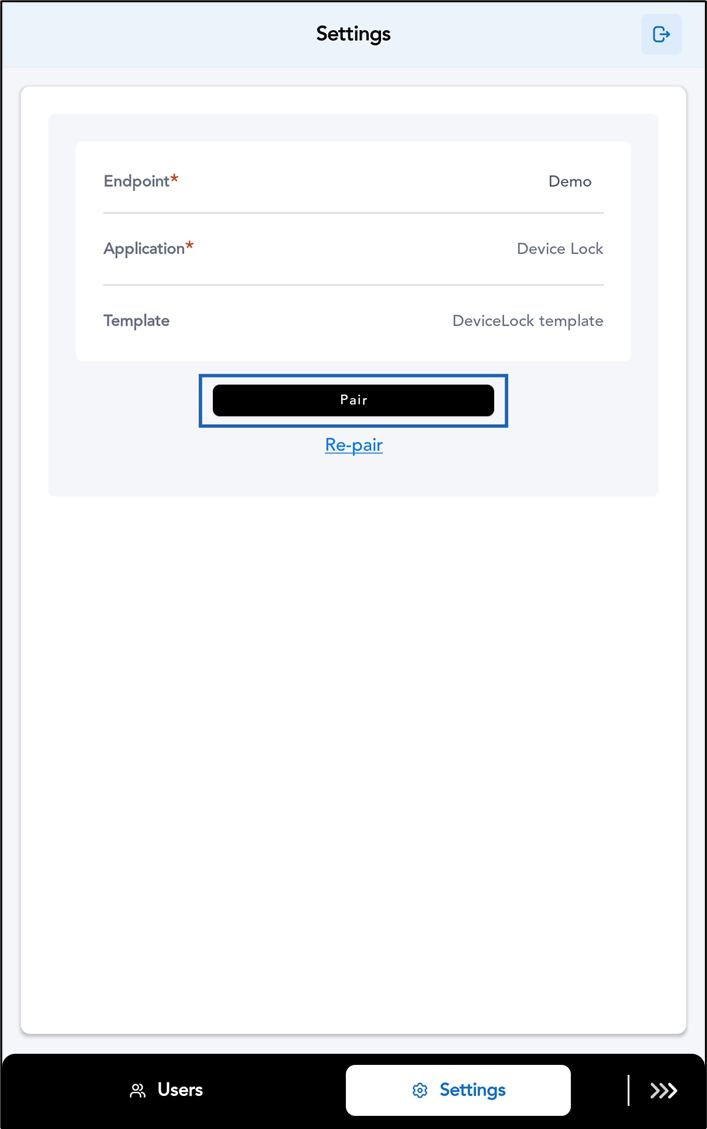
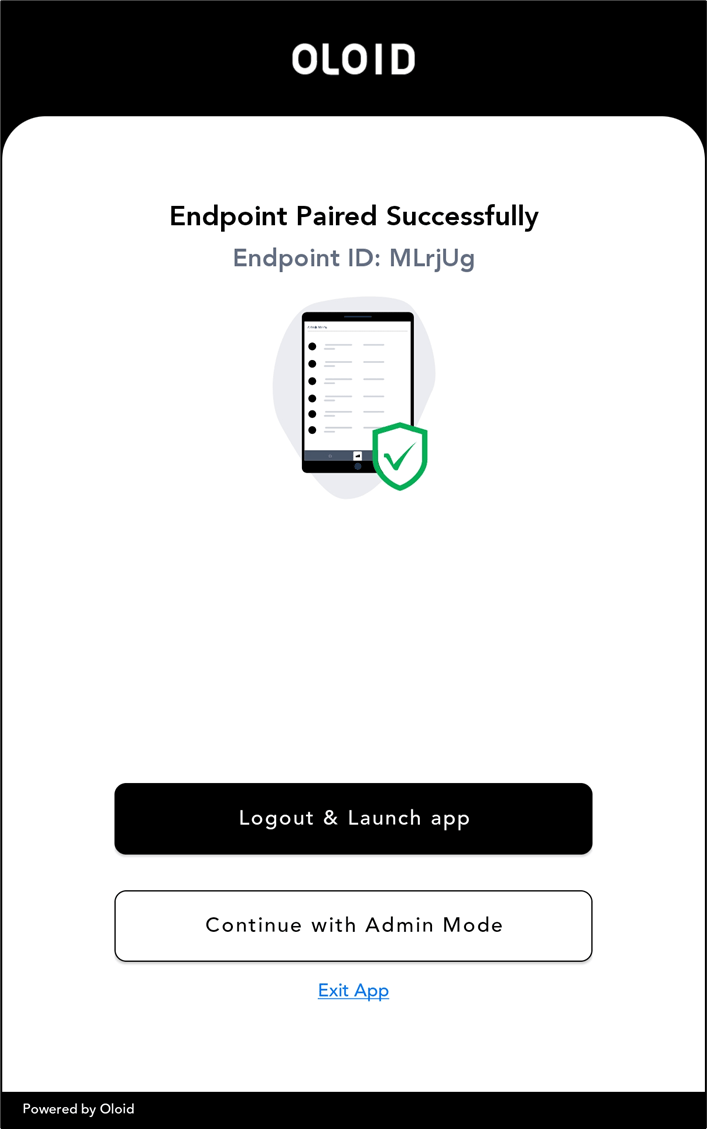
    8. Tap Pair. How to pair Oloid DeviceLock App using... - screenshot 10 The Endpoint is paired successfully. How to pair Oloid DeviceLock App using... - screenshot 11