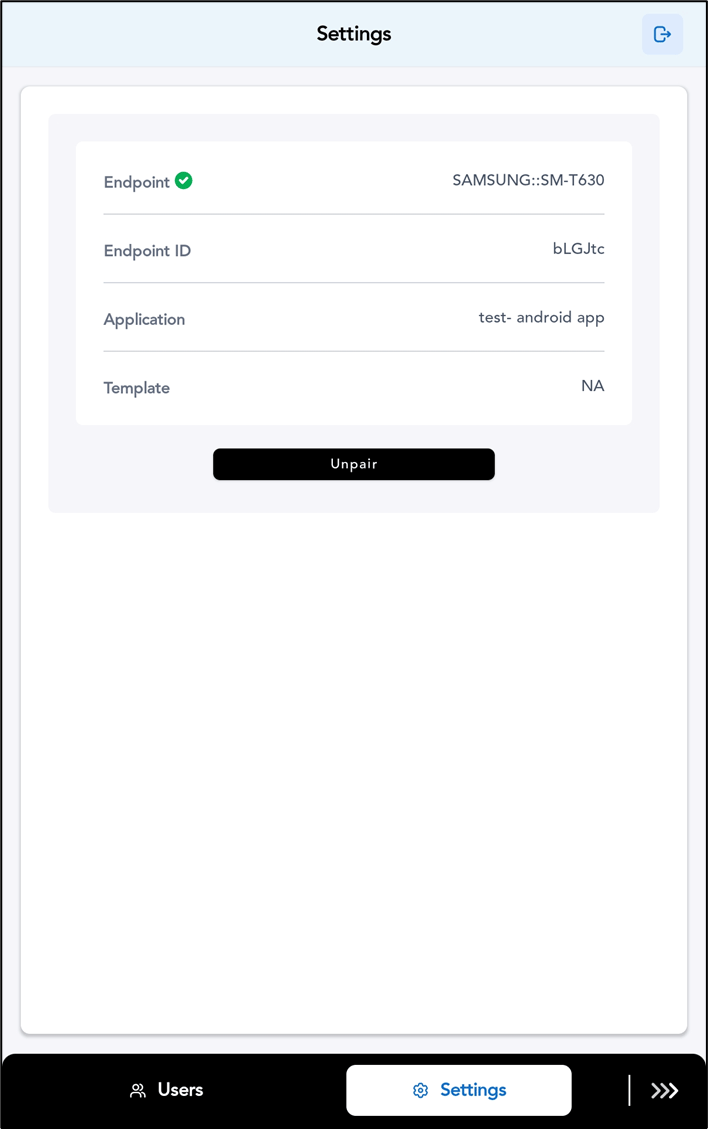
Introduction
The Admin Mode in the Oloid DeviceLock app allows the Tenant Admin or Supervisor to access advanced settings and manage application configurations securely.Prerequisite
You must pair your endpoint with the Oloid DeviceLock app. To pair refer How to pair a DeviceLock endpoint.Note: After pairing the endpoint using either the “Auto-Pair” or “Auto-Pair using Config File” option, you can tap Continue with Admin on the success screen to log in as Admin. If Endpoint is paired you can follow the below steps.
Steps to log in to admin mode
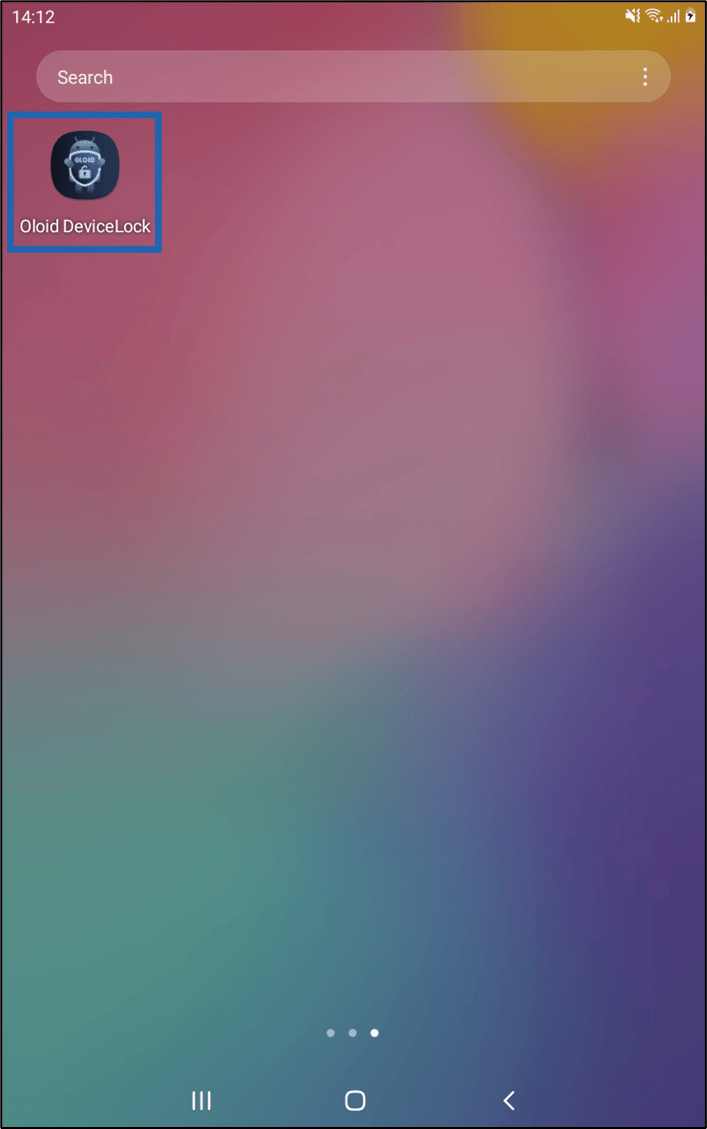
- Launch Oloid DeviceLock app.
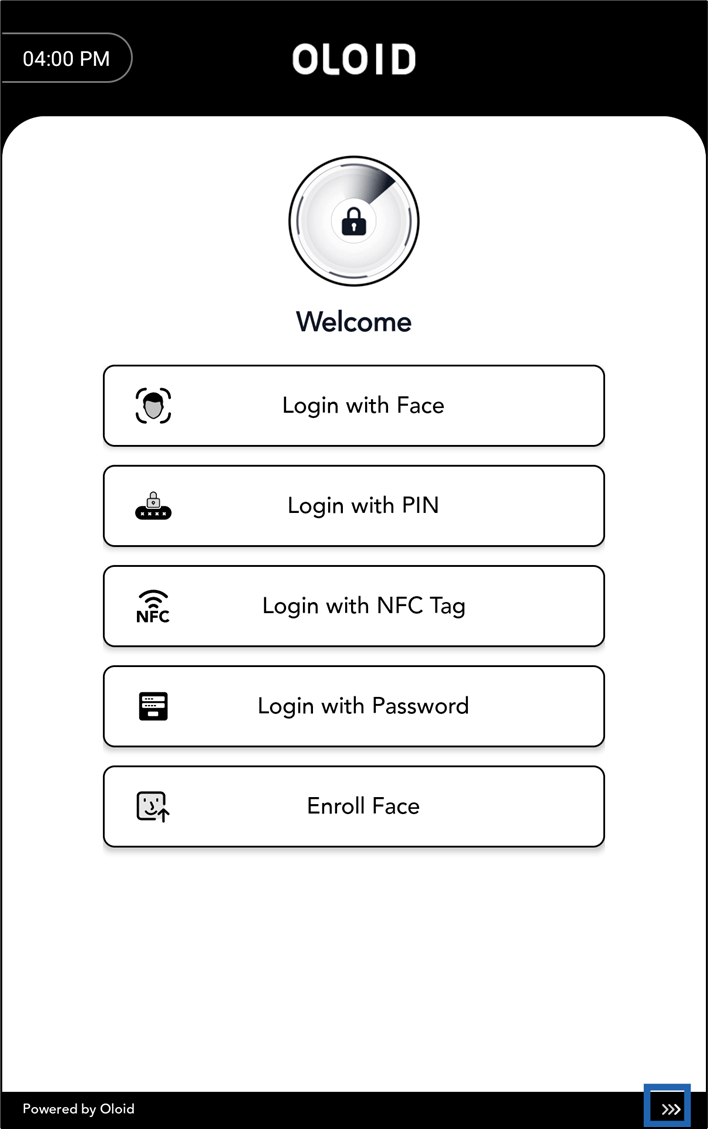
- Do one of the following:
- Tap more option (
 ) on the bottom right side of the screen.
or
) on the bottom right side of the screen.
or - Double tap on the screen.
- Tap more option (
- Tap Continue.
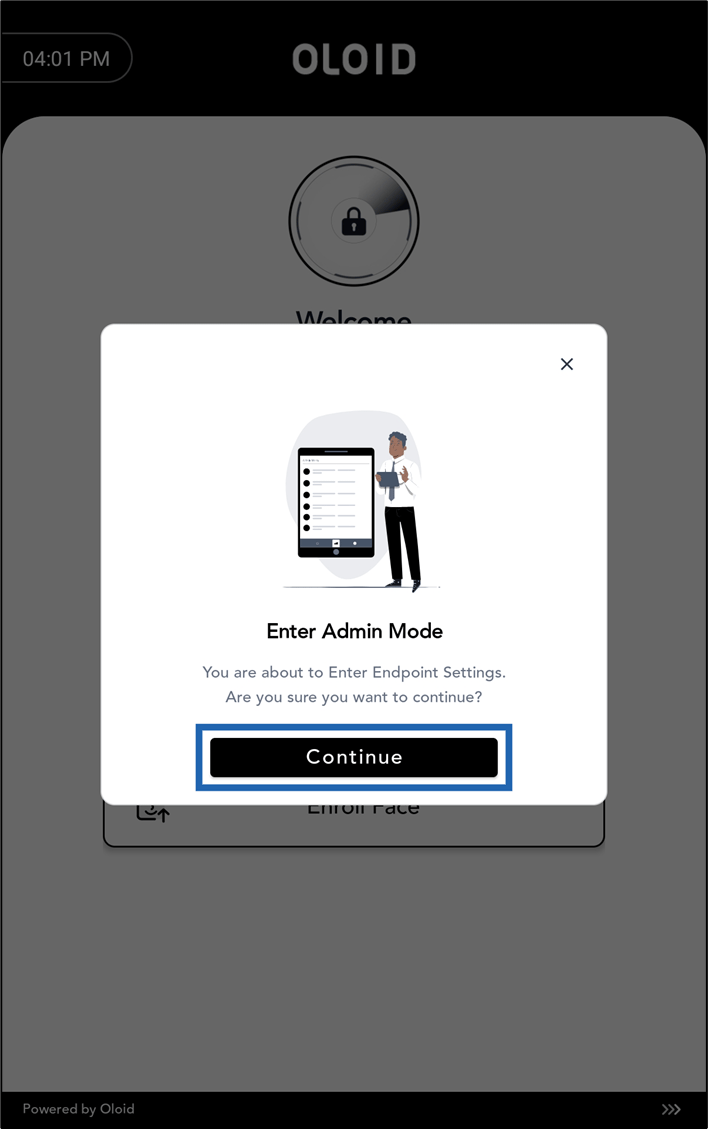
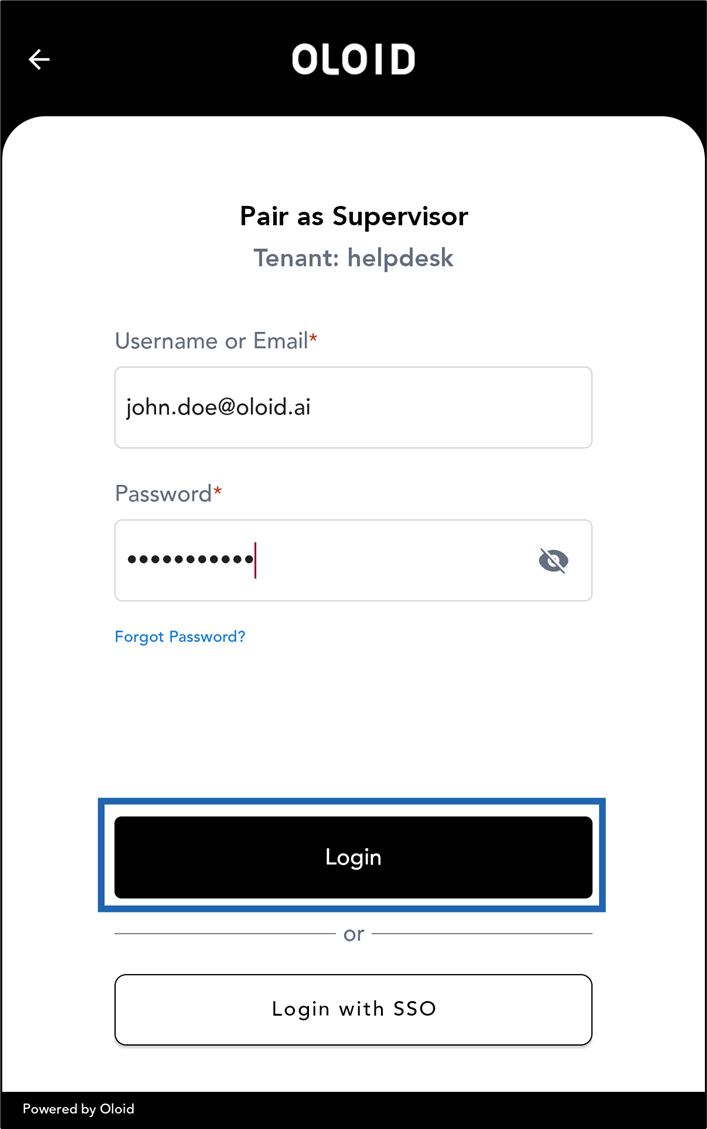
- Tap Login as Supervisor.
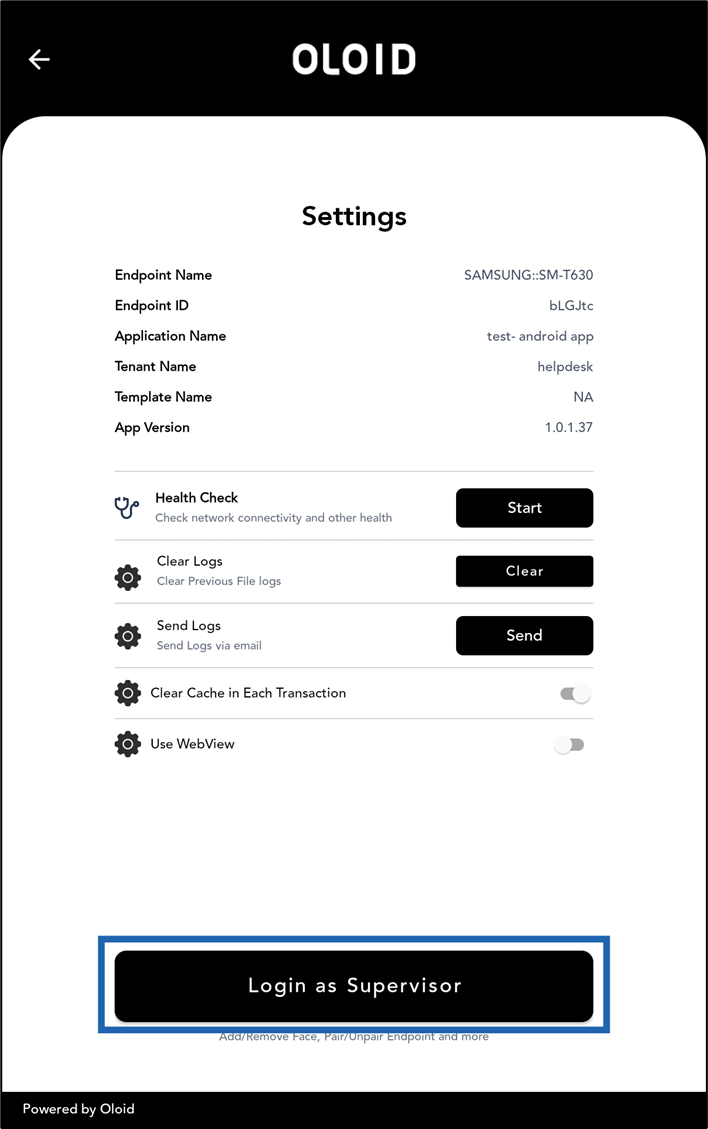
- Do the following:
- Enter Username or Email ID in the text field.
- Enter Password.
- Tap Login.