

Introduction
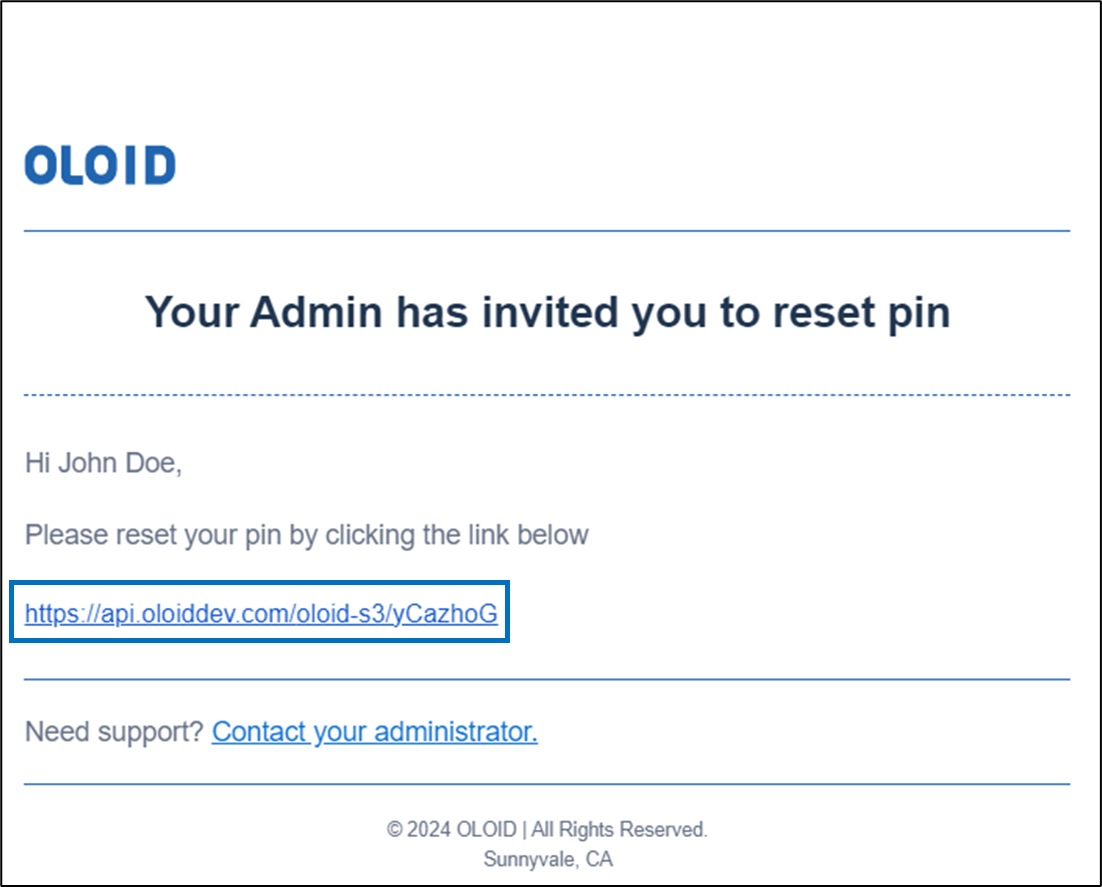
This document provides step-by-step instructions to reset PIN in the Oloid User Portal using an invite link.Note: The admin sends an email with an invite link to reset the PIN. That link directs the user to the Oloid User Portal where user can reset the PIN.
Prerequisite
- A valid invite link to reset PIN must be available in the user’s mailbox.
Steps to reset PIN using invite link
-
Click on the invite link for reset PIN.
-
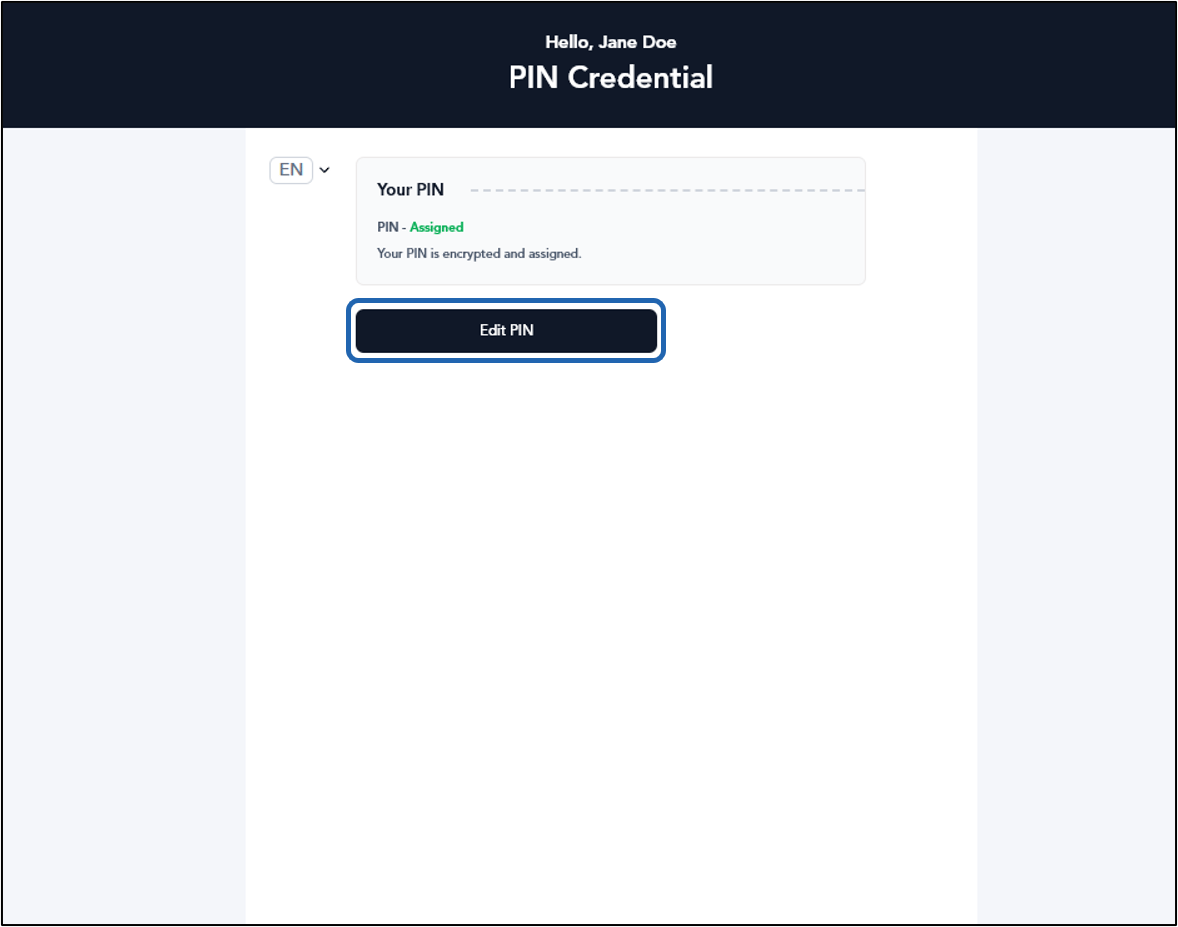
Select Edit PIN.
Note: You can select preferred display language from the Language Dropdown Selector. For more information, refer Additional information section.
-
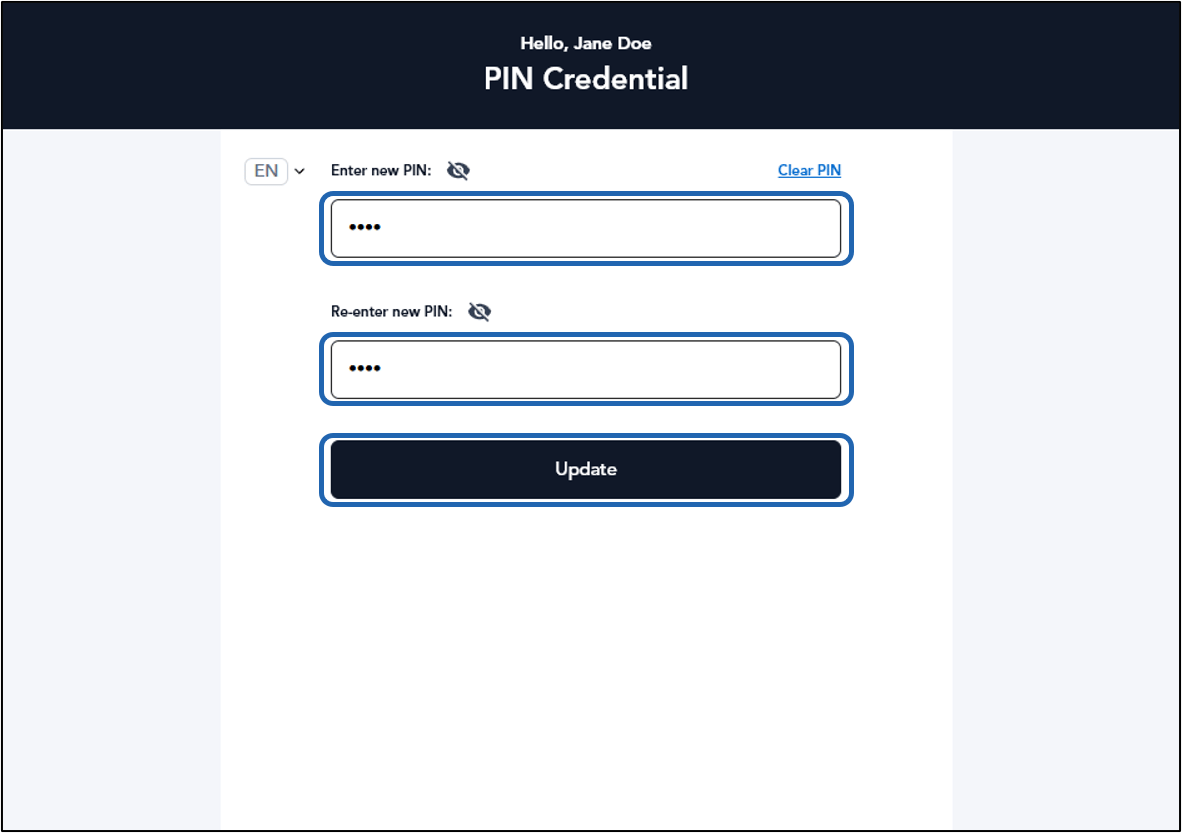
Do the following:
- Enter new PIN.
- Re-enter new PIN.
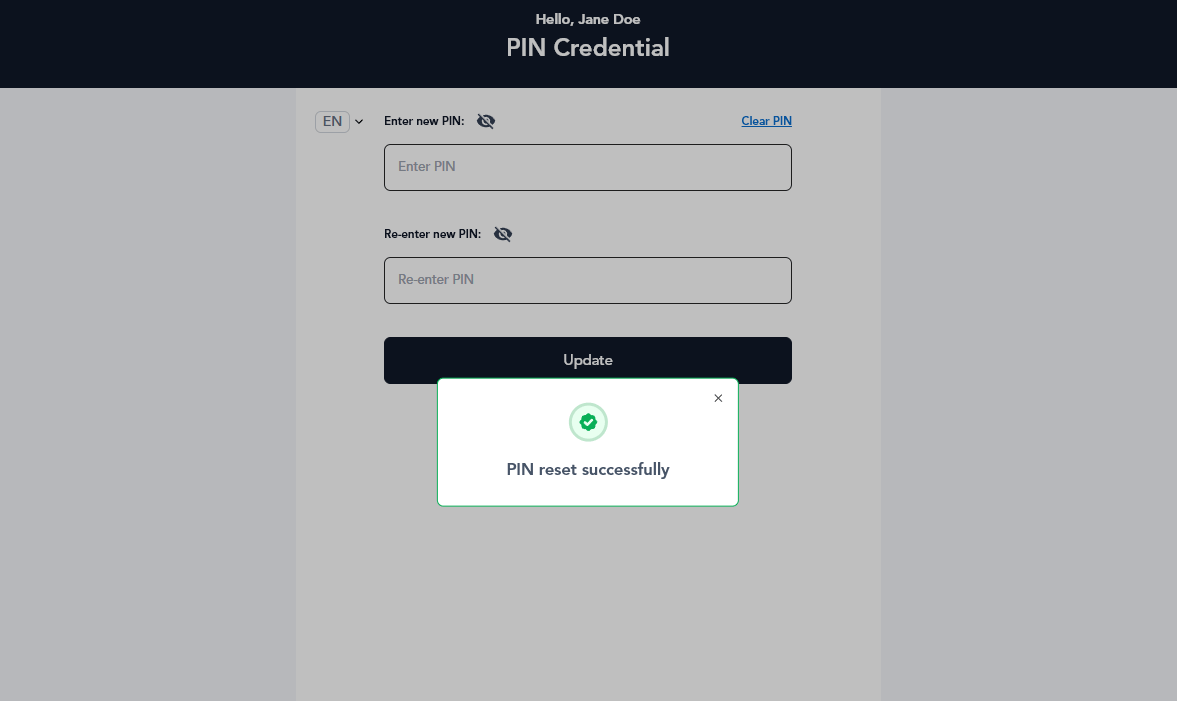
- Click Update.
Additional Information
Oloid User Portal supports multiple language versions, allowing users to select their preferred display language from the Language Dropdown Selector on the Login screen.Note: Languages supported: English, Spanish, French, German, and Portuguese language.
