Introduction
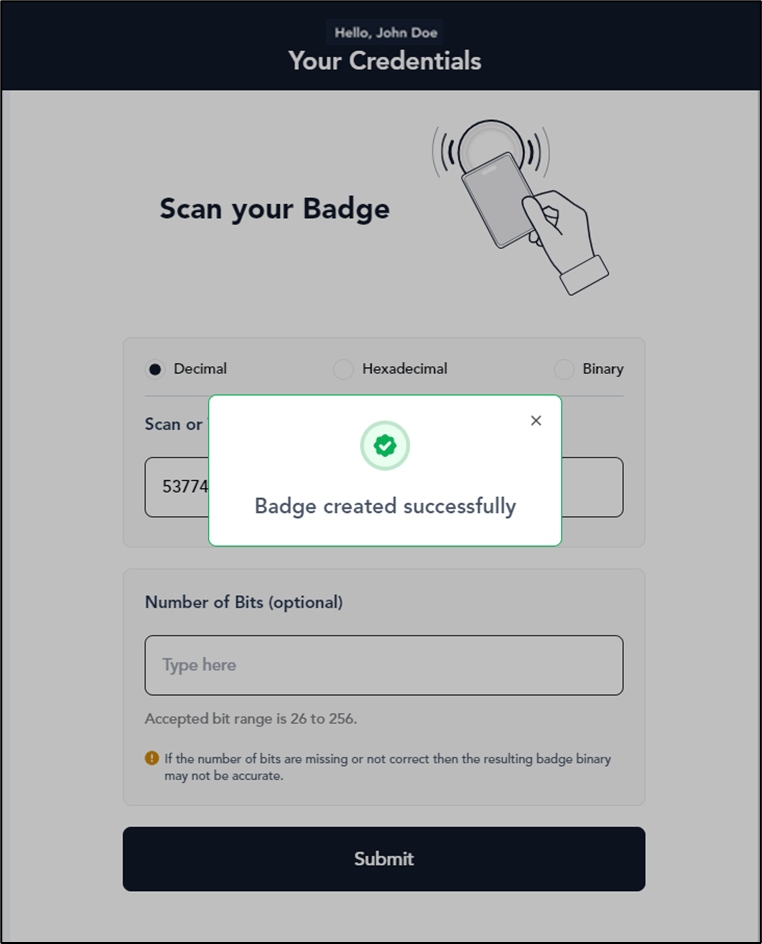
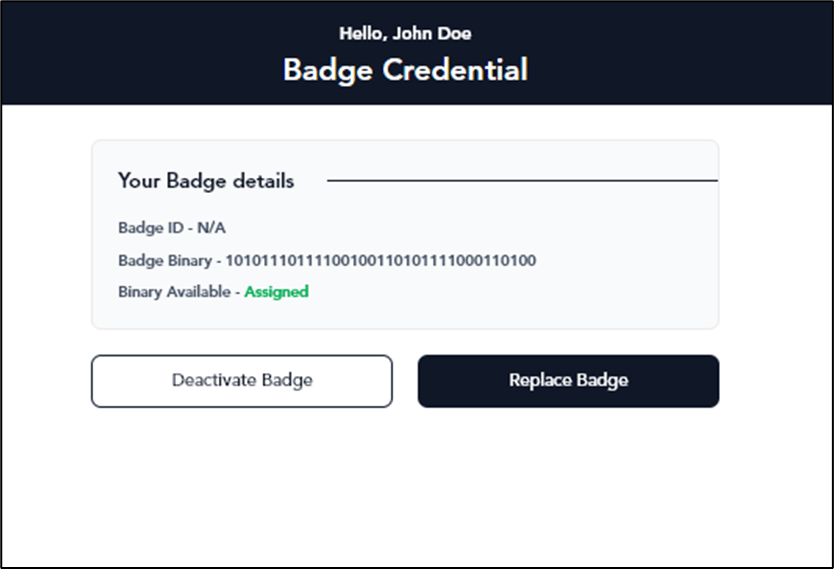
This document provides step-by-step instructions to replace and assign a badge in the Oloid User Portal.Steps to replace and assign Badge
- Log in to the the Oloid User Portal.
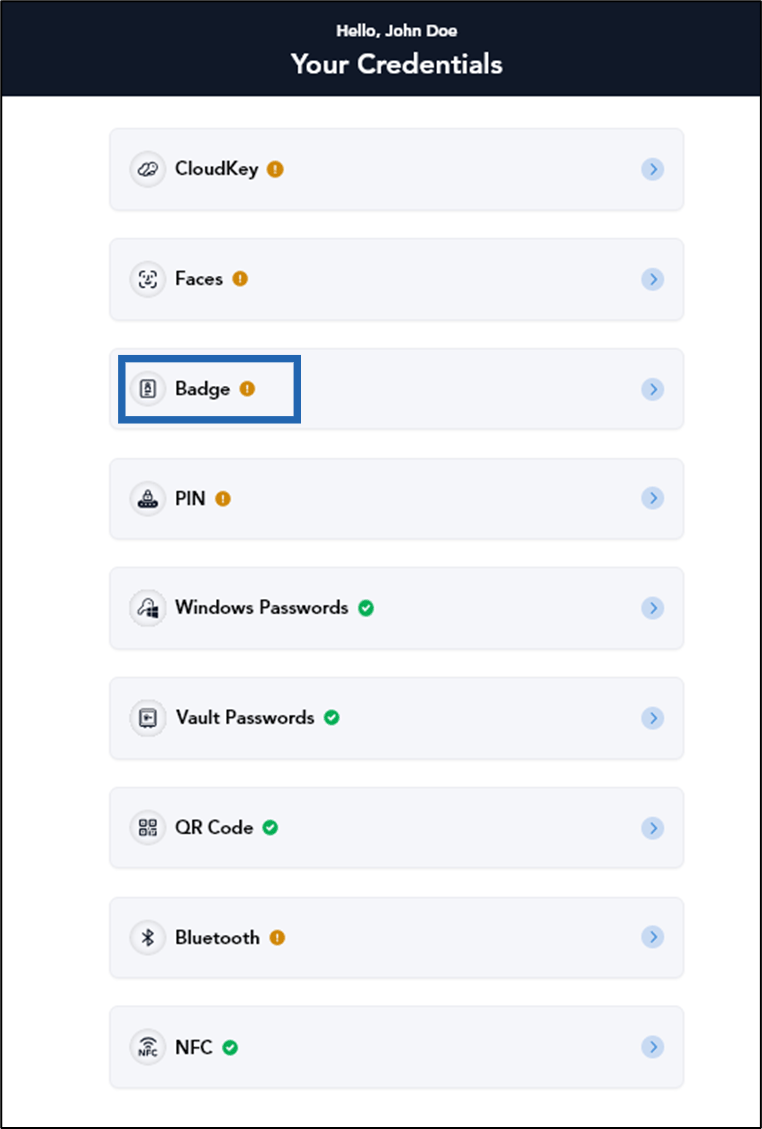
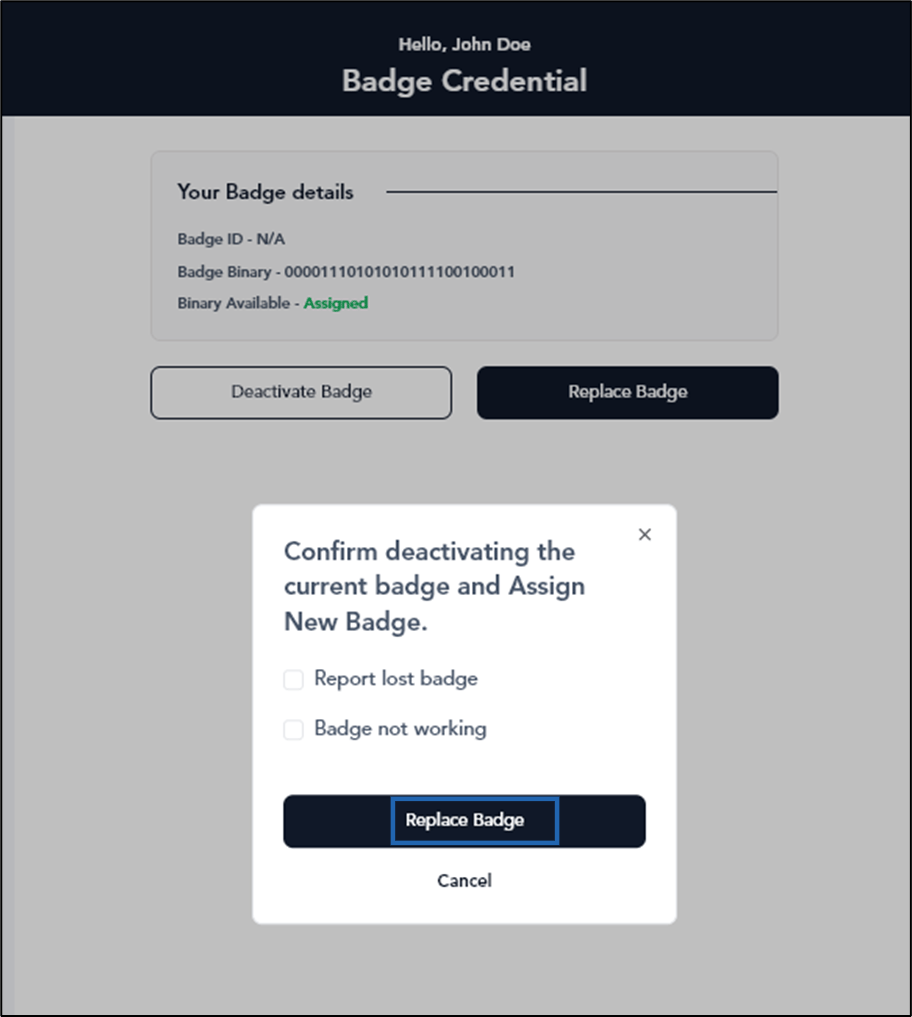
- On the credential page of the Oloid User Portal, select Badge.
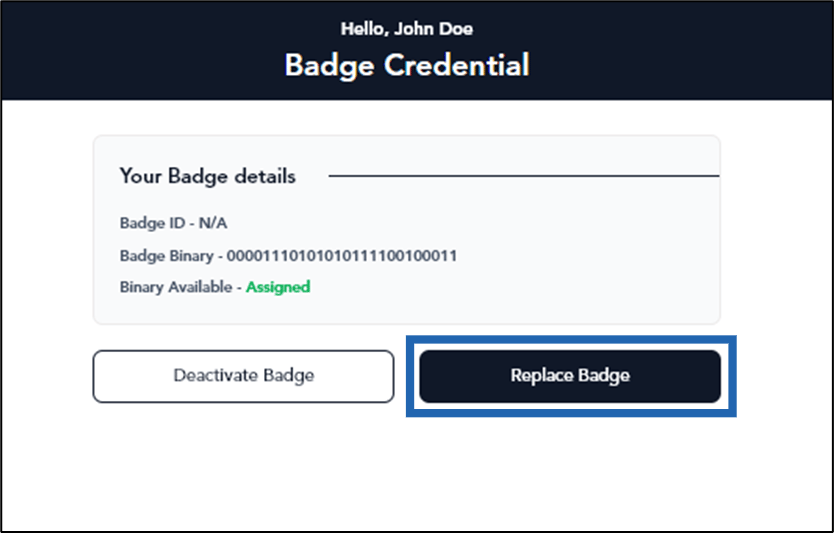
- Select Replace Badge.
- On the confirmation pop-up box do the following:
- Select Report Lost Badge.(Optional)
- Select Badge not Working.(Optional)
- Select Replace Badge.
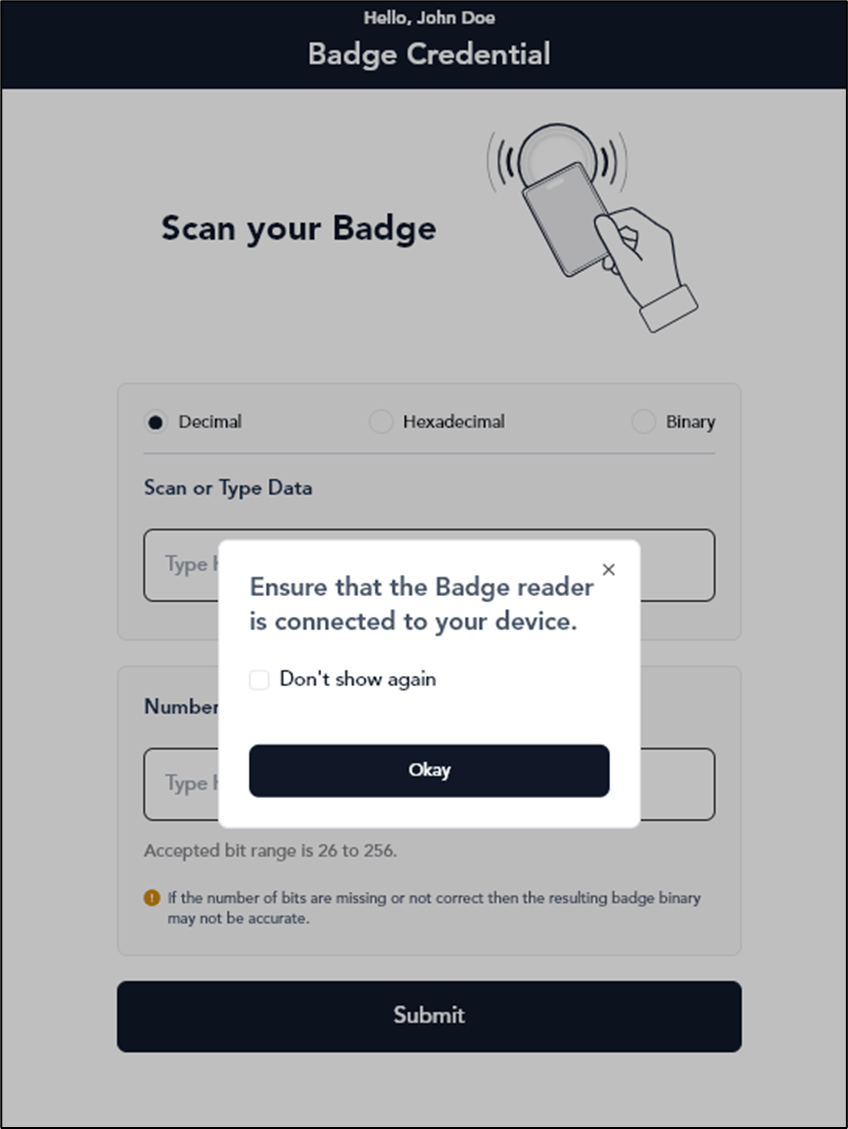
- Click Okay.
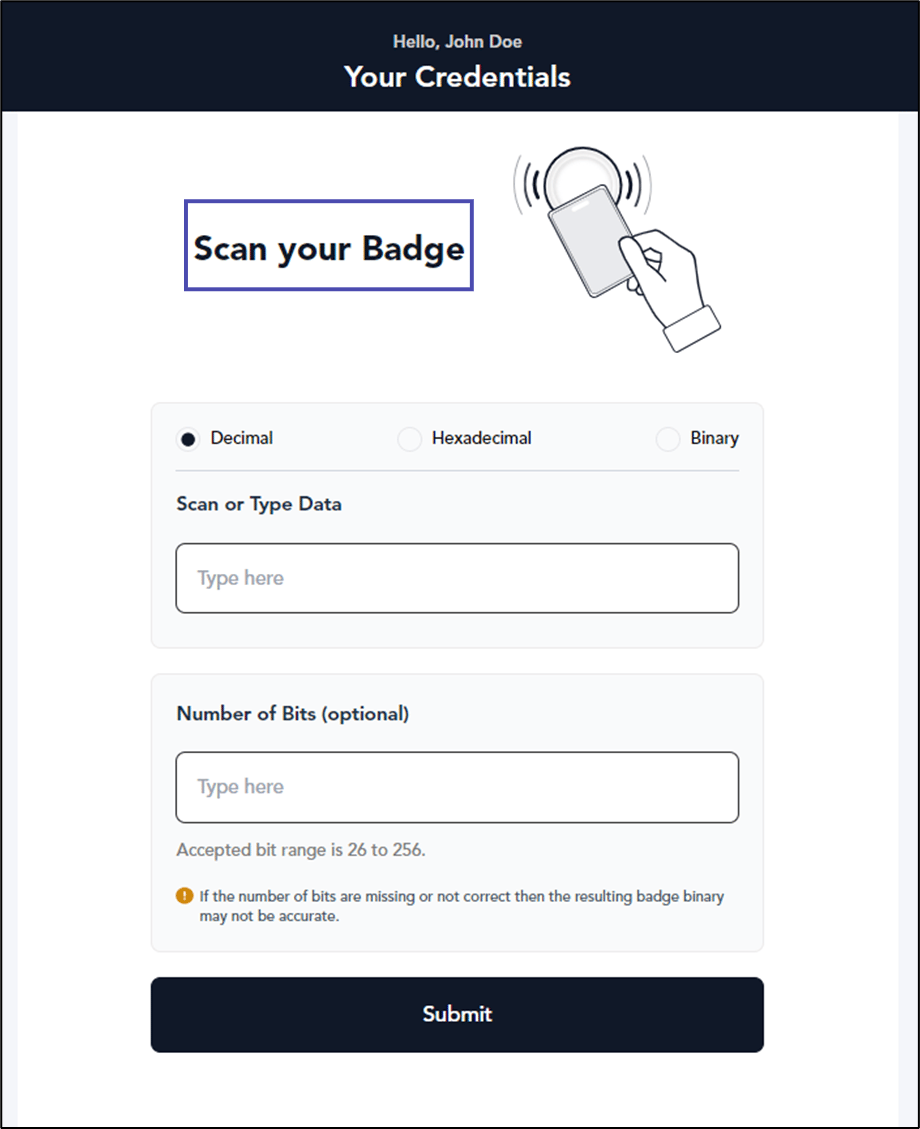
- Do any of the following:
- Enter the badge card number.
-
Click on the Scan or Type Data textbox area. Tap the Badge on the Badge Reader to scan it.
Note: If you do not click on the Scan or Type Data textbox area, you will not see the data in the text field.