Introduction
HR Picture Verification enables users to authenticate by matching their live image with the HR image stored in the system. Depending on whether a face credential already exists and the user’s consent status, the system guides users through authentication or enrollment to complete the login process.Prerequisites
- You have the login URL provided to access the User portal.
- HR Picture Verification must be enabled in the Tenant settings.
- Your Employee ID or Email ID must be registered in the system.
- User Face must be added to HR Picture verfication.
- Camera access must be available on your device. (if required)
Steps to log into User Portal
- Launch your browser.
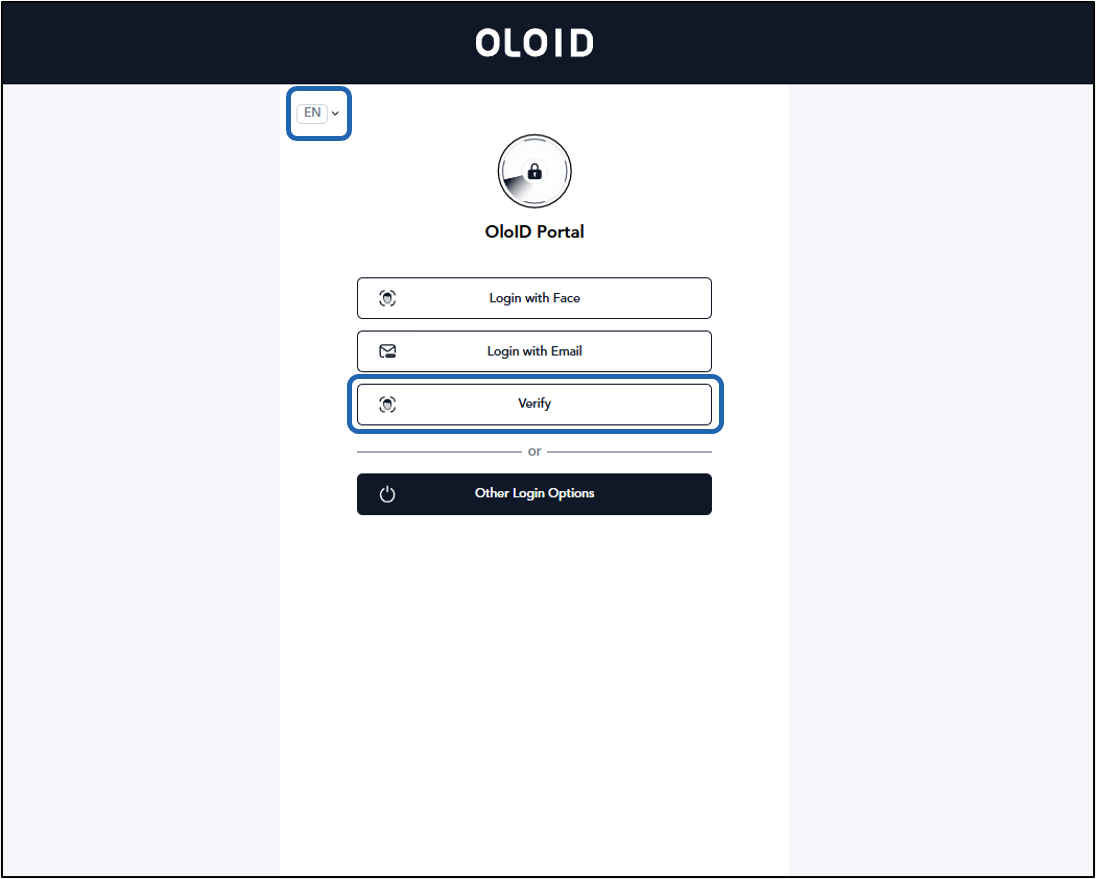
- Enter the provided URL in the browser’s address bar and press Enter. The Oloid Login page is displayed.
-
Click Verify.
Note: You can select preferred display language from the Language Dropdown Selector. For more information, refer Additional information section.
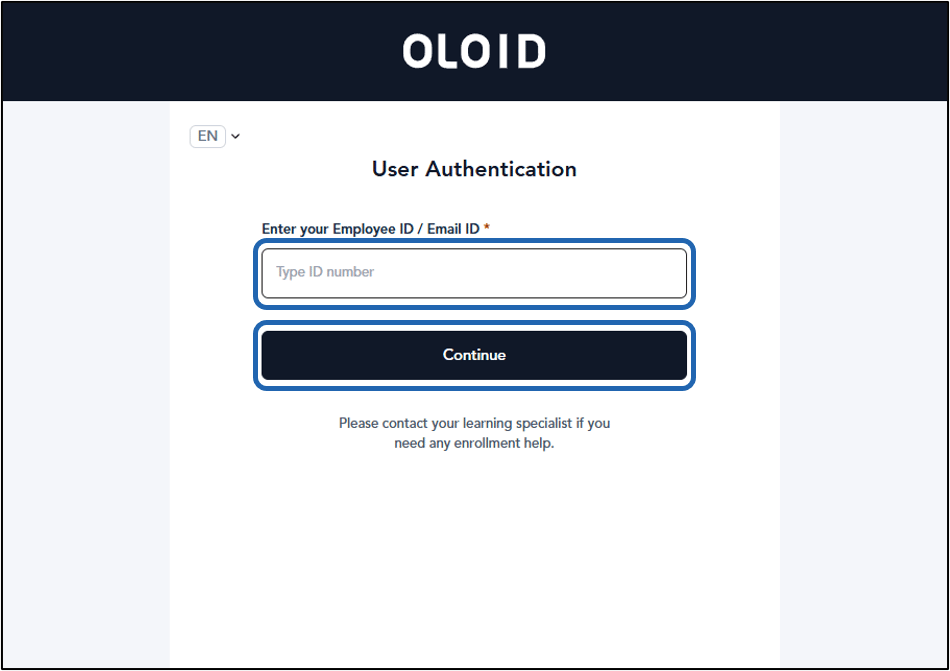
- Enter Employee ID/ Email ID.
-
Click Continue.
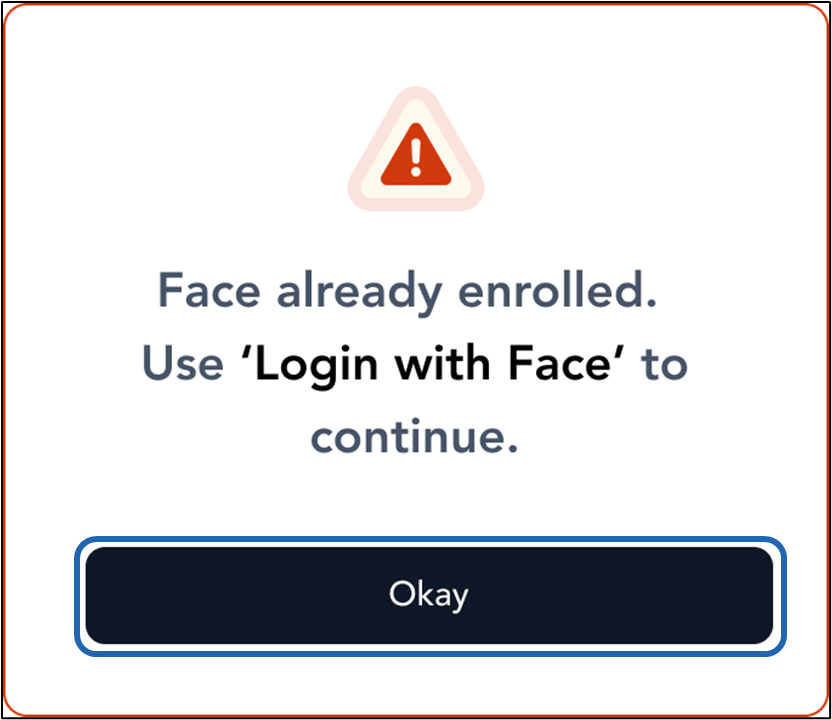
Face Credential Already Exists
If your face is already registered in the system:- Face already enrolled error popup is displayed Click Okay.
The Authentication screen is displayed
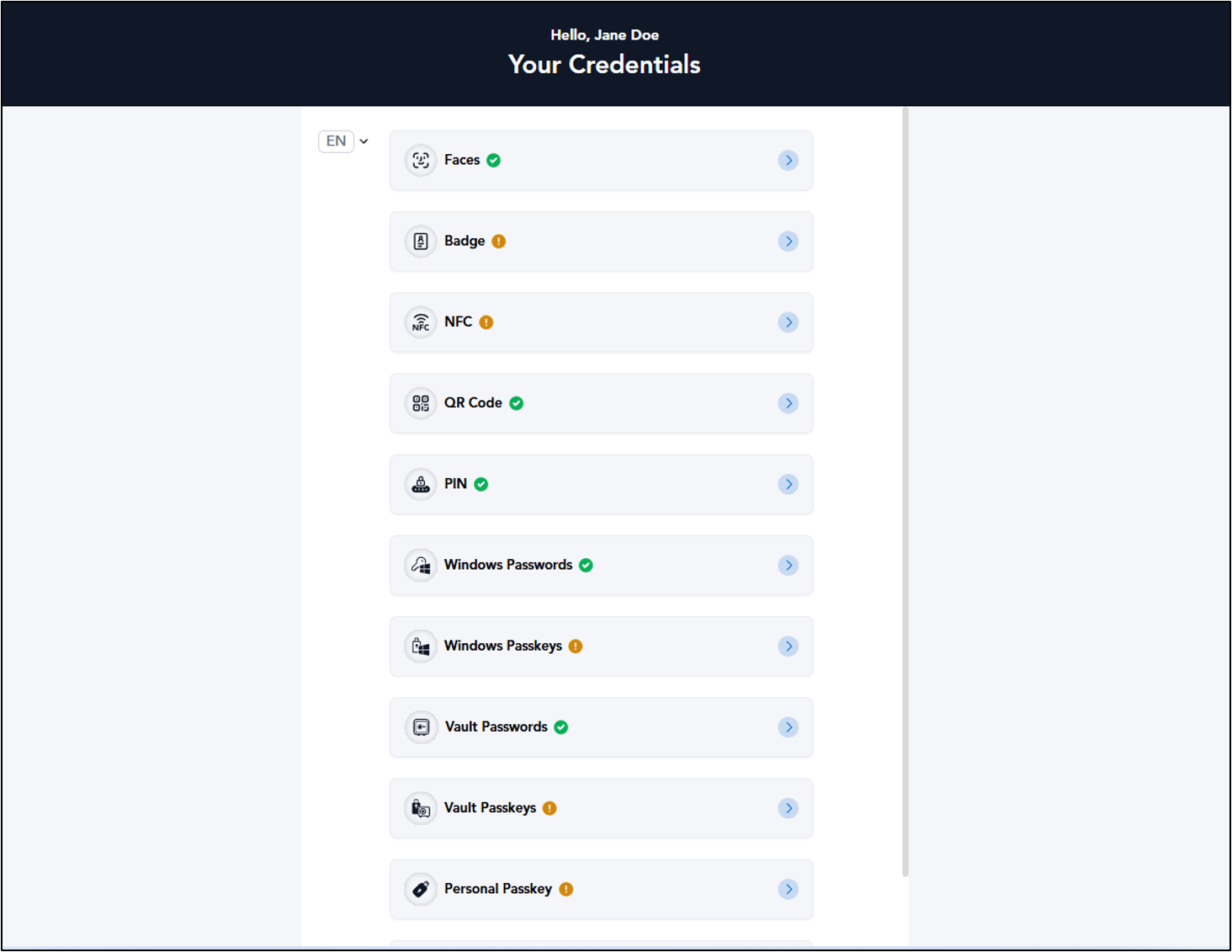
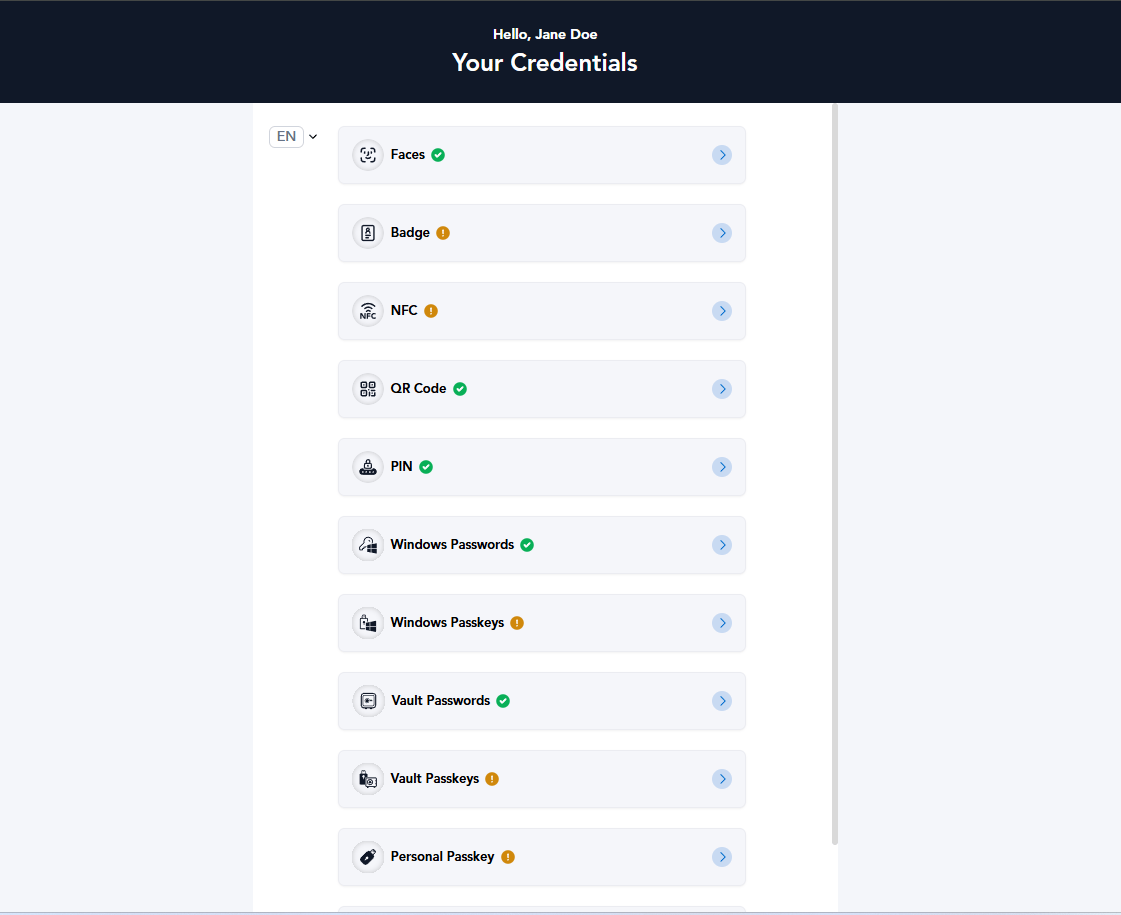
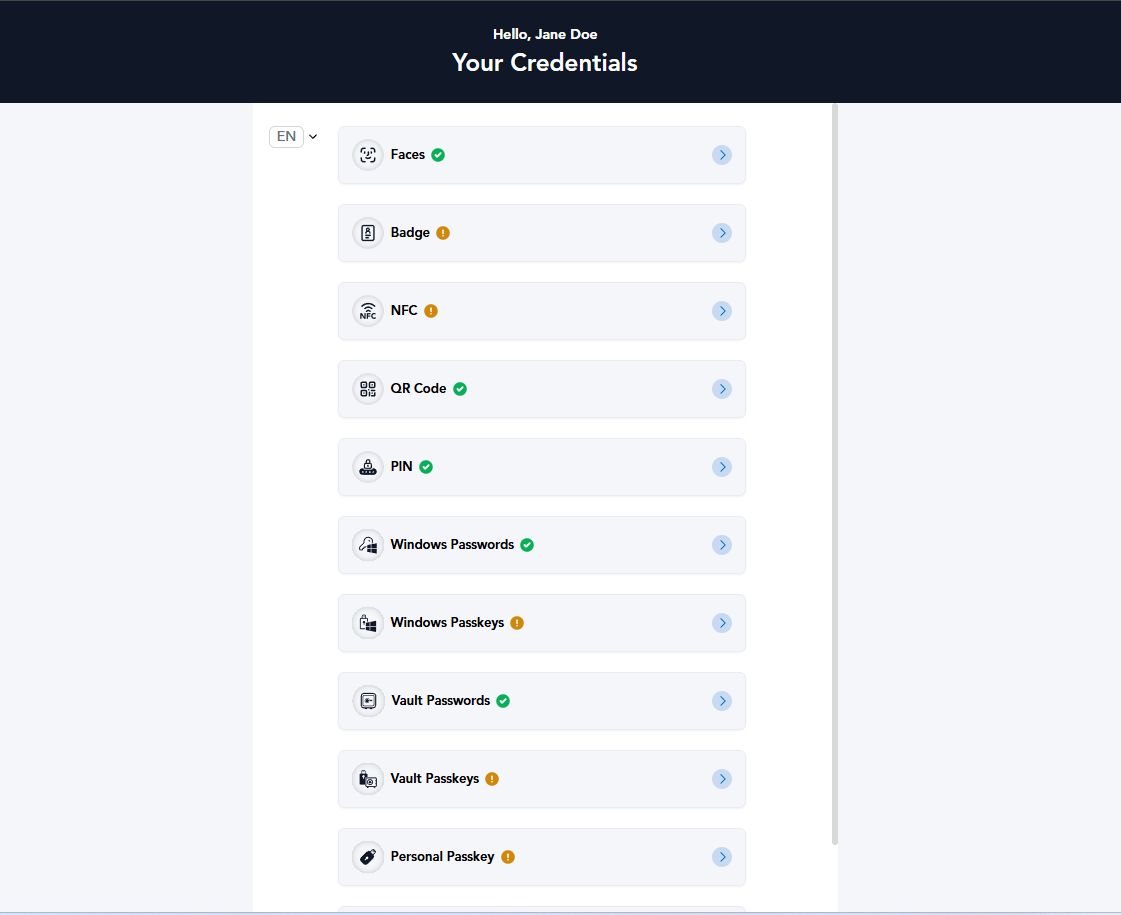
- Click Login with Face. Refer to: How to login with face in Oloid User Portal User is successfully logged in.
Face Credential Not Available
If your face credential is not registered there can be the following scenarios:Consent Provided
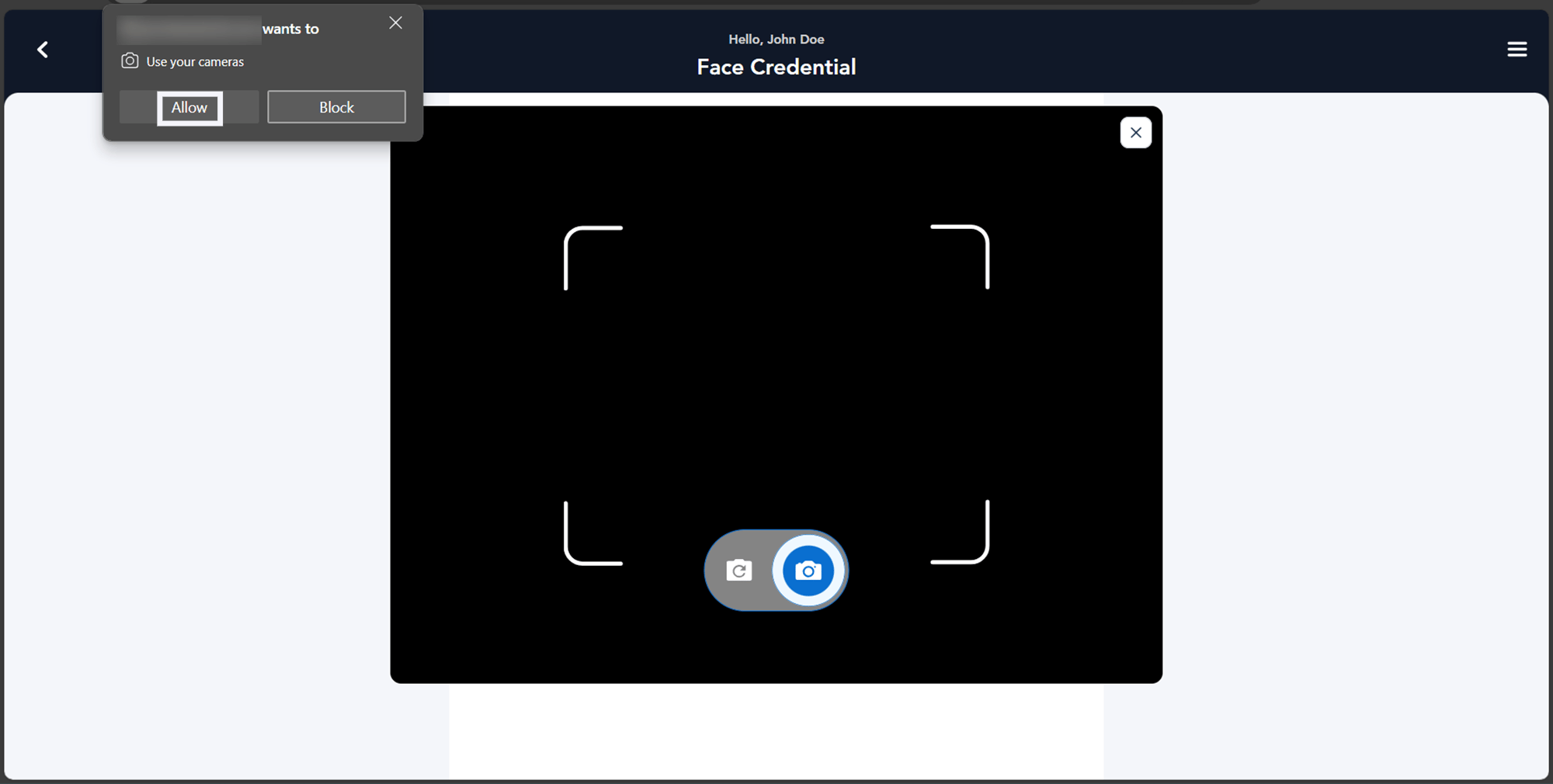
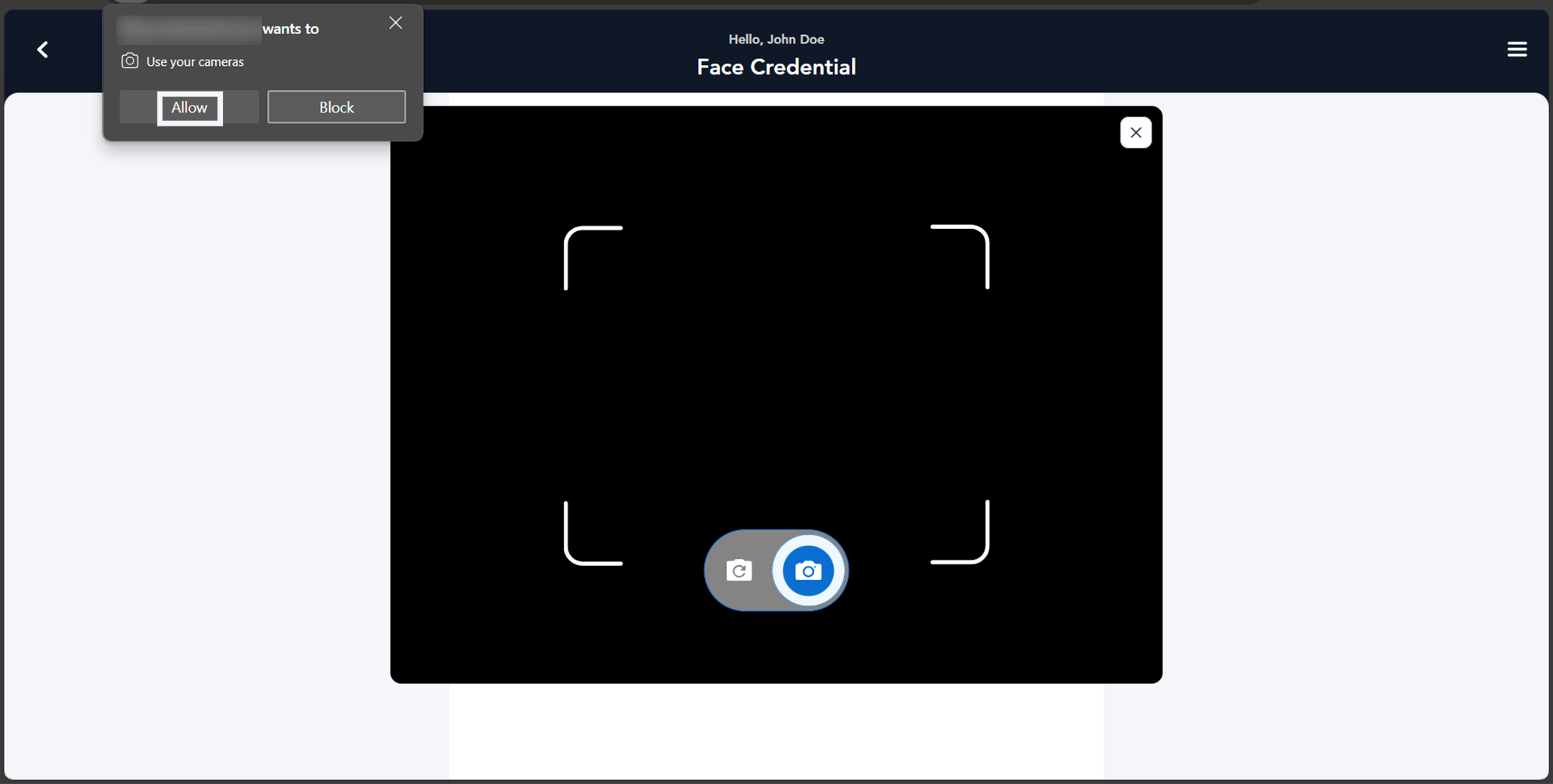
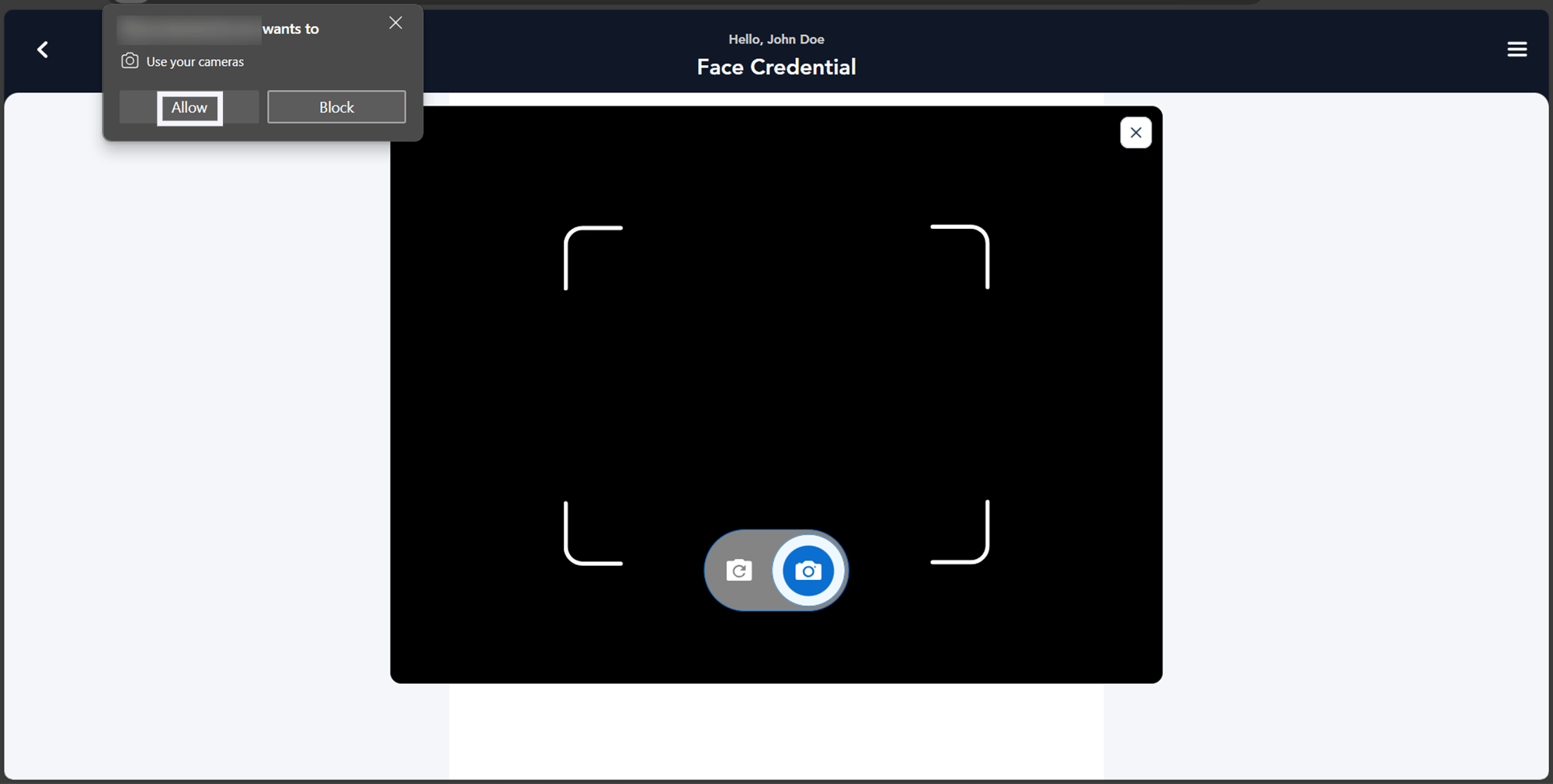
The camera opens.Note: Provide camera permission if prompted.
-
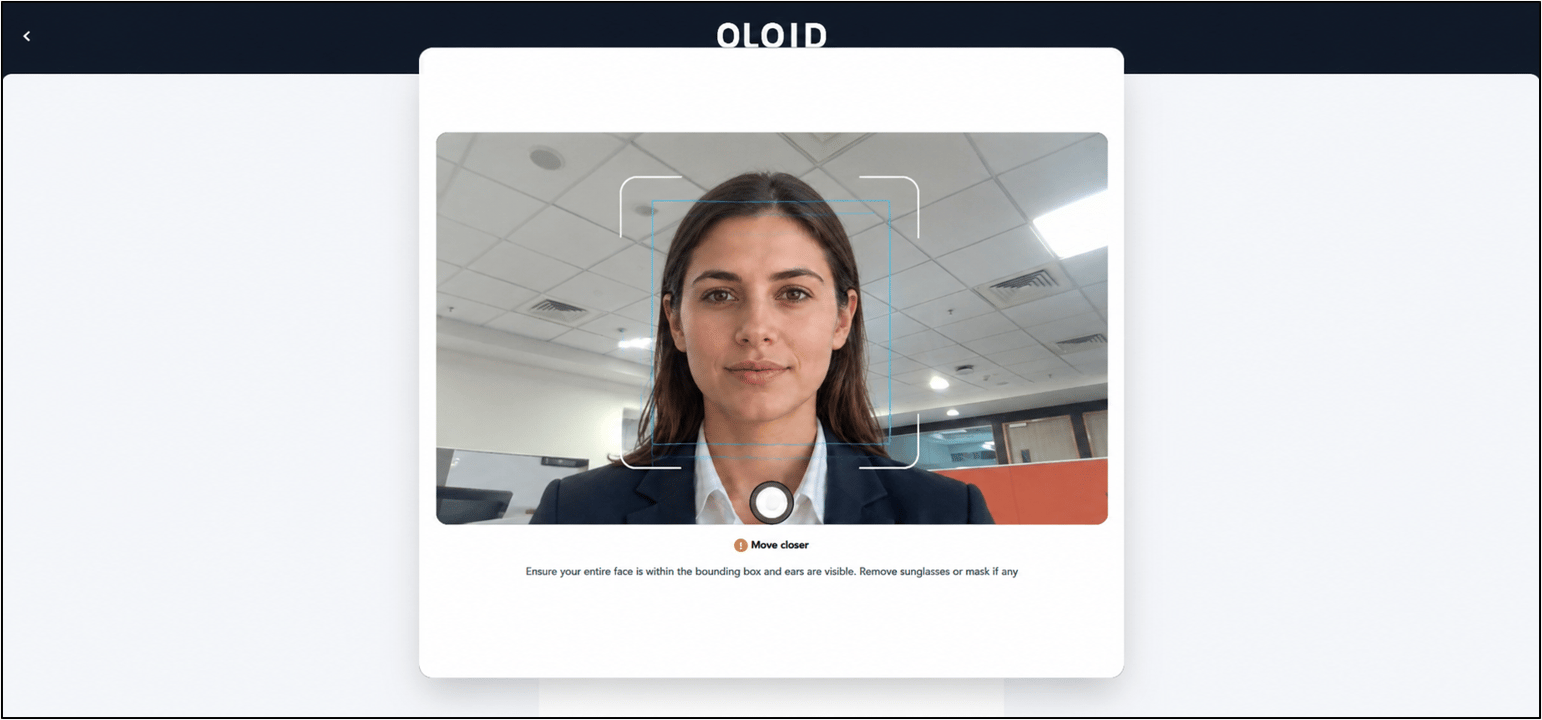
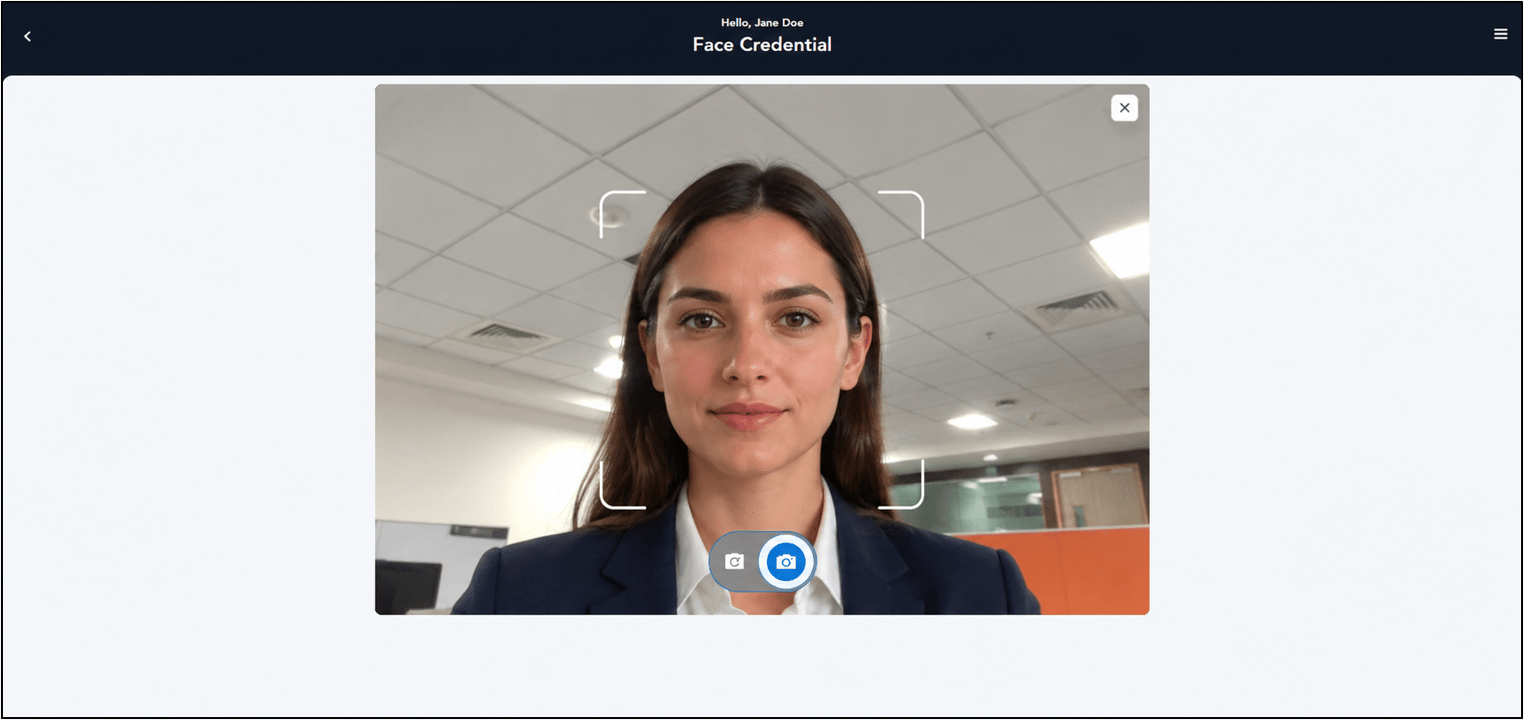
Position your face in front of the camera and tap the Capture button to authenticate face.
Note: If you do not tap the Capture button, the app automatically captures your face after a few seconds.
Consent Not Provided
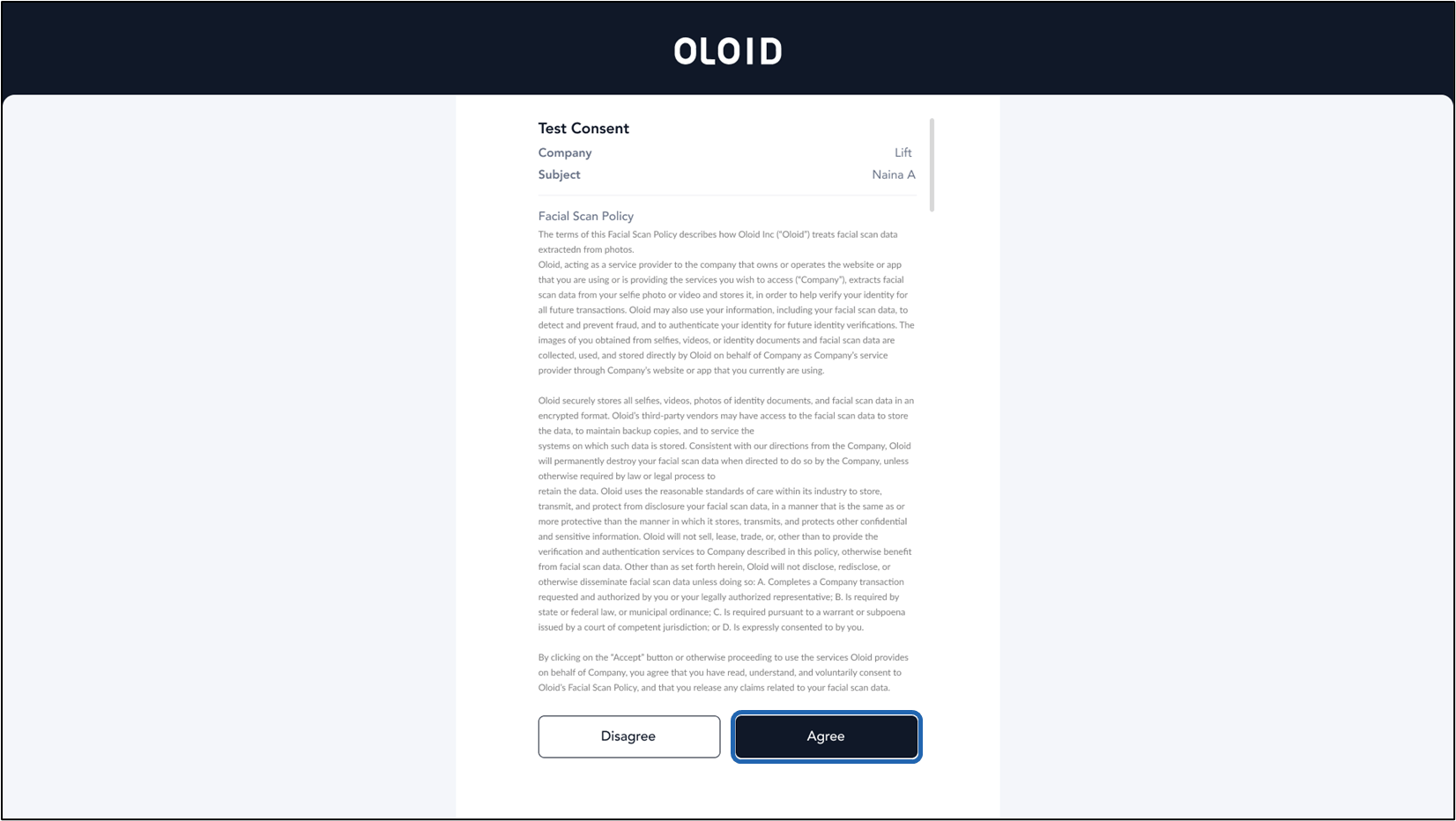
- The Consent page is displayed.
-
Click Agree to submit consent.
-
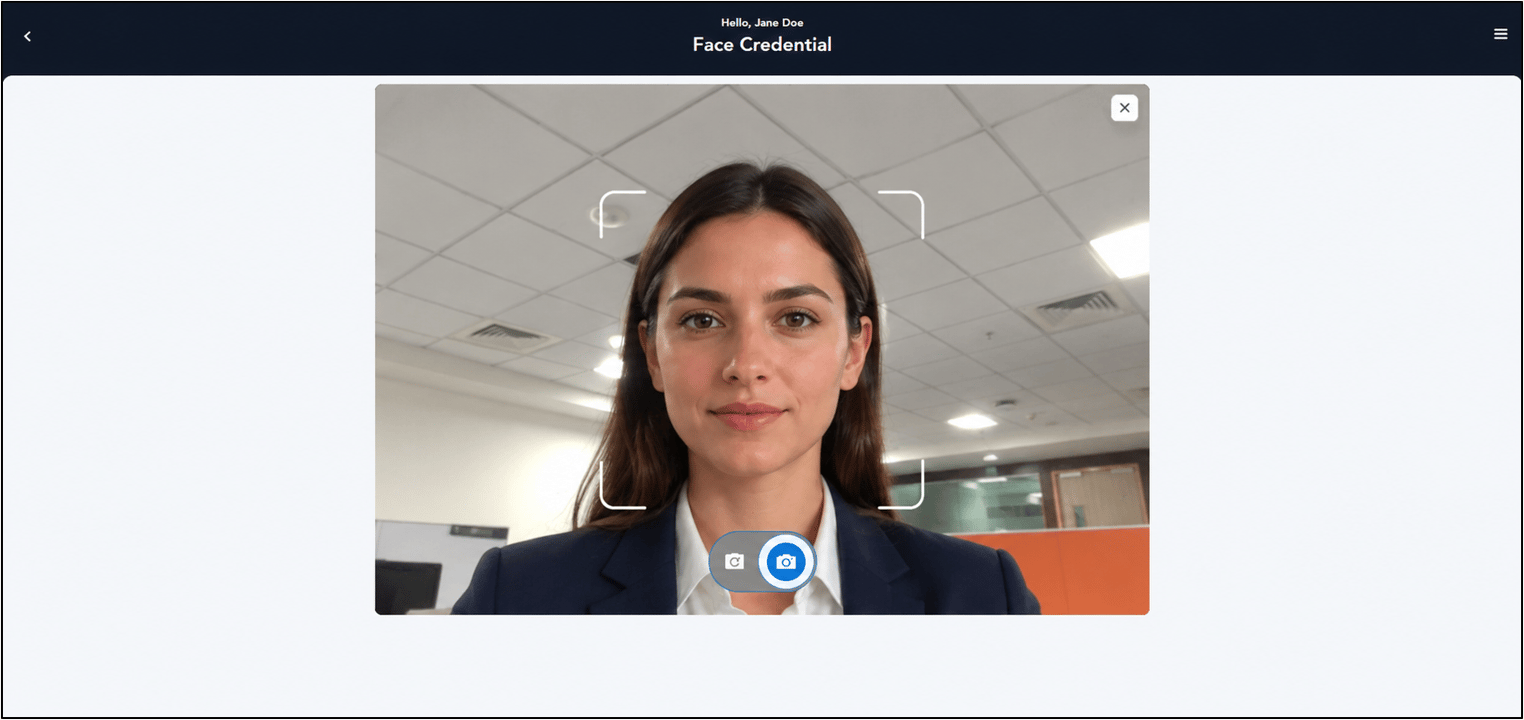
Position your face in front of the camera and tap the Capture button to authenticate face.
Note: If you do not tap the Capture button, the app automatically captures your face after a few seconds.
Re-consent pending
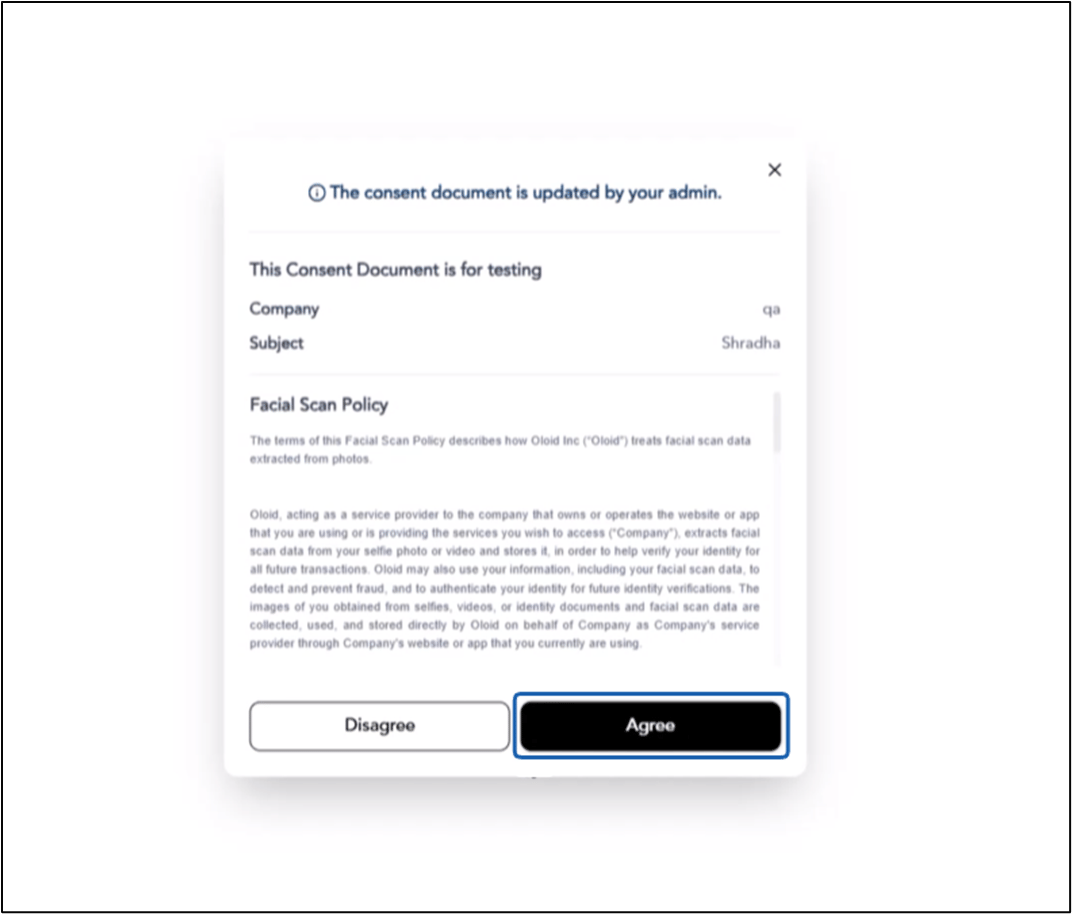
The re-submit consent screen appears-
Click Agree.
Note: You need to provide your consent to proceed to next steps if consent is enabled for you.
-
Position your face in front of the camera and tap the Capture button to authenticate face.
Note: If you do not tap the Capture button, the app automatically captures your face after a few seconds.
Additional Information
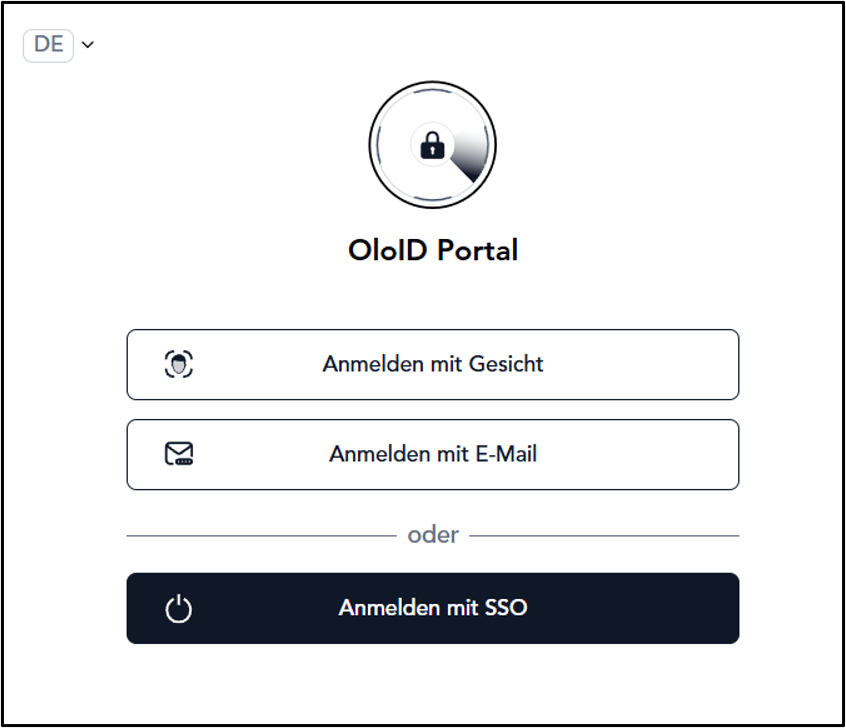
Oloid User Portal supports multiple language versions, allowing users to select their preferred display language from the Language Dropdown Selector on the Login screen.Note: Languages supported: English, Spanish, French, German, and Portuguese language.