To edit individual passwords:
  1. Log in to the Oloid User Portal.
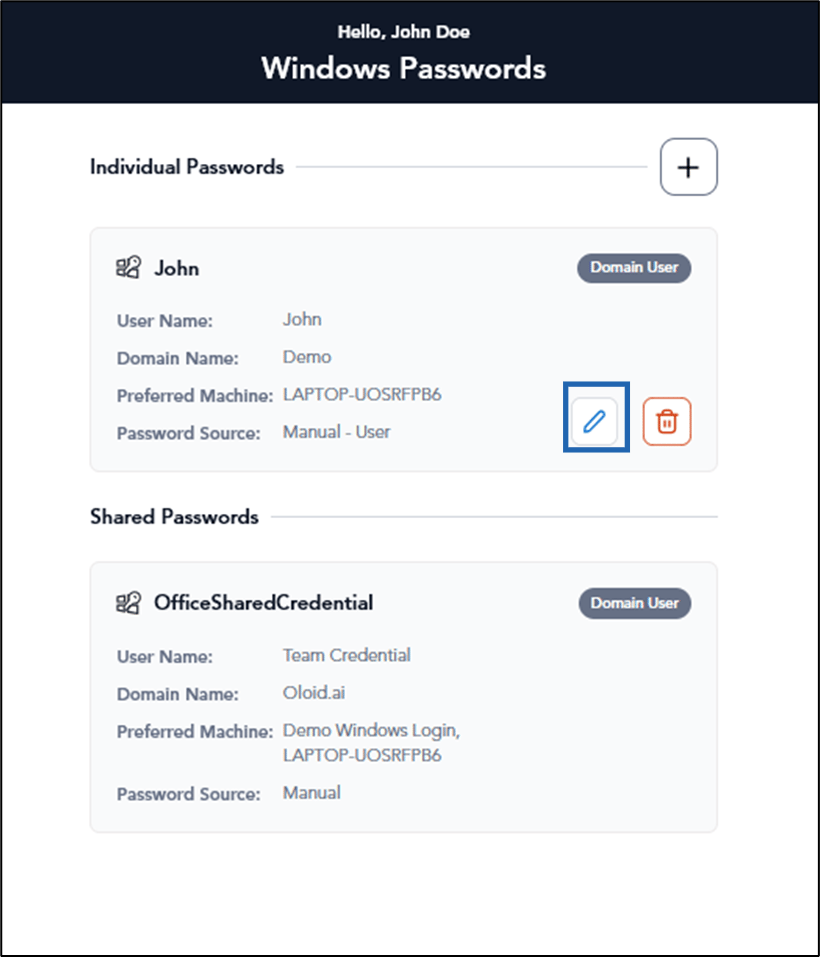
  2. On the Credential home page, select Windows Passwords. How to edit individual password using... - screenshot 1 The Windows Passwords page is displayed.
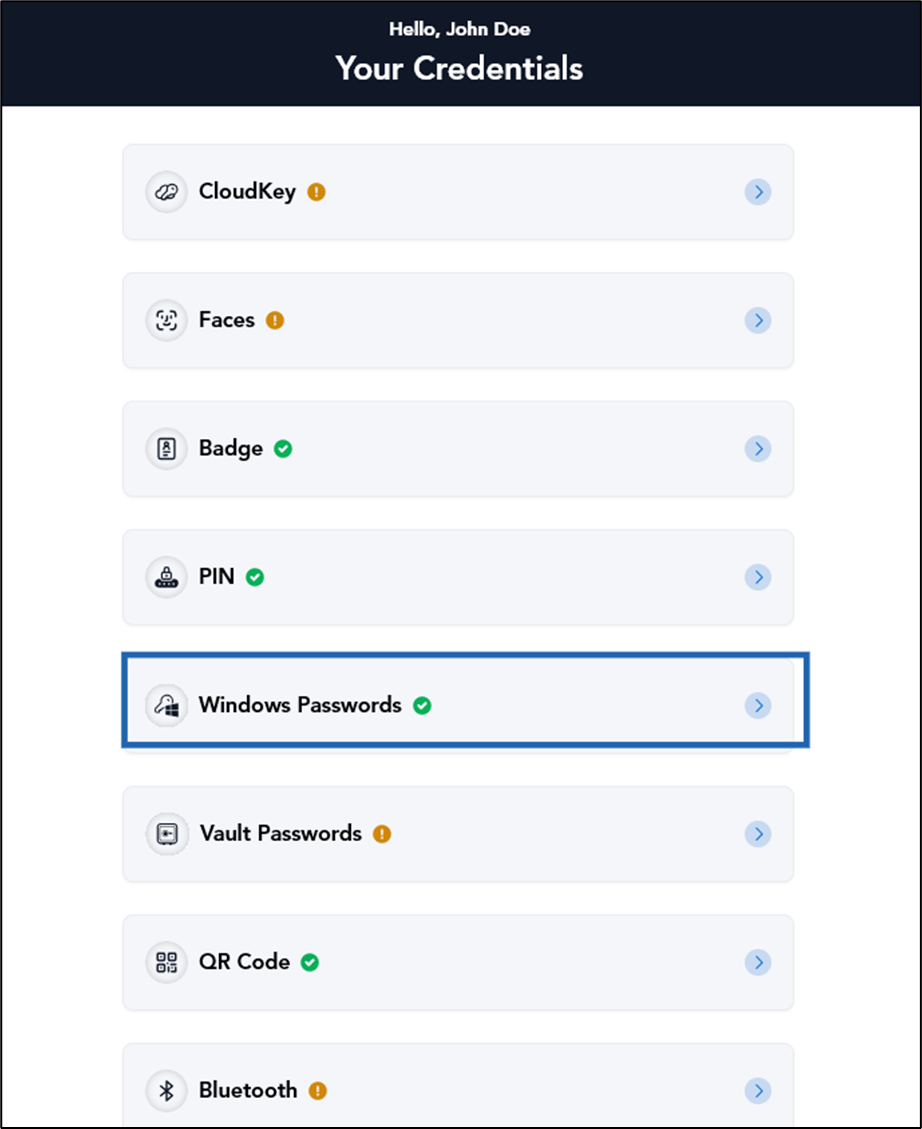
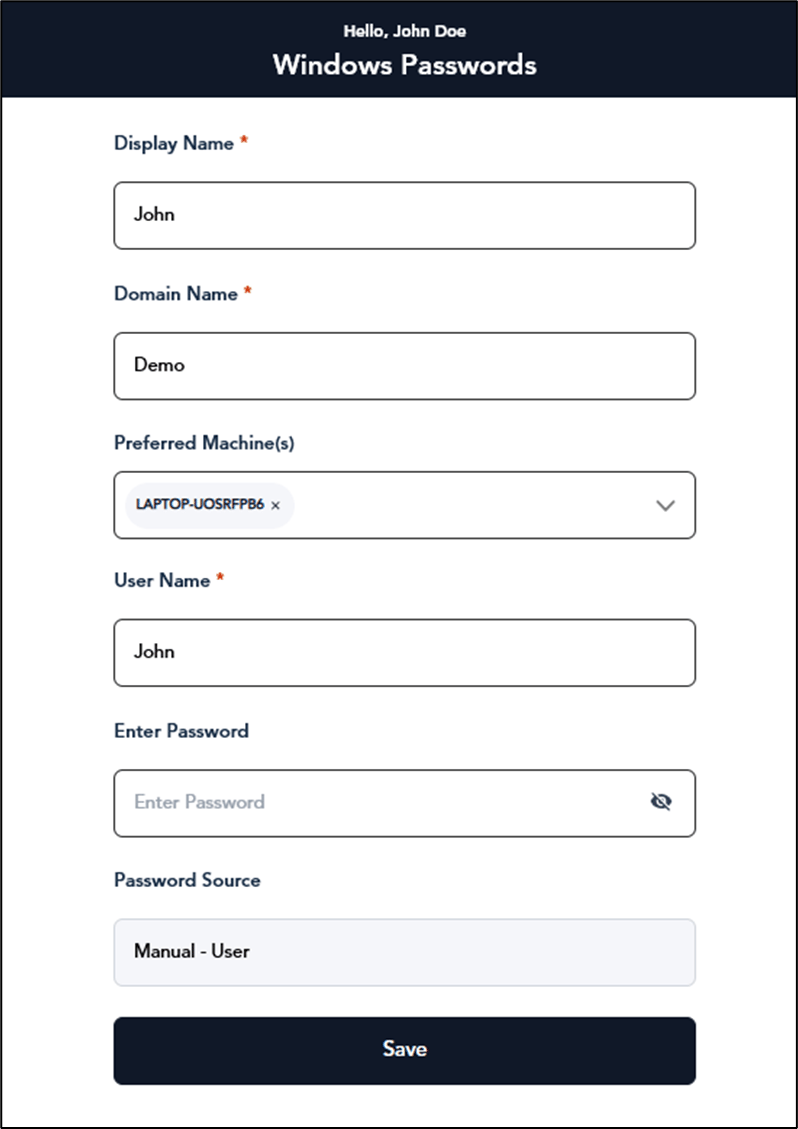
  3. Select password (Domain User/Local User) and click edit How to edit individual password using... - screenshot 2 icon. How to edit individual password using... - screenshot 3 The page is displayed to edit password. How to edit individual password using... - screenshot 4
  4. Do the following:
    1. View and Edit Domain User
    2. View and Edit Local User

View and Edit Domain User

How to edit individual password using... - screenshot 5
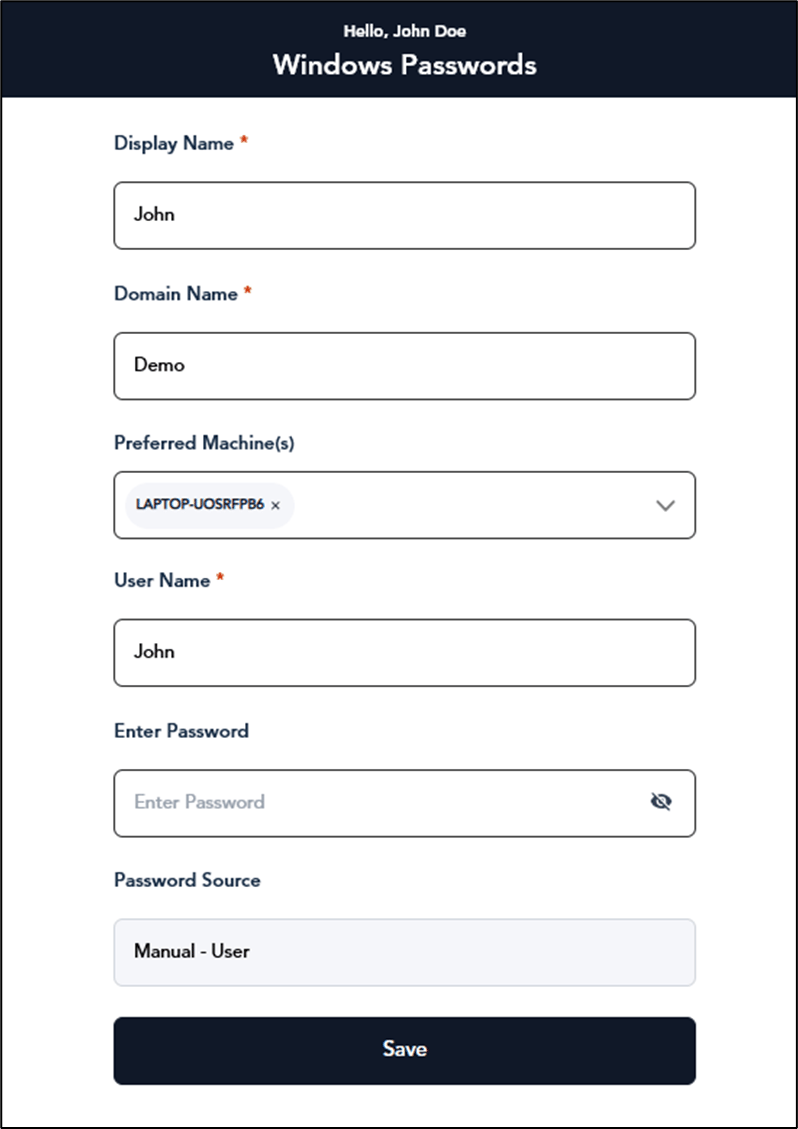
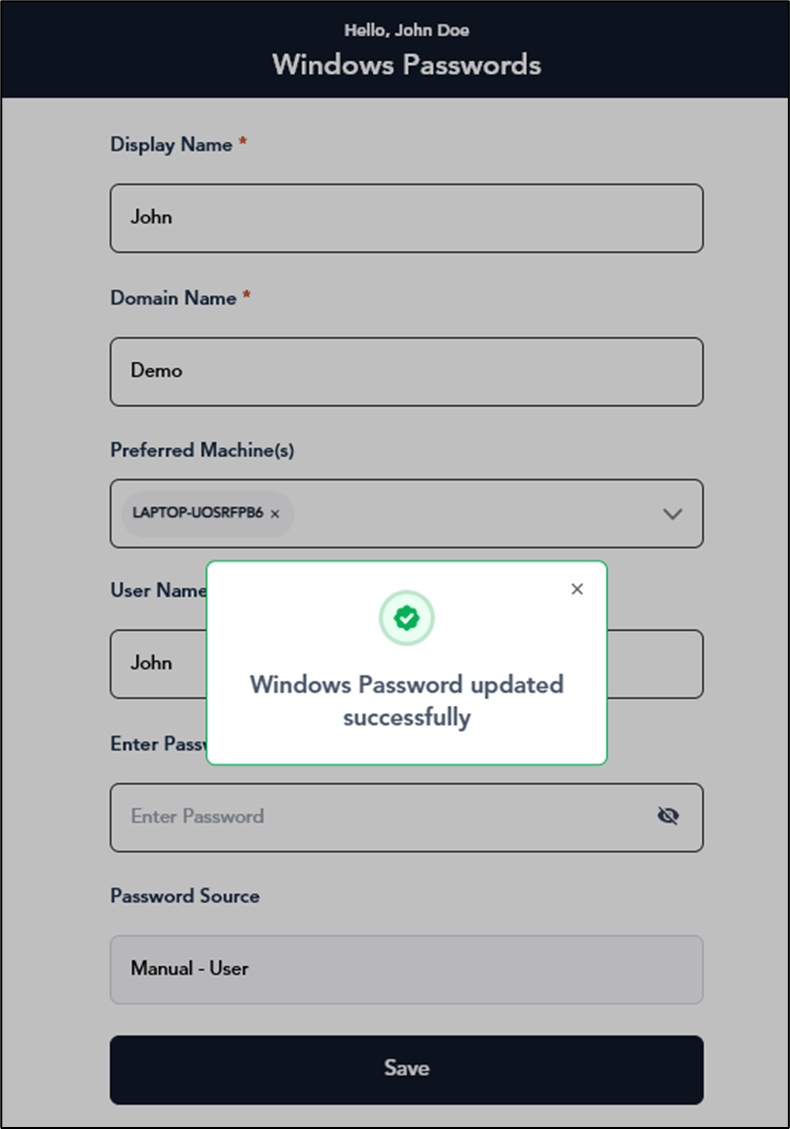
  1. Edit Display Name.
  2. Edit Domain Name.
  3. Select Preferred Machine from the Preferred Machine(s) list. (Optional)
  4. Edit User Name.
  5. Enter Password (Optional).
  6. Click Save. The Windows Password for domain user is updated successfully. How to edit individual password using... - screenshot 6
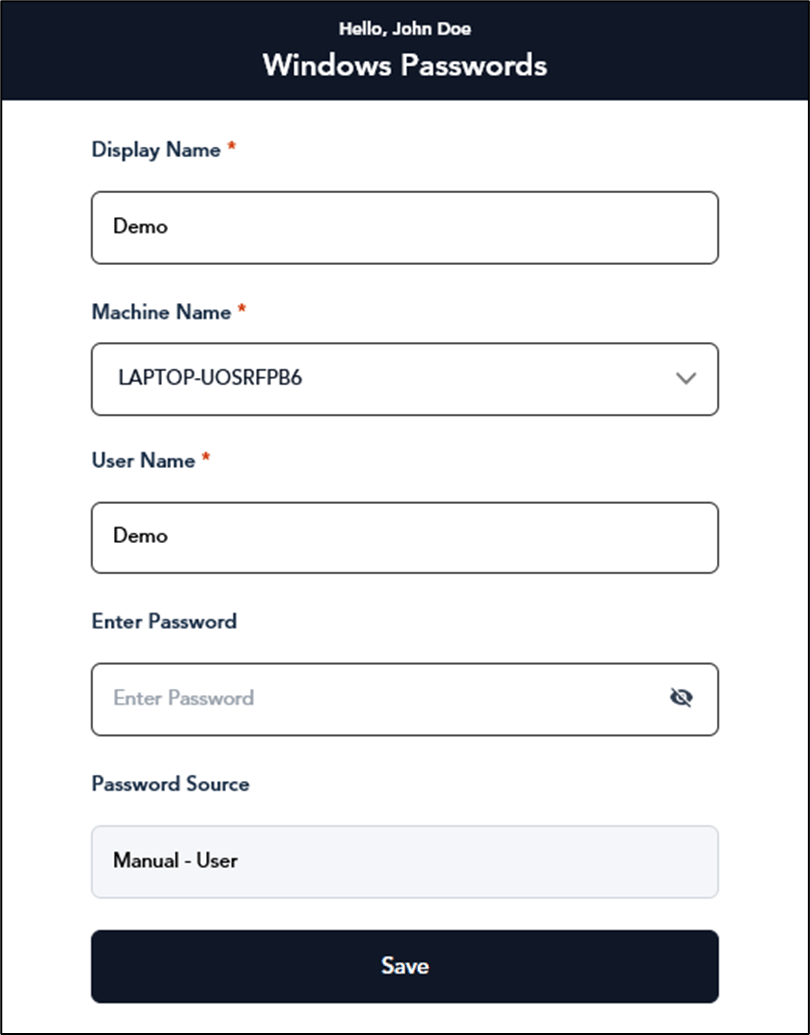
View and Edit Local User

How to edit individual password using... - screenshot 7
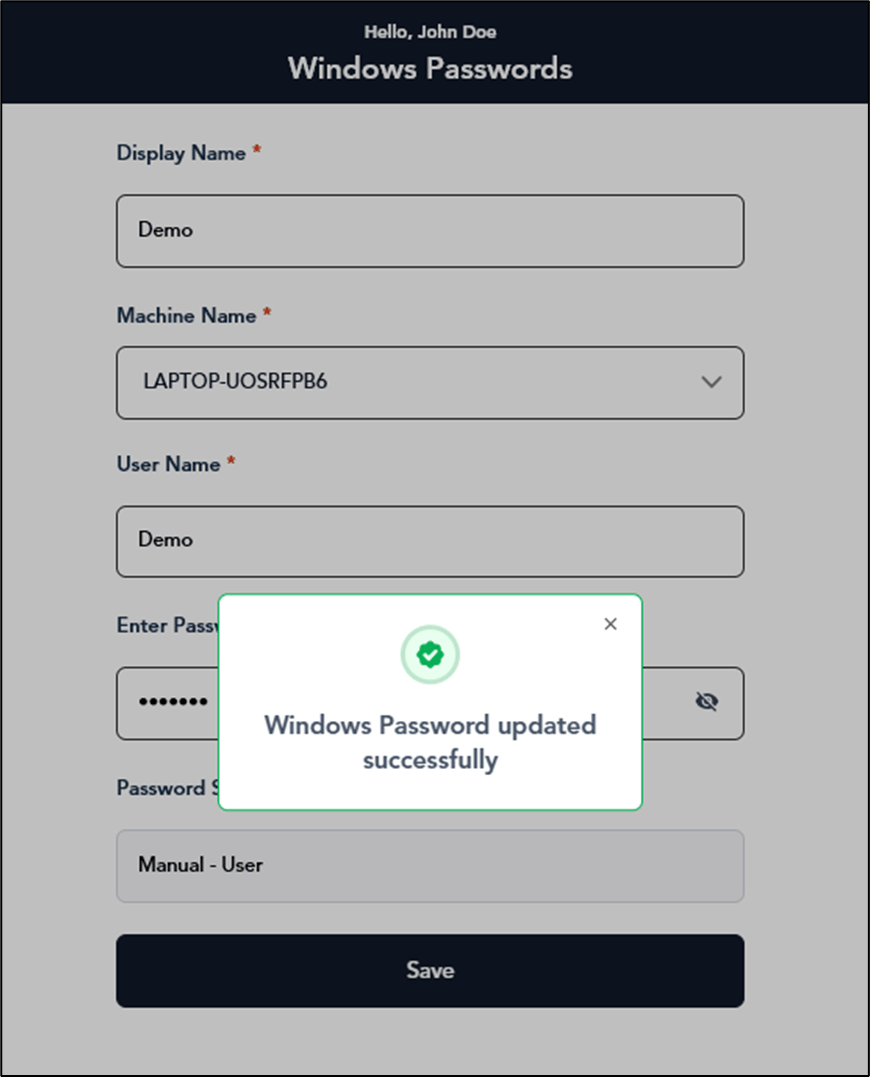
  1. Edit Display Name.
  2. Select Machine from the Machine Name dropdown list.
  3. Edit User Name.
  4. Enter Password. (Optional)
  5. Click Save.
The Windows Password for local user is updated successfully. How to edit individual password using... - screenshot 8