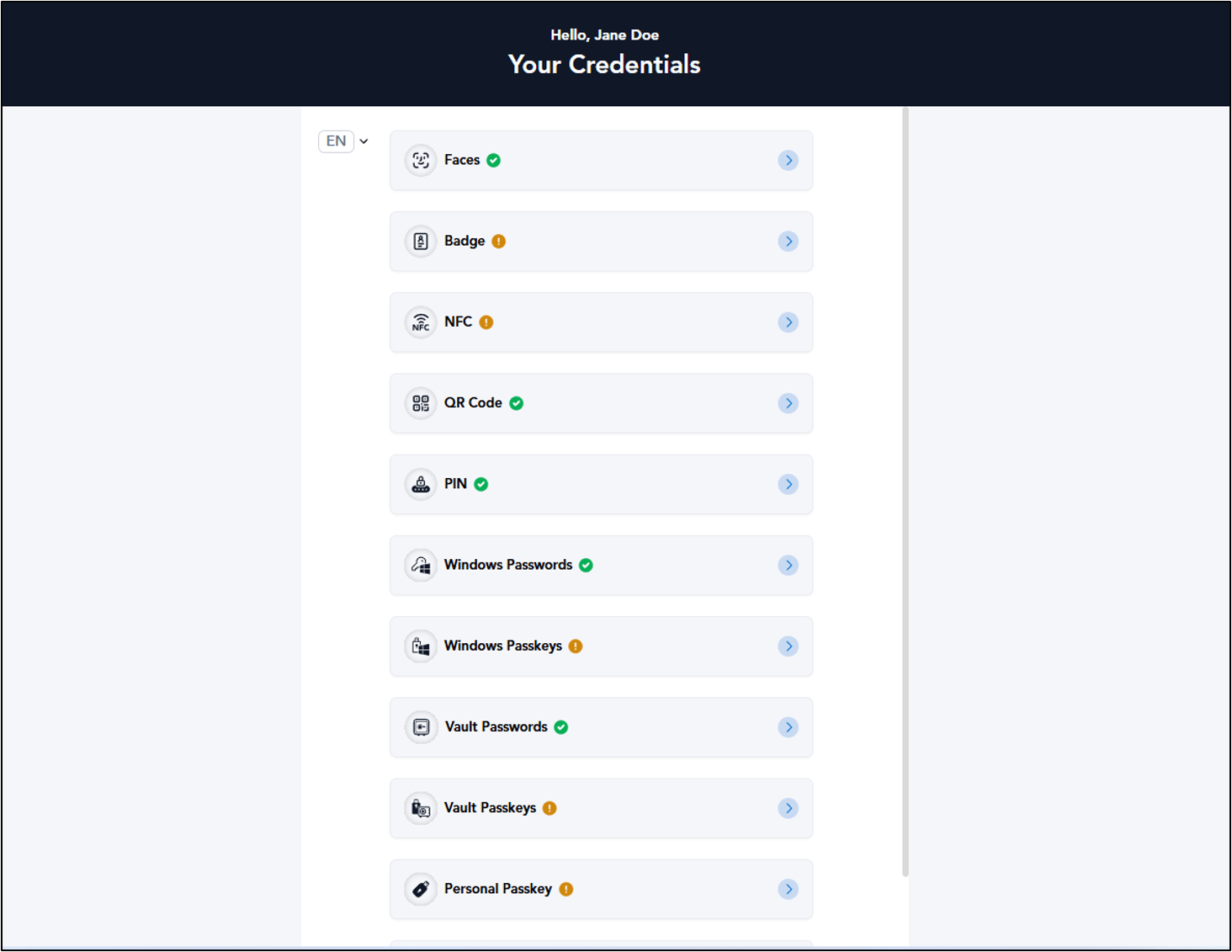
Introduction
The Custom Post-Login Page setting allows Tenant Admins to define the landing page users see after logging into the User Portal. By configuring this option in the Tenant Admin Portal, admins can control the default post-login experience and direct users to a specific page based on organizational requirements.Prerequisite
- You must have access to Tenant Admin account.
- Custom Post Login Landing page dropdown must be enabled by Oloid support.
Steps to configure Custom Post-Login Landing page
- Login to the Tenant Admin Portal.
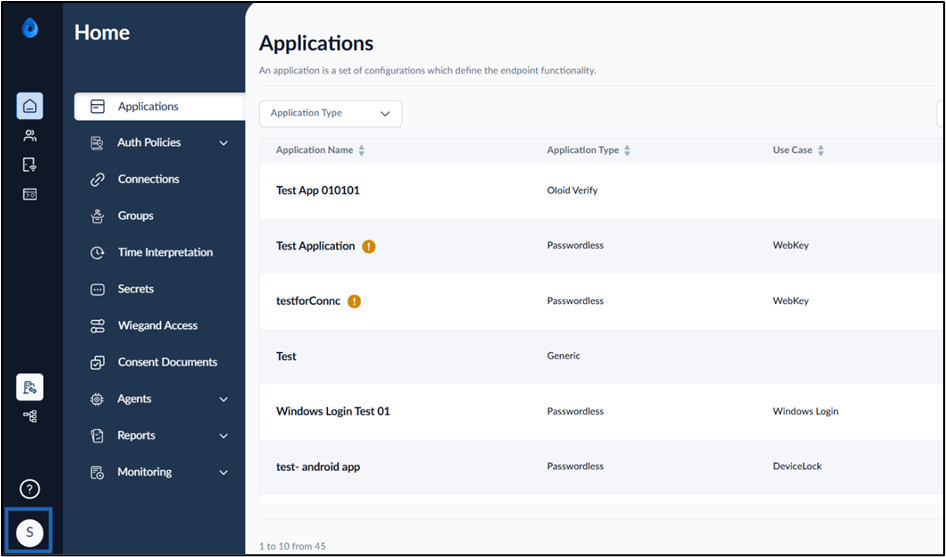
- On the homepage of the portal, click Profile icon on the bottom left corner of the menu panel.
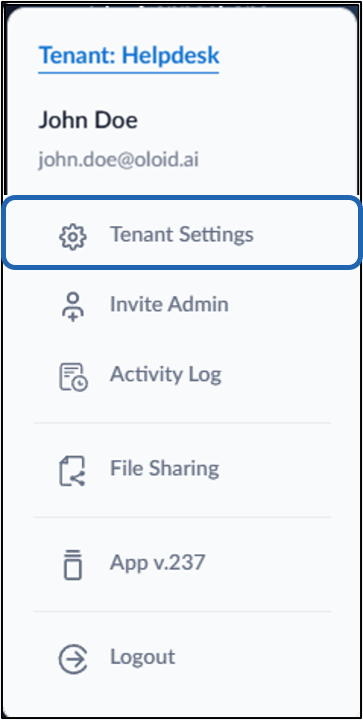
- Click Tenant Settings.
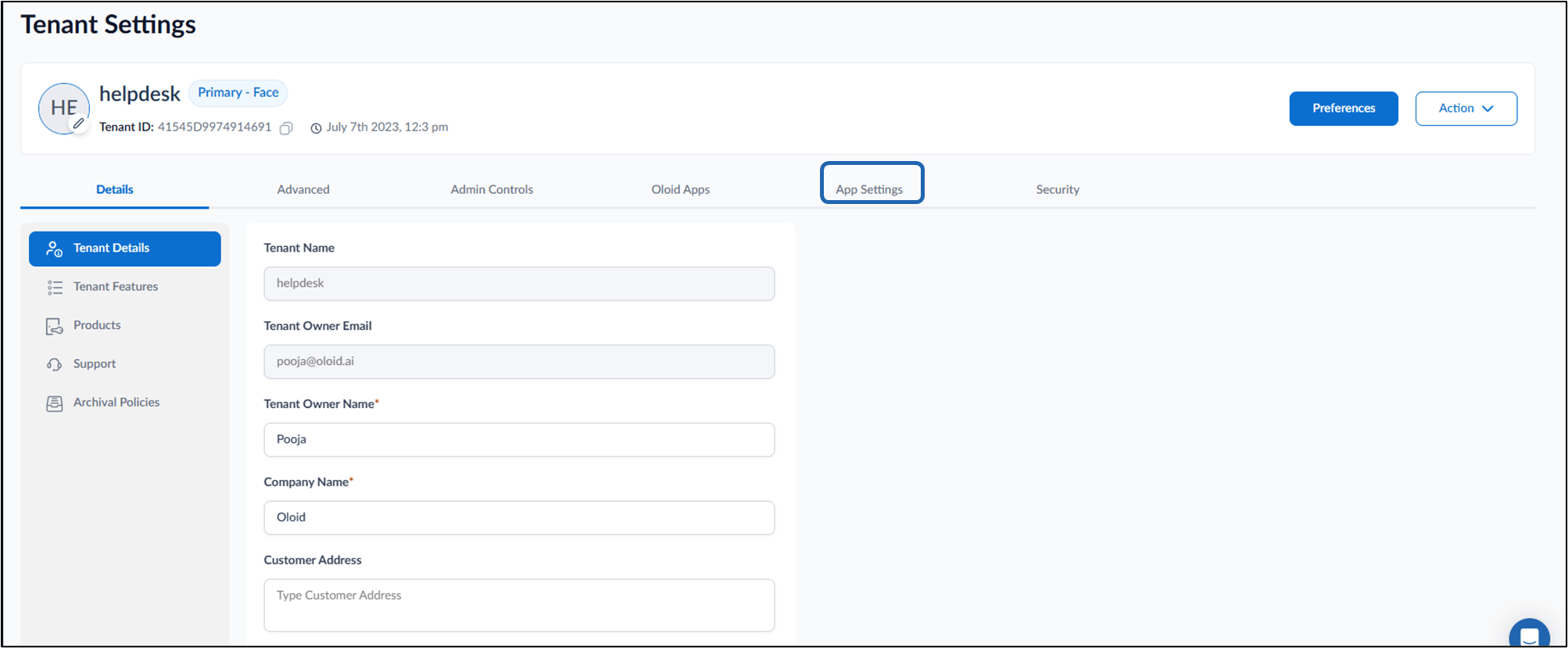
- Click App Settings tab > select User Portal.
- On the App settings Page section in the left menu panel select User Portal > click Post-Login Page.
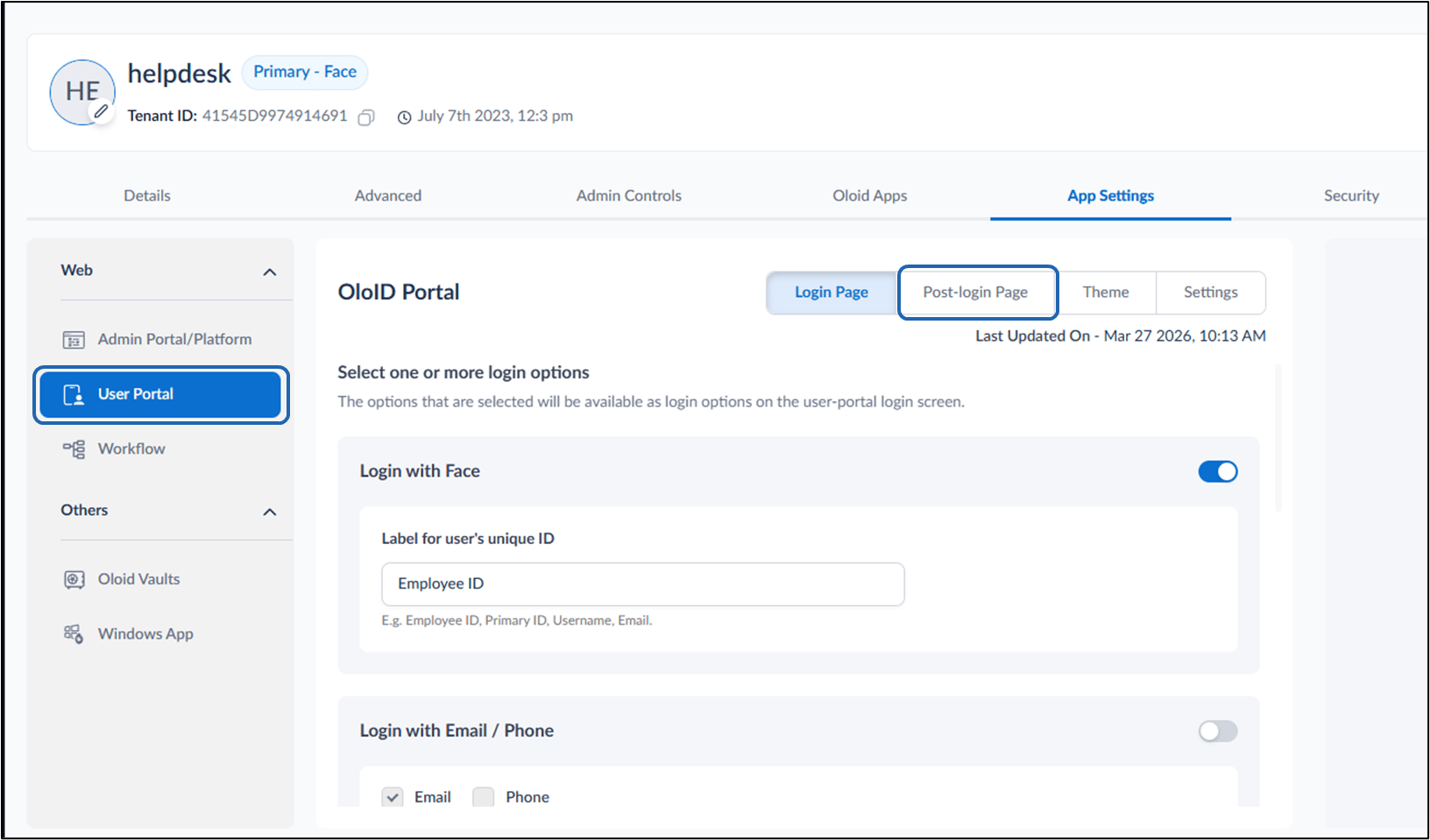
- Do the following:
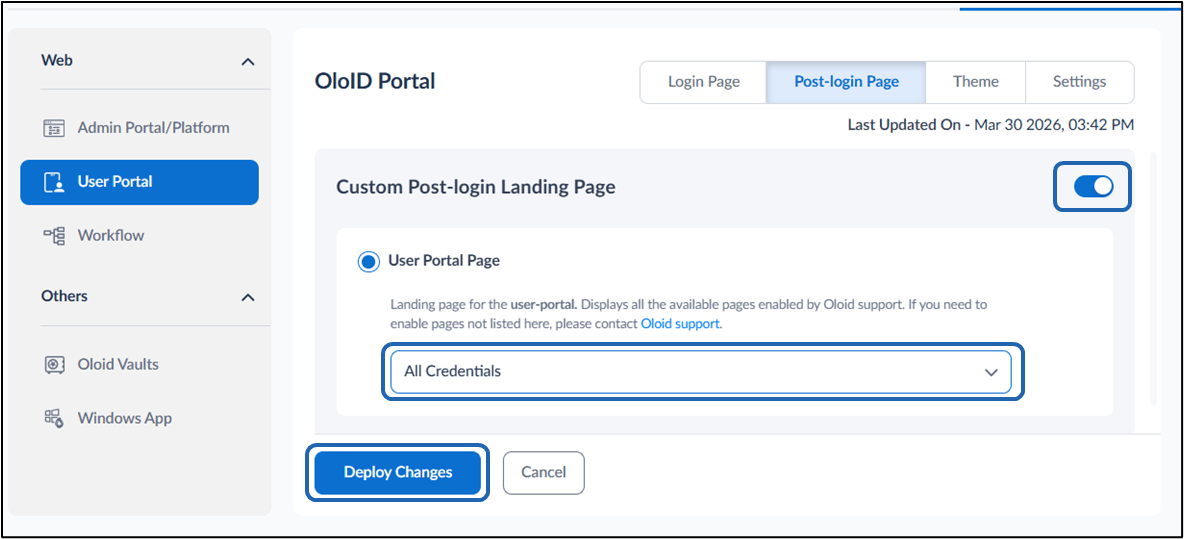
- Turn on Custom Post-Login Landing Page toggle.
-
Select landing page from Dropdown.
Note: Landing page for the user-portal displays all the available pages enabled by Oloid support. If you need to enable pages not listed here, please contact Oloid support.
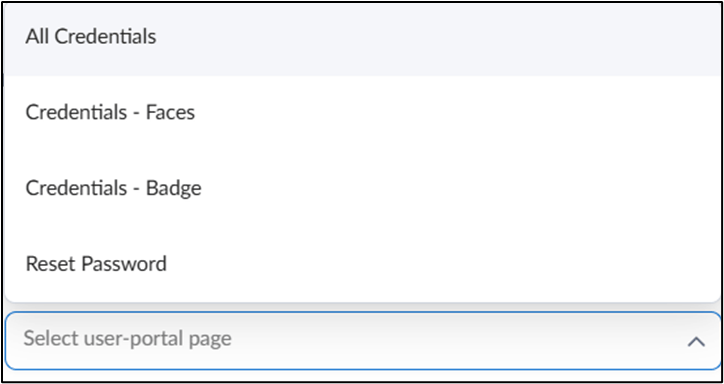
-
Click Deploy Changes.
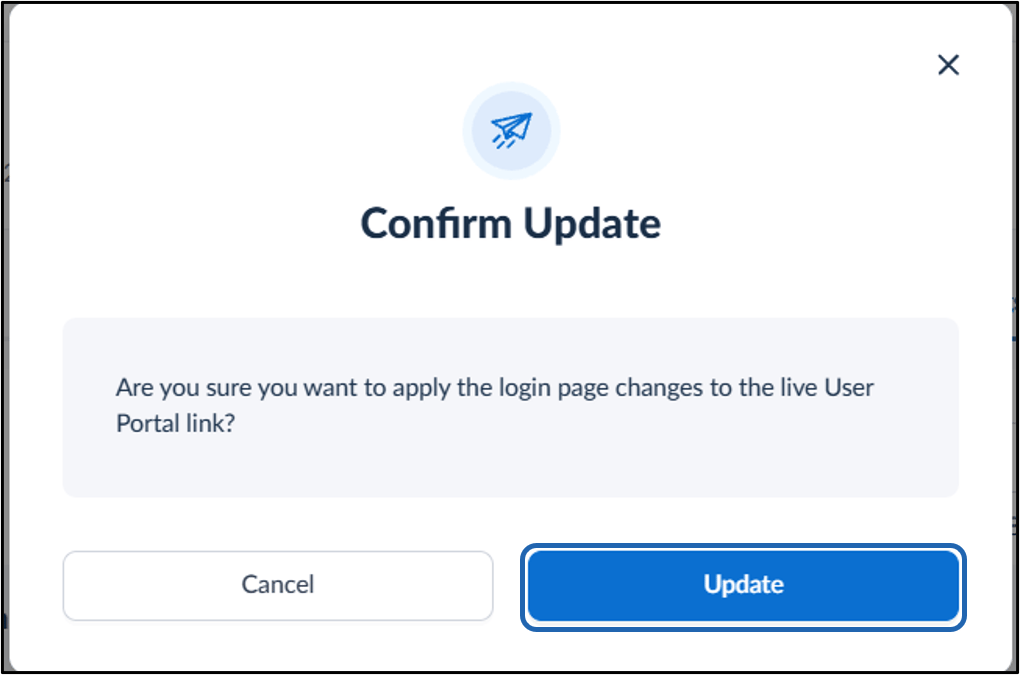
- Click Update.
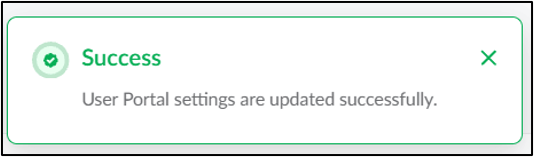
User Portal
The User Portal will display the configured Custom Post-Login Landing page.