

Introduction
This document provides step-by-step instructions for logging in to the Oloid User Portal using an email address and a one-time verification code. Users can authenticate using the verification code sent to their registered email address without entering a password.Prerequisites
- You have the login URL provided to access the User portal.
- HR Picture Verification must be enabled in the Tenant settings.
- Your Employee ID or Email ID must be registered in the system.
- You should have a Oloid account.
Steps to Log in with Email
- Launch your browser.
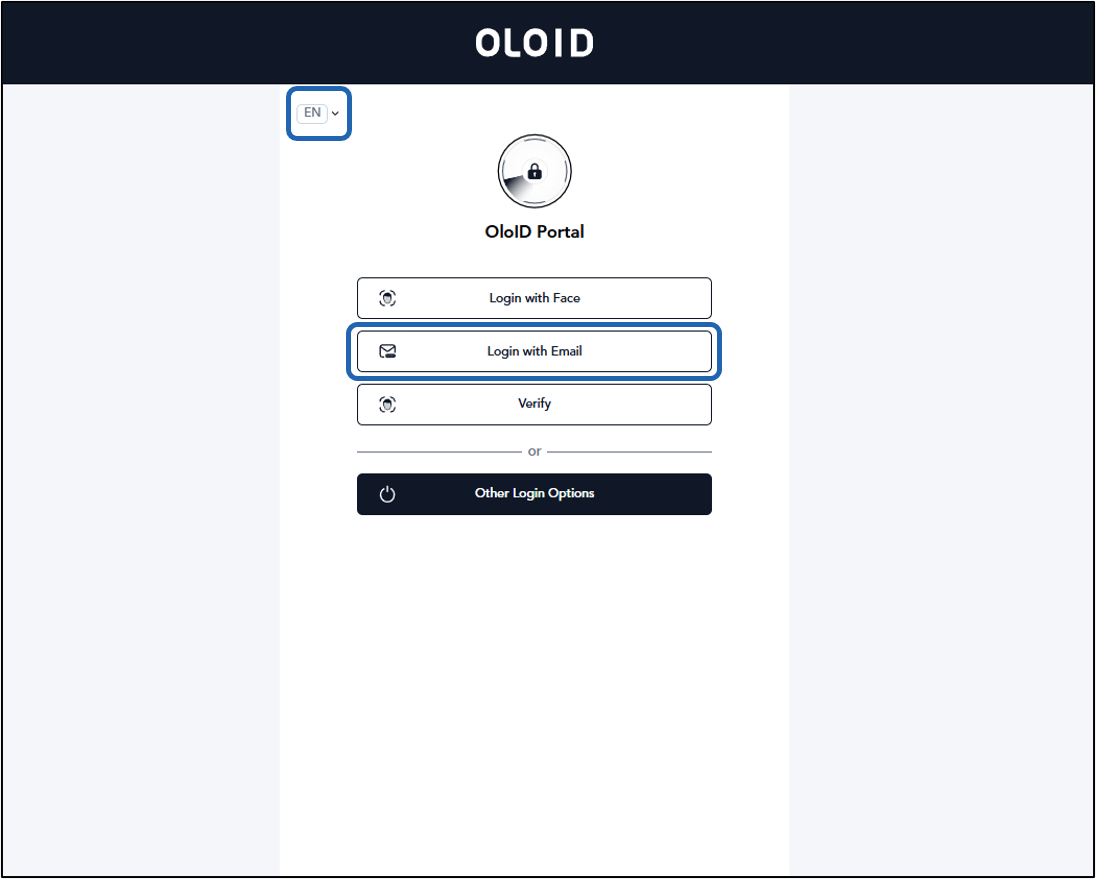
- Enter the URL provided for you in the browser’s address bar. Then, press Enter on your keyboard. The Oloid User Portal login page is displayed.
-
Select Login with Email.
Note: You can select preferred display language from the Language Dropdown Selector. For more information, refer Additional information section.
-
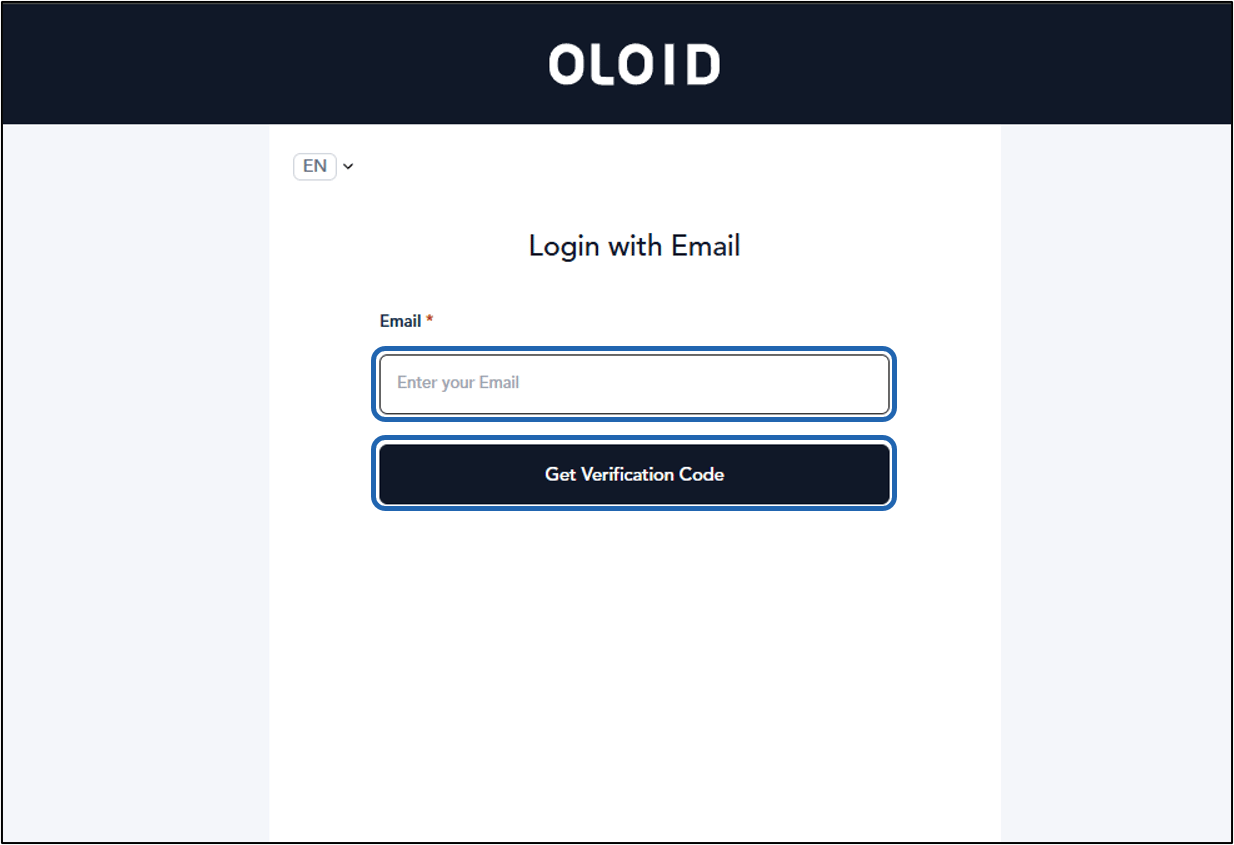
Do the following:
- Enter your email address in the Email ID field.
-
Click Get Verification Code.
-
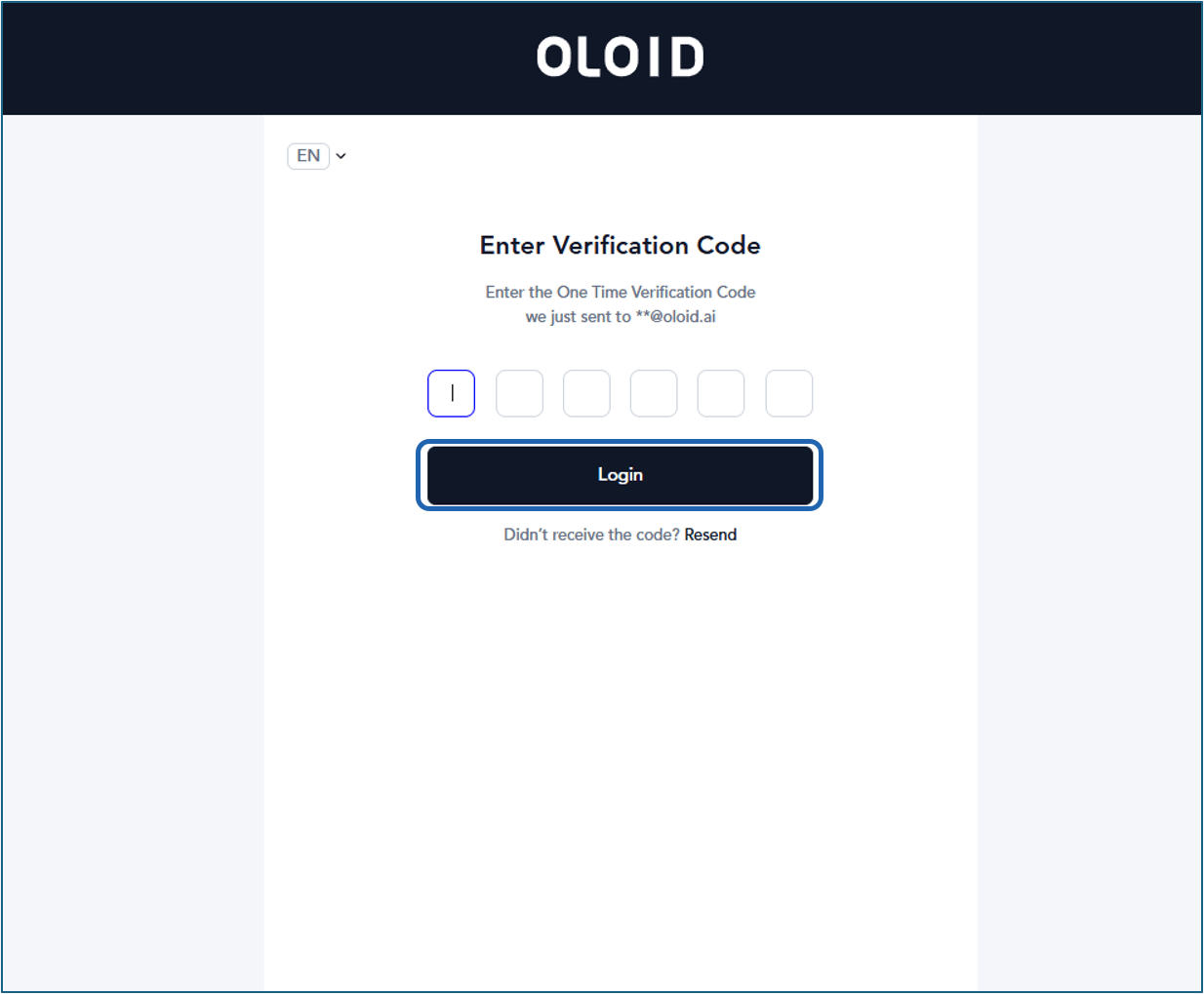
Enter the Verification code.
Note: The One Time Verification Code expires after 60 seconds.
-
Click Login.
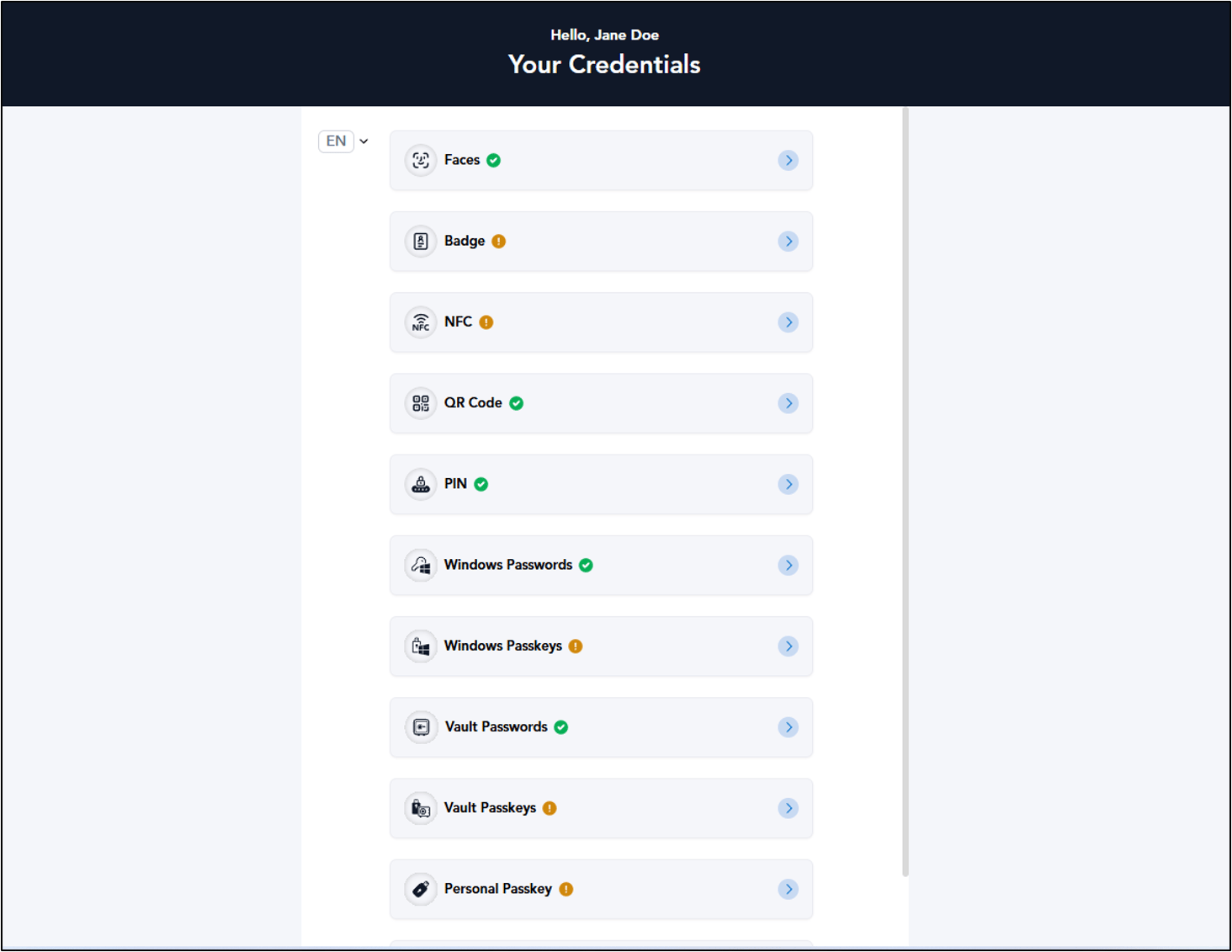
Note: Oloid uses SSO login and also allows you to log in to the User Portal with your Google, Microsoft, Okta account or your configured Login options ( Face, badge etc).
Additional Information
Oloid User Portal supports multiple language versions, allowing users to select their preferred display language from the Language Dropdown Selector on the Login screen.Note: Languages supported: English, Spanish, French, German, and Portuguese language.