Introduction
This document provides instructions to add a face credential using the invite link in the Oloid User Portal. The invite link enables users to securely enroll face credential.Prerequisite
- A valid invite link to add a face must be available in the user’s mailbox.
Steps to Add Face using invite link
-
Click the invite link available in your mailbox.
 Note: You need to provide your consent to proceed to next steps if consent is enabled for you.
 -
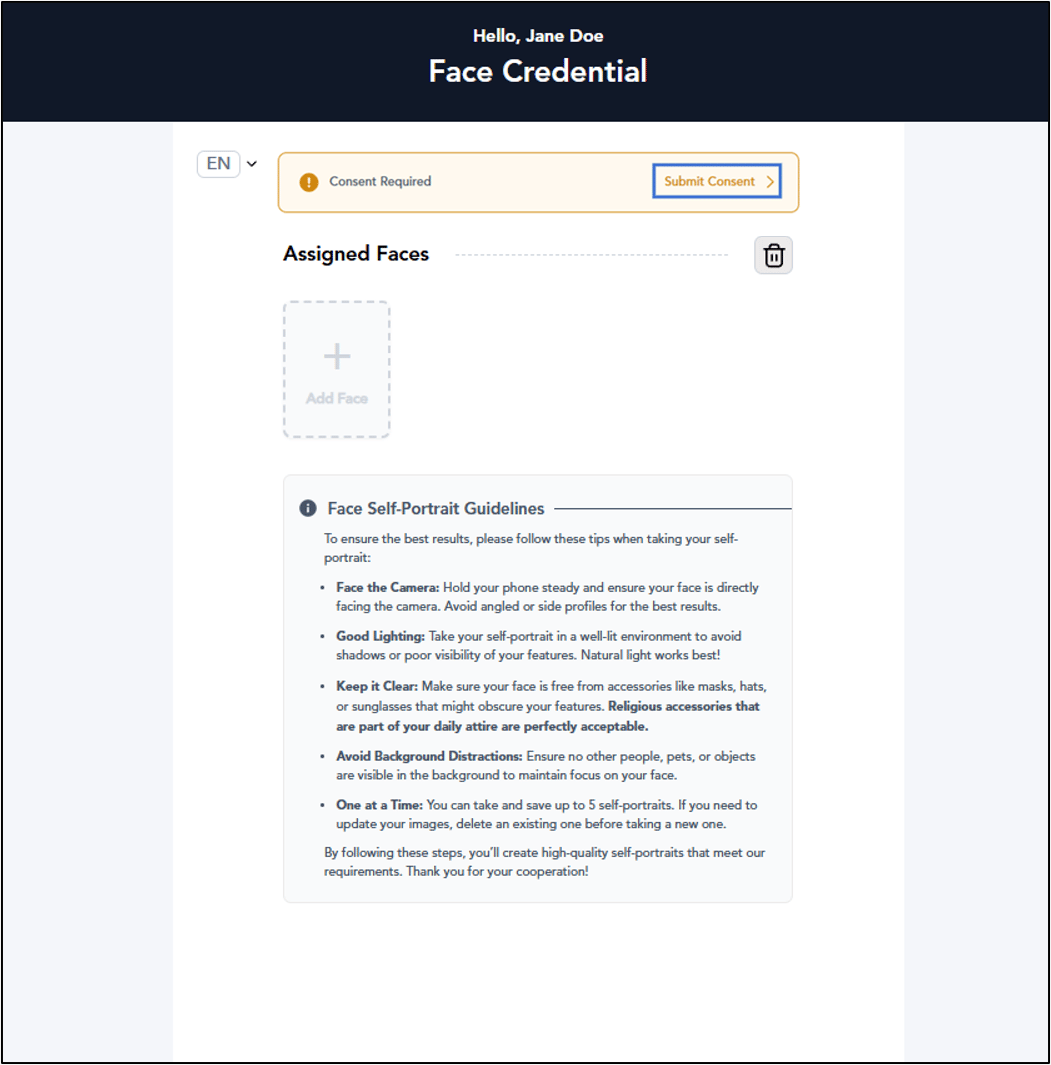
Click Submit Consent.
Note: You can select preferred display language from the Language Dropdown Selector. For more information, refer Additional information section.
-
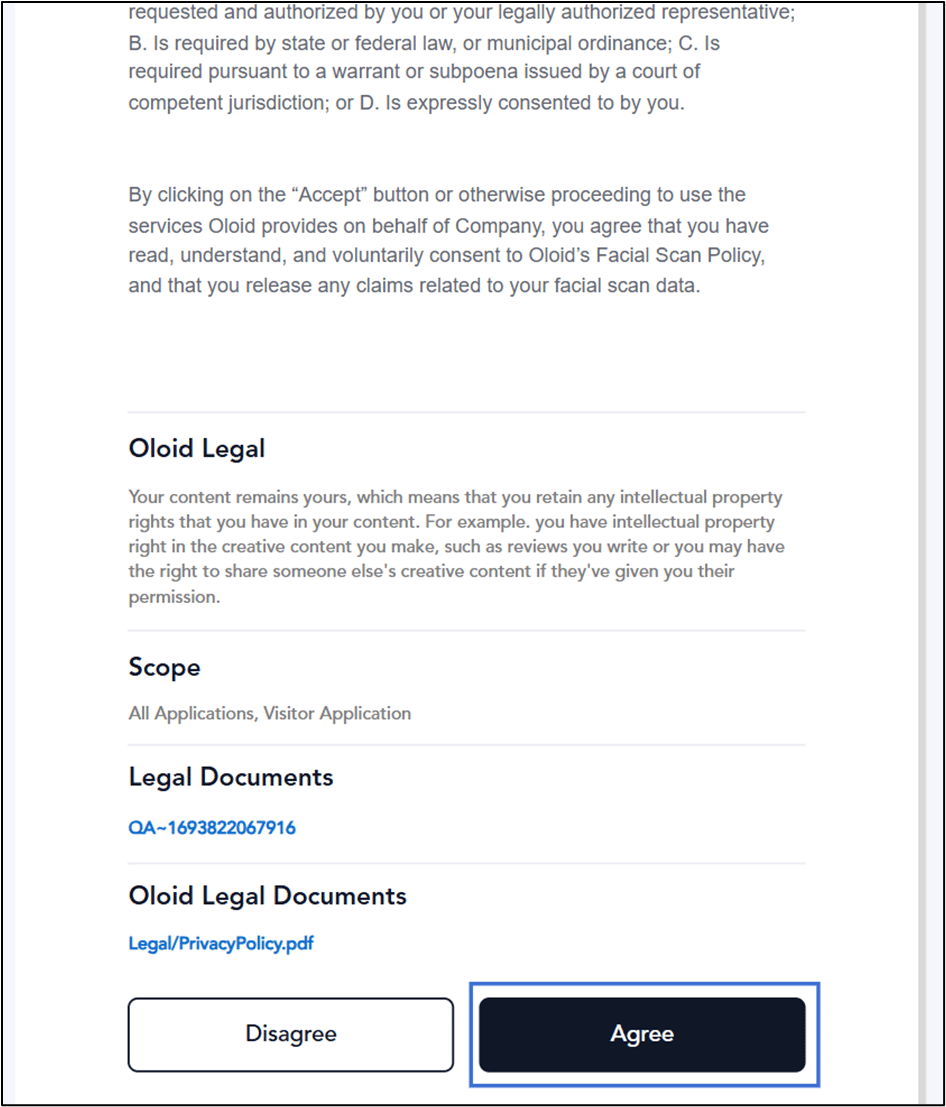
Click Agree to submit consent.
-
Click Add Face.
 Note: Provide camera permission if prompted.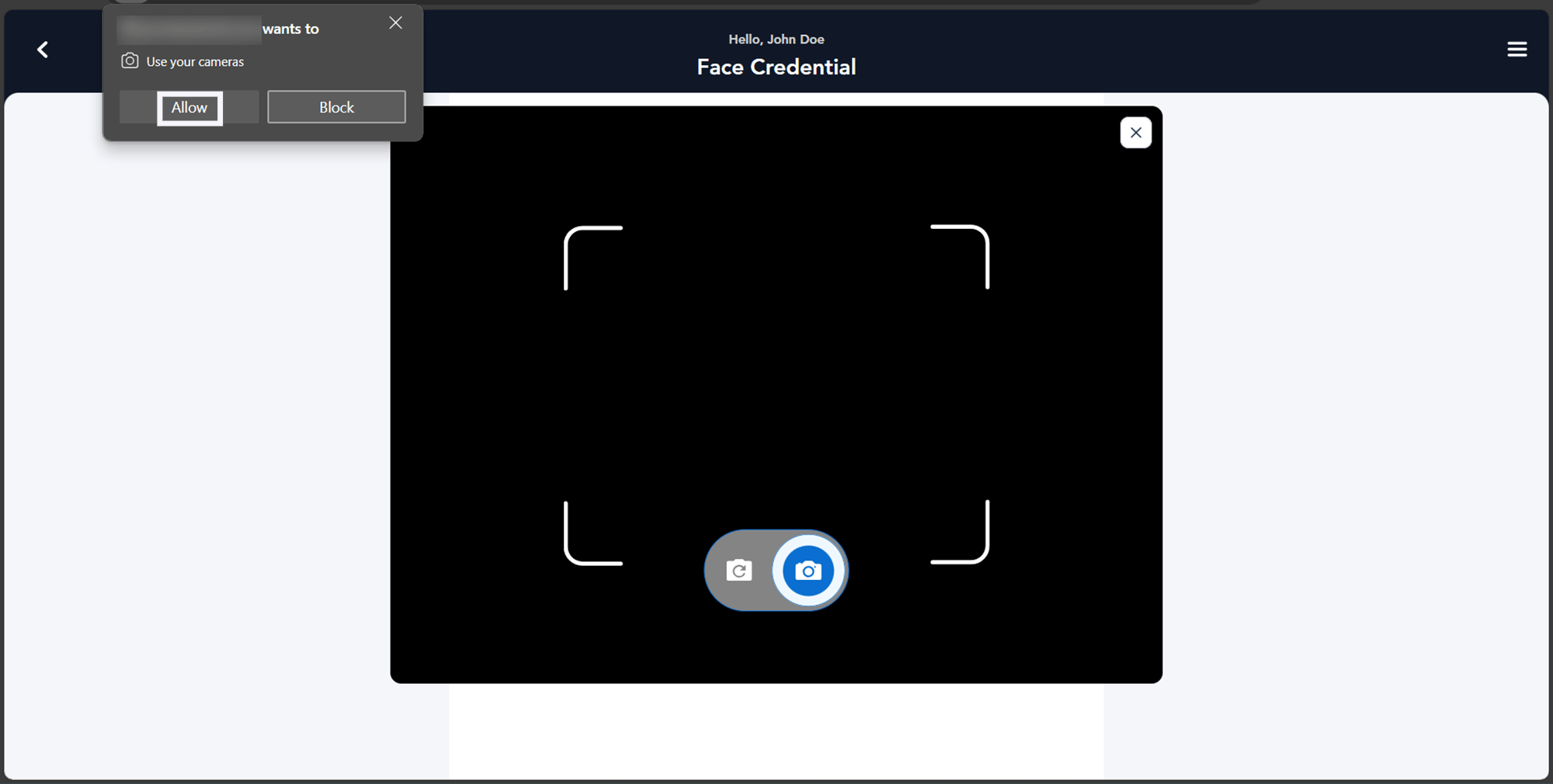
-
Look at the camera to capture your face.
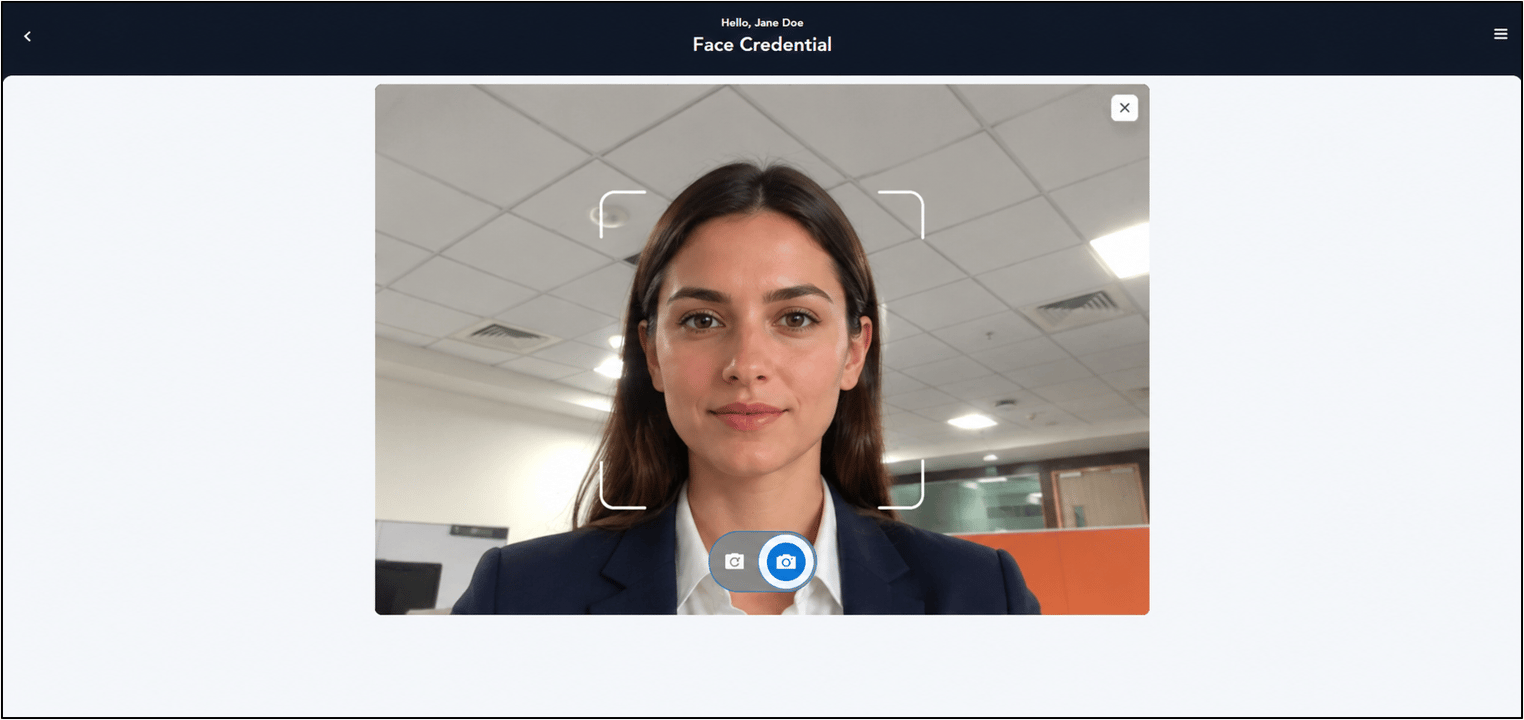
-
Do one of the following:
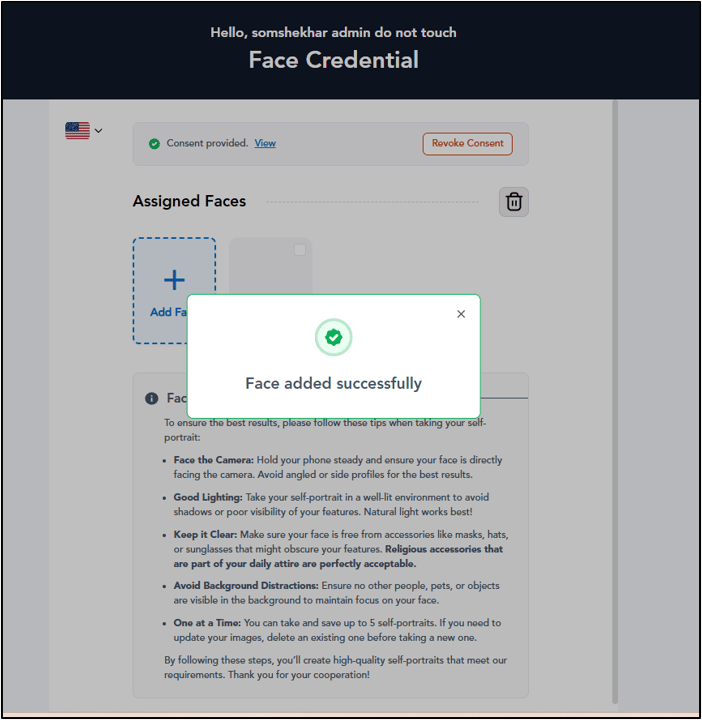
- Select Add Face to submit the image. The face is submitted successfully and is assigned as a face credential.
-
Select Retake to take your photo again.
The camera turns on to retake the photo.
 Ensure your face is clearly visible in the camera, or it may be rejected. Avoid wearing items that cover your facial features, such as sunglasses, masks, or headbands.Note: You can add up to five faces per user.
Additional Information
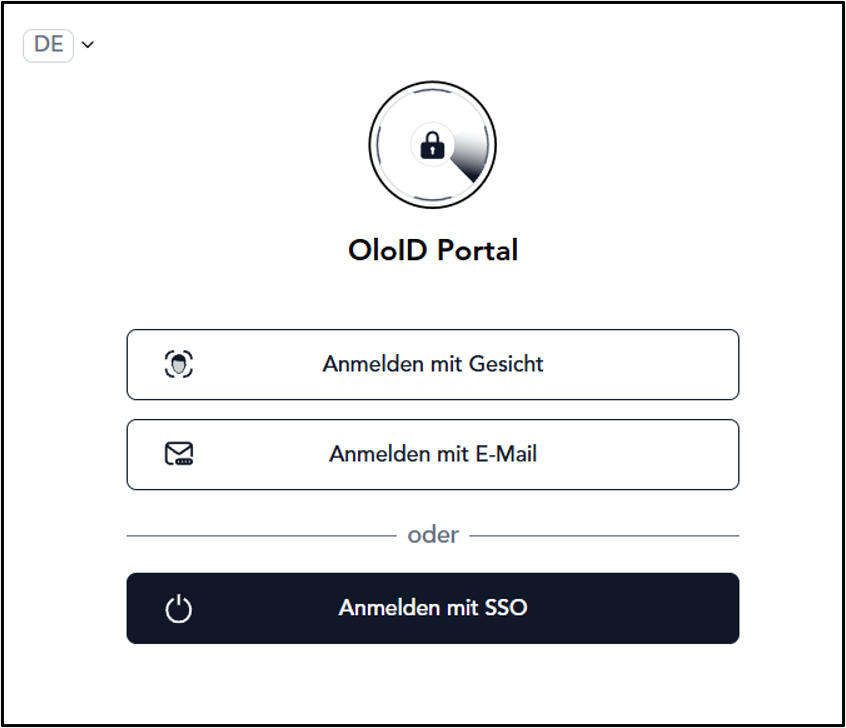
Oloid User Portal supports multiple language versions, allowing users to select their preferred display language from the Language Dropdown Selector on the Login screen.Note: Languages supported: English, Spanish, French, German, and Portuguese language.